Complete a Route Plan
Complete a route plan by completing the visits in a route plan.
-
Tap the more icon and select the Route plans option in
the navigation drawer.

-
Tap a route plan.
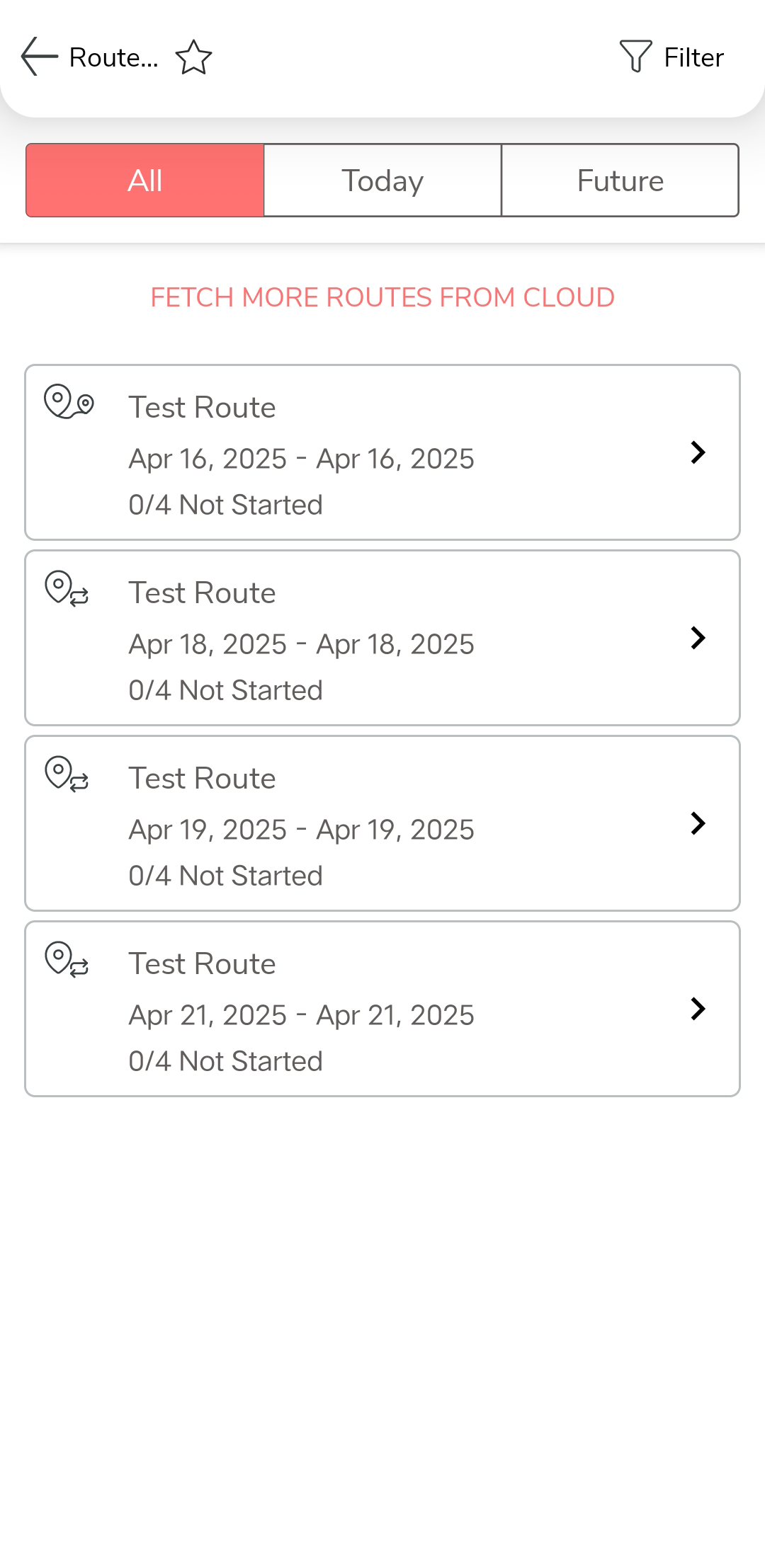
Switch to TODAY'S/FUTURE tab, or change sort order to locate the right route plan. -
Tap the check in
 icon to start a customer visit.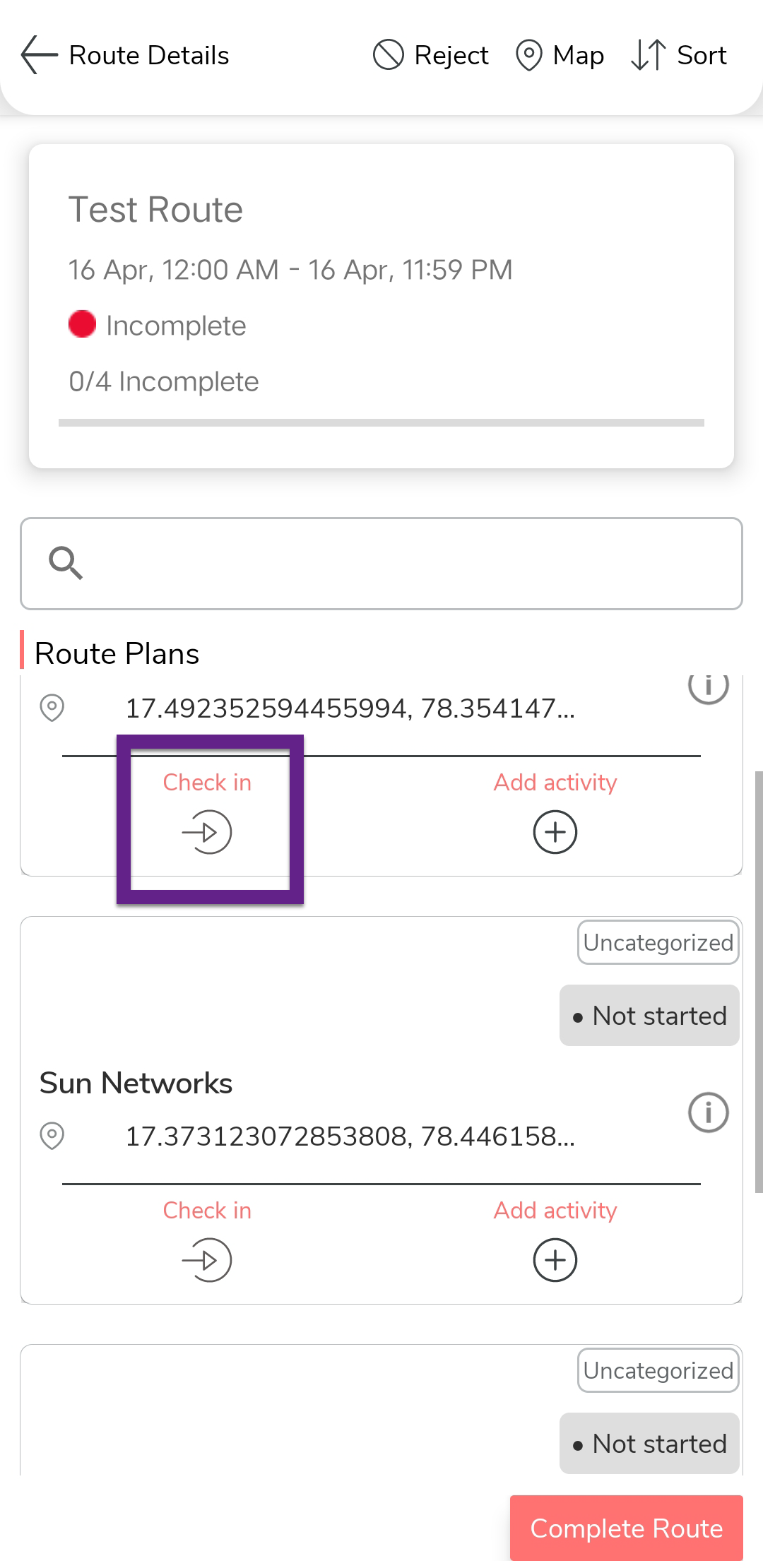
-
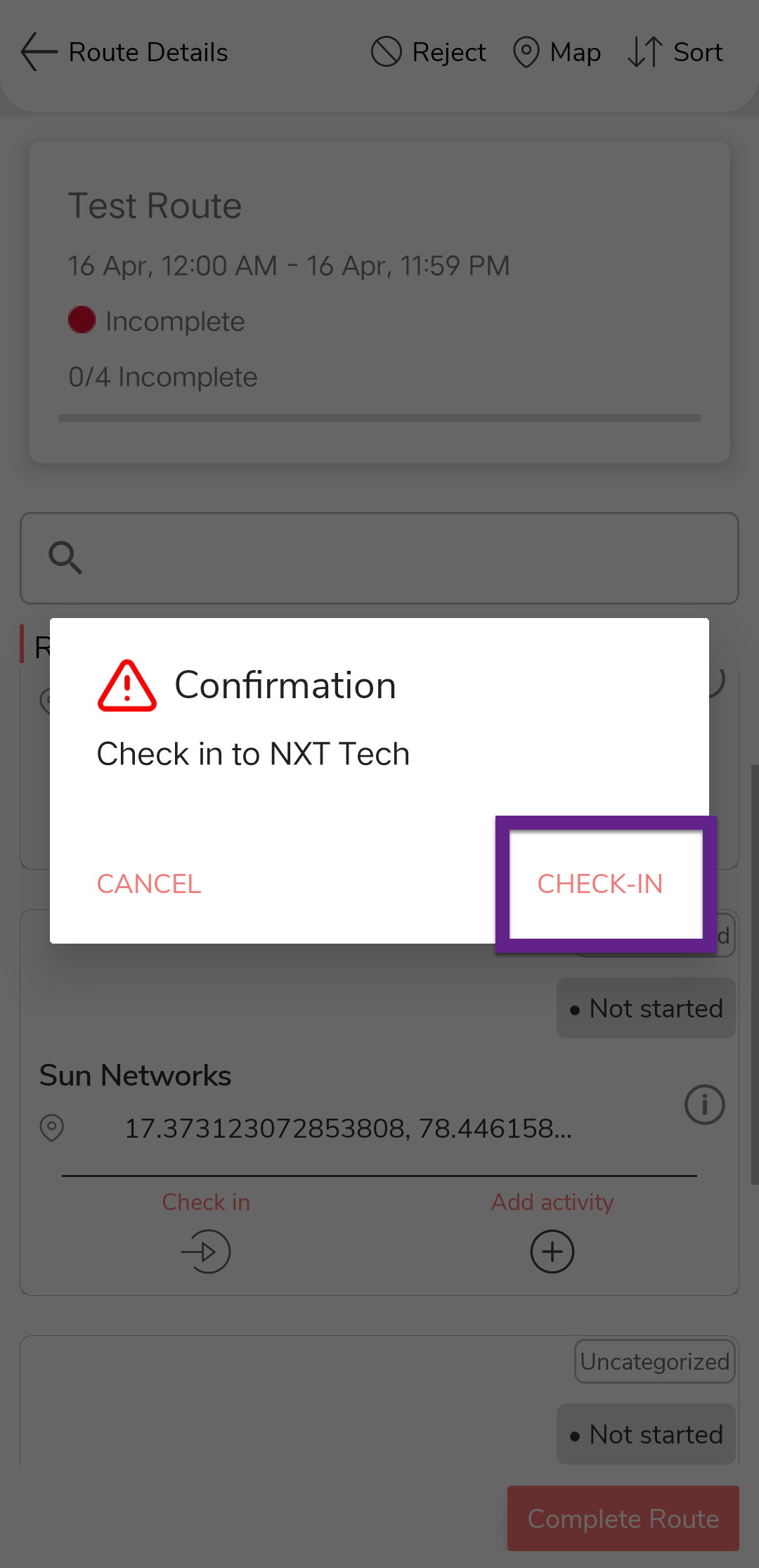
In the Confirmation dialog, tap Check
In.
-
Tap the add activity
 icon to record activities against the customer visit.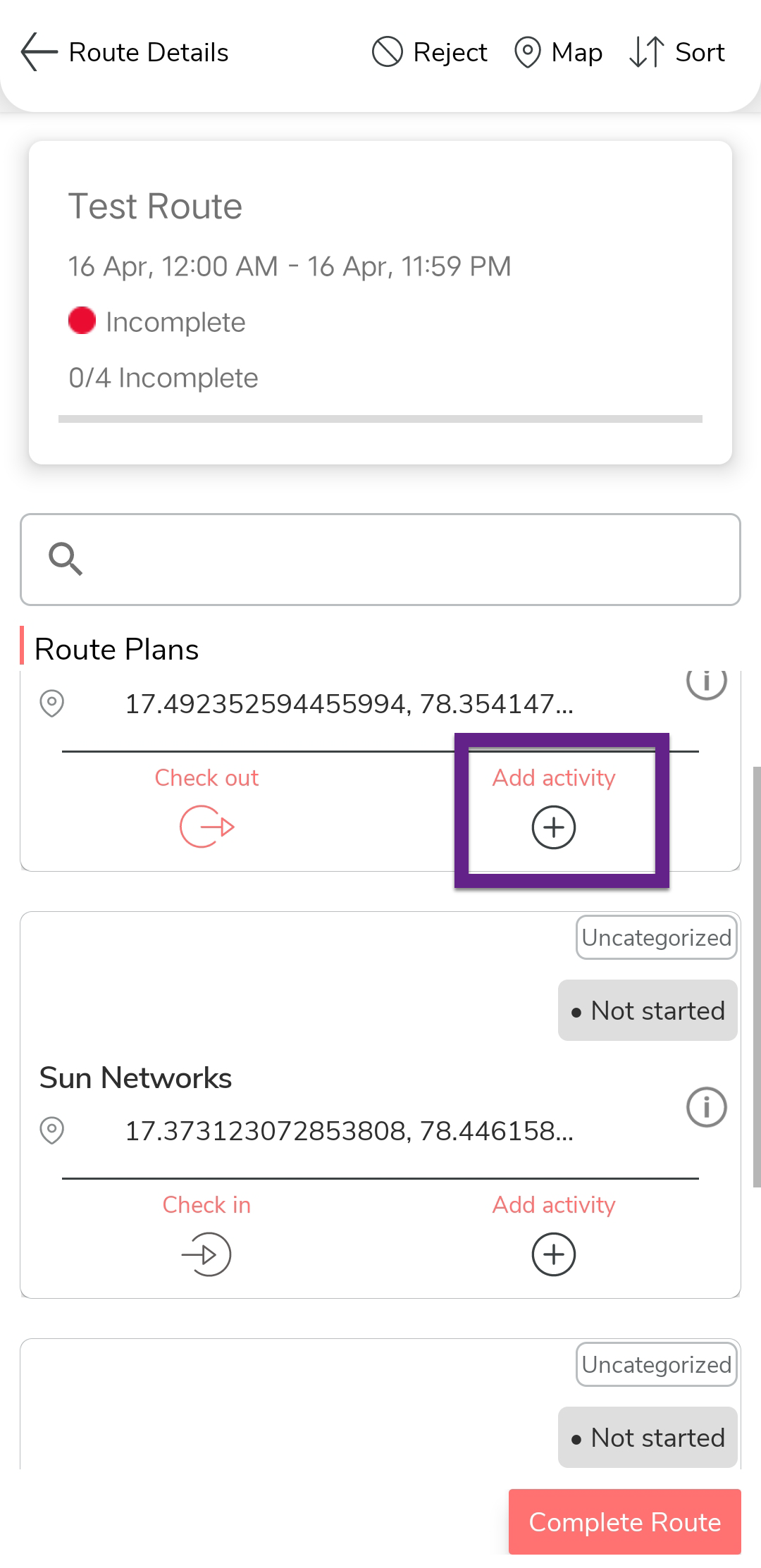
-
Tap the activity you want to perform.
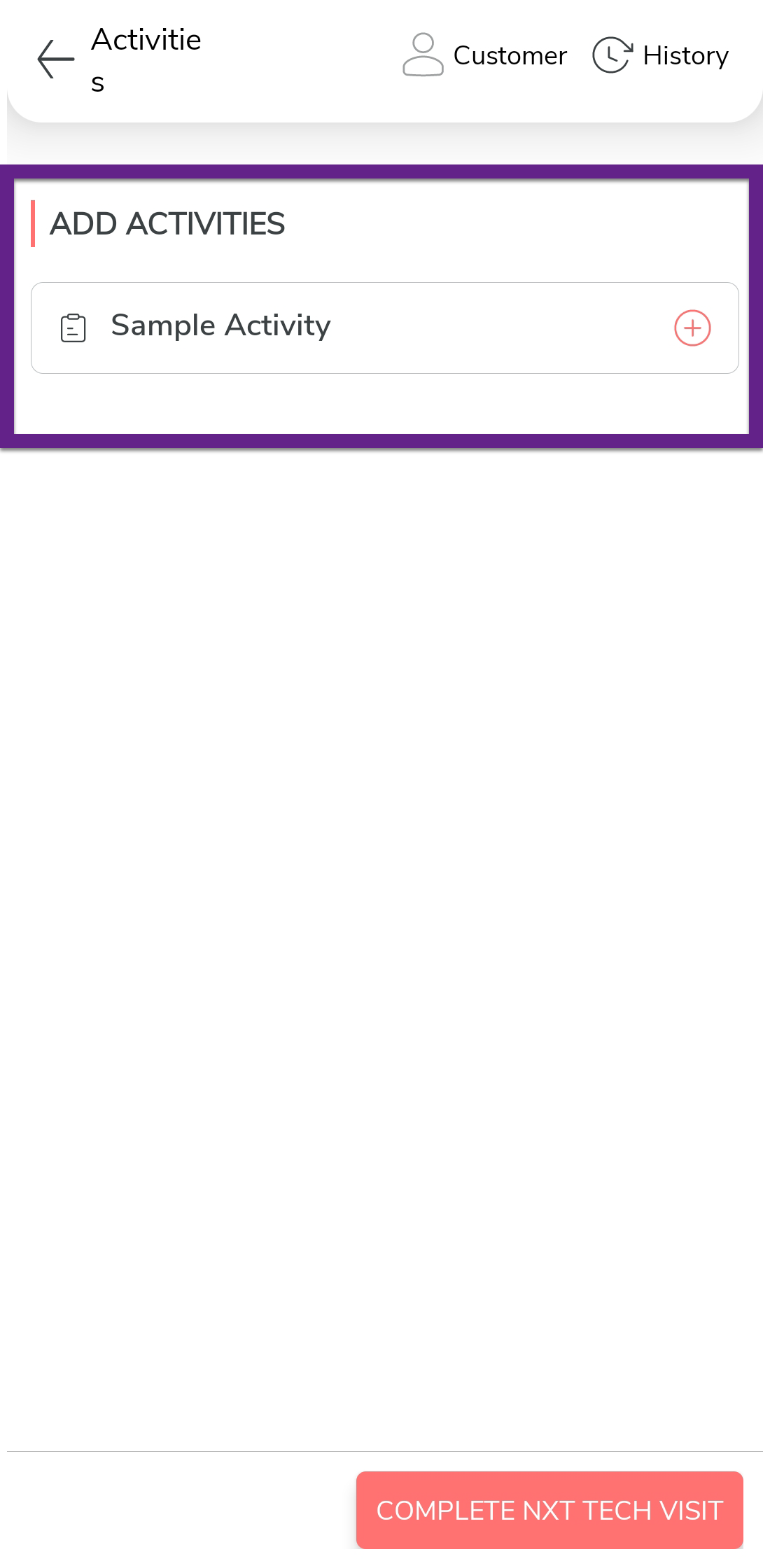
-
Fill in the activity form, and then tap Save.
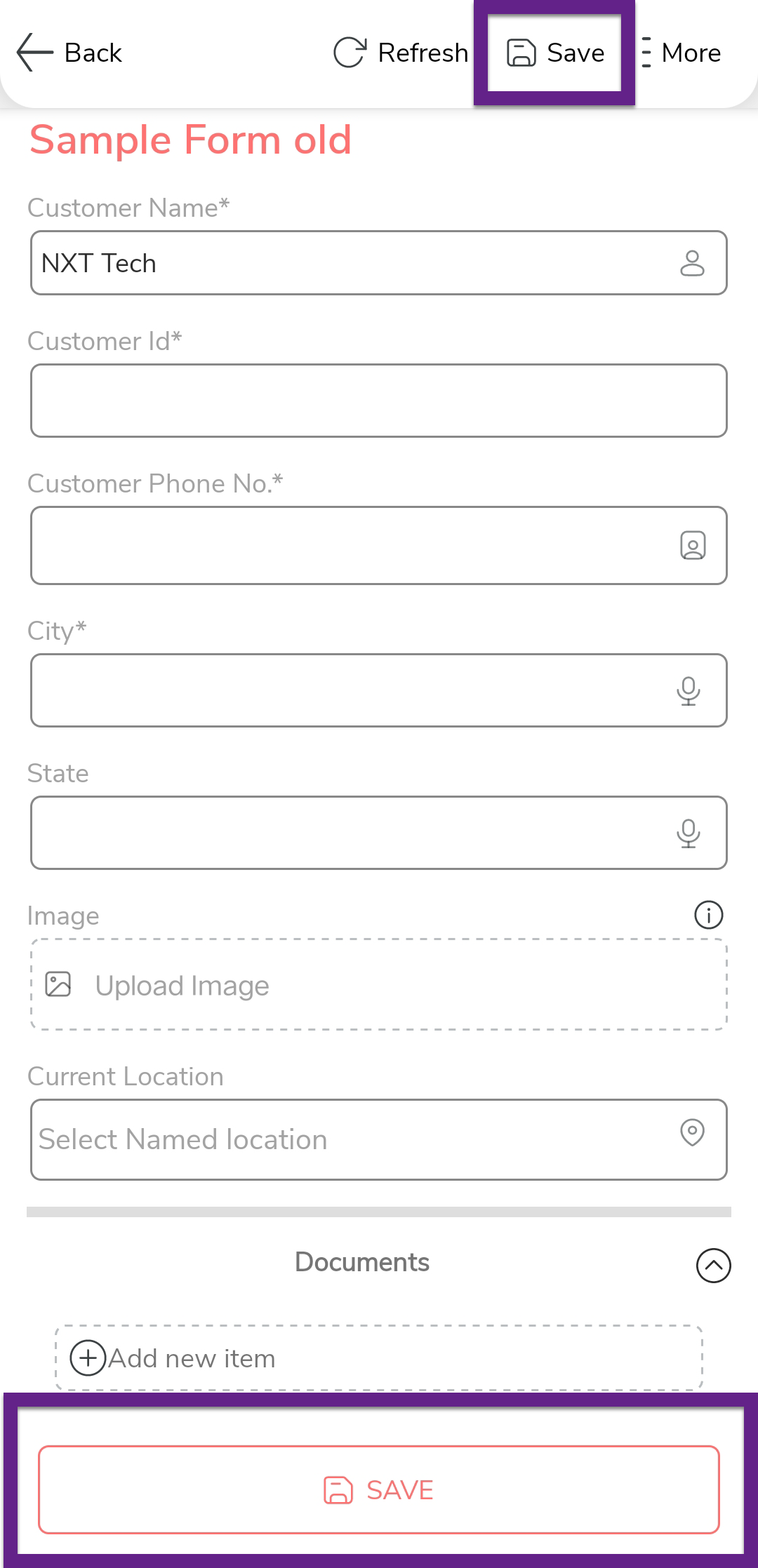
-
In the confirmation dialog, tap Save.
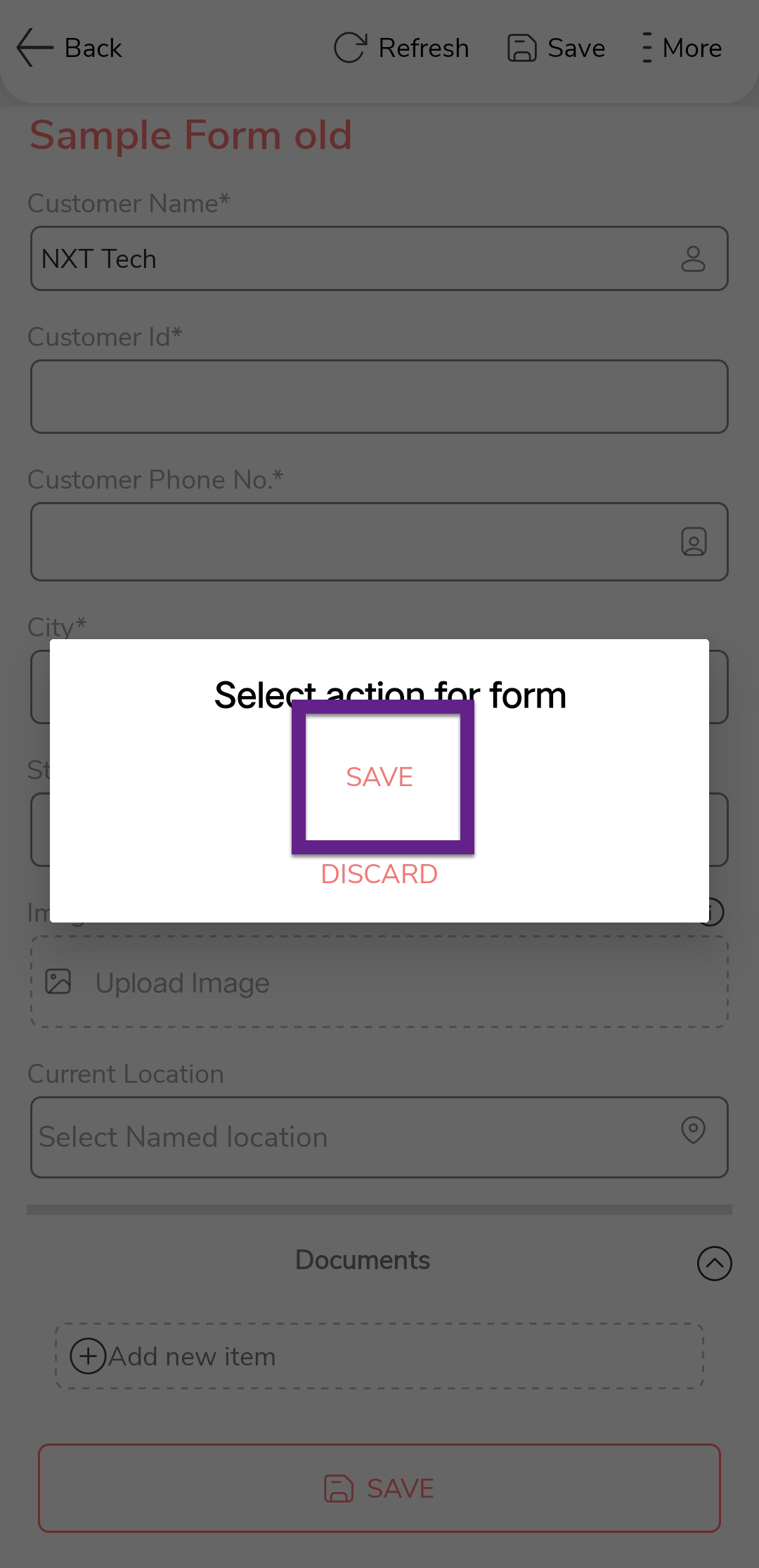
-
After completing the activity form, tap the COMPLETE
<CUSTOMER> VISIT button to end a customer visit.
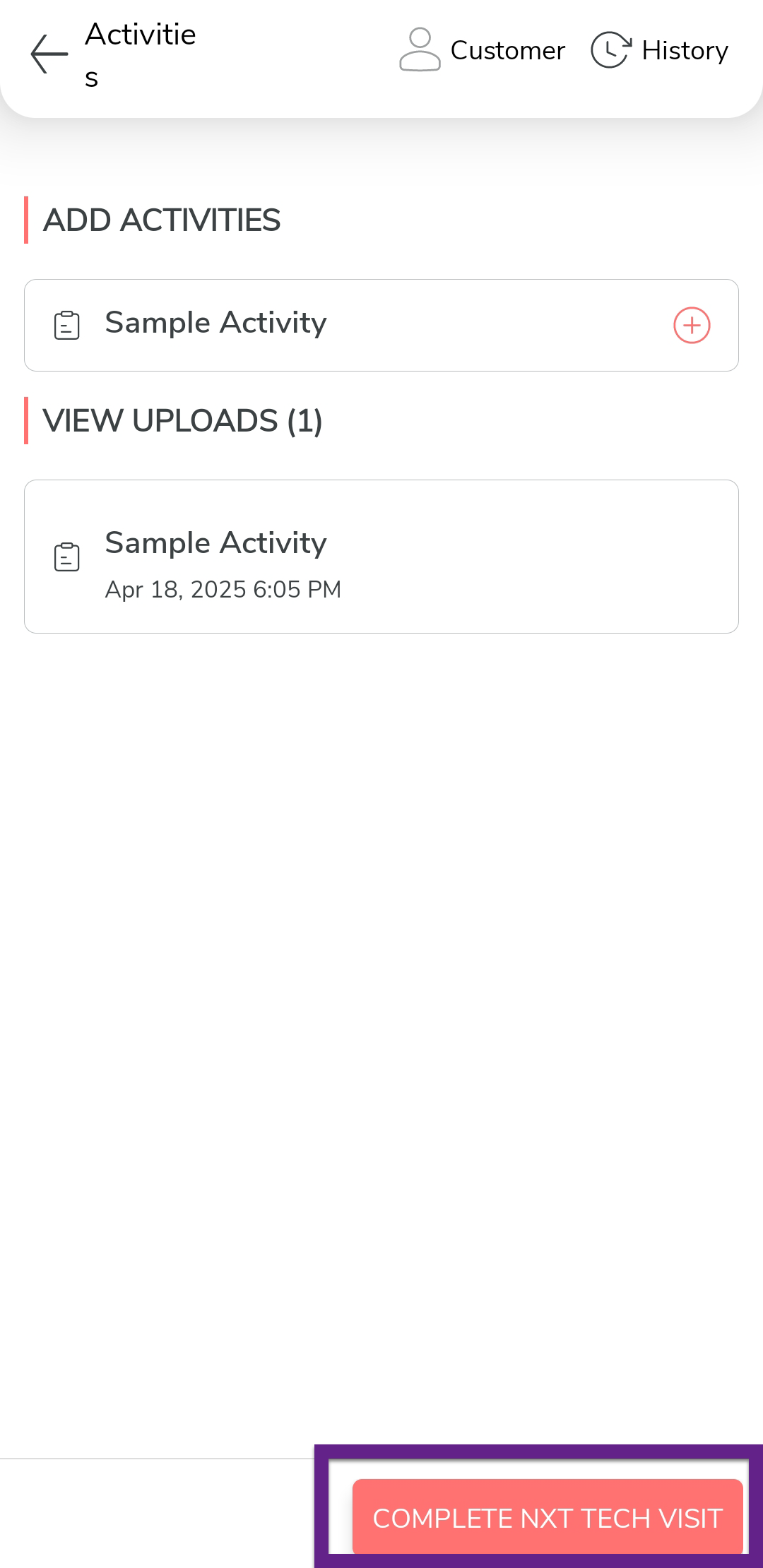
-
In the Confirmation dialog, tap
OK.
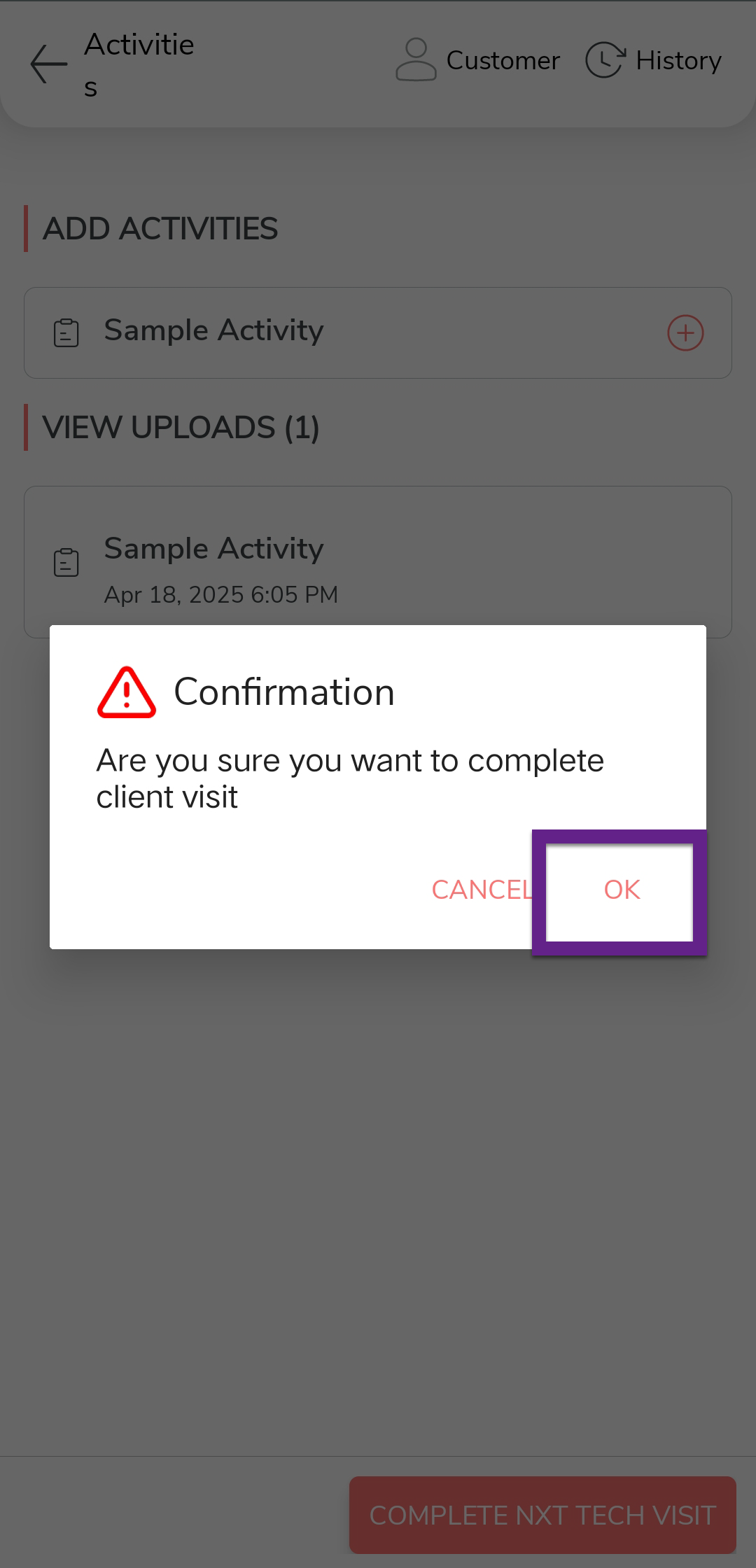
-
After completing the activity, tap Check Out.
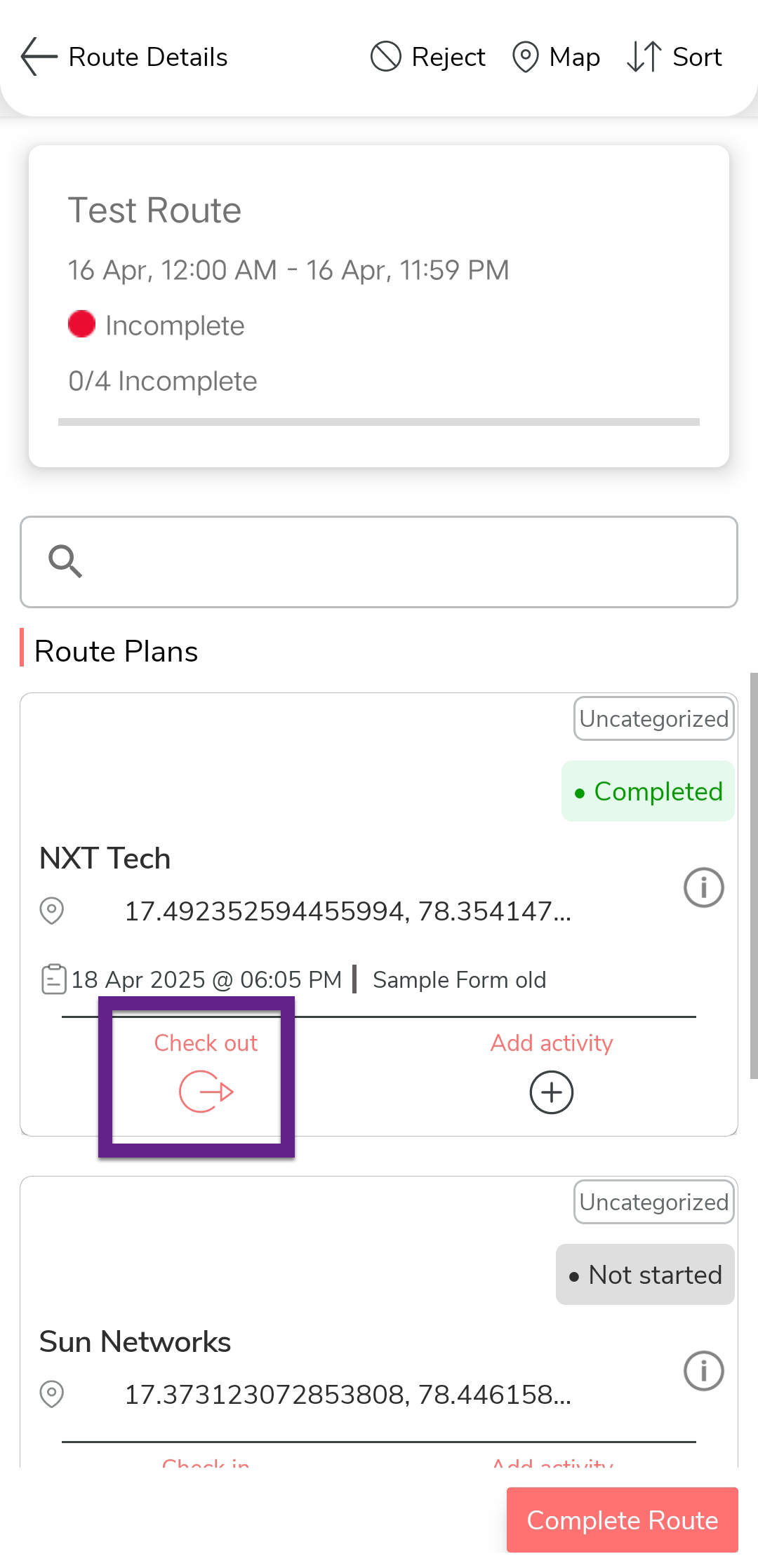
-
In the Confirmation dialog, tap
Yes.
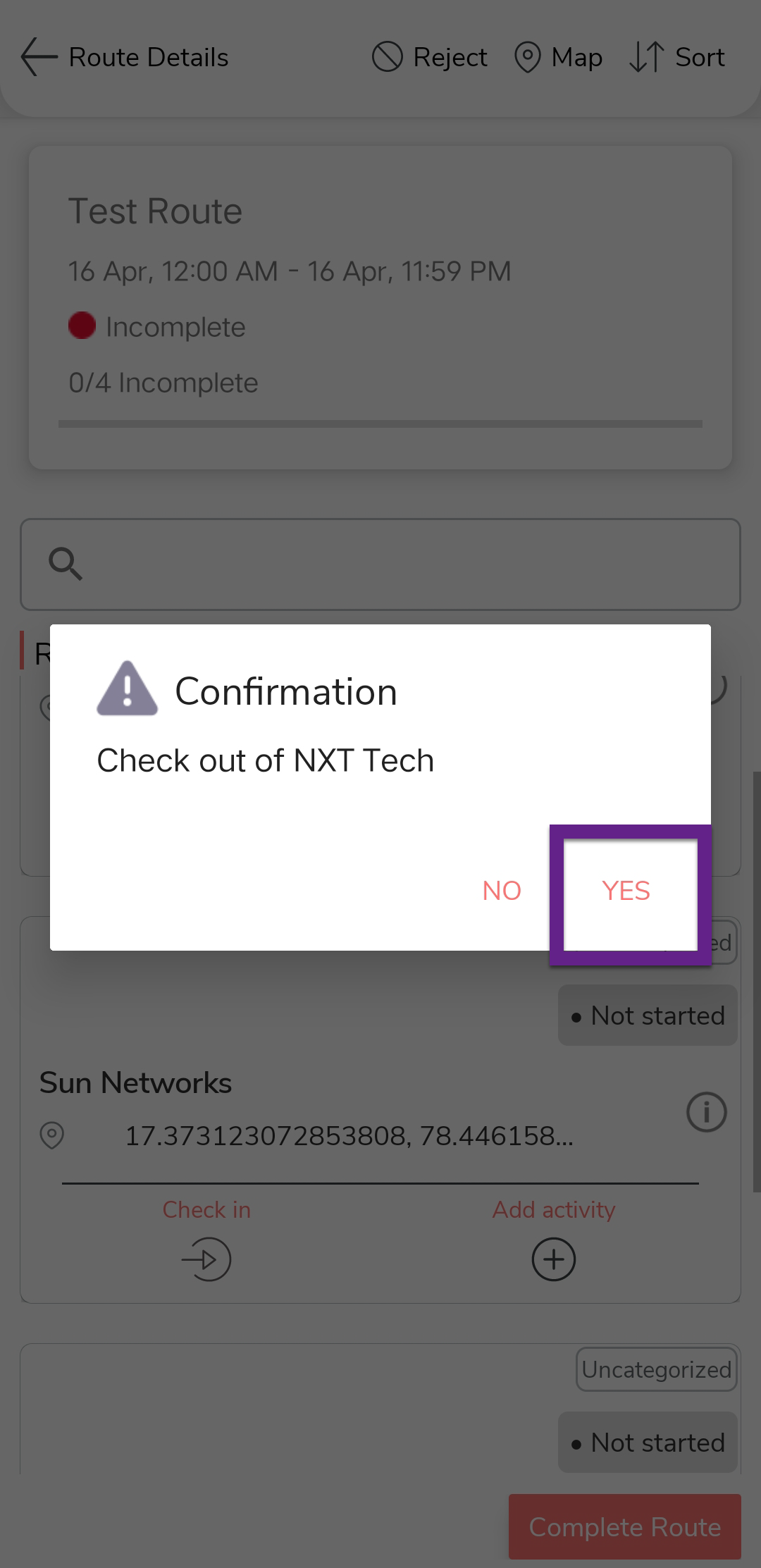
- Repeat above steps to complete other customer visits.
-
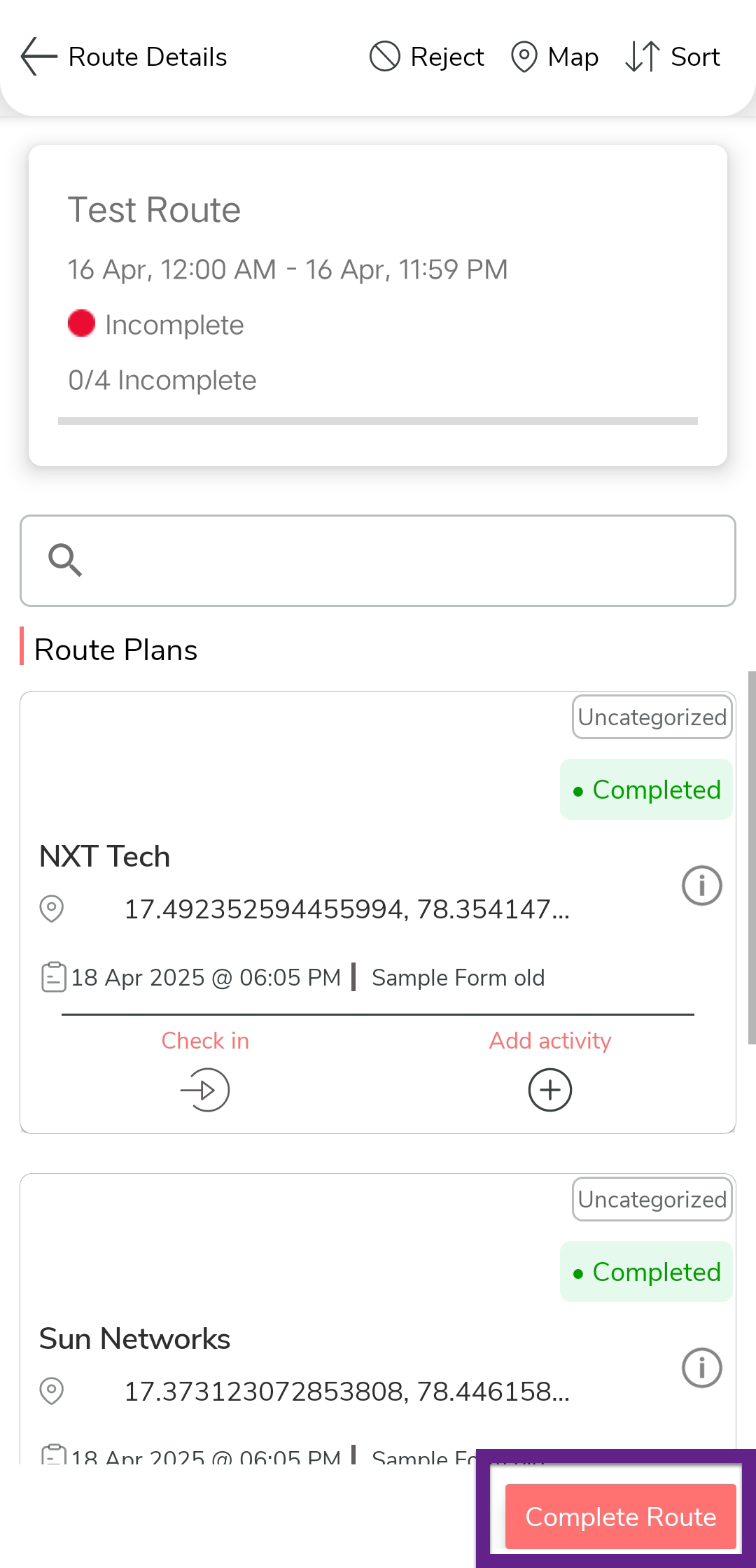
After completing all the customer visits, tap Complete
Route.