

Generate a Check-In or Check-Out Based Day Plan Progress Report
Get day plan completion progress of one or more employees on a given day.
-
Go to .
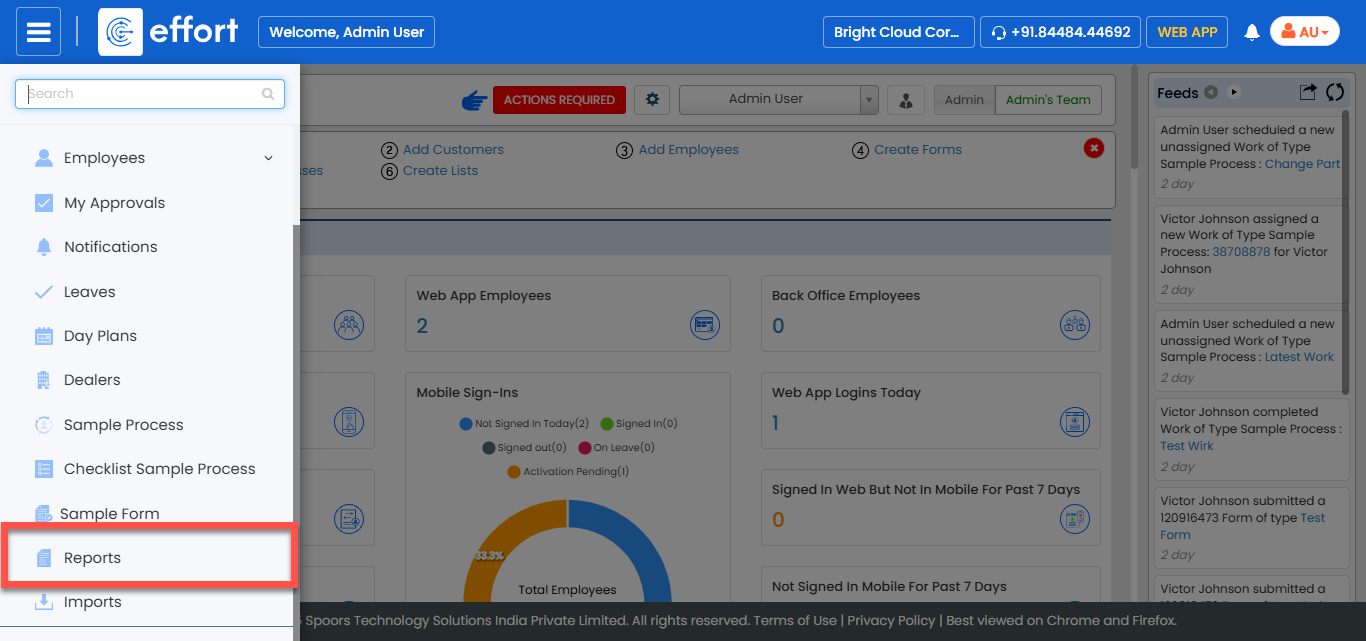
The Reports page appears.
- Scroll down to the Day Plan section.
-
Click the Check-In/Check-Out based Day Plan Progress
Report link or icon.
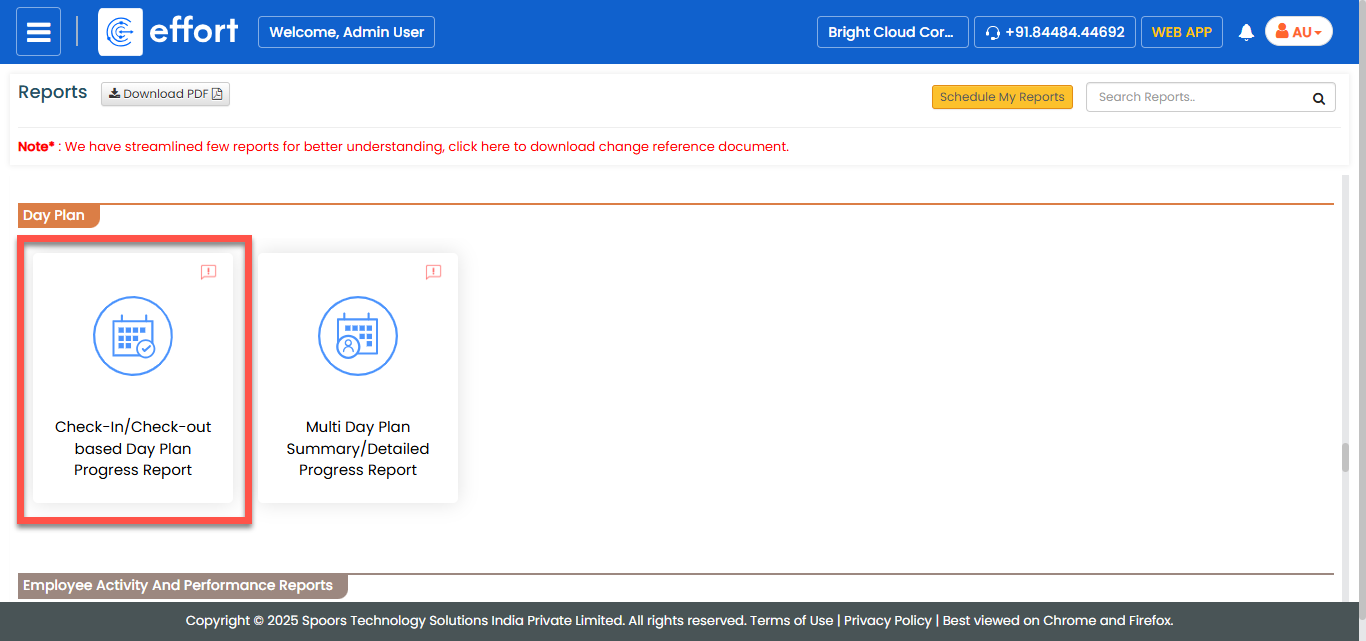
The Check-In/Check-Out based Day Plan Progress Report page appears.
-
Select employees from the employee section.
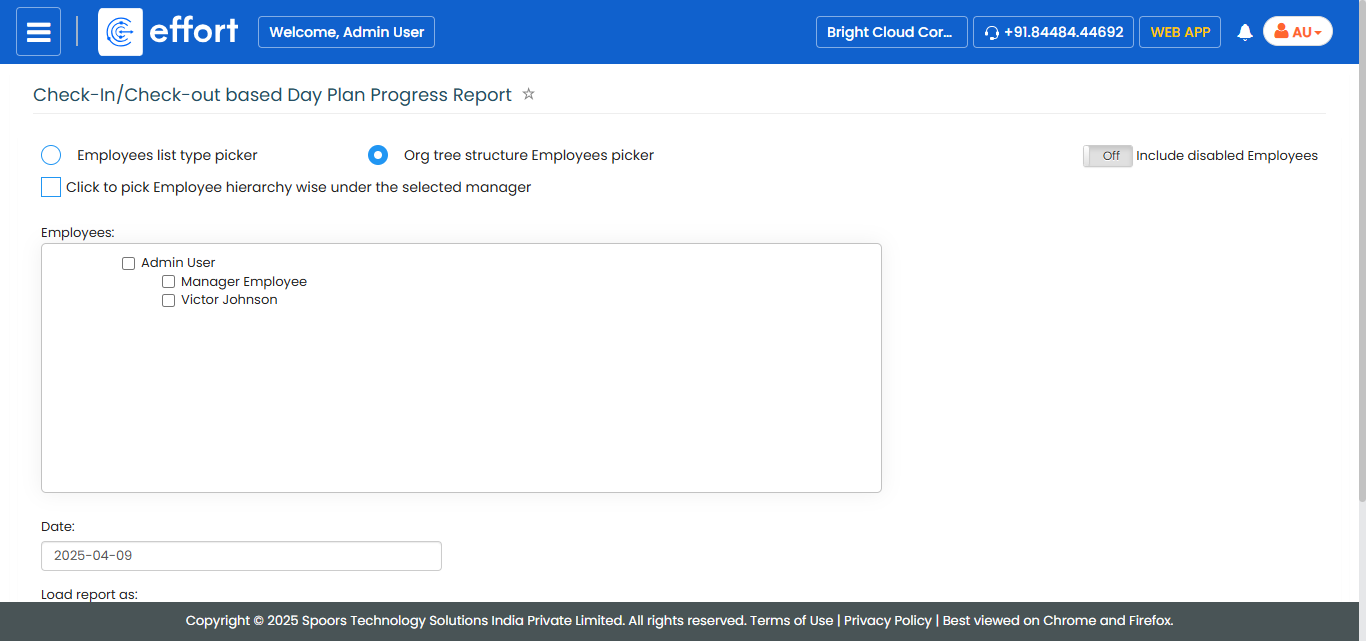
- Optional:
Change Date as per your requirement.

Date defaults to today. - Optional:
In Load report as, select the output report
format.
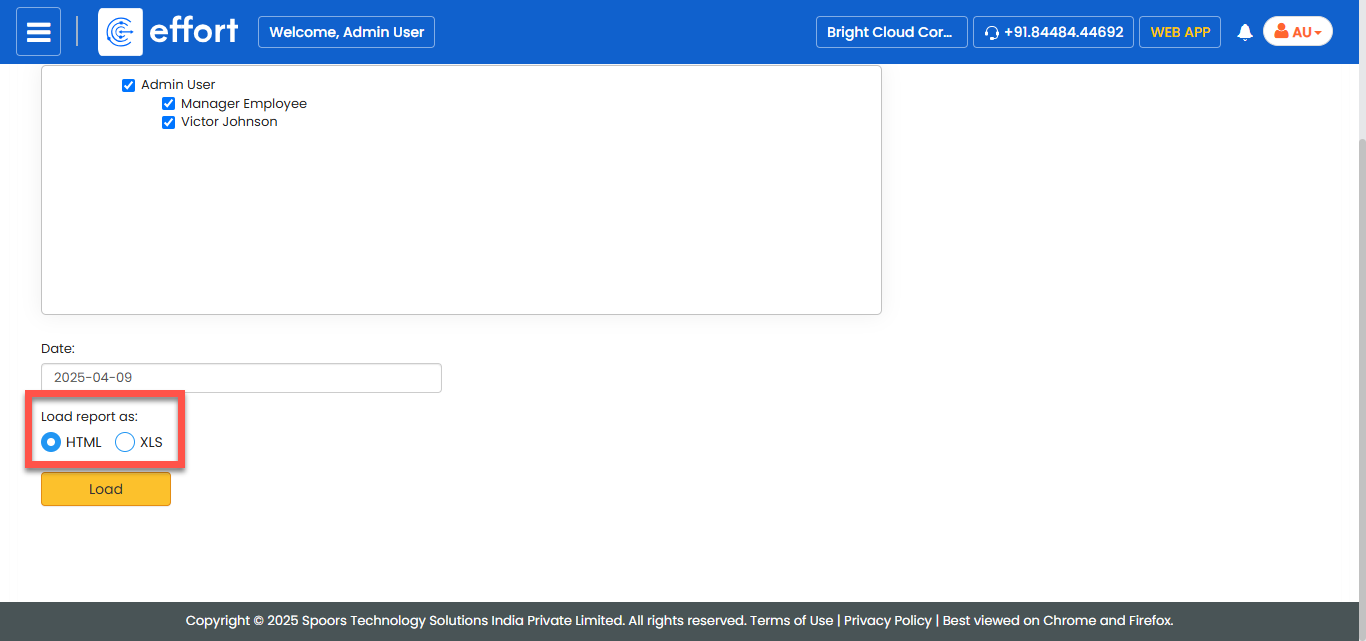
Load report as defaults to HTML. -
Click LOAD.
The sample report shown below was based on the following test data:
- Both the selected employees have day plans, with two customers in each day plan.
- Vincent checked into F1 Networks and submitted an activity form.
- Vincent also checked into Trace Solutions who is not in the day plan, but did not submit any activity forms against it.
- Ramya did nothing.
This report doesn't include unplanned visits, such as Vicent checking into Trace Solutions.If you opted for HTML, the report opens in a new tab.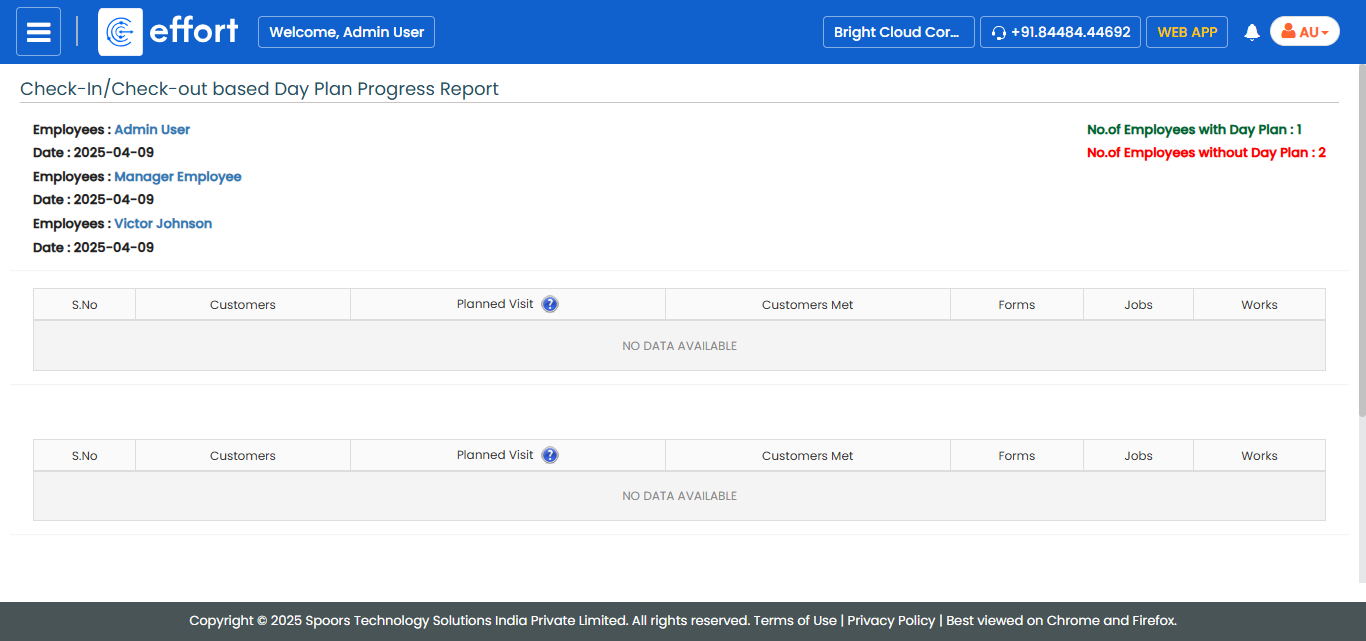
If you opted for XLS, the browser shows a dialog with Open With and Save File options.