Add and Authorize Spoors EFFORT Data Connector in Looker Studio
- Go to https://lookerstudio.google.com/ and log in with your Google account, if needed.
-
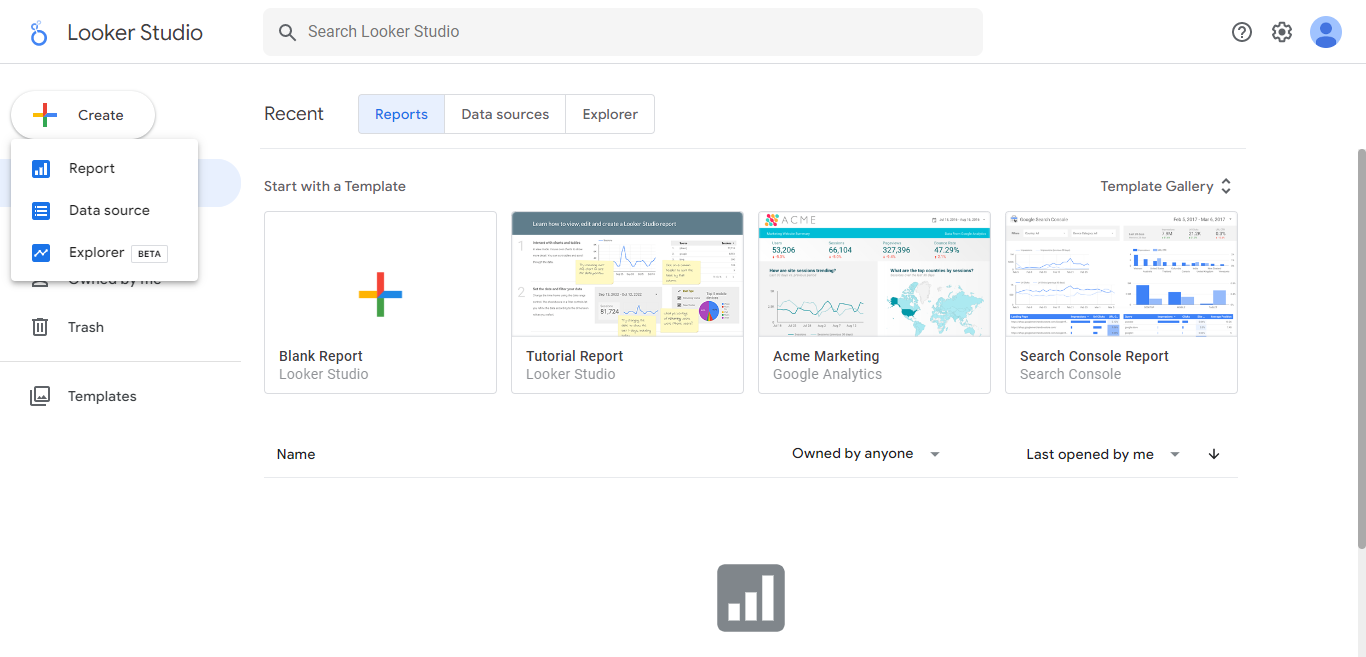
In the top left corner, go to .
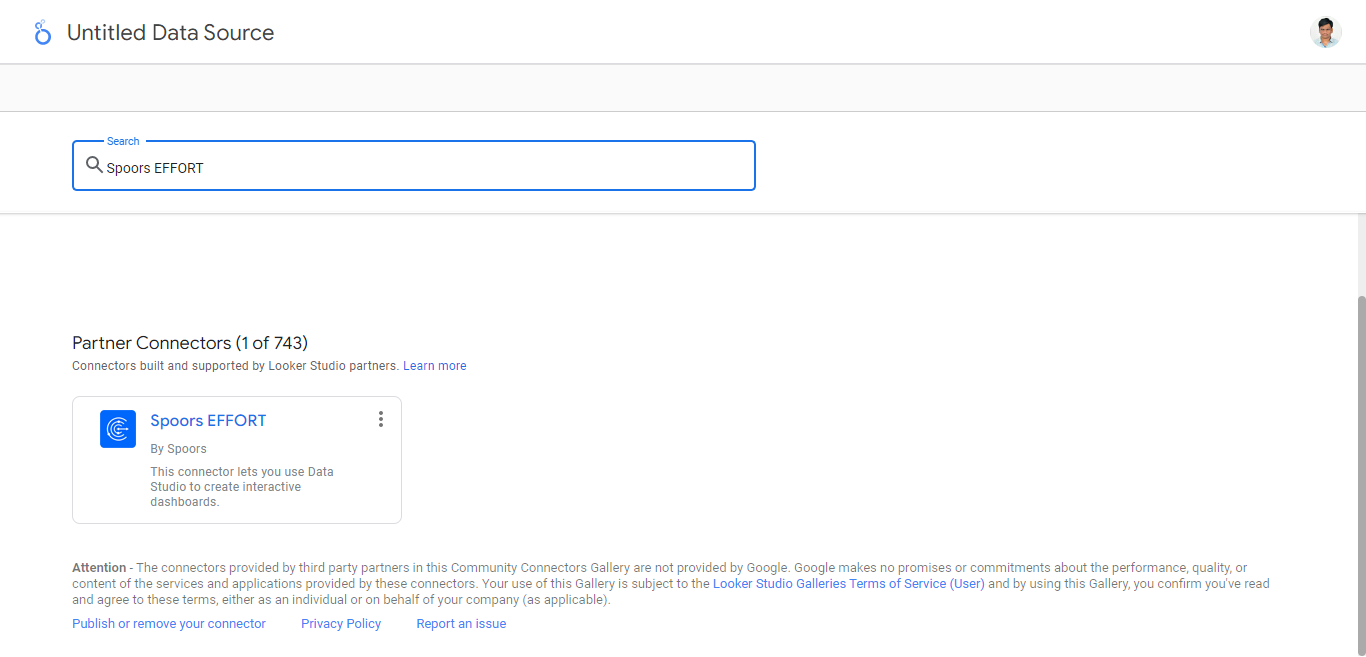
- Scroll down to the Partner Connectors section and look for the Spoors EFFORT connector. Alternatively, you can use the search bar at the top.
-
Click the Spoors EFFORT connector card.
-
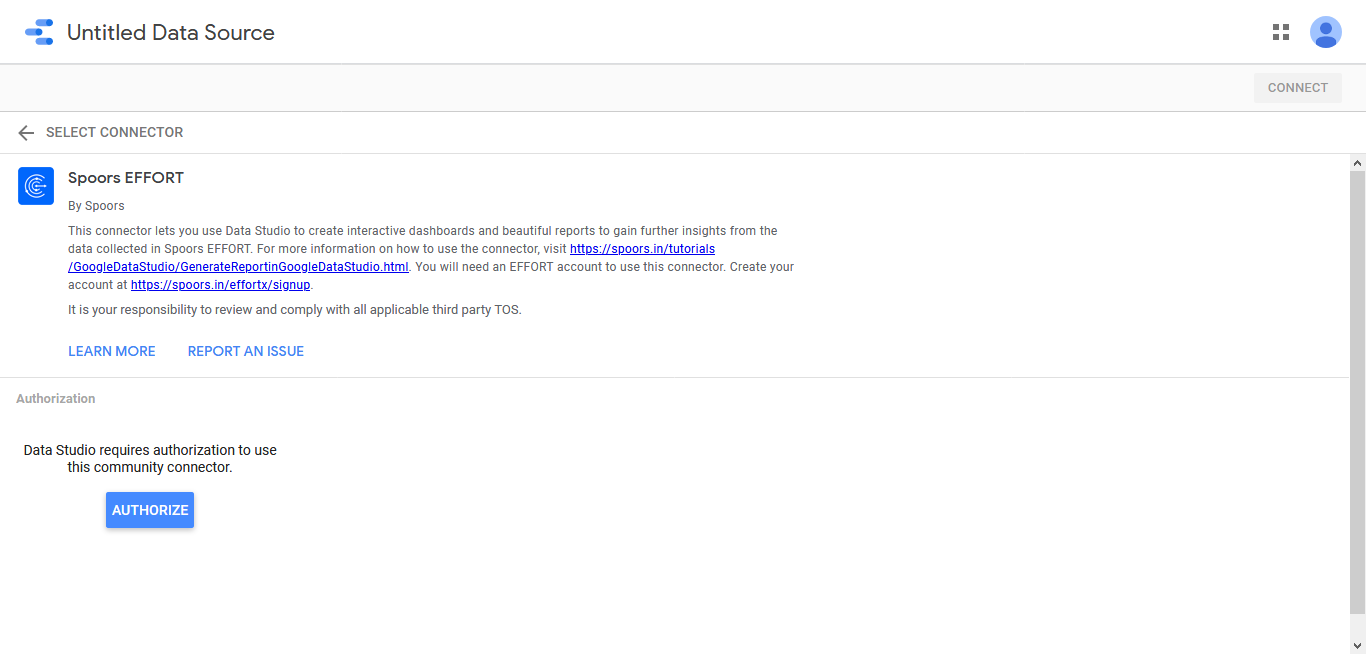
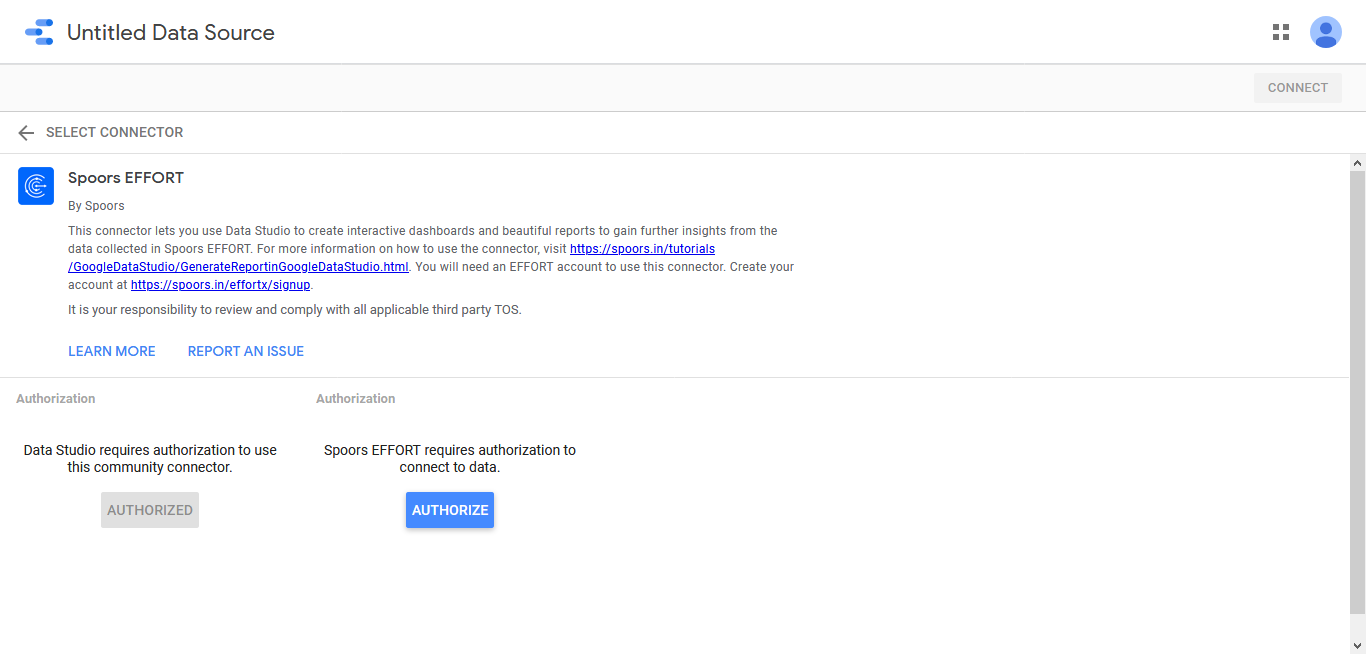
Click the AUTHORISE button to give permission to the connector to access
your Google account.
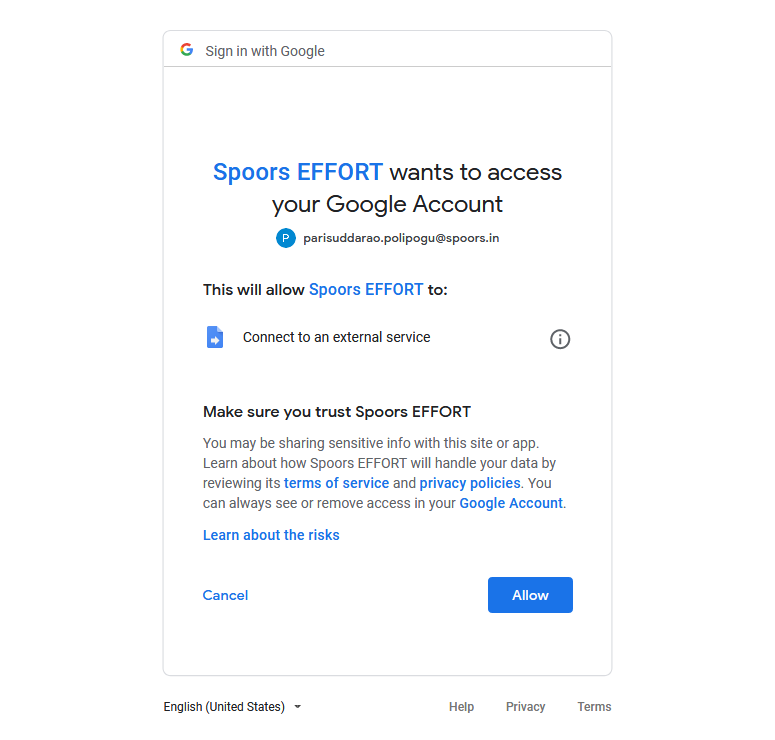
A pop-up will ask you to log in with your Google account –
-
Select the same account you use Data Studio with and click Allow to
accept the access request.
-
Click the second AUTHORISE button to log in to the data source
itself.
-
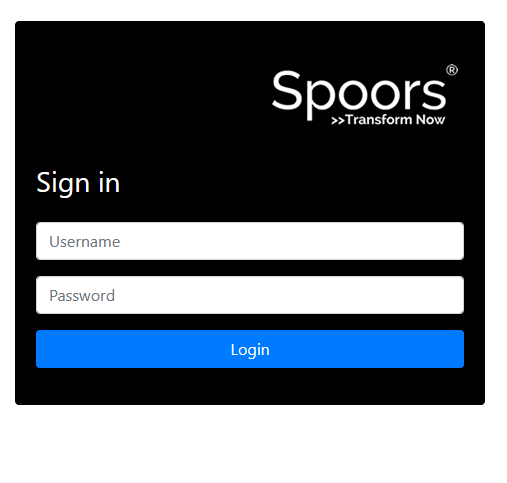
Log in with your Spoors account.
-
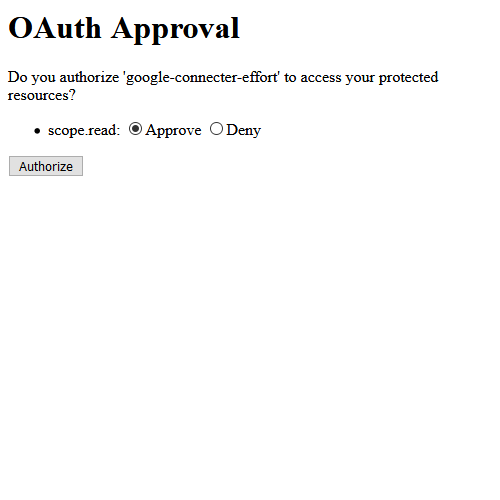
In the OAuth Approval page, select Approve and click
Authorize button.