Check-in to Room and Cleaning
To check-in to a room and perform cleaning using the Effort NXT mobile app, follow the steps below:
- On your mobile device, open the Effort NXT mobile app.
-
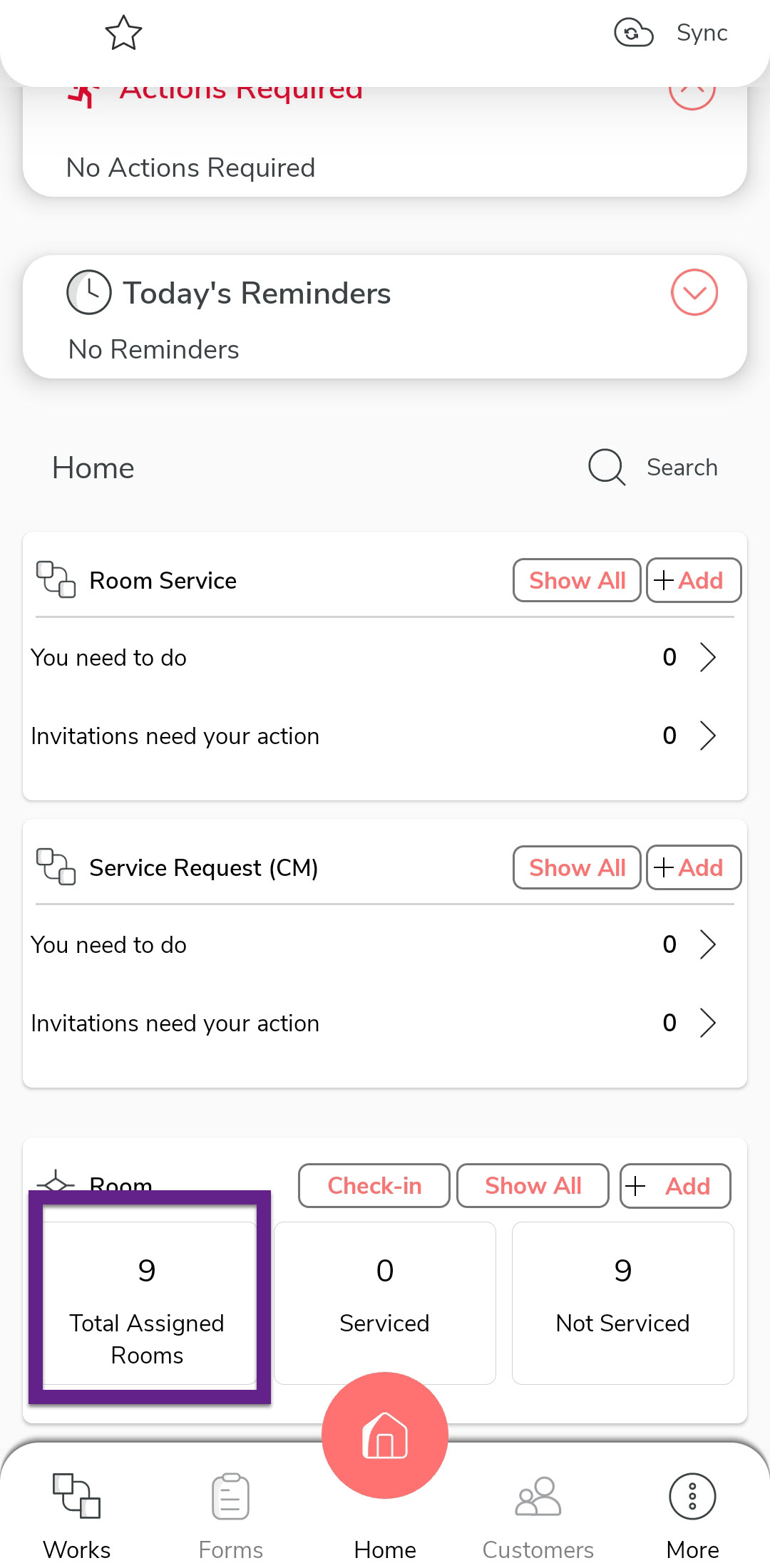
On the home screen, scroll down to the bottom and tap Total Assigned
Rooms under the Rooms section.
-
On the Rooms screen, tap Check-In for the room you want to
clean.

-
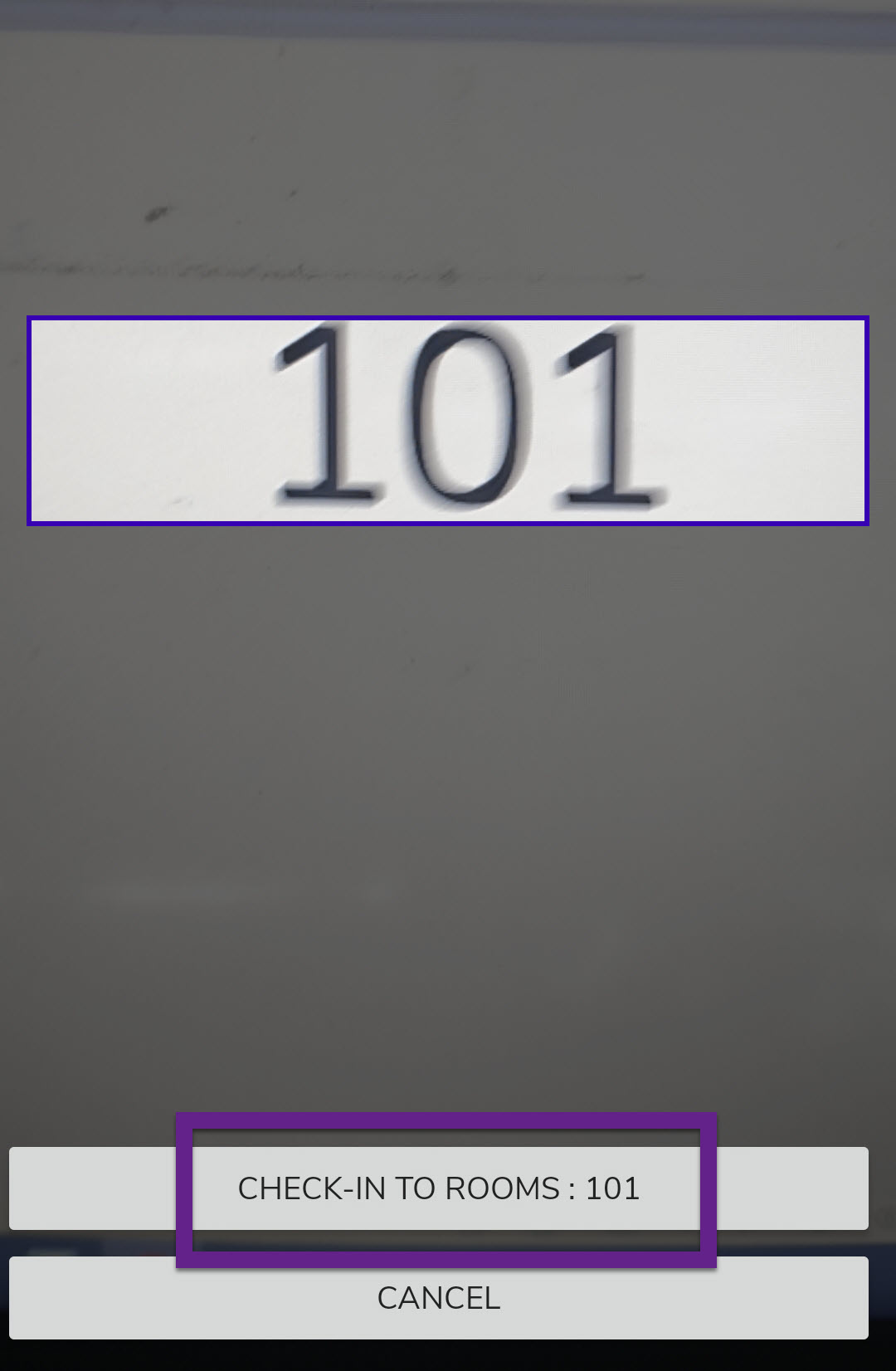
A scanner will open. Scan the room code and tap Check-In to Rooms:
XXX.
-
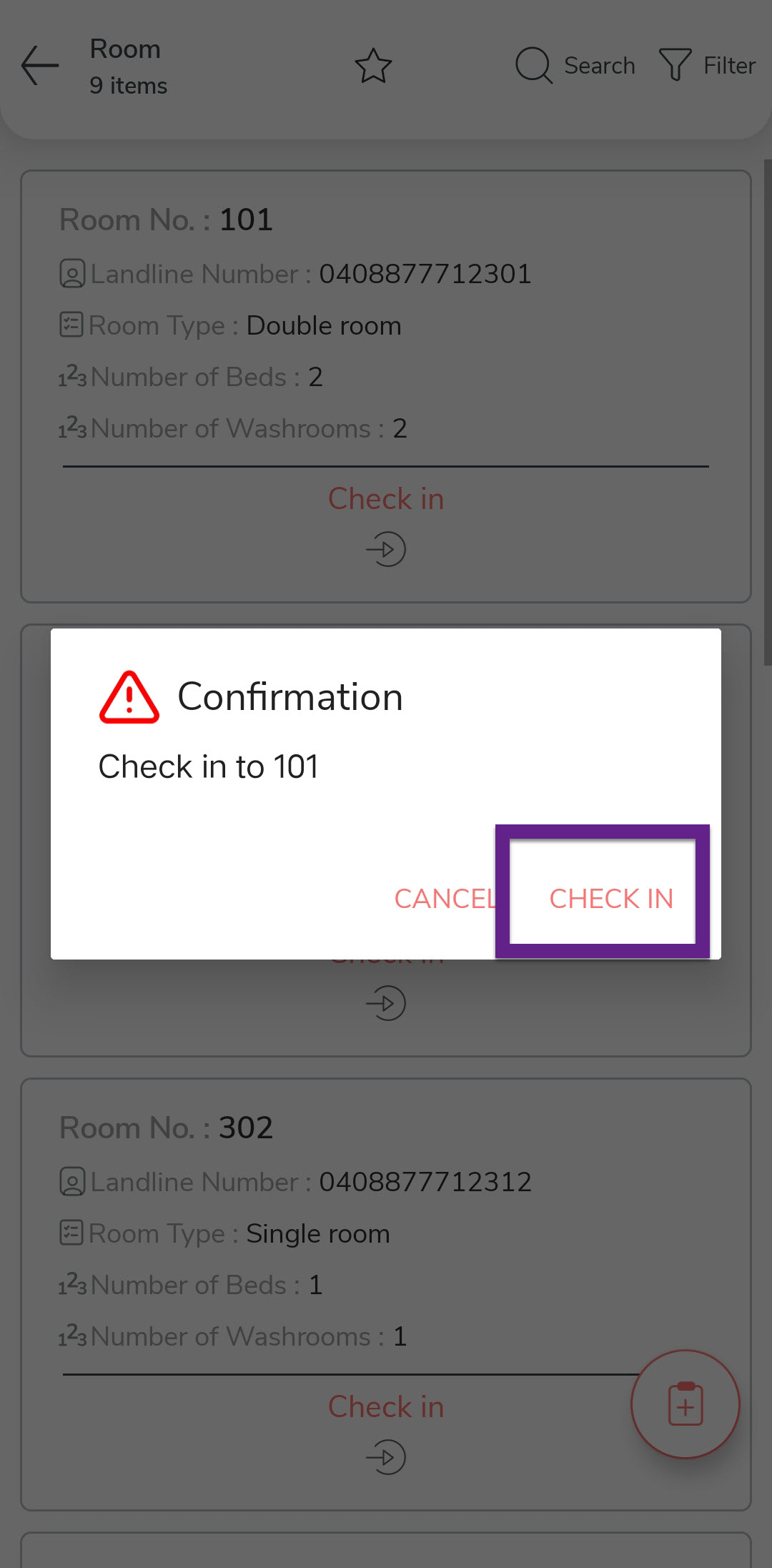
In the confirmation dialog, tap Check-In.
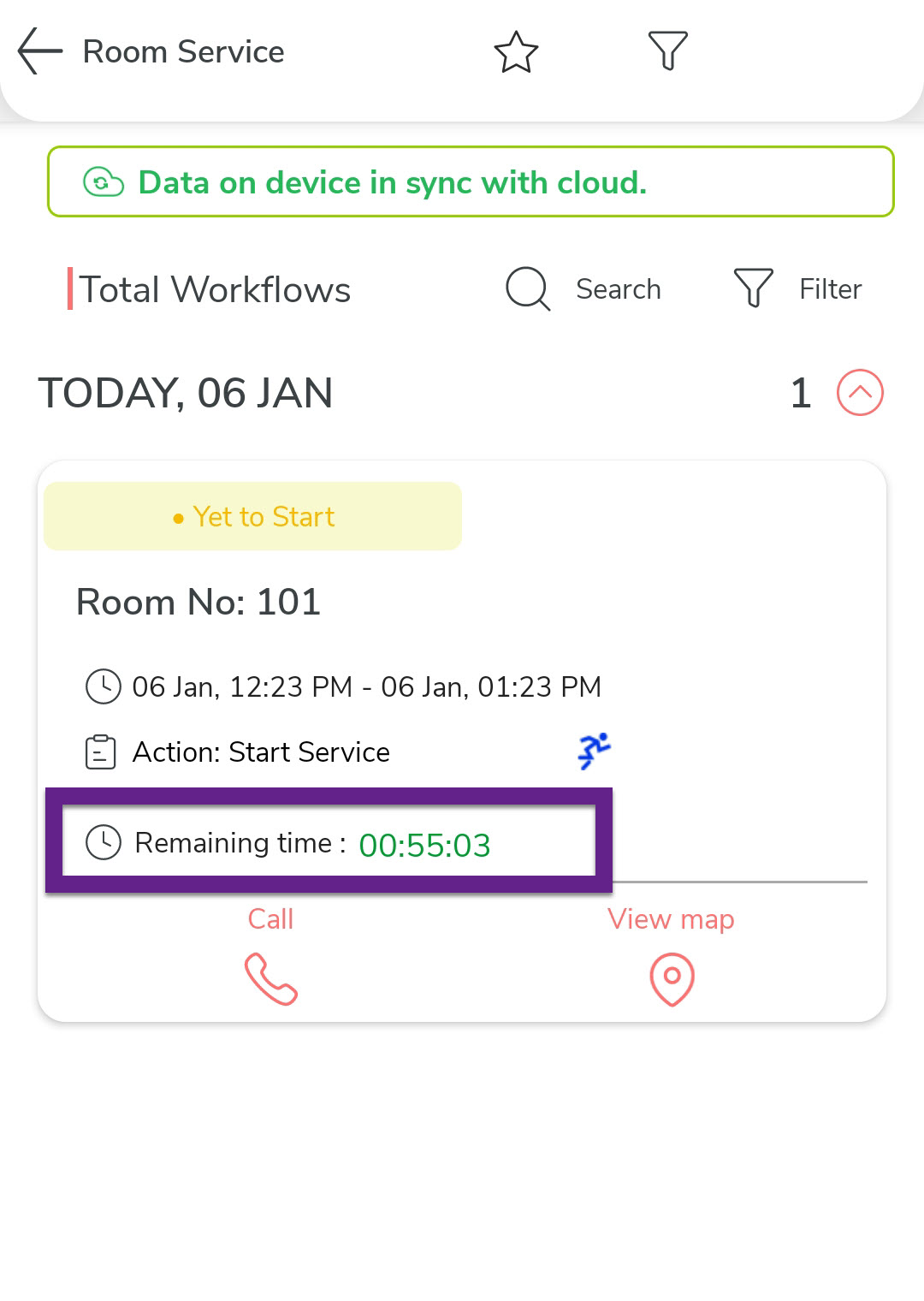
Note: Return to home screen, scroll down to the Room Service section, and tap You need to do option. You will see the time remaining to complete the room cleaning. Tap on the room number to get started with room cleaning activities.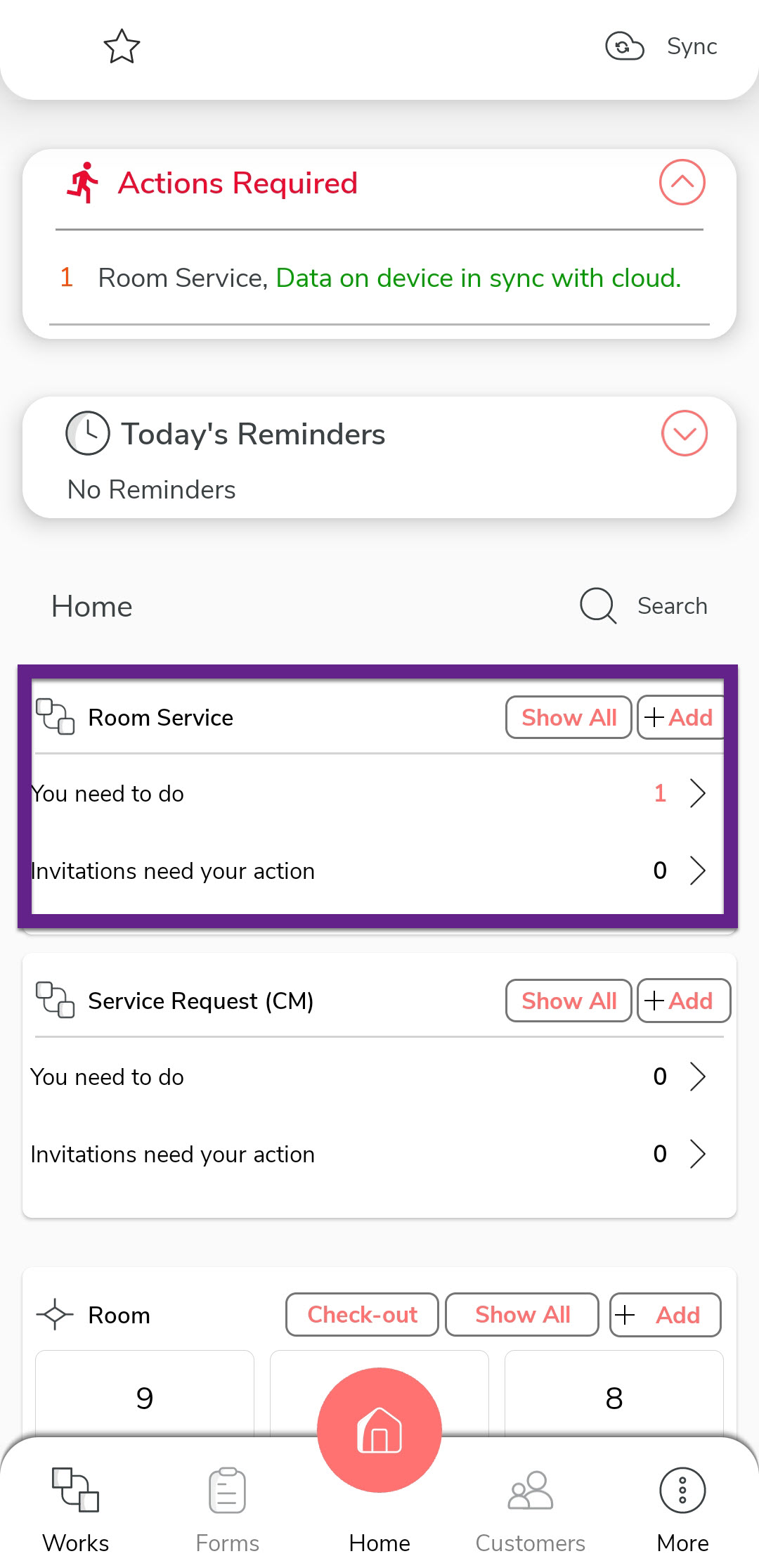
-
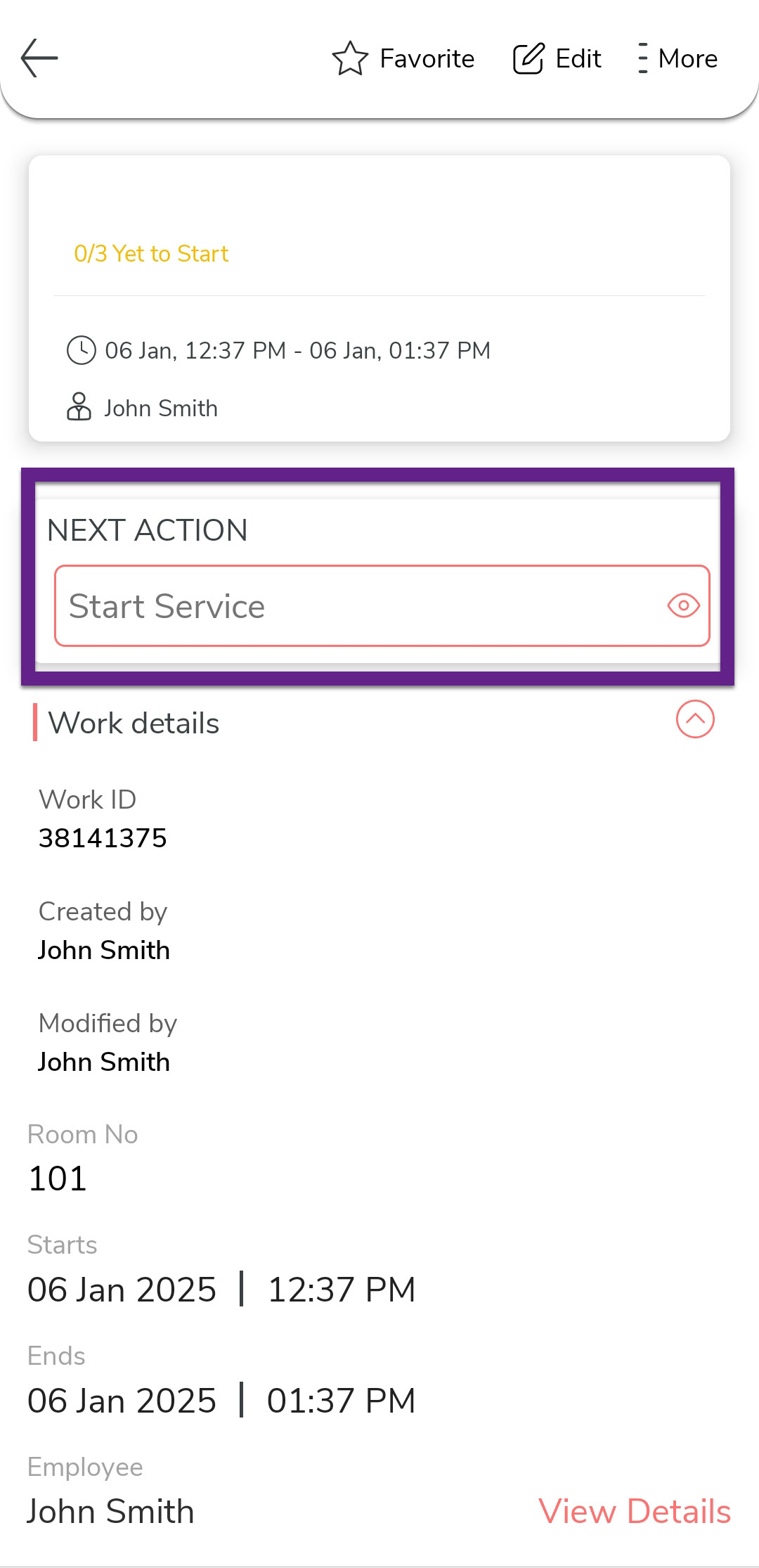
The next screen displays the next activity to be performed. Tap the
Start Service under the Next
Action section.
-
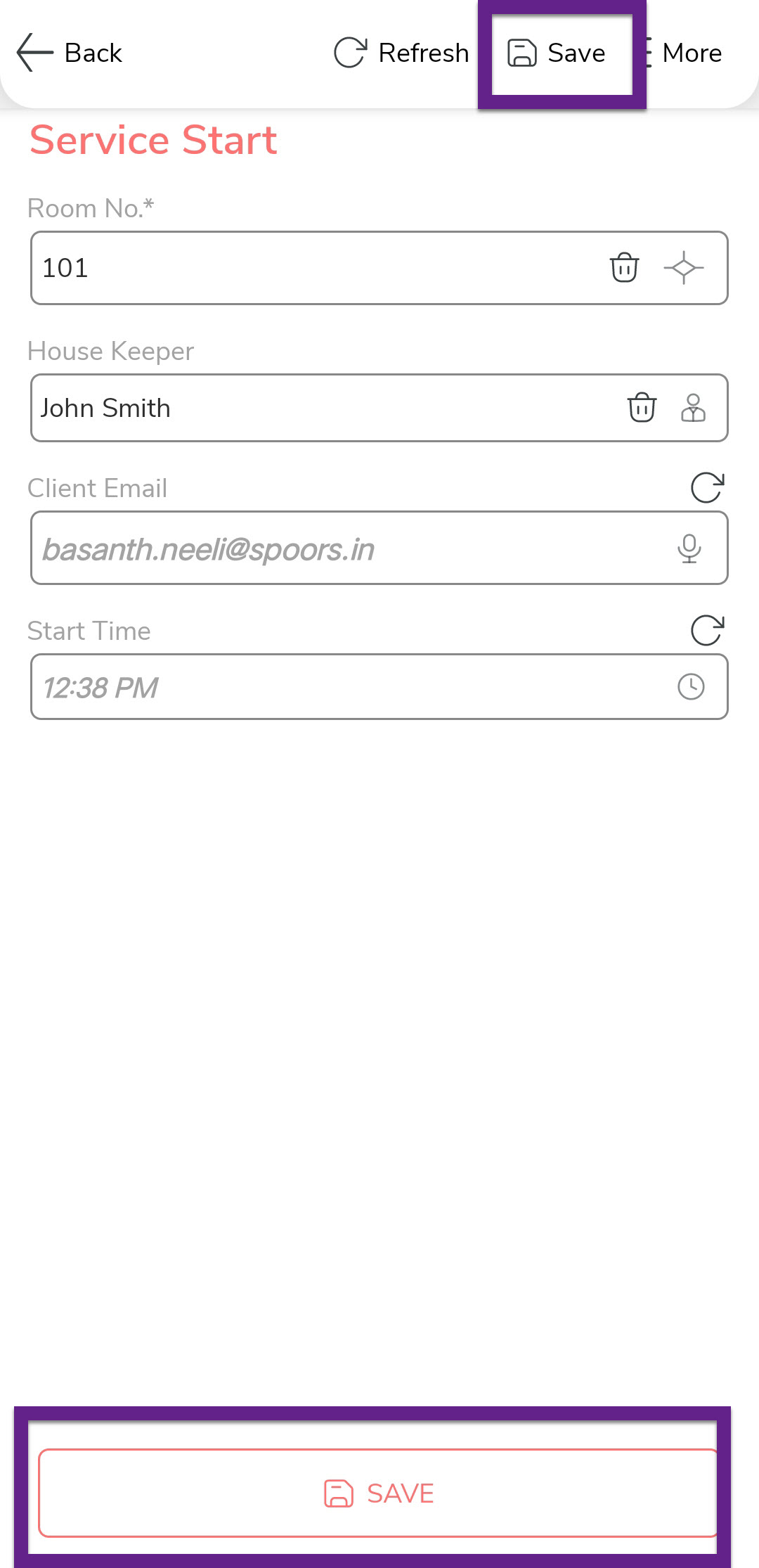
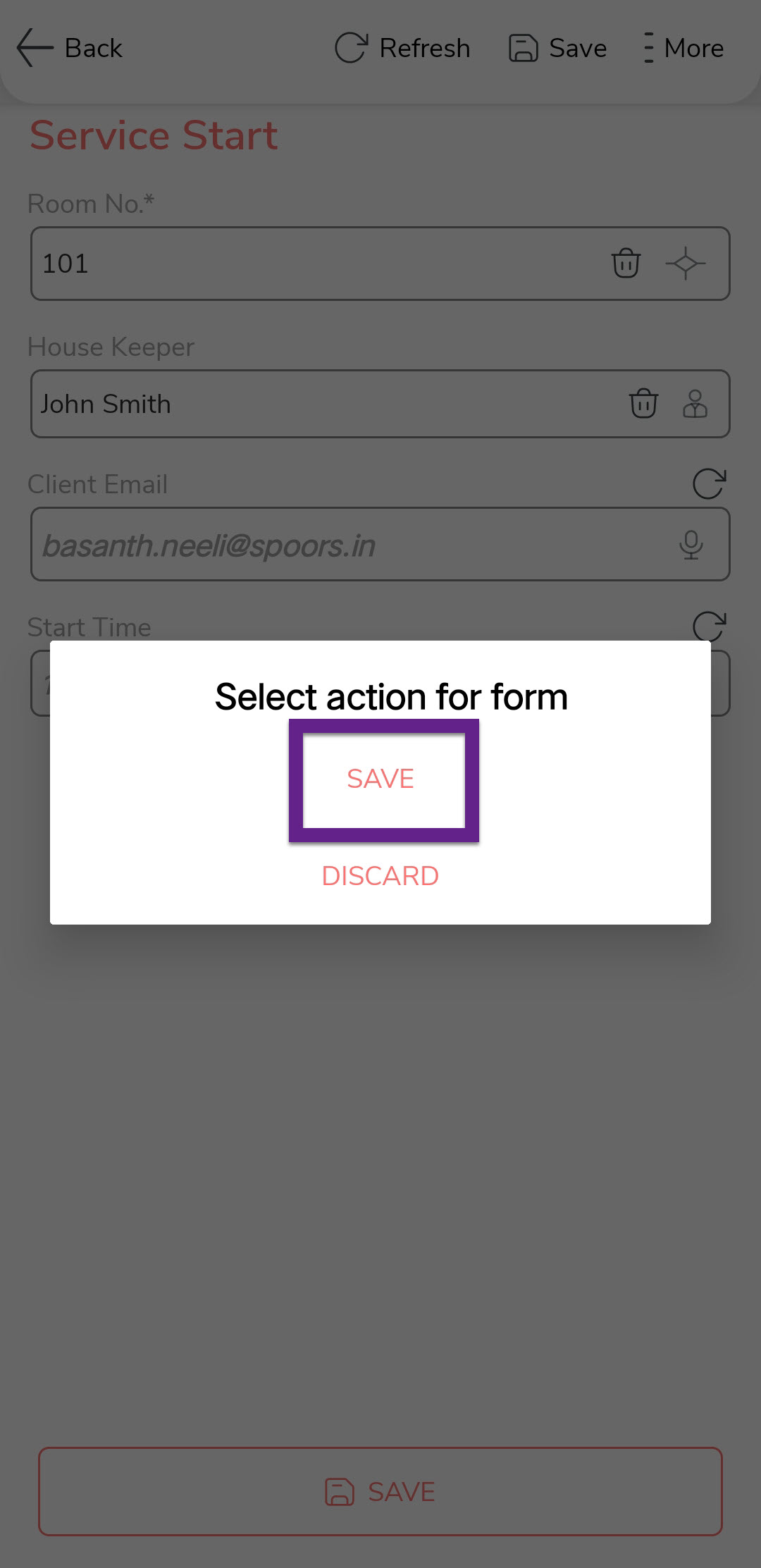
On the next screen, you will see details such as Room No, House Keper Name,
Client Email, and Start Time. Verify details and tap Save
and then Save in the confirmation pop-up. It indicates
that you have started the room service.
-
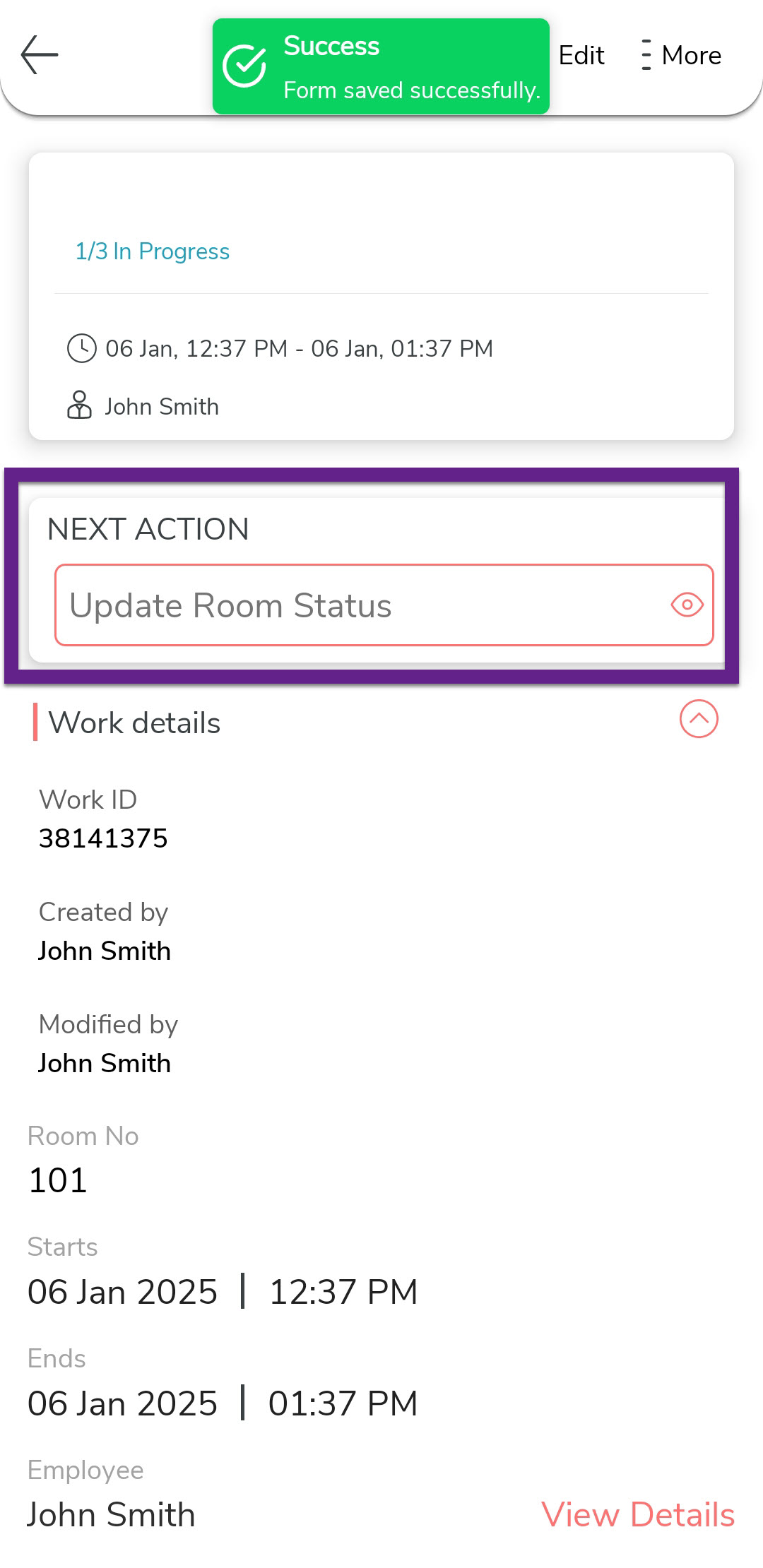
In the next screen, tap Update Room Status to capture
the room cleaning details.
-
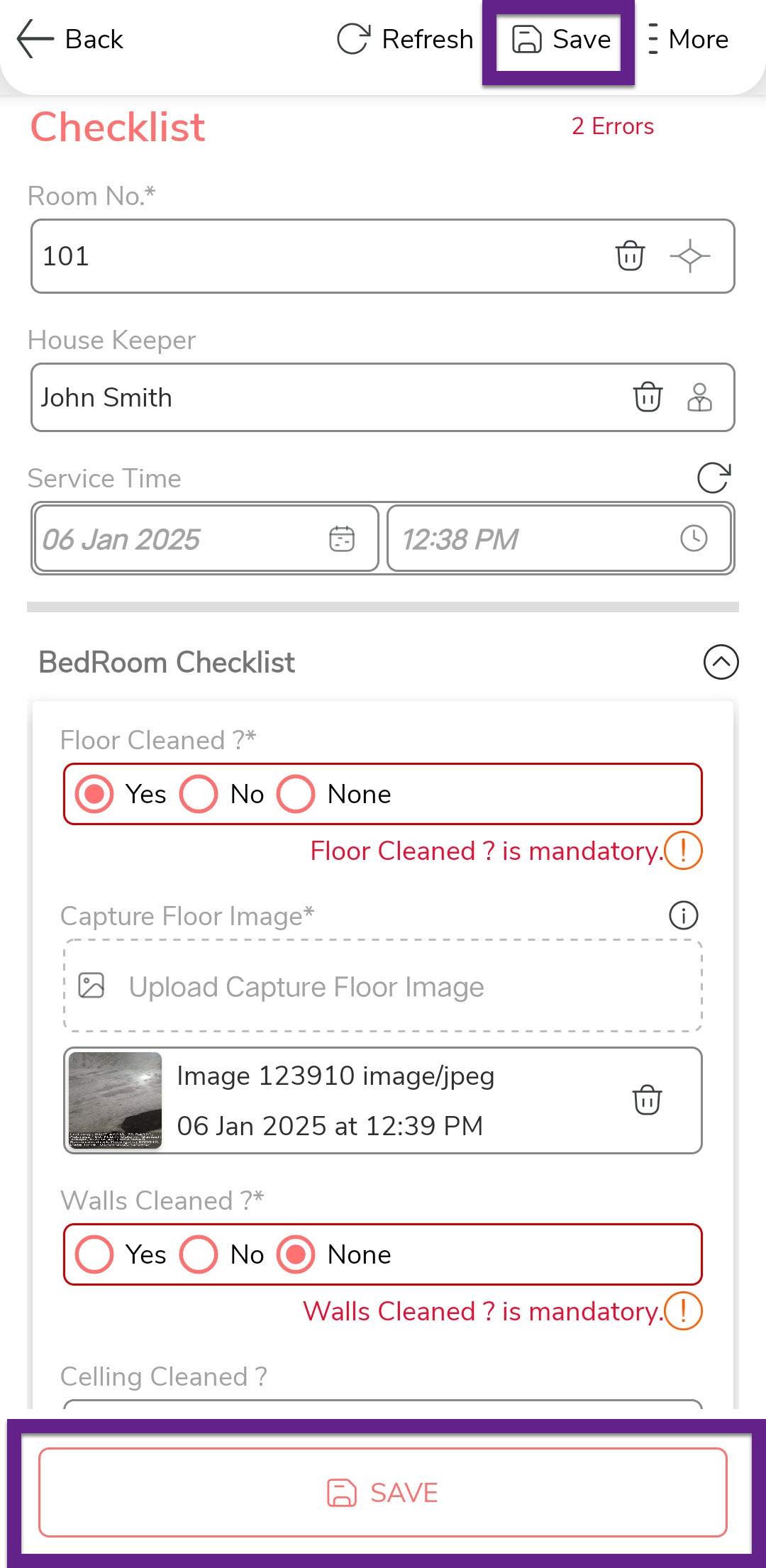
Fill in the room cleaning details under the Bedroom
Checklist and Bathroom Checklist
sections. Update cleaning status, capture necessary images and notes.

-
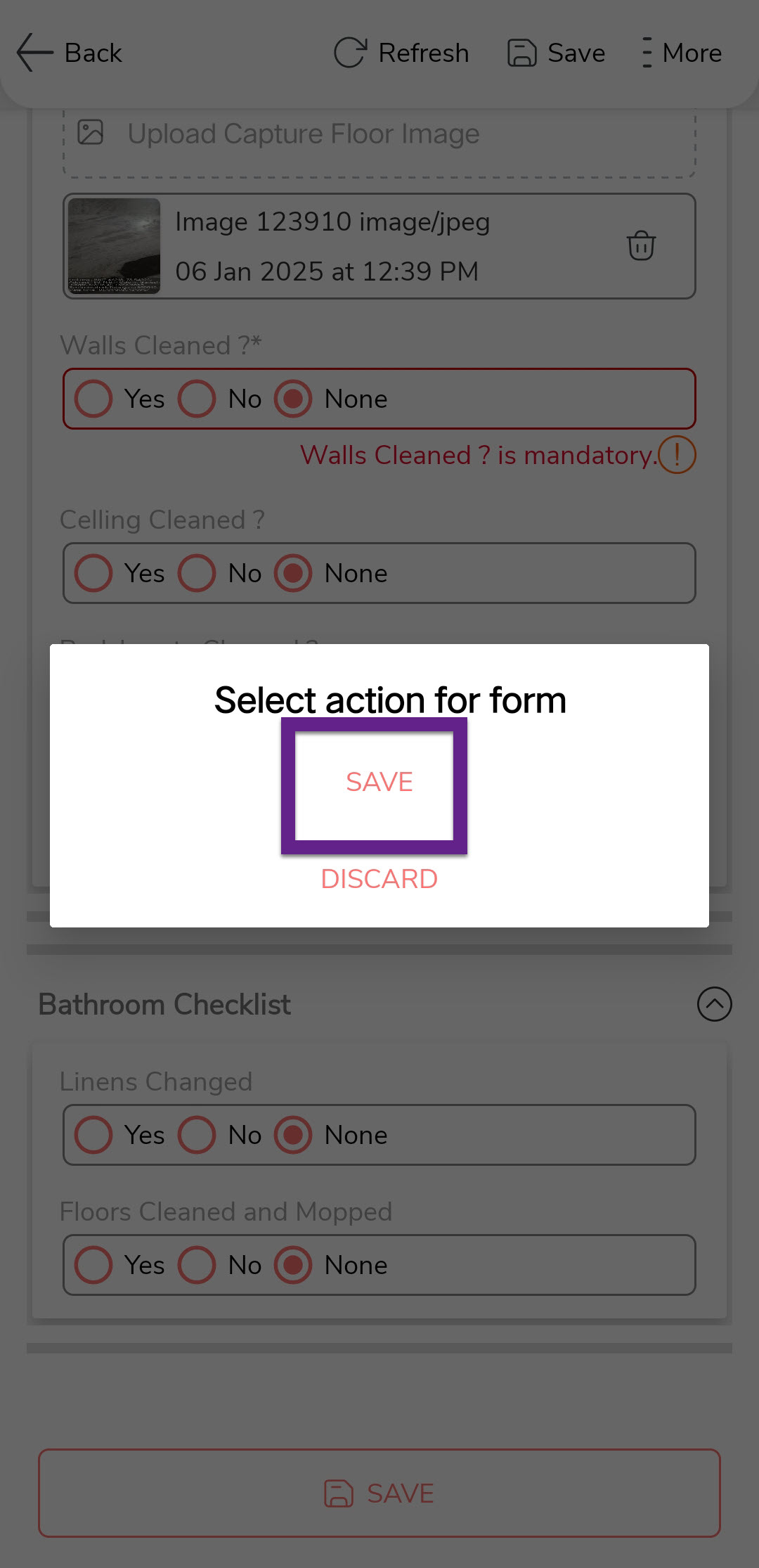
After updating all fields, tap Save and then
Save in the confirmation dialog.
-
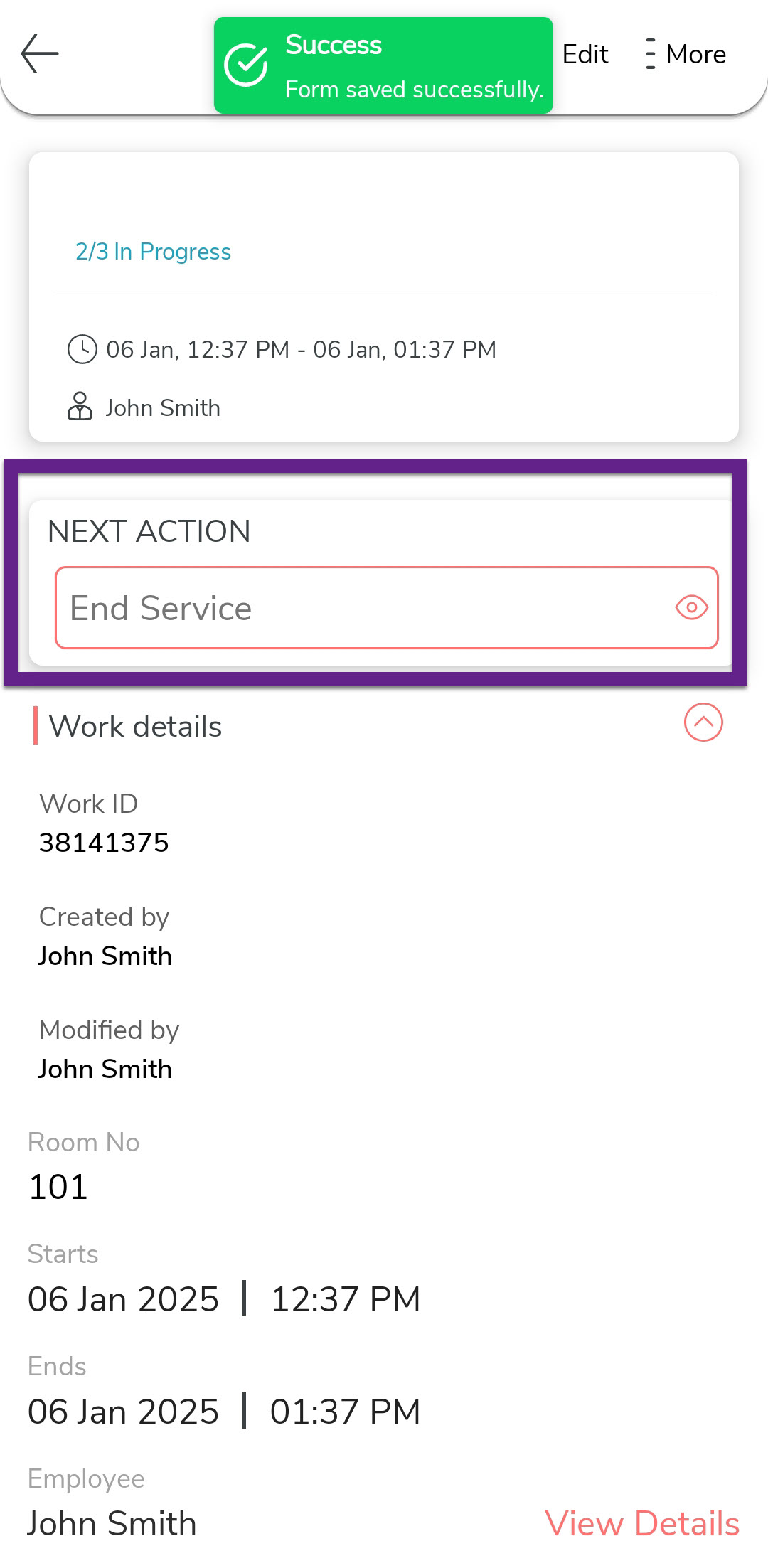
In the next screen, tap End Service to complete the room
cleaning task.
-
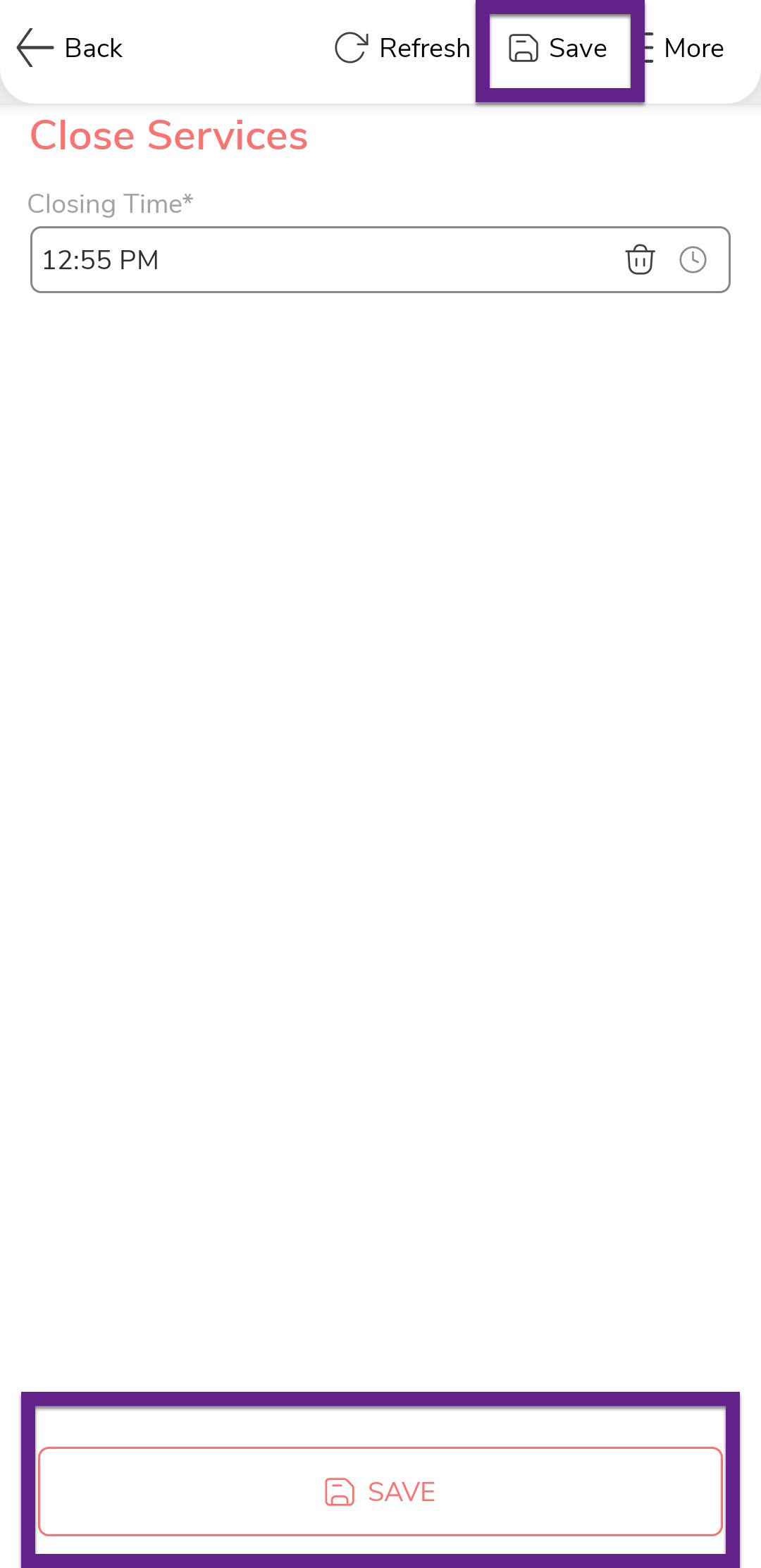
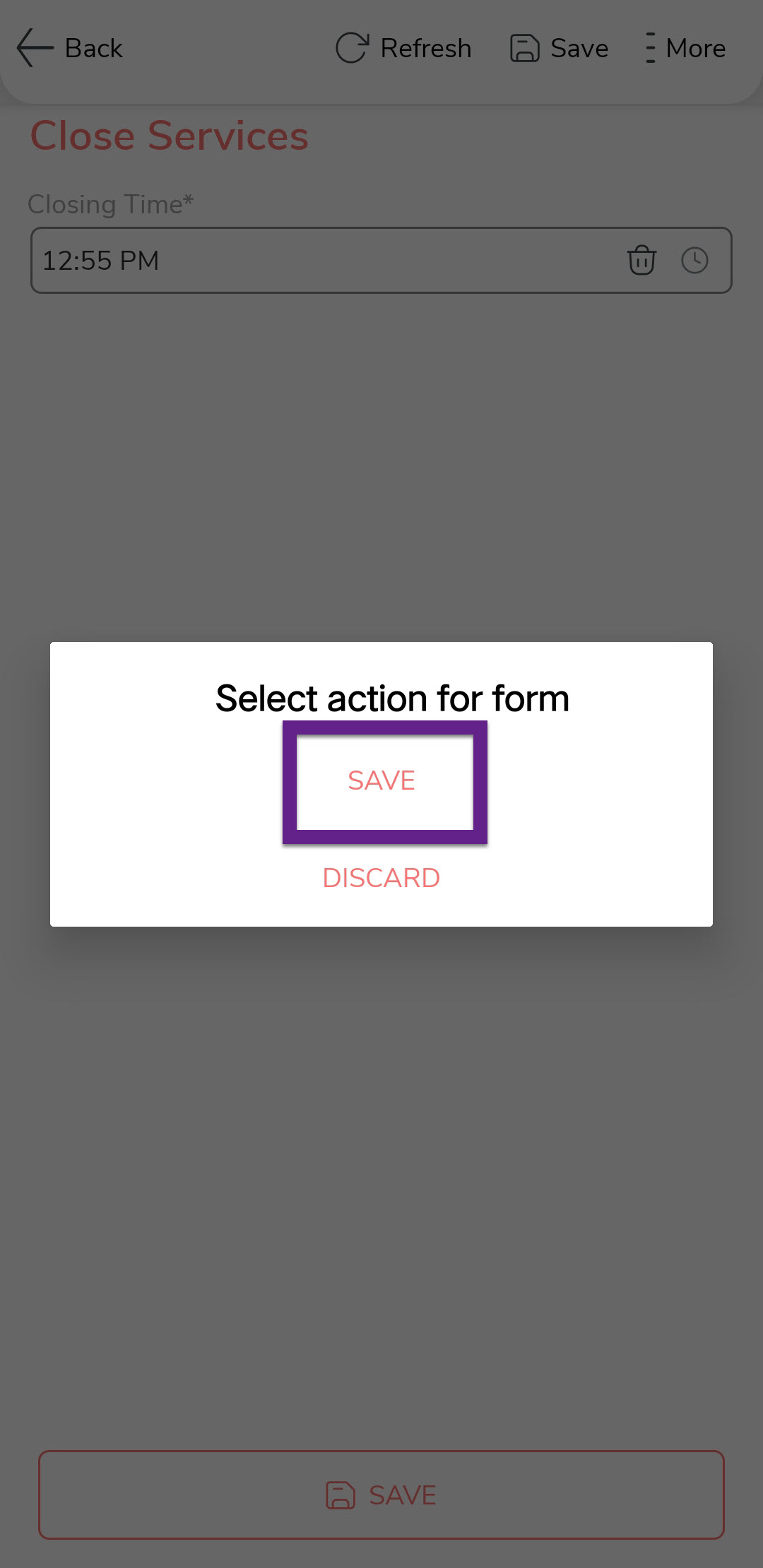
On the Close Services screen, verify the task completion time and tap
Save, followed by Save in the confirmation pop-up.
-
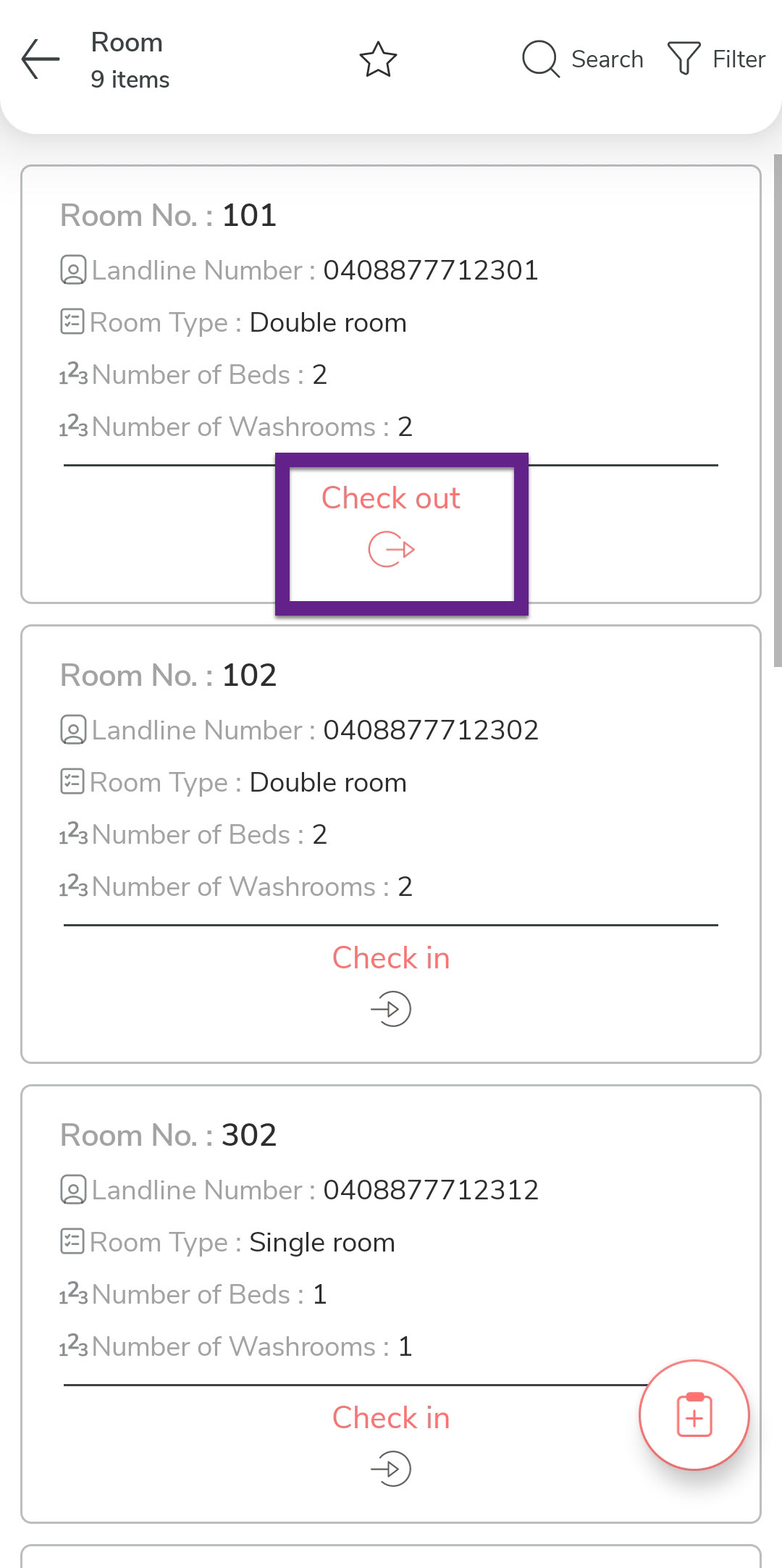
After completing the task, you need to check-out the room. Tap Check
Out.
-
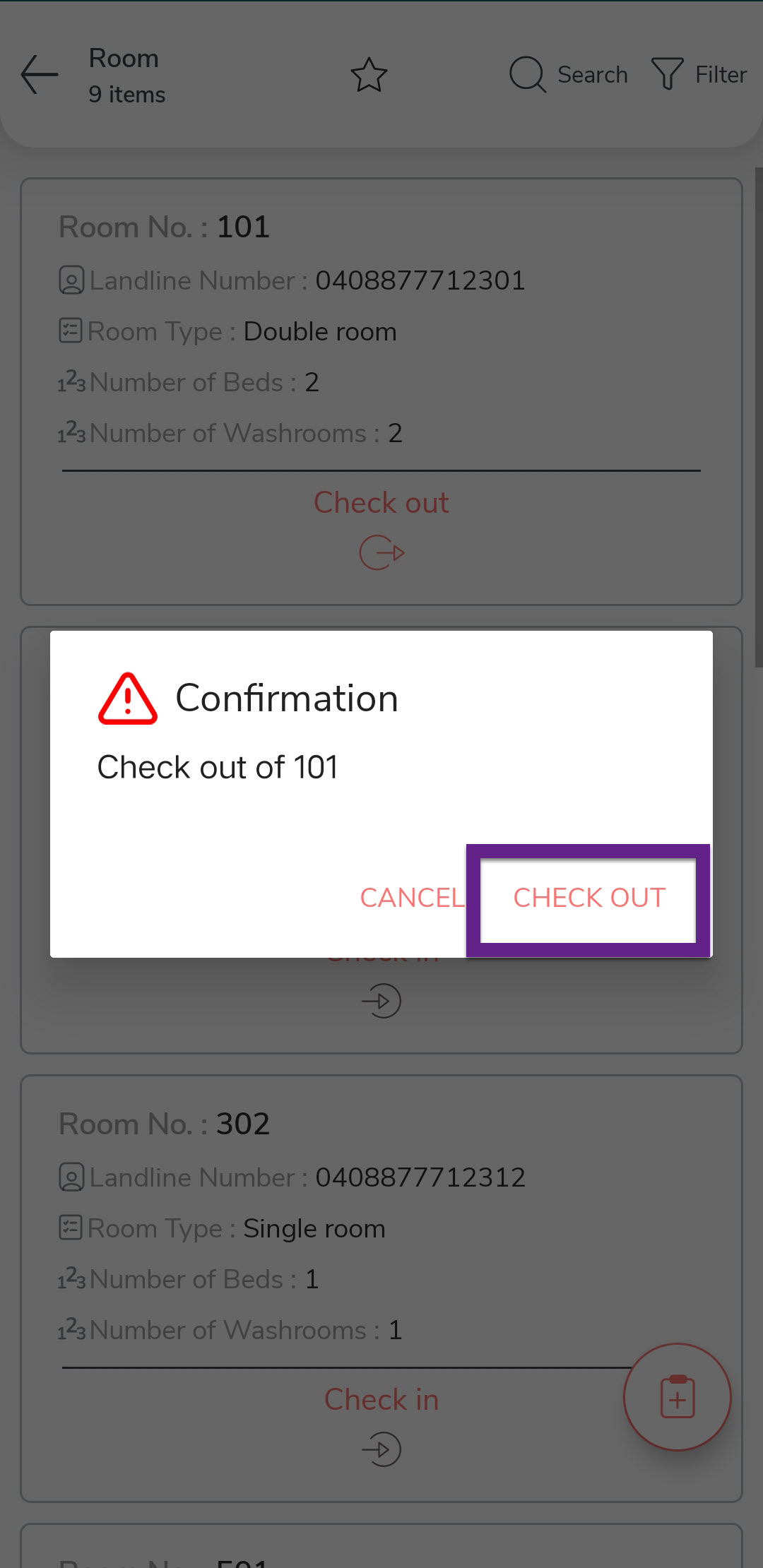
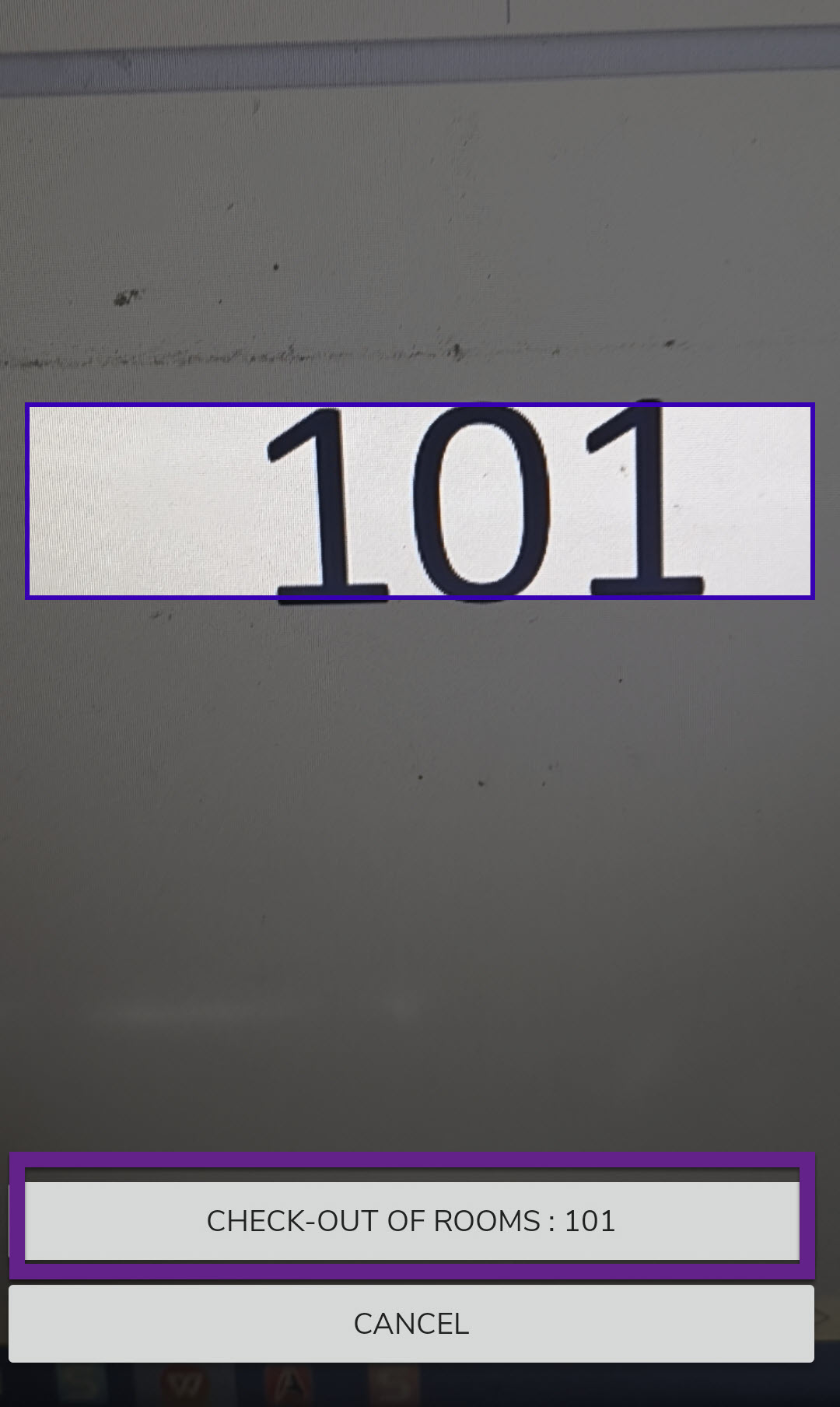
Scan the room code again and tap Check Out of Rooms:
XXX.
-
In the confirmation dialog, tap Check-Out.