

Geo Tag/Locale Settings
Defines a default time zone, unit of measurement, and the location clustering threshold.
| Label | Description |
|---|---|
| Default Timezone | Allows you to set the default time zone for all the employees
Note:
This setting can be over written for a specific employee in the Employee Configuration module |
| Unit Of Measure For Distance Calculations | Allows you to set the units by which the distance is measured. For example, kilometers and miles |
| Group locations as single location with in | Allows you to set the distance in meters where the location should be grouped together to be shown as a single location. This impacts all the location reports. |
| Bulk Import And Display Date Format | Allows you to configure the default date format. This will be used at the time of imports and generating reports. |
| Indian Numeral System | Allows you to configure currency format to be shown in Reports. |
| Allow Admin To Override Work process flow | Allows admin to modify the work process flow on the status screen. |
| Plan Daily Or Monthly | Allows you to configure either day or month plan. |
| Enable Activity Based Geo Tagging | Allows you to capture locations based on activity. |
| Approval Required For Month Plan | Allows you to make approval mandatory for a month plan. |
| Eliminate Duplicate Media Upload | Allows you to restrict duplicate media uploads. |
| When sign in/sign out is missing,consider Employee | Allows you to configure conditions for employee when sign in/sign out is missing. |
| Disable partial matching of Customer entered in search box | Allows you to search customer with exact matching details. |
| Enable PDF Download of Completed Work Actions from Work Actions view | |
| Enable Search in Google Maps | When you enable this setting, the users can see a search bar on the Google Map. It facilitates the users to search a particular location. |
| Restrict Usage Of EFFORT PLUS App If Location Service Is Turned Off |
It allows you to enforce location mandatory to use the mobile app. It restricts using the mobile app if the employees’ location is turned off on their mobile phones. They should not be able to open the mobile app unless they turn on the location. |
| Capture location if not received in (min) | It allows you to capture the location of the employee when the location is not updated within the configured duration. When you enable this setting, a push notification will be triggered to the mobile app. The location gets captured when the employees open the push notification. |
| Enable Enhanced Works Interface As Default View Screen |
When you enable this setting, the enhanced processes interface becomes the default interface for the Processes module in the Web App. Once enabled, the option to switch between the old and new interfaces will be removed, and users will see the new interface as the default. |
| Enable Enhanced Customer Interface As Default View Screen |
When you enable this setting, the enhanced processes interface becomes the default interface for the Customers module in the Web App. Once enabled, the option to switch between the old and new interfaces will be removed, and users will see the new interface as the default. |
| Enable Enhanced Employees Interface As Default View Screen |
When you enable this setting, the enhanced processes interface becomes the default interface for the Employees module in the Web App. Once enabled, the option to switch between the old and new interfaces will be removed, and users will see the new interface as the default. |
| Enable Enhanced Entity Interface As Default View Screen |
When you enable this setting, the enhanced processes interface becomes the default interface for the Entities module in the Web App. Once enabled, the option to switch between the old and new interfaces will be removed, and users will see the new interface as the default. |
| Enable Enhanced Forms Interface As Default View Screen |
When you enable this setting, the enhanced processes interface becomes the default interface for the Forms module in the Web App. Once enabled, the option to switch between the old and new interfaces will be removed, and users will see the new interface as the default. |
| Enable Enhanced My Approvals Interface As Default View Screen |
When you enable this setting, the enhanced processes interface becomes the default interface for the My Approvals module in the Web App. Once enabled, the option to switch between the old and new interfaces will be removed, and users will see the new interface as the default. |
| Enable Lat-Long to Address |
When you enable this setting, the system will automatically convert the latitude and longitude values of a location into a readable address. For instance, when you select a customer location on a map during the creation of a new customer, the system will convert the latitude and longitude coordinates into meaningful information, automatically populating address fields such as street, landmark, area, pincode, and more. |
| Enable Customer App Configuration |
When you enable this setting, you can customize the app configuration specifically for your customers. This allows you to create a tailored application that can be used for various purposes such as collecting feedback, providing support, and more. For additional details, please refer to the Customer App Configuration topic. |
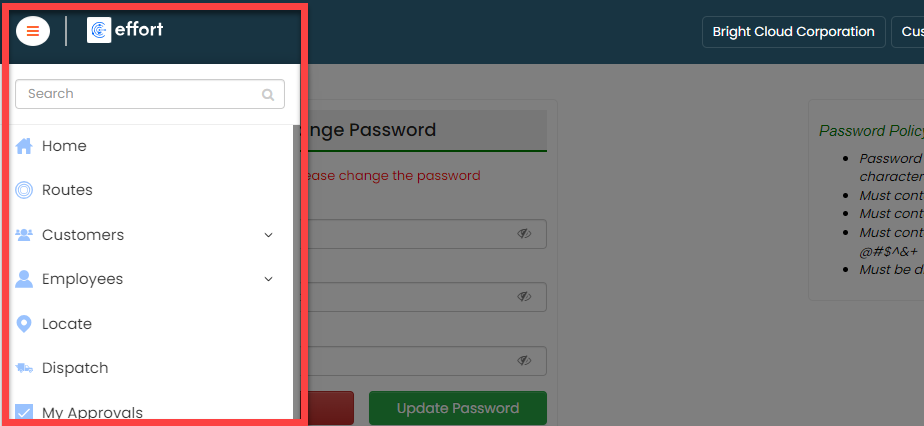
| Enable Left Menu |
Enabling this setting activates the left menu in the web app. Once enabled,
users of the web app will have access to all modules by simply clicking on
the left menu. To understand its functionality visually, please refer to the
image below, which illustrates how it works.
 Note:
Once you enable this setting, it is necessary to log out and log back in to the web app in order to view the left menu. |