

Customer Check-Ins
The Customer Check-Ins card shows the number of customer check-ins done today and
yesterday. You can view the customer check-in details when you click on a number. A
pop-up window appears with the customer details like Customer Name, Check-In Time,
Employee who checked into the customer, etc. You can click on the All Customer
Check-In Details button to view the complete check-in details. Find the below
screenshot for a sample Customer Check-Ins card.
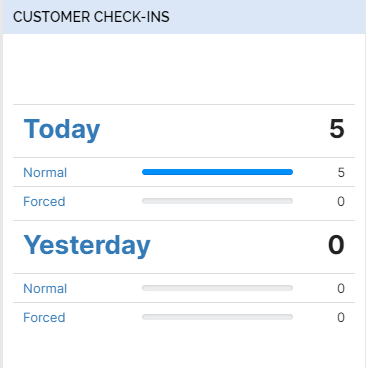
You can get the below metrics on the Customer Check-Ins card.
- Today: It shows the total number of customer check-ins
done today.
- Normal: It shows the total number of customer check-ins done normally.
- Forced: It shows the total number of customer check-ins done forcefully.
- Yesterday: It shows the total number of customer
check-ins done yesterday.
- Normal: It shows the total number of customer check-ins done normally.
- Forced: It shows the total number of customer check-ins done forcefully.