

Complete a Day Plan
Complete a day plan by completing the customer visits.
-
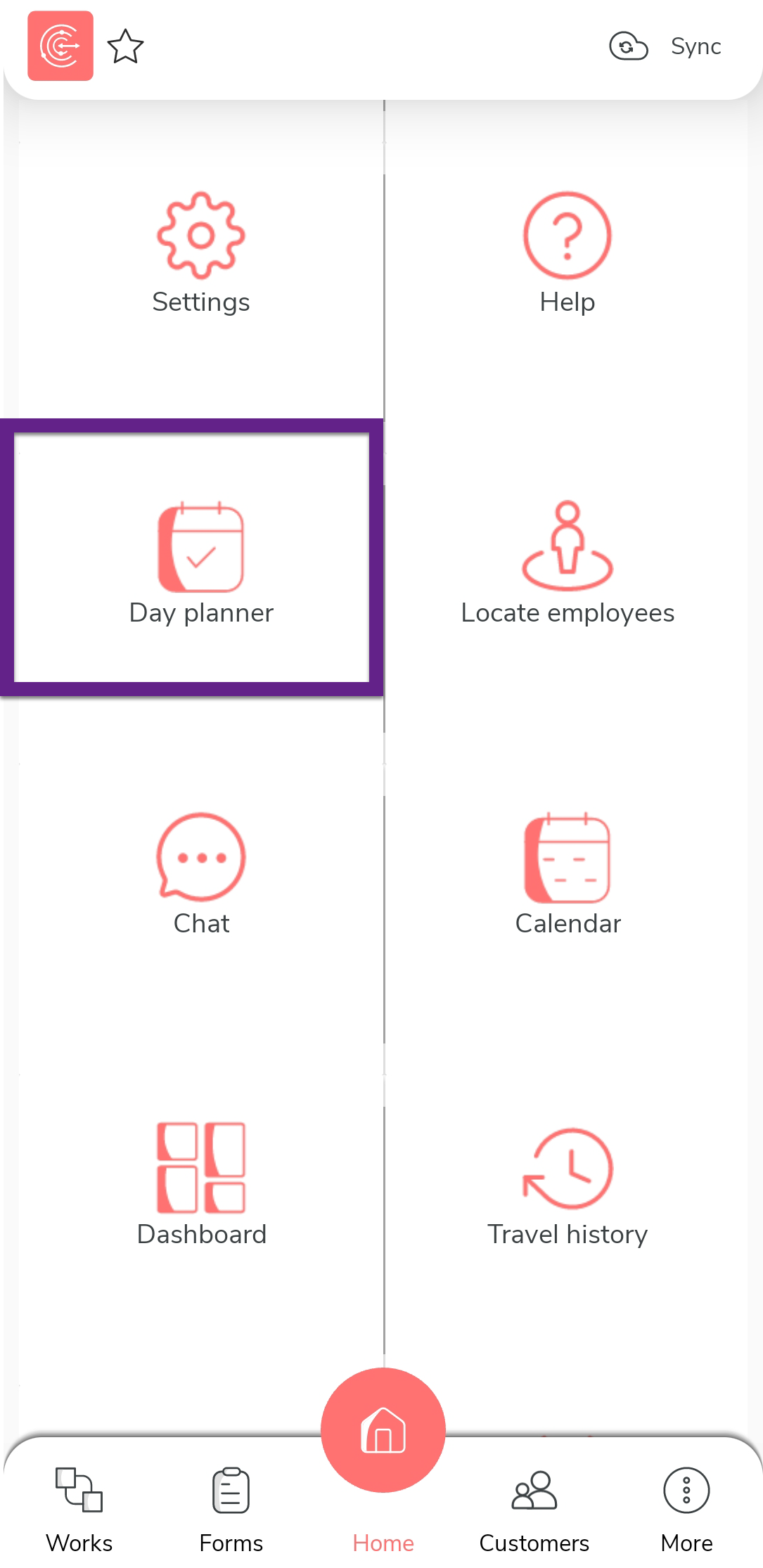
Tap Day planner on the home screen.
-
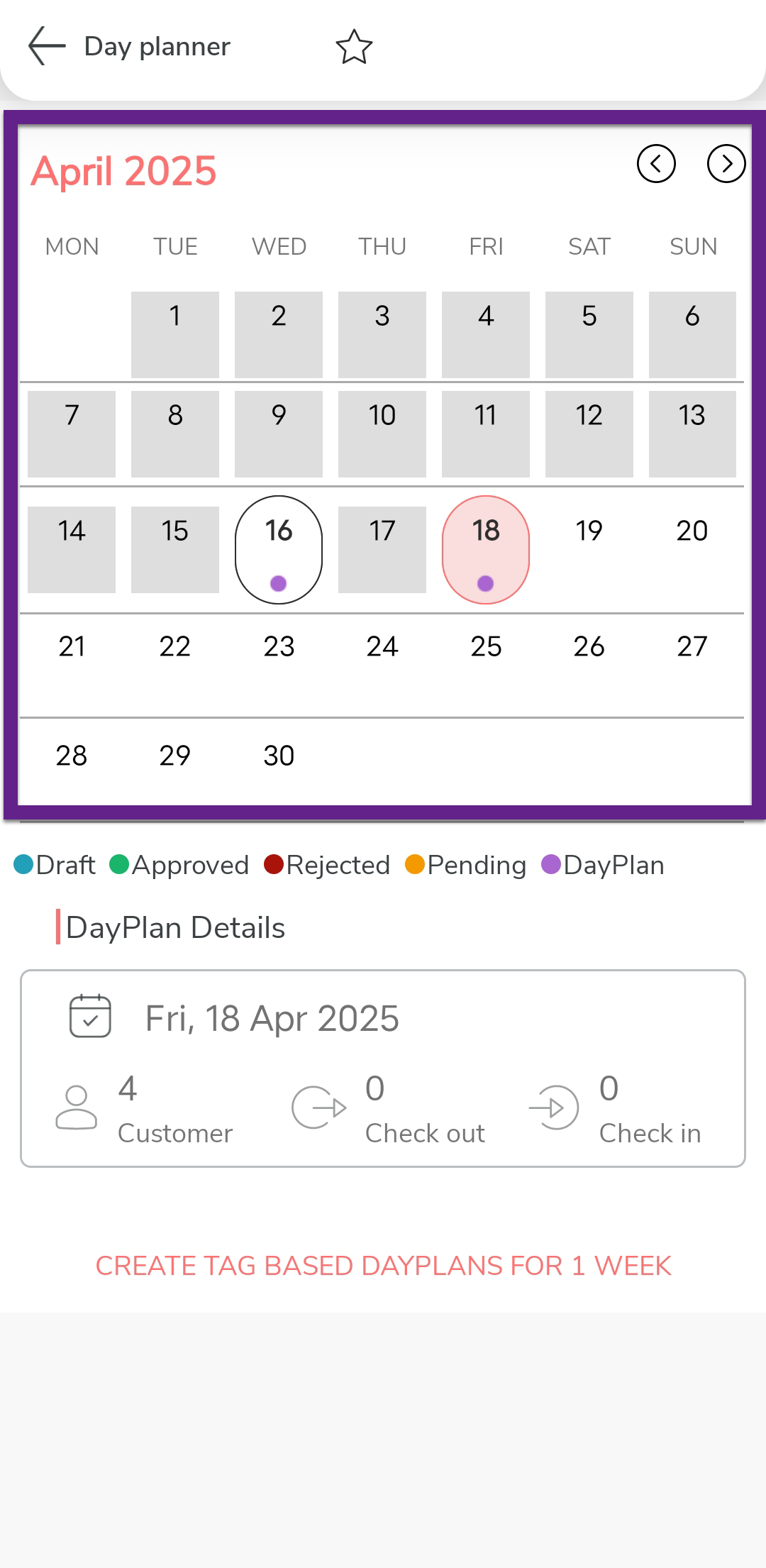
Tap a day with a plan.
-
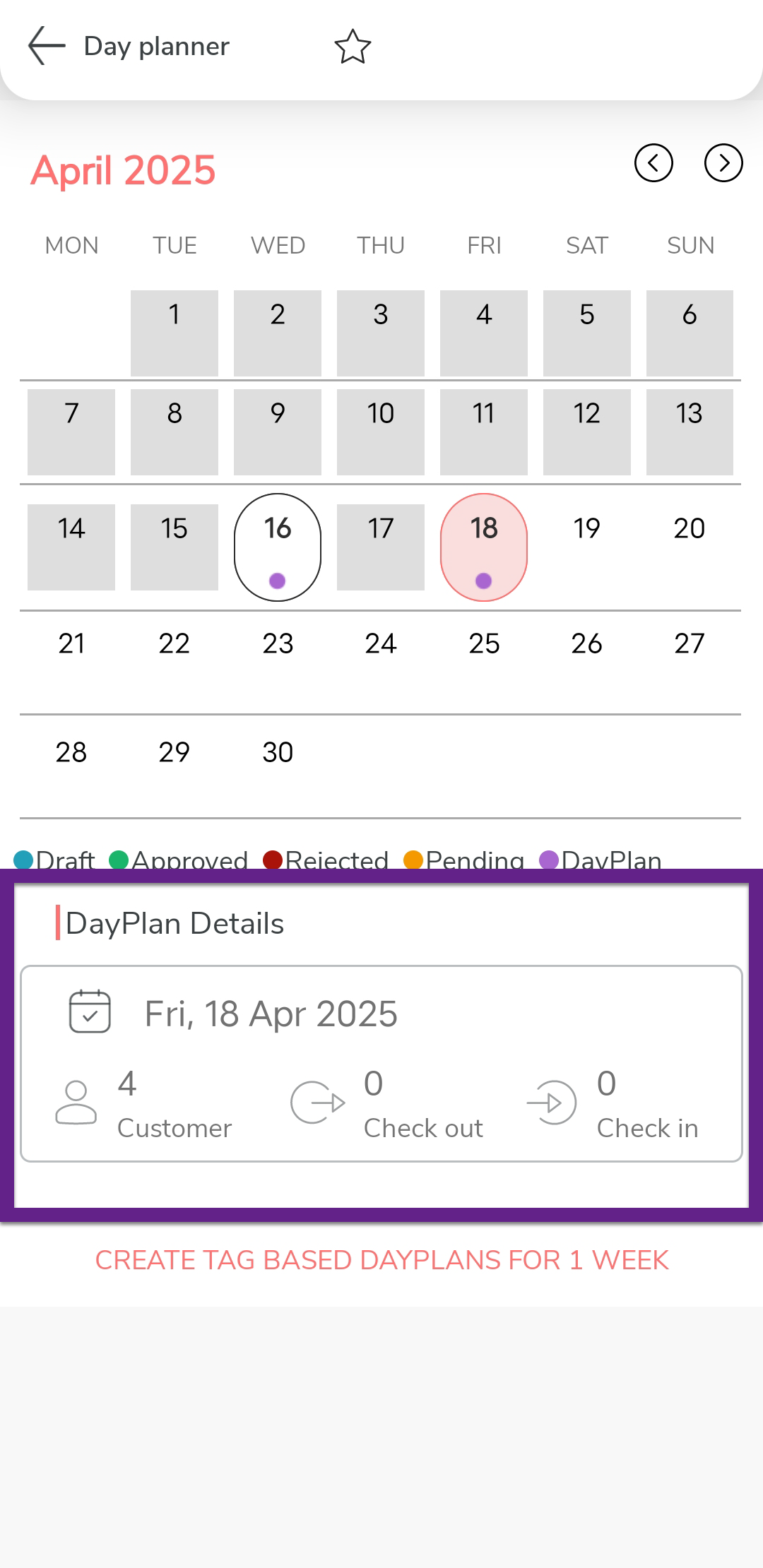
Tap on the day plan that you want to complete under the Day Plan
Details section.
-
Tap Check in
 to
start a customer visit.
to
start a customer visit. 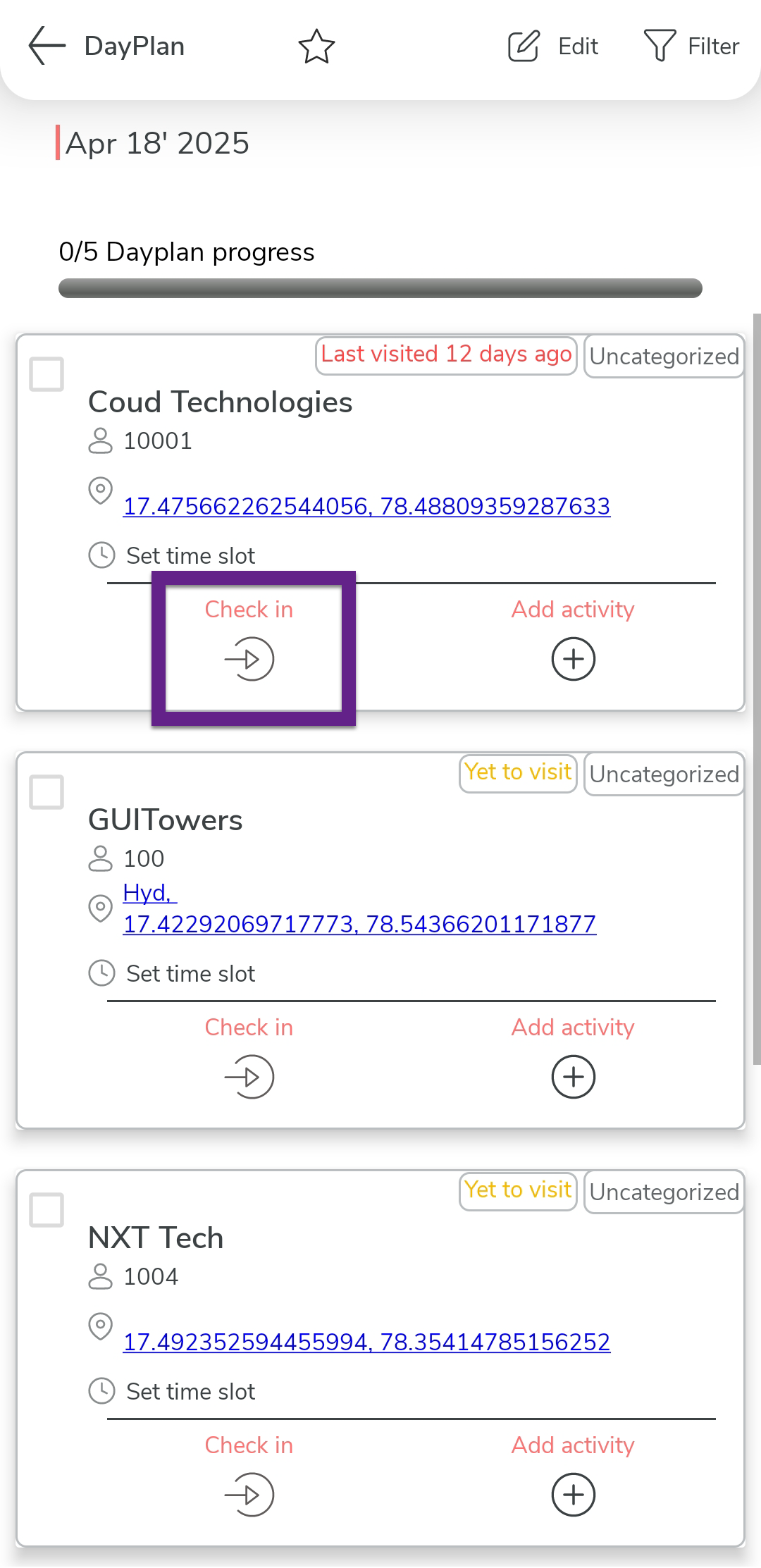
-
In the Confirmation dialog, tap Check
In.
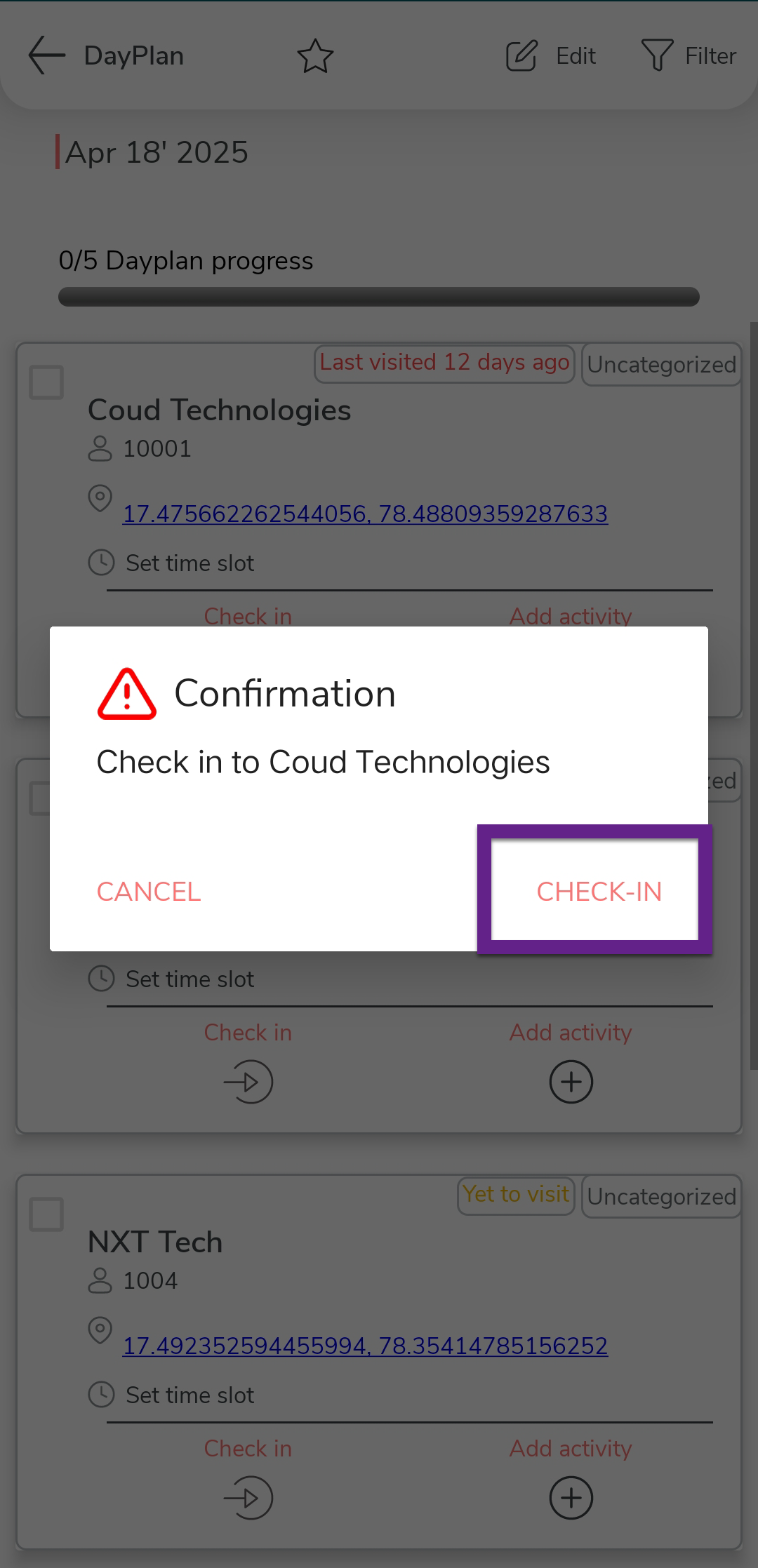
Based on the configuration, checking into a customer automatically may automatically select the customer visit checkbox to mark a visit as done. Progress bar is updated whenever a visit completed checkbox is selected/unselected either manually or automatically. - Optional:
Tap the Add Activity
 icon to record an activity against the customer visit. Repeat as many times as
needed.
icon to record an activity against the customer visit. Repeat as many times as
needed.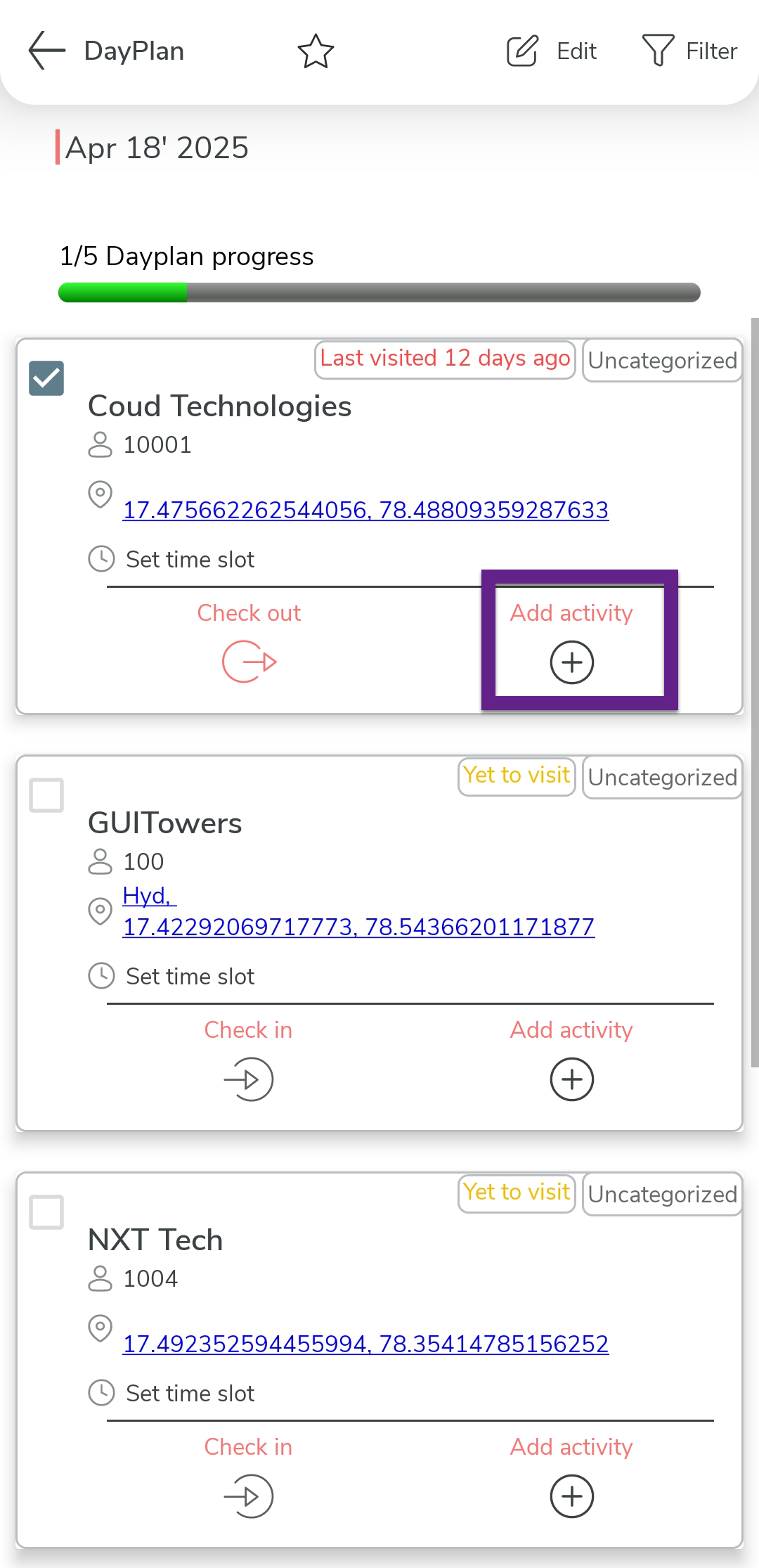
-
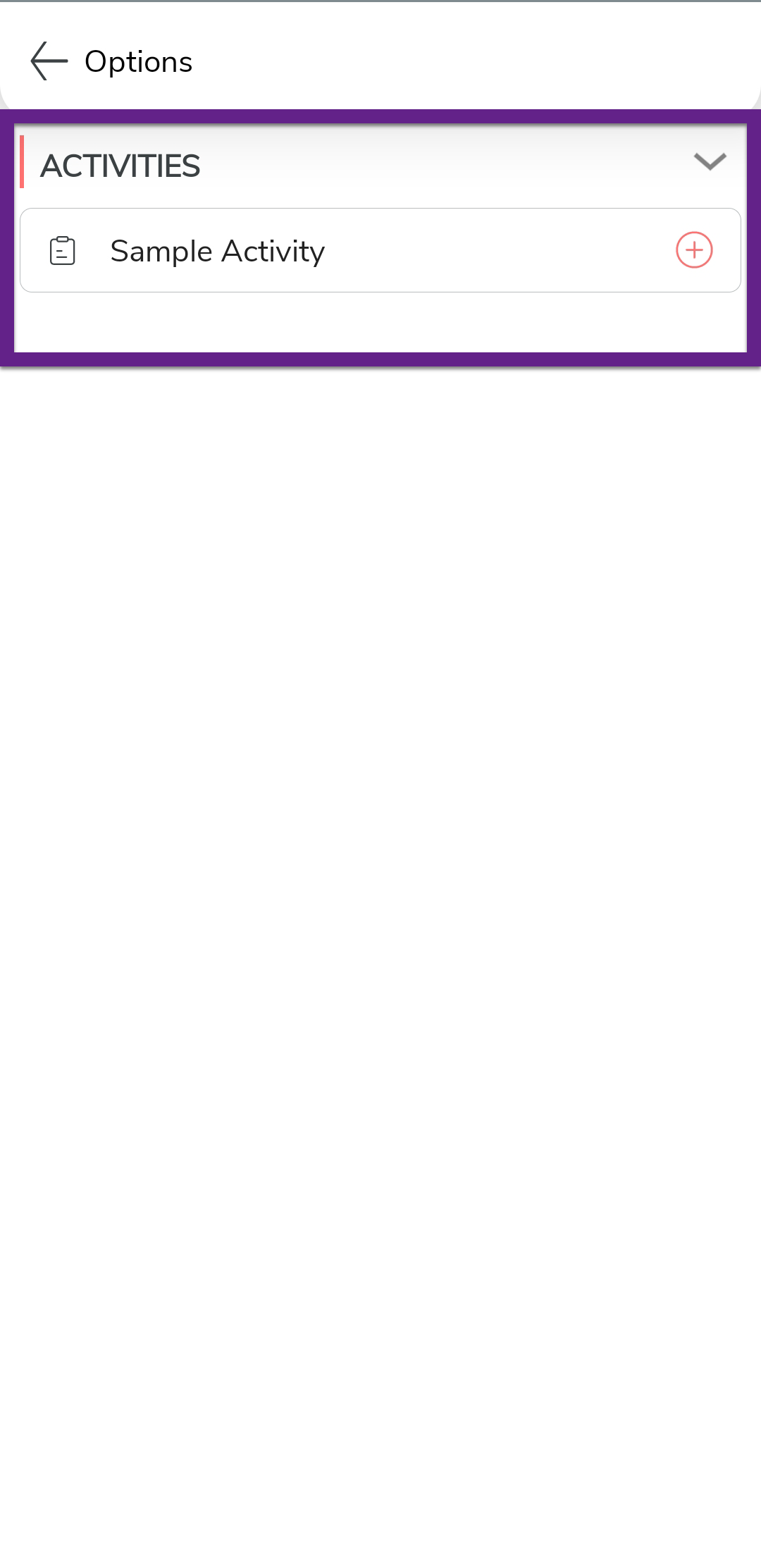
Tap the activity you want to perform.
-
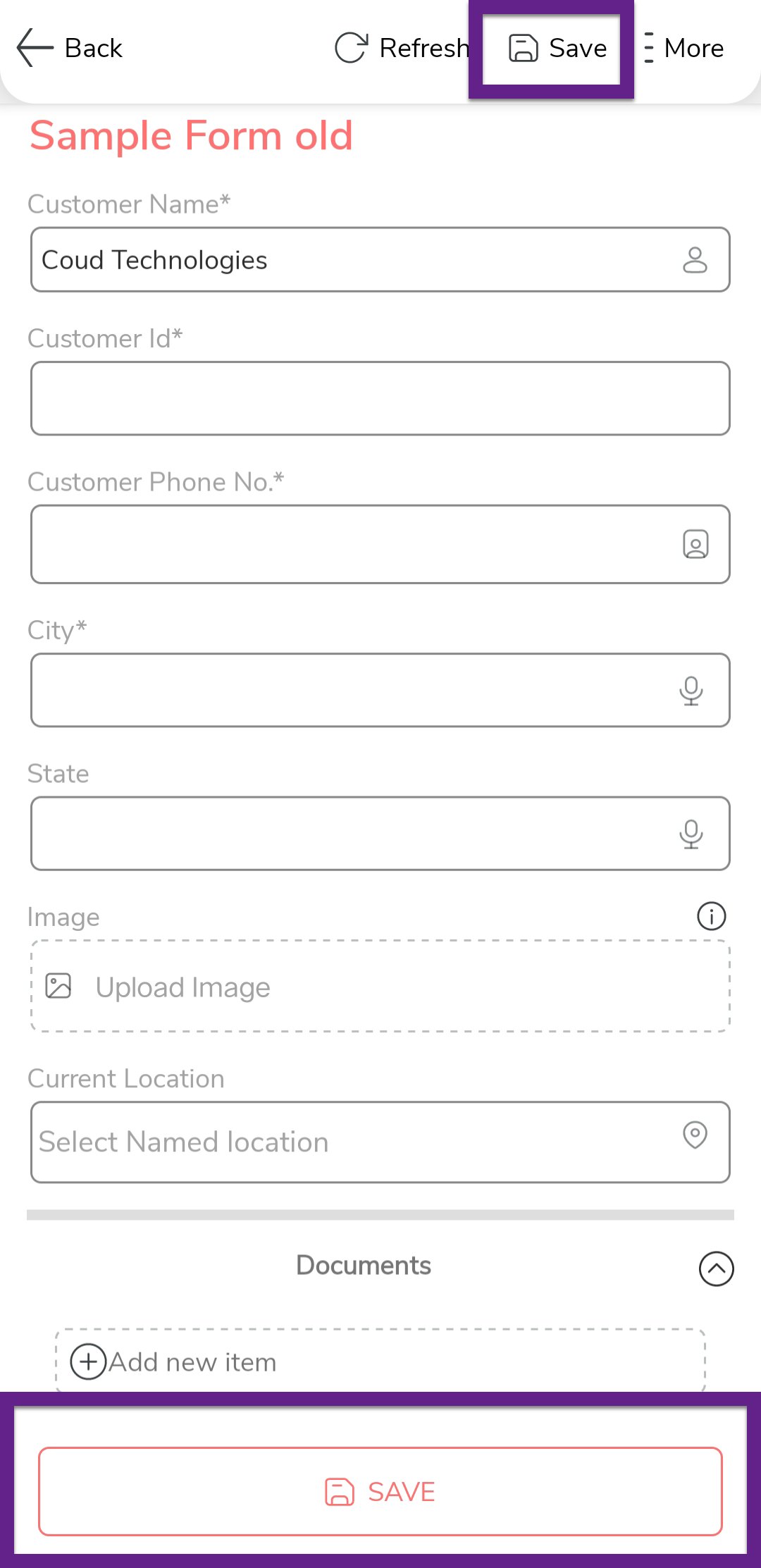
Fill in the activity form and then click Save.
-
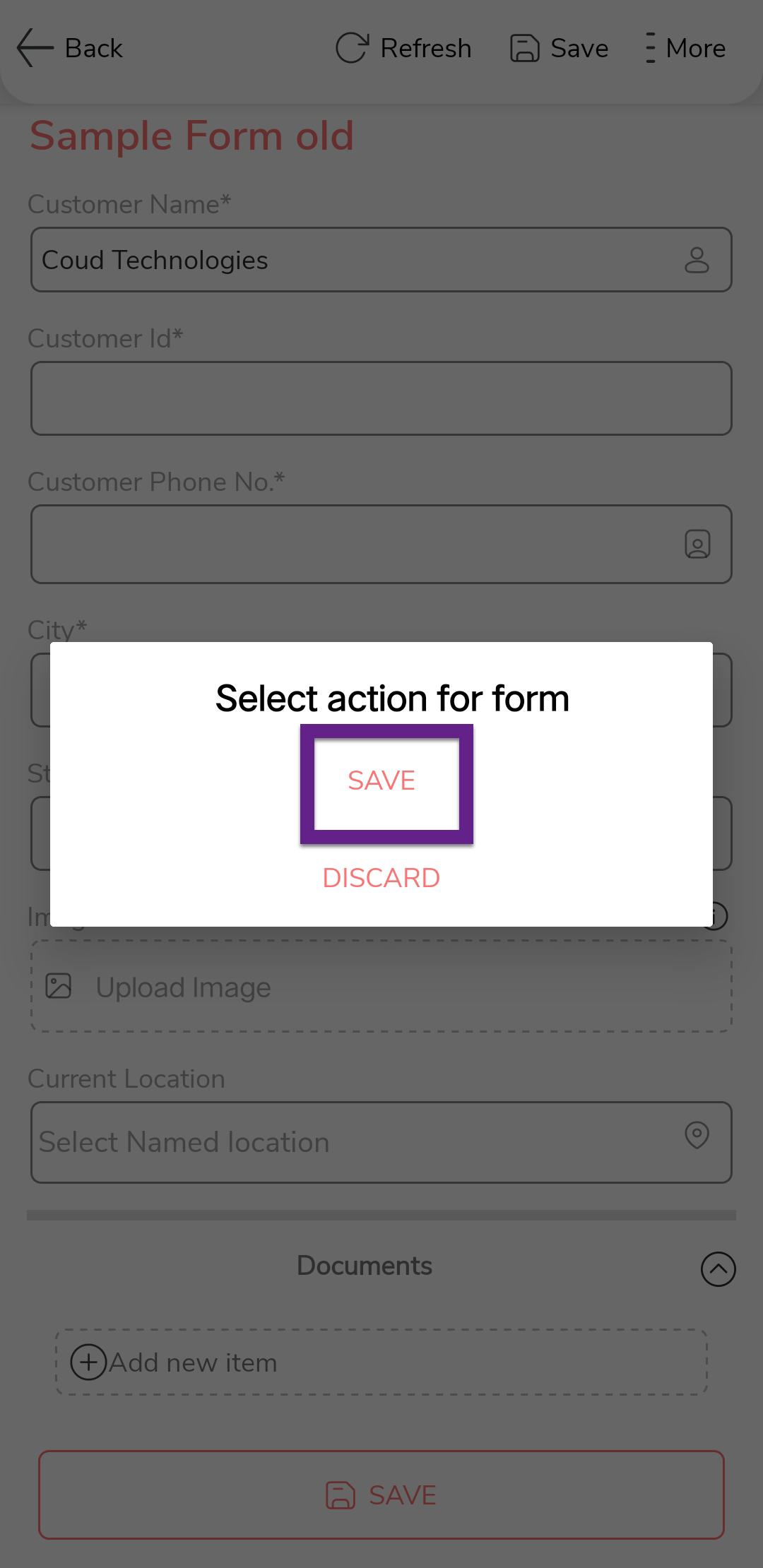
In the confirmation dialog, click Save to save the
activity.
-
Tap the check out
 icon to end a customer visit.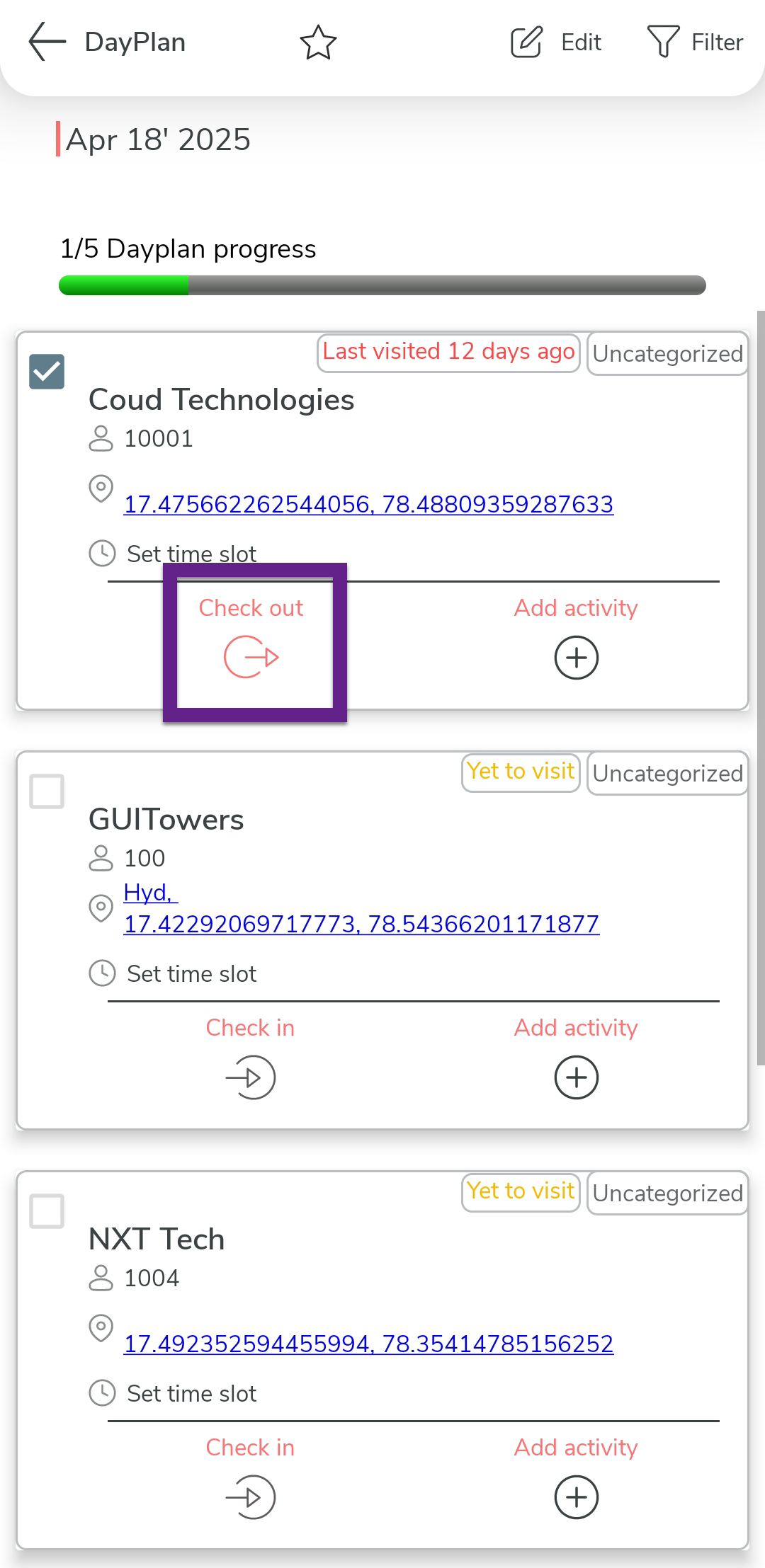
-
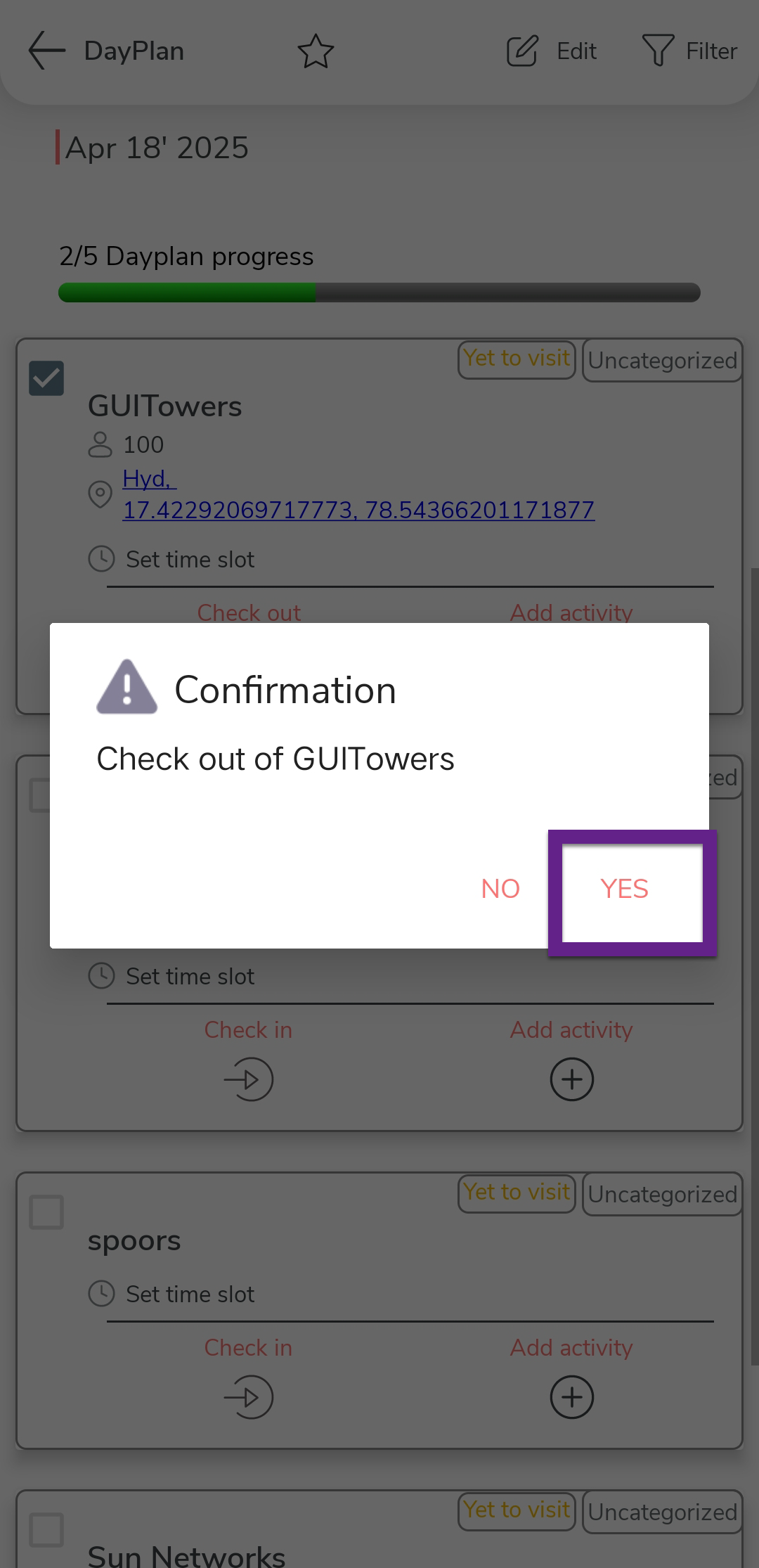
In the confirmation dialog, tap Check Out.
- Optional:
Repeat the above steps until all the visits are complete.
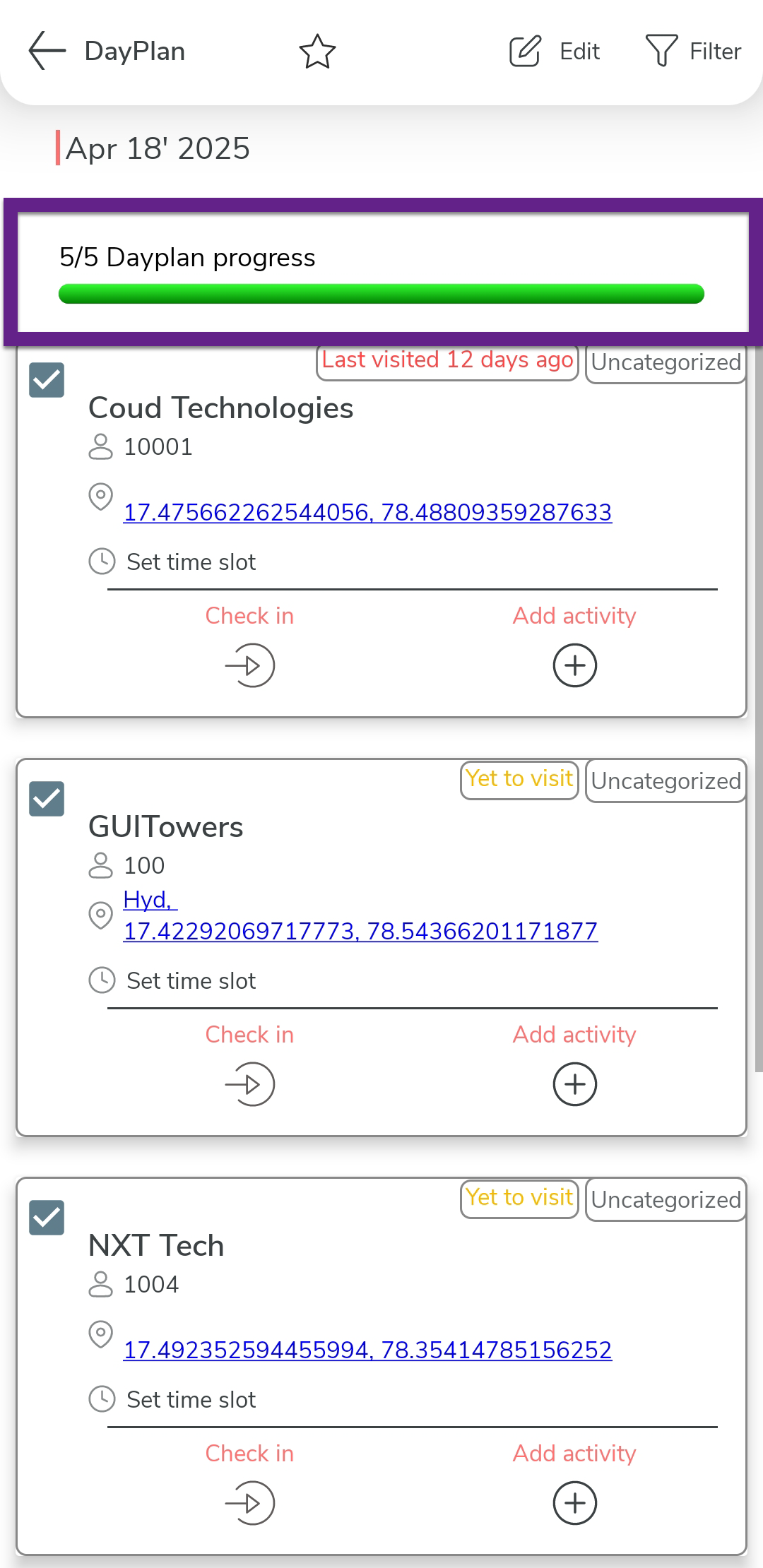
A day plan is deemed complete when all the customer visits are complete.