

Submit a Form Through Mobile App
This topic helps you understand how to submit a form using the mobile app.
-
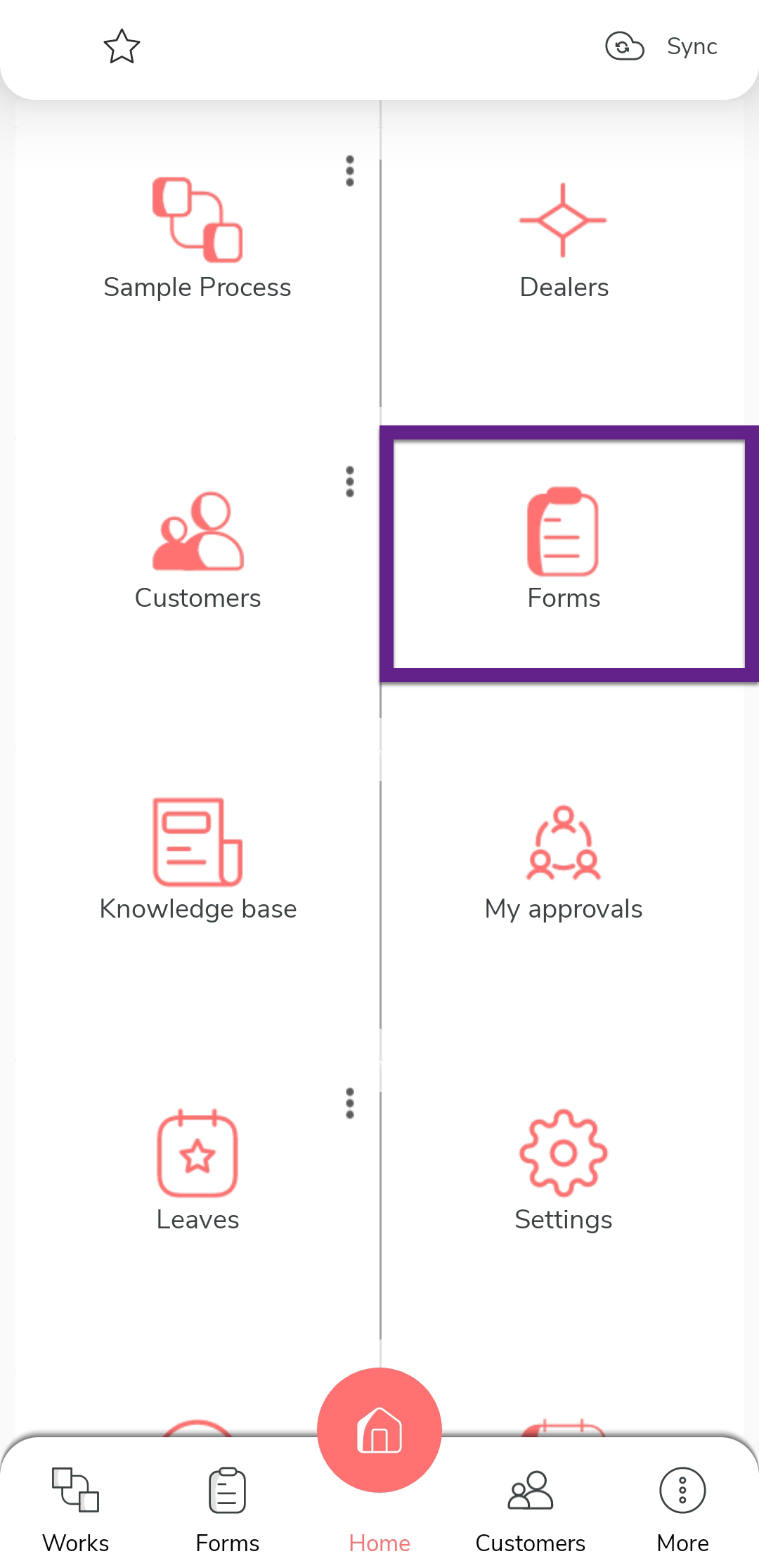
On the home screen or from the navigation drawer, tap
Forms.
-
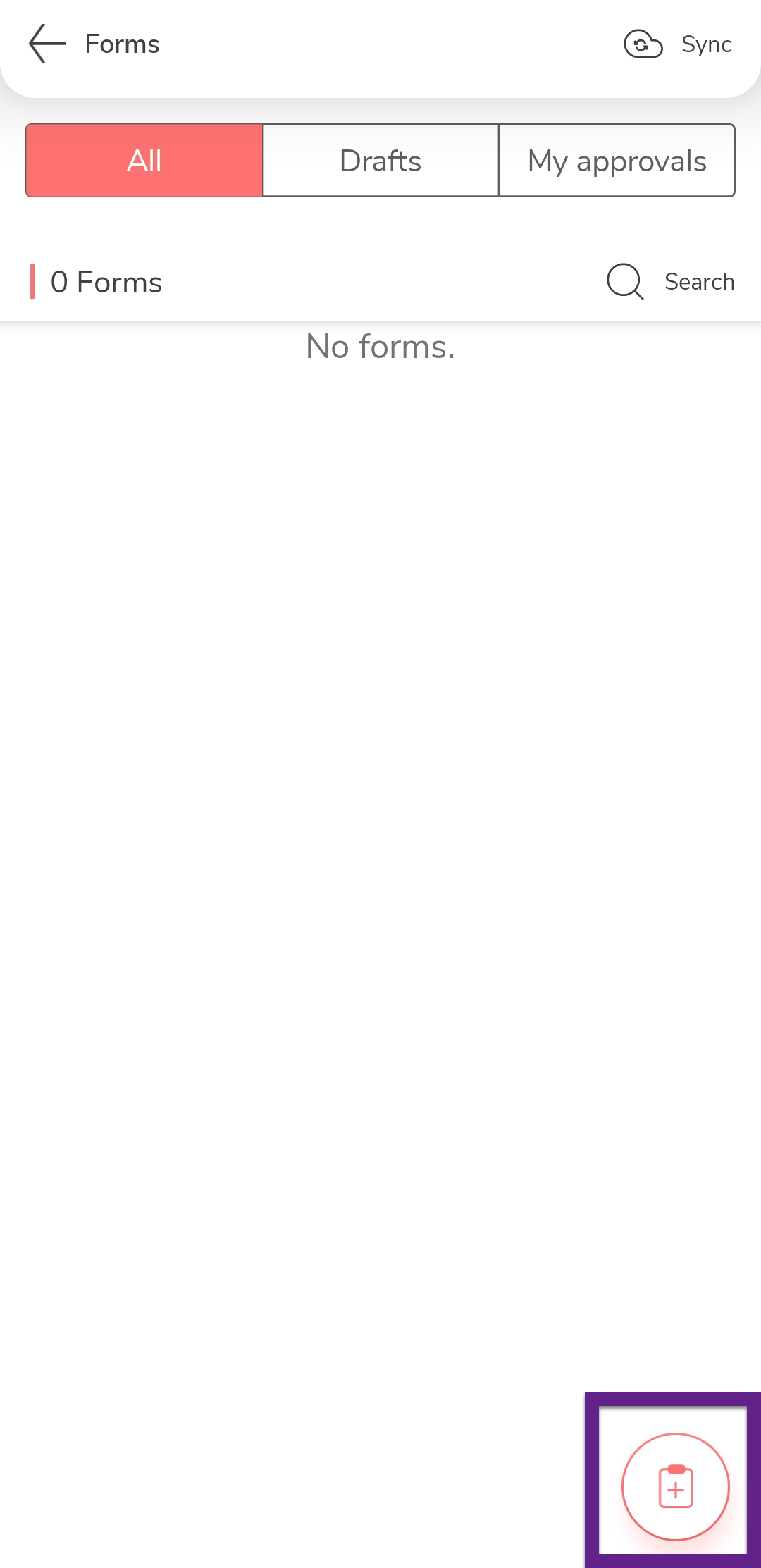
Tap the add icon located at the bottom of the Forms
screen.
-
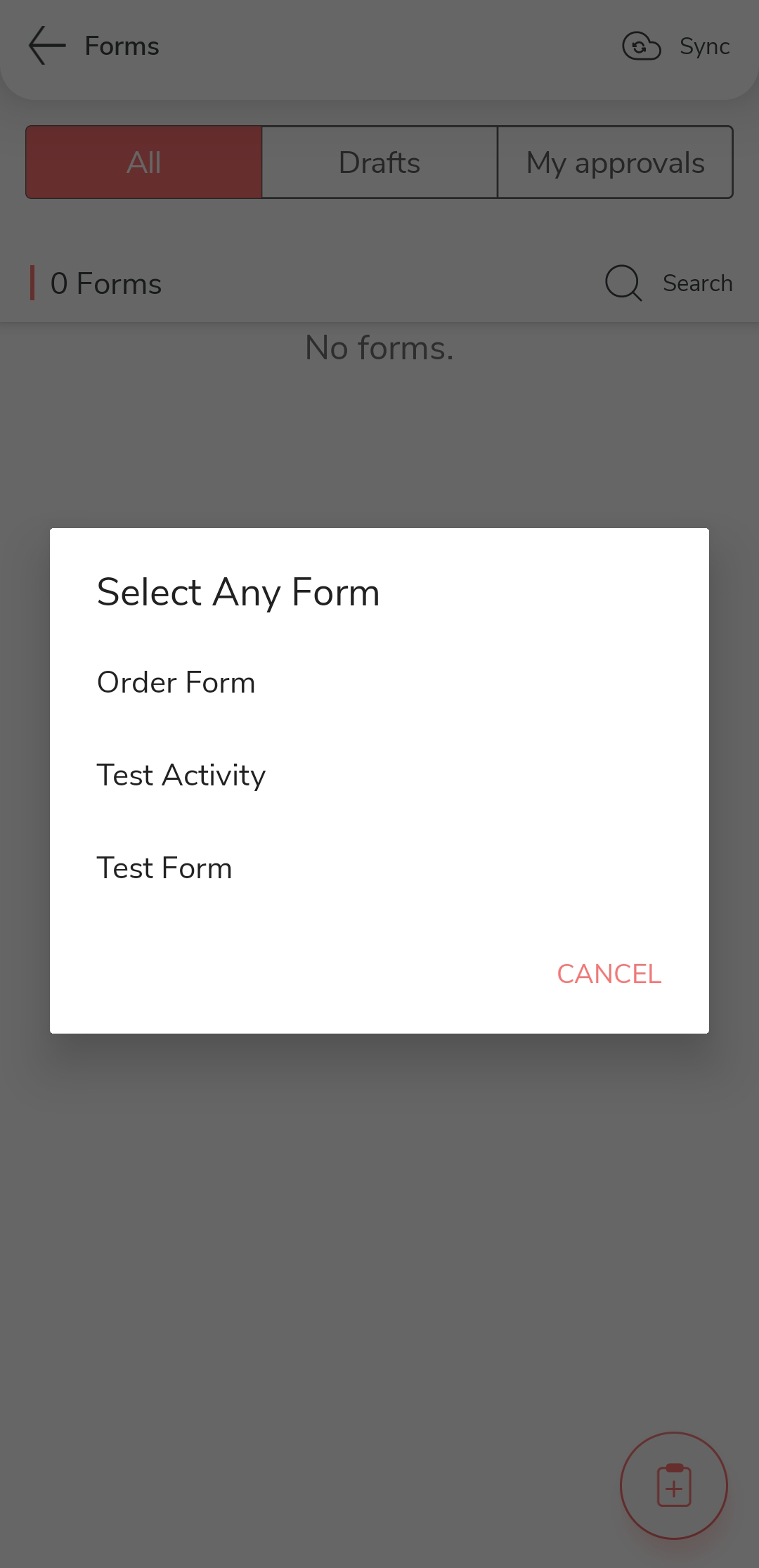
Tap the required form from the available list.
-
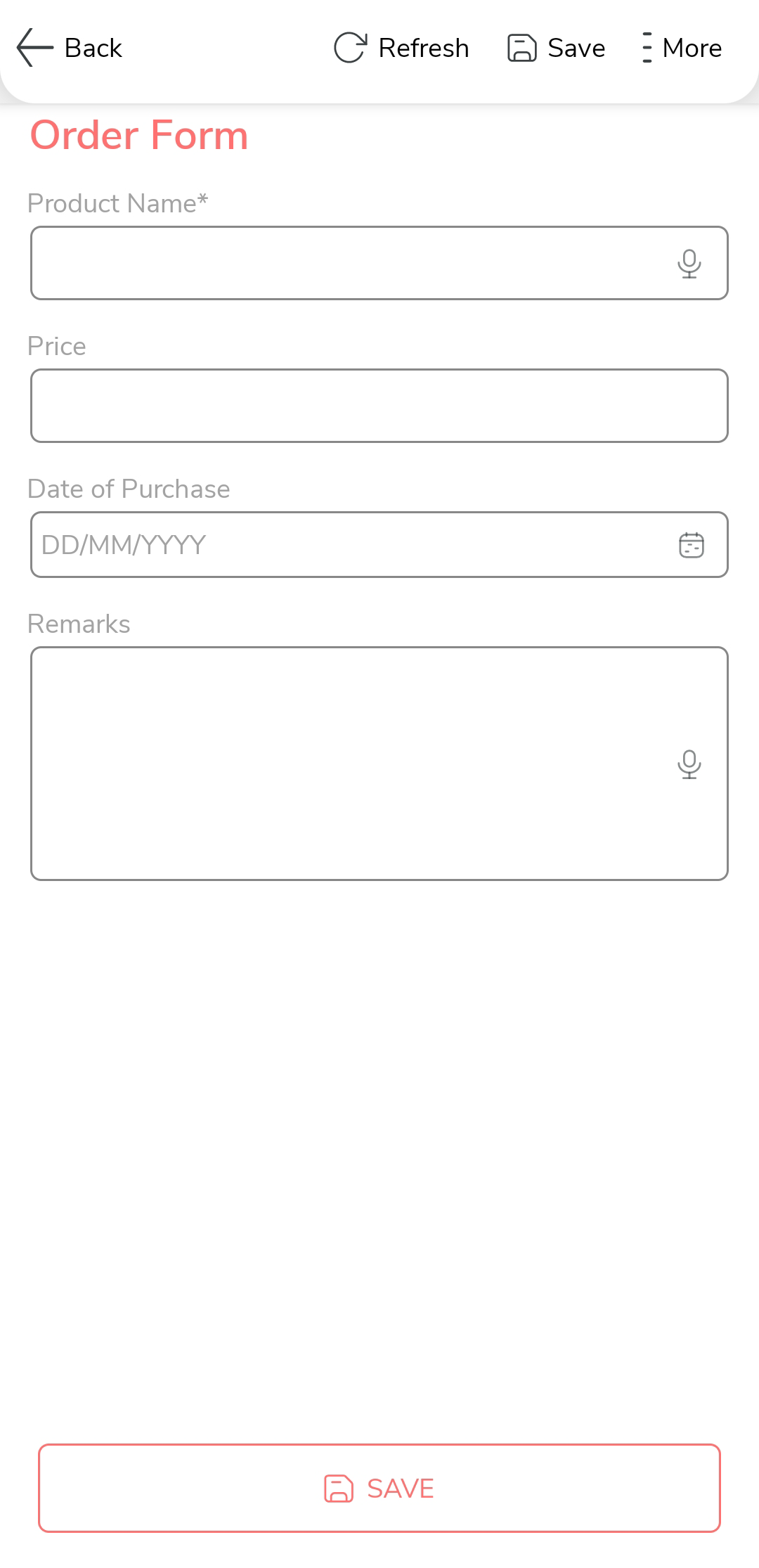
Fill in the necessary information in the form fields.
-
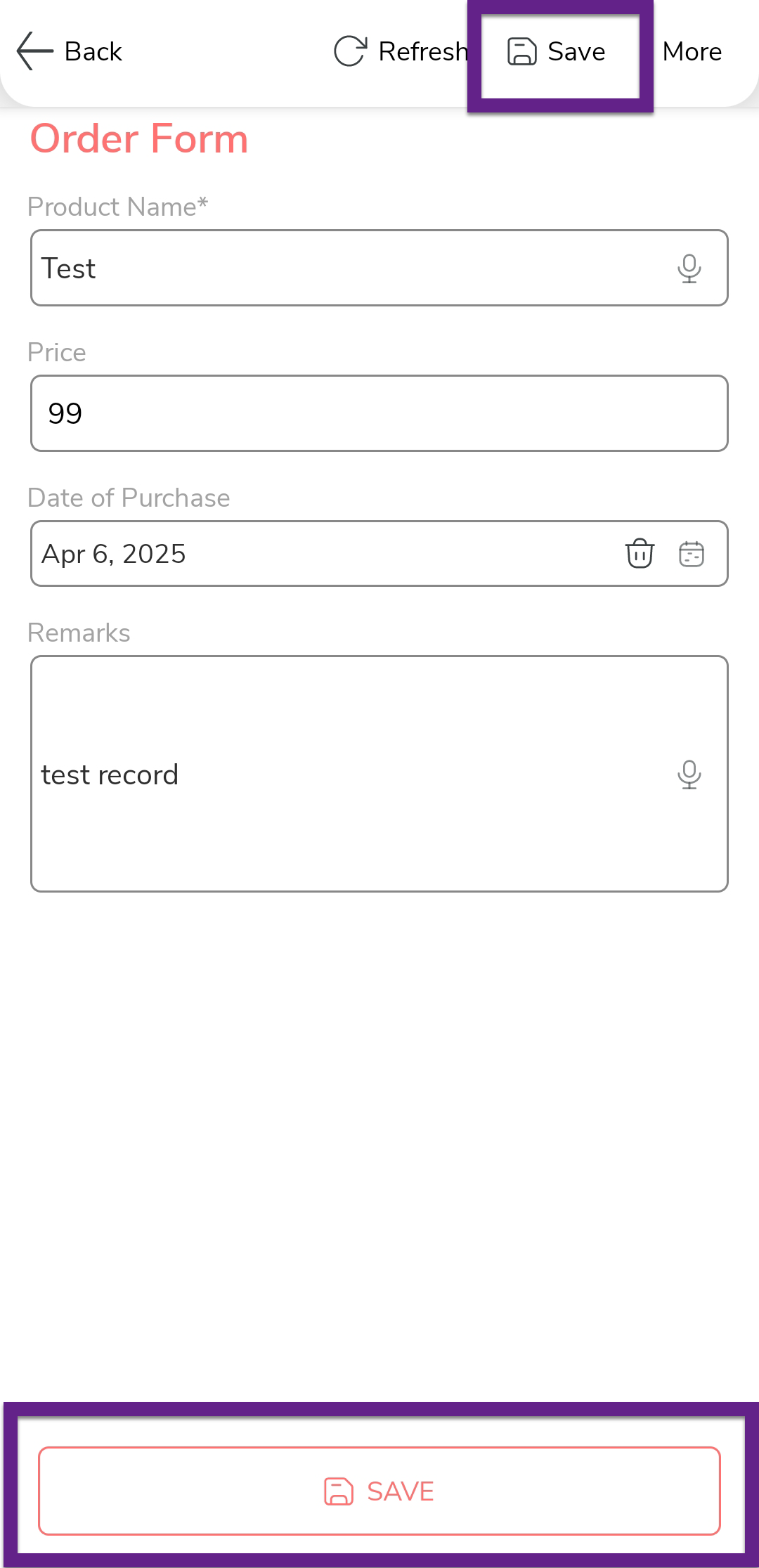
Tap Save.
-
A form dialog box appears. Choose one of the following options:

-
Save: Saves the form entry.
-
Save & New: Saves the form and opens a new blank form for another entry.
Save & Submit for Approval: The form will be submitted to the designated approver as per the configured approval workflow.
Note:If the form requires approval, the Approval tab will be enabled after submission.
Your location is automatically captured at the time of form submission, enabling managers to trace where the form was submitted from.
Spoors recommends submitting forms in open premises to avoid network-related issues and ensure successful data sync.
-