

Assign a Recurring Route Plan to an Employee
Schedule recurring customer visits based on a route plan to an employee.
-
Go to .
The Assigned Route Plan page appears.
-
Click Assign corresponding to the route plan you want to
assign from the sidebar.

If you prefer, you can also click ASSIGN, and select a Route Plan from a drop-down in the next step. -
From the Employee dropdown, select an employee to whom
you want to assign a route plan.
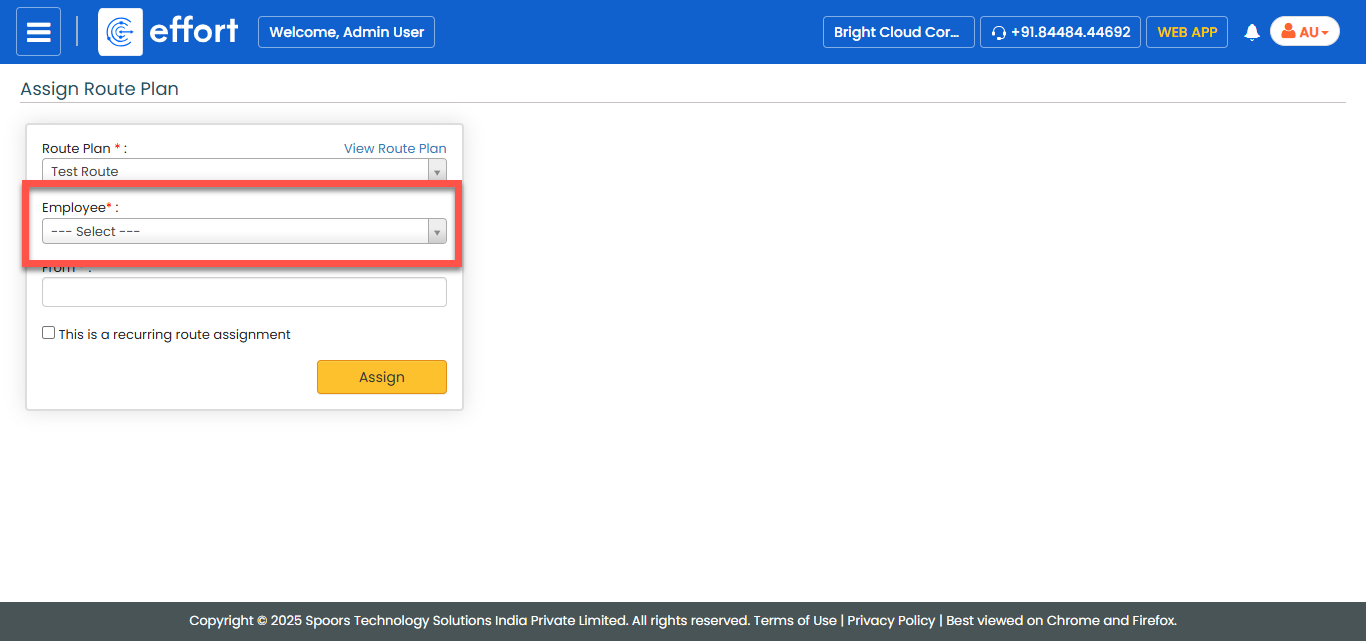
-
In the From field, select the start date of the selected
route.
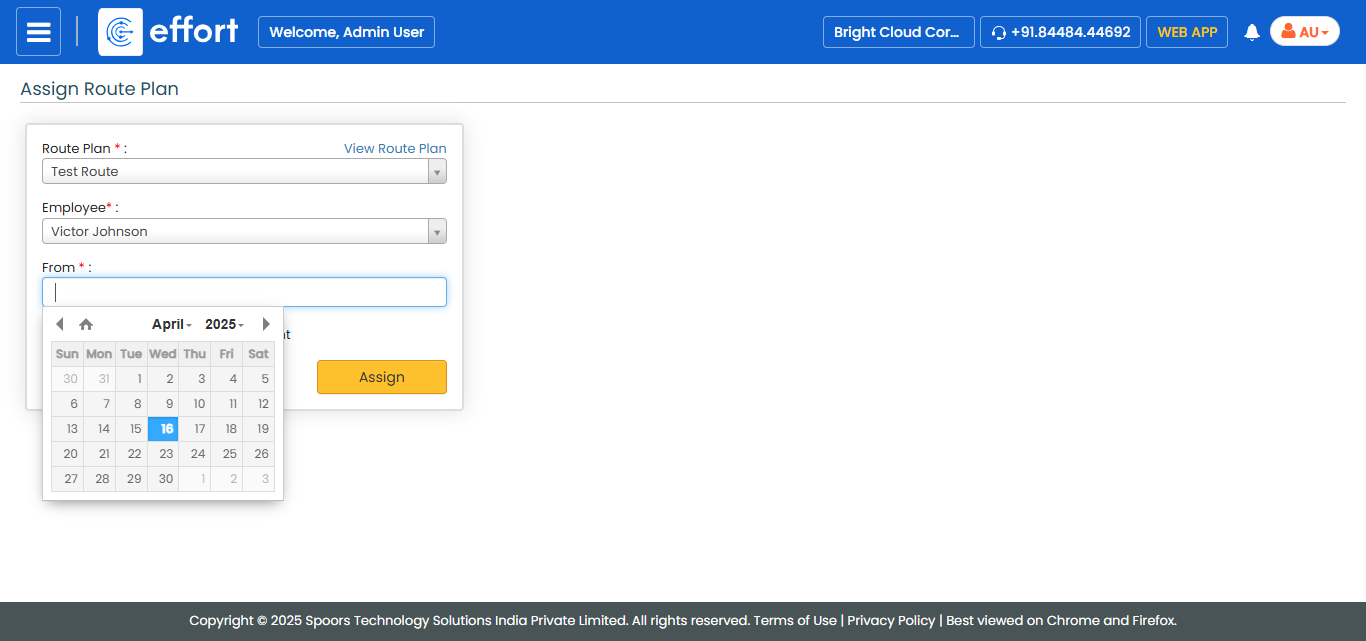
-
Select the This is a recurring route assignment
checkbox.

- Optional:
From the Frequency dropdown, change route frequency to
Monthly, if required.
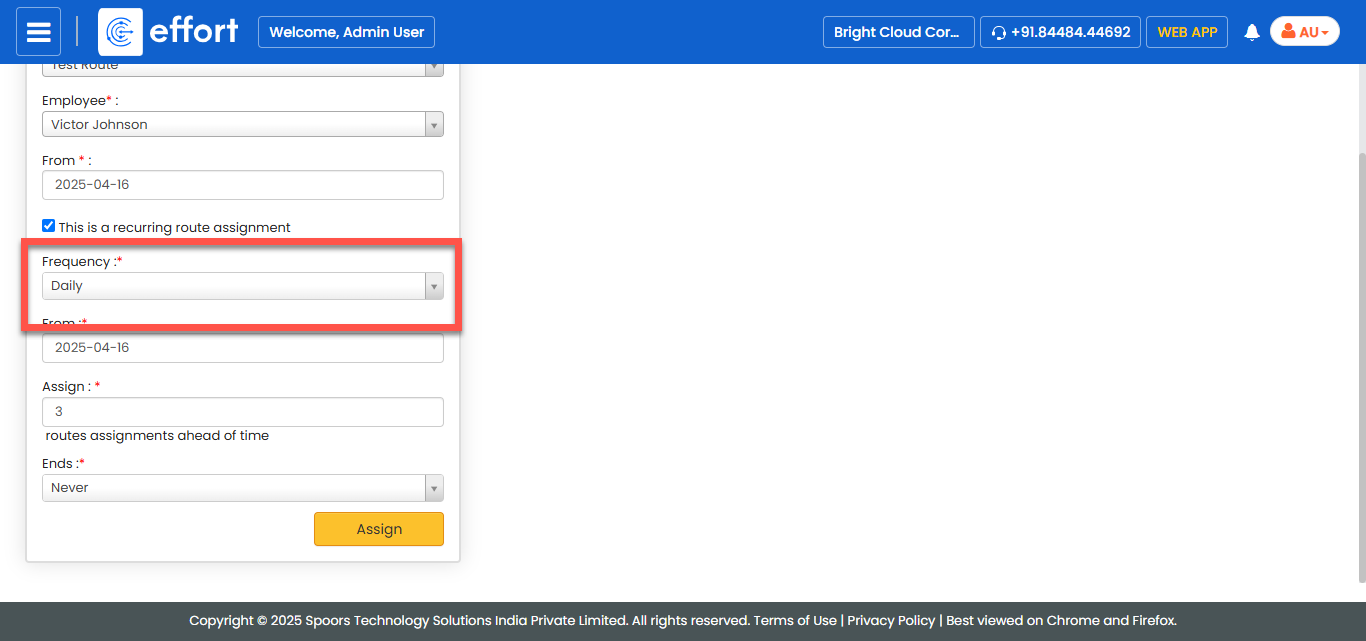
- Optional:
Select a different From date, if required. It defaults
to the from date specified in an earlier step.

- Optional:
Enter (or use up-down control to increment/decrement) how many route plan
assignments should be created ahead of time.
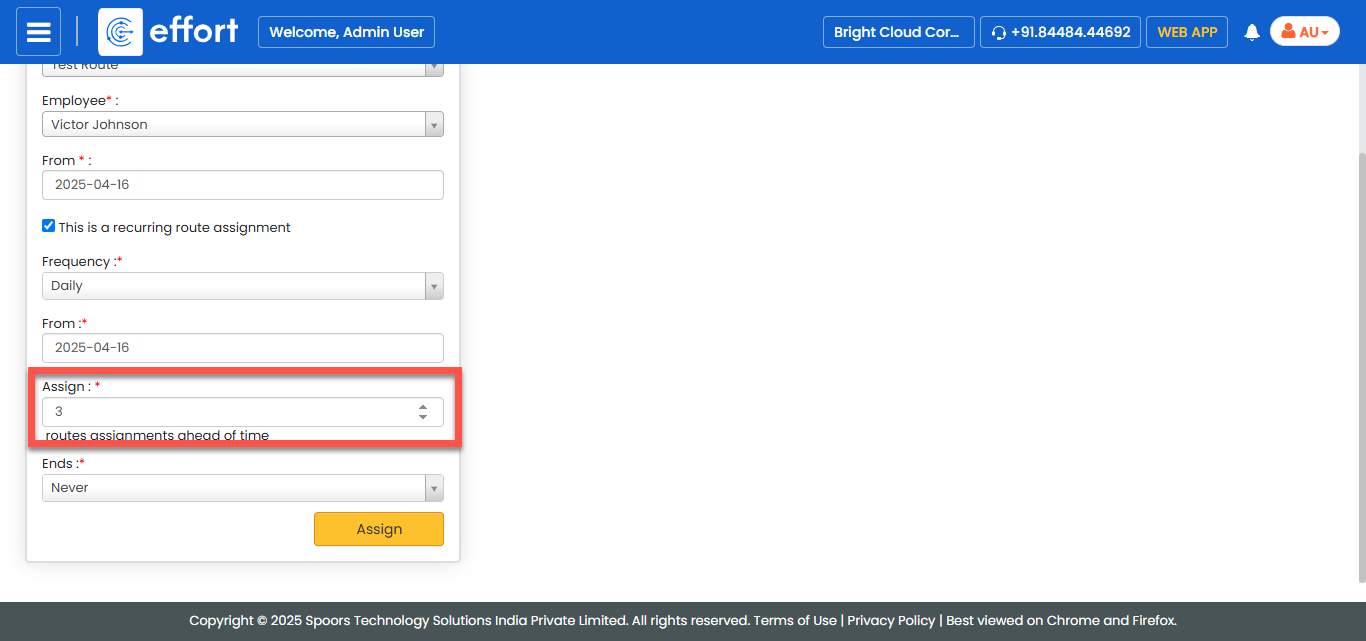
- Click Assign.