

Import Route Plans
Using Import option, you can create several route plans at once by importing them from an excel sheet.
-
Go to .
The Assigned Route Plan page appears.
-
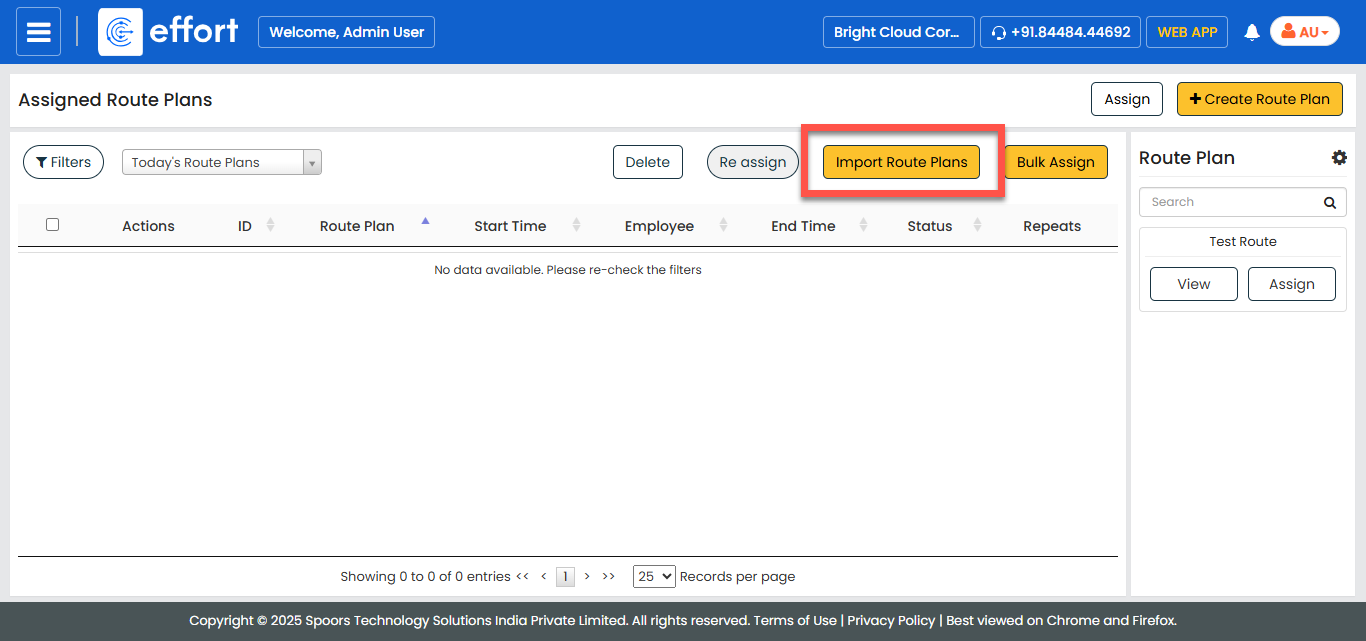
Click the Import Route Plans button.
- Optional:
Click the Download Template button.
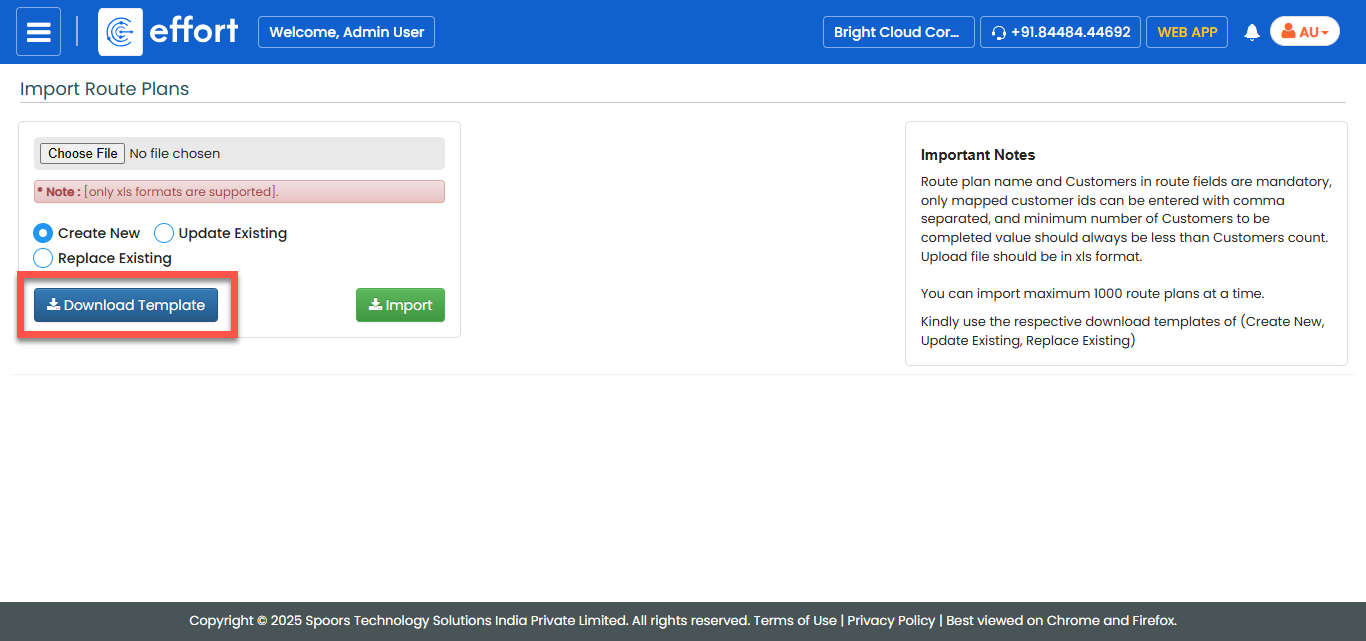
The downloaded template can be reused for multiple import operations. Download the template only if you do not already have it on your computer. -
Open the downloaded template, fill the data, and save the file.

Route ID values must be unique and must not be in use already. Customer in route is the only column that allows Comma-Seperated Values (CSV). Don't leave any spaces before and after the commas. -
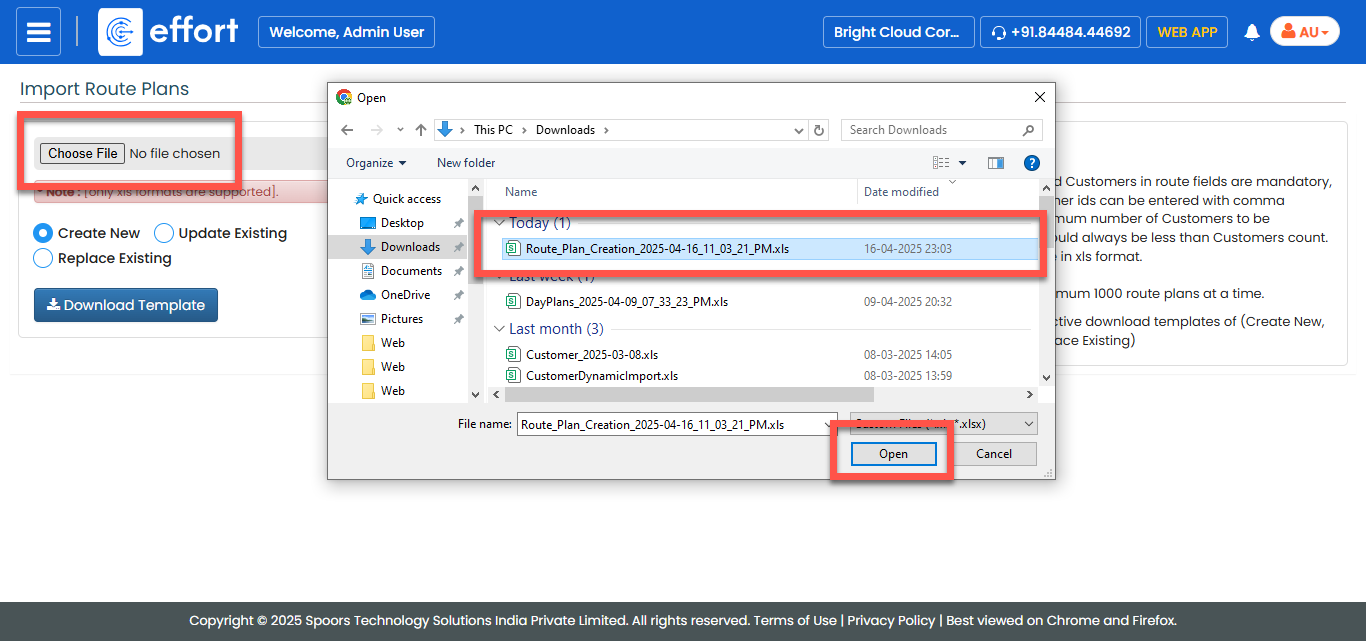
Click Choose File and select the filled excel
sheet.
-
Click Import.
You'll be taken to import status page. When you see No files are currently in process, import process is complete, and you can start assigning the new route plans. If you do not yet see that message, wait for few minutes and refresh the page.