Tutorial on Day Plans
A Day Planner allows you to plan the daily activities such as customer visits, product service issues, goods delivery, etc. for your employees. For example, a field executive who is involved in meeting the customers daily and explains about their products or services, for them EFFORT is the correct platform.
In this tutorial, we'll create a day plan in the EFFORT web app and complete the same
in the EFFORT Plus mobile app. The below are the steps involved.
Step 1. Create a Day Plan in Web App
This section helps you to create a day plan in the EFFORT web app.
- Navigate to Web App from the welcome screen and go to Day Plans module.
-
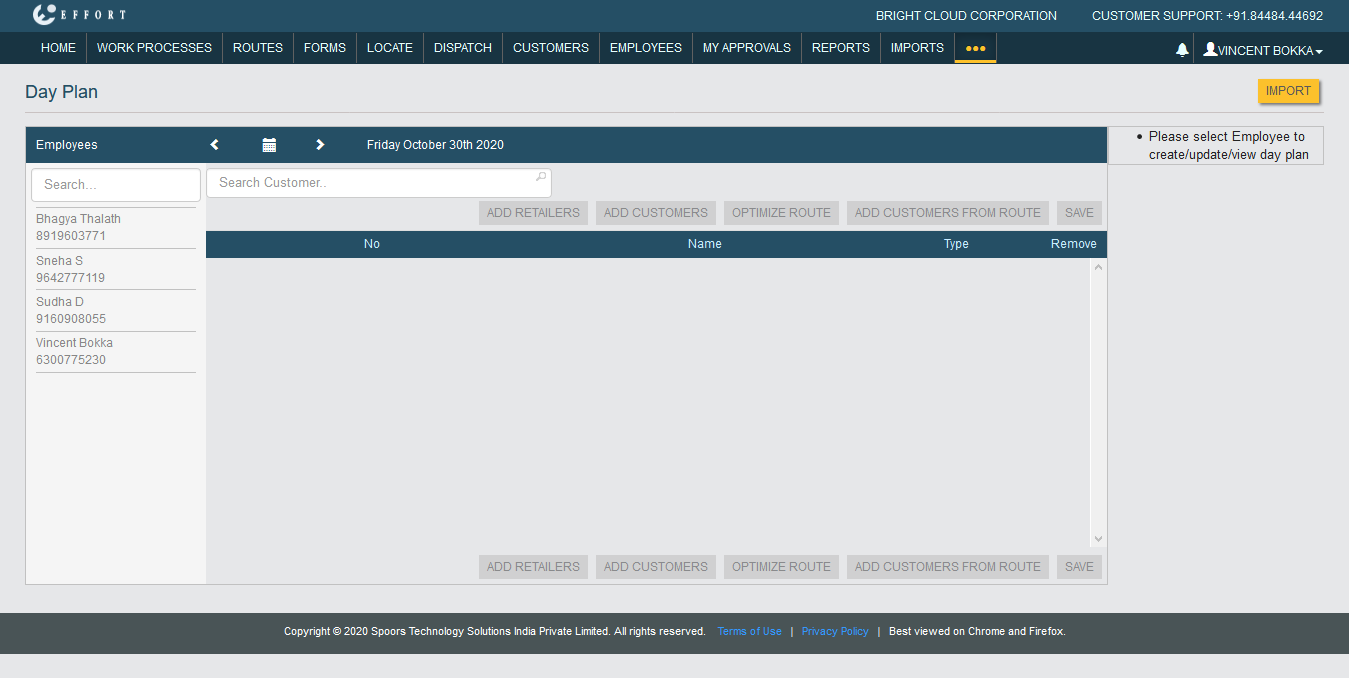
Now you'll see the Day Plan page with employees along with their
mobile numbers. It may help you to call the employee while you are creating
a day plan. Along with this, you can find a calendar option as well as an
import option.
-
You can see that various options such as Add customers, Optimize route,
etc. are unable to click. To select customers, or entities, first, you need
to select an employee. Click on any employee for which you want to create a
day plan.

-
Now, click calendar icon to select the date.

-
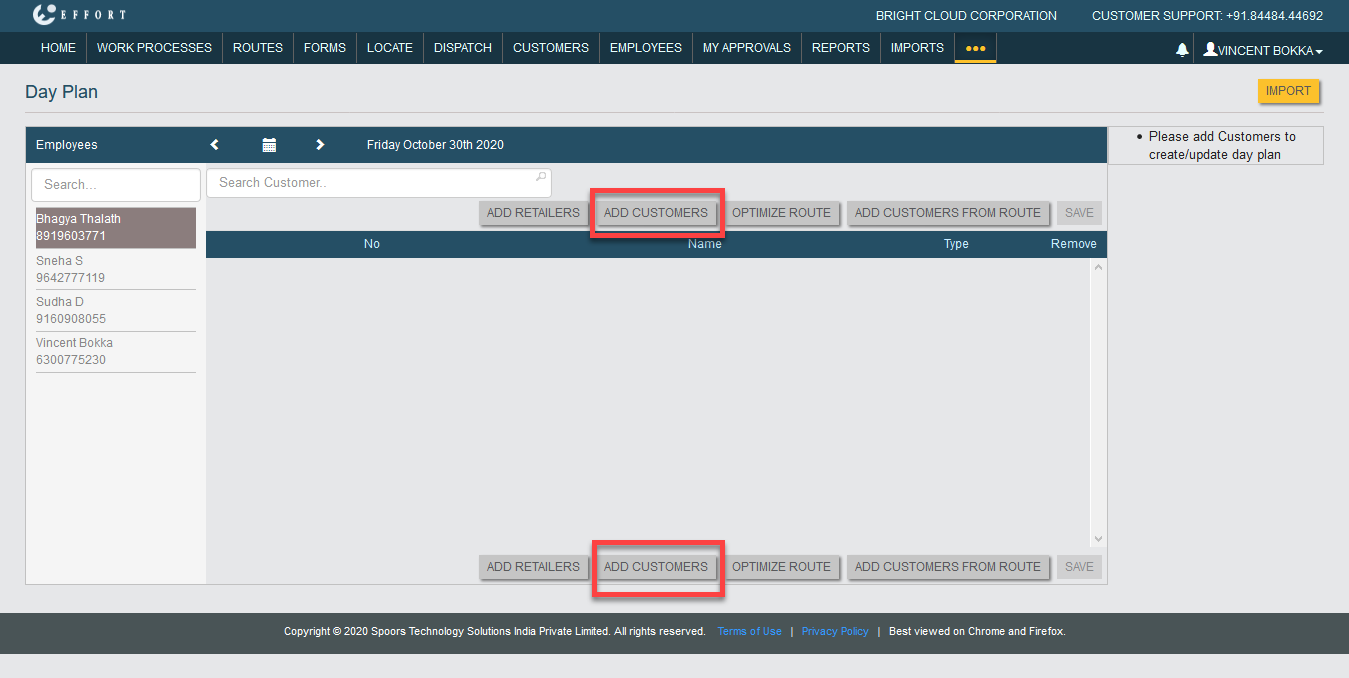
As a next step, you need to add the customers to the day plan. Click Add
Customers button to select the customers.
-
A pop-up window appears with all the customers in your organization. Select
the customers, and click OK.

Click the link Create Customer from the Web App to create a customer from the web app.
Click the link Create Customer from the Mobile App to create a customer from the EFFORT Plus mobile app.
-
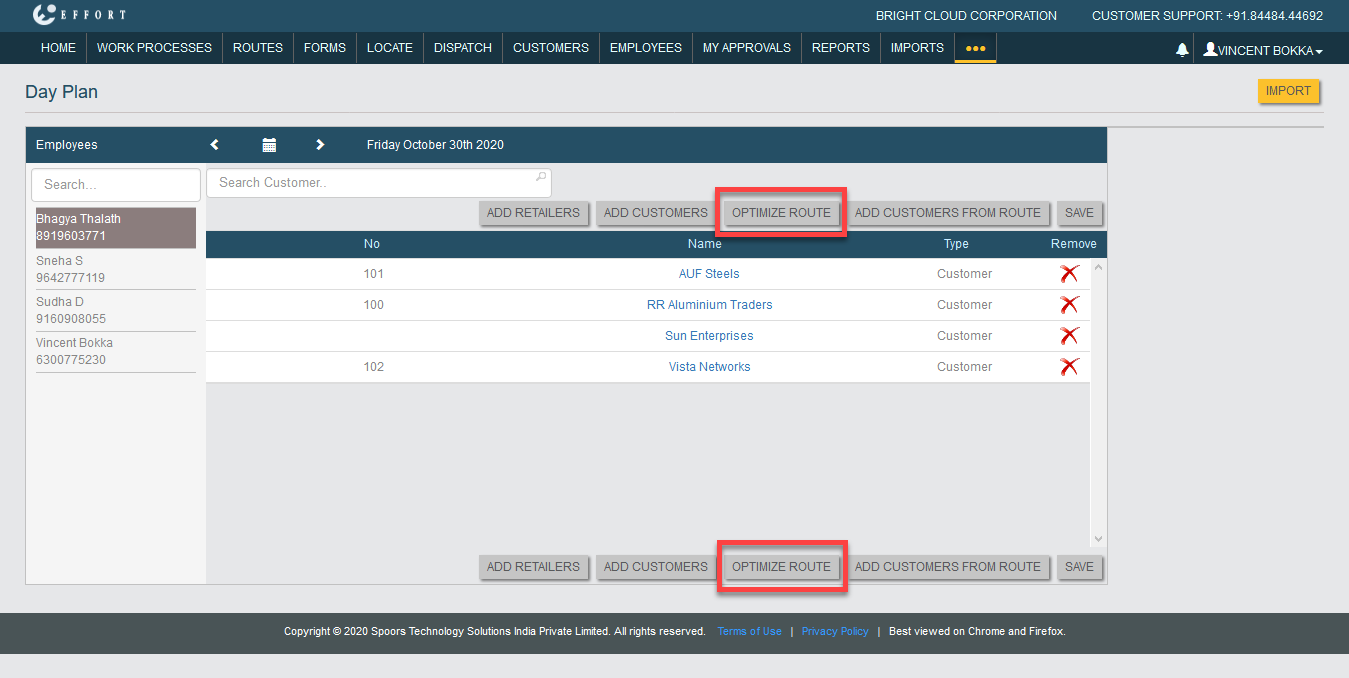
Now you'll see all the selected customers in the create page. Click
Optimize Route button to find the shortest and most
cost-effective route from the first customer to others.
-
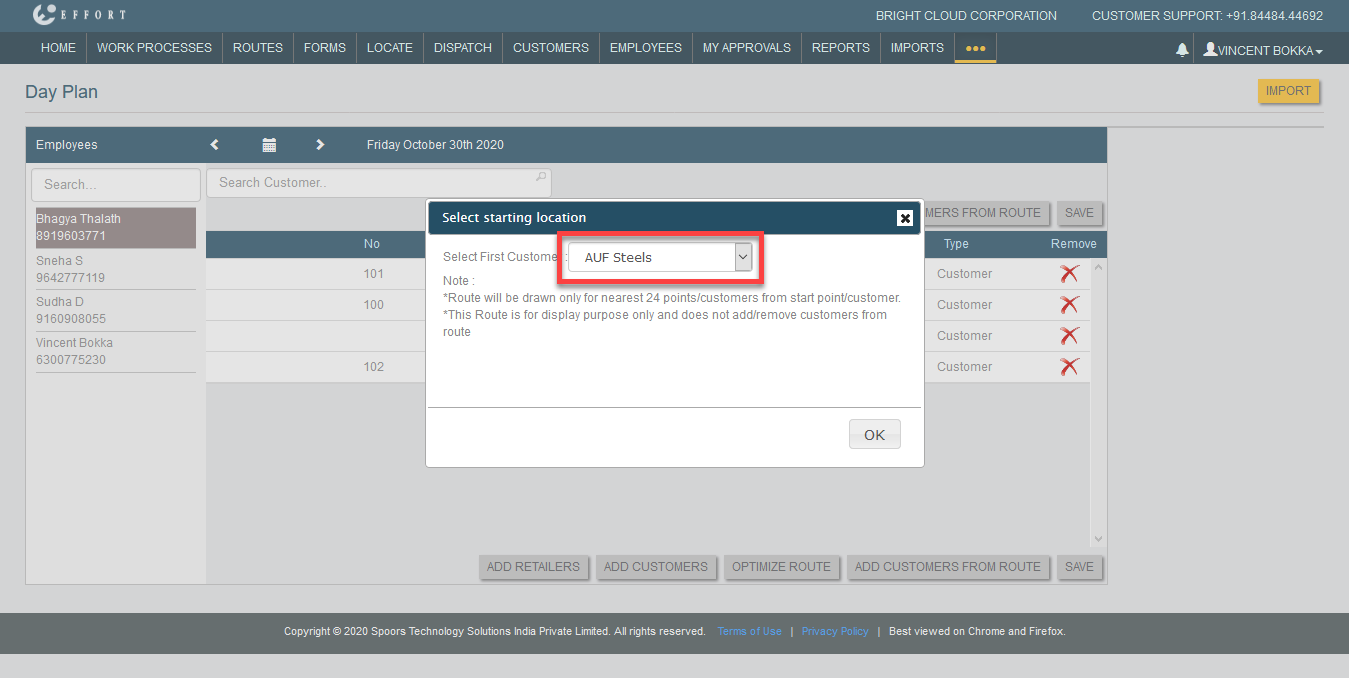
Select first customer which is near to your location in the pop-up window
and click OK.
-
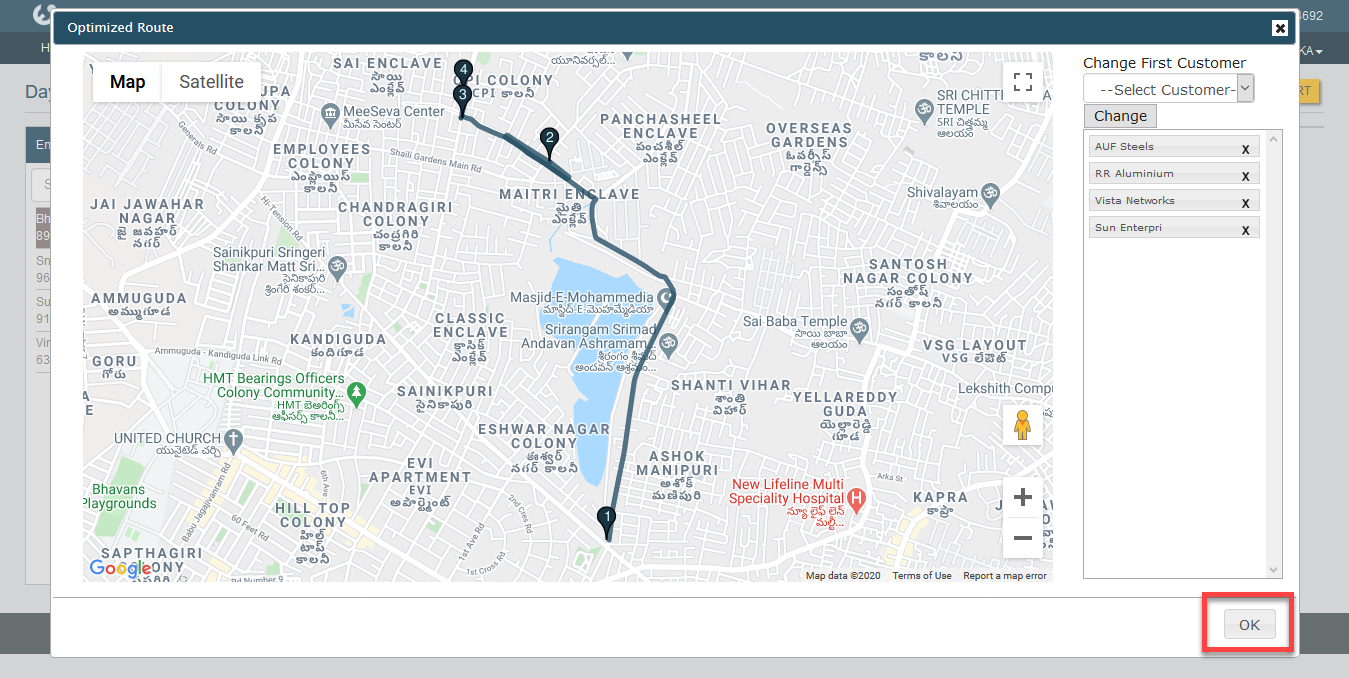
Now you'll see the optimized route on the Google map. If you are
comfortable with the route click OK.
-
Click Save button to create the day plan.
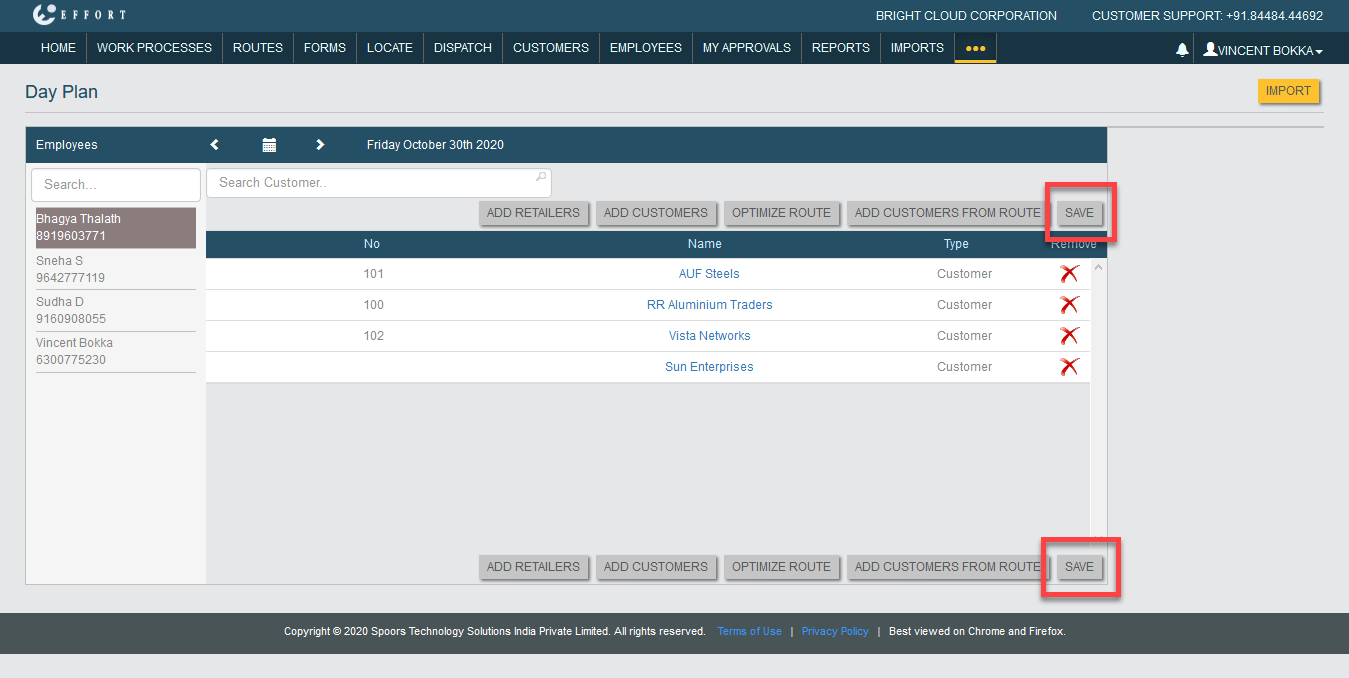
- Now the employee recieves a notification in the mobile app about the day plan.
Step 2. Complete a Day Plan in Mobile App
-
Open EFFORT Plus app on your mobile. You'll see the Day
Planner on the home screen. Tap on it.

-
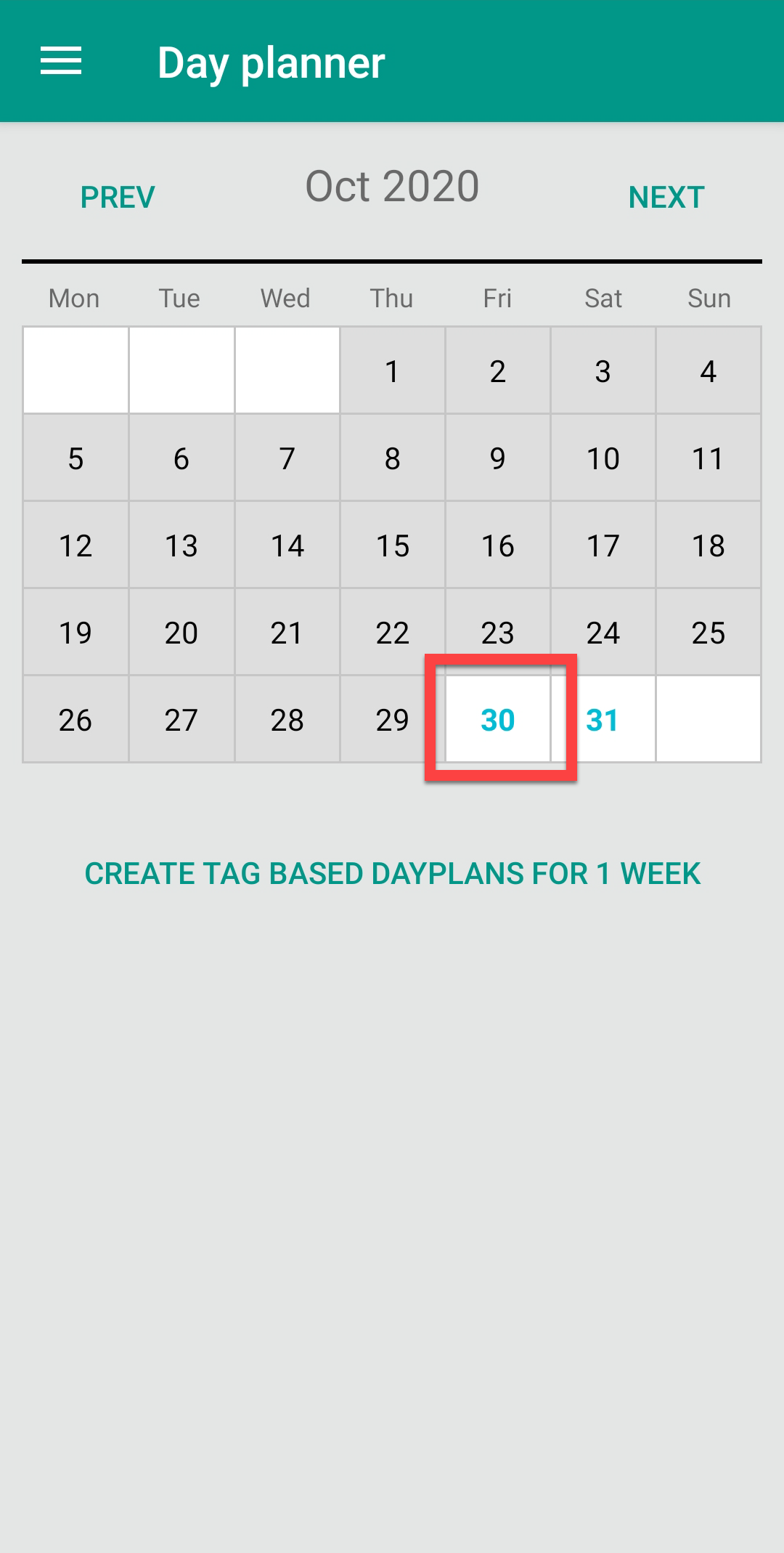
The Day Planner page opens with a calender. Tap the date to view the
day plan on that day.
-
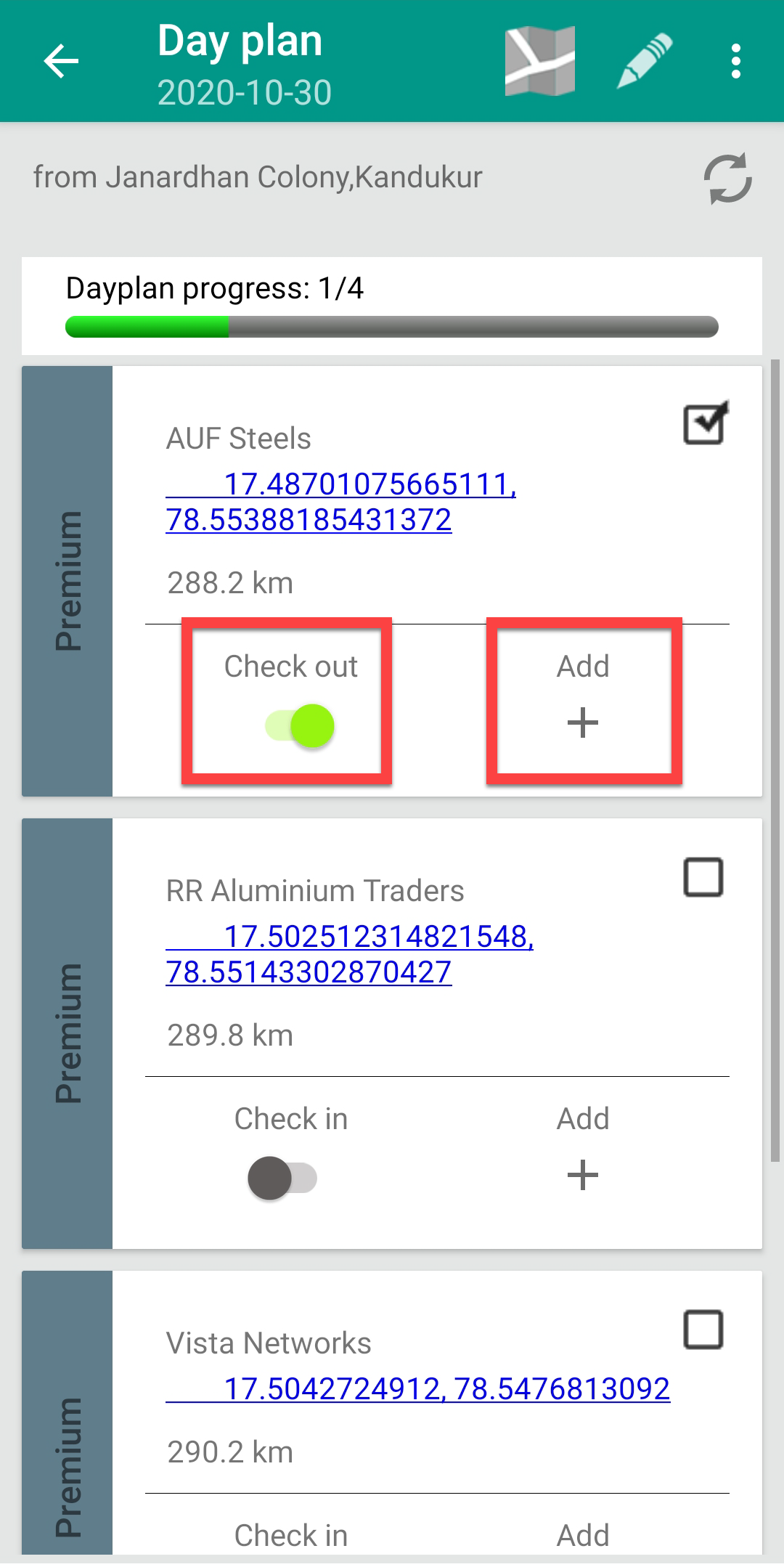
You'll see all the customers list assigned to that day. Check in to the
first customer, and click Add to view the activities.
-
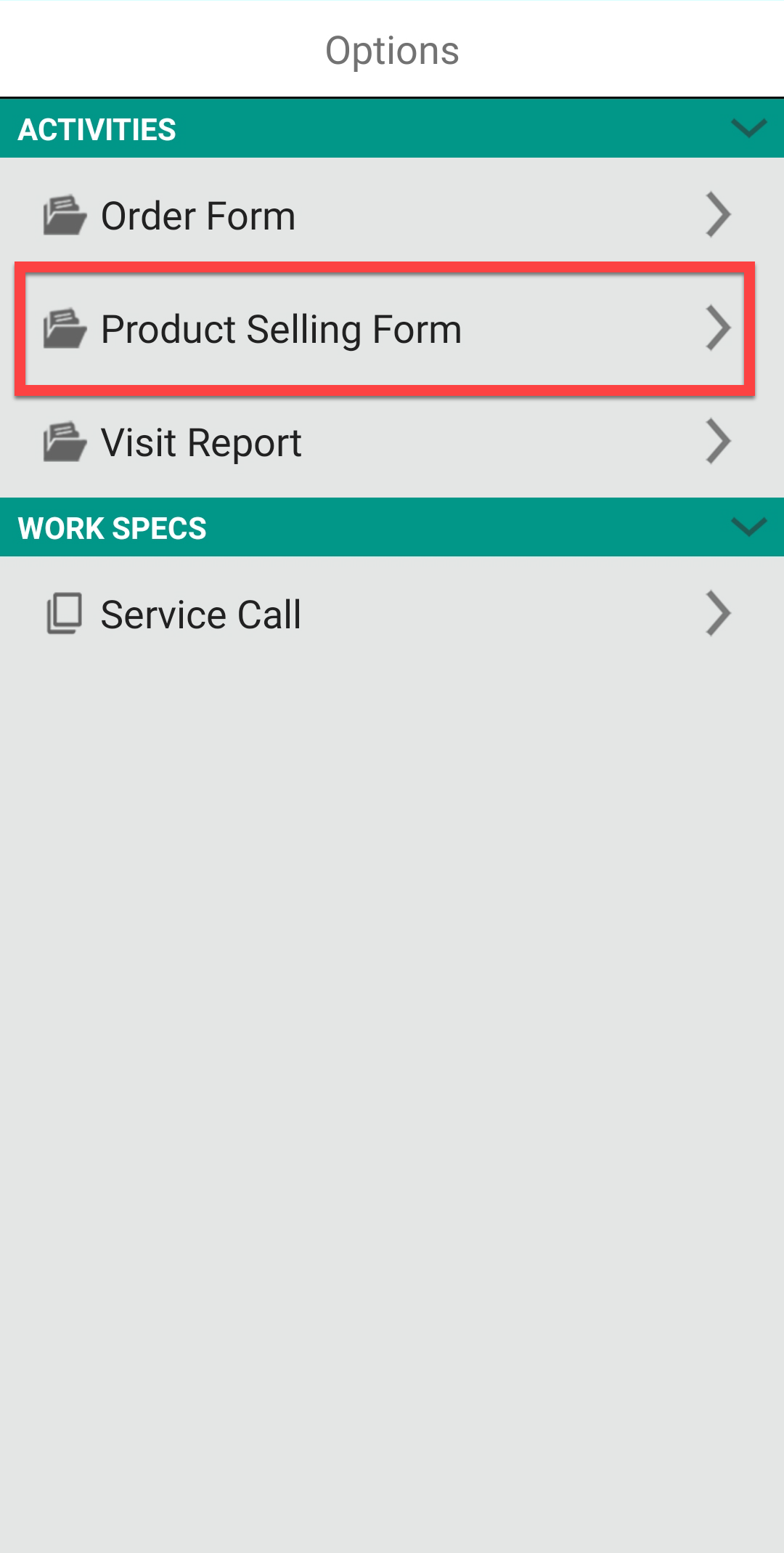
Tap the activity and fill the form.
-
You'll see a checkmark at the first customer which indicates that activity
is done successfully. Now click the lat long coordinates on the next
customer card to view the location of the customer. On the location page,
you can also get the driving directions from your location.

-
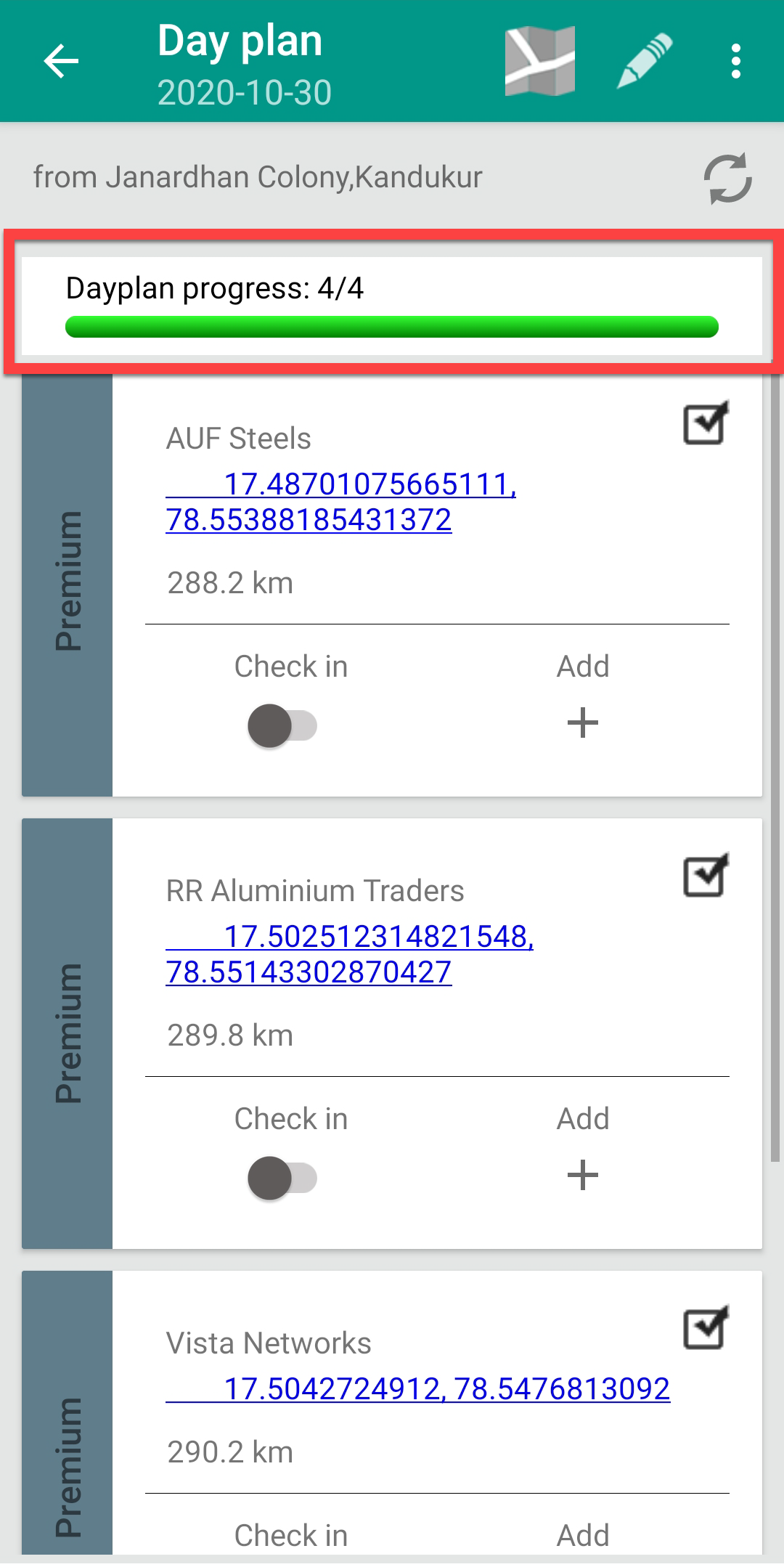
Repeat steps 3 and 4 in this task to complete the activities for all the
customers. You can see the status bar for the progress.