

Customer Service Process Flow
A workflow is a series of sequential tasks that need to be executed in order to complete a particular goal. It starts with one action that leads to another action, that gets split into two possible actions, and so on.

This document walks you through the step-by-step procedure to configure this workflow in the Effort platform.
Workflow Configuration
Getting Started With Forms
- Customer Support Form: This form will be opened when customers scan a QR code. The customer needs to fill in the details like problem statement, contact details, address, and location.
-
As a first step, you have to create a Customer Support
Form in the Forms module. To
create this form, navigate to . Click Create Form button.

-
This opens the Add a New Form Template pop-up.
You have to click the Create On My Own option. It
enables you to create a form from the scratch.

-
Now you will see the Create Form page with the
data types on the left side. These data types help you to collect data
that you need from the customers. Check out the Data Types - Basic page
to learn more about the data types.

-
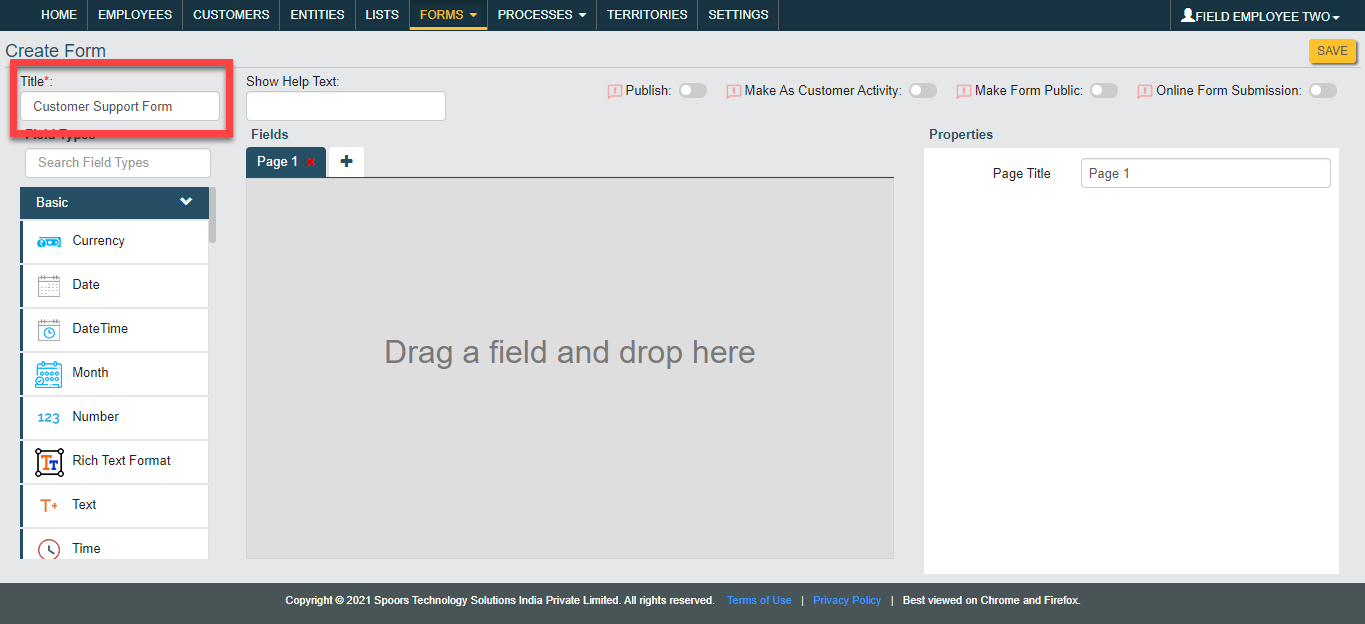
Enter the form title as Customer Support Form in
the Title field.
-
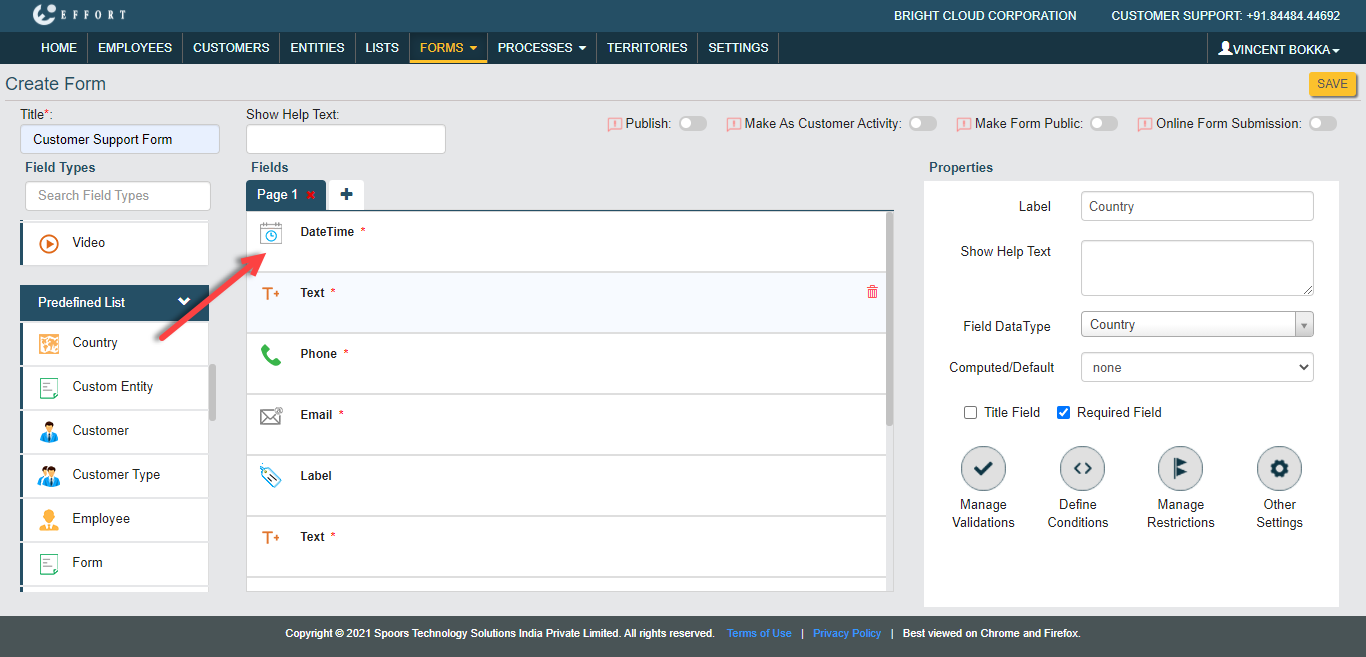
Now drag and drop the DateTime, Text, Phone, Email, Label,
Text, Text, Text, Text, Location, and Country data types
onto Fields canvas.
-
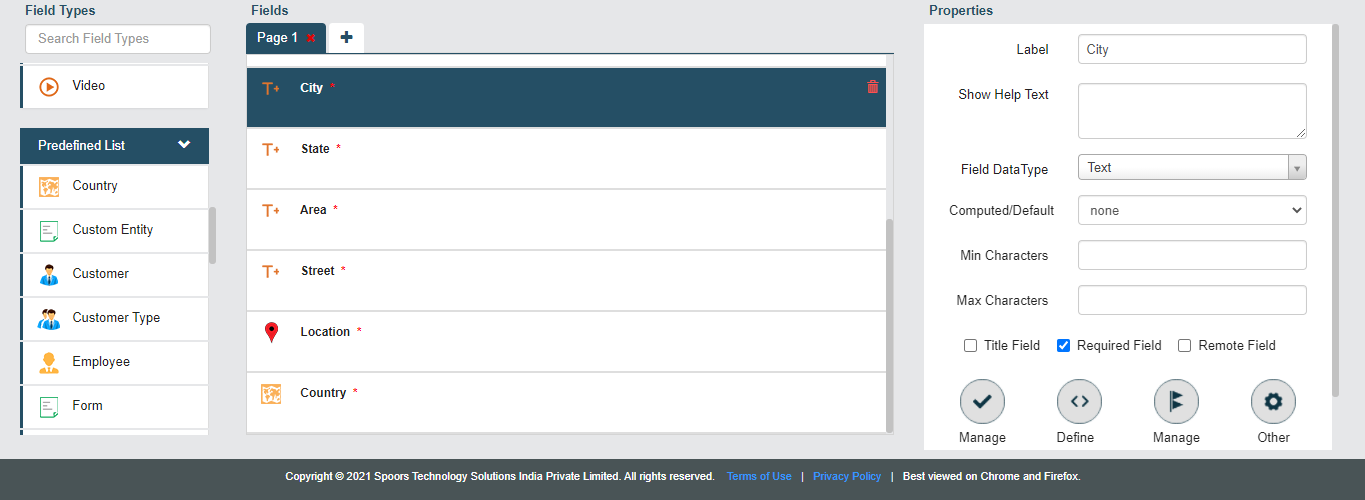
Click DateTime field and enter the label as
Issue Occurred Date and Time in the
Label field. Similarly, label all the fields
as shown below. Check out the Field Properties page
to learn more about the field properties.

-
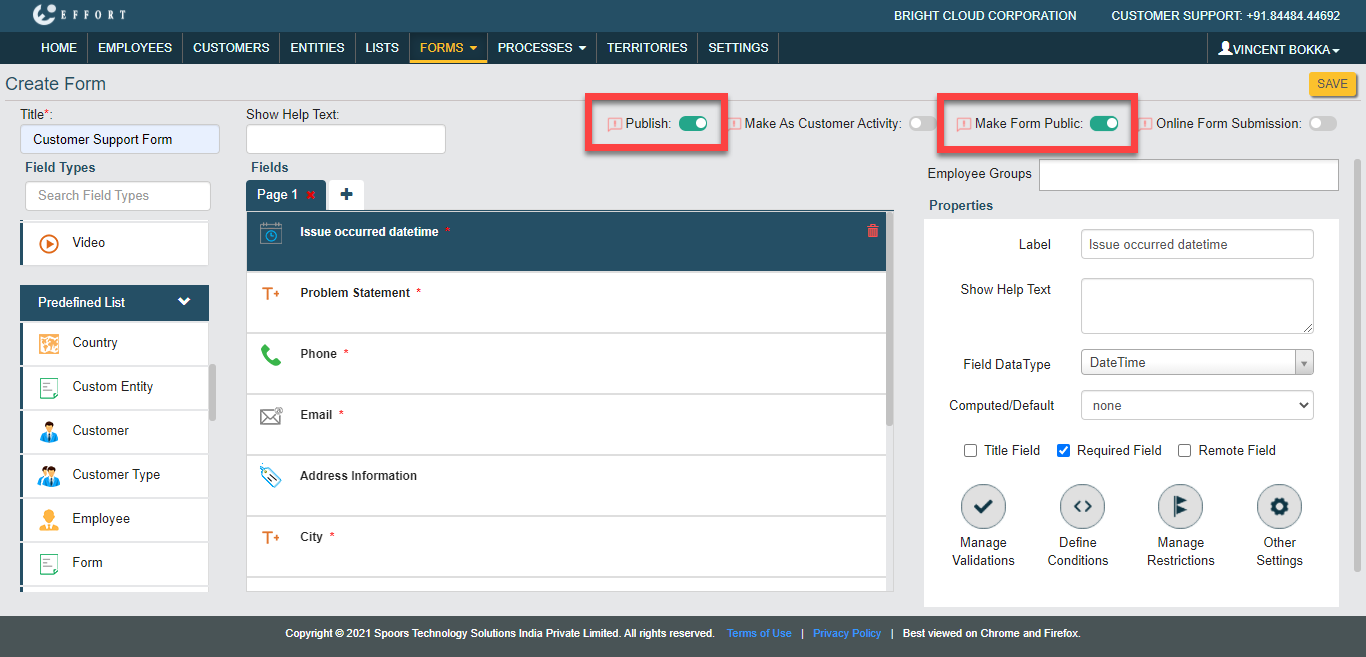
Now enable Publish and Make Form
Public options and click Save
button to save the form. Check out the Publishing Options page
to learn more about the publishing options.
-
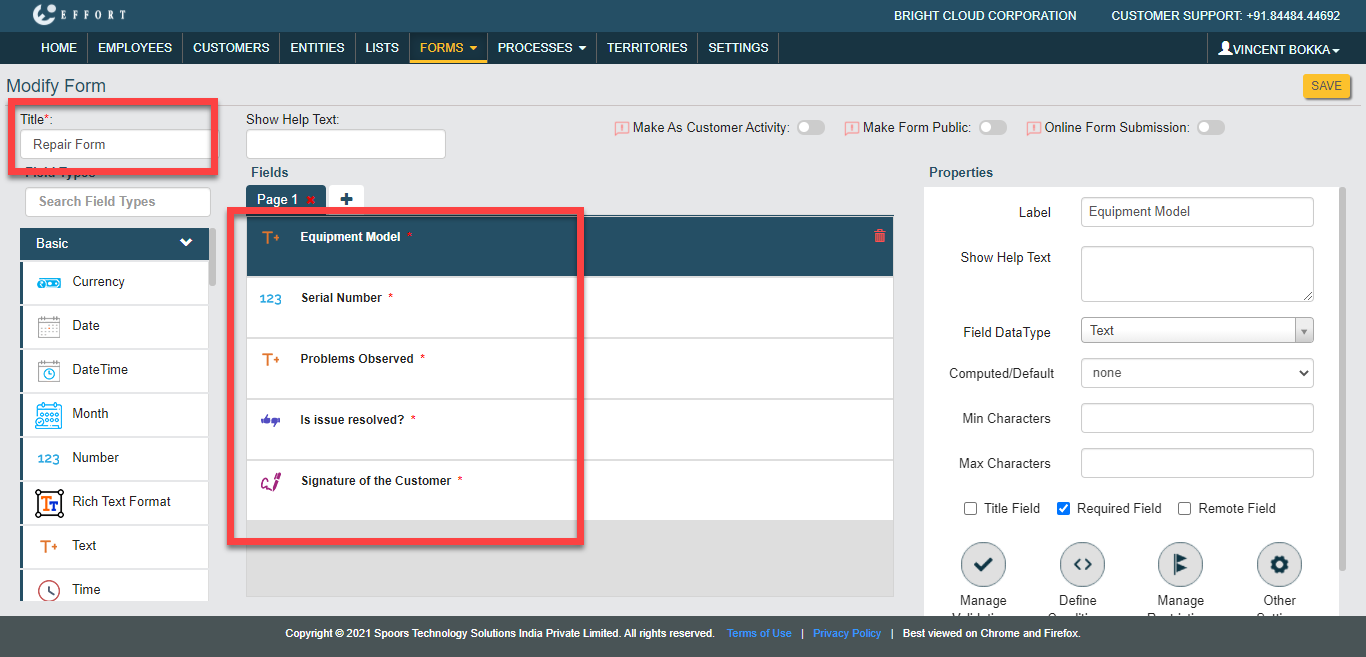
In the same way, you have to create the Repair
Form with the fields as shown below. Drag and drop the
Text, Number, Text, Yes/No, and Signature
data types onto the field canvas and label them as shown below.
-
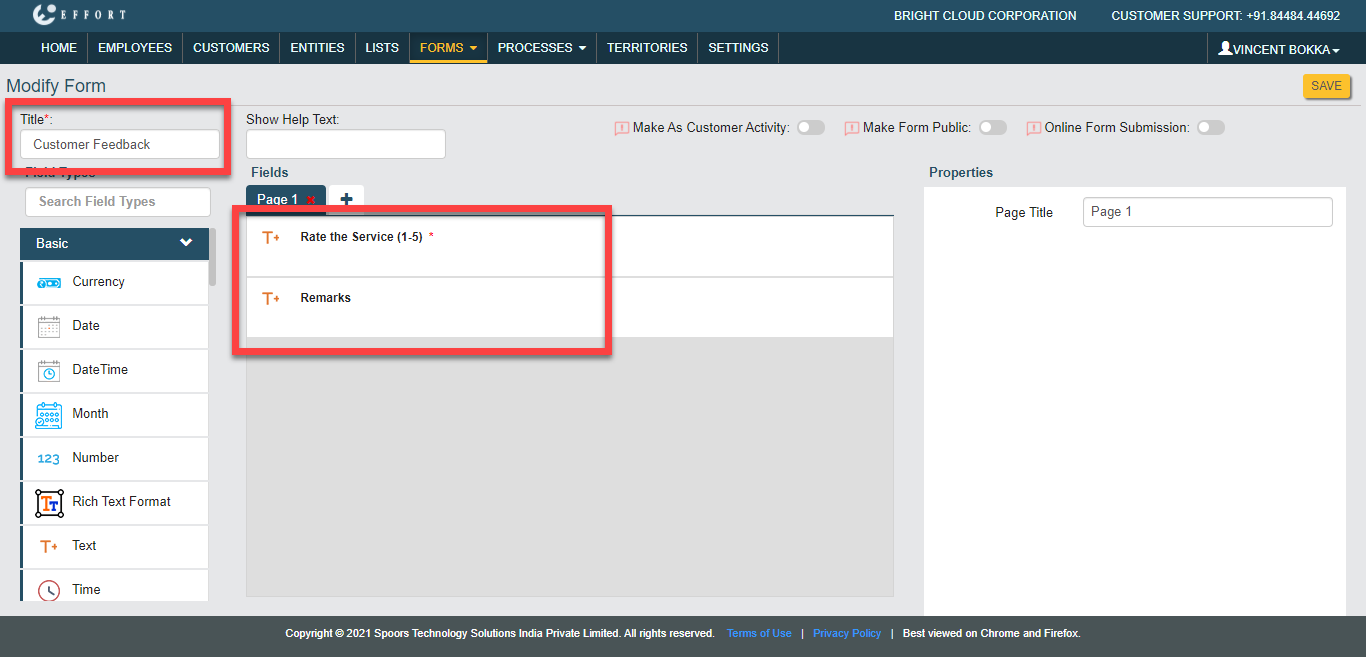
Similarly, create the Customer Feedback form
with the fields as shown below. Drag and drop the Text and
Text data types onto the field canvas and label them as
shown below.
Work Process Creation
In the above section, you have created a customer support form to capture details from the customer. Now, you have to create a work process to performs all these activities in a sequence. Follow the steps given below to create a work process.
-
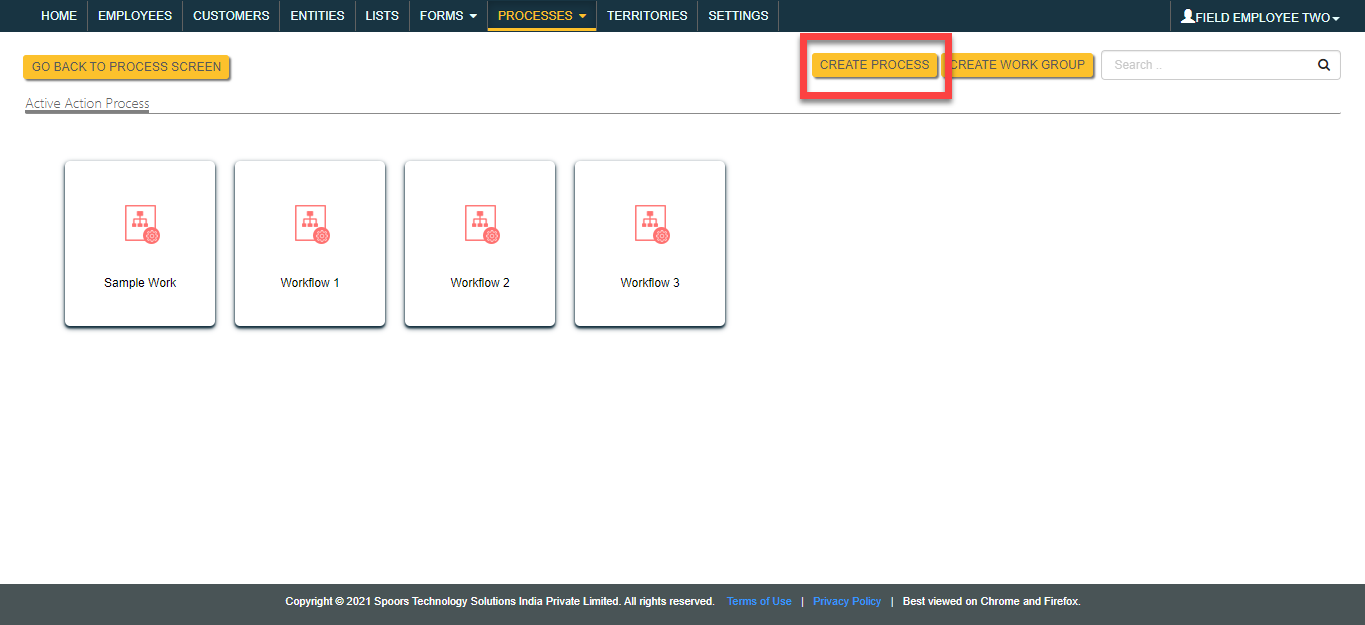
To start creating a work process, navigate to . Click Create Process
button.
-
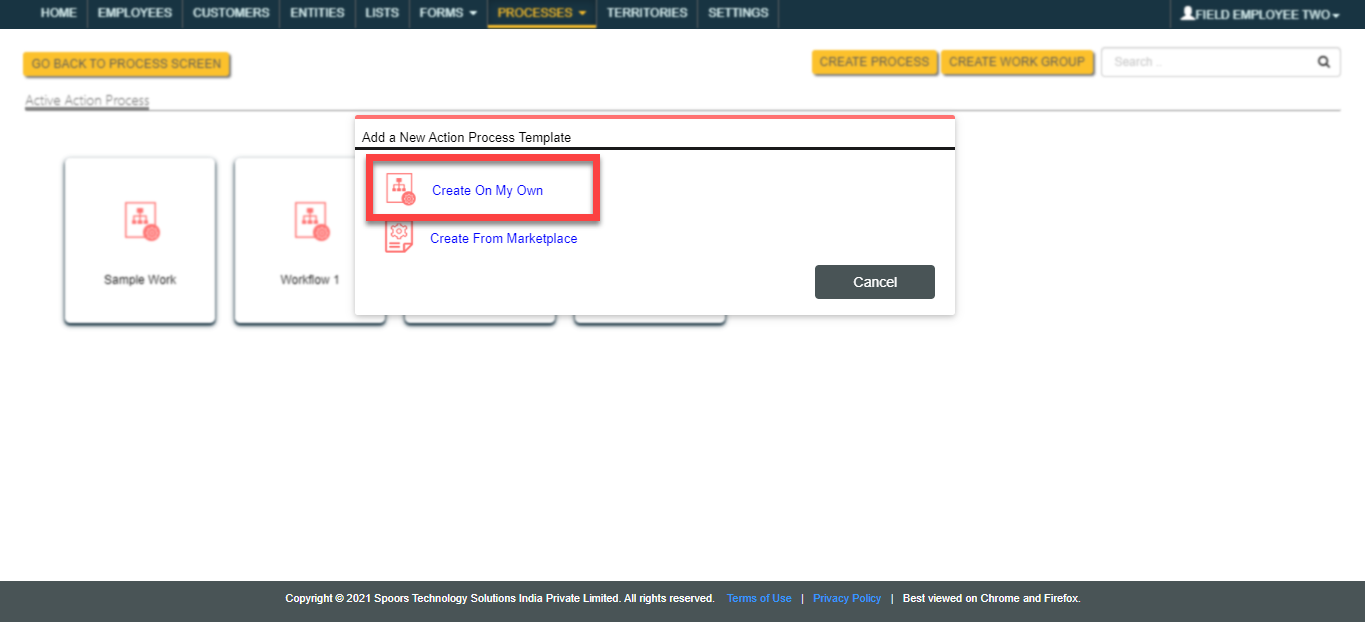
This opens the Add a New Action Process Template
pop-up. You have to click the Create On My Own
option. It enables you to create a form from the scratch.
-
You will see the Create Action Process page.
Enter the Work Process Name as
Customer Service Process and click
Add Action button to define the first step in
the workflow.

-
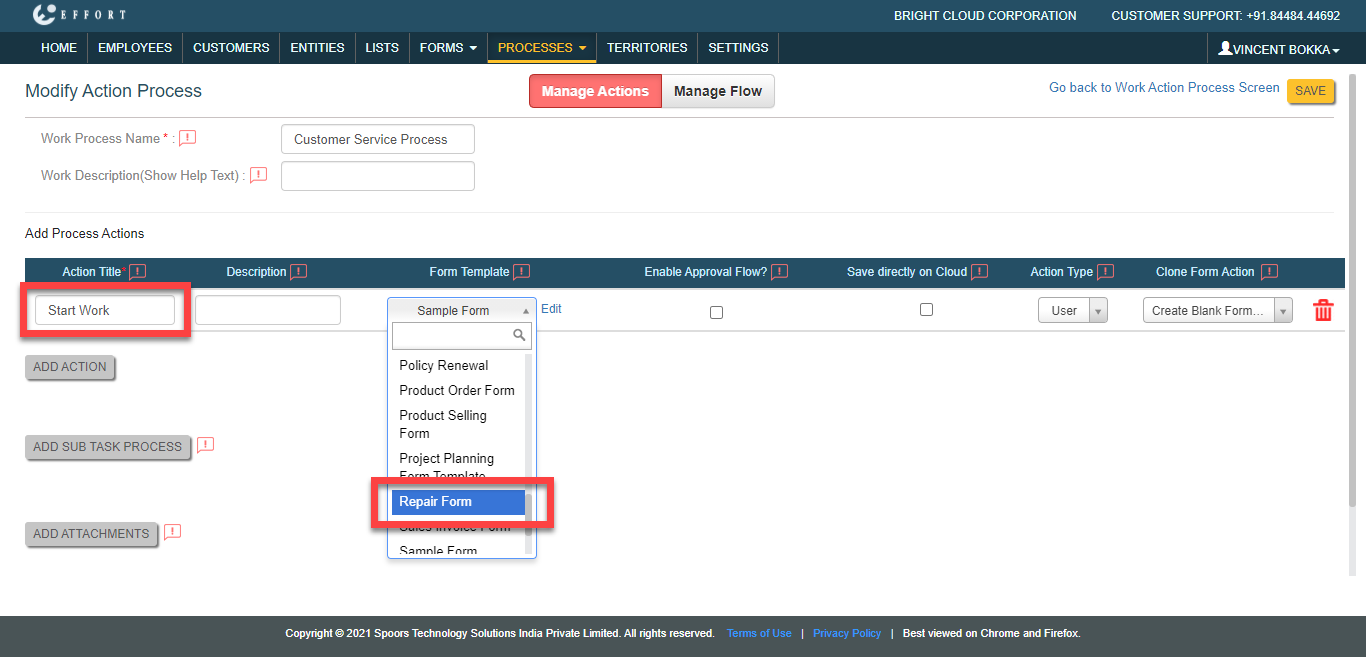
Enter the Action Title as Start
Work. Under the Form Template
column, click the Select Form and select the
Sample Form.
-
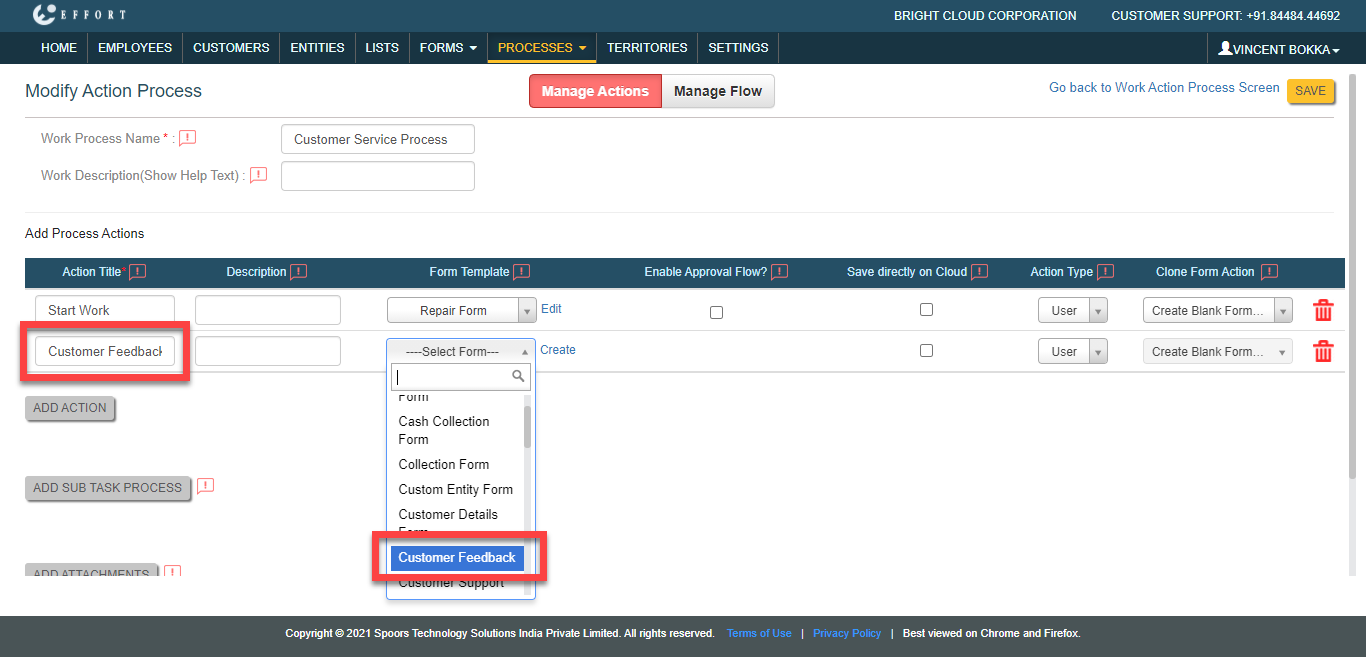
Similarly, click Add Action button again. Enter
the Action Title as Customer
Feedback and configure the Customer
Feedback form template. This is the action where you
will get feedback from the customer.
-
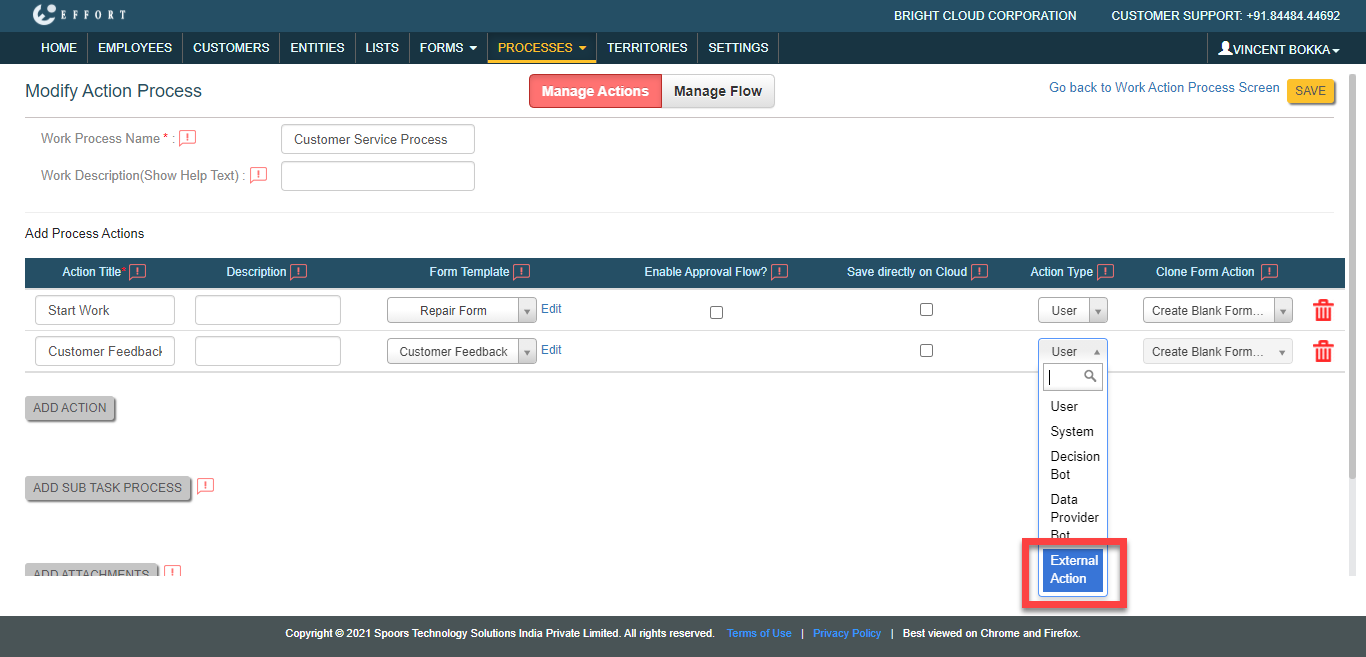
To get feedback from the external users, select Action
Type as External Action and click
Save button.
-
You will see the work process actions page. Click Manage
Fields card to define the work fields that are used to
create a work. Using these fields work will be created and
assigned.

-
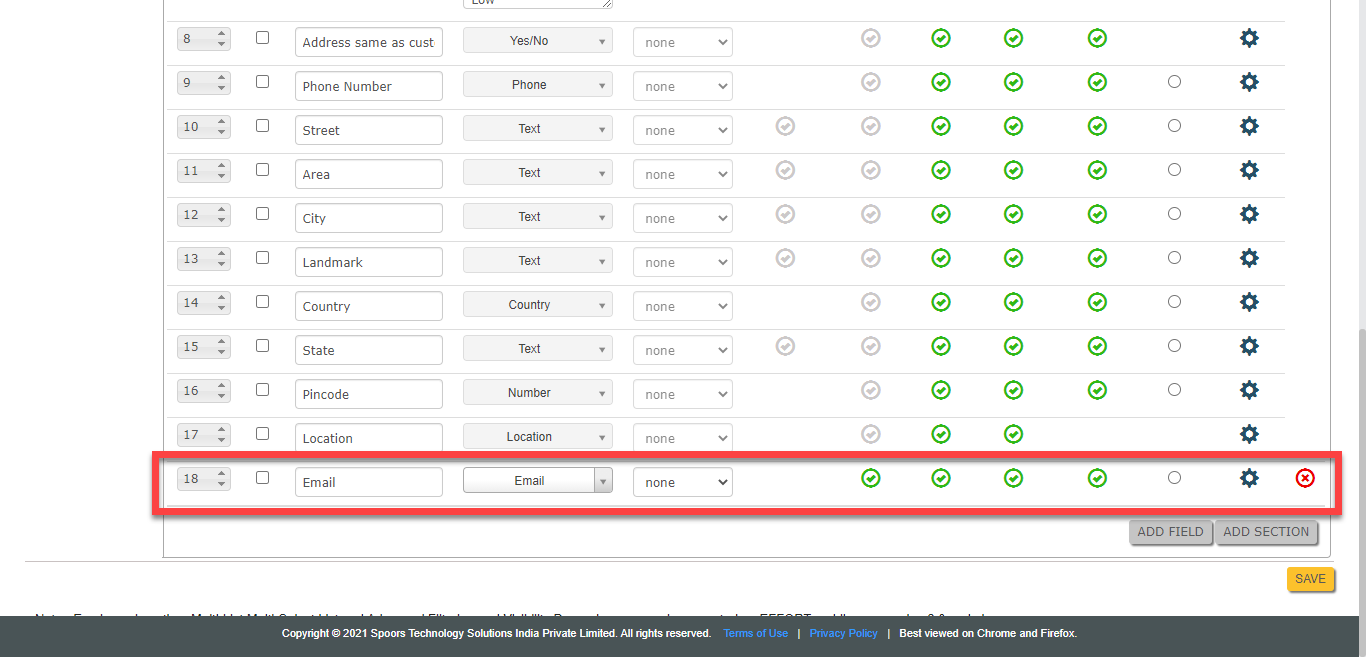
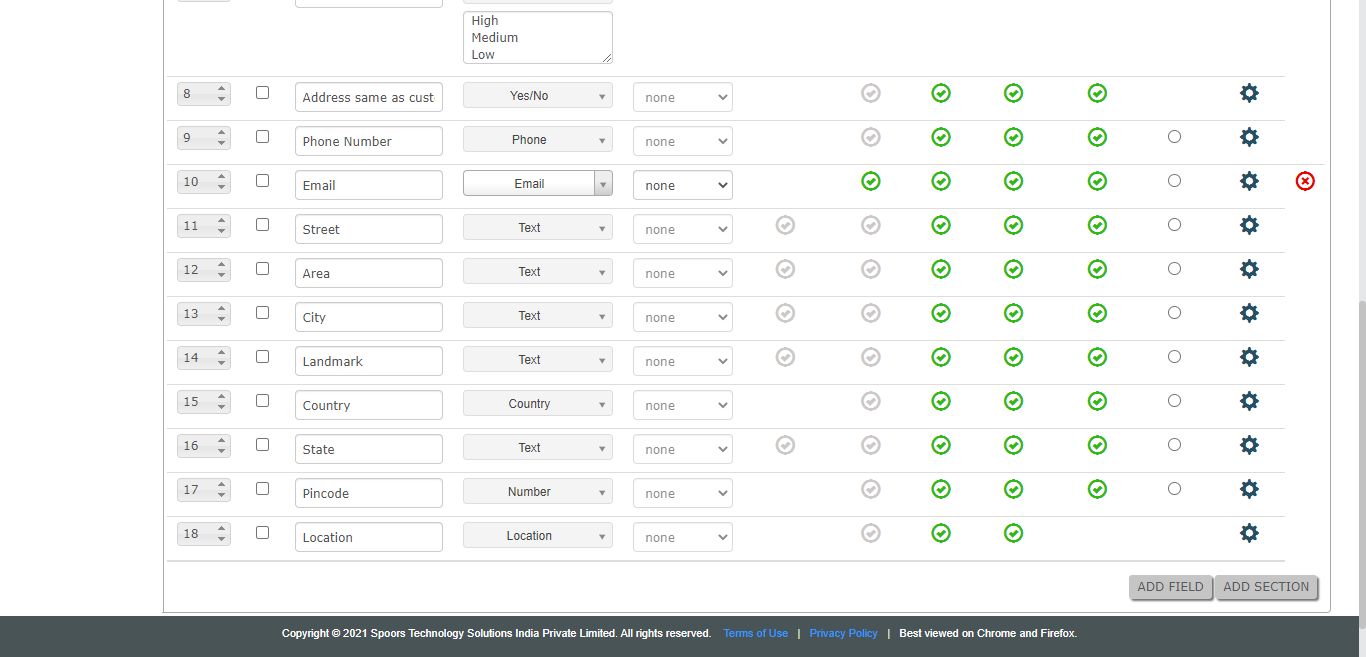
Add Email field as shown below. Click
Add Field button, enter Field
Label as Email and select
Email data type.
-
Define the fields as shown below and click Save
button.

-
You will see the work process actions page. Click Manage
Flow card to define the workflow like from which action
to start the work, where to end, what action to be executed after
completing a work action, etc.

-
Make the Start Work as Start
Action and Customer Feedback as
End Action as shown below.

-
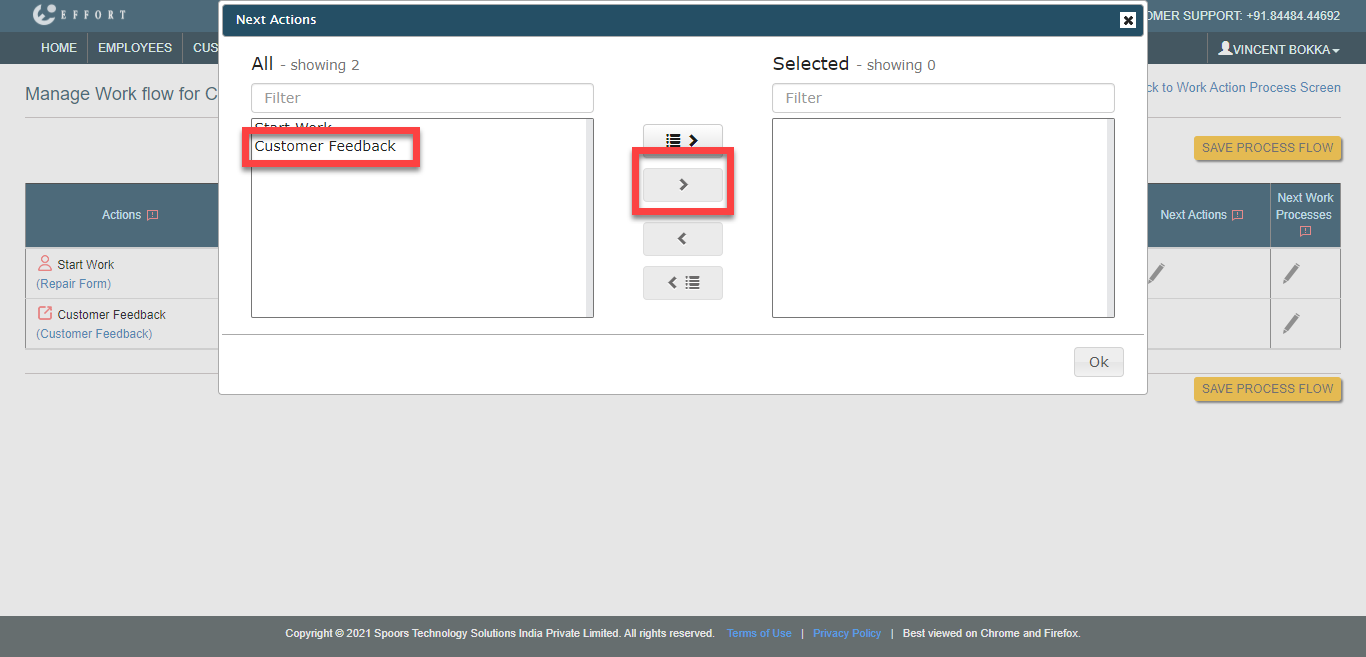
Click the pencil icon under the Next Action
column.

-
Click on the Customer Feedback and click the
arrow button to move it to the Selected section.
Click OK.
-
For the second action, click the gear icon under the
Configure Bot / External Action column.

-
Click Add Input button. Select
Contact Type as Email,
Field Type as Email Fields In
Work, and Field as
Email. Enter the link expiry limit as 120
minutes and enable the checkbox as highlighted in the below screenshot.
Once you have finished the configuration, click
Save button.
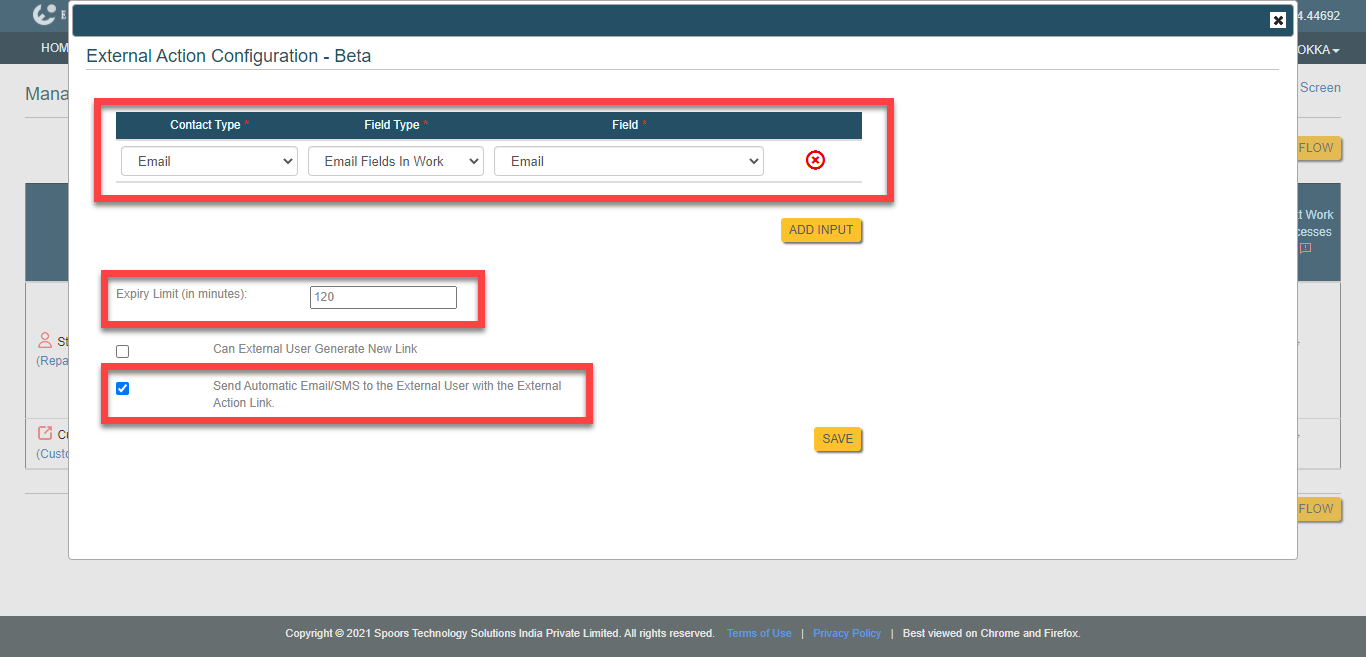
As per this configuration, the work action link will be sent automatically to the customer email and it is valid for 120 minutes. -
Click Save Process Flow button to save the
workflow.
-
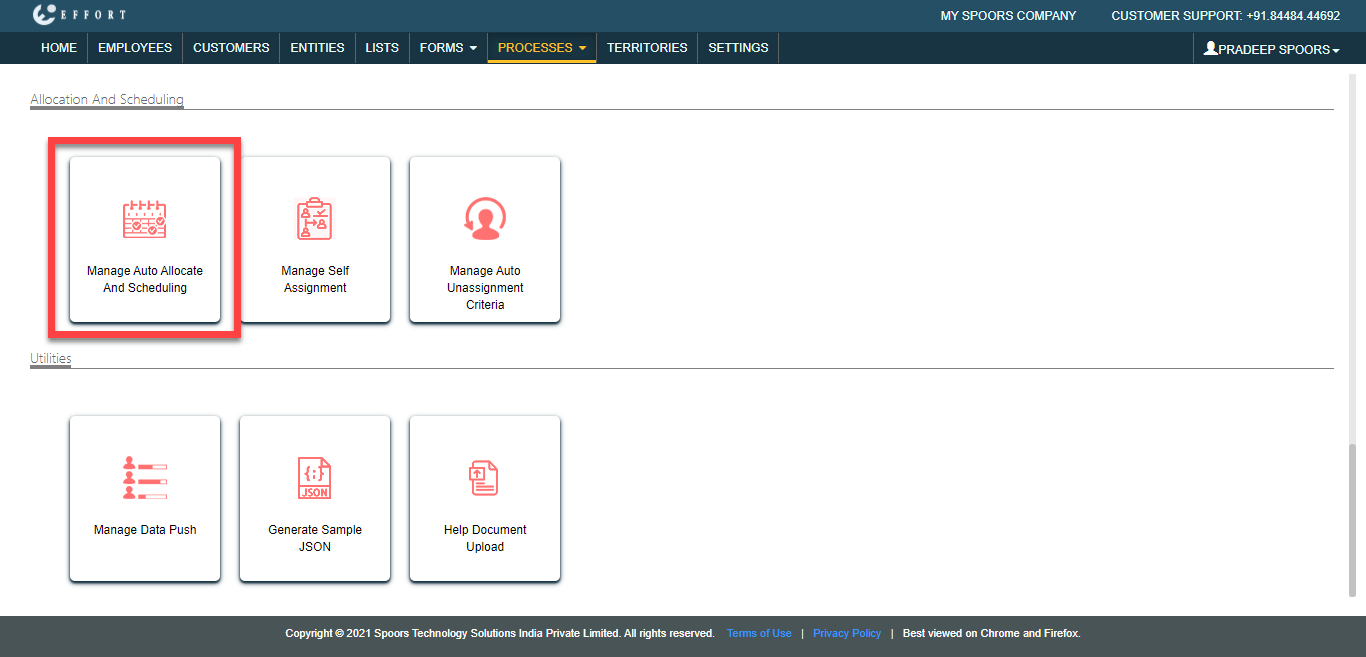
You will see the work process action page. Scroll down to the
Allocation and Scheduling section. Click
Manage Auto Allocate And Scheduling card to
configure auto allocation of the works based on location and employee
availability.
-
Define the configuration as shown below and click
Save.
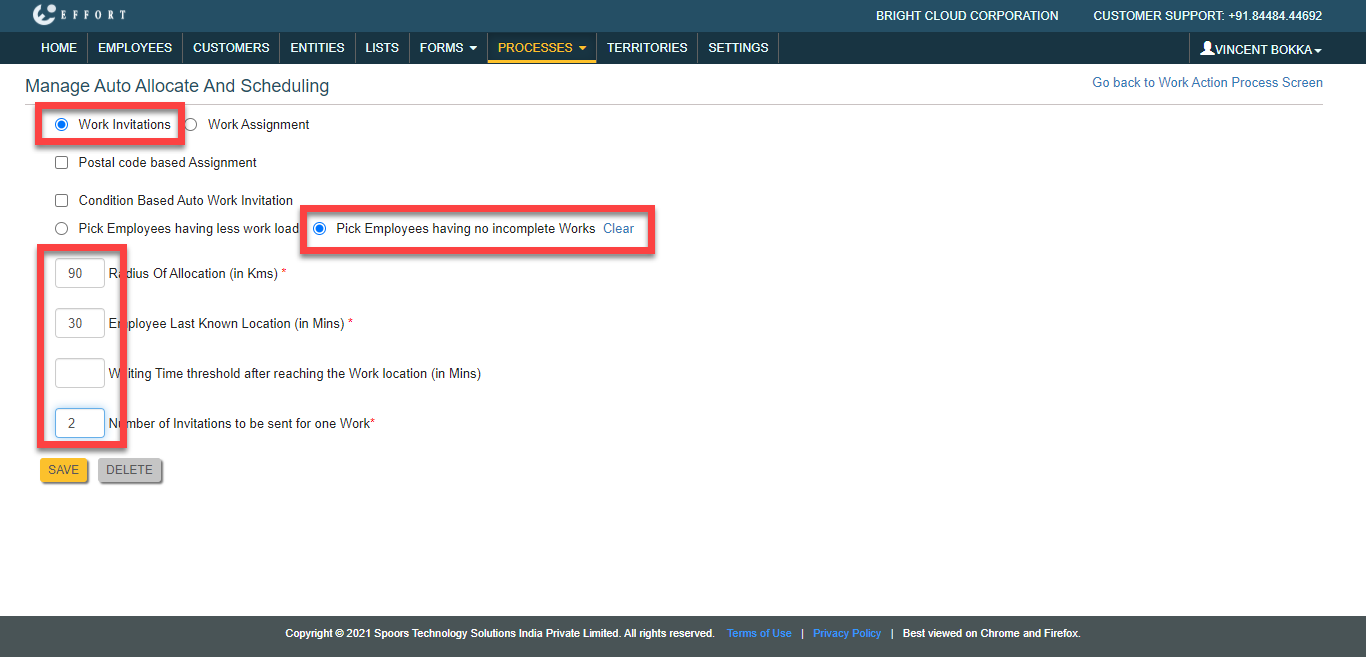
As per this configuration, the work invitations will be sent to the employees who don't have incomplete works and are present within 90 km from the work location.
Configuration of Work Creation Based on Form Submission
As per the workflow, the ticket needs to be created after form submission by the customer. In this section, we will set up the configuration that generates a ticket for the customer query.
-
An approval process must be configured to the form to create work based
on form submission. Navigate to and click Customer Support
Form.

-
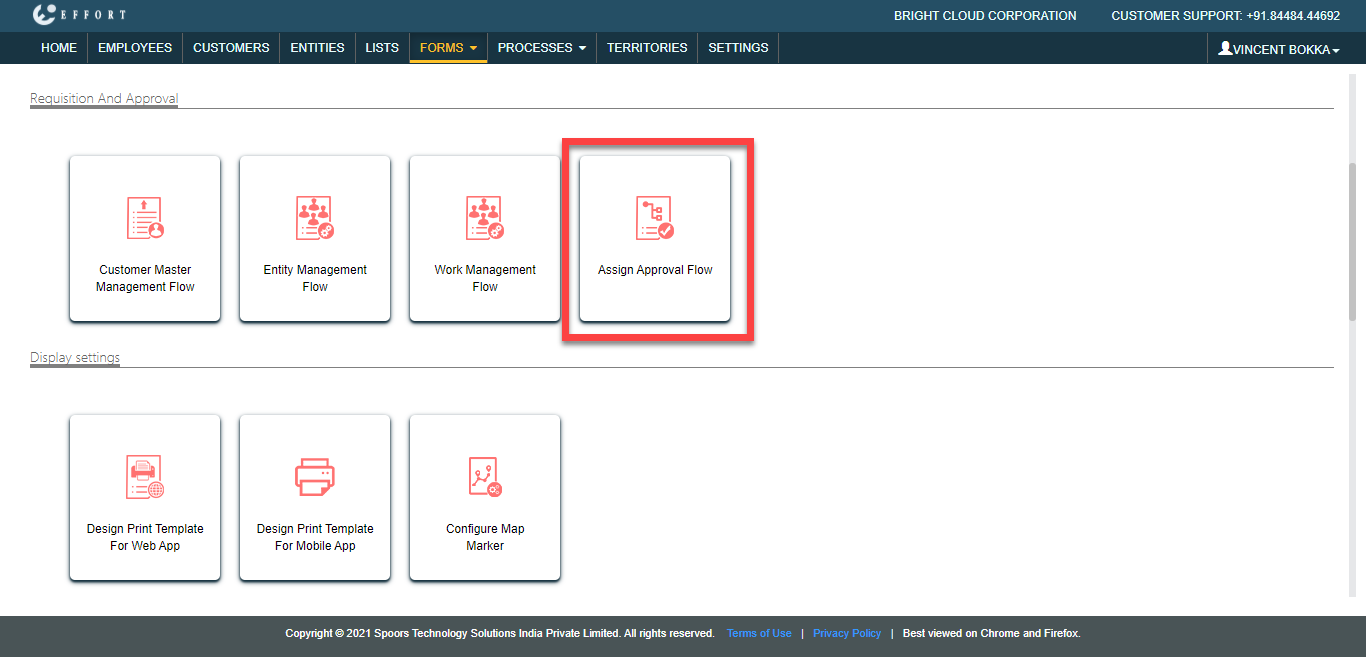
You will see the Form Actions page. Scroll down to the
Requisition and Approval section and click
Assign Approval Flow.
-
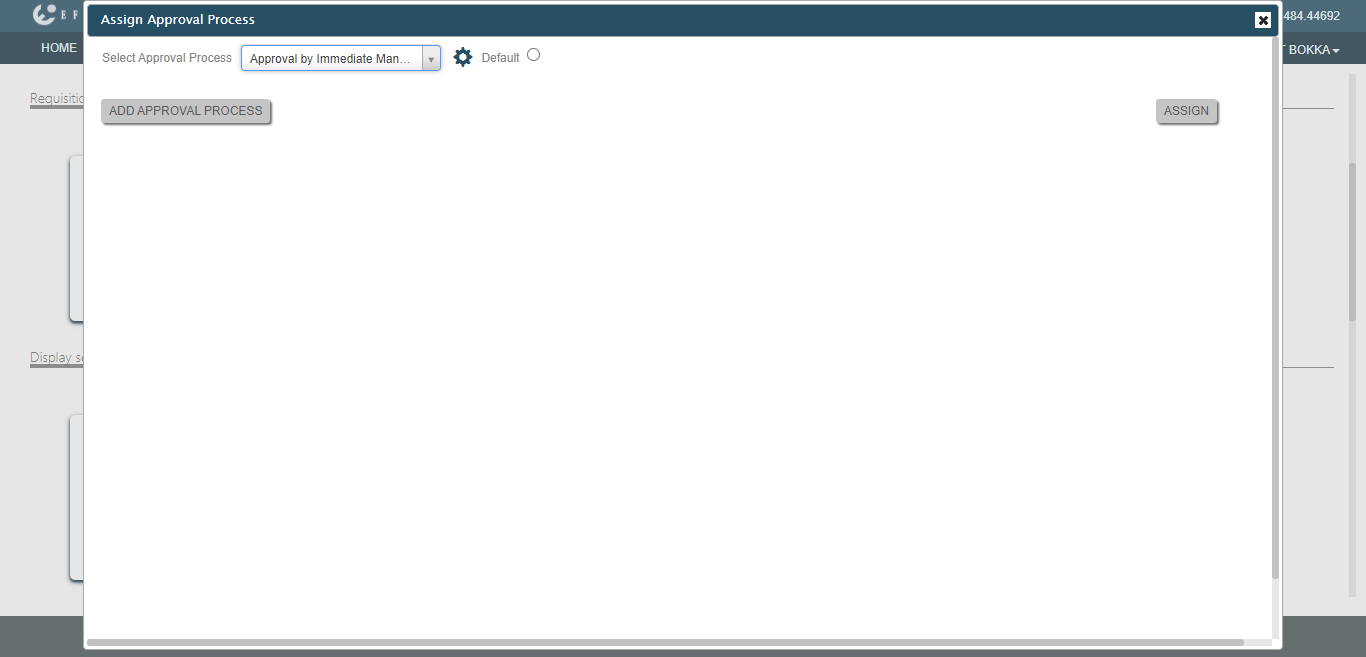
Click Add Approval Process button, select an
approval process from the dropdown, and click
Assign button to assign an approval flow to
the form spec. Check out the Create An Approval Flow
page to learn how to create an approval process.
-
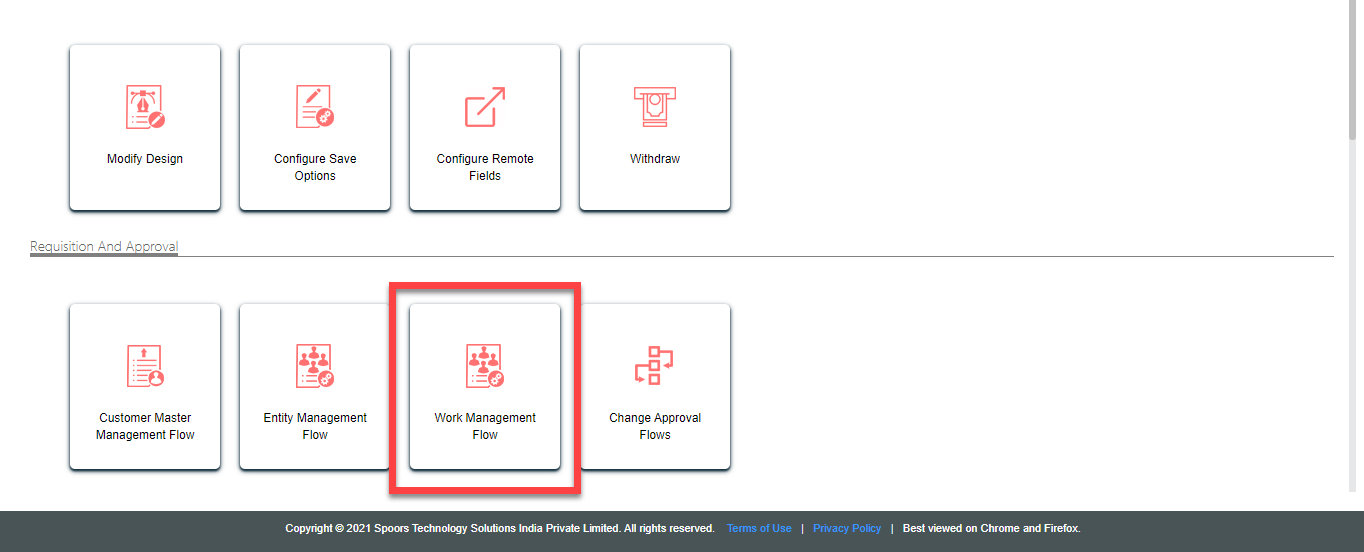
Now click Work Management Flow card. Here, you
need to define the configuration to create work based on form
submission.
-
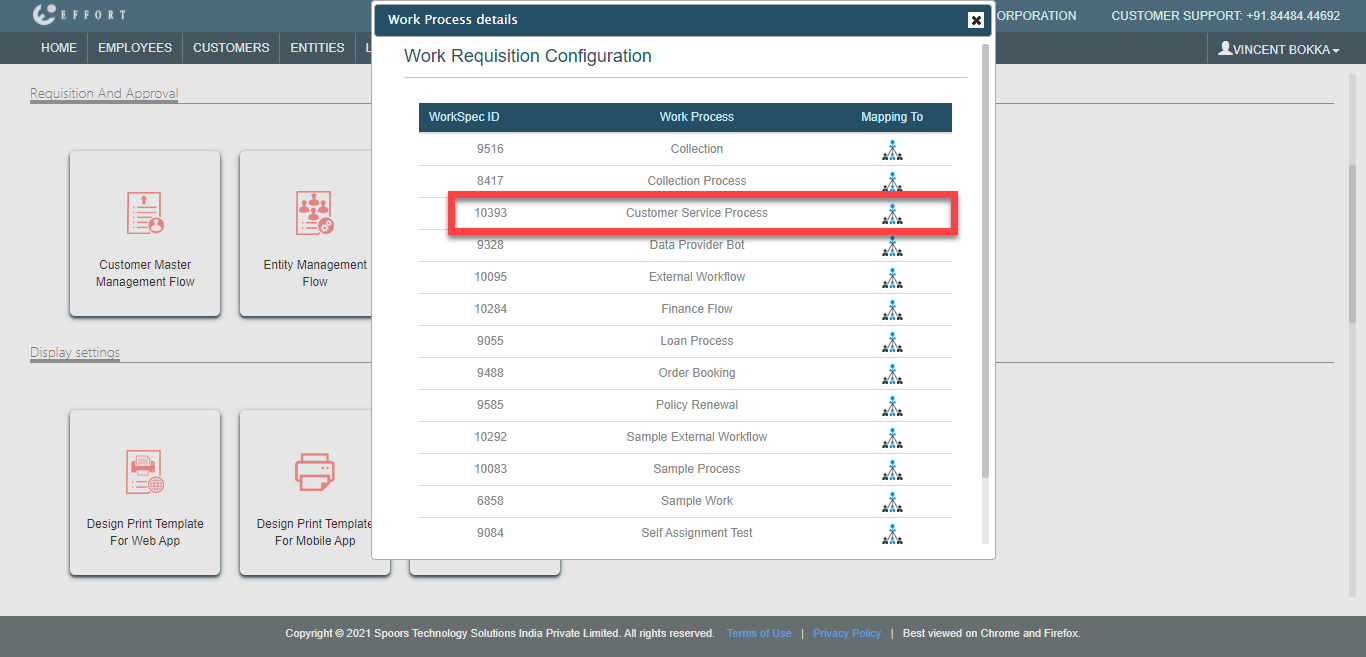
The Work Process Details pop-up appears. Click
the icon under the Mapping To column against
Customer Service Process. As this is a public
form, the mapped work will be created when the users submit the
form.
-
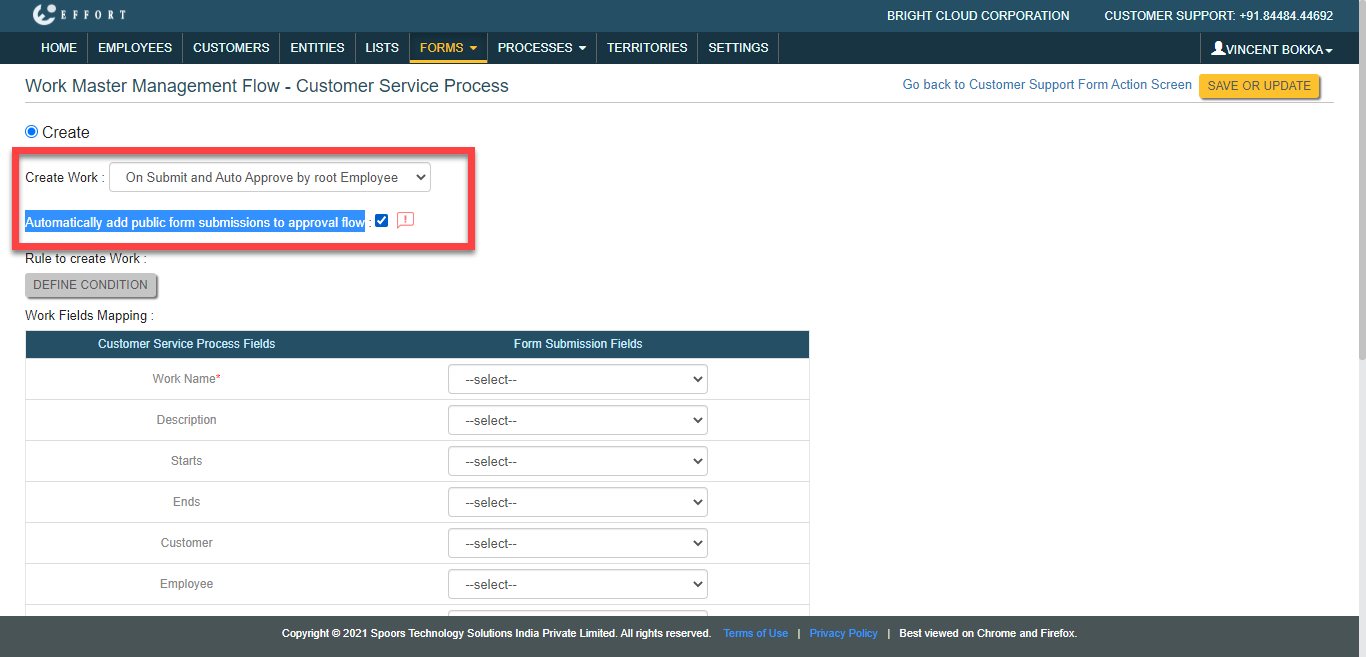
Select On Submit and Auto Approve by root
Employee for Create Work and
enable the checkbox highlighted below.
-
Define the configuration as shown below and click Save Or
Update.
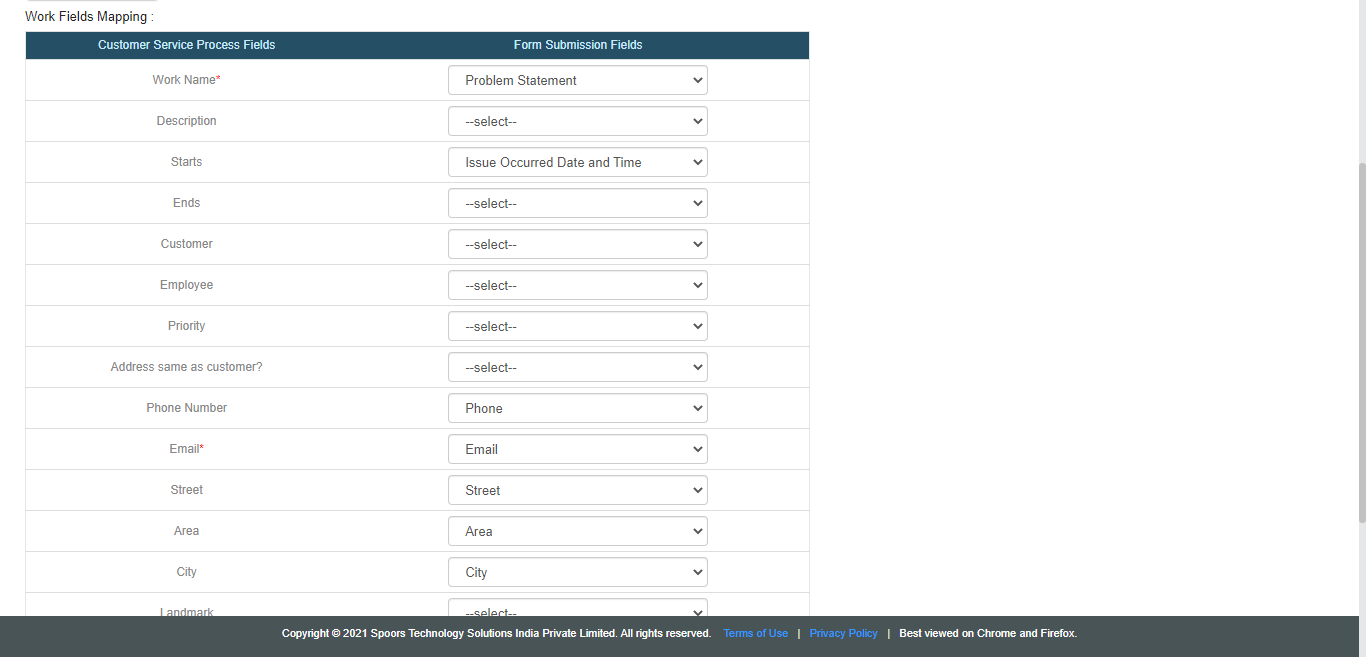
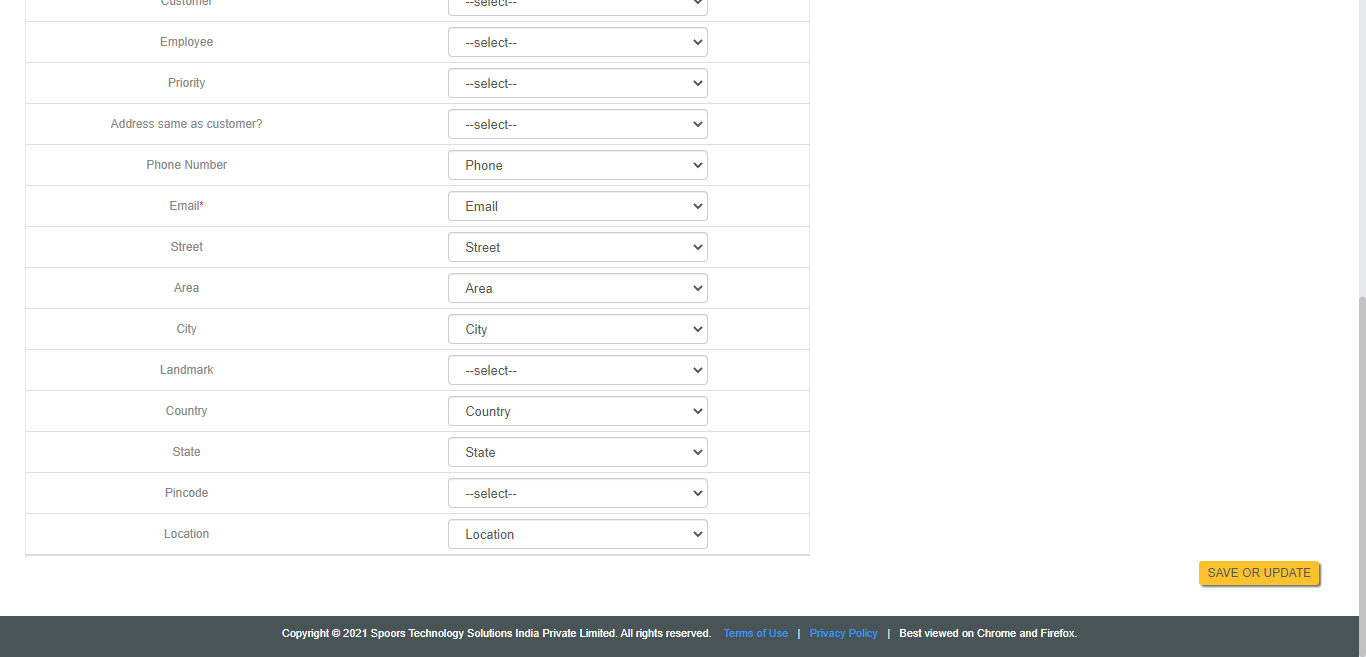
As per the above configuration, the work will be created once the submitted form gets auto approved by the root employee. The value in the Problem Statement form field will be the input for the Work Name work field.
Notification Configuration
In this section, we will configure notifications that will be sent to the customer through email when a ticket gets created.
-
To configure notification when work is created, navigate to . Click Schedule New Notification
button.

-
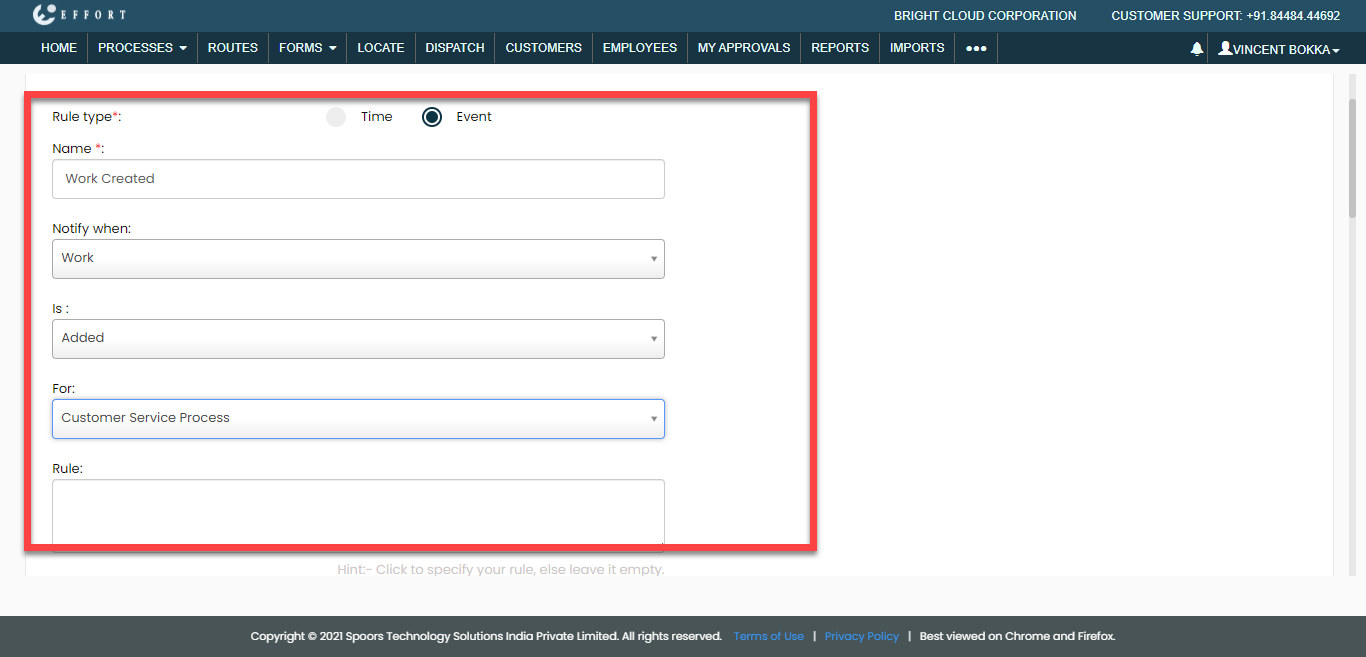
In this step, we will create a notification configuration that notifies
the customer when the work gets created. Change the Rule
Type to Event and configure the
Rule Definition as shown below.
-
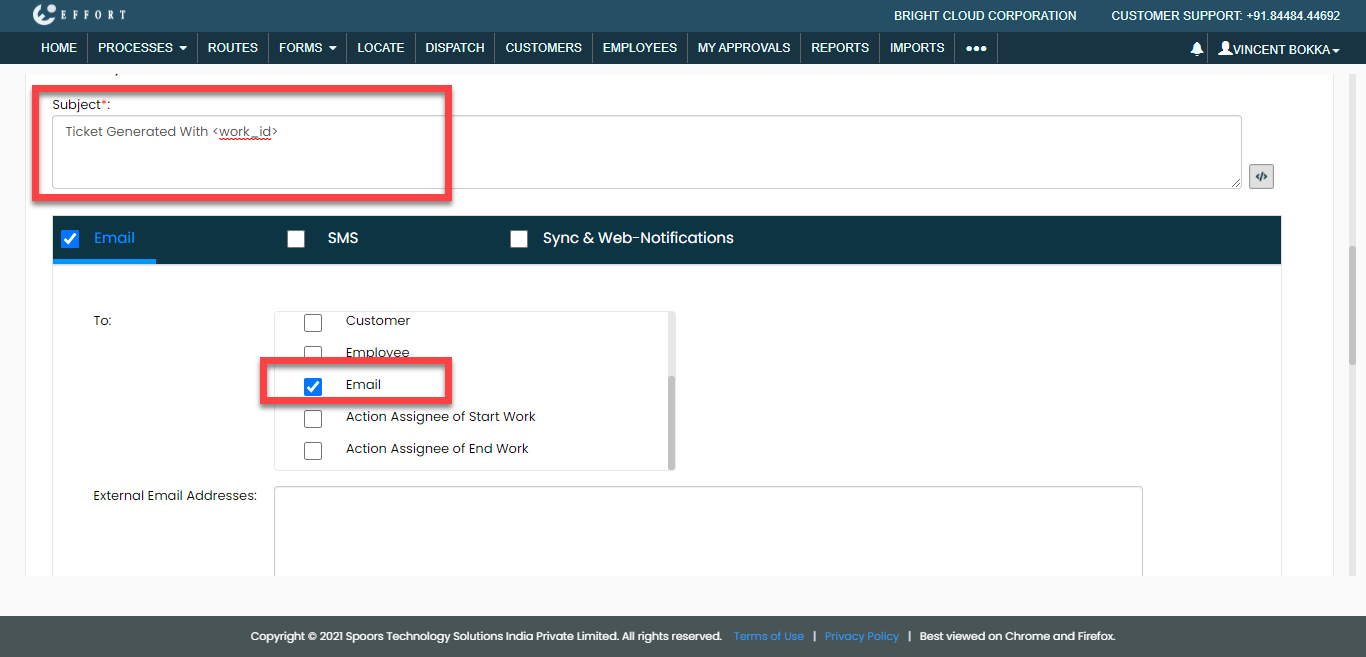
Under the Delivery Rule, enter the subject for
the notification, click the Email checkbox and
select To as Customers
Email.
-
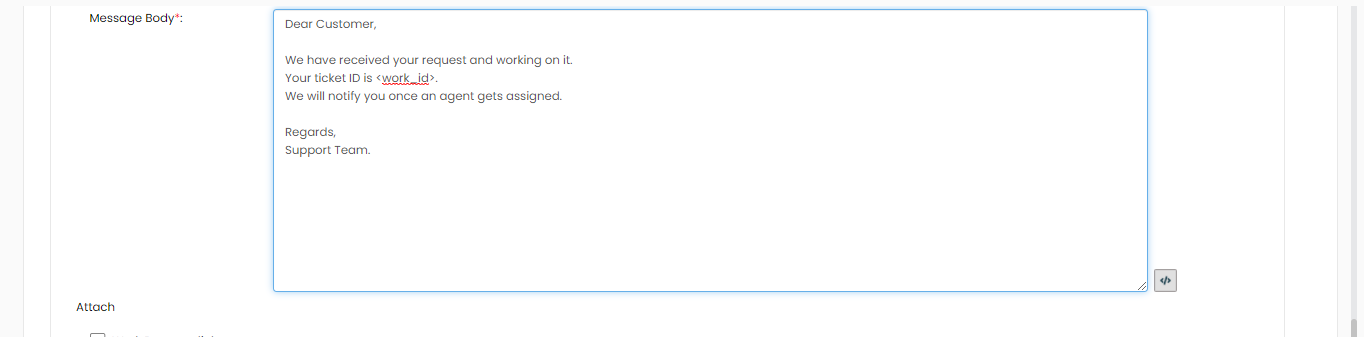
Enter the notification content in the Message
Body field and click Save button
to save the notification configuration.
-
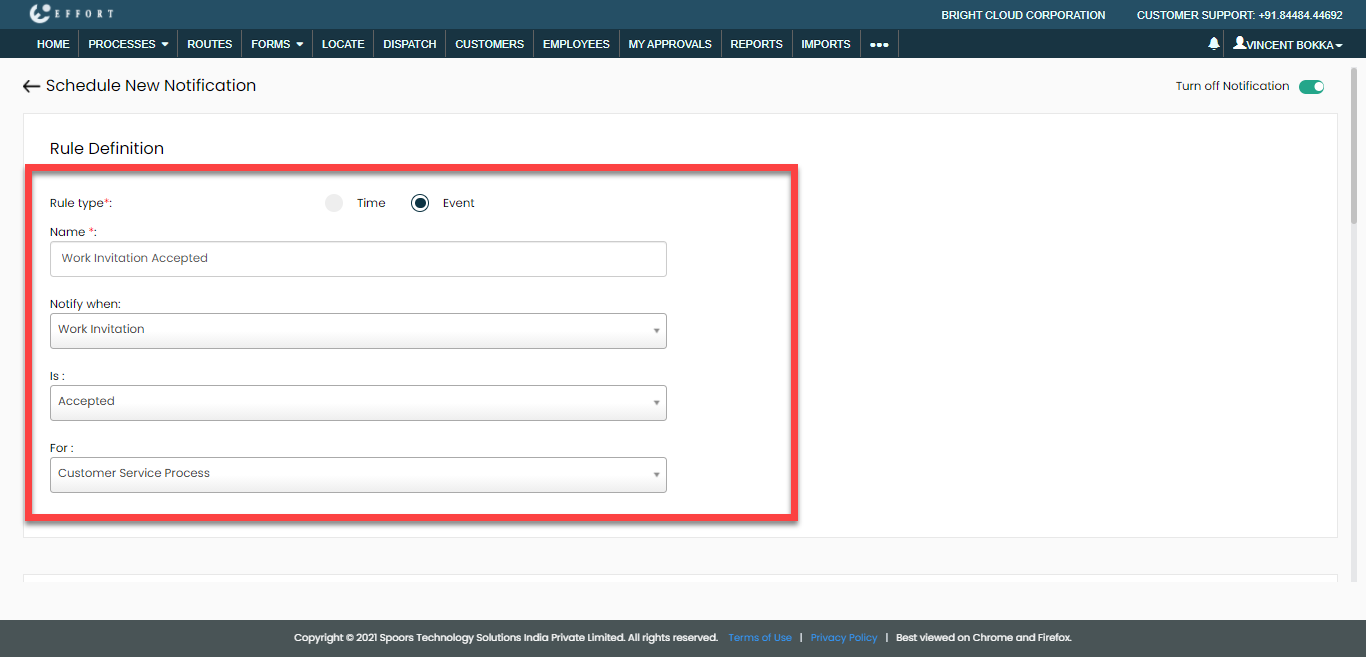
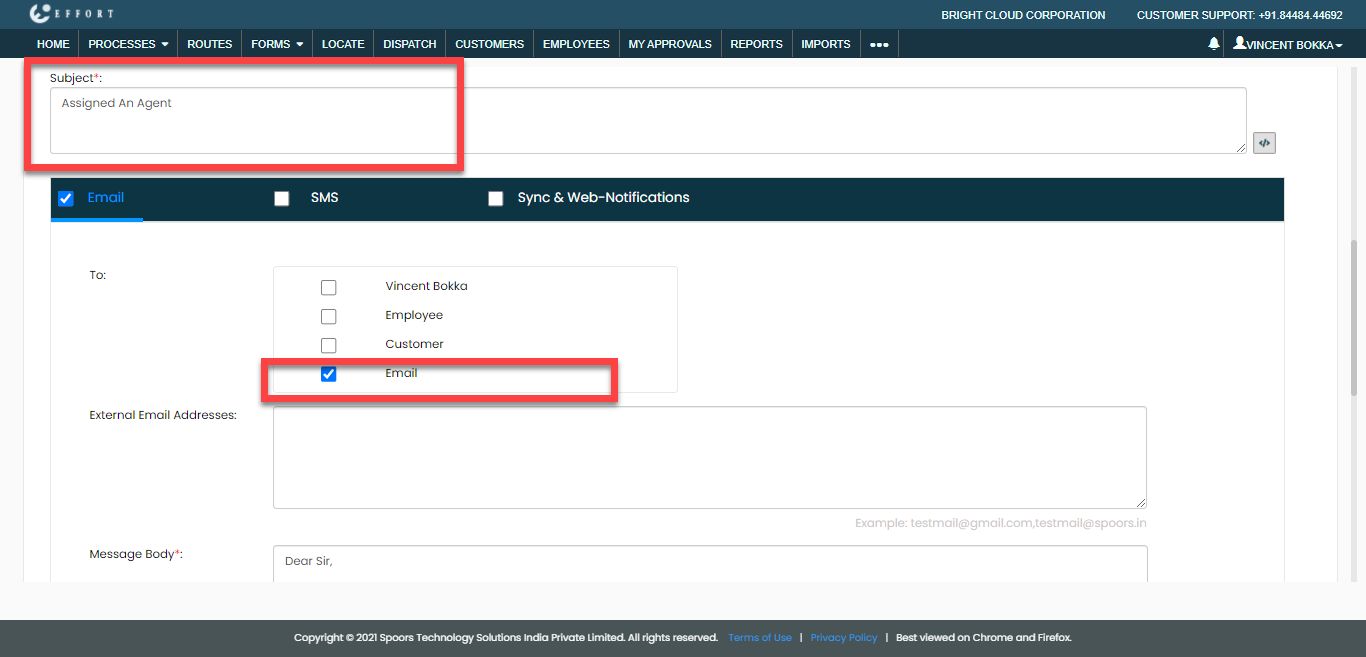
Similarly, create a notification configuration that notifies the
customer when an agent accepts the work invitation. Change the
Rule Type to Event and
configure the Rule Definition as shown
below.
-
Under the Delivery Rule, enter the subject for
the notification, click the Email checkbox and
select To as Customers
Email.
-
Enter the notification content in the Message
Body field and enable the checkboxes as shown
below.
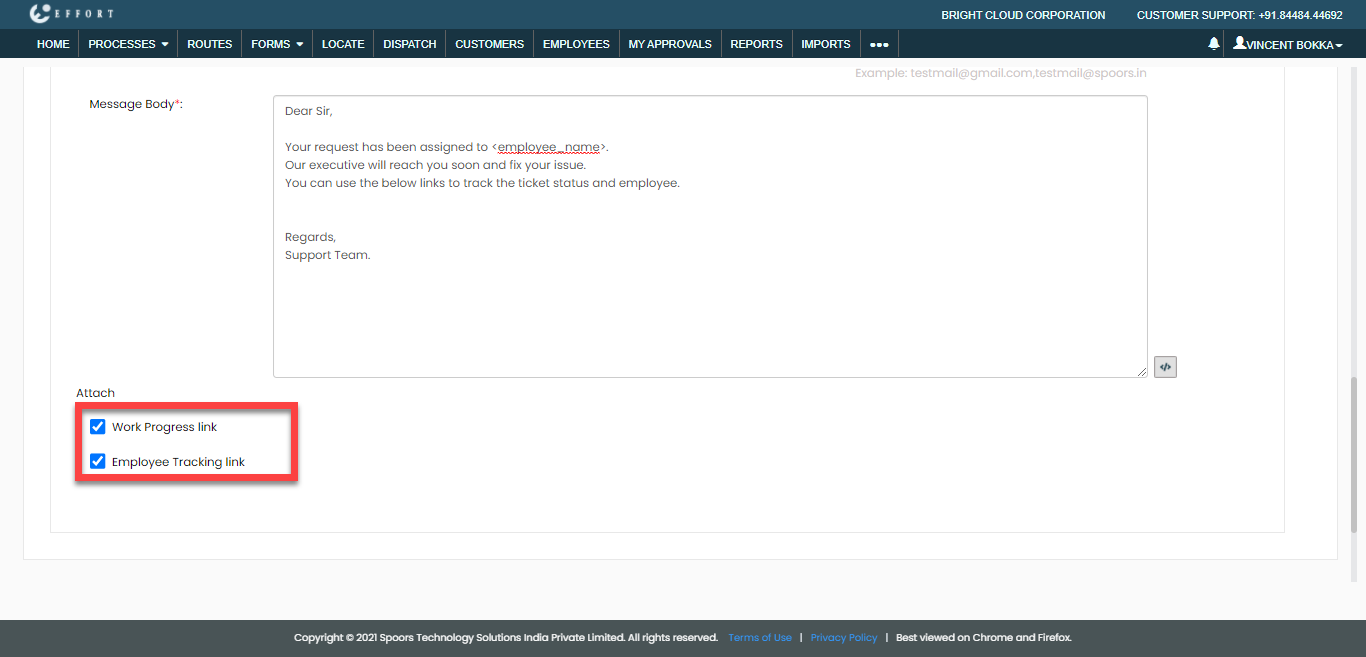
- Click Save button to save the notification configuration.
-
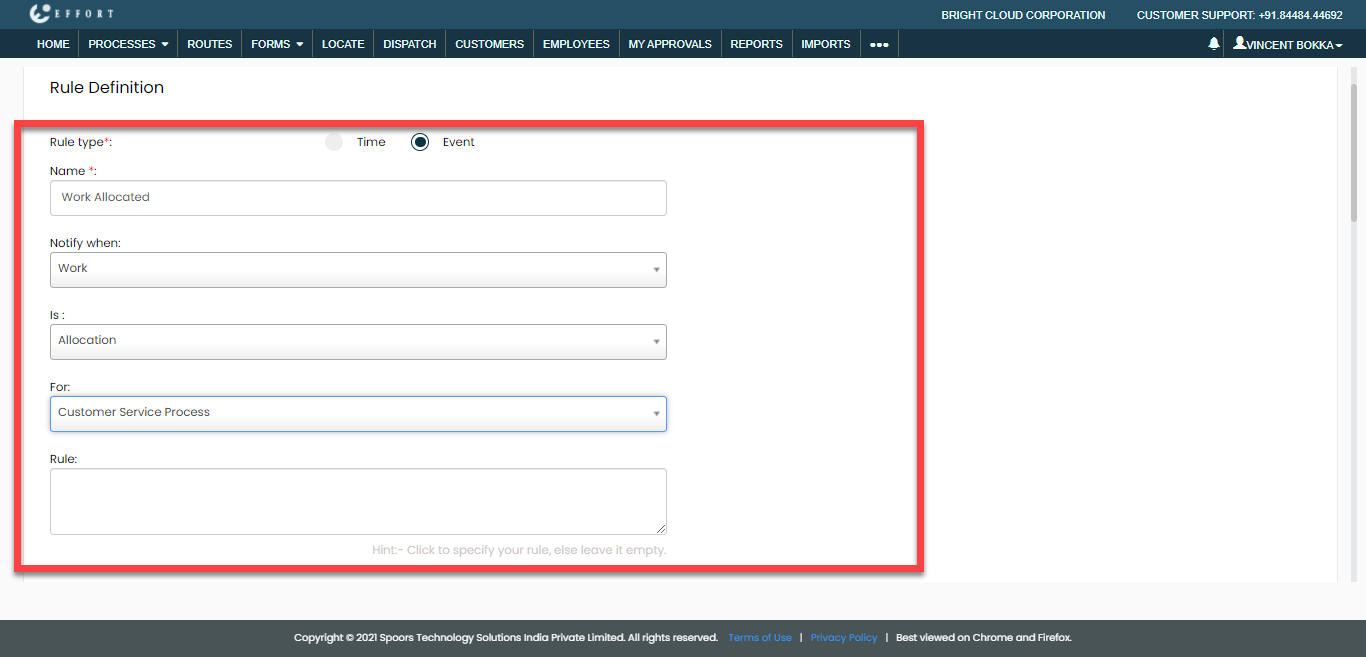
Now, create a notification configuration that notifies the employee
when work gets assigned. Change the Rule Type to
Event and configure the Rule
Definition as shown below.
-
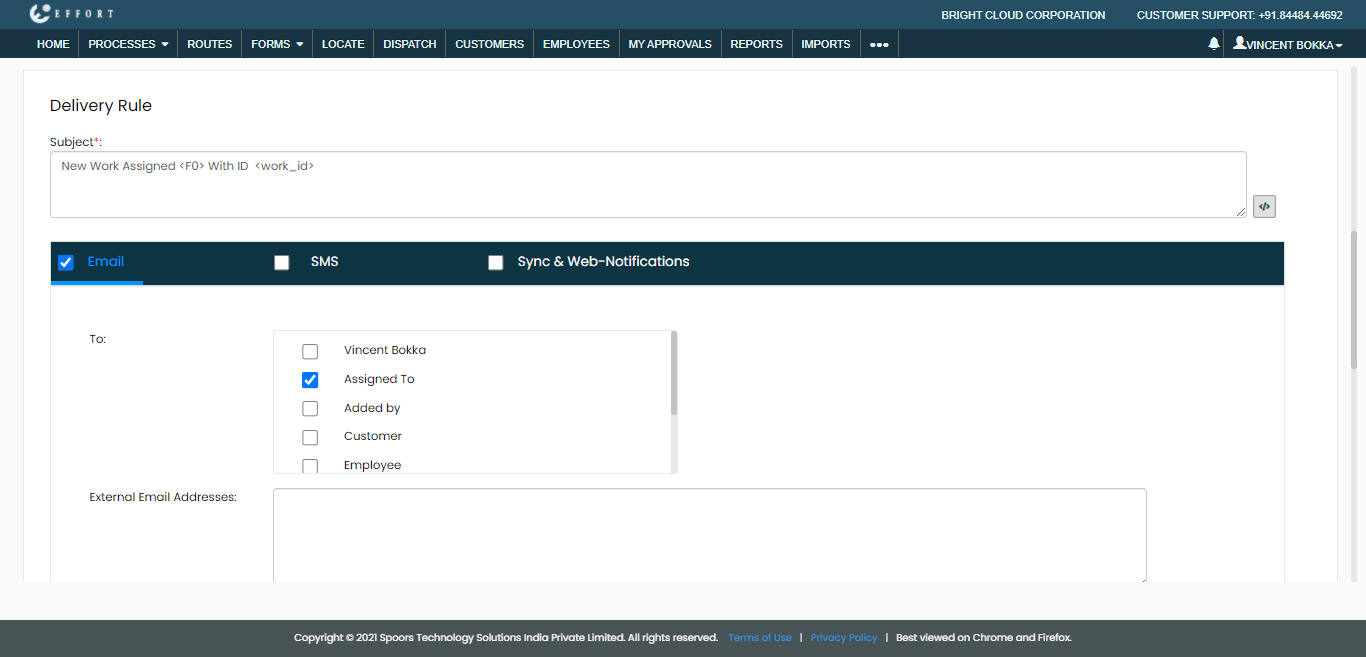
Under the Delivery Rule, enter the subject for
the notification, click the Email checkbox and
select To as Customers
Email.
-
Enter the notification content in the Message
Body field and click Save button
to save the notification configuration.

Workflow Testing
In the above section, the workflow configuration is done. Now we need to test the workflow to ensure the configuration is working properly. Follow the steps listed below to check how this workflow works.
-
As a first step, you have to send the Customer Support
Form to the customers. For this, navigate to . Click on the Customer Support Form
card.
-
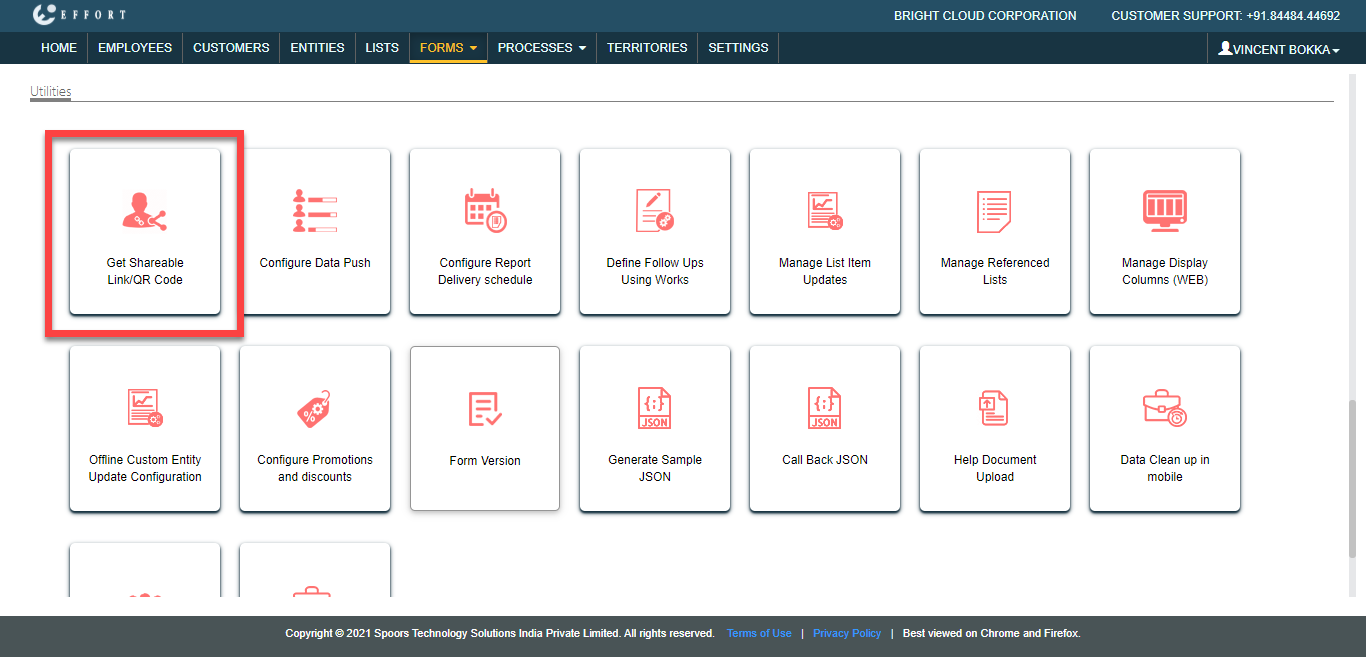
You will see the Form Actions page. Scroll down to
the Utilities section. Click Get Shareable
Link/QR Code card.
-
A pop-up opens with a shareable link and QR code. You can download the QR
code and keep it wherever you want. You can also send the public URL and QR
code through email to the customers.

-
The customer needs to scan the QR code with the scanner app.
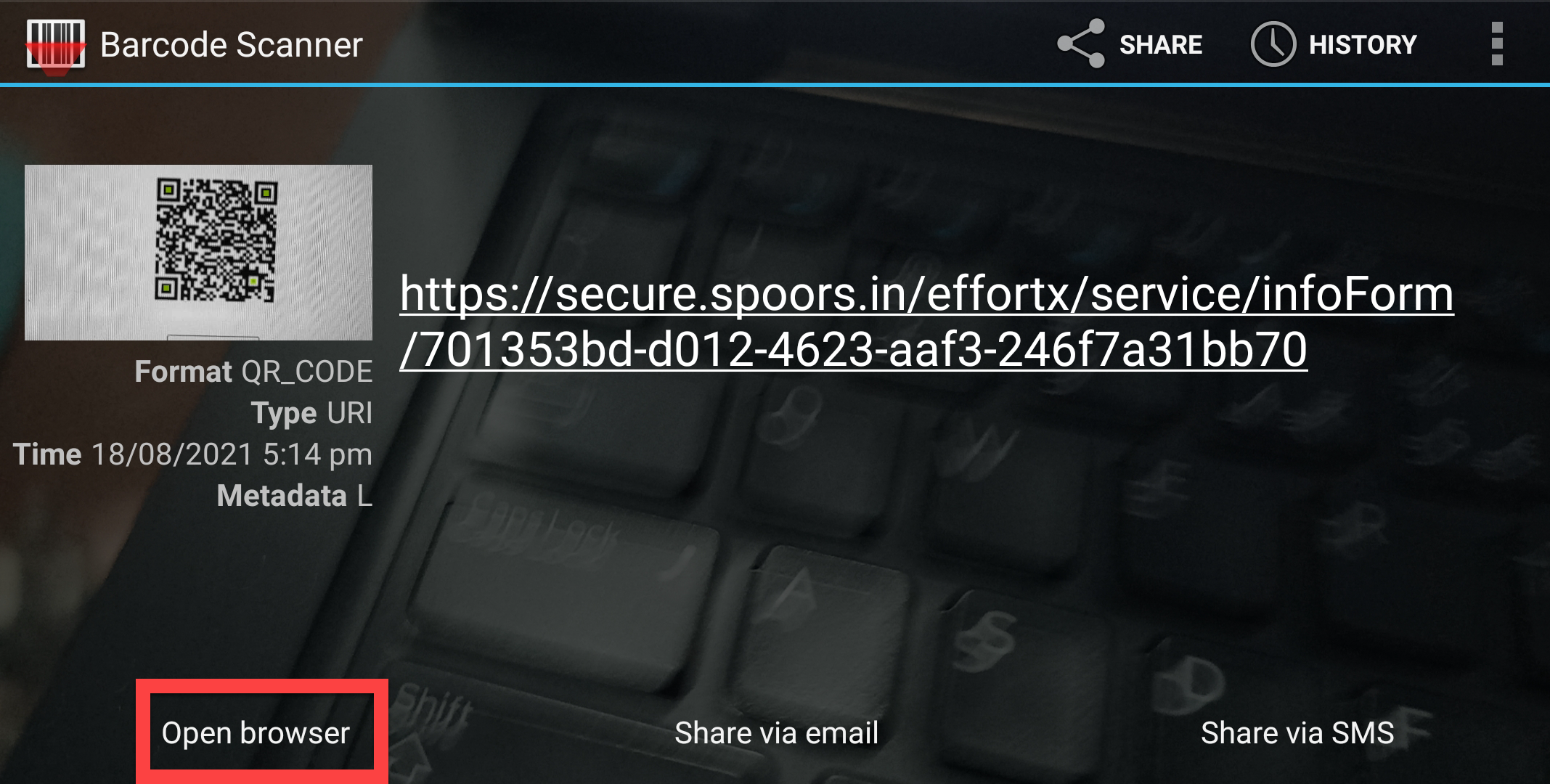
You can download the below app from the Play store to scan the QR code.
-
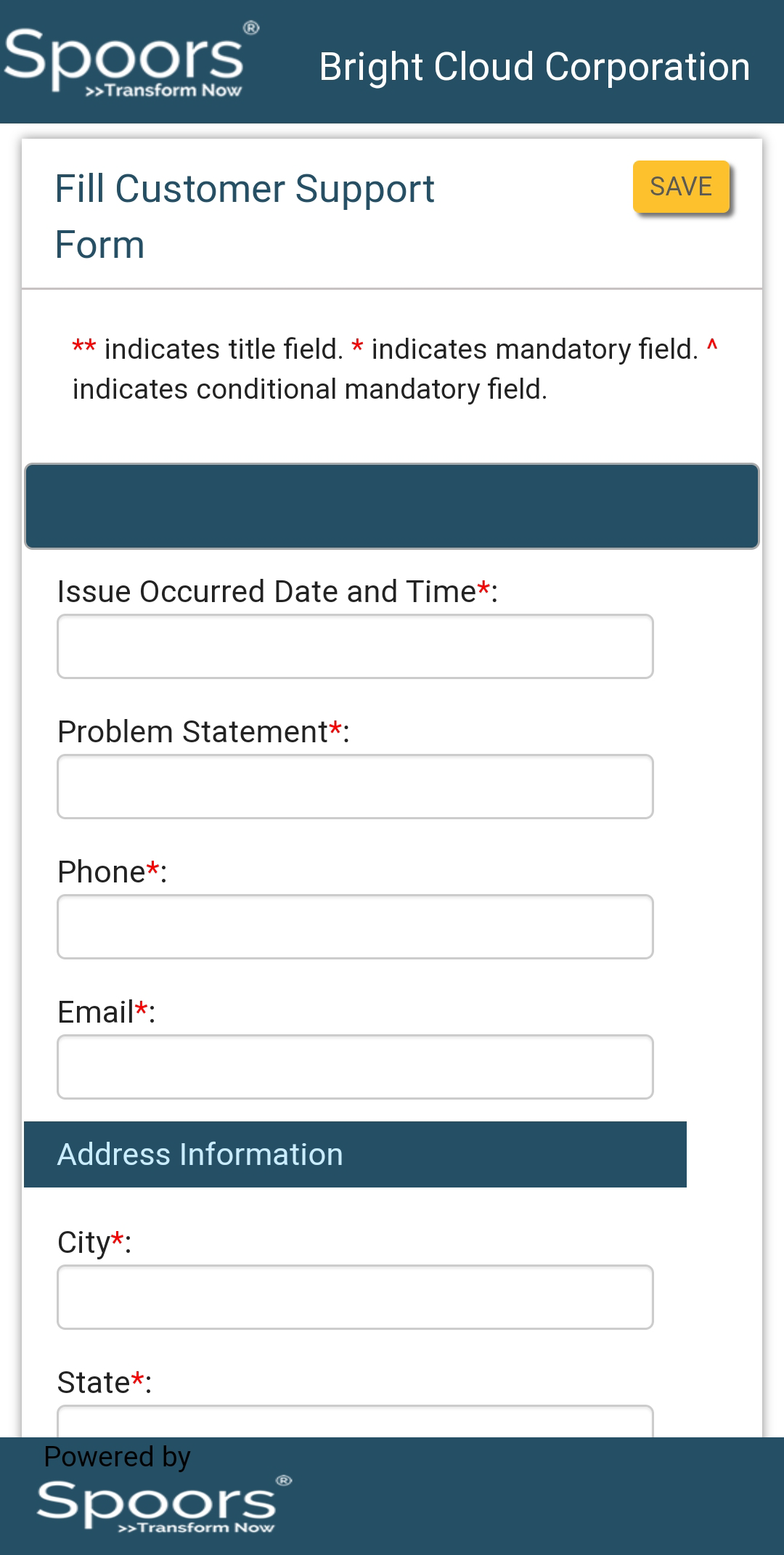
The customer needs to fill the Customer Support Form.
-
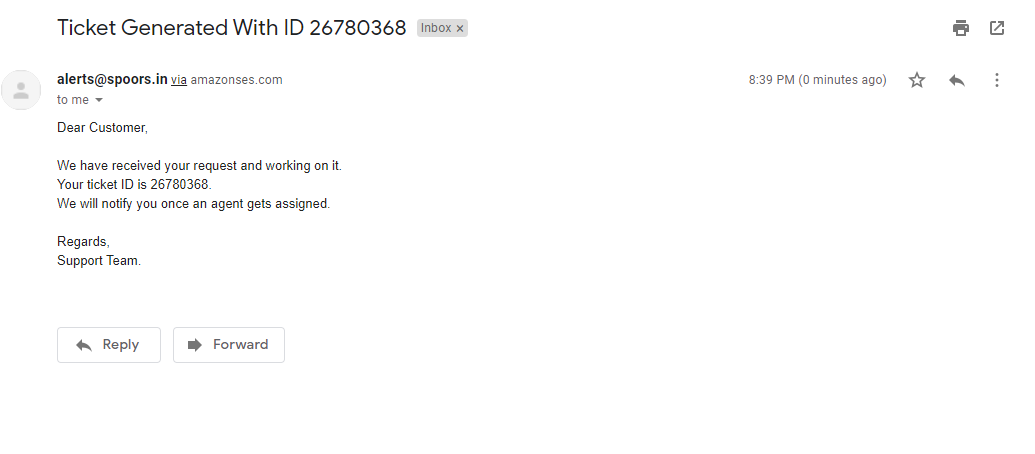
After submitting the customer support form, the customer gets confirmation
on email with notification content and work tracking links as shown
below.
-
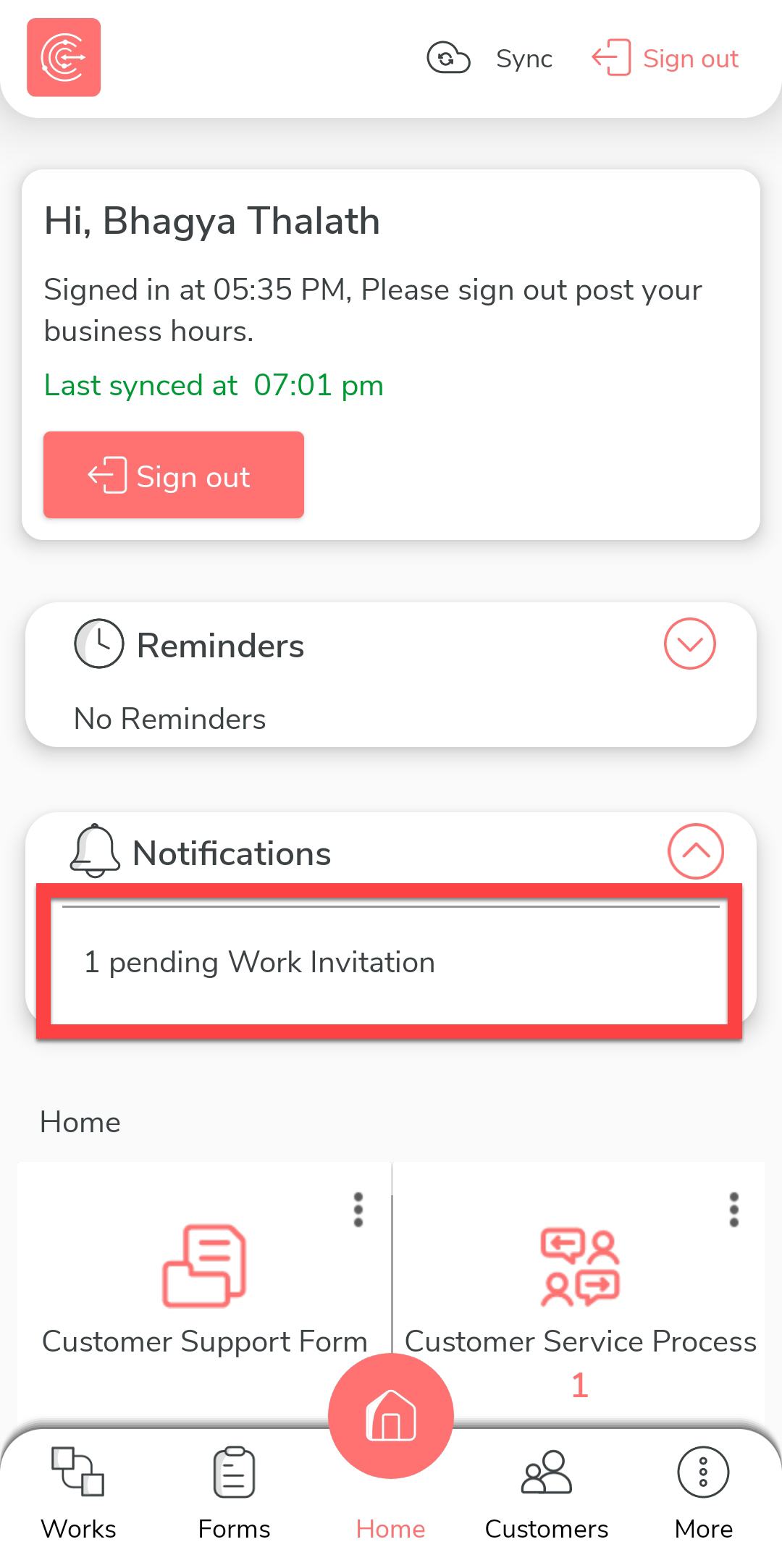
Now an employee near the work location will receive the Work Invitation on
the mobile app as shown below. Tap on the 1 pending Work
Invitation.
-
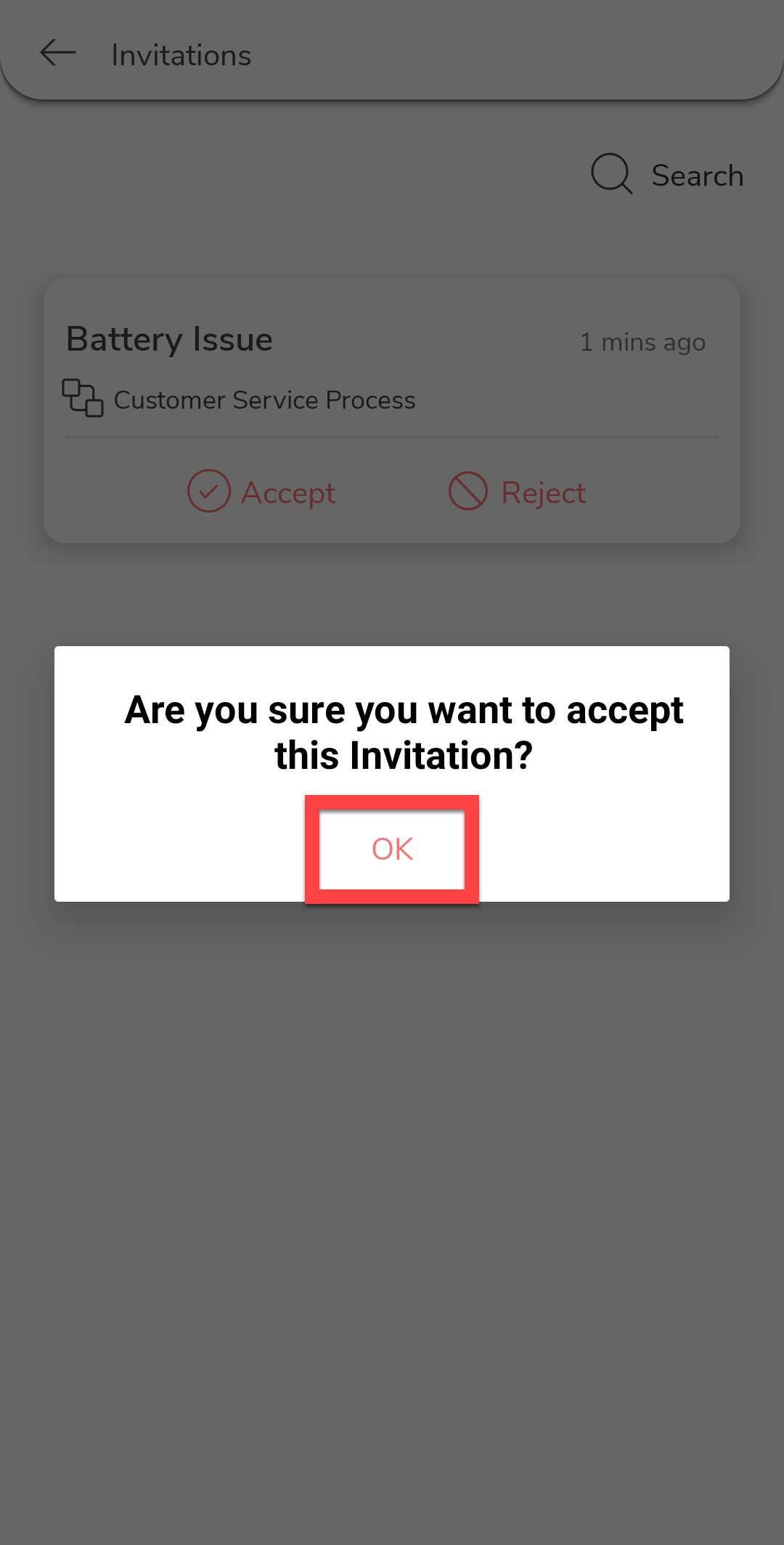
Tap Accept to start work on the customer
request.

-
Tap OK on the confirmation pop-up.
-
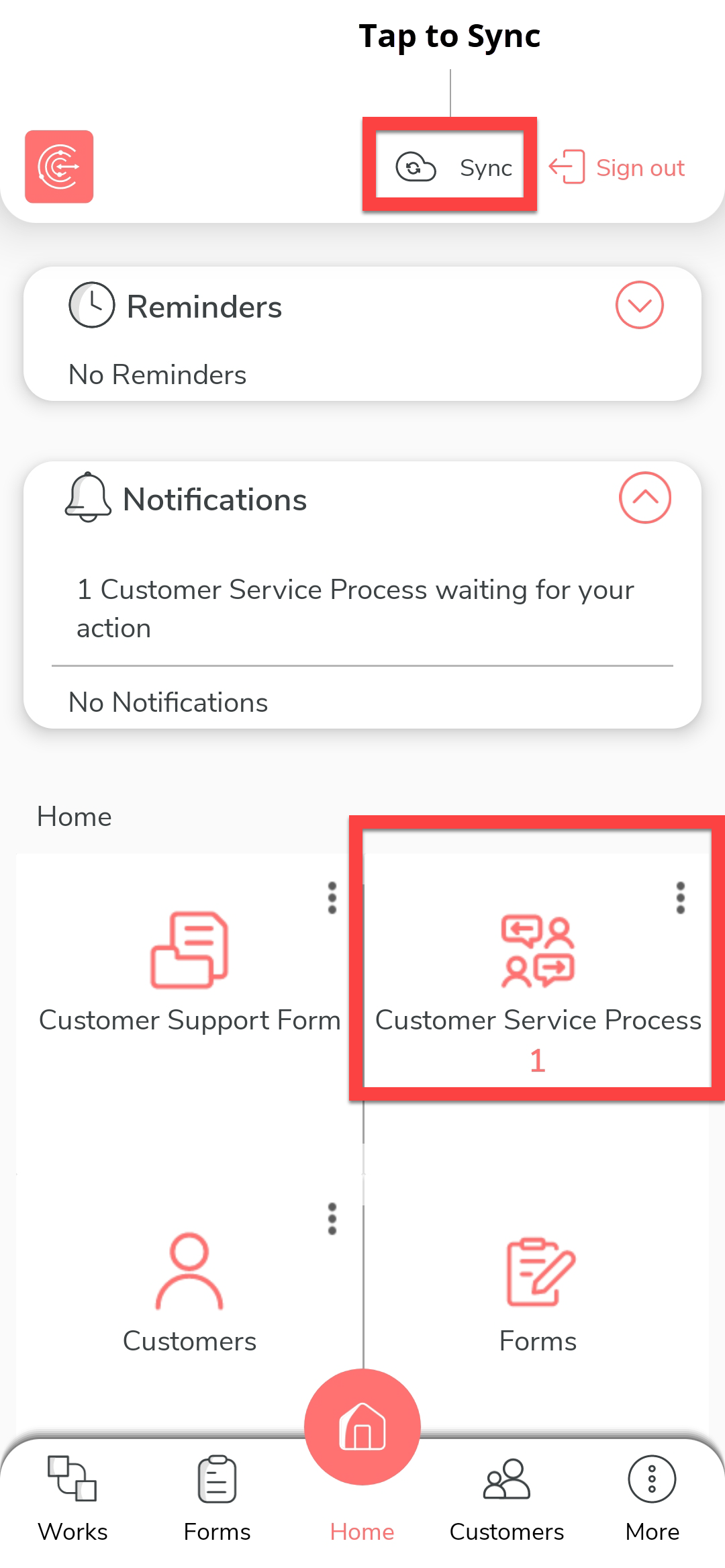
Now go back to the mobile app home screen and tap the
Sync option. The customer gets a notification
regarding the work assignment along with work and employee tracking
links.

The below page appears with the work details and actions performed when you click on the work tracking link.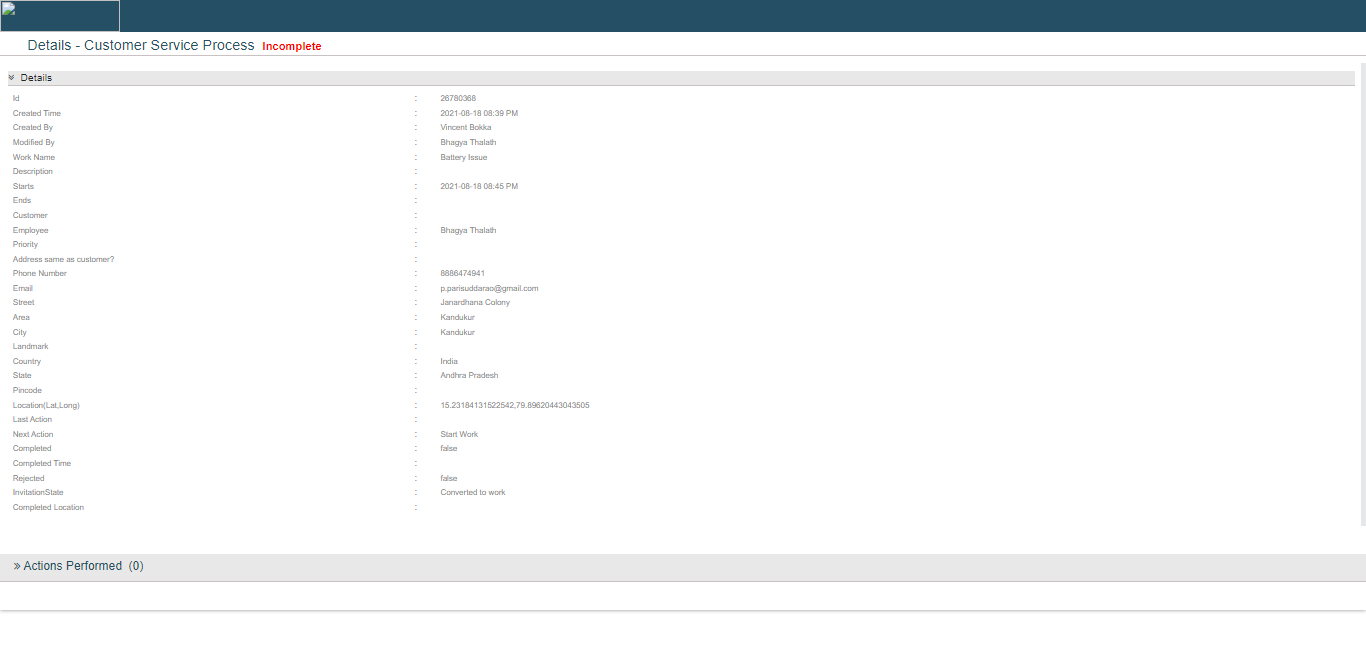 The below page appears with the employee location and work location when you click on the employee tracking link.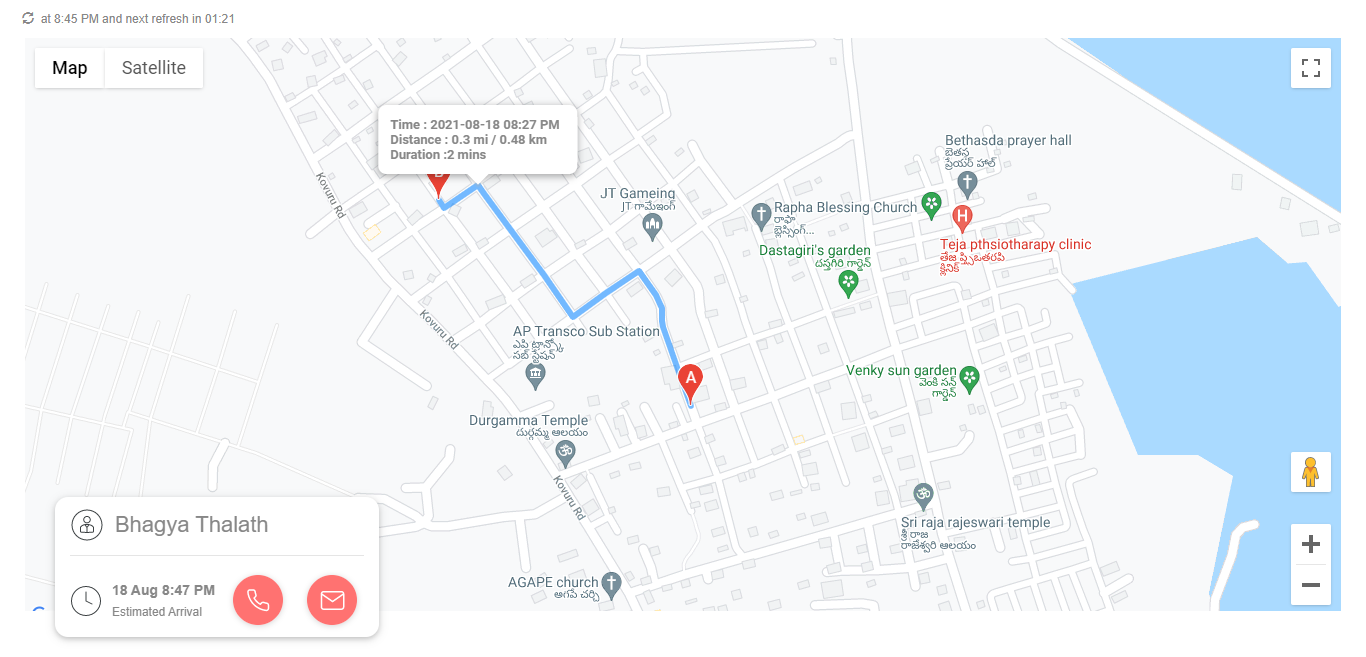
-
To complete the assigned work, tap Customer Service
Process card.
-
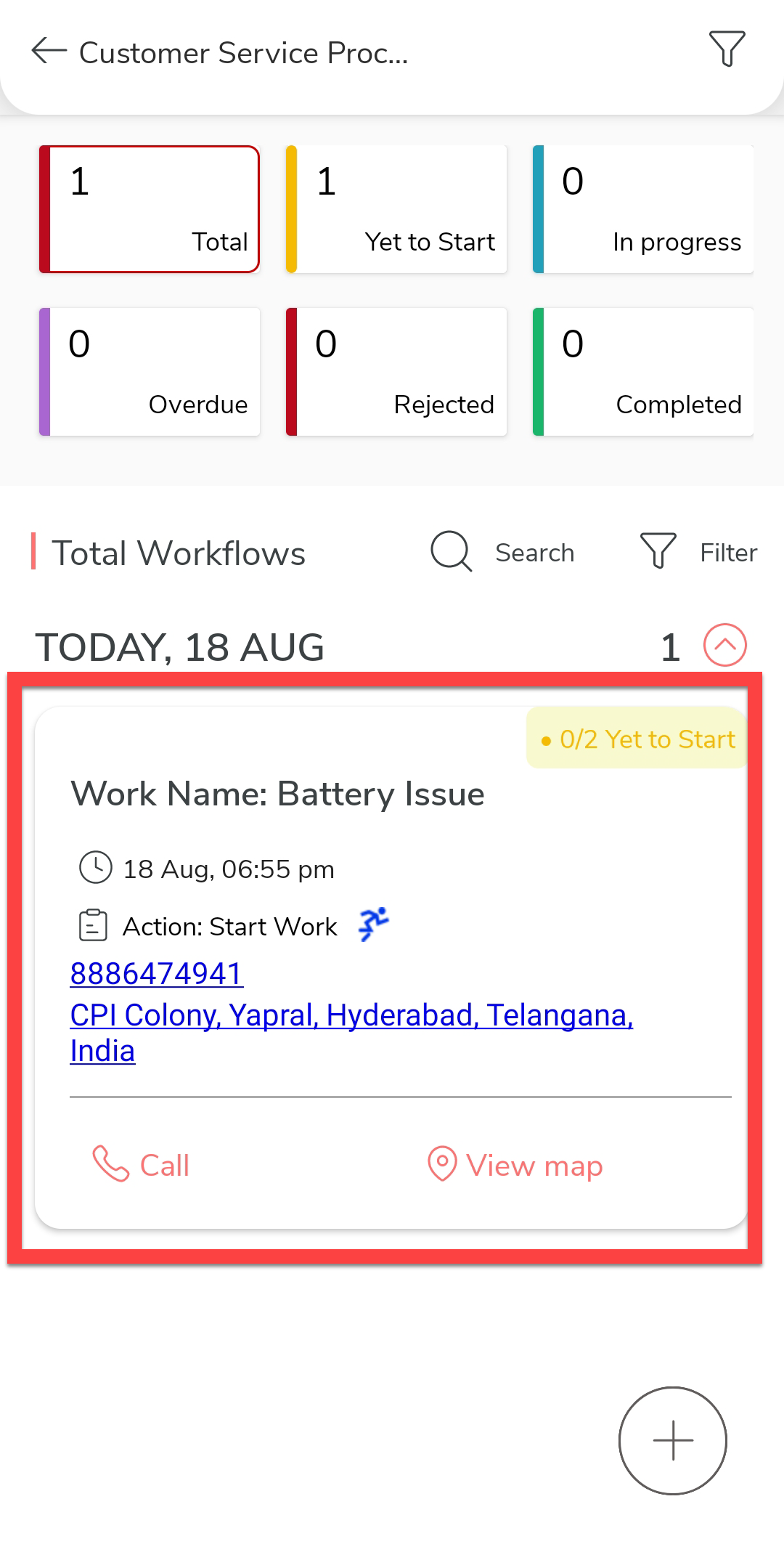
Tap on the work details card.
-
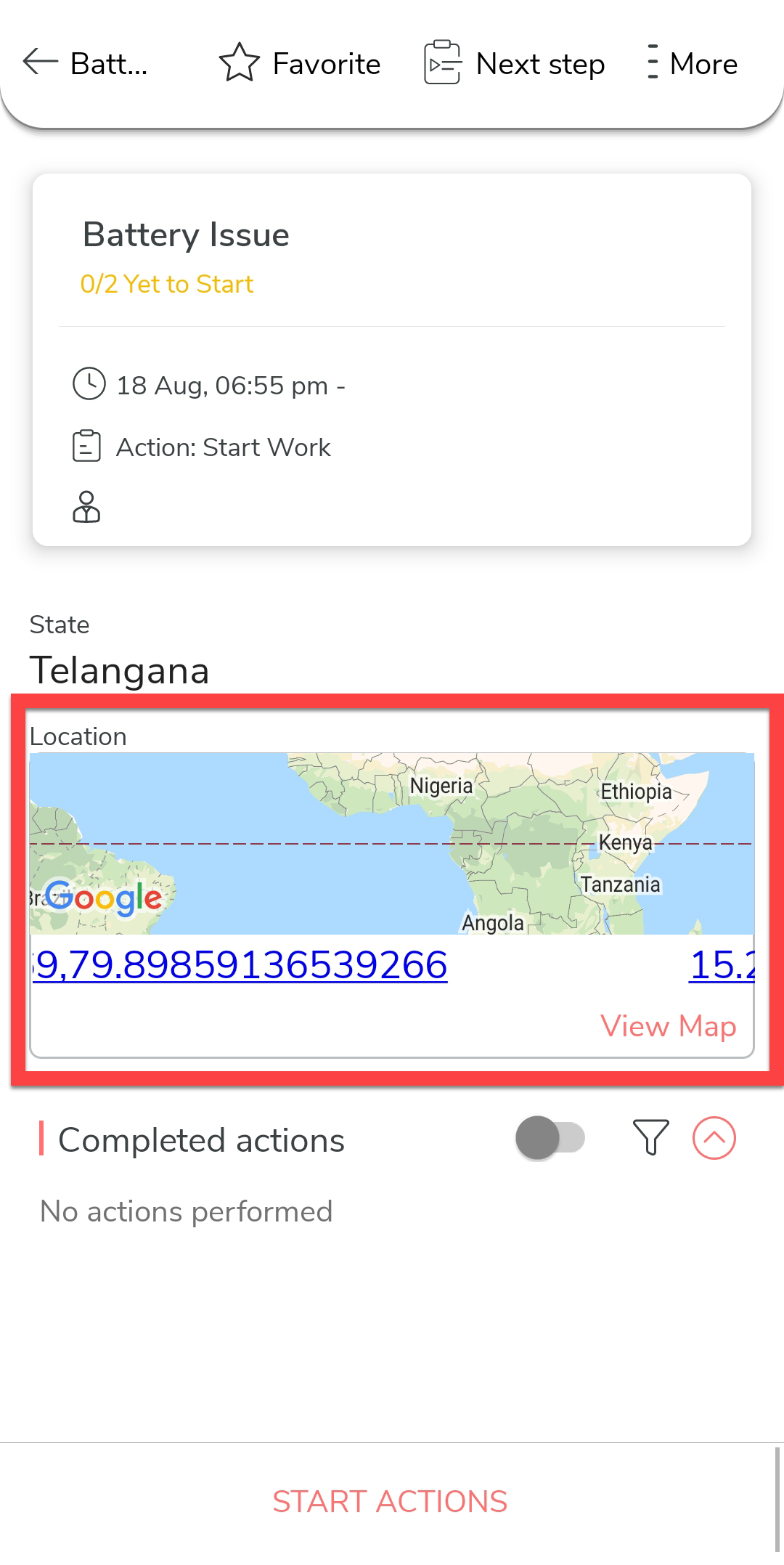
Tap the location option to view the customer's location on the map.
-
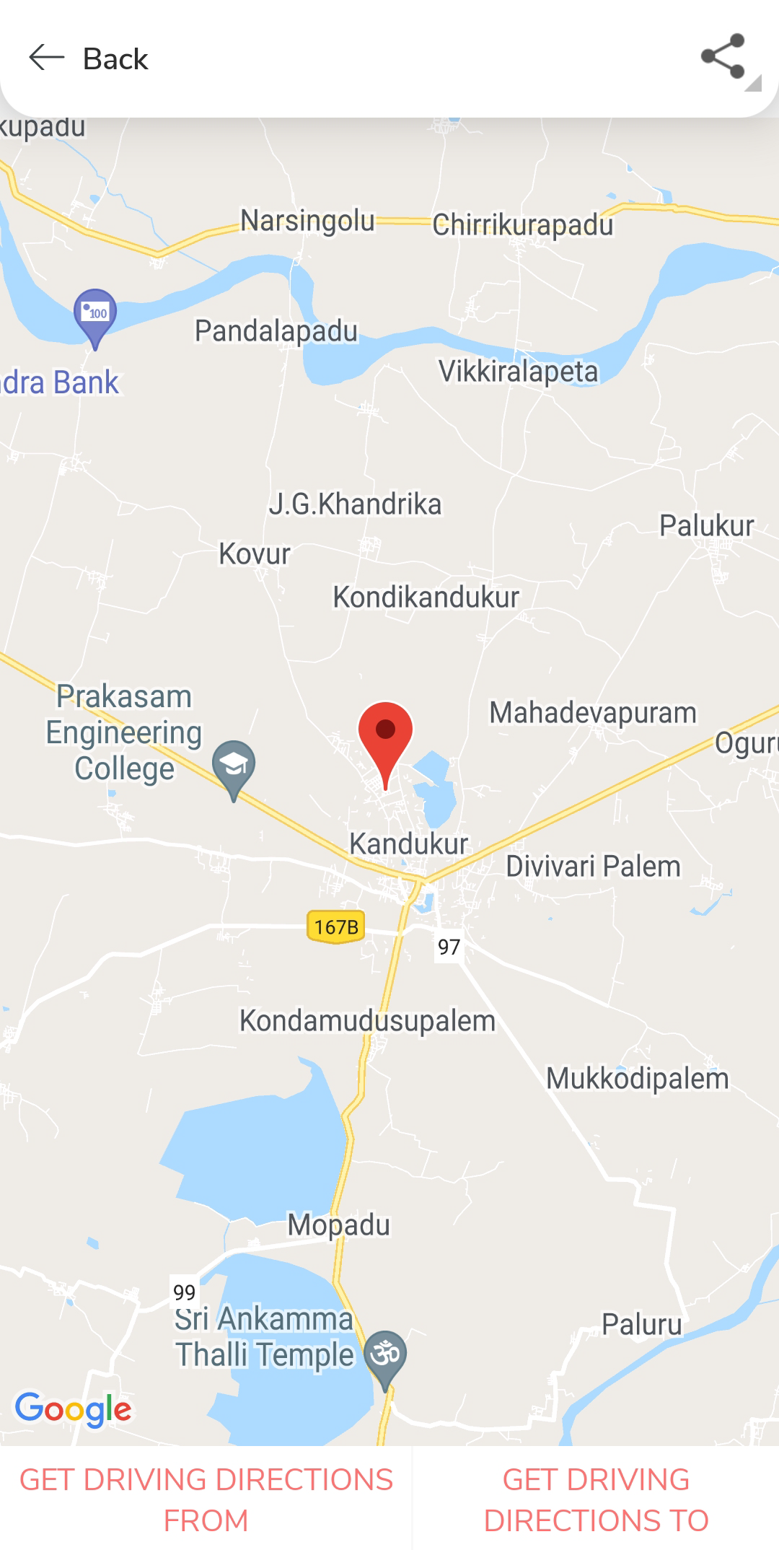
You can see the customer's location on the map. There are options to get
driving directions to the customer's location.
-
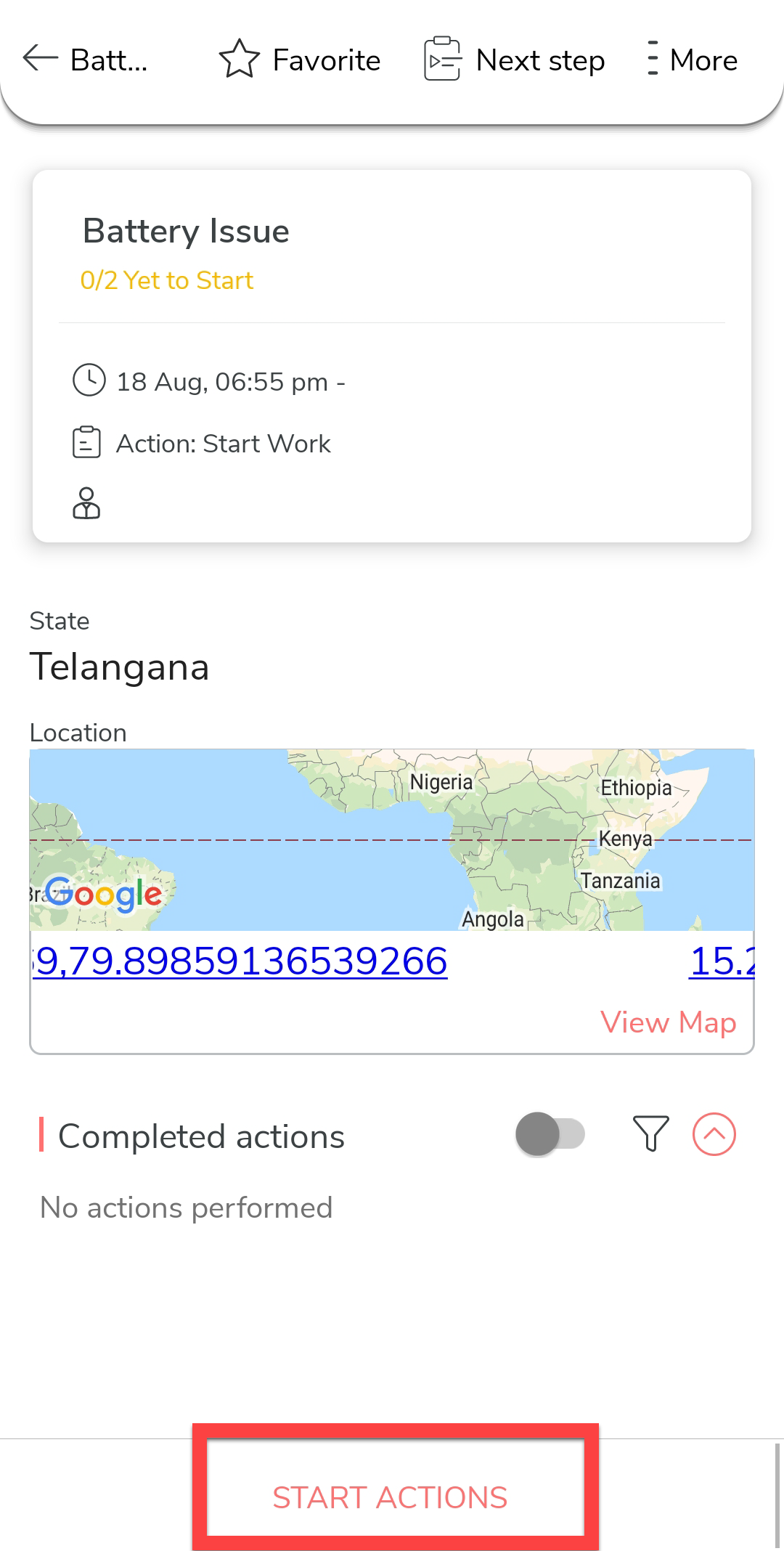
On reaching the customer location, tap Start Action
to do the activity.
-
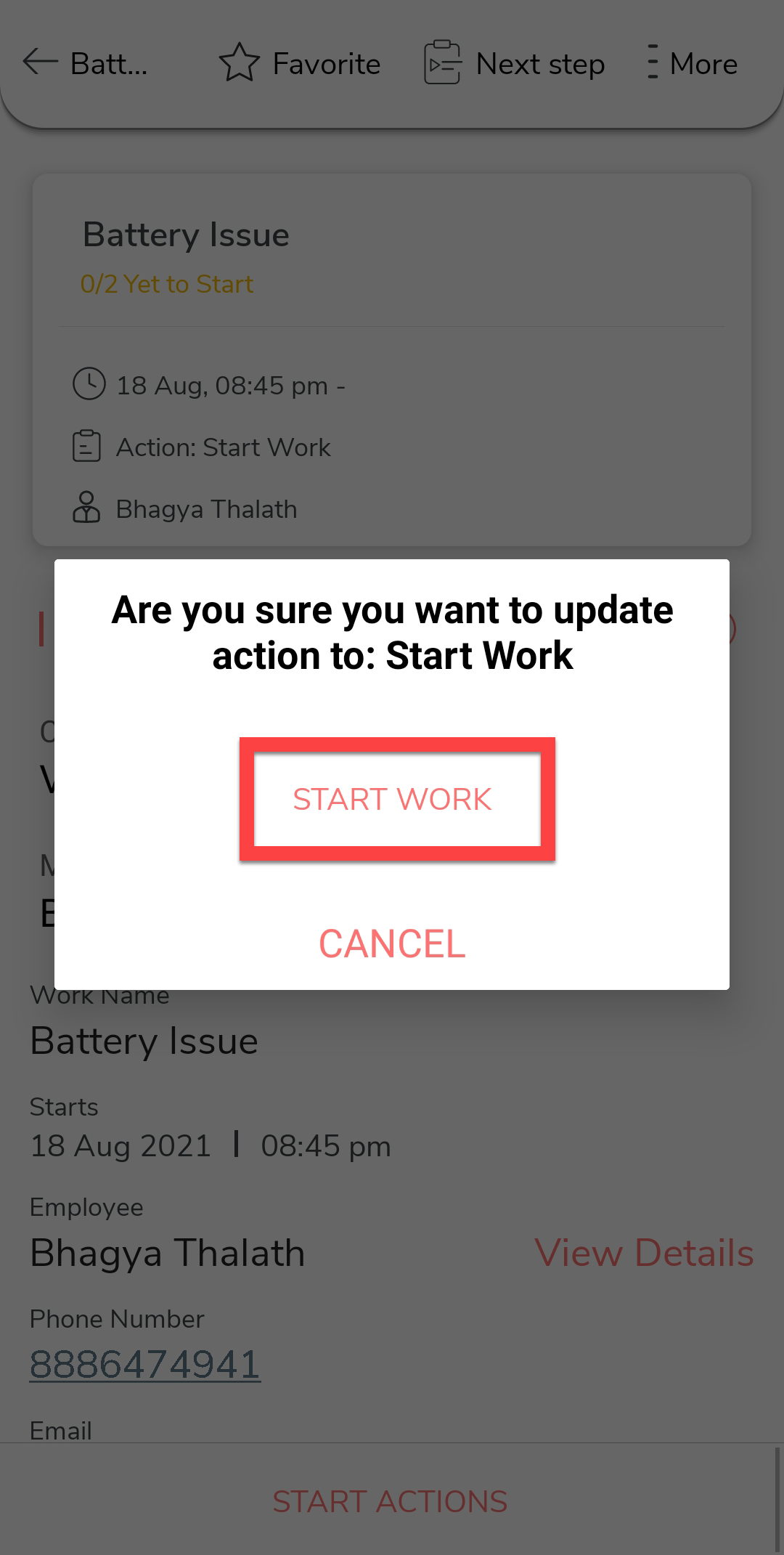
Tap Start Work to fill the Repair form.
-
Fill the form and tap Save.
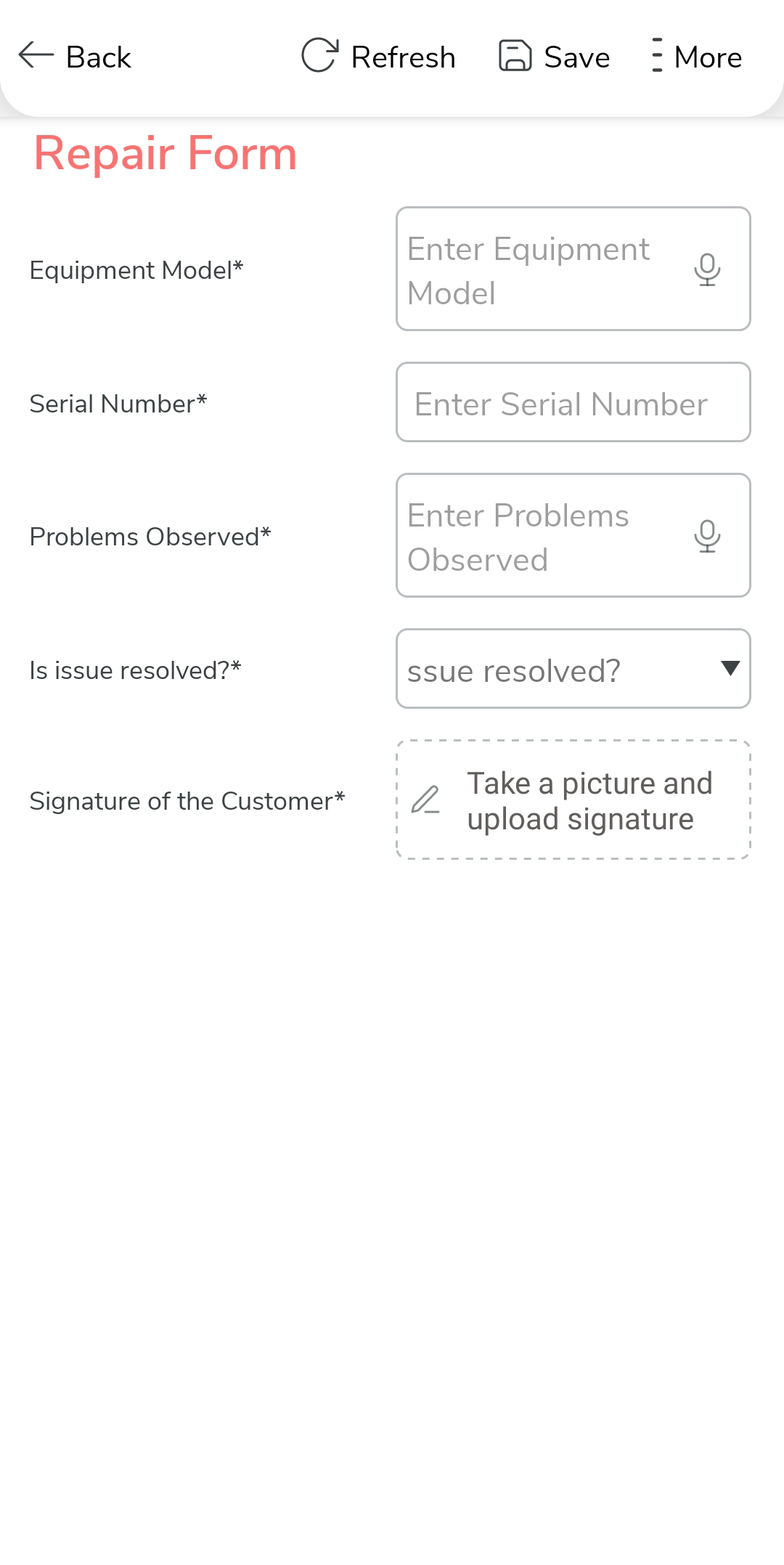
- Tap Save on the confirmation pop-up to complete the first action. Sync the mobile app to send the data to the server.
-
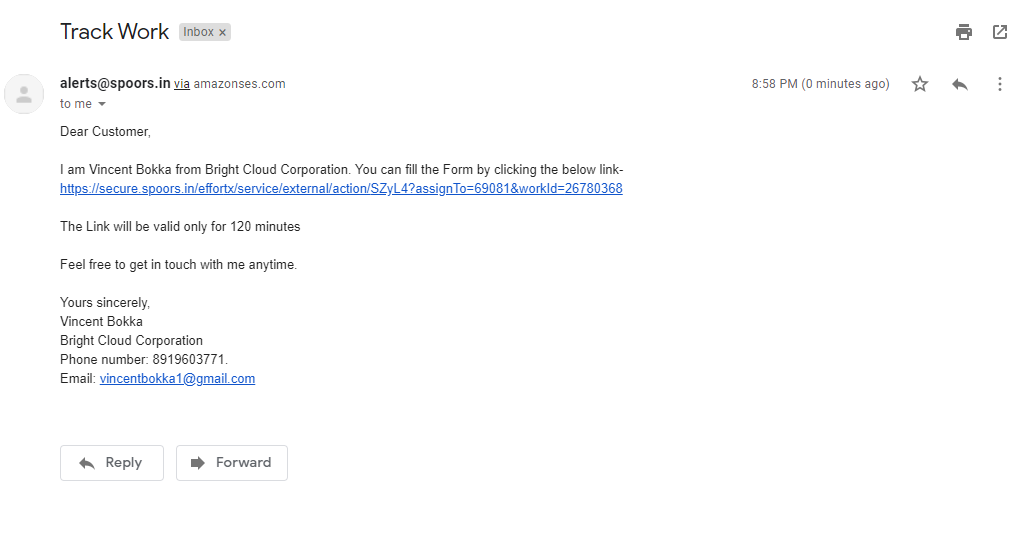
Once the first action gets completed, the feedback link will be sent to the
customer through email as shown below.
-
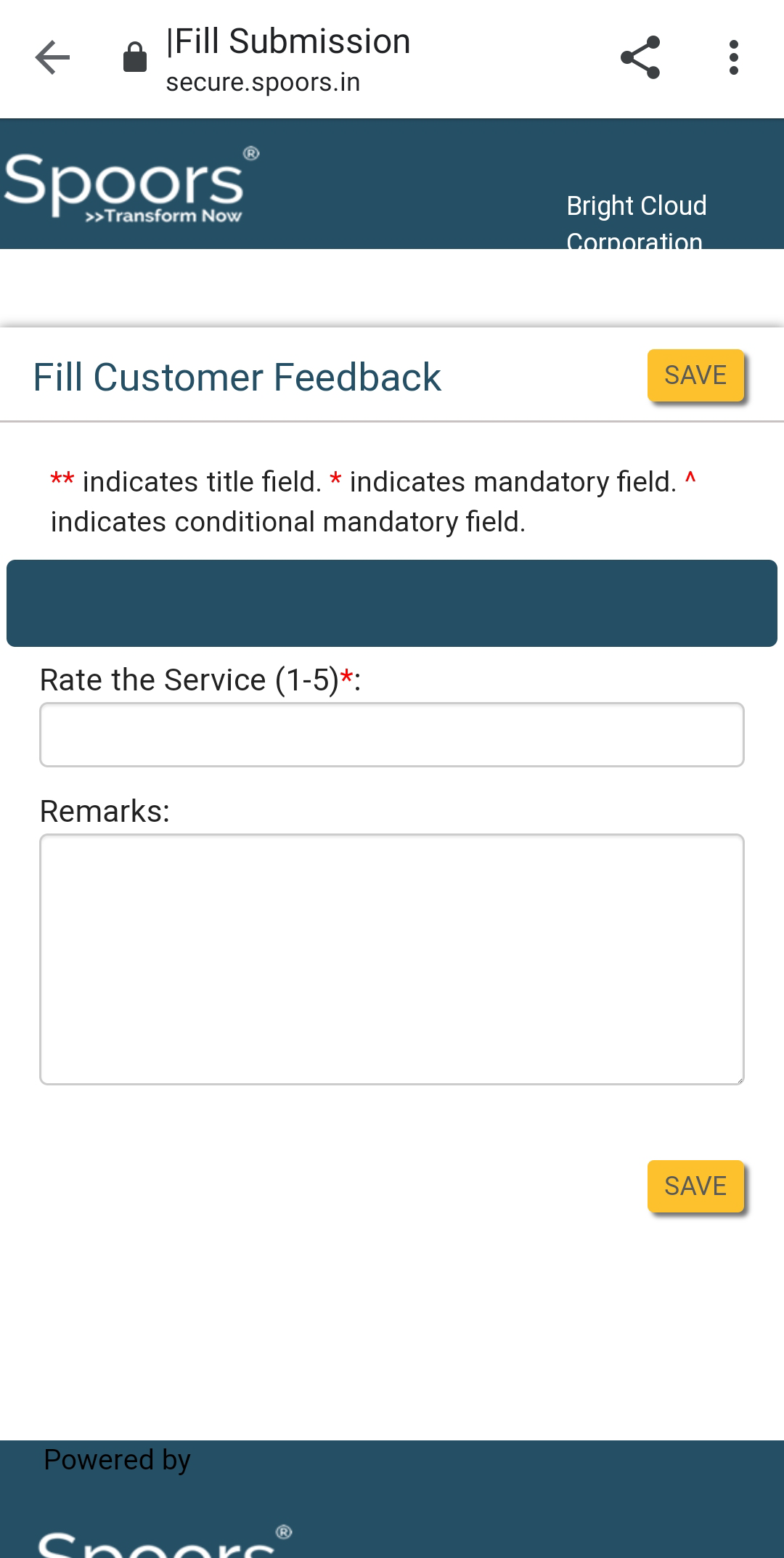
The customer needs to click the link and submit the feedback form.
-
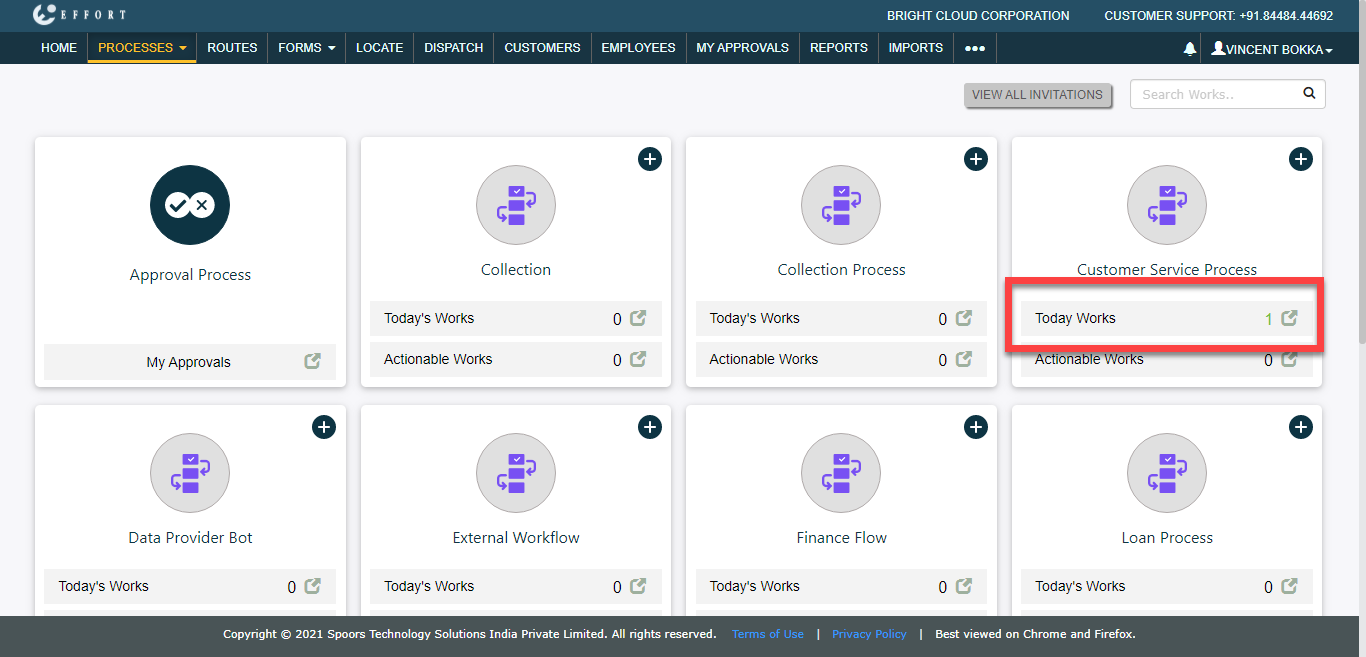
To view the completed work details on the web, navigate to the . Click Today Works given on the
Customer Service Process card.
-
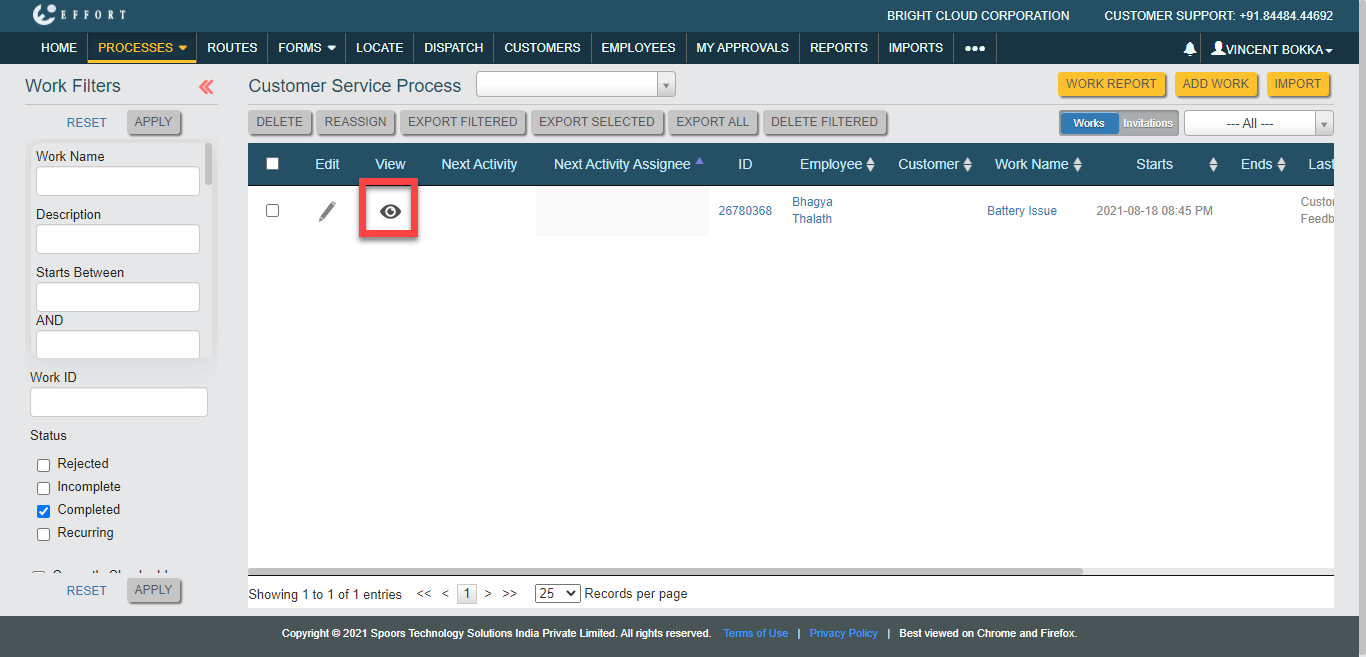
Under the Work Filters, click the
Completed checkbox and click
Apply button.

-
Click eye icon under the View column.
-
Click the arrow icon given at the Actions Performed
option to view the completed work details.
