

Apply for a Leave
This topic guides you with the step-by-step procedure to apply for a leave in the Effort Web Lite App. You can follow the below steps to apply for a leave in the Web Lite app.
-
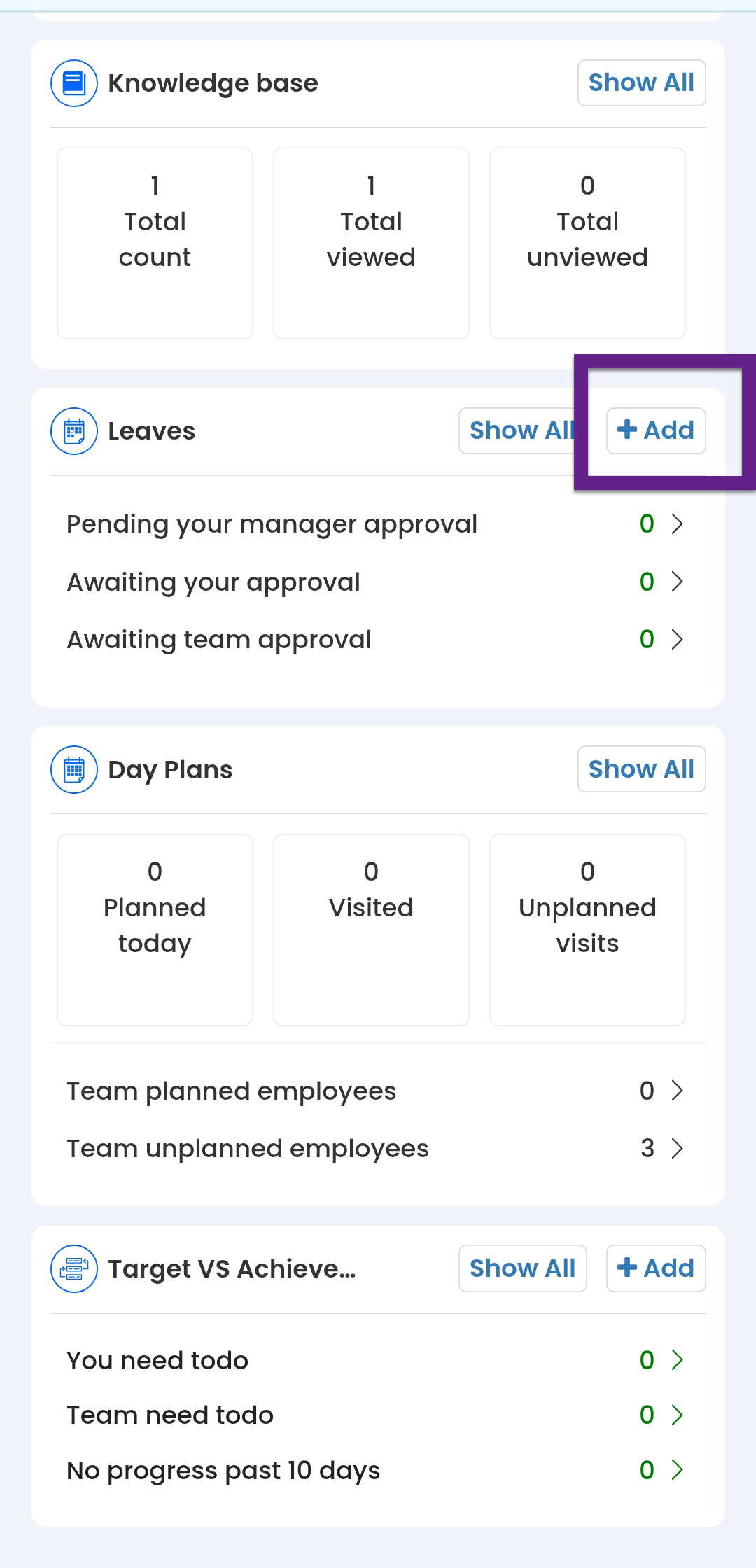
On the Home screen, scroll down to the
Leaves section and then tap +
Add.
- Alternatively, you can navigate to .

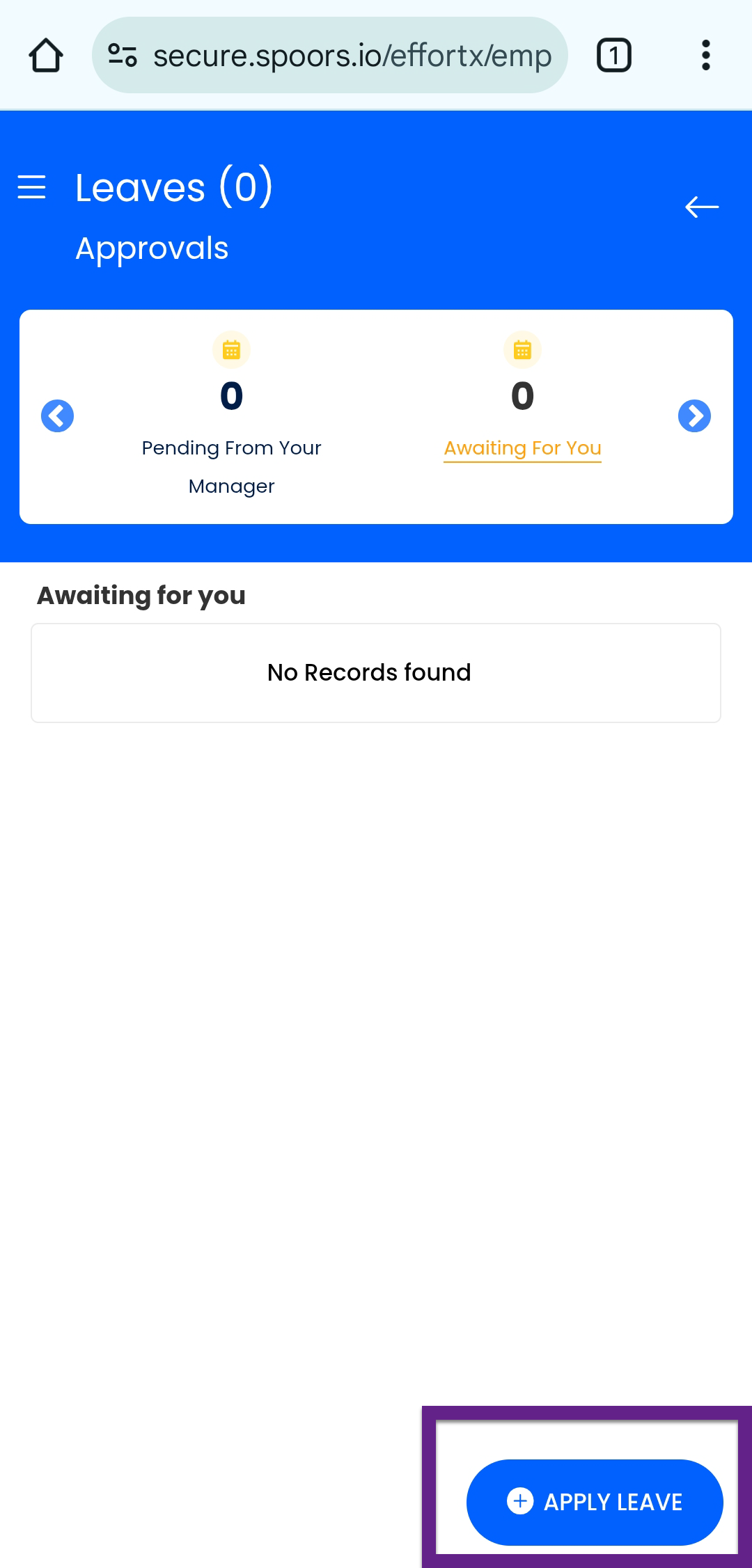
- On the Leaves page, tap Apply
Leave.
- Alternatively, you can navigate to .
-
On the Apply Leave screen, provide the following
details:
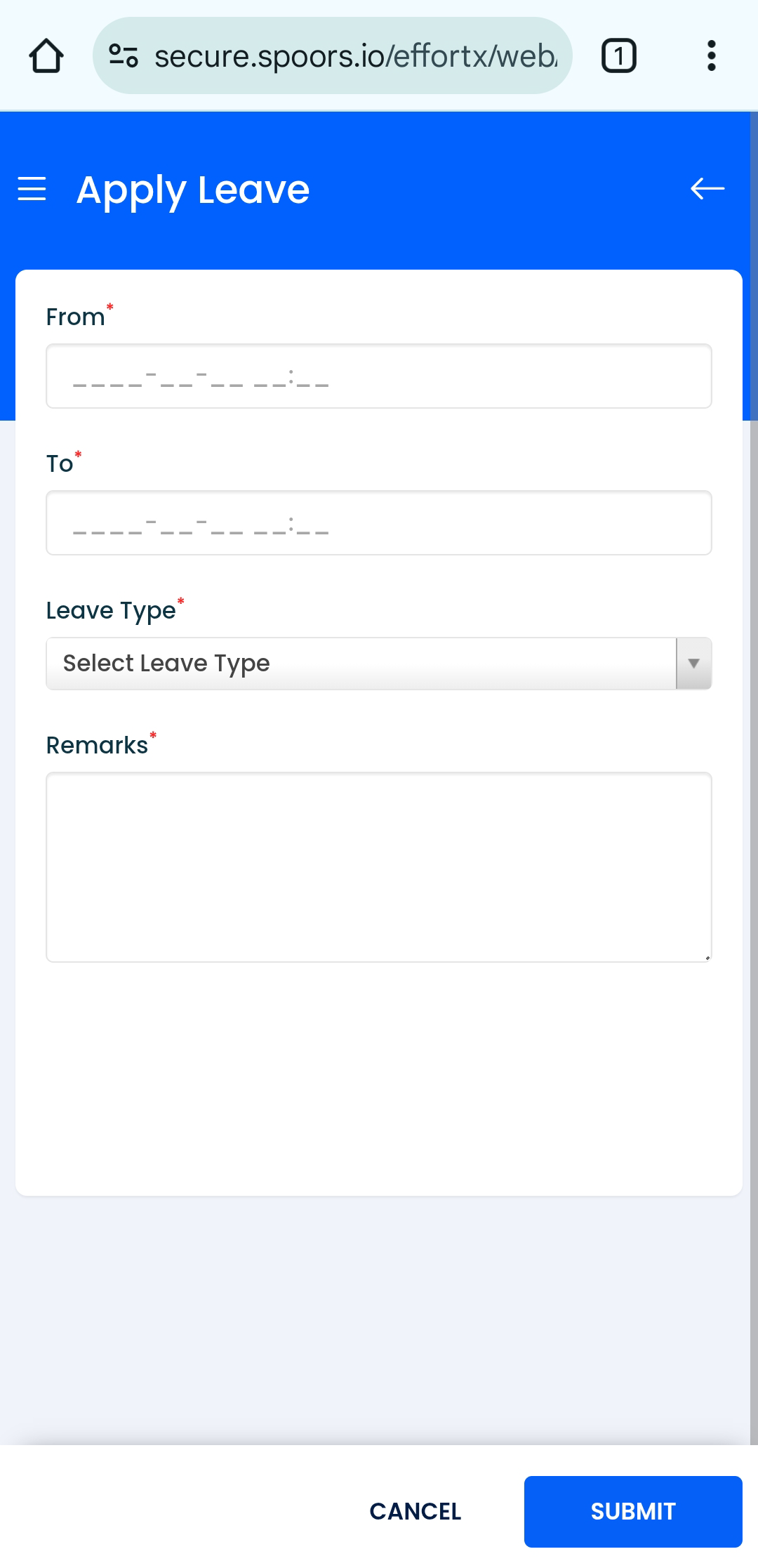
Field Description From Select the start date of the leave period.
To Select the end date of the leave period.
Leave Type Select the appropriate type of leave (e.g., Casual, Sick, Earned).
Remarks Enter any additional comments or reason for the leave request.
-
Tap the Submit button to send your leave application for
approval.
Once submitted, your leave request will appear in the list and follow the approval workflow configured for your organization.