Add Targets for Works
To add targets for works, follow the steps below:
-
Go to .
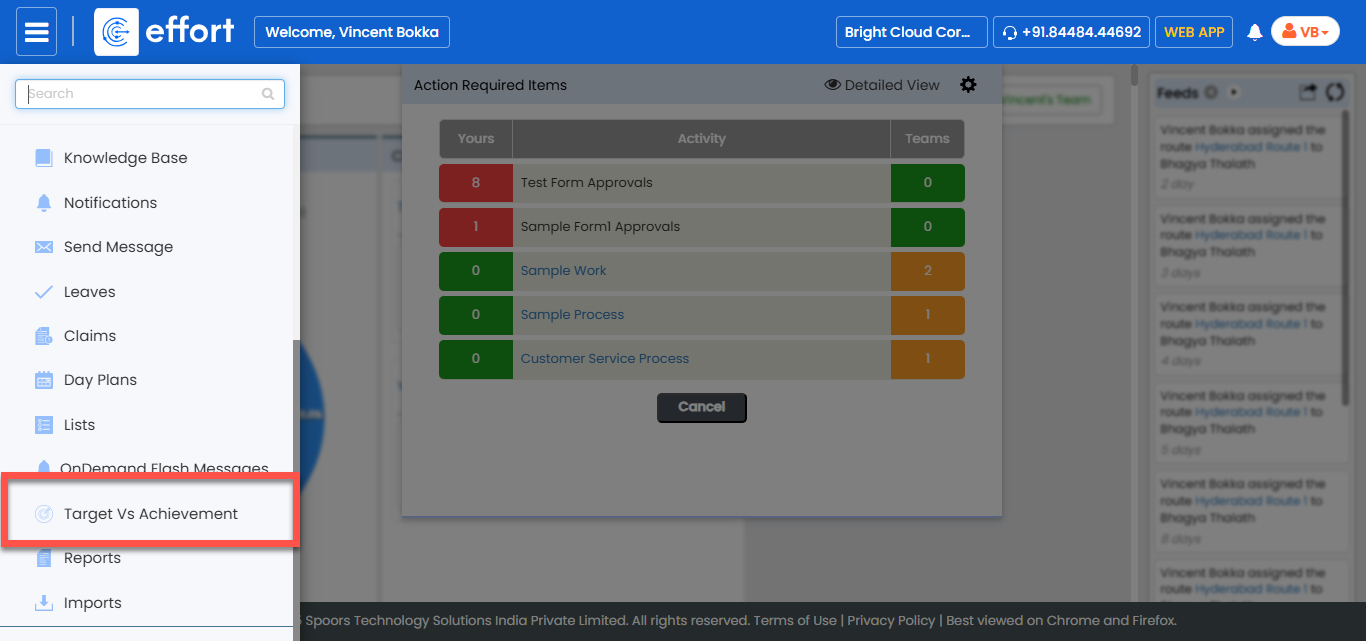
-
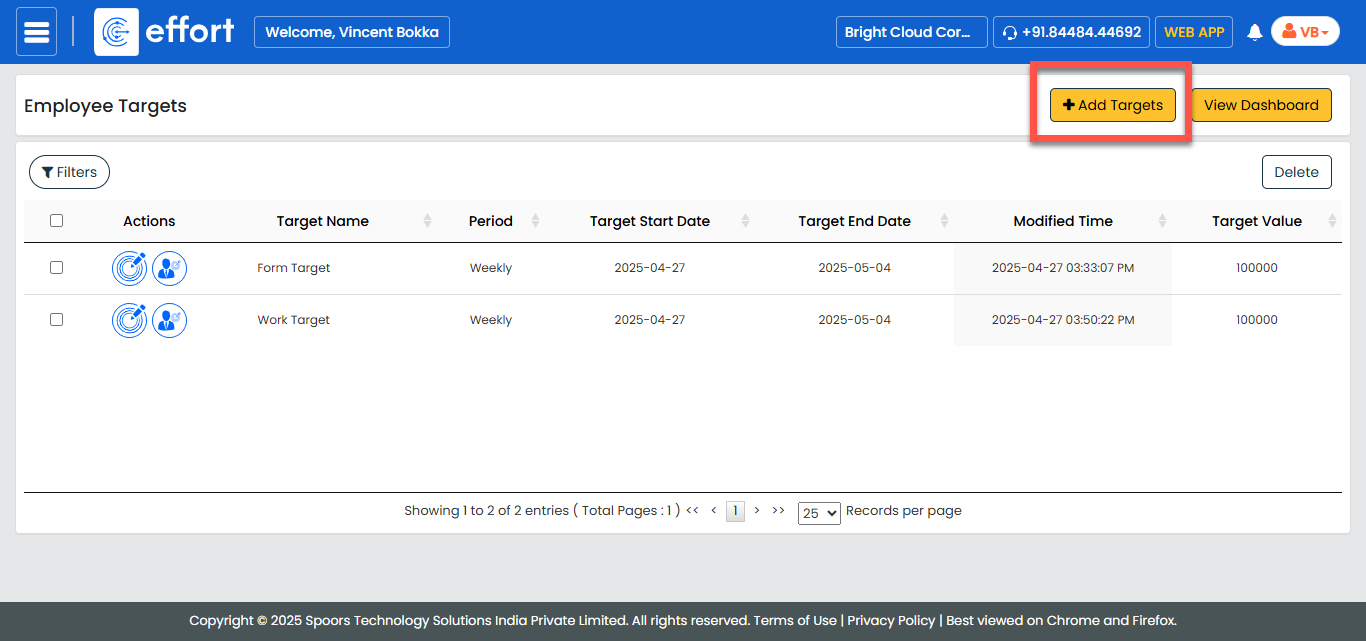
In the Employee Targets page, click Add
Targets.
-
In the Target Definition section, fill in the following
fields:
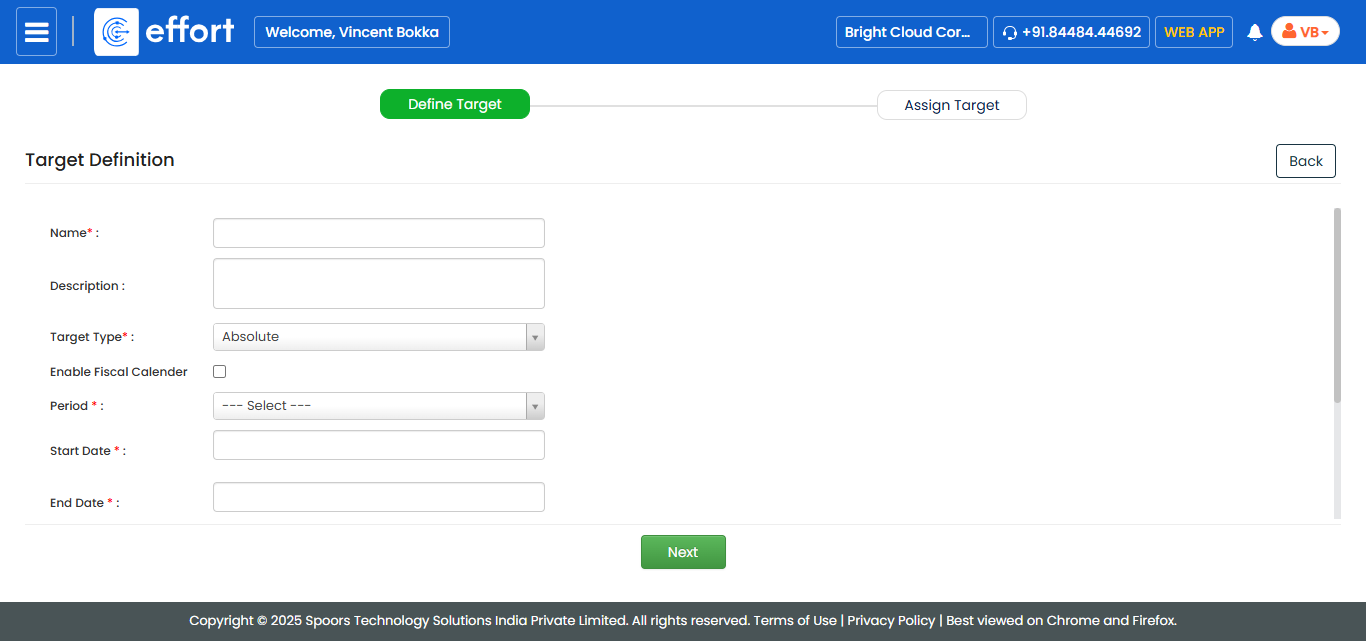
Field Description Name Enter a unique name for the work target. Description Provide additional information about the work target. Target Type Default is Absolute. Enable Fiscal Calendar Enable this option to define targets based on a fiscal calendar instead of standard dates. Fiscal Calendar This dropdown displays a list of fiscal calendars that have been created in the Settings module. Select a fiscal year for which you want to define targets.Note: If no fiscal calendars are available, create one first. For instructions, refer to Create a Fiscal Calendar.Select Quarter Appears if a fiscal calendar is selected. Choose Q1, Q2, Q3, or Q4. Period Select the target period: - Daily: Track daily goals.
- Weekly: Track weekly goals.
- Monthly: Track monthly achievements.
- Quarterly: Monitor quarterly progress.
- Yearly: Measure yearly outcomes.
- Custom: Set a custom range for special projects.
Start Date Specify the start date for tracking the work target. End Date Specify the end date for the work target period. Target Value Enter the numeric goal for work. Target Relates To Select Works to link the target to work activities. Calculated As Select: - Sum: Total value from a numeric field.
- Count: Number of completed works.
Select Works Select a work for target tracking. Type of Display Select an option from the dropdown. The available options are:
-
Work: Select this if you want to set the target based on work fields.
-
Work Action: Select this if you want to set the target based on action form fields.
Work Status
If Work is selected, select an option from the dropdown. The available options are:
-
Creation: The target is marked as achieved when work is created.
-
Completed: The target is marked as achieved only when the work is completed.
Actions
If Work Action is selected, select an activity that is associated with the selected work.
Work Fields Select the work or activity on which you want to define target.
-
Click Next to move to target assignment.

-
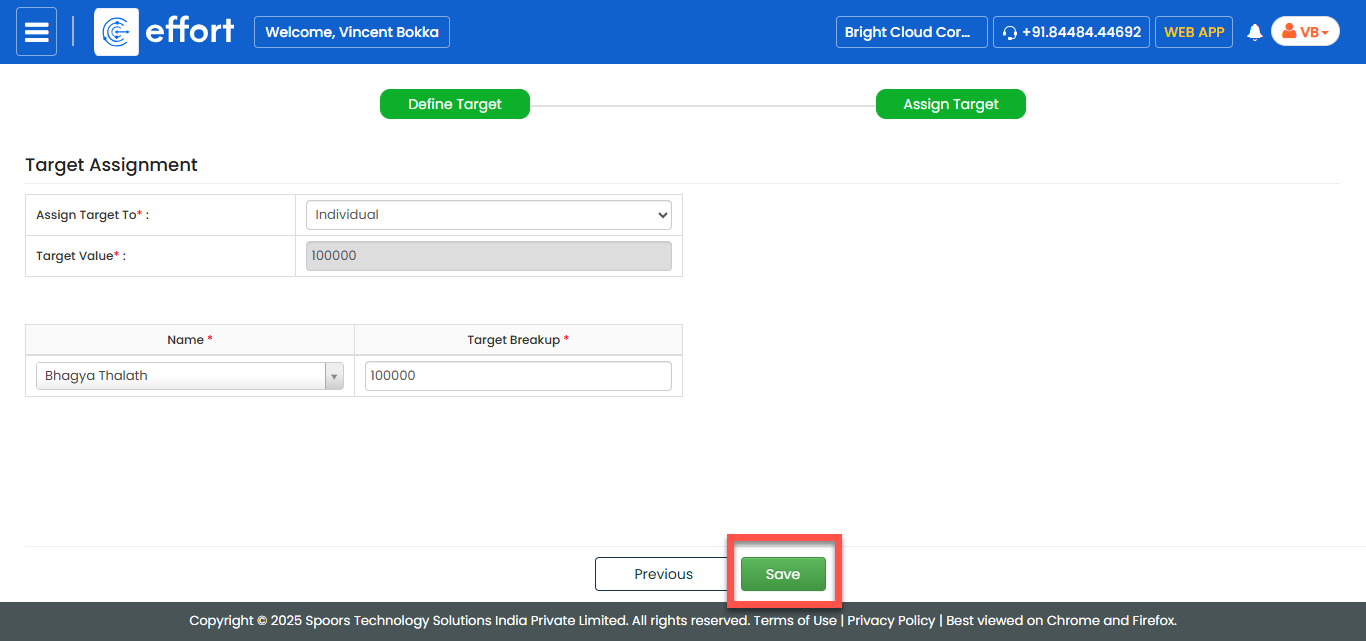
In the Target Assignment section, fill in the following
fields:
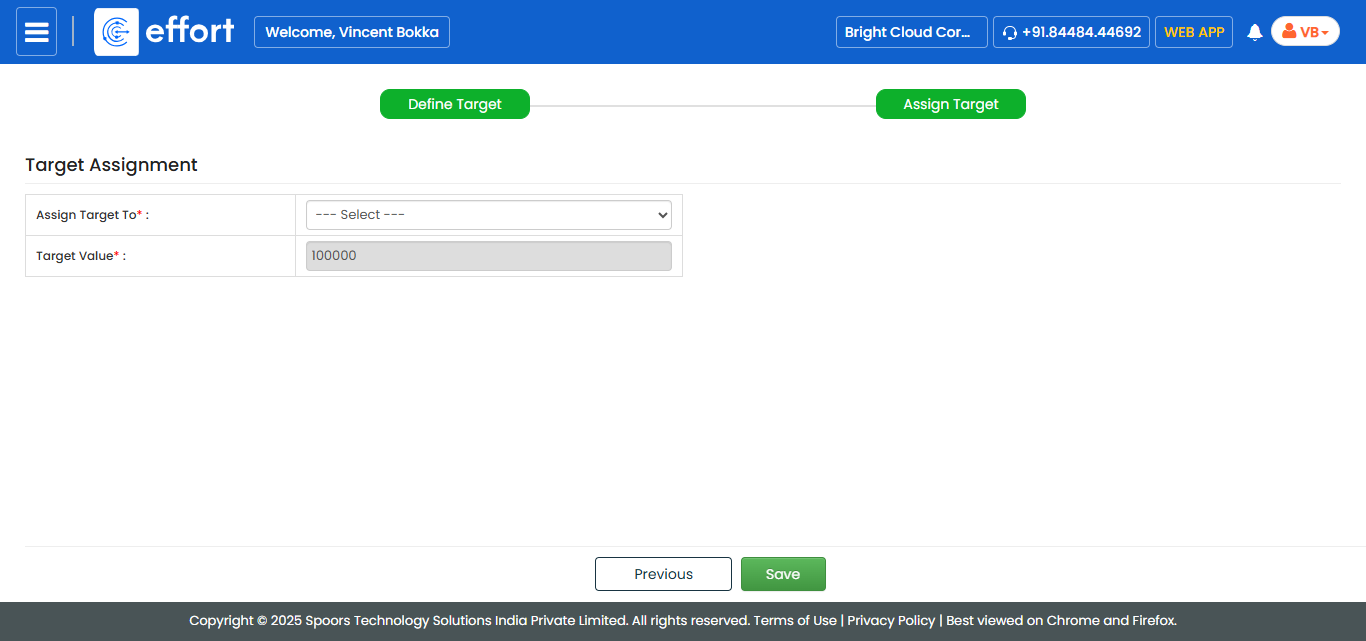
Field Description Assign Target To Select Individual or Team Members for assignment. Target Value Displays the predefined work target value. -
If you select Individual, fill in the following:
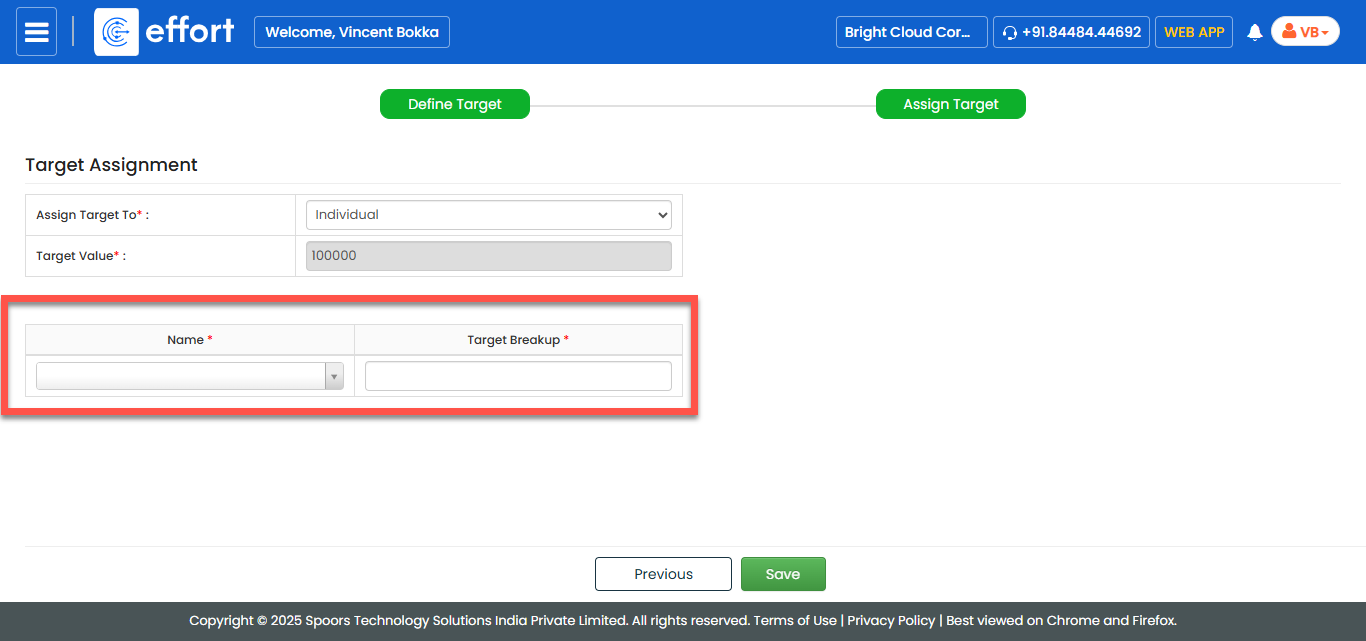
Field Description Name Select an employee from the dropdown. Target Breakup Enter the specific portion of the target assigned to the individual. -
If you select Team Members, configure filters:
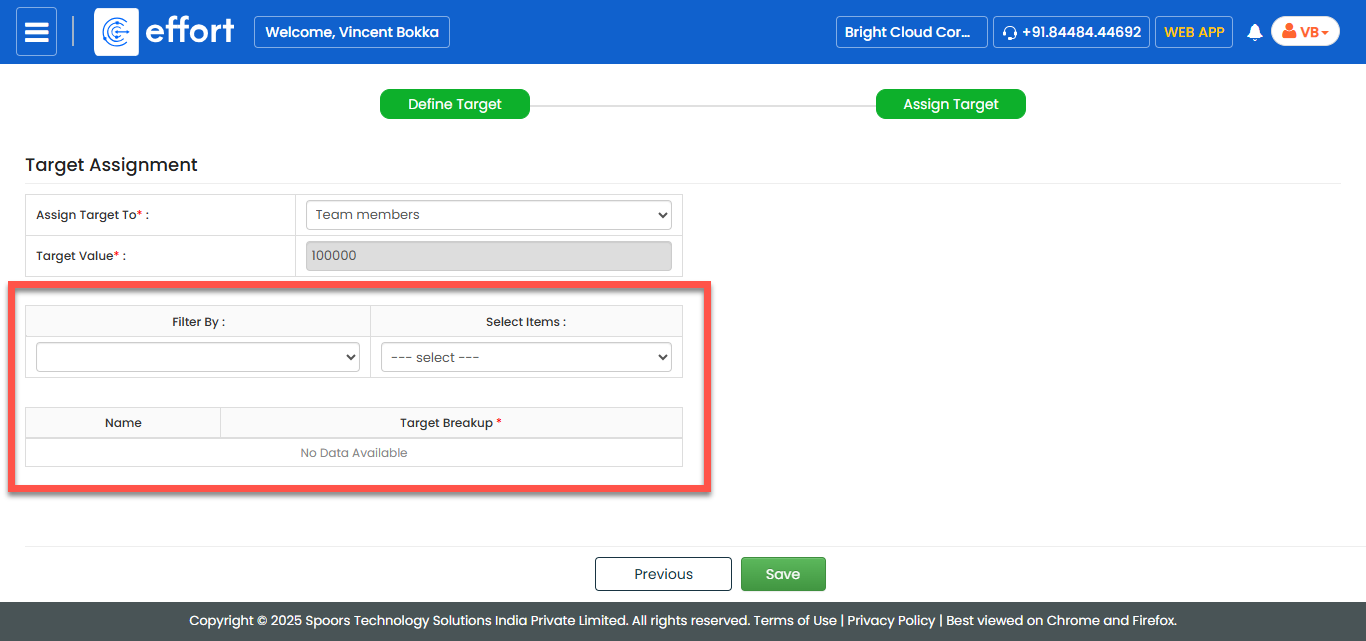
Field Description Filter By Filter employees using one of the following options:-
Role
Filter employees based on their assigned job roles.
Example: All Sales Executives or Branch Managers.
-
Branch
Filter employees who are working in a specific office branch.
Example: All employees from the Mumbai branch.
-
Territory
Filter employees based on geographical regions or sales territories.
Example: All employees managing the South Zone territory.
-
Groups
Filter employees who are part of a predefined employee group.
Example: All members of the "Retail Sales Team."
-
Direct Reportees
Filter employees who report directly to a selected manager.
Example: All team members reporting to the Regional Manager.
Select Items Select specific employees based on filter criteria. Name Filtered employee list appears here. Target Breakup Specify the target value assigned to each employee. -
-
After finalizing assignments, click Save to complete the target
setup.