

Create Supplementary List Configuration
-
Go to .
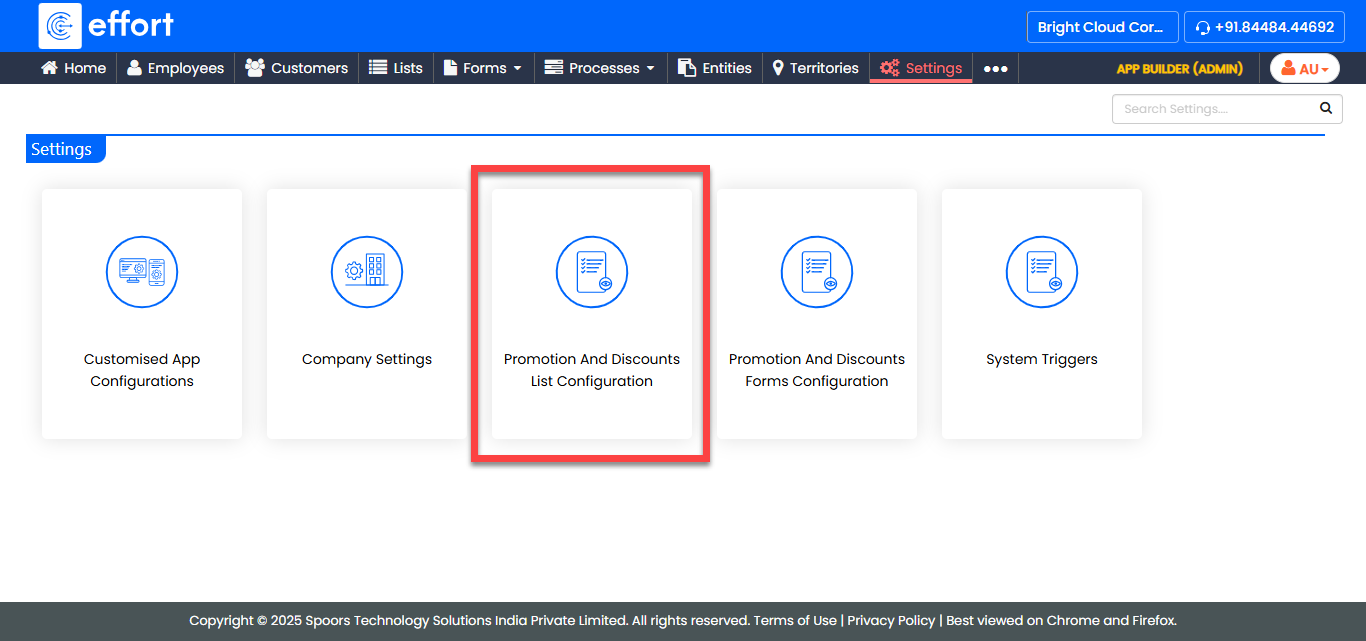
The Settings page appears.
-
Click the Promotion And Discounts List Configuration
card.
-
Click the Create button located on the top left
corner.

-
Enter a title for the configuration in the Title
textbox.

- Select Supplementary from the Entity Spec Type dropdown.
- Select List from the Module Type dropdown.
- Select a list spec from the Entity Spec dropdown.
-
Configure the appropriate list fields to the Entity Field Spec
Type under the Entity Field column.

Note: You must configure relevant form fields to all the form field spec types. You are not allowed to save the configuration until you map all the entity field spec types. - Click Save.