

Create a Trigger Template
To create a trigger template, follow the steps below:
-
Go to .
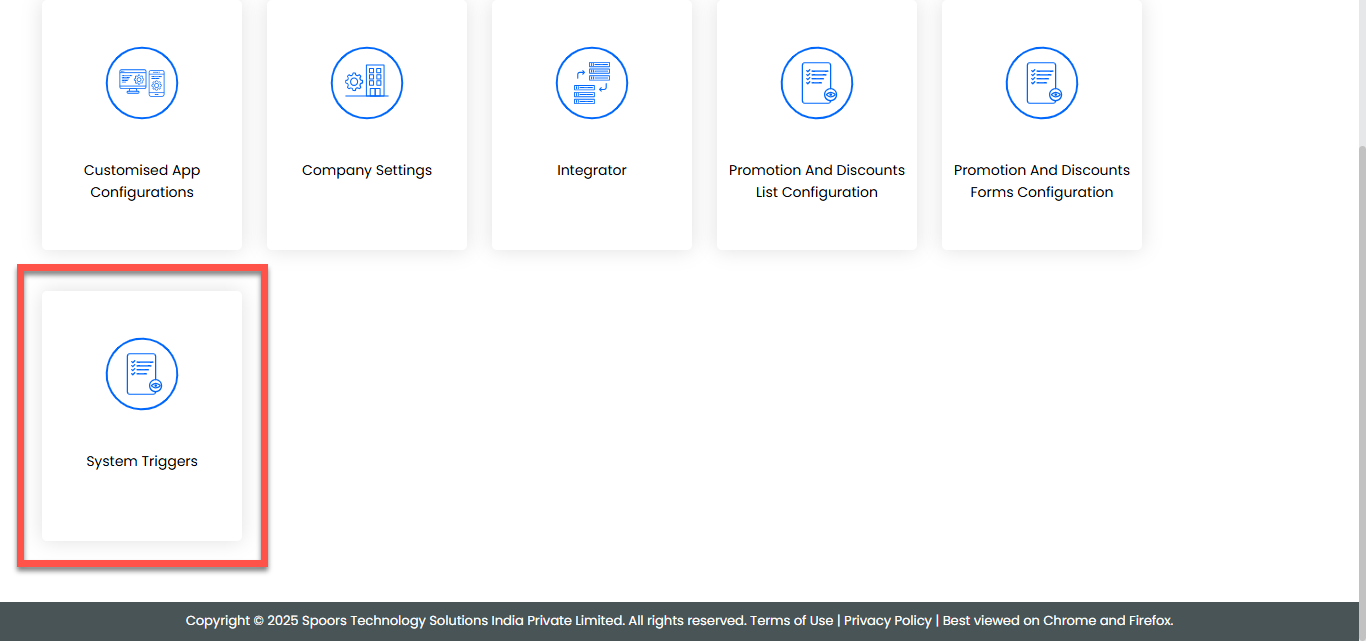
-
In the System Template Configurations page, click
+ Add Template to create a new trigger.
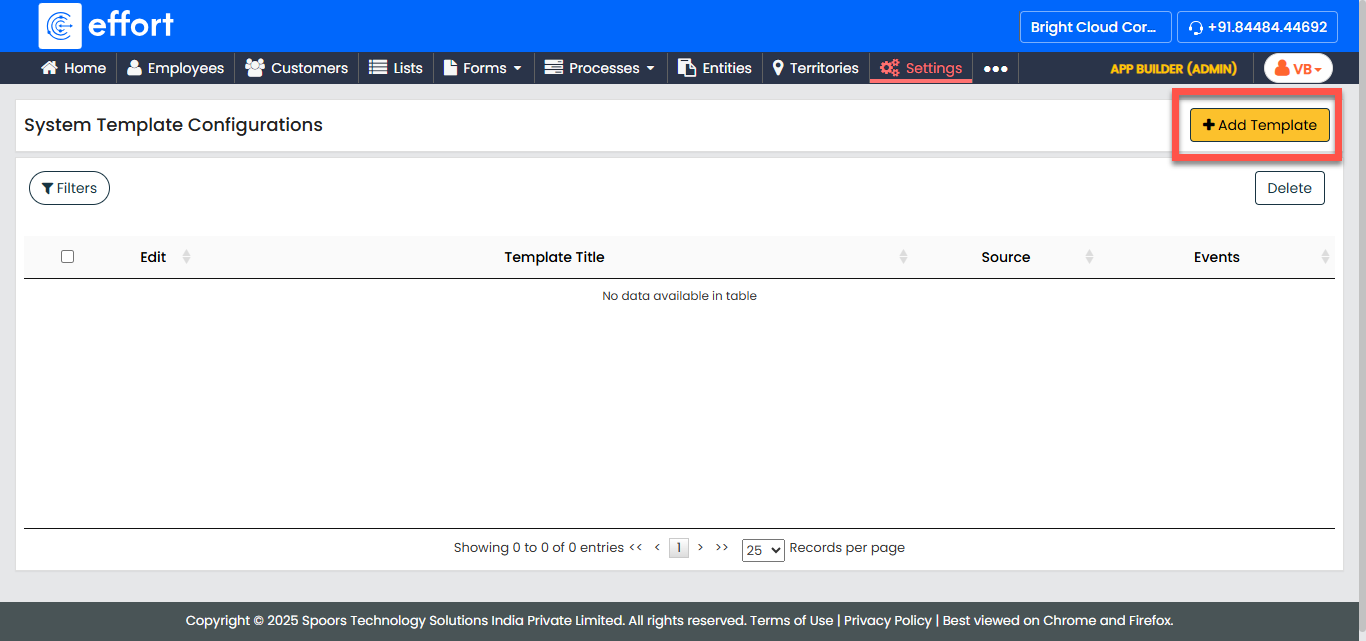
-
In the Add Template page, provide the following template details:
Field Description Title
Enter a unique title for the trigger template.
Trigger Source
Select the source that will initiate the trigger from the dropdown. The available options are: -
Customer
-
Custom Entity
Data Range
Define the data range that triggers the action. The options are:
-
All
-
Modified Date (Triggers when the data is modified).
Custom Entity Specs
This field appears only when Custom Entity is selected as the trigger source. Select the relevant Custom Entity for the trigger. Frequency
Select the frequency with which the trigger should occur. The available options are: -
Daily
-
Weekly
-
Monthly
Auto Schedule On
Select the time when the event should be triggered automatically. -
-
After entering all necessary information, click Save to create the
trigger template.
Note: Once the template is created, you can configure the event to specify what action should be triggered when a customer or custom entity is created or modified. This can include actions like creating a work item or sending a notification based on the template configuration. To configure the event, refer to add-events.html.