

Hide List Fields in List Picker (Web App)
To hide list fields in the list picker (Web App), follow the steps below.
-
Go to .
The Lists page appears.
-
Click the list card for which you want to hide fields.

-
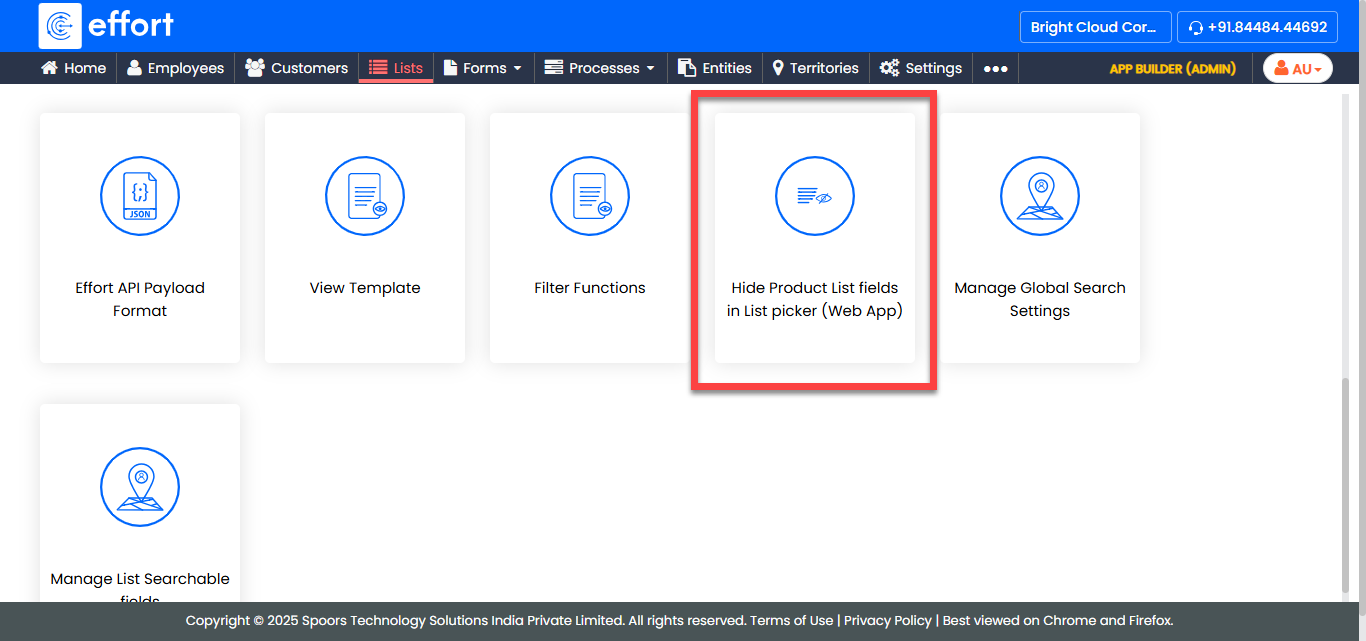
On the List Actions page, click the Hide List
fields in List picker(Web App) card.
-
Under the Visible column, unselect the checkboxes to
hide the fields.
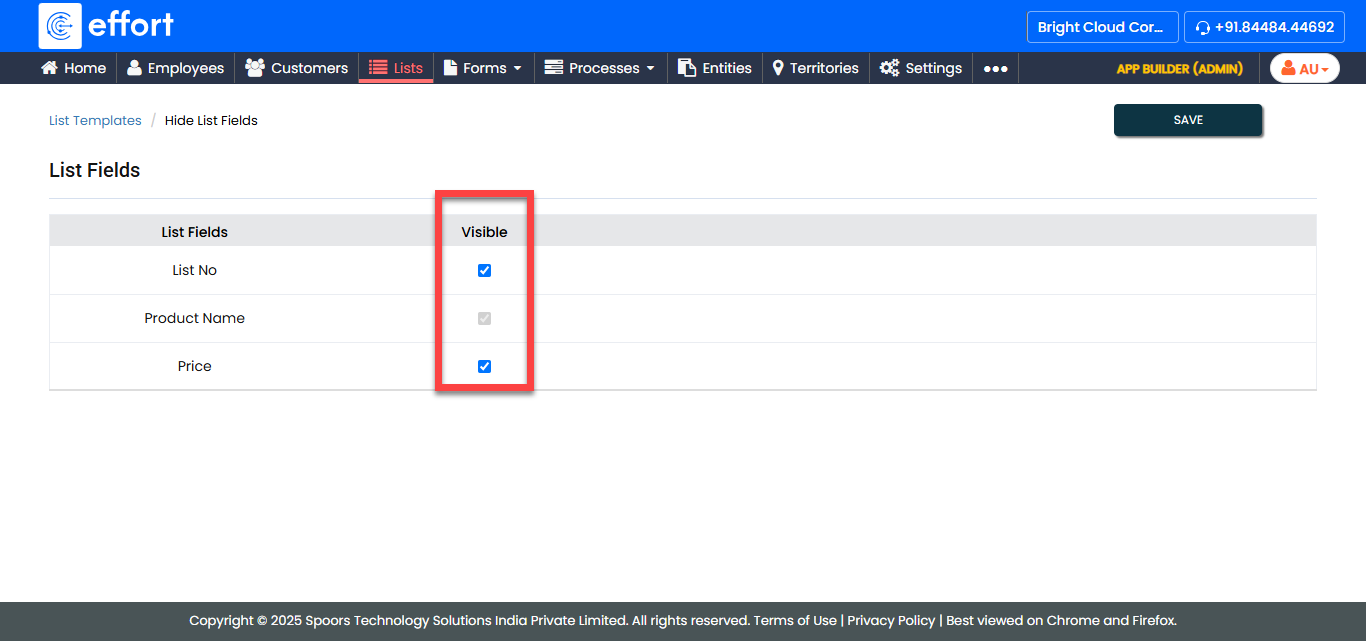
Note: The system does not permit the hiding of fields configured as identifiers. - Click Save.