

Create a Score Card
To create a score card, follow the steps below.
-
Go to .
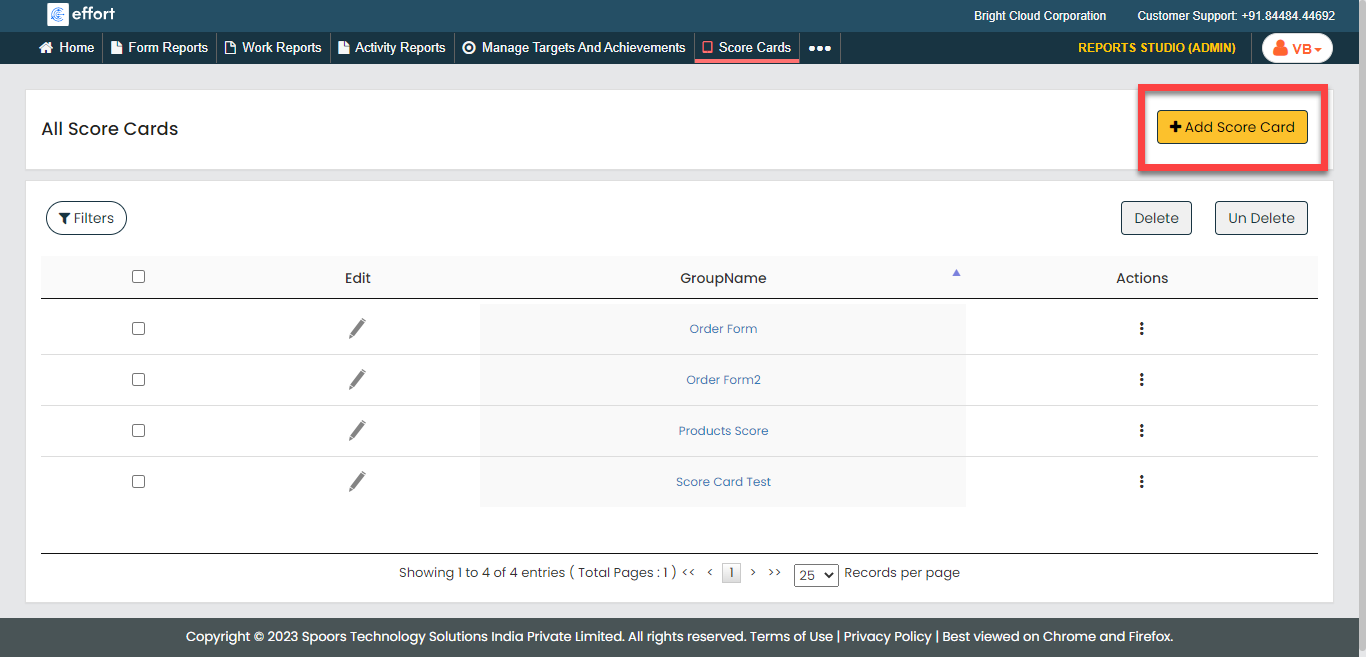
The Score Cards page appears.
-
Click the Add Score Card button located on the top right
corner.
-
Enter a title in the Name of the Score Card field.

-
Click the Select Form Template dropdown to select a form
template.

-
Select below options for the Employee filter based on
dropdown as per your requirement.
- Hierarchy: Allows you to filter the data based on hierarchy.
- Immediate: Choose this option to filter the data of the immediate reporting associates.
- Hierarchy: Choose this option to filter the data of all the associates in your hierarchy.
- Role Based: Allows you to filter the data based on roles.

- Hierarchy: Allows you to filter the data based on hierarchy.
- Optional:
Click the Enable Target to Score Card checkbox to define
targets. Configure the below options as per your requirement.
- Target For each Employee: Enter the target for
each employee.
- Including Manager: Select this option to apply the target to manager.
- Excluding Manager: Select this option to exclude the manager from the target.
- Employee Level Target: Allows you to define targets individually.

- Target For each Employee: Enter the target for
each employee.
- Click Save.