Step 3: Creation and Configuration of Processes
A Process is a sequence of connected steps or activities that need to be completed in order to accomplish a business objective.
Creation and Configuration of a Process
To create a process, navigate to .
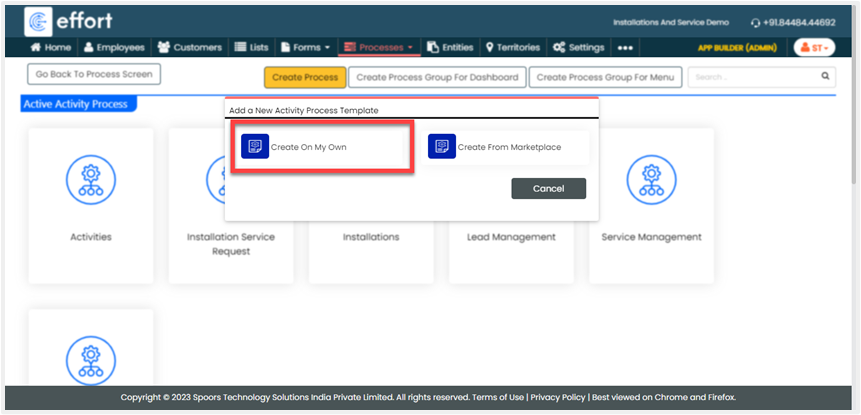
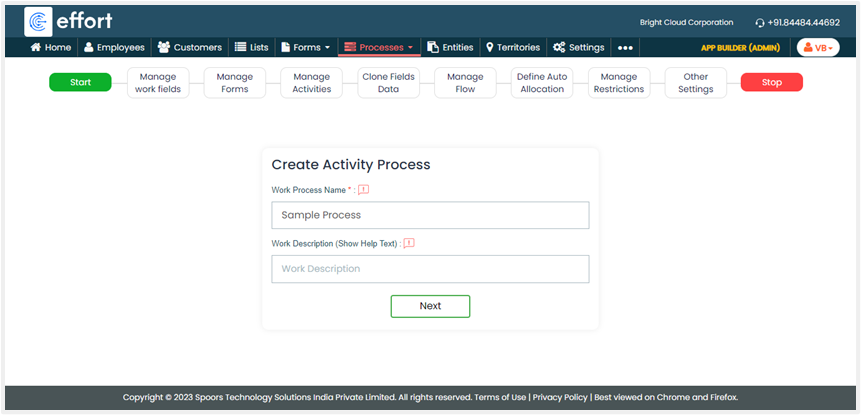
Enter a title for your process and click Next.
On the next screen, you can see some predefined fields that allow you to capture the
details required to create a work. Here, you can disable the system-defined fields,
add new fields, define restrictions and conditions, and so on. Once you configure
the fields, click Next.

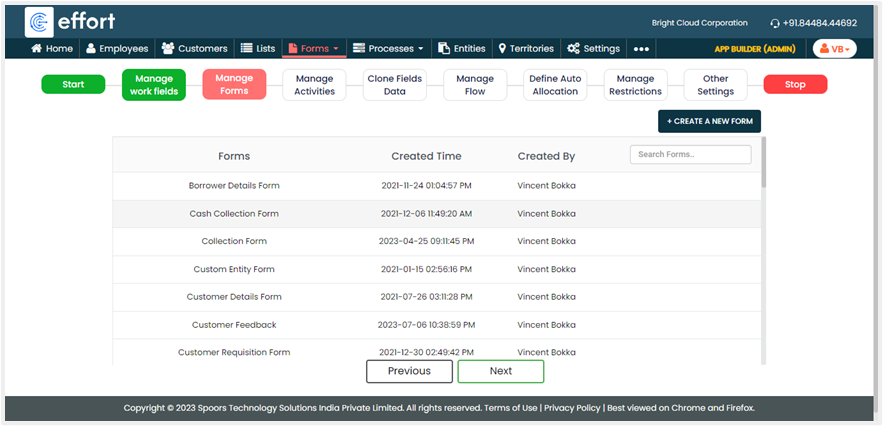
On the Manage Forms screen, there is a button provided to create a new form
template while creating a process. If you want to create a new form, click the
Create A New Form button. Otherwise, click Next.
On the Manage Activities tab, you can create the activities that need to be
executed. Click the Add Activity button and configure the fields. Once you
configure the activities and fields, click Next.

On the Clone Field Data tab, you can define data auto-copy configuration from
work fields to form fields or form fields to work fields. If you don’t need an
auto-copy configuration, you can ignore it and click Next.

On the Manage Flow tab, you need to define the execution sequence of the
activities that you created in one of the previous steps. Here, you need to define
the start activity, next activity, end activity, and so on. Once you configure the
flow, click Next.

On the Define Auto Allocation tab, you can define the configuration to
automatically send work invitations to the employees in the specified area or you
can assign work automatically to the employee’s postal code and employee group. If
you don’t need auto allocation configuration, you can ignore it and click
Next.

On the Manage Restrictions and Other Settings tabs, you can enable additional
settings such as work sharing, work check-in, work rejections, and so on. Enable the
required settings and click Complete to finish the process creation.

Additional Configurations
Once you create the process, you will see the Process Actions screen where you
can have the options to modify the process and define additional configurations to
fulfill your business requirements.

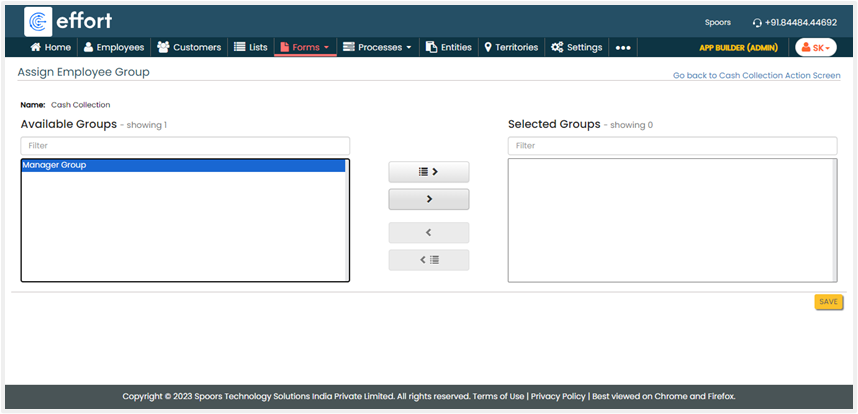
Restrict to Employee Groups
Use this feature to restrict process visibility to a specific group of employees.
Only the configured group of employees can access and execute the process.
Select the employee groups to which you want to grant access to this process,
click the right arrow icon, and then save the configuration. By default, the
process is accessible to everyone.