

Step 7: Do Your Business Activities
Sign In and Sign Out
Once you open Effort Mobile App, a pop-up notification that we configured appears on
the home screen.

To begin with your business activities, tap Sign In. You’ll see a screen that
captures your current location and your face. You need to capture your face
correctly and then tap Sign In.
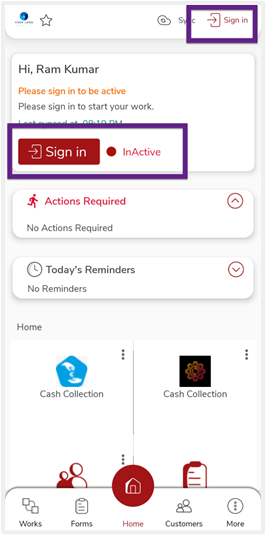

Once you log in to the mobile app, you can start doing your business activities.
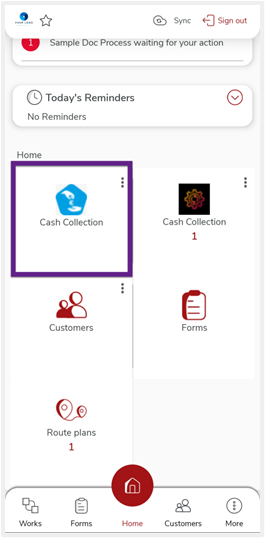
Fill a Form
On your mobile app home screen, tap on the form you want to fill out, and click the
plus icon. Fill in the mandatory fields and tap save to submit the form.


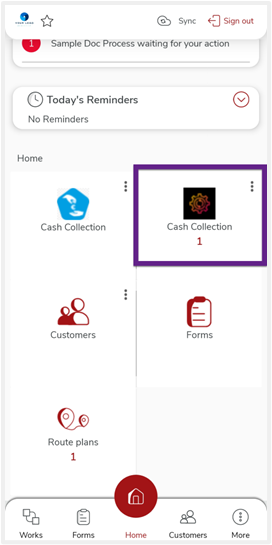
Execute a Process
On your mobile app home screen, tap on the process card to view the works assigned to
you.

Tap on the work to complete it. On the next screen, you will see the activities to be
performed. Tap on the action and complete the activity.
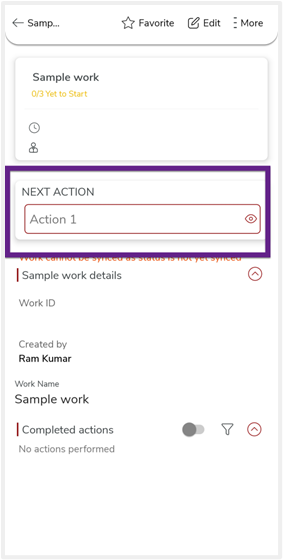
Once you execute all the activities, you’ll see the work status as
Completed.

Complete a Route
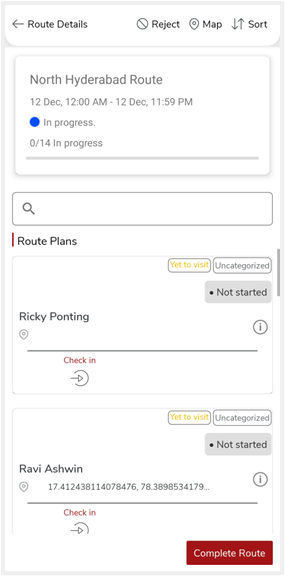
On your mobile app home screen, tap Route Plans and tap on the route you want
to complete.


On the next screen, you’ll see the customers assigned to that route. Tap on the
nearest customer and check in to that customer once you reach the customer location.
After you check in to the customer, tap Add Activity.
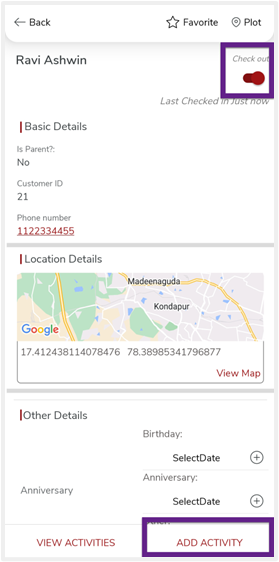
On the next screen, you’ll see the activities that you can perform at the customer.
Tap on the activity and complete it.

Once you complete the activity, you’ll see the activity details on the same screen.
Tap Complete *Customer Name* Visit to mark the customer visit as
completed.

You can see the status of the customer visits on the Route Details page. Once you
complete all the customer visits, tap Complete Route. You’ll see the status
as Completed.


View Dashboard
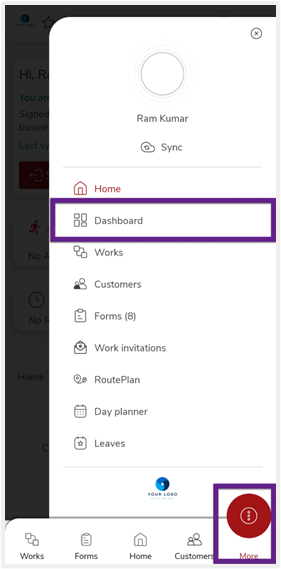
On the mobile app home screen, tap More and then tap Dashboard to view
the dashboard.
You can find insights into your activities on the dashboard.
