

Automate Capturing The Vehicle Number and Mileage Value
Do you want to automate capturing the odometer reading and number plate value while submitting a form? Do your employees or customers write the mileage value manually, or at least do some random checks to make sure that the data you received is correct? Now you can put an end to this with the new data types. Instead of typing the odometer or number plate values manually, all the customers just need to take a photo. You can reduce operational costs, prevent fraud, and improve customer experience.
The Effort form builder has been equipped with new data types such as OCR - DigitalOrAnalog Meter and OCR - Number Plate. These data types help you automate capturing the odometer reading and number plate value. With these data types, you can improve your data by making sure that the mileage value that gets into your database is correct.
Let's assume you have some delivery executives. They need to collect products from the warehouse and deliver them to customers. If you are paying them based on deliveries and distance, you need to capture the mileage value before and after work. These two OCR data types automatically read the mileage value and number plate value. The users just need to scan the odometer and number plate. The values will be populated automatically onto the form fields. In this tutorial, we will create a sample sign-out form with these data types and check how it works.
Create Sign Out Form
This section helps you create a sample sign-out form that captures the details like employee name, ID, number of deliveries, odometer reading, number plate value, etc.
- As a first step, we need to create a sample form. Check out the Create a Form page to know how to create a form.
-
Enter Title as Sign Out Form. Drag and drop Employee, Text, Number,
OCR - DigitalOrAnalog Meter, OCR - Number Plate, and Signature data types
onto the canvas and label them as shown below.
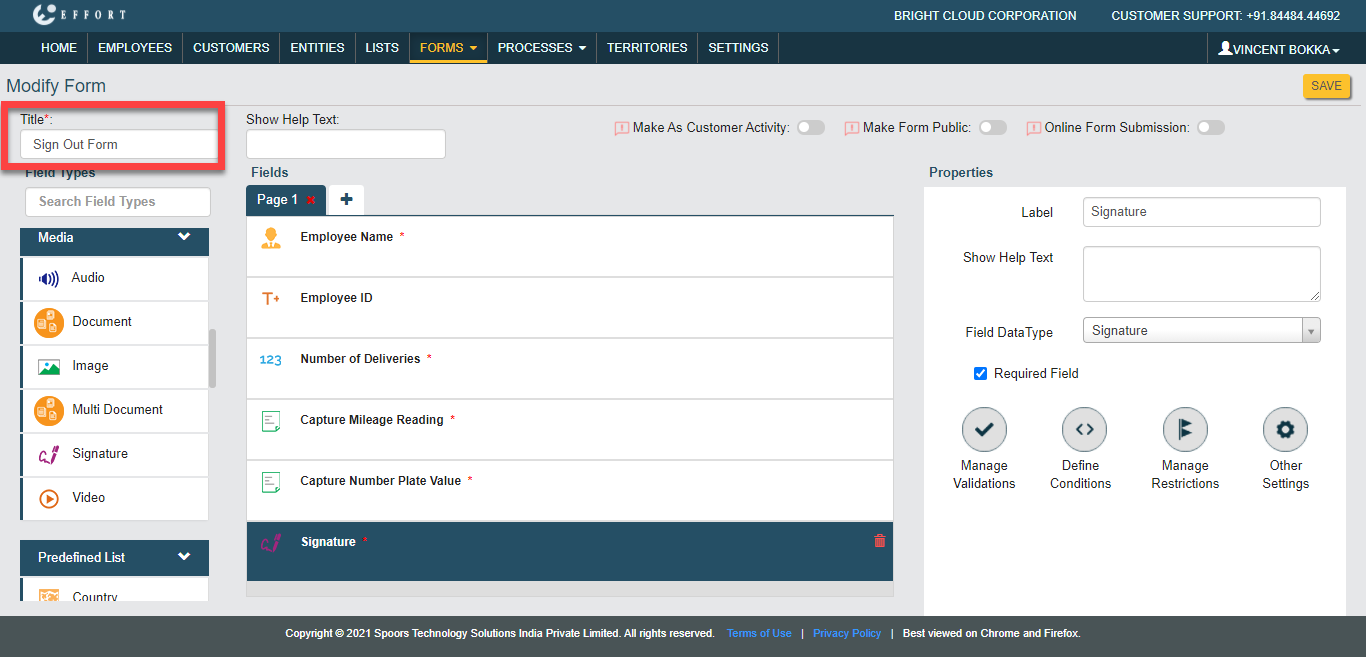
-
Make the Employee ID field as Computed and add employee ID in
the formula pop-up.
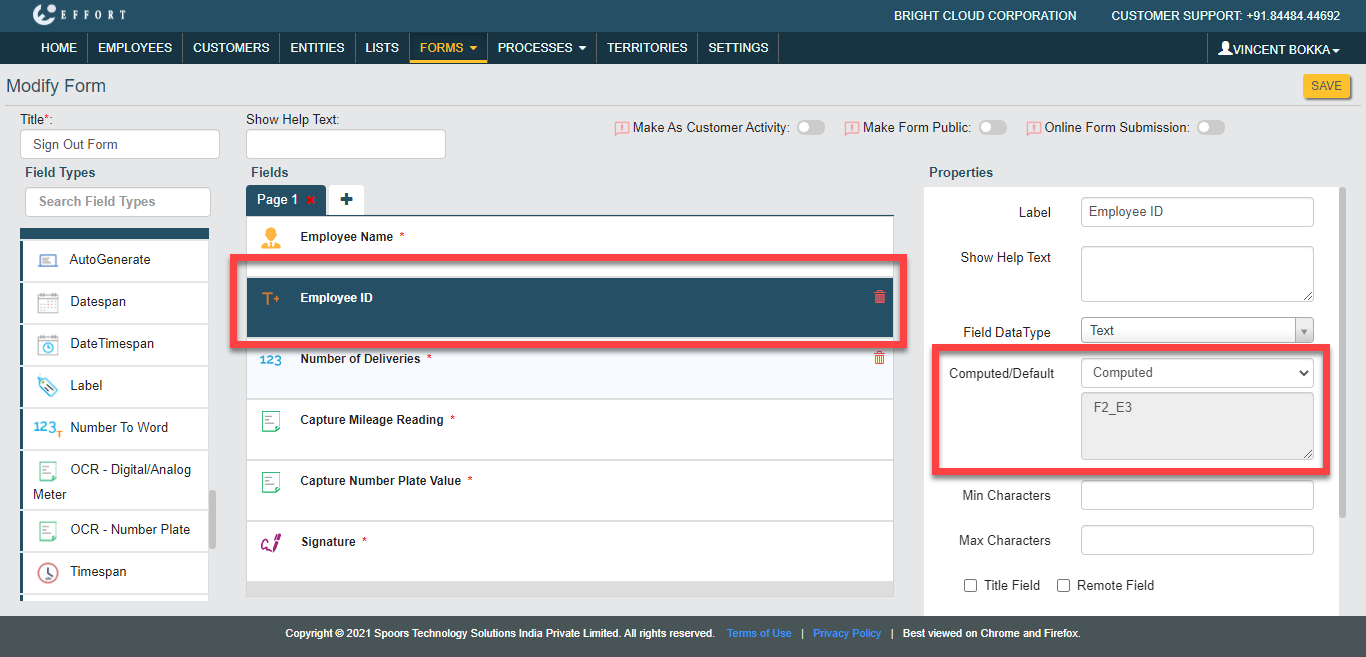
- Enable publishing and Save the form.
Check How OCR Fields Work
In this section, we will submit the Sign Out Form in the Effort Plus mobile app and check how the OCR fields are working.
- Open the Effort Plus mobile app on your mobile.
-
Tap on the Forms tab to go to the Form page.
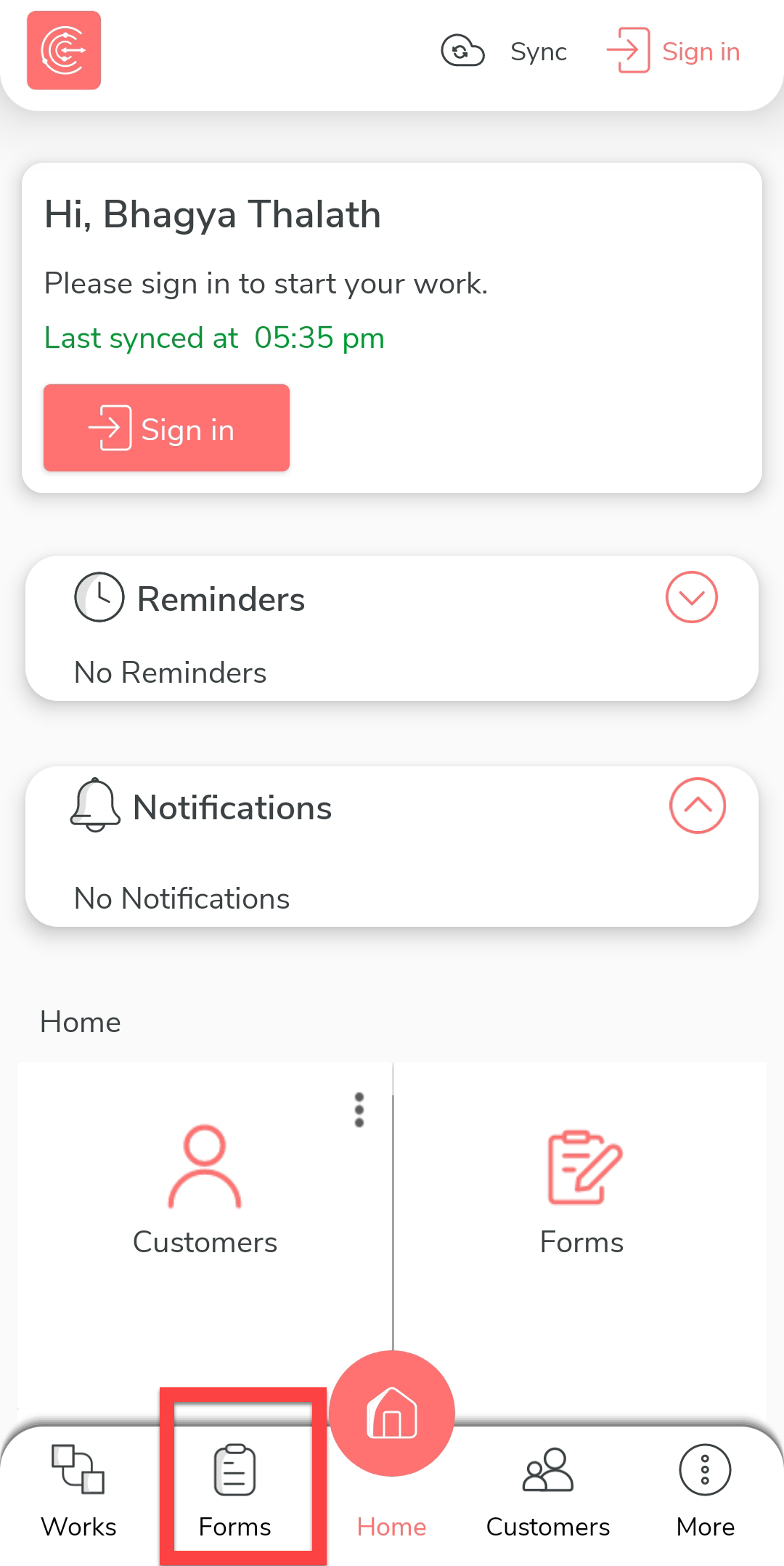
The forms page appears with all the available forms.
-
Tap on the Sign Out Form.

-
Tap the plus icon located at the bottom.
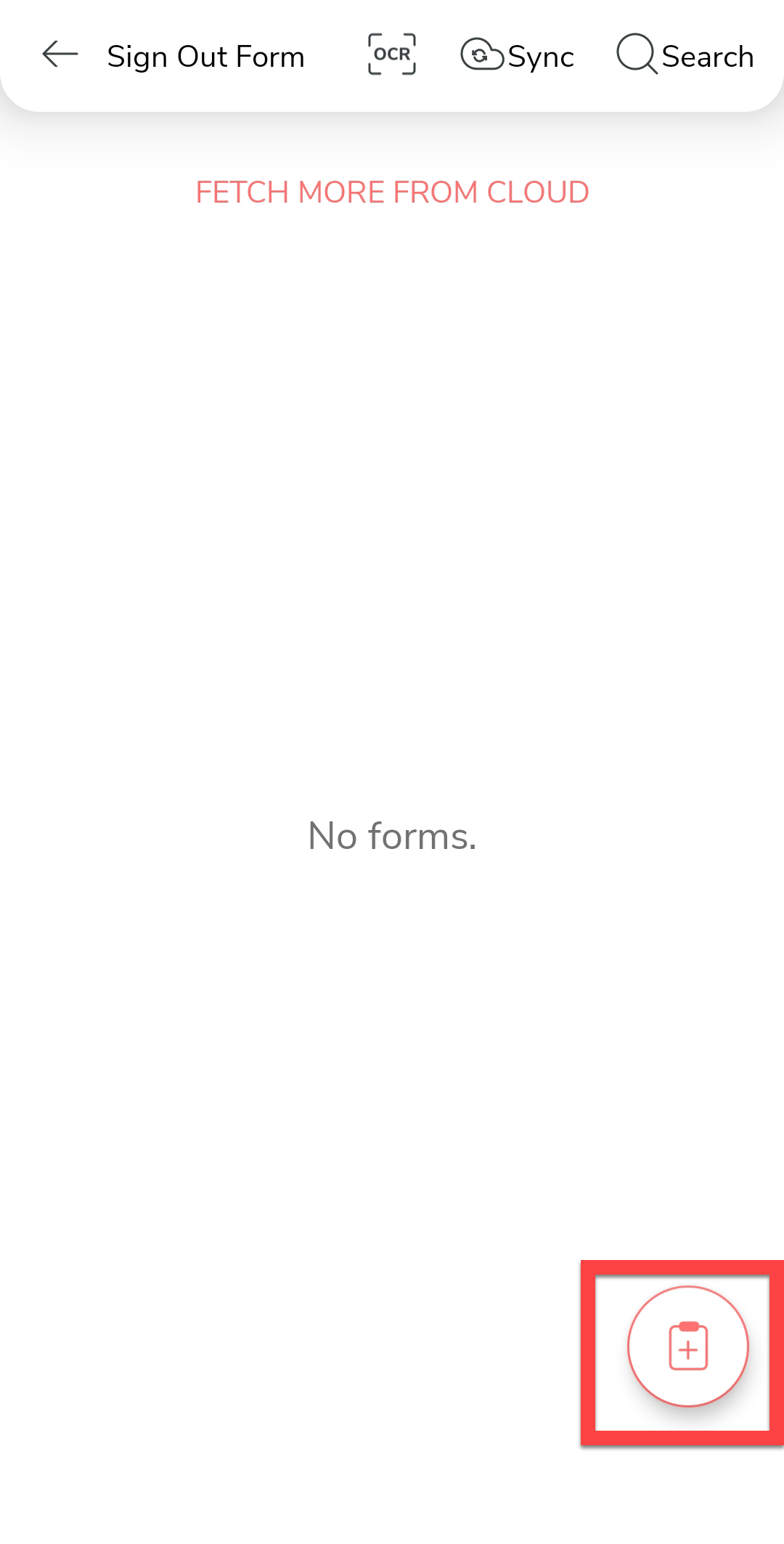
The Sign Out Form appears with the Employee Name and ID. -
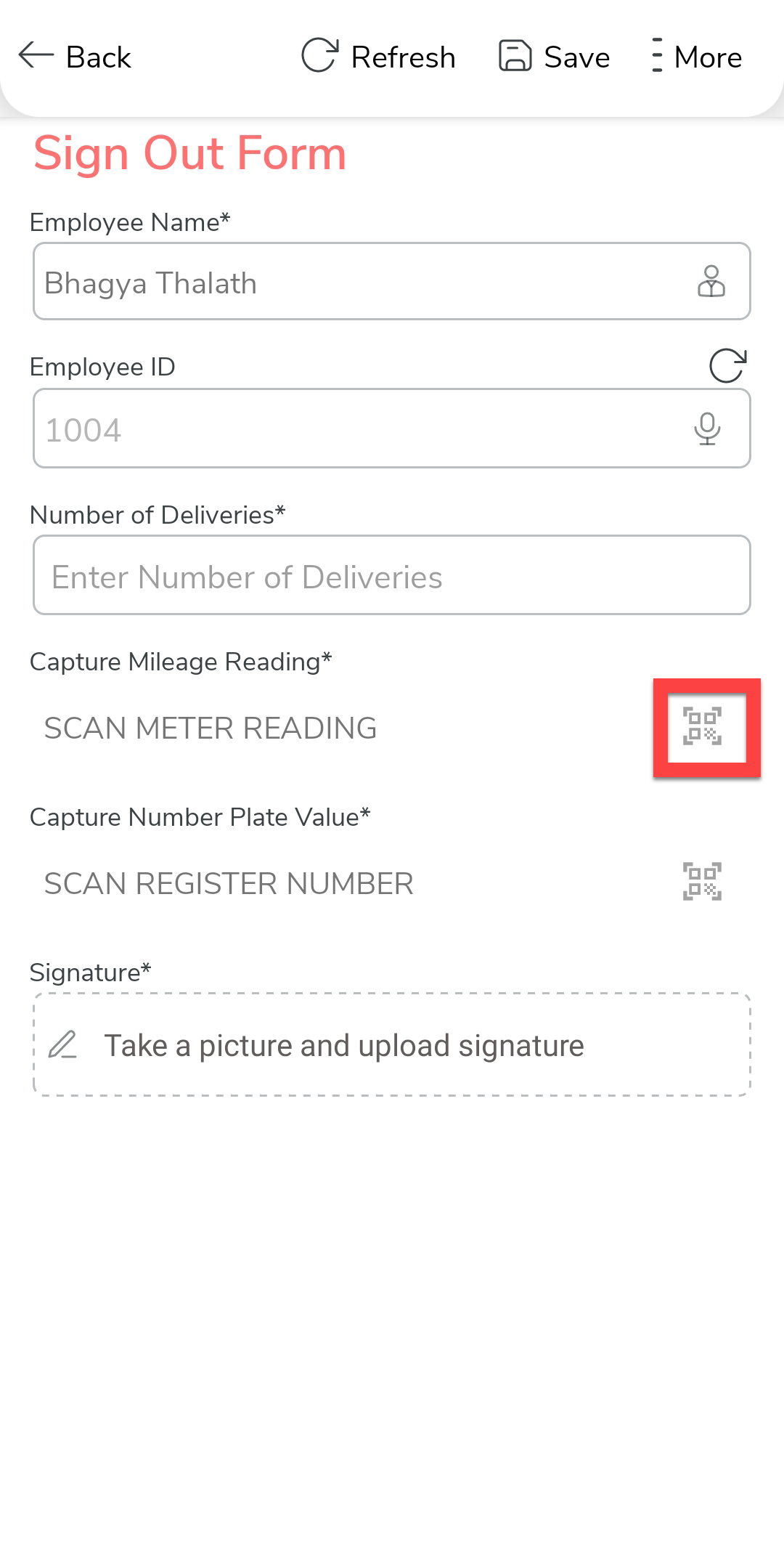
For the Capture Mileage Reading field, you can see the scan icon on
the right extreme of the field's input area. Tap on it.
-
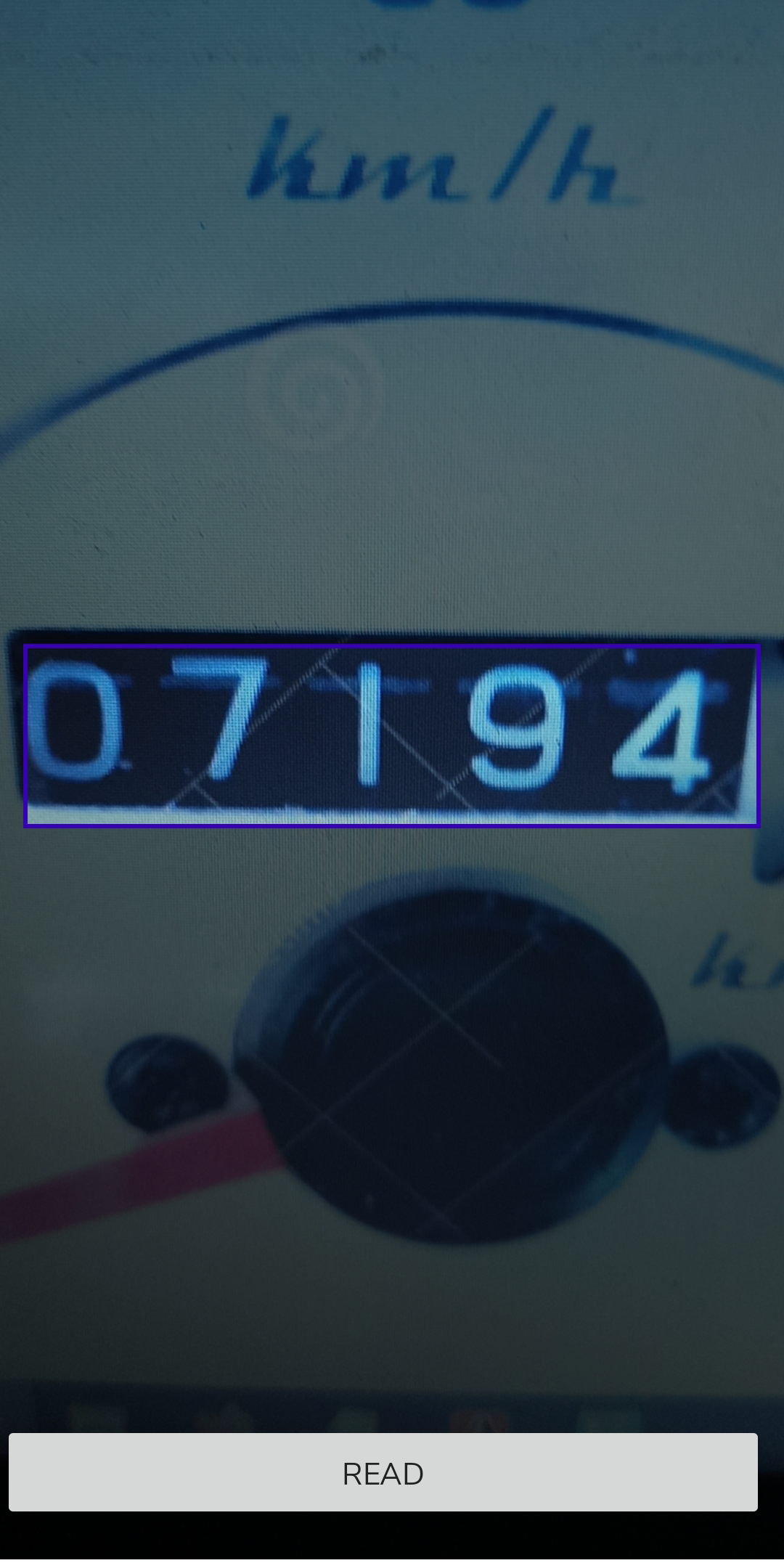
The scanner page appears. Place the odometer value inside the rectangle box
and tap the Read button.
-
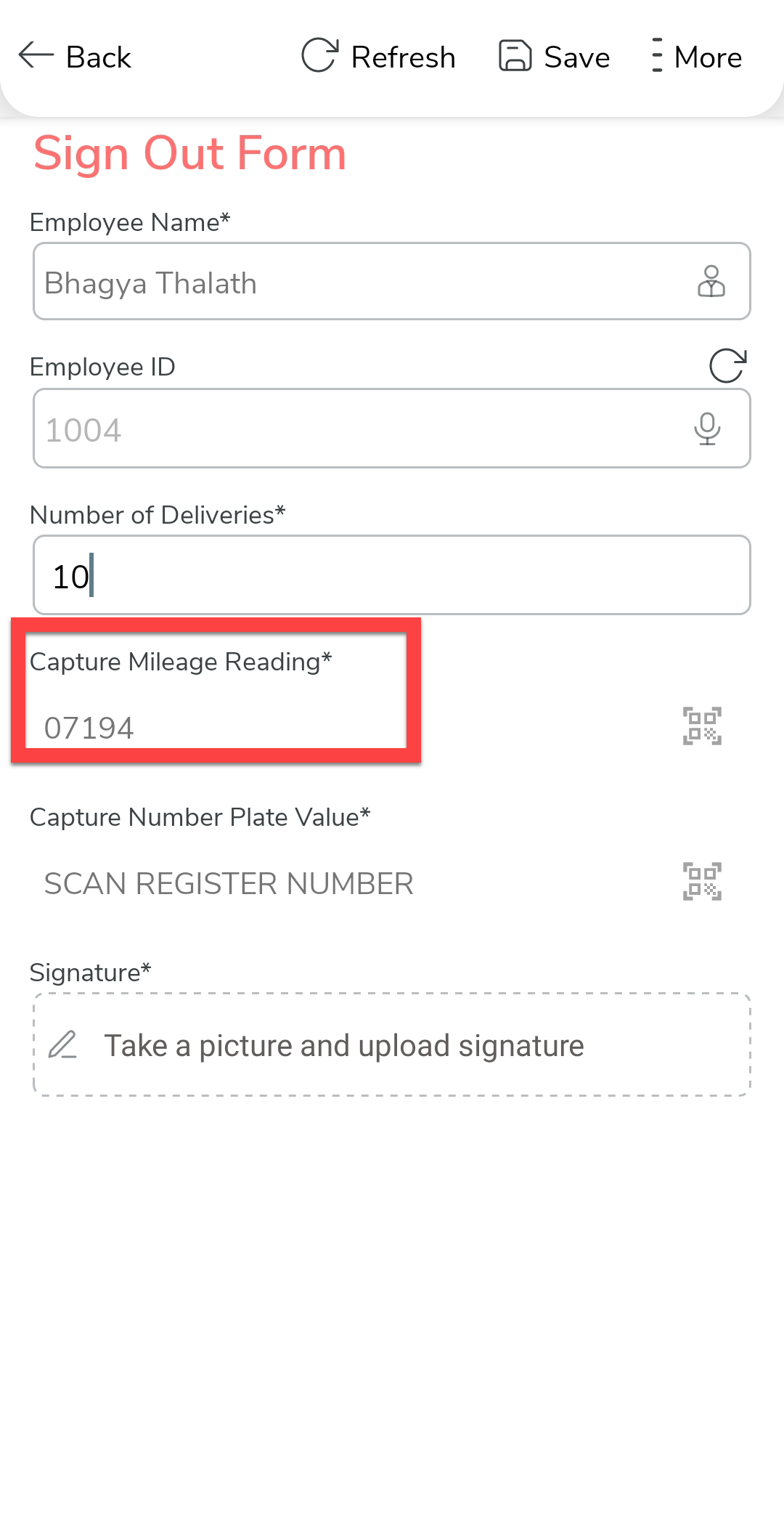
The meter reading will be populated on the form field.
-
In the same way, tap on the scan icon given at the right side of the
Capture Number Plate Value field.

-
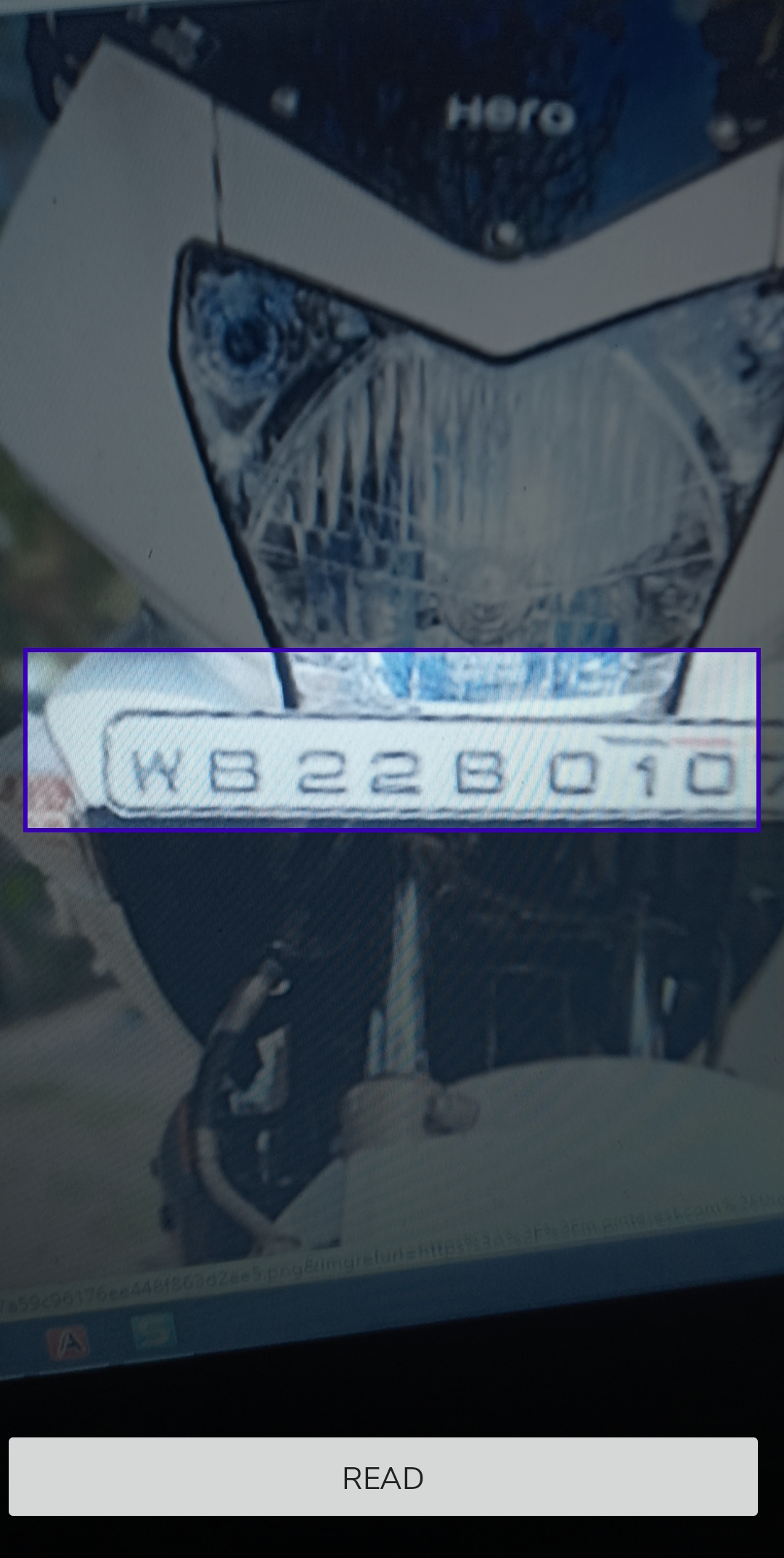
The scanner page appears. Place the number plate value inside the rectangle
box and tap the Read button.
-
The number plate value will be populated on the form field.
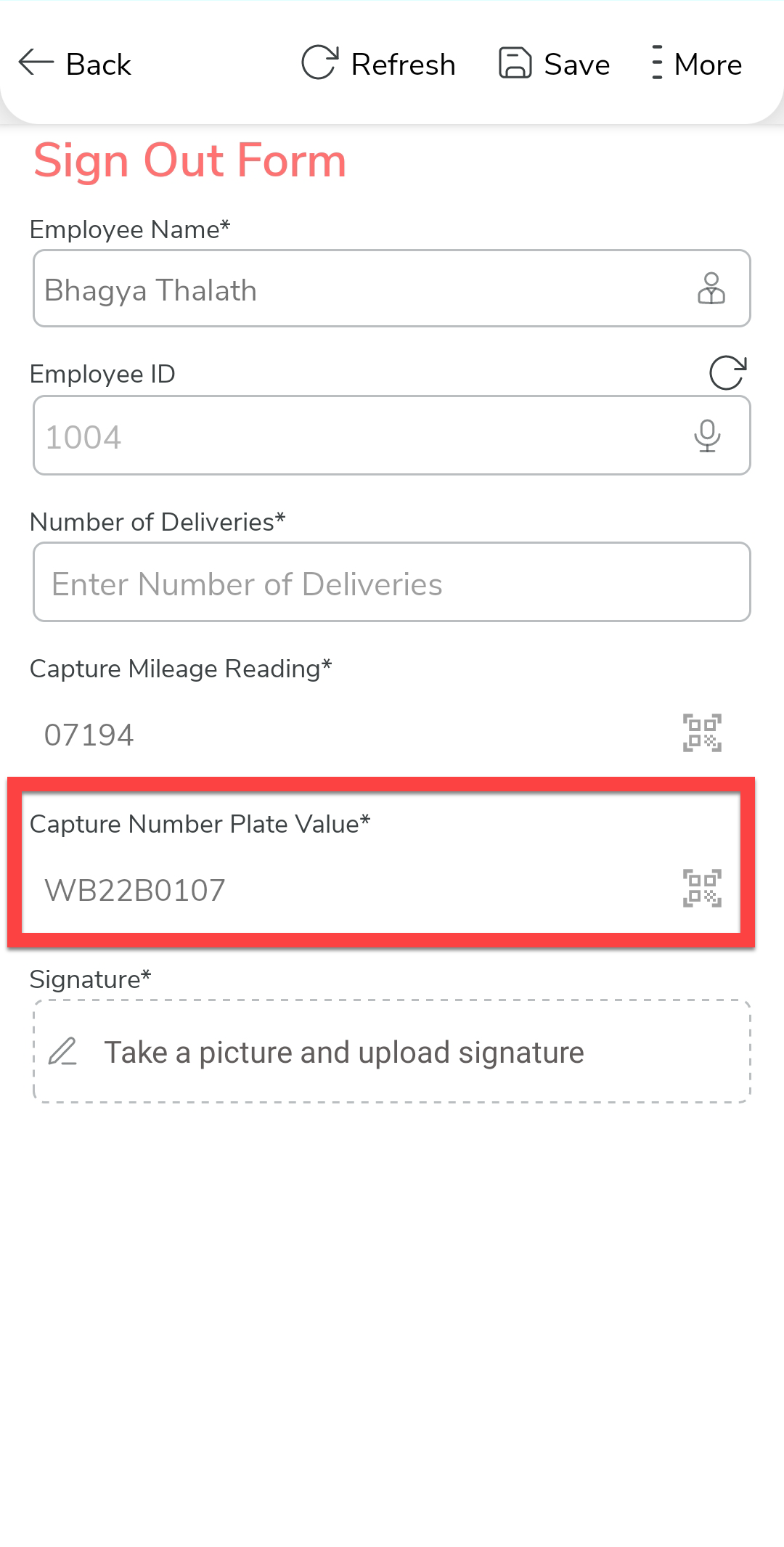
- Fill out the remaining fields and submit the form.
This is the functionality of the OCR data types. They are very helpful for you to automate capturing the odometer reading and number plate value. If you want to automate the entire form submission and reduce manual data entry, check out the Automate Form Submission Using OCR tutorial to learn how to do it.