

Enable Scanning a QR Code and Bar Code
QR or Bar codes are everywhere: you can find them printed on the packaging of your latest gadgets, on business cards, included on presentations at conferences, and you can even see them painted on buildings. People and companies use them to store and distribute all kinds of information in a manner that is quickly accessible to anyone with a smartphone. QR codes are commonly used for holding data such as simple text, addresses, phone numbers, email addresses, URLs, links to apps, payments, etc. Now you know more about the importance of QR codes, which offer a neat way of storing data in a small space.
Scanning a QR code and bar code is available only when your users access a form from the mobile app.
Create a Form With Barcode/QR Code Data Type
In this section, we will create a sample form that is used to get new client details. In that, we will use a Barcode/QR Code data type where you can scan a QR code to get the client information.
- As a first step, we will create a form with the title Client Registration. Check out the Create a Form page to know how to create a form.
-
Drag and drop the data types and label them as shown below.

You can see the Address field added in the last. It looks similar to the text data type. When you access it from the mobile app, you can see a scan icon on the right extreme of the field's input area. It allows you to scan a QR code or enter an input manually. -
Enable publishing and Save the form.
We have created a sample client registration form with a Barcode/QR Code data type that is used to get the client details. In the next section, we will check how it works in the mobile app.
Scan QR Codes in Mobile App
In this section, we will submit the Client Registration form in the mobile app and check how we can scan QR codes in the mobile app.
- Open the Effort Plus mobile app on your mobile.
-
Tap on the Forms tab to go to the Form page.

The forms page appears with all the available forms.
-
Tap on the Client Registration form.

-
Tap the plus icon located at the bottom of the page.

-
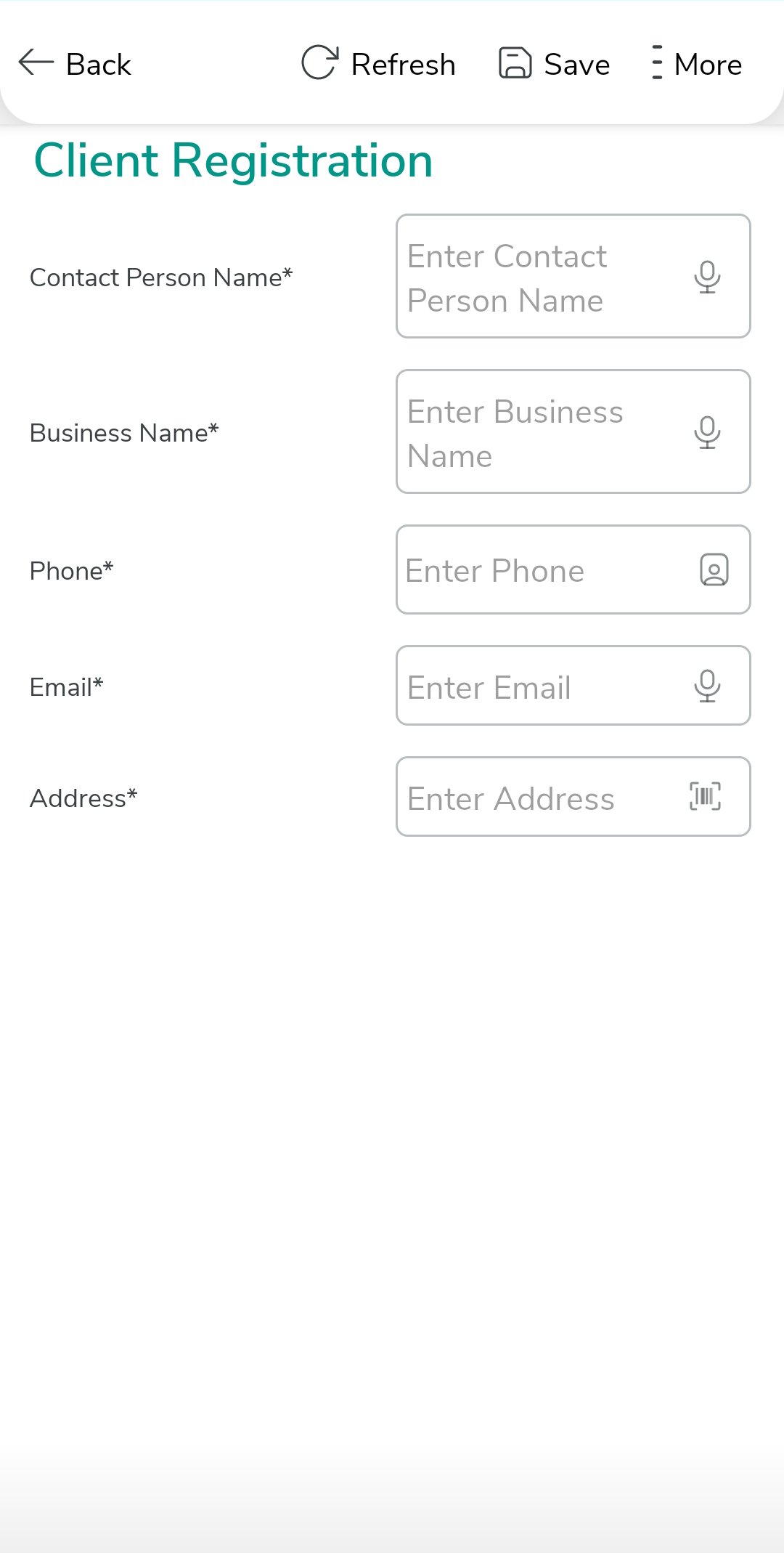
Fill in the form fields.
-
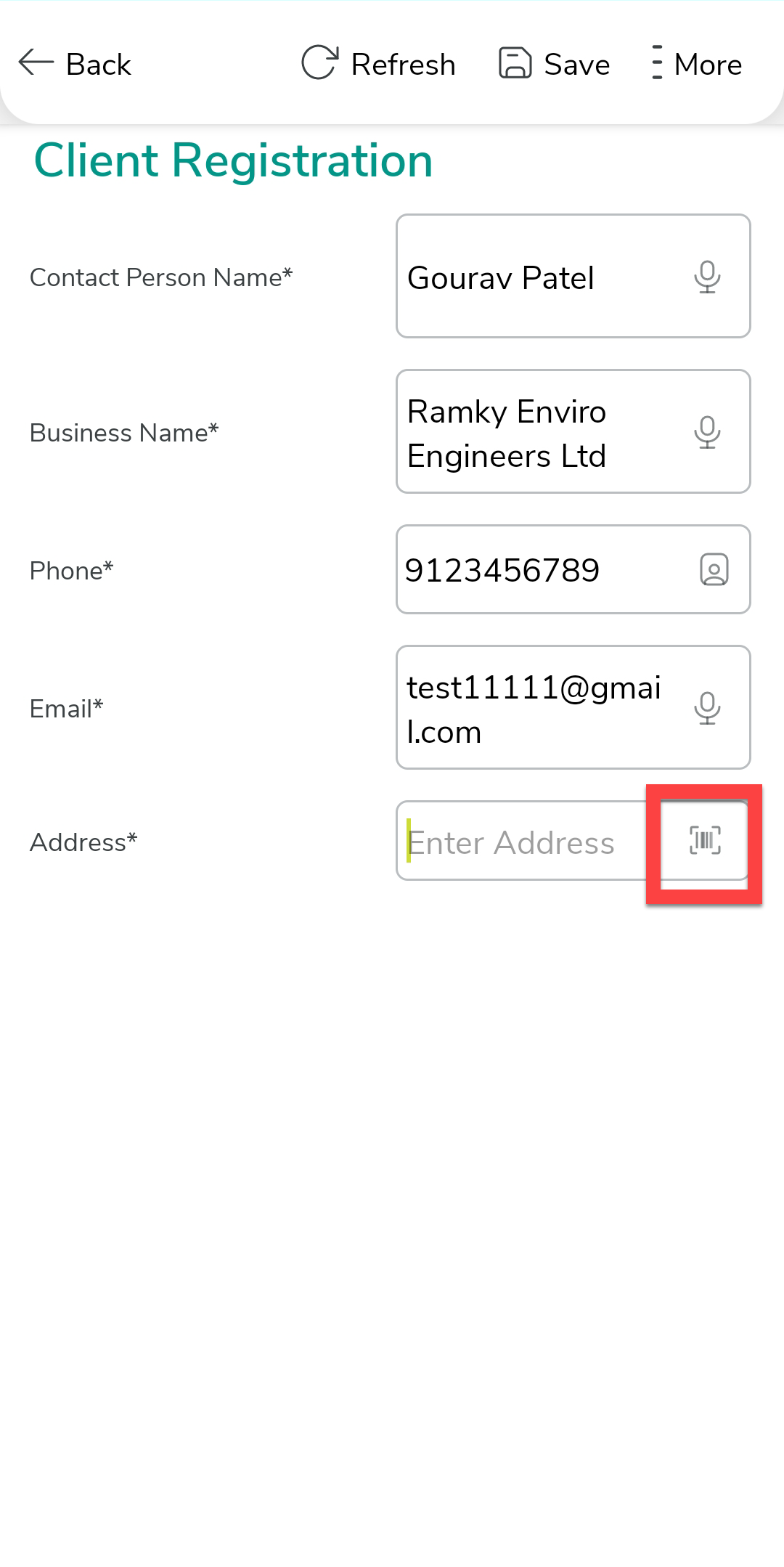
You can see the scan icon on the right extreme of the field's input area.
Tap on it.
-
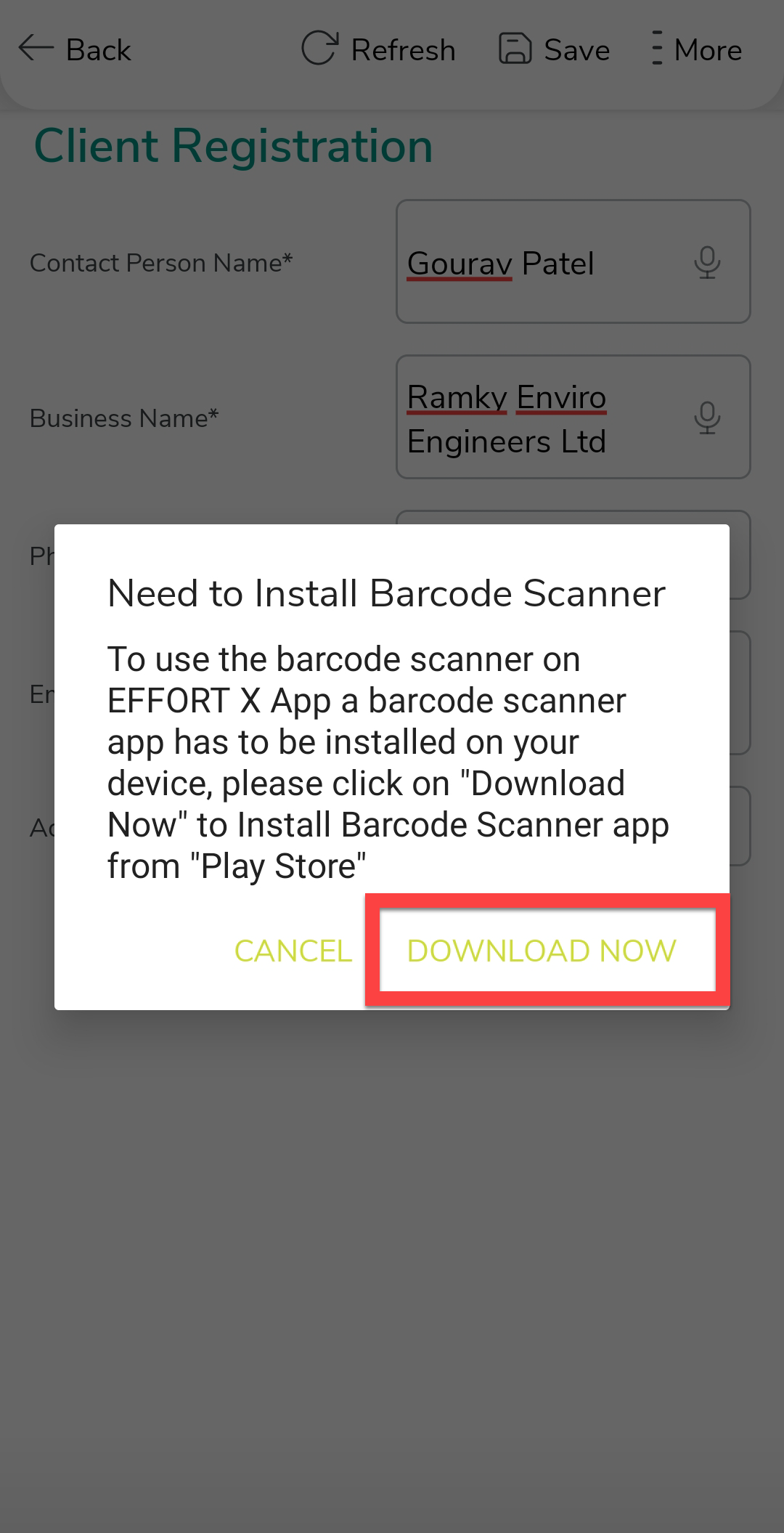
You will be asked to download a Barcode Scanner app from the play
store. Tap on Download Now button.
-
You will be redirected to the Play Store. Tap on the Barcode
Scanner app and install it.

-
After successful installation of the Scanner app, again go back to
the Effort app and again tap on the scan icon.
-
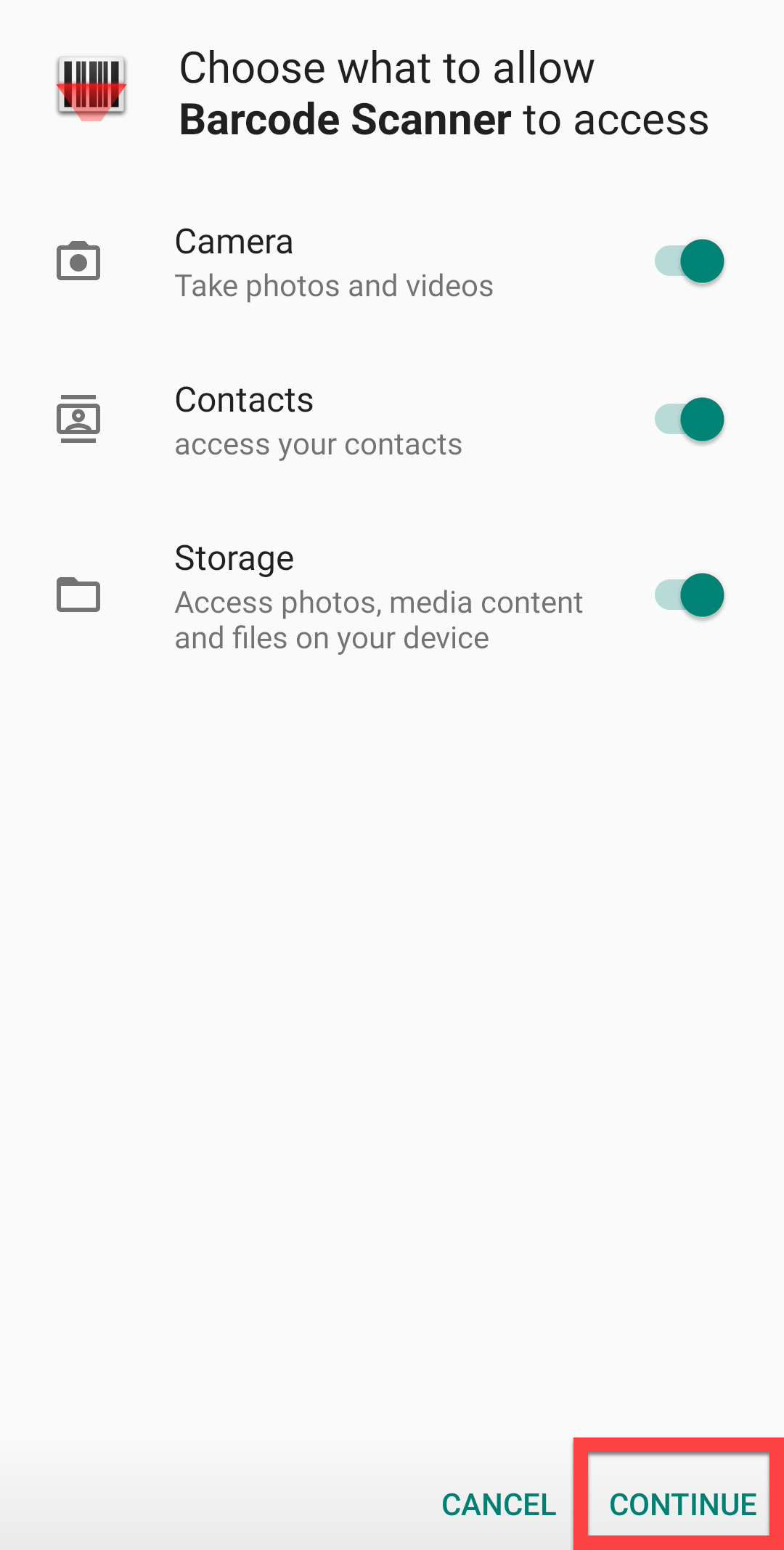
The scanner app appears asking for access to Camera, Contacts, and Storage.
Tap on Continue.
-
Now the barcode scanner launches camera to scan the QR code.

-
Scan the QR code properly. You will get the data stored in the QR code on
the form field. You can see below, the Address field captures the
address details stored in the QR code.

- Once you are done with the form filling, tap on the Save icon to submit the form. As mentioned in the introduction, not only address information, you can also copy any data stored in the QR code onto the form fields. It facilitates you to scan QR codes quickly and simply.