

Create An Order Form That Enables Items Filtering
If you have a Sales company looking for an Order Form where you want to filter the
items/products based on Category and Brand, this tutorial helps you create an Order
Form that enables item filtering. If you have more items, then it is difficult for
the salespersons to find the required product. Look at the below image to know what
we are doing in this tutorial. If you can filter items as shown below, then the
salespersons can find out the required product easily.

When you choose a product category, only the brands from the selected category will
appear. Similarly, when you choose a product brand, only the products from the
selected brand will appear. In this tutorial, we will create an Order Form that
helps you get the above configuration. Here’s a quick summary of what we will cover:
Step 1. Create Products Related List Masters
Here, we will create list masters such as Product Categories, Product Brands, and List of Products that are needed to create an Order Form.
-
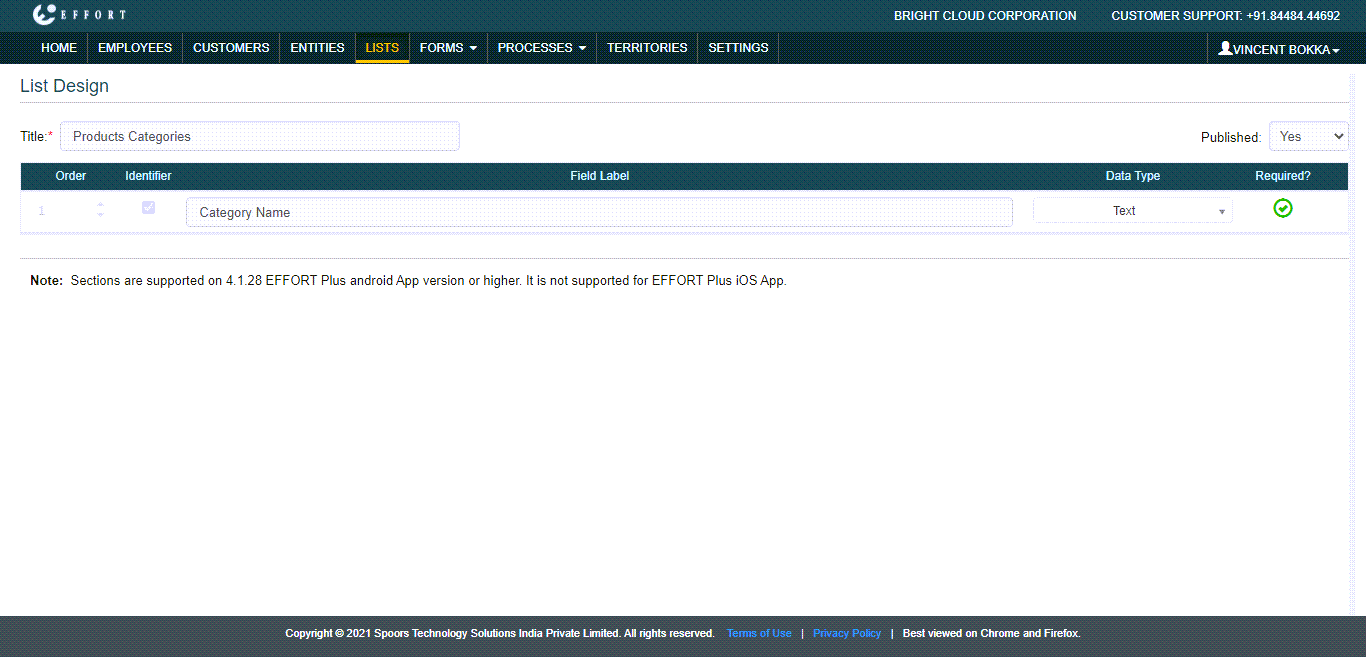
As a first step, you need to create a Product Categories list with the
design as shown in the below image. Check out the Create a List page to know
how to create a list.
-
Now add items to the Product Categories list. Check out the Add an Item to List page to
know how to add items.

As shown above, we have added some sample categories. - After adding items to the Product Categories list, map list items to the employee who takes care of the sales activities. Check out the Map List Items to an Employee page to know how to map list items.
-
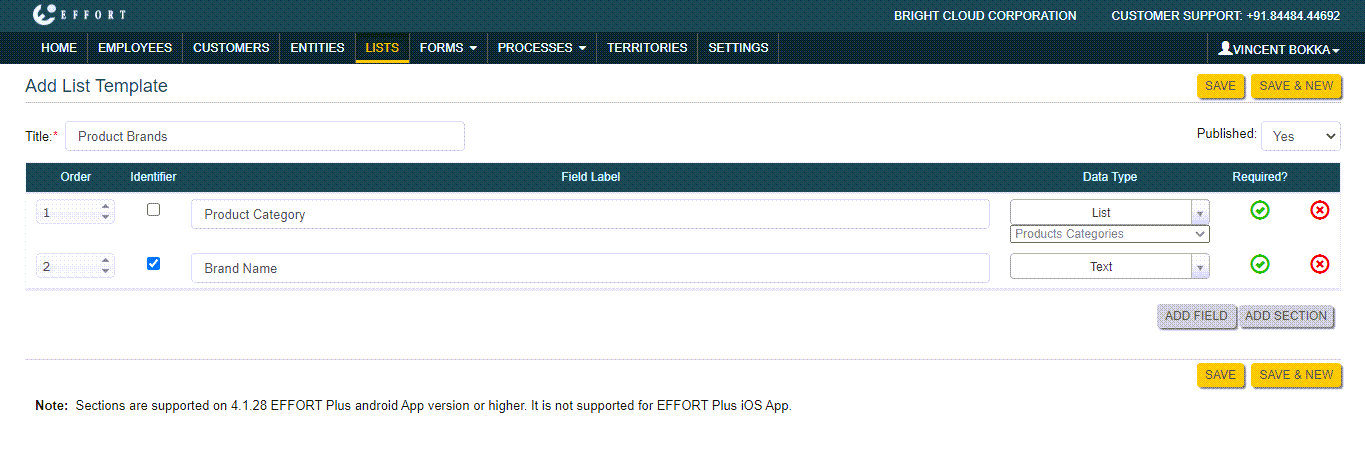
Similarly, create a list with the Product Brands as shown
below.
-
Add items to the Product Brands list.
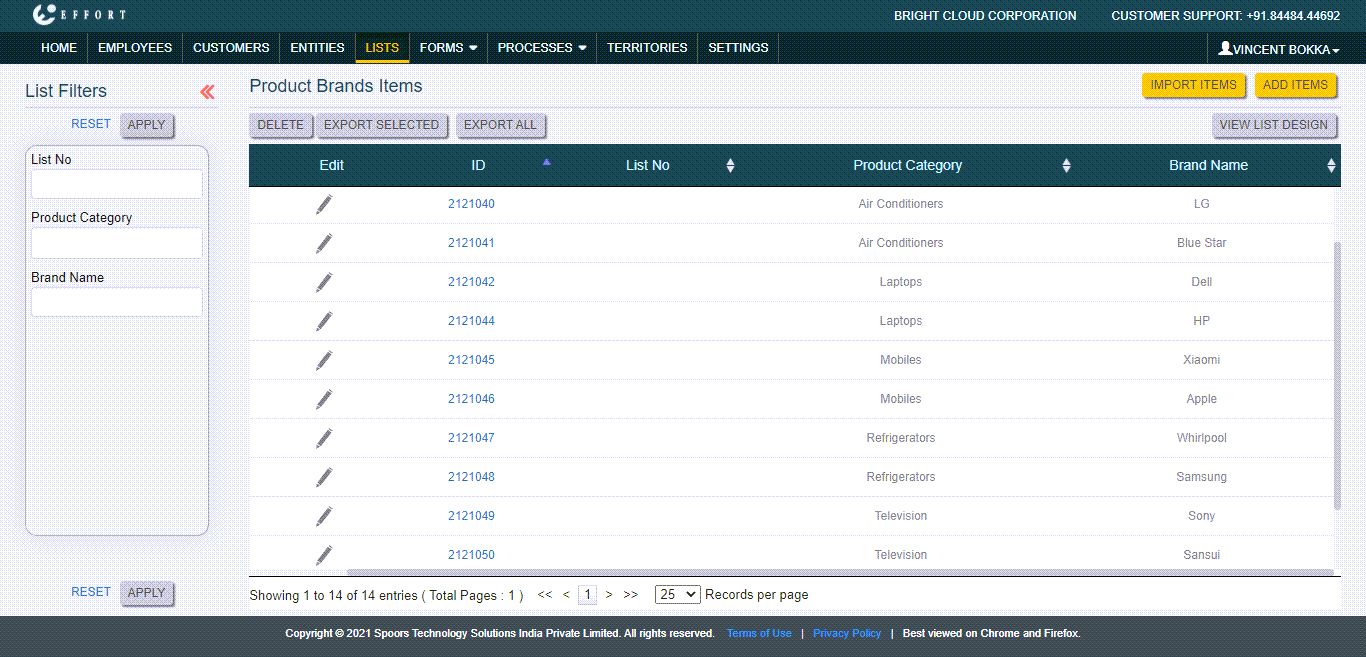
As shown above, we have added some sample product brands. - After adding items to the Product Brands list, map list items to the employee who takes care of the sales activities. Check out the Map List Items to an Employee page to know how to map list items.
-
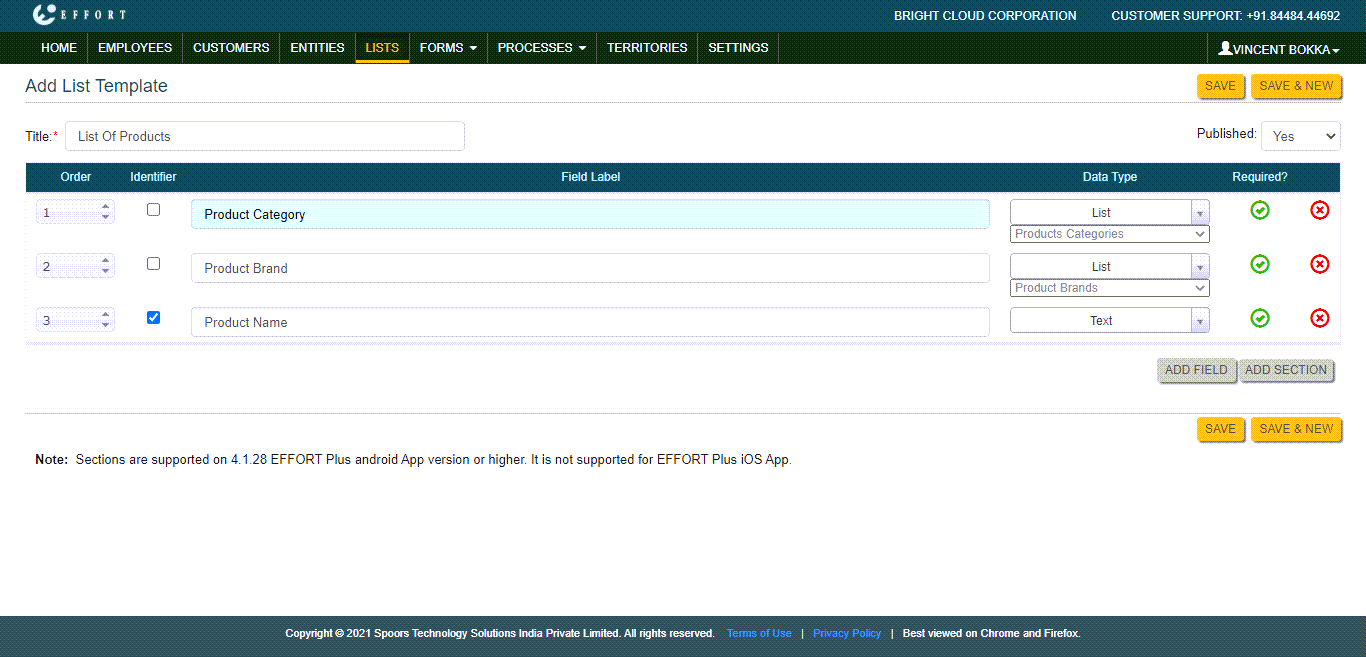
Similarly, create a Products list.
-
Add items to the Products list.
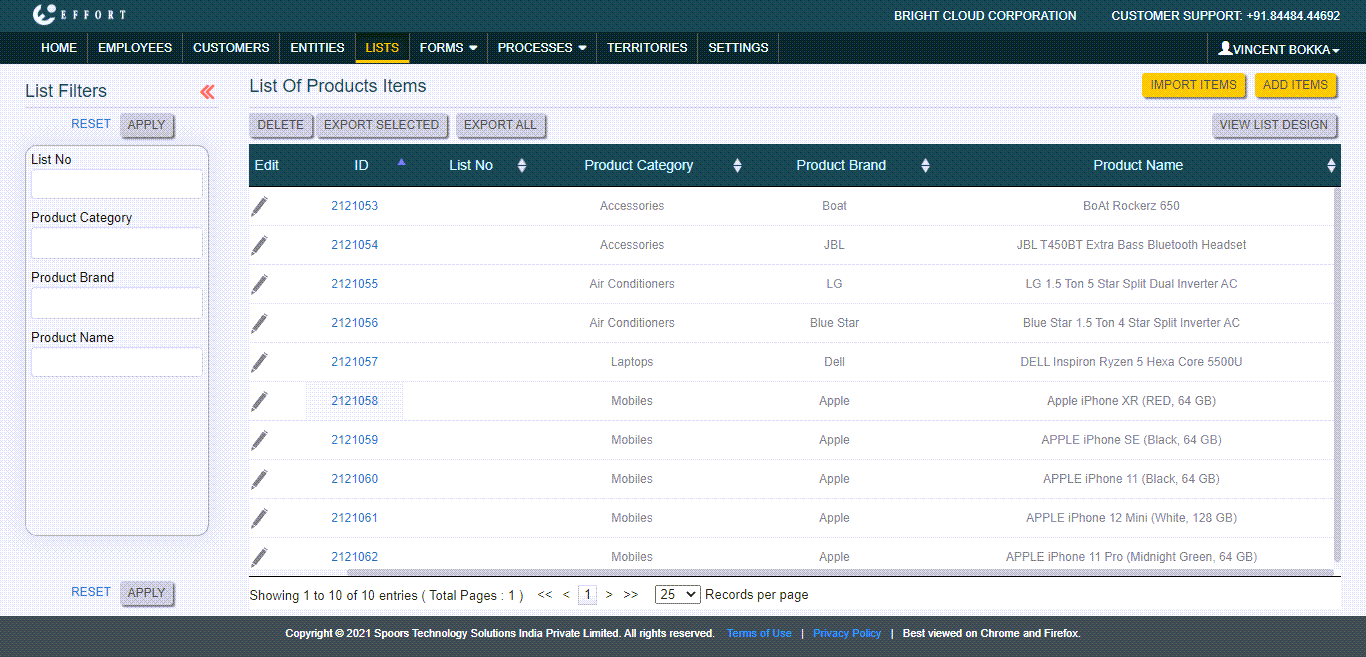
As shown above, we have added some sample products. - After adding items to the Products list, map list items to the employee who takes care of the sales activities. Check out the Map List Items to an Employee page to know how to map list items.
Step 2. Create an Order Form
This section walks you through the various steps involved in the creation of an Order Form and the configuration of the product filters based on category and brand.
-
Create an Order Form as shown below. Check out the Create a Form page to know
how to create a form. Add field as per your requirement.

-
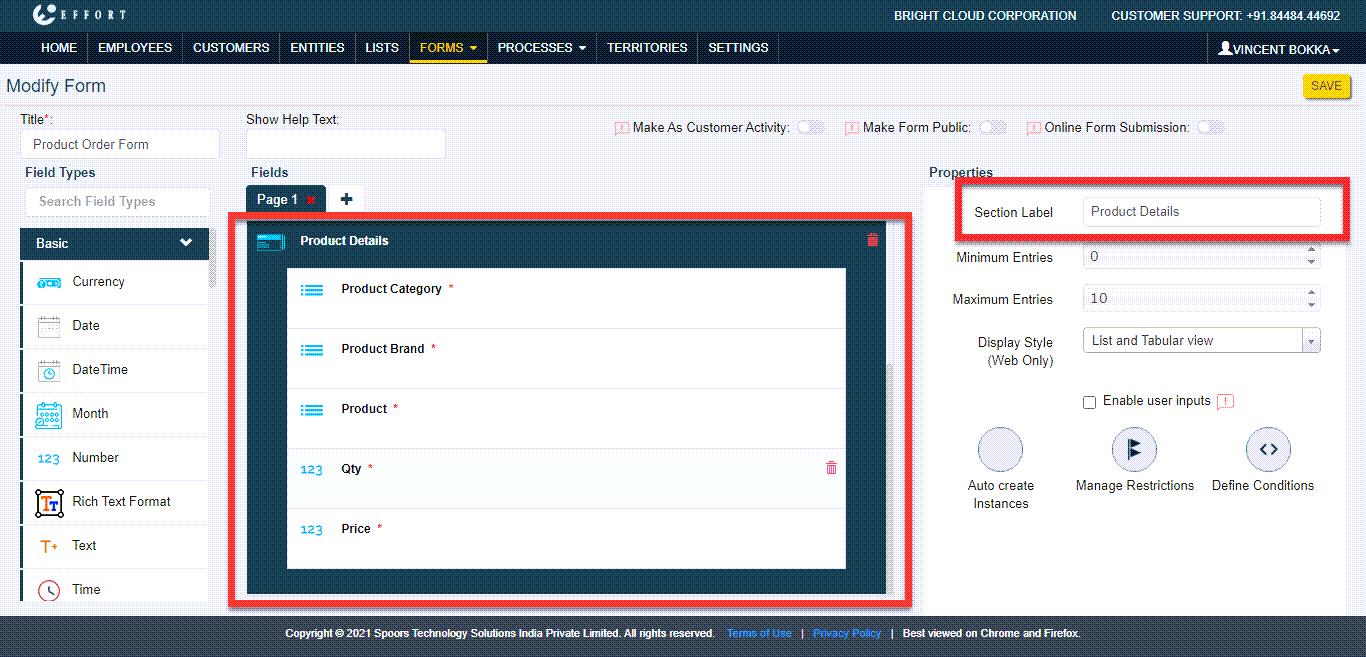
For capturing product details, add a Repeatable Section data type
and Label it as Product Details. Add three Pick List and two Number
fields into the Product Details section and Label them as shown below.
-
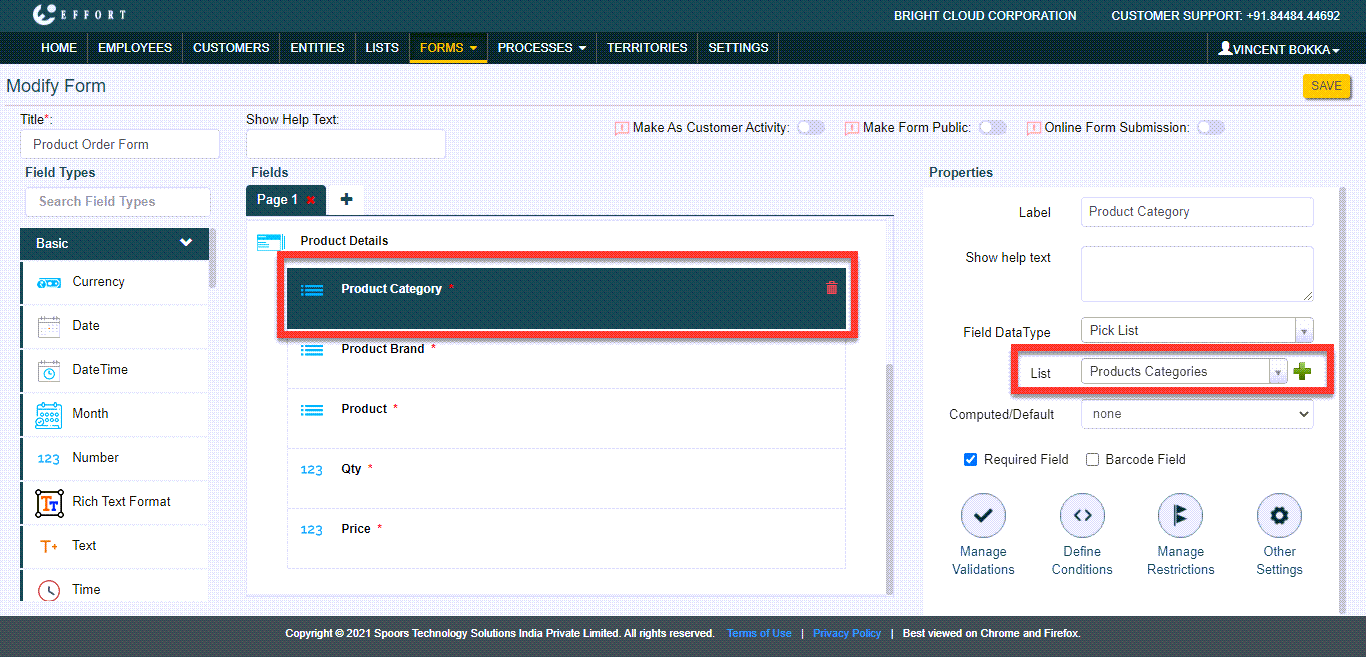
Now configure the Product Categories list which we created earlier
to the Product Category field as shown below.
-
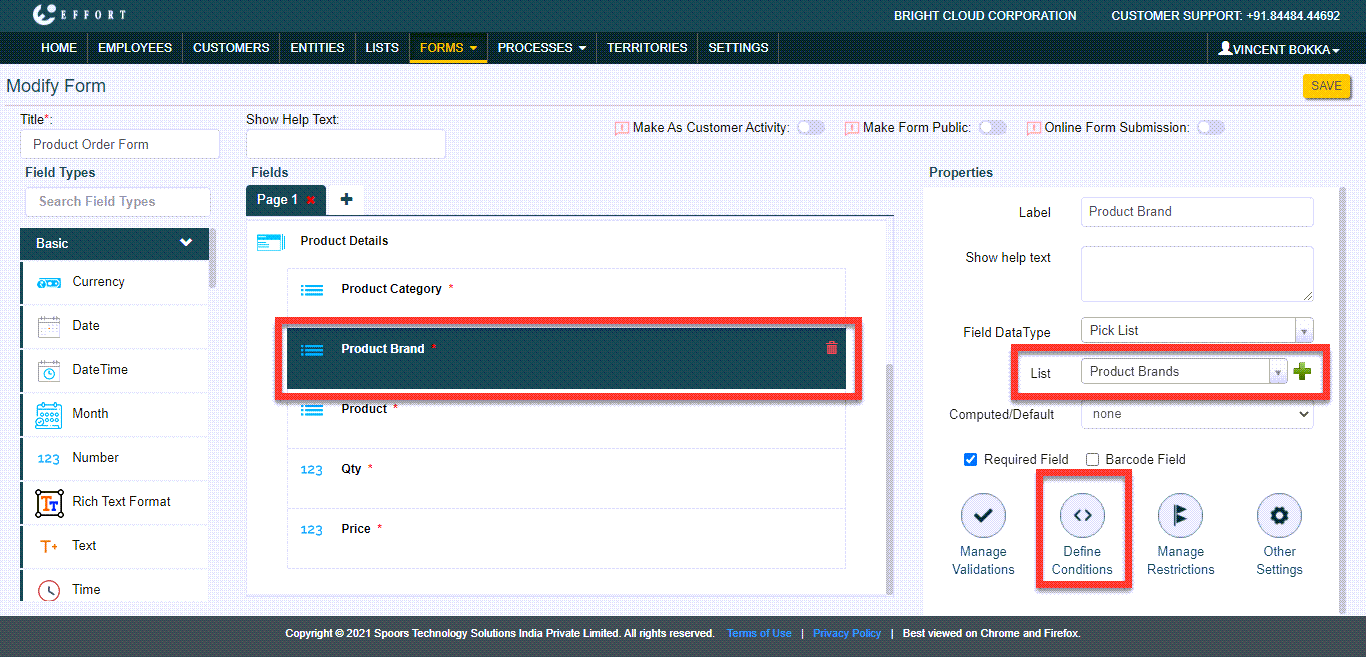
Similarly, configure the Product Brands list which we created
earlier to the Product Brand field as shown below and click the
Define Conditions button.
-
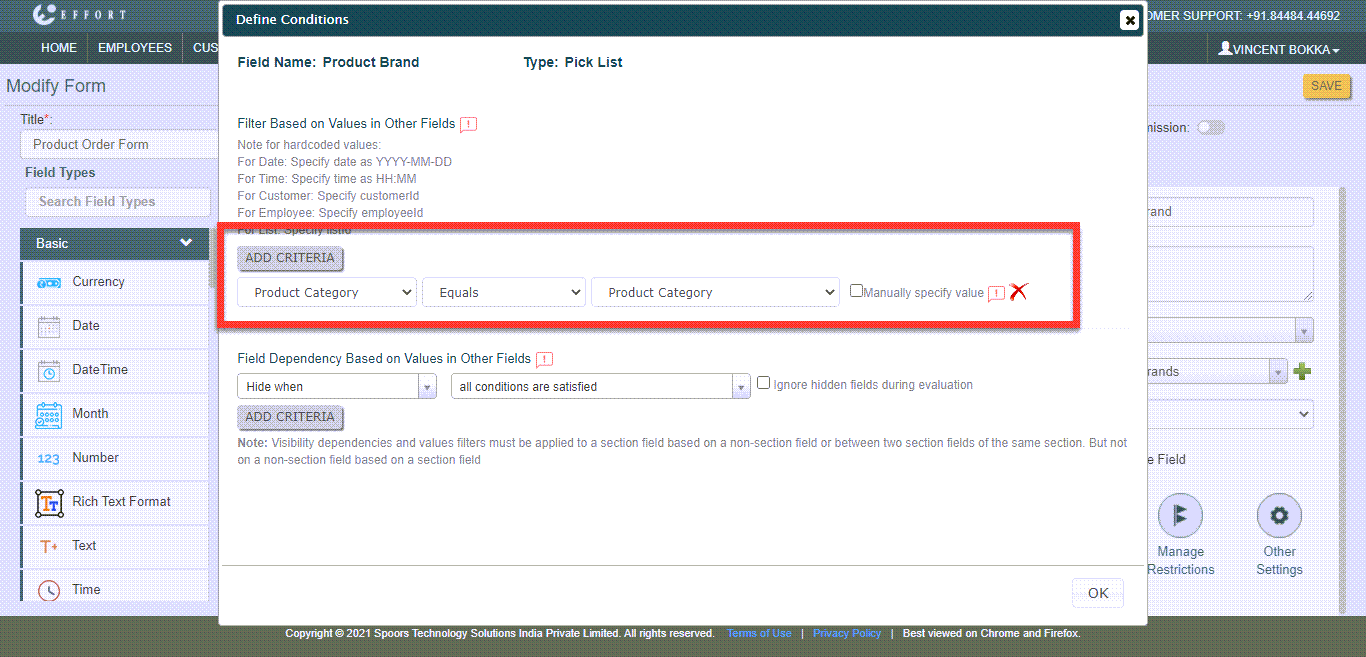
Click Add Criteria button under the Filter Based on Values in
Other Fields and define the condition as shown below.
-
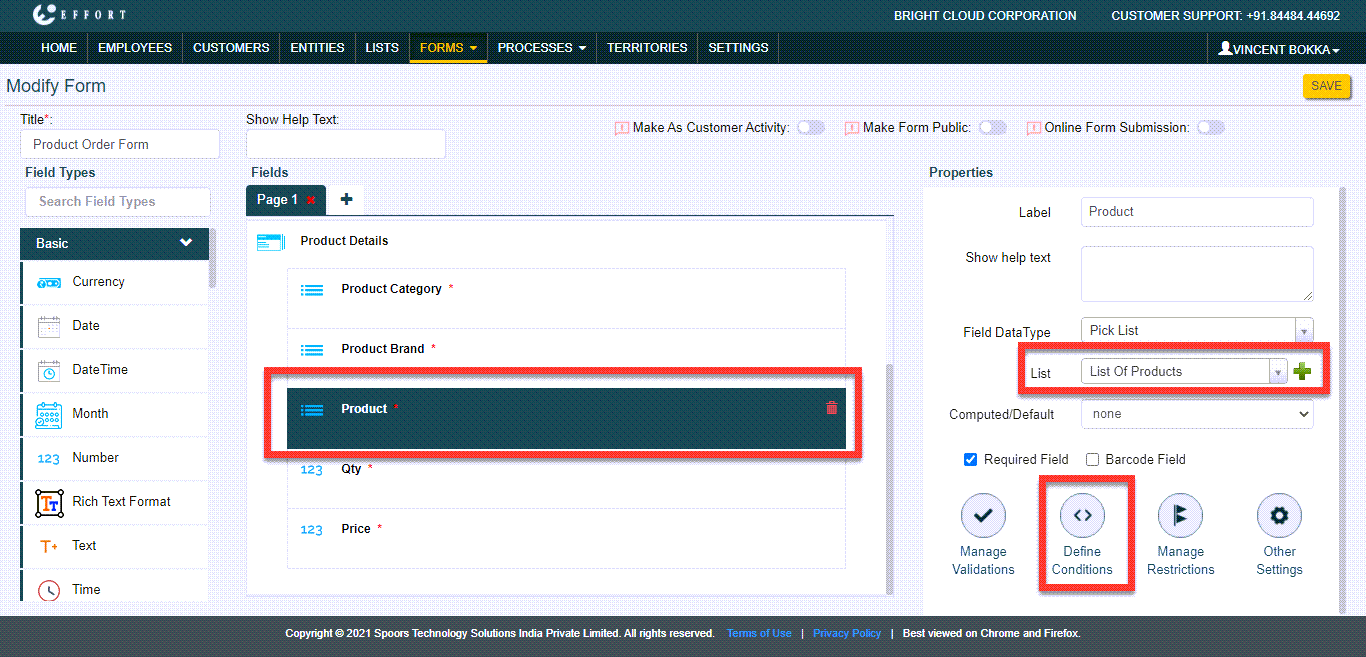
Similarly, configure the List of Products list which we created
earlier to the Product field as shown below and click the Define
Conditions button.
-
Click Add Criteria button under the Filter Based on Values in
Other Fields and define the condition as shown below.

- Add additional fields as per your requirement and Save the form.
Step 3. Fill Order Form in Web App.
-
Navigate to . Click on the plus icon given on the Product Order Form
card.

-
Fill out details in the form fields.

-
To add product details click plus icon.

-
Select a category from the Product Category dropdown.

As shown above, we have selected Product Category as Mobiles. -
Now select a brand from the Product Brand dropdown. You can see only
the brands related to mobiles. Here, we are selecting the brand
Apple.
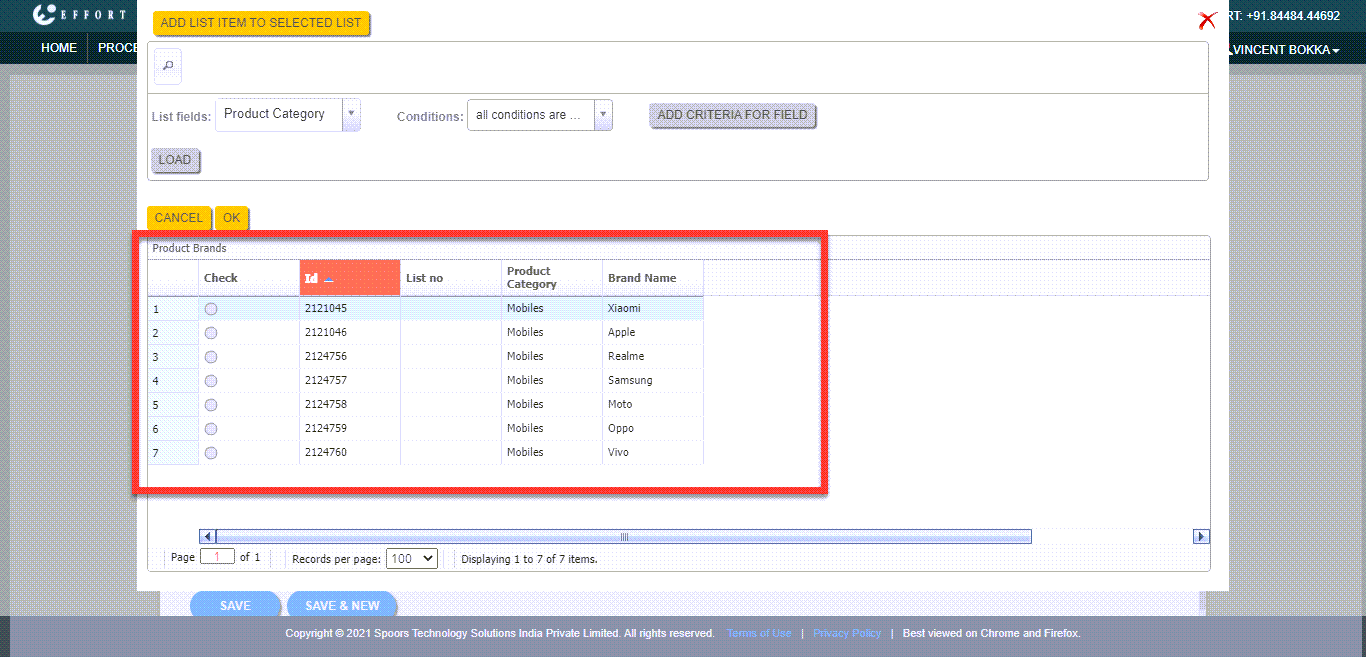
Here, the items in the Brand field get filtered based on the Category. This is what we have done in the 5th step that is given in Step 2. Create an Order Form section. -
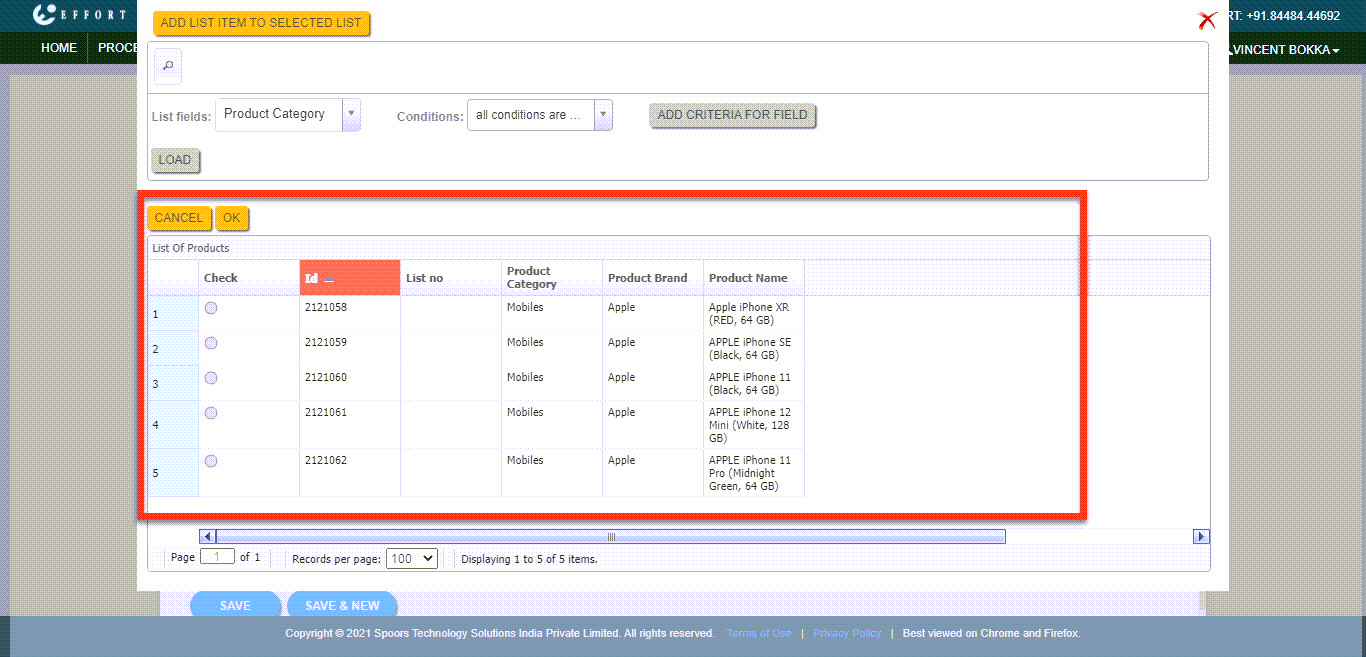
Similarly, select a product from the Product dropdown. The products
get filtered and display only the products from the Apple brand.
-
This is how you can filter the list items based on values in other lists.
This functionality very helpful for you to filter products based on category
and brand if you have more products.
