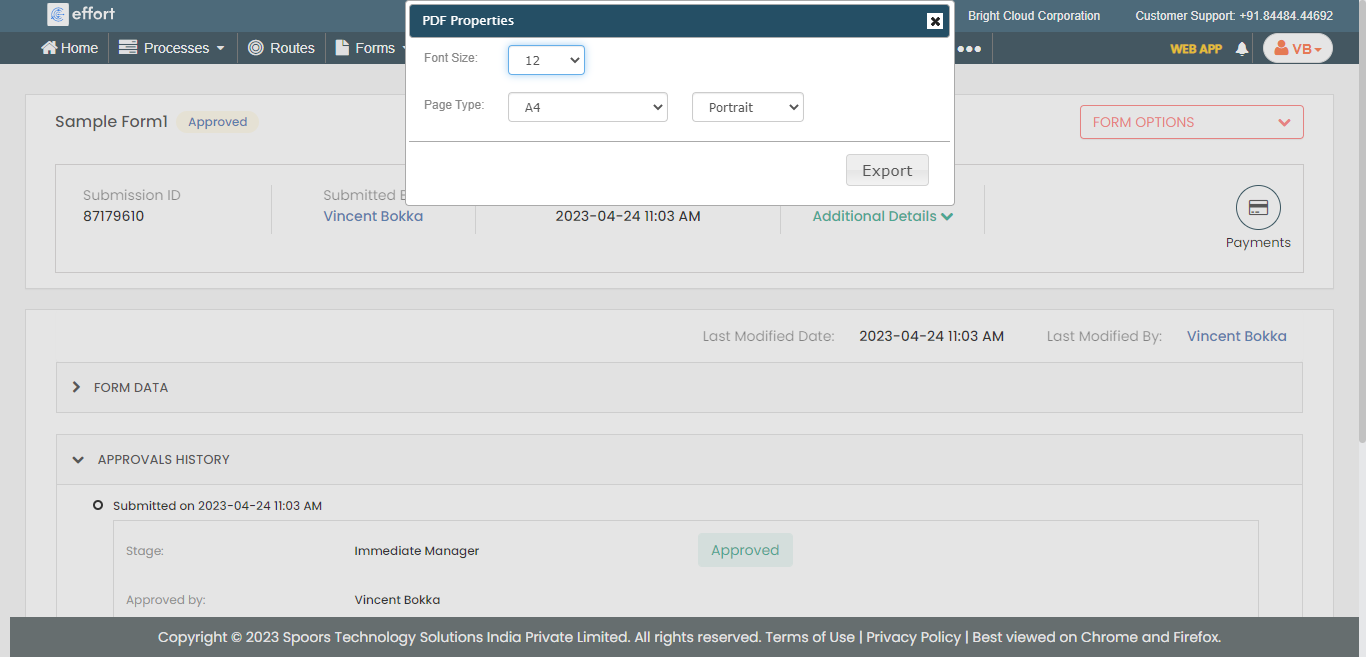
Print a Form Submission
To print a form submission, follow the steps below.
-
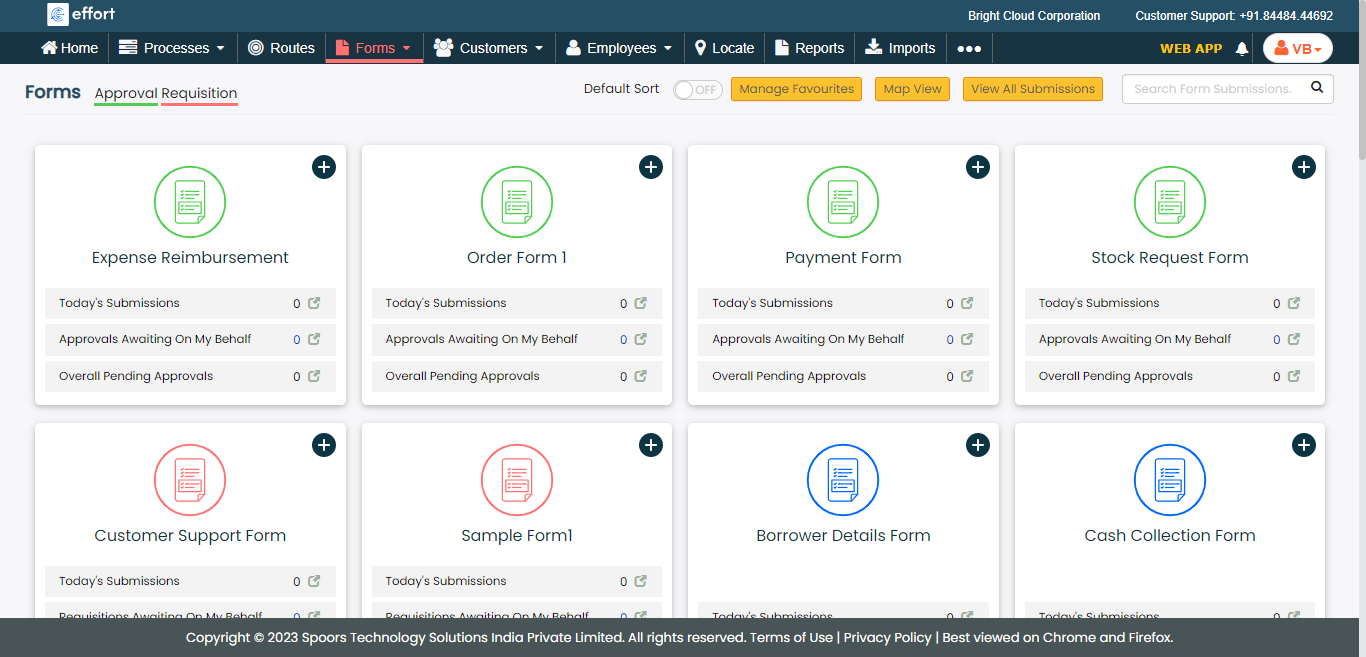
Go to .
The Forms page appears.
-
Click on the form card in which you want to print a form submission.
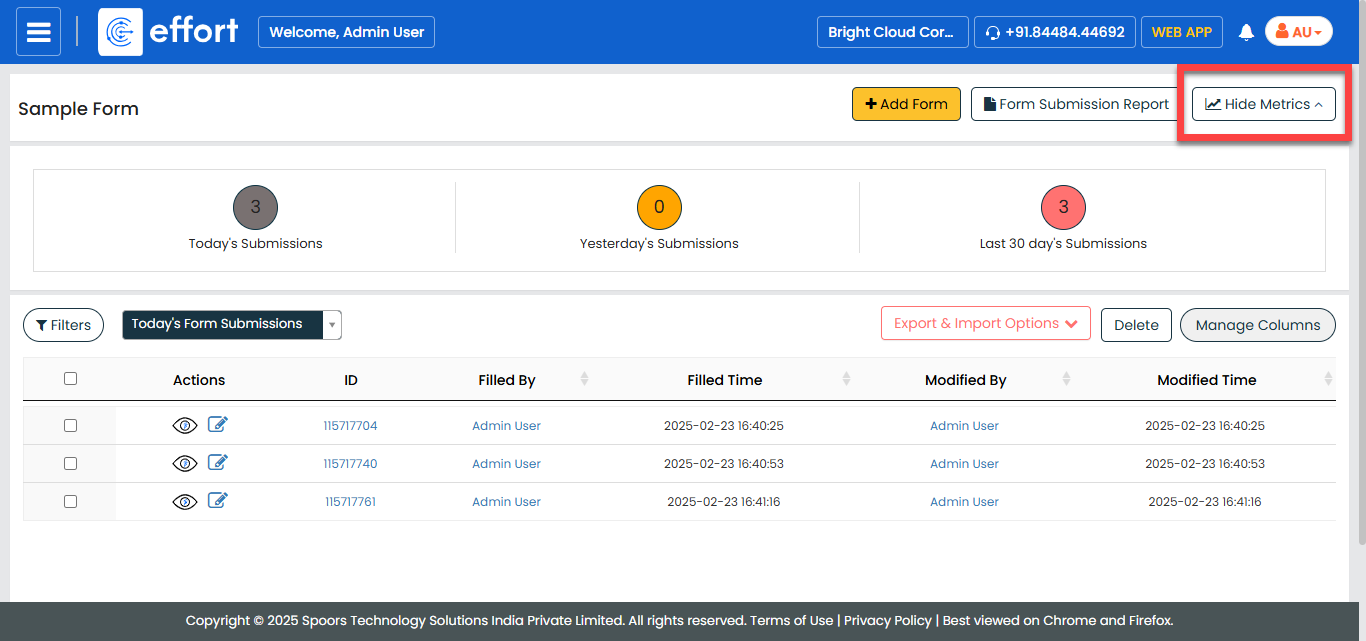
The list of form submissions page appears.
-
Click the Hide Metrics button.
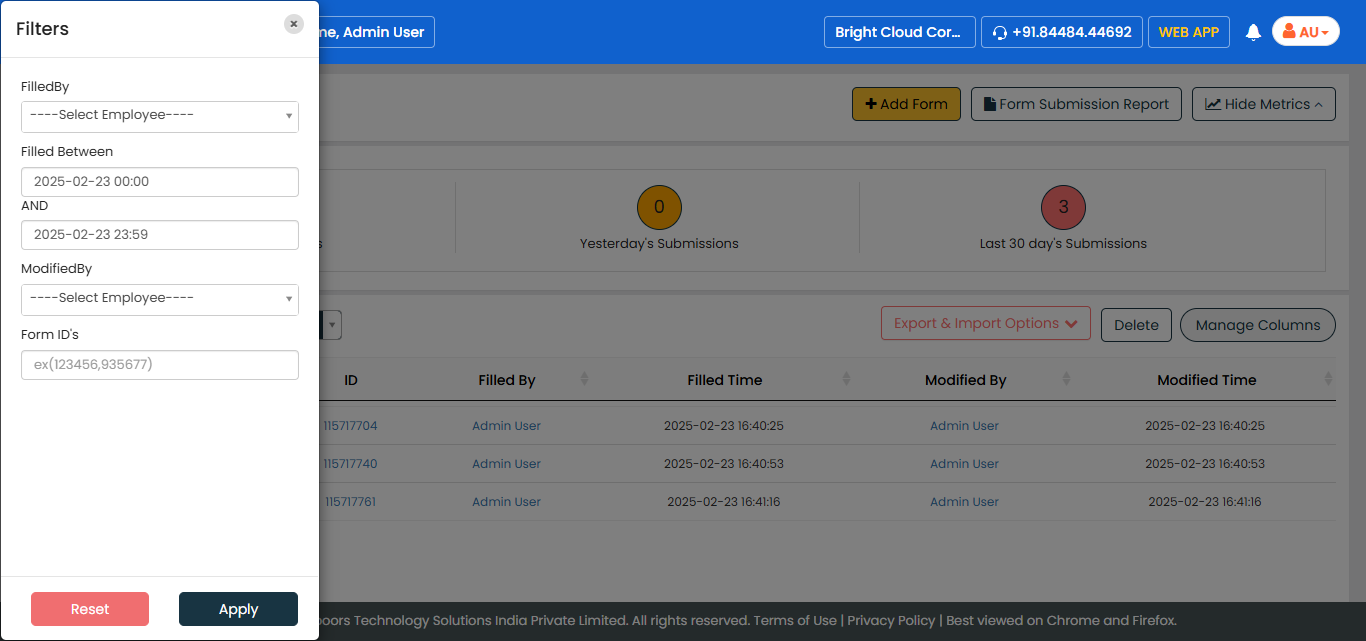
- Optional:
Click the Filters button and select the appropriate
filters to find the required form.
-
Under the Actions column, click the eye icon.
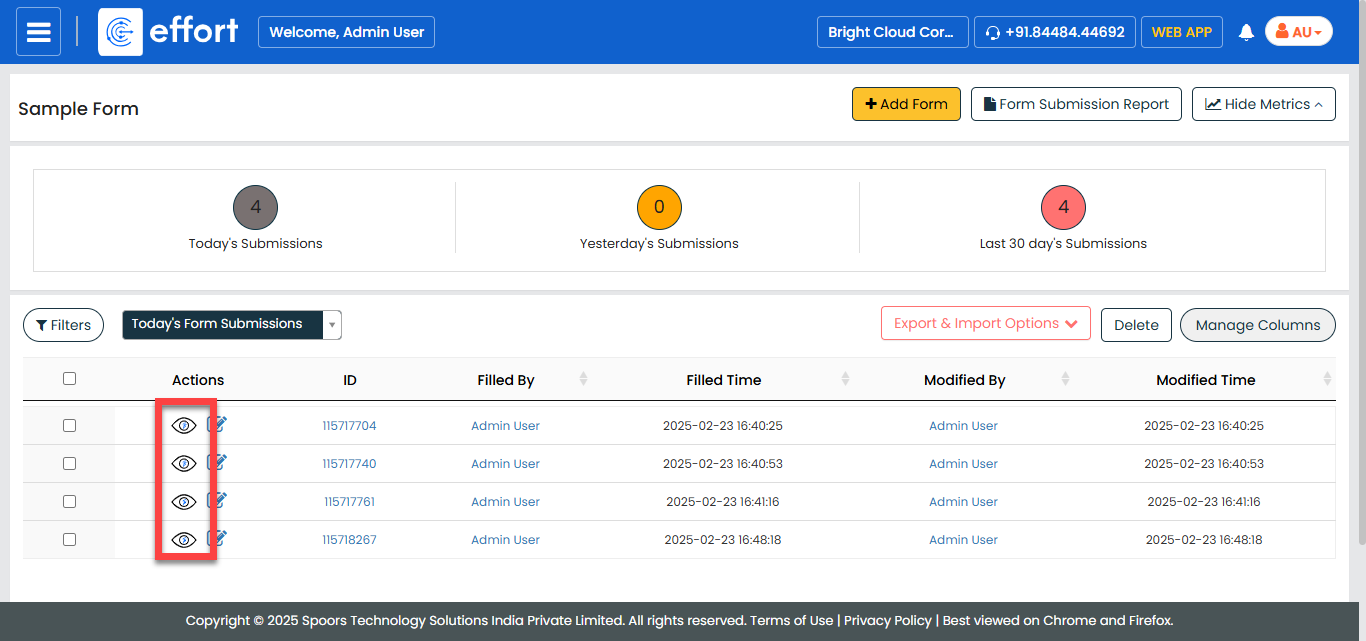
The form submission details page appears with all the details.
-
Click the Form Options dropdown.
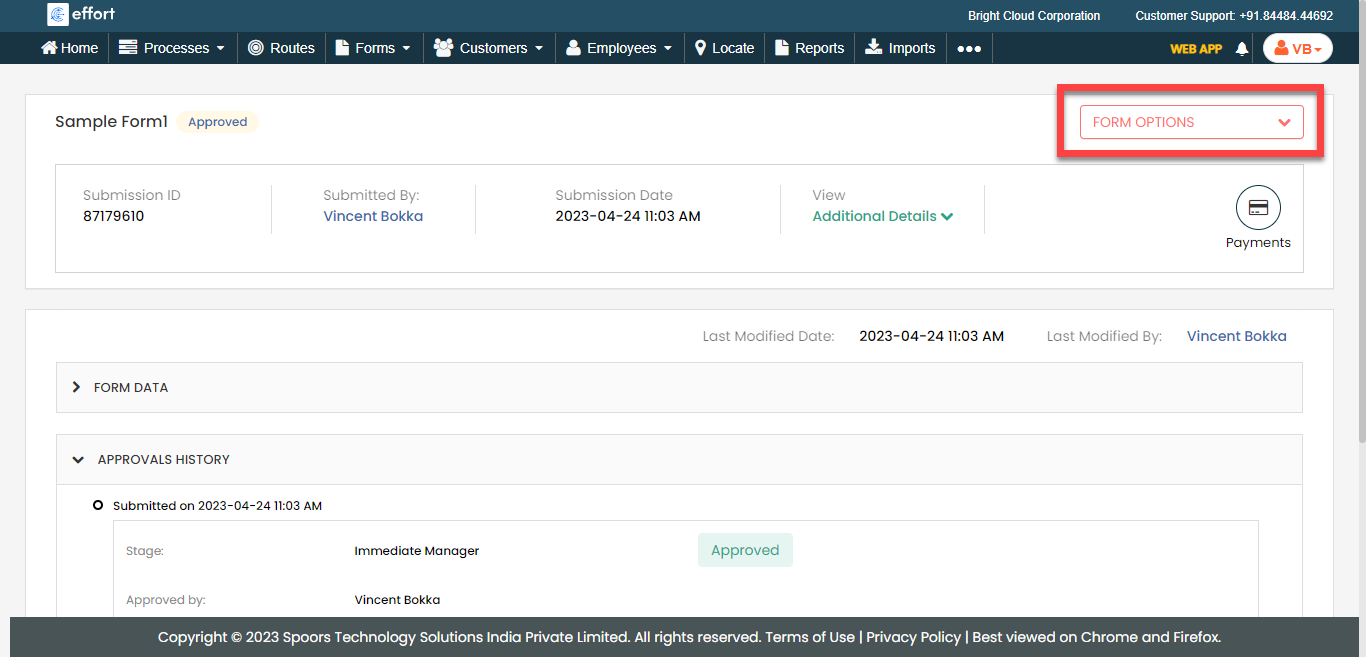
-
Click the PDF or Word icon.
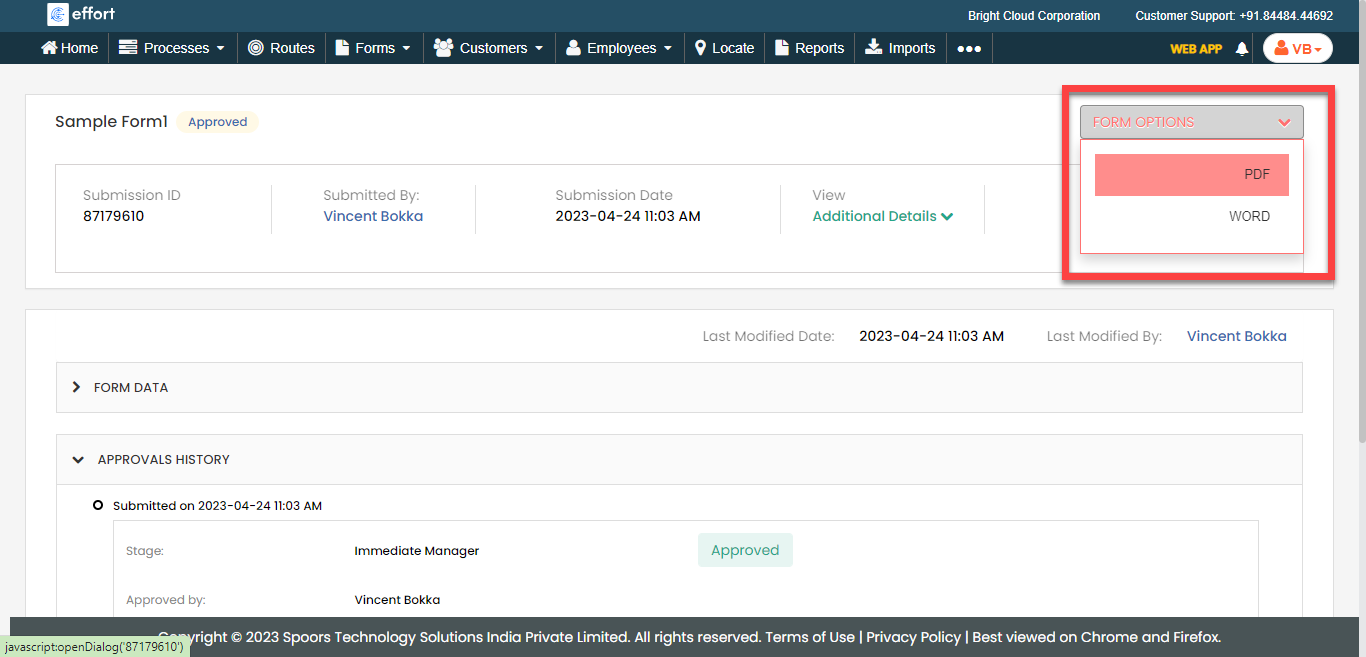
-
Setup the properties and click the Export button.