

Schedule Form Submission Notifications
To schedule form submission notifications, follow the steps below.
-
Go to .
Click on
 to view
the Notifications module.
to view
the Notifications module. -
Click the Schedule New Notification button located on
the top right corner.

-
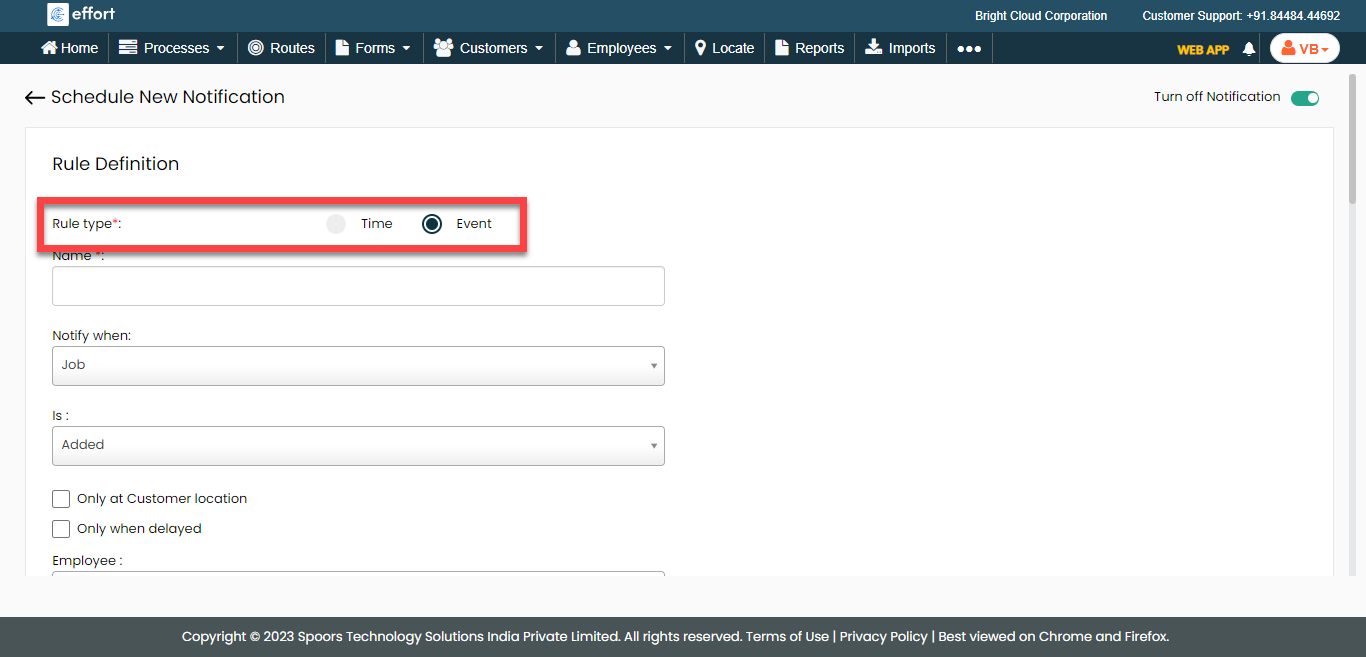
Change Rule Type to Event.
-
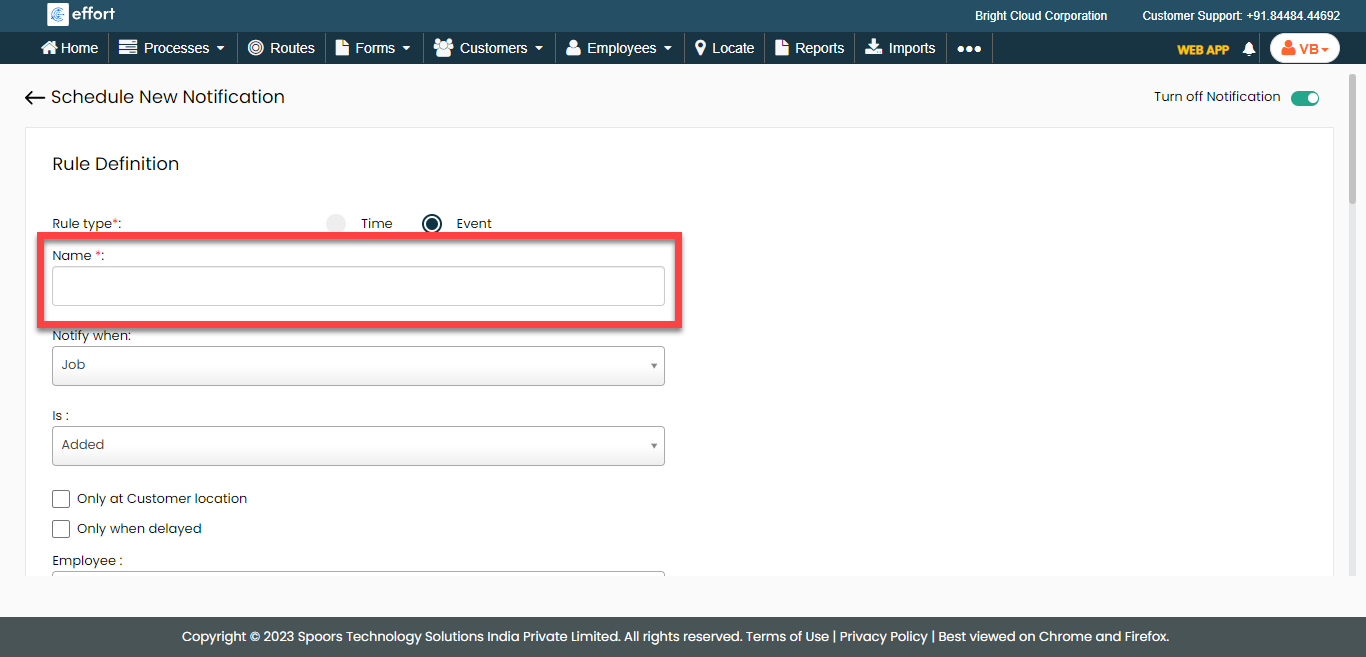
Enter a title for the notification in the Name
textbox.
-
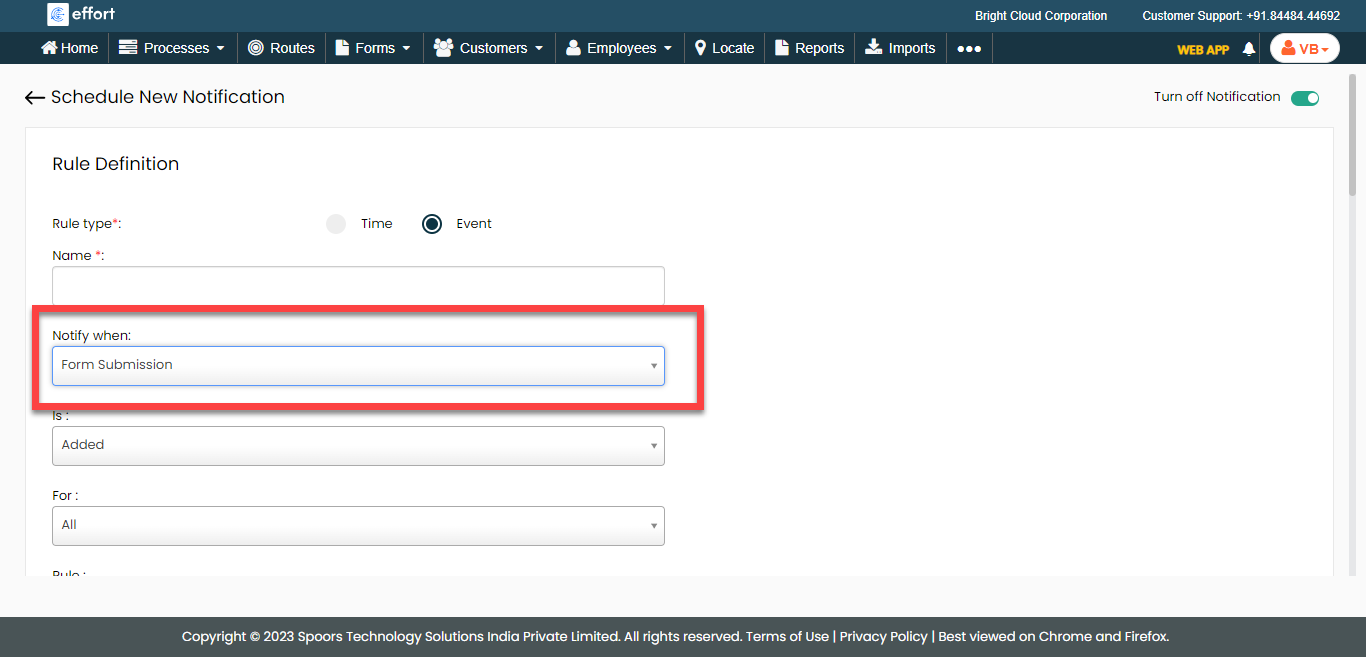
Select Notify When as Form
Submission.
-
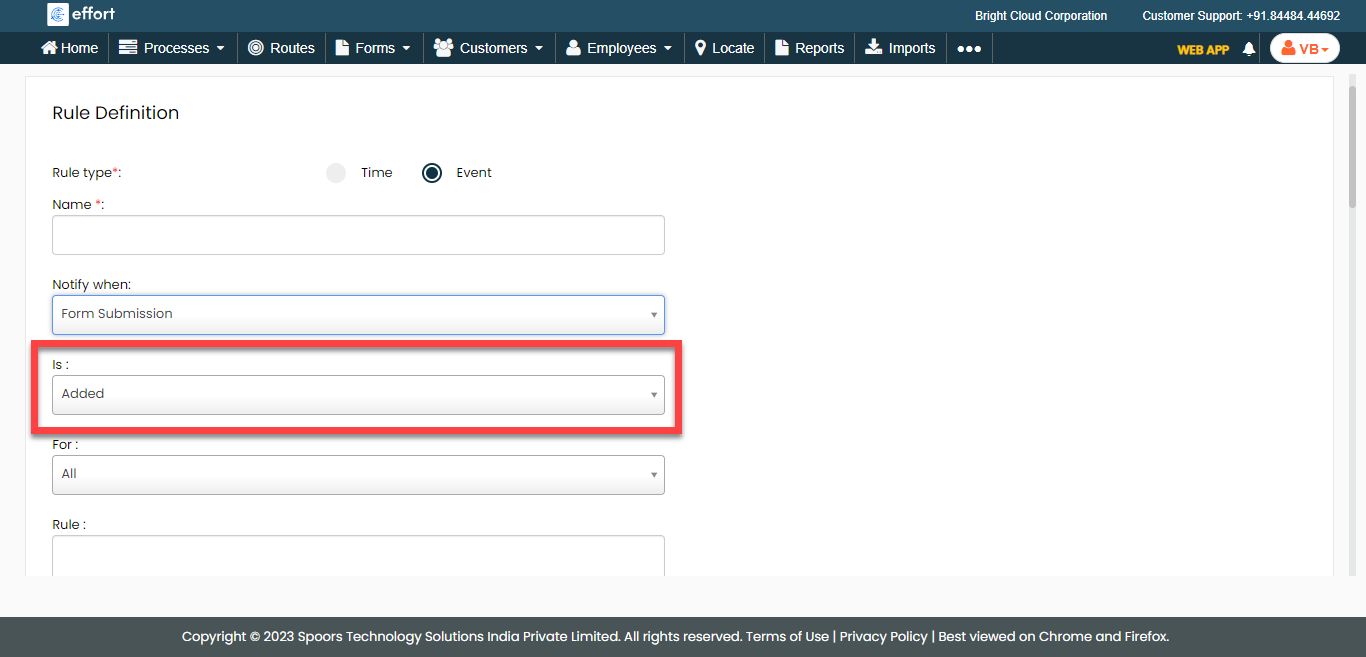
From the Is dropdown, select an event to send
notifications.
- Optional:
If you want to schedule notification for a single form, select one from the
For dropdown.

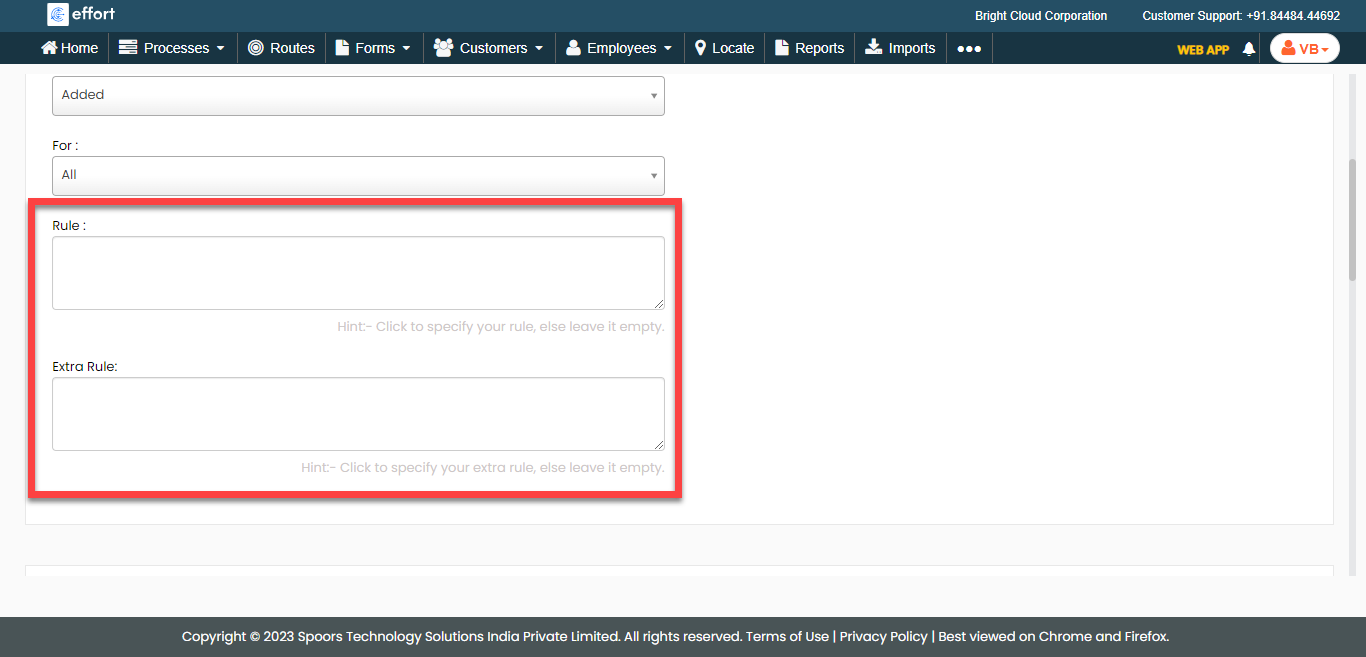
If you want to schedule notifications for all forms, you can ignore this step. - Optional:
Click the boxes below the Rule and Extra
Rule to define rules. The notifications are sent based on the
defined rules.
-
Enter the subject line for the notification in the
Subject field under the Delivery
Rule section.
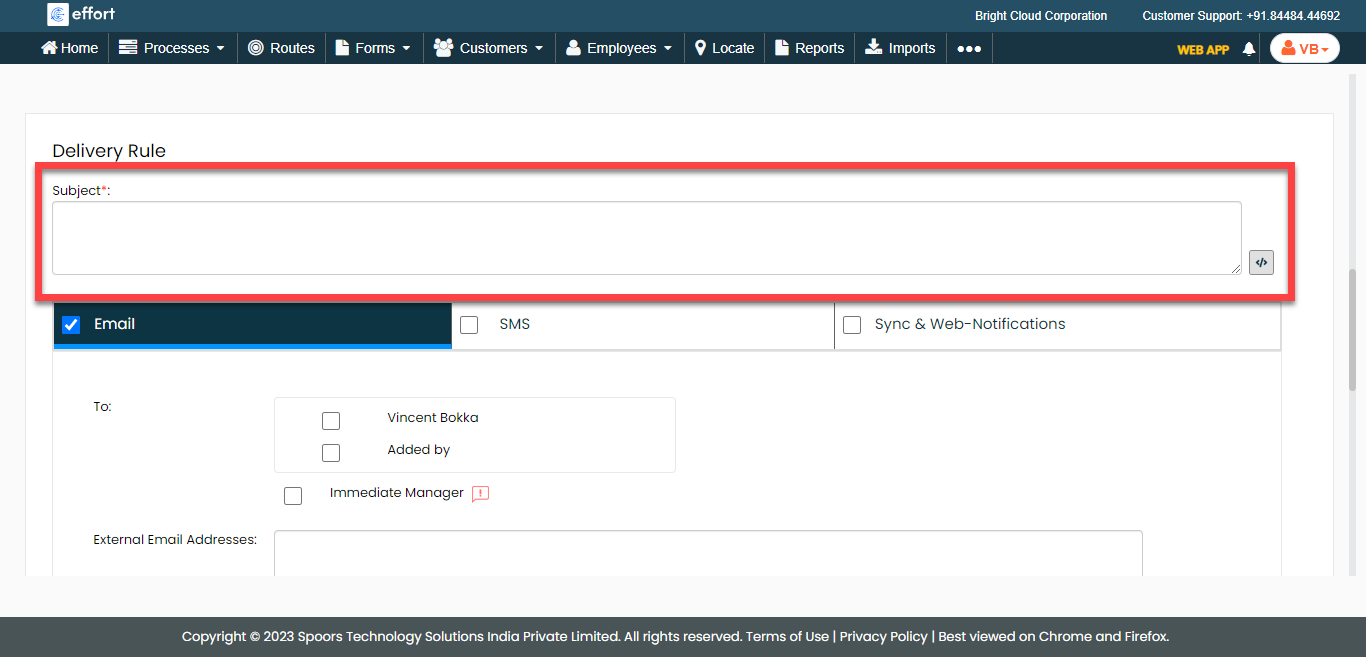
Click the pick fields icon to add the available fields in the subject line.
 -
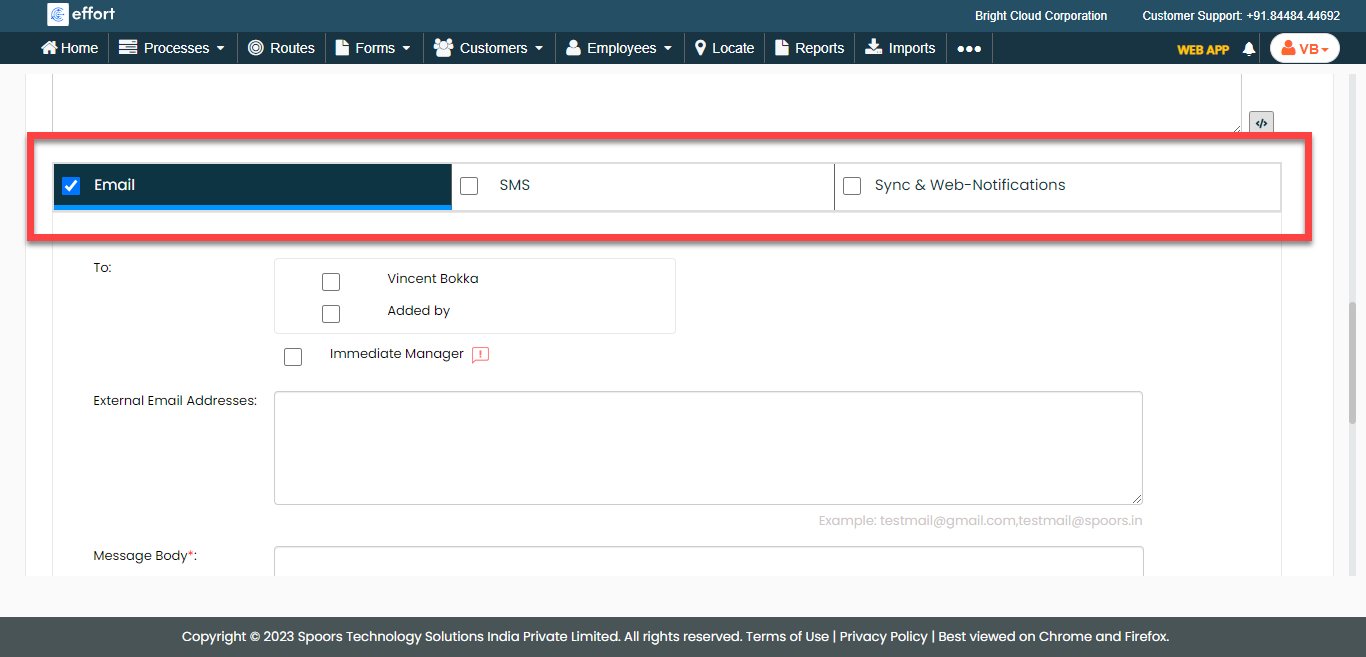
Select the notification delivery options as per your requirement.
- Email: Allows you to send notification via Email.
- SMS: Allows you to send notification via SMS.
- Sync & Web-Notifications: Allows you to send web notifications.
-
Select recipients and enter the notification content in the Message
Body field.
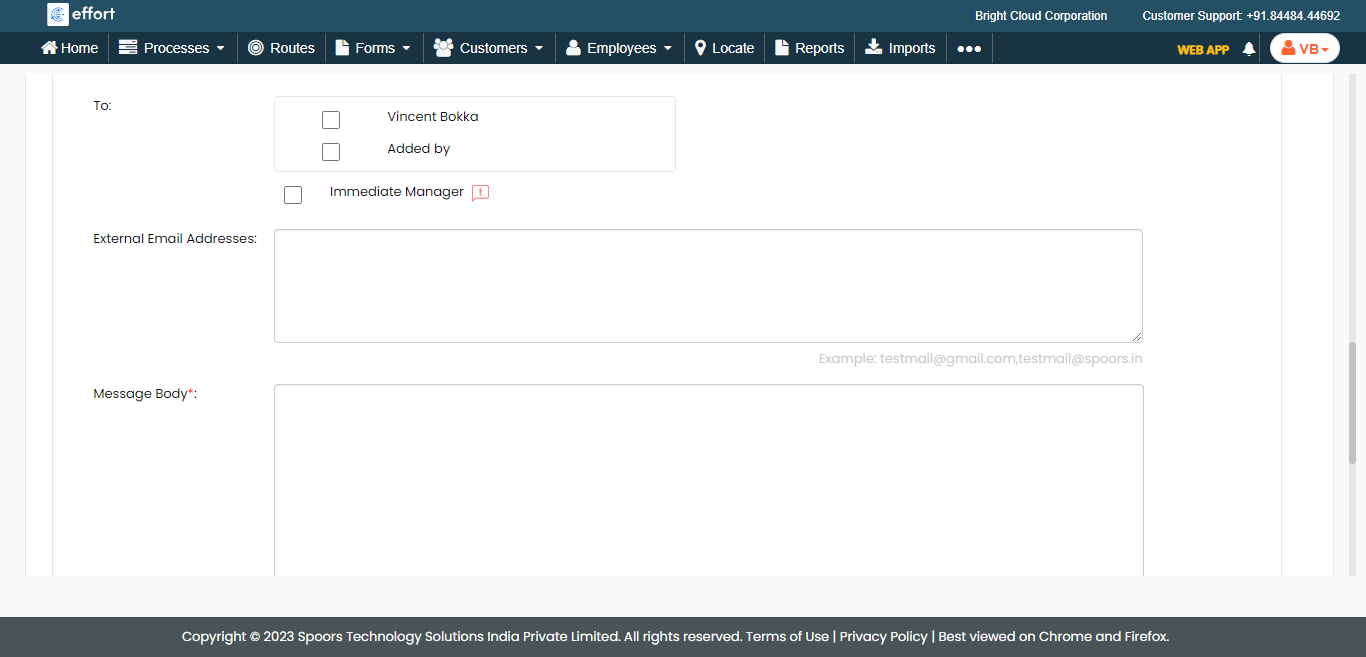
Click the pick fields icon to add the available fields in the message body. - Click Save.