

Manage Activities with Effort APIs
Introductions
Application Programming Interfaces (APIs) allow different software systems to integrate and work together seamlessly. In Effort, APIs serve as intermediaries that enable you to manage your business activities from external systems, such as third-party applications or services.
In this tutorial, we will guide you step-by-step through the process of using Effort APIs to effectively manage employee data, including creating and updating employee records and works.
The list of activities are outlined below.
Understanding Effort APIs
Effort APIs likely provide a set of endpoints (URLs) and methods (such as GET, POST, PUT, DELETE) that allow you to interact with the Effort system programmatically. These APIs typically enable actions such as creating new employee records, updating existing employee data, retrieving employee information, managing customer records and works, and so on.
For more information on endpoint URLs, request bodies, and other related data, refer to the EFFORT Web Services APIs documentation.
Authentication and Authorization
To access the Effort APIs, you need to authenticate yourself and obtain authorization. This often involves obtaining an API key or token from the Effort system, which serves as a credential to authenticate your requests. For more information, reach out to the Spoors DevOps team.
Create Employees using API
In this section, you will find the steps to create a new employee record in the Effort platform from an external system using API. Here, we are using the Postman tool as an external system to execute this task.
Prerequisites
Before you create an employee using API, ensure you have the following:
- companyId: To get the companyId, follow the steps below:
- Log in to Effort.
- Go to .
- Hover your cursor towards the gear icon located beside the
No Action Items button.

- You can find the company ID in the URL located at the bottom
of the page.

- calendarId: To get the calendarId, follow the steps below:
- Log in to Effort.
- Go to .
- You can find the Calendar ID under the ID against the
required calendar.

To create a new employee record from the Postman tool, follow the steps below:
- Go to EFFORT Web Services APIs.
-
Scroll down to the Employees section and copy the
request body from the Create Employee method.

-
Now, Open Postman and provide the following:
- Method: POST
- Endpoint URL: https://externalapis.spoors.in/effortx/service/create/employee?userName=
- Query Parameter: userName (Provided by the Spoors DevOps team).
- Authorization: Provided by the Spoors DevOps team.
- Request Body: Paste the request body that you copied earlier.

-
Modify the employee details, such as companyId, calendarId, empNo,
empFirstName, and so on.

As you can see above, here we are creating an employee named Pavan Rathode with EmpNo as 1221. -
Click Send.
Once you click Send, your request is validated. If your request is correct, you will receive the successful response as shown below:

-
Now, we will go to Effort and check if the employee record has been
created. Go to .

As you can see above, the employee record is created.
Create Work using API
In this section, you will find the steps to create a new work record in the Effort platform from an external system using API. Here, we are using the Postman tool as an external system to execute this task.
- Log in to Effort.
- Go to .
-
Click either Activity Process or
Checklist Process as per your requirement, and
then click the required process in which you want to create a work.

For this tutorial, we are creating a work for a sample process called Doctors Management. -
On the Manage Actions page, scroll down to the
Utilities section and click Generate
Sample JSON.

-
On the next page, you will find the following:
- Request URL
 Note: To get the userName for your organization, reach out to the Spoors DevOps team.
 - Request Body

- Sample Success Response

- Sample Failure Response
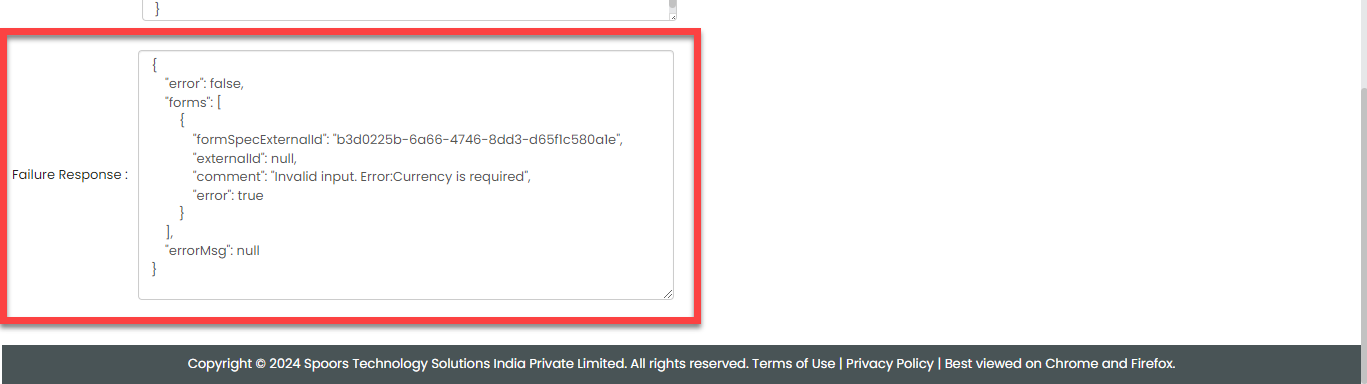
- Request URL
- Copy the Request URL and Request Body.
-
Now, open Postman and provide the following:
- Method: POST
- Endpoint URL: https://api.spoors.in/effort6/service/api/all?userName=
- Authorization: Provided by the Spoors DevOps team.
- Request Body: Paste the request body that you copied earlier.
-
Update the values in the request body, such as externalId, ff_Starts,
ff_Ends, and so on.

As you can see above, here we are creating a work against a customer named Pavan. -
Click Send.
Once you click Send, your request is validated. If your request is correct, you will receive the successful response as shown below:

-
Now, we will go to Effort and check if the new work record has been
created. Go to .

As you can see above, a new work record has been created.
Modify Work using API
In this section, you will find the steps to modify an already created work in the Effort platform from an external system using API. Here, we are using the Postman tool as an external system to execute this task.
- In the previous section, we have created a work against a process called Doctors Management. Now, we will modify the same process using API. You can use the same request body used for creating the work.
-
Update the values in the request body as per your requirement.

As you can see above, we have changed the customer name. Previously, it was Pavan; now it is Rohit.
-
Click Send.
Once you click Send, your request is validated. If your request is correct, you will receive the successful response as shown below:
-
Now, we will go to Effort and check if the work record has been modified.
Go to .

As you can see above, the work record has been modified.
Complete Activity using API
In this section, you will find the steps to complete an activity of an already created work in the Effort platform from an external system using API. Here, we are using the Postman tool as an external system to execute this task.
Prerequisites
Before you begin, ensure you have the following:
- actionSpecId: To get the actionSpecId, follow the steps below:
- Log in to Effort.
- Go to .
- On the Modify Activity Process page, hover
your cursor towards the activity for which you want to know the ID,
right-click, and then click Inspect.
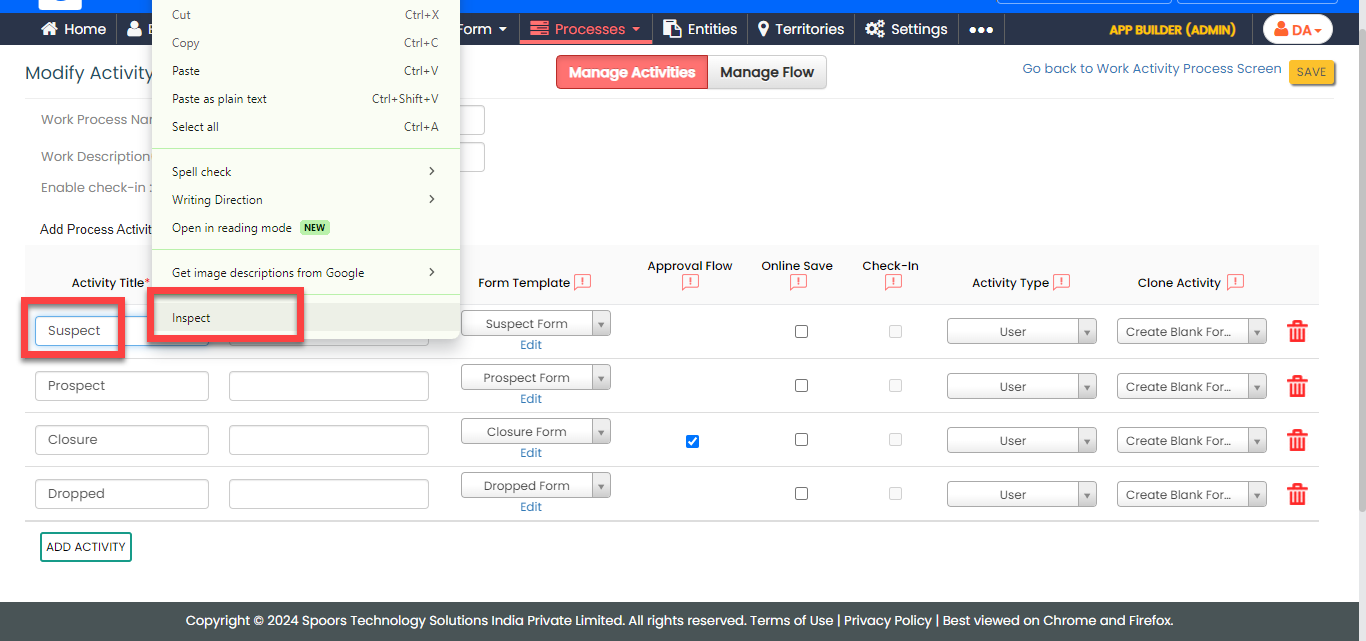
- Copy the value against the workActionSpecId.

- workSpecId: To get the workSpecId, follow the steps below:
- Log in to Effort.
- Go to .
- On the Process Actions page, copy the
workSpecId from the URL.

- workId: To get the workId, follow the steps below:
- Log in to Effort.
- Go to .
- Under the Actions column, click the eye icon
against the required work to view the work details.

- Copy the work ID.

To complete a work activity from the Postman tool, follow the steps below:
-
Open Postman and provide the following:
- Method: POST
- Endpoint URL: https://externalapis.spoors.in/effortx/service/work/action/completion?userName=SalesUsecasedemo
- Query Parameter: userName (Provided by the Spoors DevOps team).
- Authorization: Provided by the Spoors DevOps team.
- Request Body: Paste the following request
body.
[
    {
        "actionSpecId": 52445,
        "workSpecId": 13592,
        "workId": "35364178",
        "form": [
            {
                "ff_Remarks": "None",
                "ff_Lead_Classification": "Hot"
            }
        ]
    }
]
Note: In the above request body, the form array contains the form fields to be filled as part of the activity. You can replace these fields with your form fields. To get the form JSON configured against the activity, go to .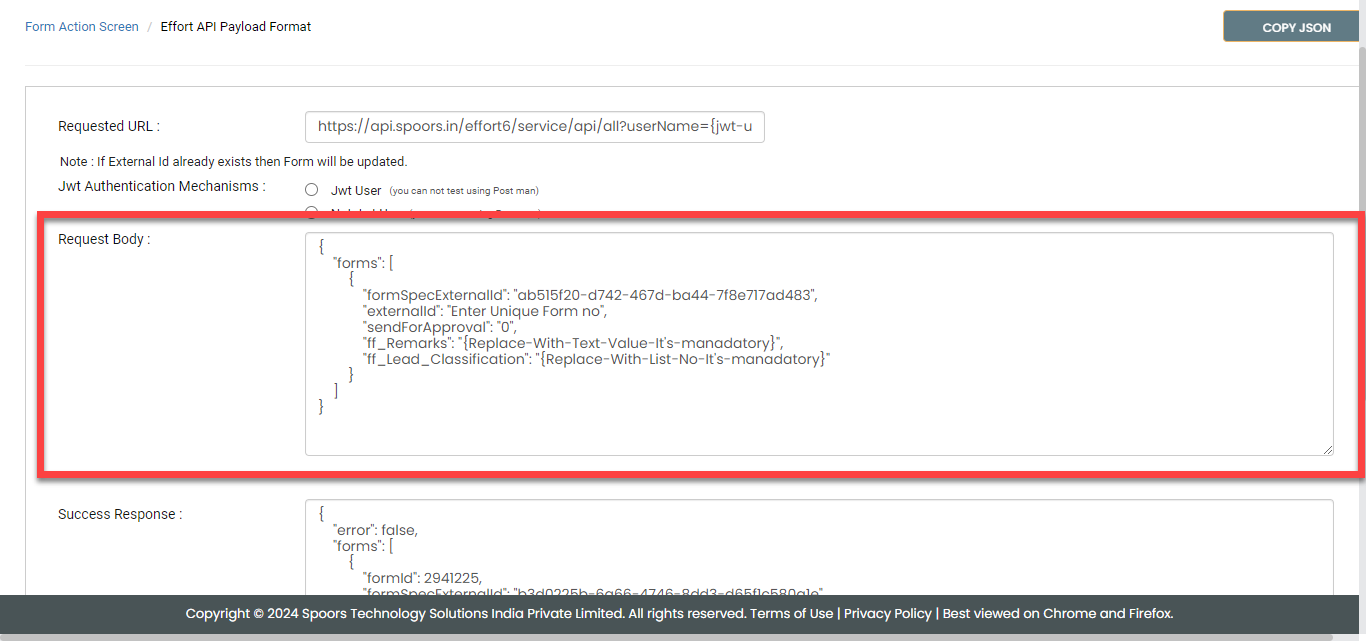
-
Update the values in the request body as per your requirement.

-
Click Send.
Once you click Send, your request is validated. If your request is correct, you will receive the successful response as shown below:

-
Now, go to Effort and check if the activity has been completed. Go to .

As you can see above, the work activity has been completed.