

Dynamic Import of the Customer Data
Pre-Requisites
- To perform the dynamic import of the customer data with any template, you must enable Enable Dynamic Customer Import setting. To enable this, go to . Enable the setting and click Apply.
- Create an Excel file with the customer's details.
Steps
To perform a dynamic upload of the customer data with any template, follow the steps below:
-
Go to .
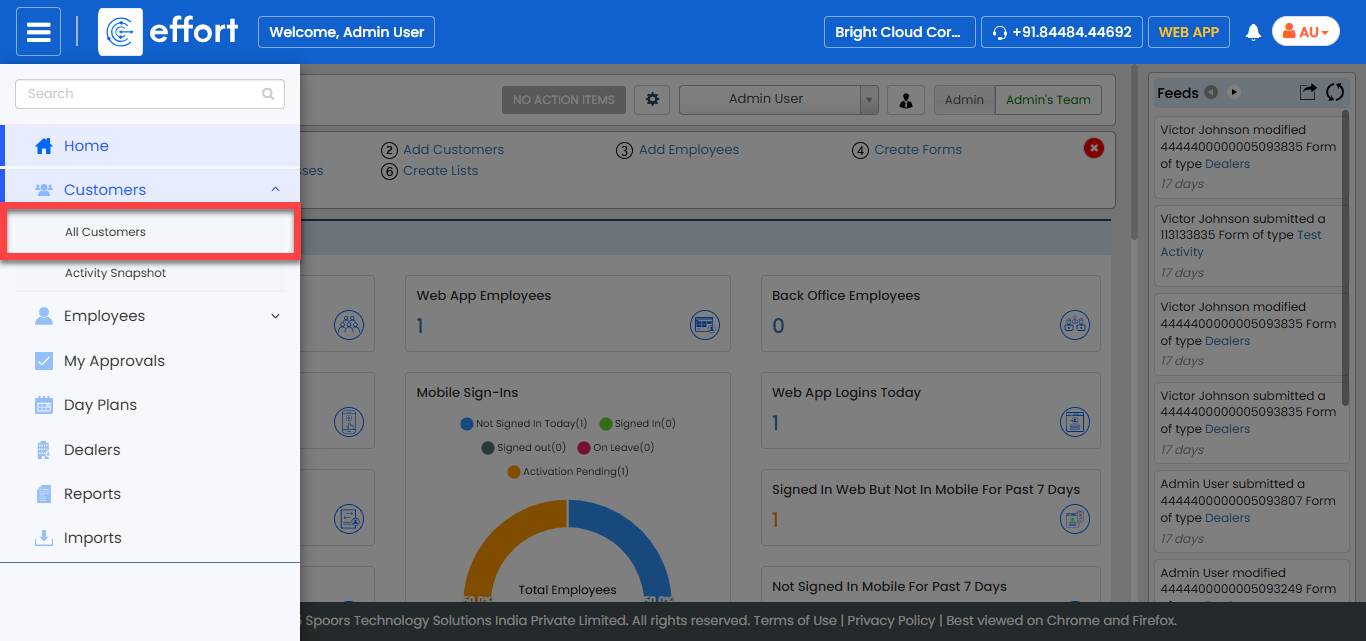
The Customers page appears.
-
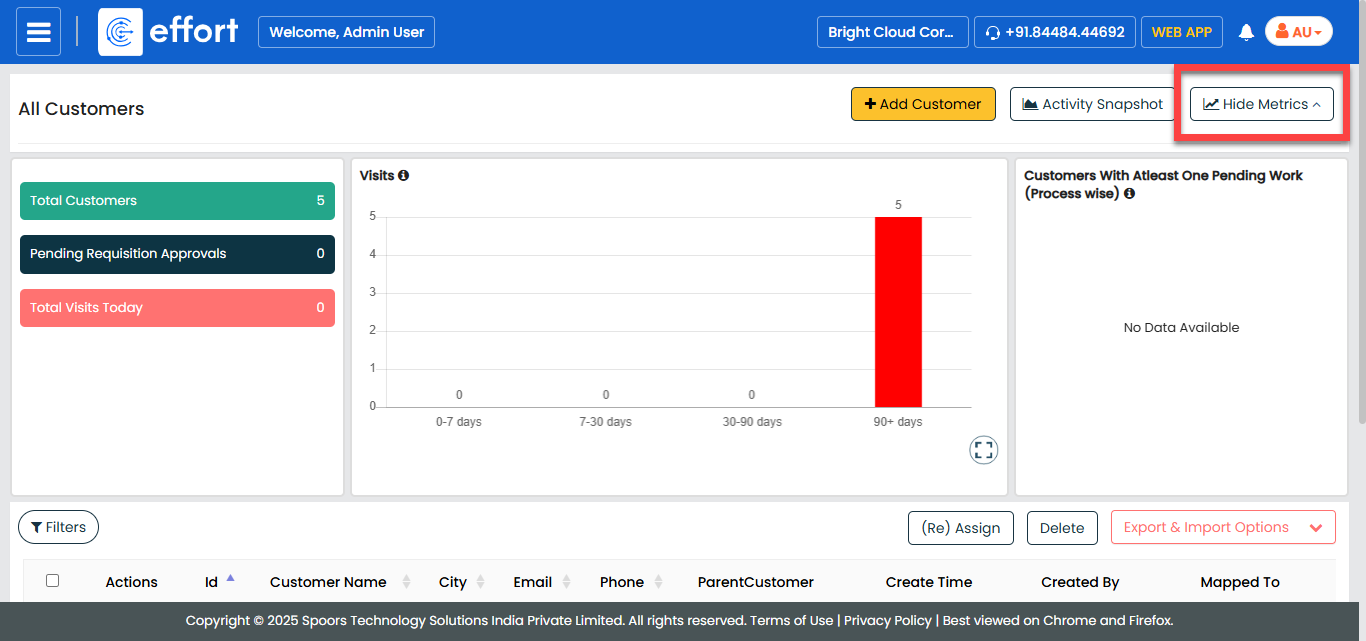
Click the Hide Metrics to view all the customers.
-
Click the Export & Import Options menu and click the
Import option.

The Smart-Import Customers page appears.
-
On the Import Customers pop-up window, click
Dynamic Bulk Import.

-
For Step 1, do the following:
-
Click Choose File.
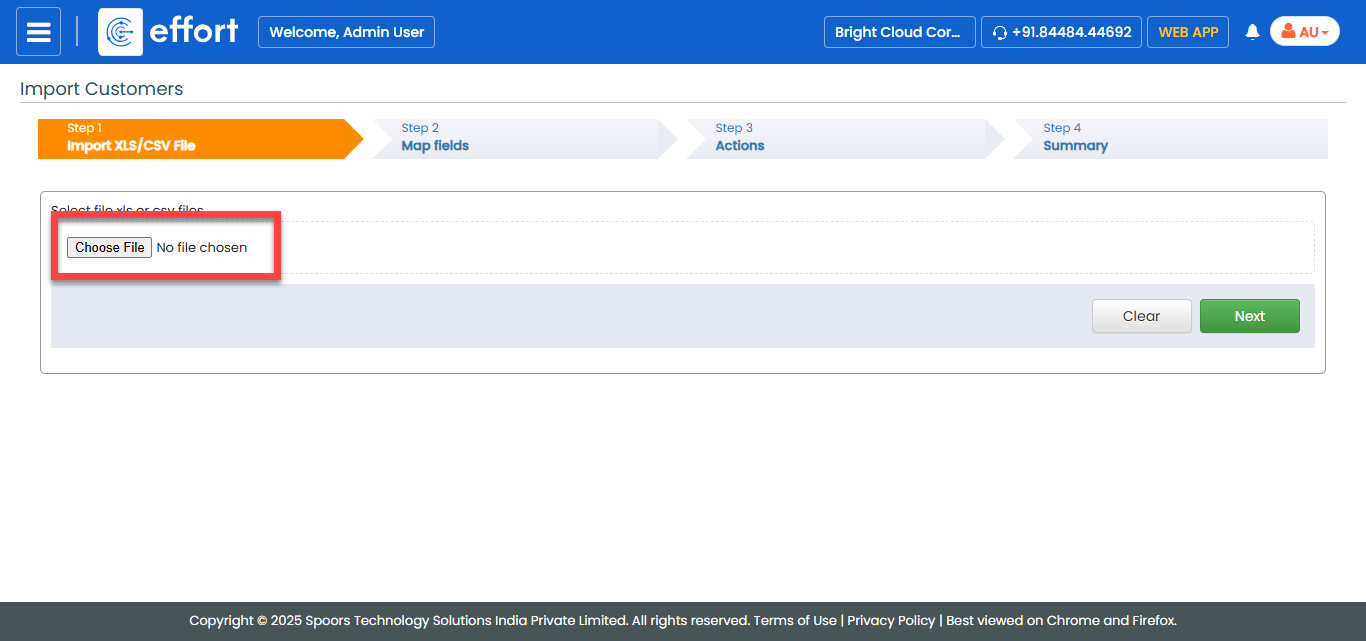
- Select the Excel sheet you created with the customer's details.
- Click Next.
-
Click Choose File.
-
For Step 2, do the following:
-
Under the Map to Field column, map the Excel
columns to the respective customer fields.

- Optional:
Enable the is Search Key radio button to enable search using the
selected field.

- Click Next.
-
Under the Map to Field column, map the Excel
columns to the respective customer fields.
-
For step 3, configure the Handling duplicate records and
click Next.
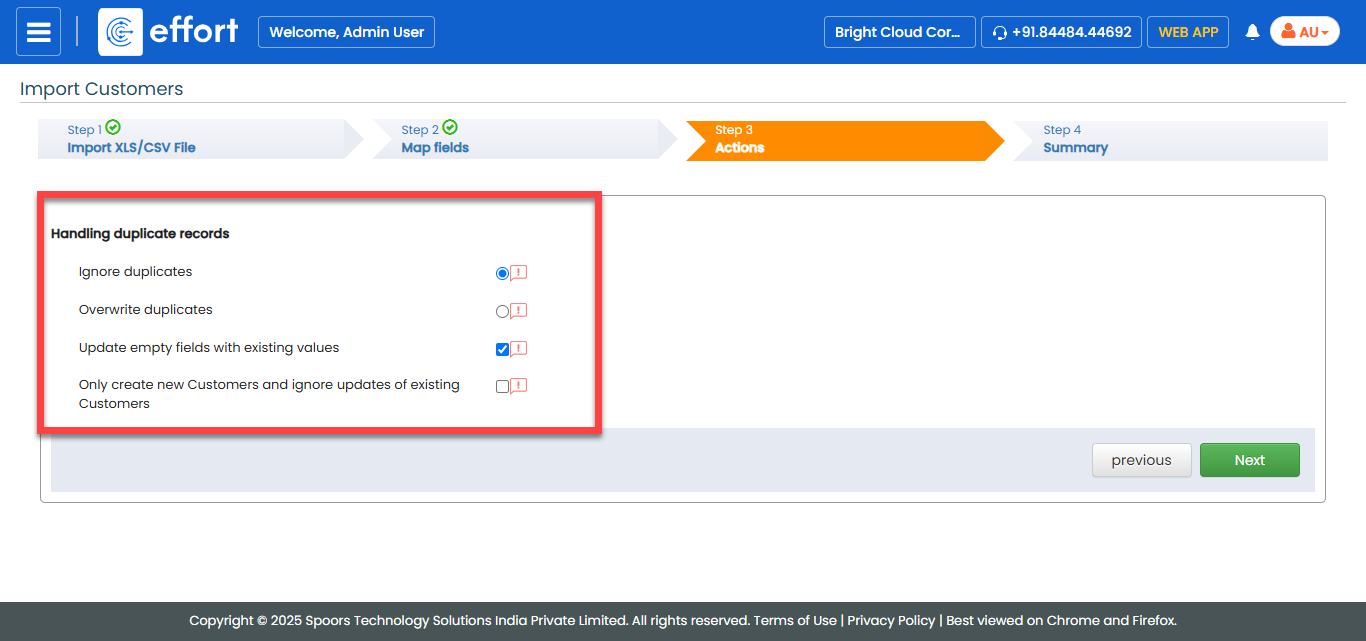
The status of the import is displayed in step 4.