Generate a Customers Master Audit Report
To generate a customers master audit report, follow the steps below.
- Go to .
-
Click Tools and Audit in the user menu located on the
top right corner under the employee name.

The Tools and Audit page appears.
-
Under the Tools and Audit section, click the
Customers Master Audit link or icon.

The Customers Master Audit page appears.
-
From the Customer dropdown, select a customer if you
want to generate report of a specific customer.

- Optional:
From the Modified By dropdown, select an employee if you
want to generate report of modifications done by a specific employee.

- Optional:
Select From and To dates if you
want to generate report of modifications done within the defined duration.

-
Click Load.
The Customers Master Audit report is displayed in a new tab.

-
Click the view
 icon
under the Action column to view the audit details.
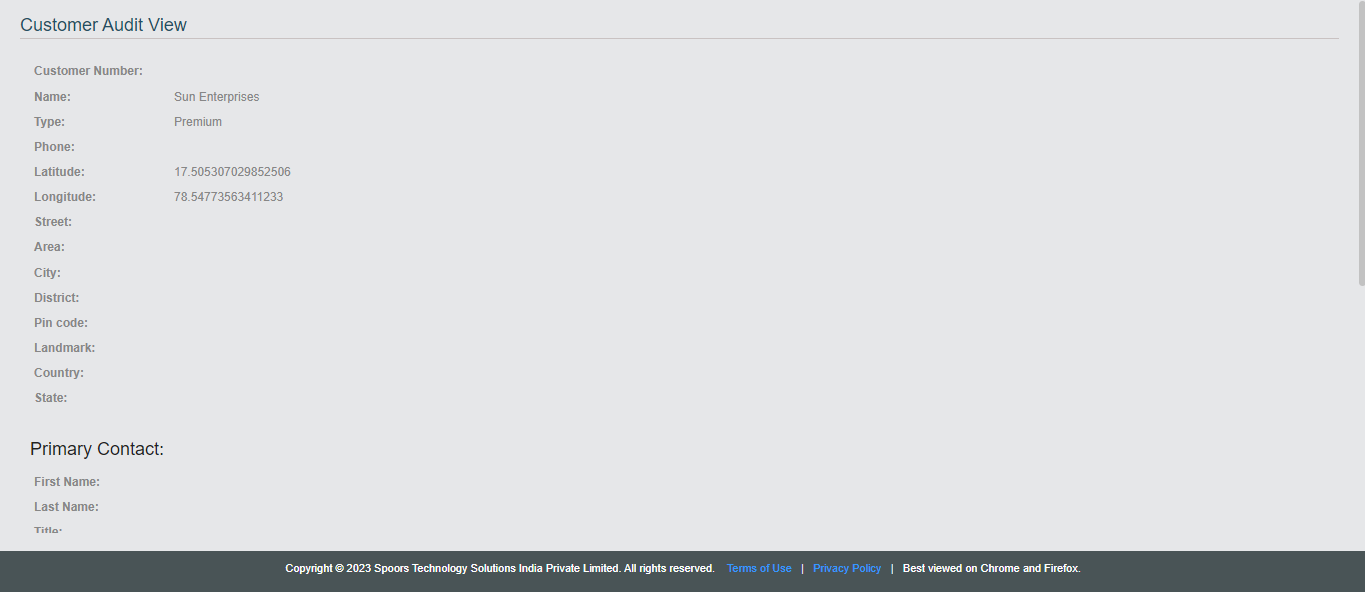
The Customer Audit View page appears with all the customer details.
icon
under the Action column to view the audit details.
The Customer Audit View page appears with all the customer details.