

Define Conditions
| Property | Description |
|---|---|
| Field Dependency Based on Values in Other Fields |
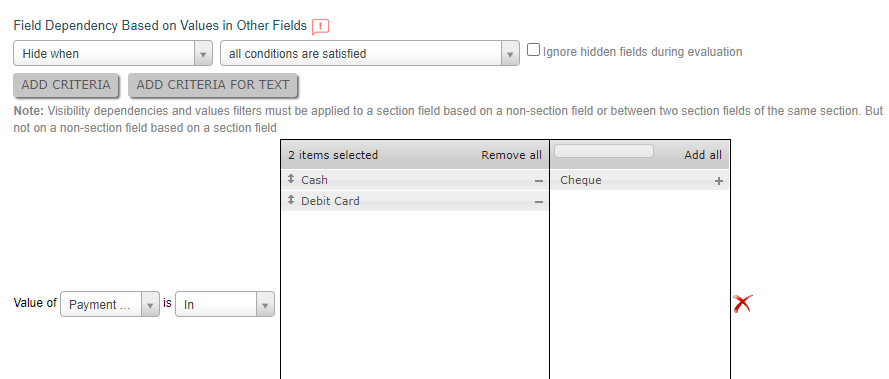
This property allows you to make fields mandatory/hide/disable based on the values entered in other fields. The field will be automatically hidden/disabled/ become mandatory if the field value satisfies the defined criteria. For example, if you want to hide the Cheque Number field when the
users select Payment Mode as Cash, then you need to define the
criteria like below:
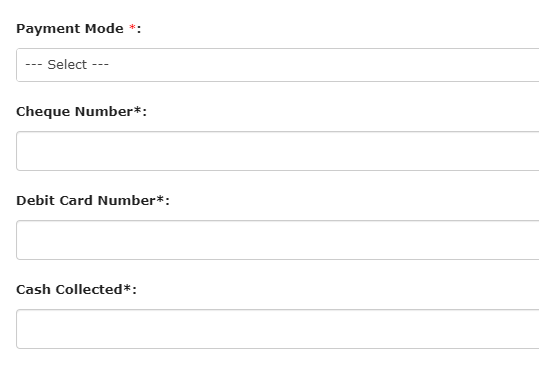
 All fields will be visible when you open the form.
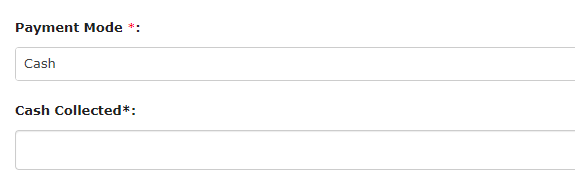
 The fields related to debit card and cheque will be hidden when you select
Payment Mode as Cash.
 Similarly, you can make mandatory or disable fields based on values in the current/other fields. |
| Filter Based on Values in Other Fields |
Note: This property is applicable only to the Custom Entity, Form, Pick List,
and Multi Pick List data types.
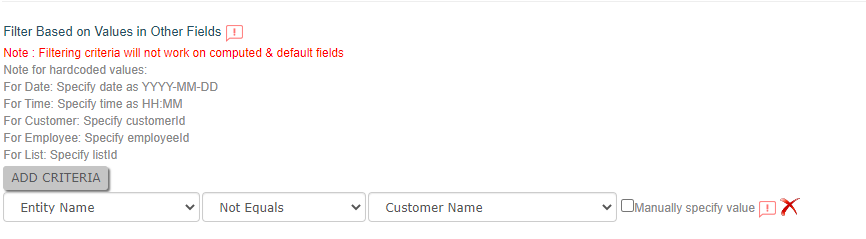
This property helps you to filter the entities/form submissions based on
values in the other form fields. Look at the below image for a sample
configuration:
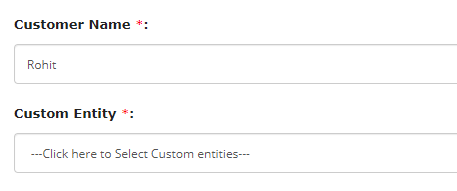
 As shown in the below image, the entities other than Rohit will be available
to select from the Custom Entity dropdown. This configuration works
similarly for Form, Pick List, and Multi Pick List data types.
 |
| Filter Based on Value in Customer Type Field |
Note: This property is applicable only to the Customer and Multi Pick
Customer data types and functional only when the Customer
Type data type is used in the form.
This property helps you to apply filters based on the Customer Type. The
customers from the selected Customer Type will only appear. Look at the
below image for a sample configuration:
 As shown in the below image, the customers in the Premium type will be
available to select from the Customer dropdown.
 Check out the Add Customer Type page to create a customer type. |
| Filter Based on Value in Territory Field |
Note: This property is applicable only to the Employee data type and
functional only when the Territory data type is used in the
form.
This property helps you to apply filters based on the Territory. Only the
employees from the selected Territory will appear. Look at the below image
for a sample configuration:
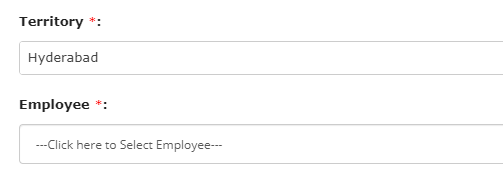
 As shown in the below image, the employees in the Hyderabad territory will be
available to select from the Employee dropdown.
 Check out the Create a Territory page to create a territory. |
| Filter Based on Value in List Field |
Note: This property is applicable only to the Employee data type.
This property helps you to apply filters based on a List field used in the form. Only employees form the selected list field will appear. |