

Data Types - Media
| Field | Description |
|---|---|
| Audio |
The Audio data type allows you to submit an audio input, either by recording
or by uploading an audio file that's stored in their device (computer,
phone, or tablet). From the Web App, you can only upload an audio file. The
below image shows how an Audio field appears on the form when you access it
from the Web App:
 The below image shows how an Audio field appears on the form when you access
it from the Mobile App:
 |
| Document |
The Document data type allows you to upload a file while submitting the form.
You can also enforce size restrictions. The supported formats are pdf, doc,
xls, etc. The below image shows how a Document field appears on the form
when you access it from the Web App:
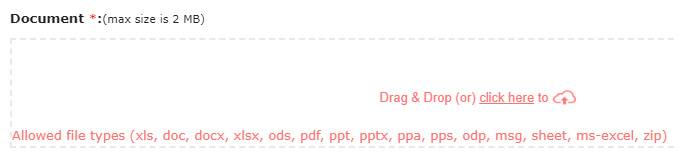 The below image shows how a Document field appears on the form when you
access it from the Mobile App:
 |
| Image |
The Image data type allows you to capture or upload an image while submitting
the form. Additionally, you can enable compression and enforce size
restrictions. The below image shows how an Image field appears on the form
when you access it from the Web App:
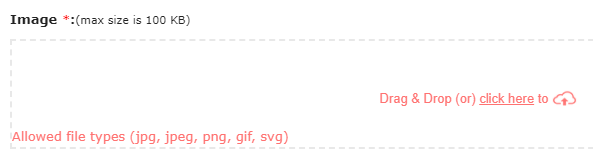 The below image shows how an Image field appears on the form when you access
it from the Mobile App:
 |
| Multi Document |
The Multi Document data type allows you to upload multiple documents in one
field. You can use this data type in your form to reduce the number of
Document fields and save the user's form submission time. The users can
upload a maximum of up to 5 documents in this field. The supported formats
are pdf, doc, xls, etc. The below image shows how a Multi Document field
appears on the form when you access it from the Web App:
 Note: This data type works only when you access a form through the Web
App.
|
| Multi Image |
The Multi Image data type allows you to upload multiple images in one field.
You can use this data type in your form to reduce the number of Image fields
and save the user's form submission time. The users can upload a maximum of
up to 5 images in this field. The supported formats are jpg, jpeg, png, gif,
and svg. The below image shows how a Multi Image field appears on the form
when you access it from the Web App:
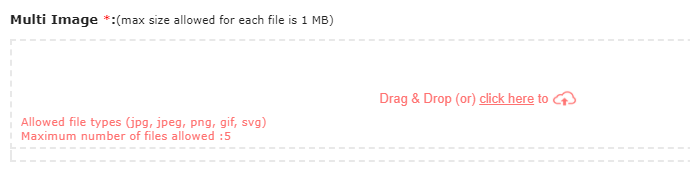 The below image shows how to capture multiple images when you access this
field from the Mobile App:
 |
| Signature |
The Signature data type allows you to draw an electronic signature while
submitting the form. You can capture the photo and define terms and
conditions to which the user must accept while drawing a signature. To
capture the photo, go to Configurator->Settings->Global Mobile
Settings->Form Settings. The below image shows how a Signature field appears
on the form when you access it from the Web App:
 The below image shows how a Signature field appears on the form when you
access it from the Mobile App:
 |
| Video |
The Video data type allows you to record or upload a video while submitting a
form. From the Web App, you can only upload a video file. The below image
shows how a Video field appears on the form when you access it from the Web
App:
 The below image shows how a Video field appears on the form when you access
it from the Mobile App:
 |