

Manage Validations
| Property | Description |
|---|---|
| Validate Based on Values in Other Fields |
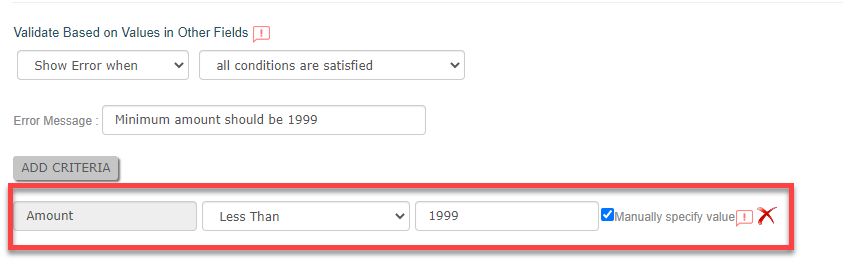
This property allows you to set an error/warning message based on current/other field values that are having the same data type. It will throw the configured error/warning message when the field value satisfies the configured criteria. The users can be unable to submit the form if you set an error message. The users can submit the form forcefully if you configure a warning message. Example-1: If you want to display an error message when the
value entered below 1999, then you need to define the criteria like
below:
 The below images shows how it works when you submit a form through the Web
App:
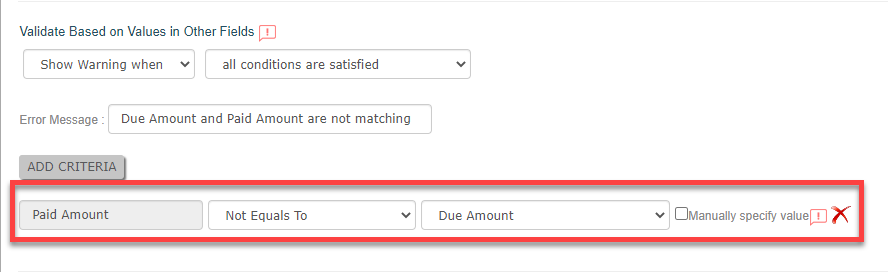
 Example-2: There are two fields in a collection form, such as
Due Amount and Paid Amount. If you want to display a warning message if
these are not equal, then you need to define the criteria like below:
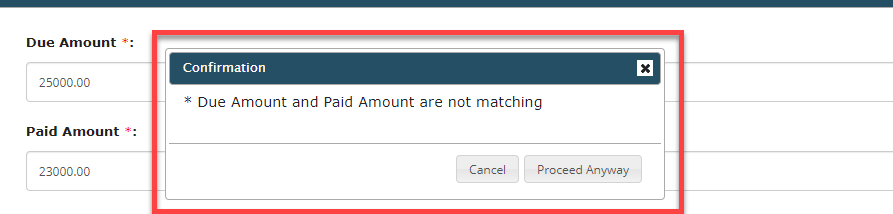
 The below image shows how it works when you submit a form through the Web
App:
 |
| Highlight Field Background Based on |
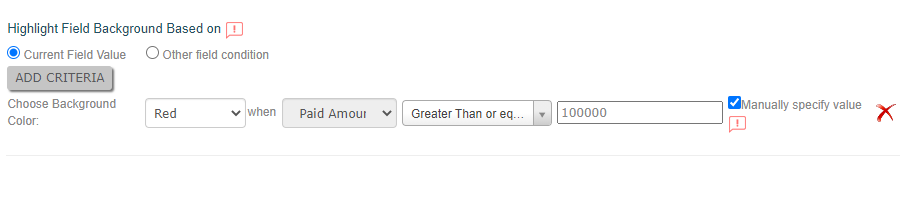
This property allows you to highlight the background of the field based on the values entered in the current/other fields. The background of the field gets highlighted in the selected color if the value satisfies the defined criteria. For example, if you want to highlight the field background in red color when
the value above 100000, then you need to define the criteria like
below:
 The below images shows how it works when you submit a form through the Web
App:
 |
| Validate the Input using Regular Expressions |
Note: This property is applicable only to the Text and Barcode/QR code
data types.
This property allows you to define validation rules in the Regular Expression field. This is used to perform validation checks (format, length, etc.) on the value that the user enters in this field. If the user enters a value that does not pass these checks, it will throw the configured Error Message. |
| OTP Based Verification |
Note: This property is applicable only to the Phone data type.
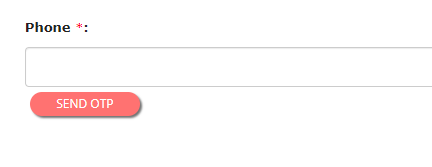
This property allows you to verify the mobile number of users by sending
verification code (OTP) during form submission. You need to configure OTP
length and validity period. To receive an OTP, the users must enter the
phone number along with the country code. For example, the Indian number
+9176xxxxxxxx must be entered as 9176xxxxxxxx. The below image shows how it
looks when you access a form through the Web App.
 |
| Filter Customers Based on dependent fields below |
Note: This property is applicable only to the Customer data
type.
It enables you to filter customers based on their current or other field values. Whenever the field value fails to meet the specified criteria, an error or warning message, as configured, will be triggered. To search customer data online, you can enable the "Search Customer Data Online" checkbox. r : For instance, if you wish to filter customers based on
their names, you must define the criteria as follows:
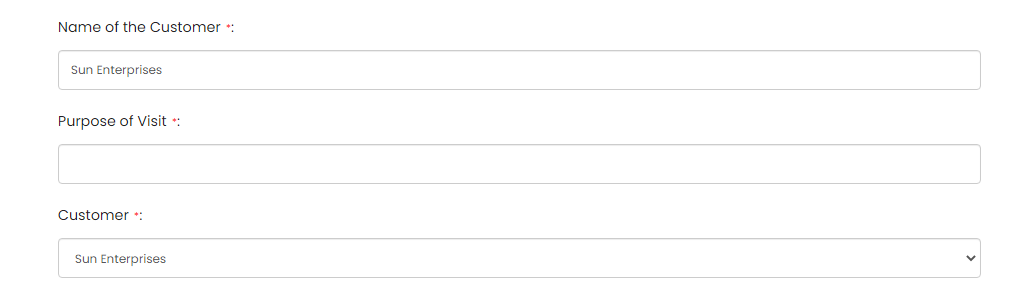
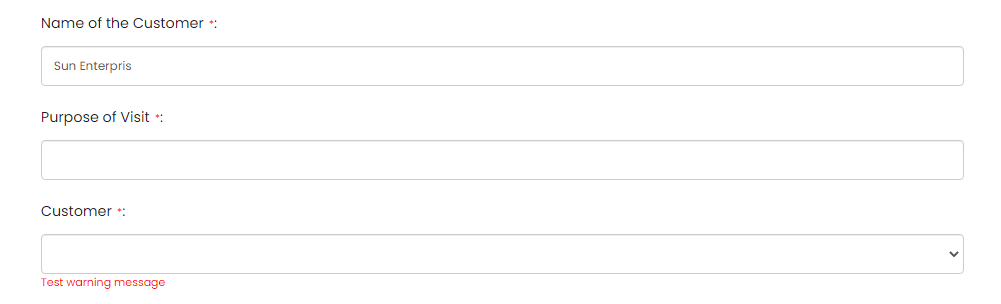
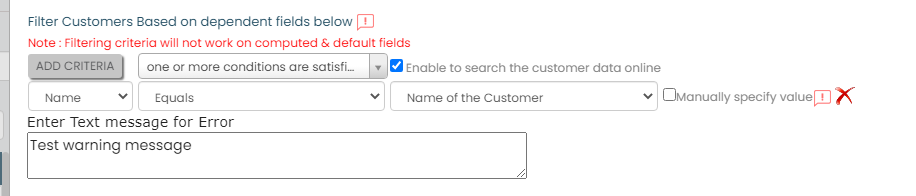 The customer dropdown will display customers whose names match the input entered in the Name of the Customer form field. In case the condition is not met, the configured error message will be displayed. The following images illustrate its functionality when submitting a form
through the Web App and when the defined condition is not satisfied:
  |