Data Types - Others
| Field | Description |
|---|---|
| AutoGenerate |
The AutoGenerate data type helps you generate a sequential code post the form
submission with a custom-defined prefix. The below image shows how an
AutoGenerate field appears on the form when you access it from the Web App.
It looks like a grey box and doesn't allow entering inputs.
 This field will not be visible in the mobile app. The below is how a
sequential code will be generated in this field post the form
submission.
 |
| Datespan |
The Datespan data type helps you to calculate the duration between two-date
fields. For this, you need two Date fields in the form and enter the formula
in the grey box provided below the Computed/Default field. The below image
shows how a Datespan field works while submitting the form.
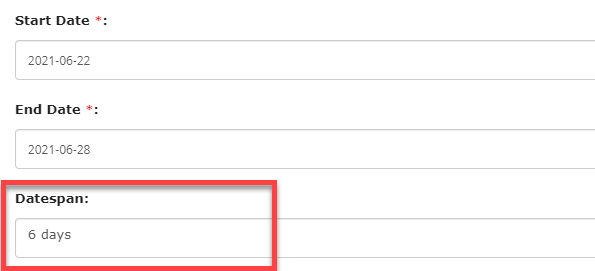 As shown in the above image, the value in the datespan field gets calculated automatically based on the Start Date and End Date fields. |
| DateTimespan |
The DateTimespan data type helps you to calculate the duration along with
minutes between two-DateTime fields. For this, you need two DateTime fields
in the form and enter the formula in the grey box provided below the
Computed/Default field. The below image shows how a DateTimespan field works
while submitting the form.
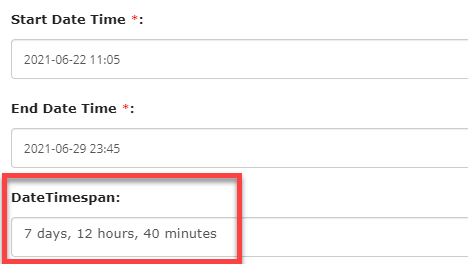 As shown in the above image, the value in the DateTimeSpan field gets calculated automatically based on the Start Date Time and End Date Time fields. |
| Label |
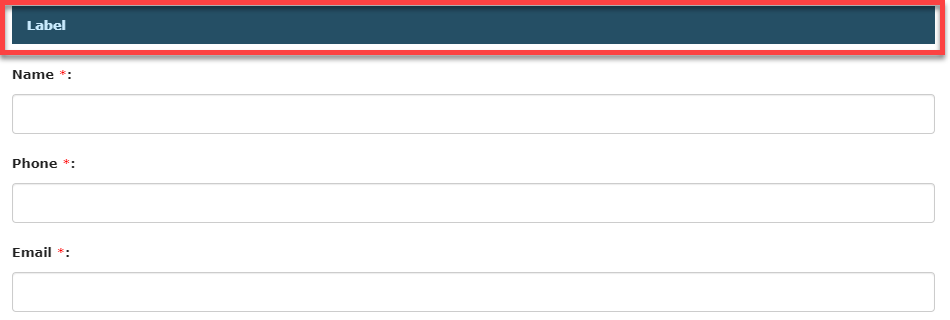
The Label data type looks like a header and enables you to represent the
purpose or objective of the fields which you add below this data type. Use
this data type to categorize the relevant fields in the form. The below
image shows how a Label field appears on the form when you access it from
the Web App.
 |
| Number To Word |
Convert Number or Currency values into words. The number you enter in the
Number/Currency field that is used in the form will be automatically
converted into words. For this, you need to configure a field in the
Formulae field that is given in the Properties section. It automatically
converts the value entered in the configure field into words. The below
image shows how a Number To Word field works while submitting the
form.
 As shown in the above image, the value in the Number field gets populated automatically in words. |
| OCR - DigitalOrAnalog Meter |
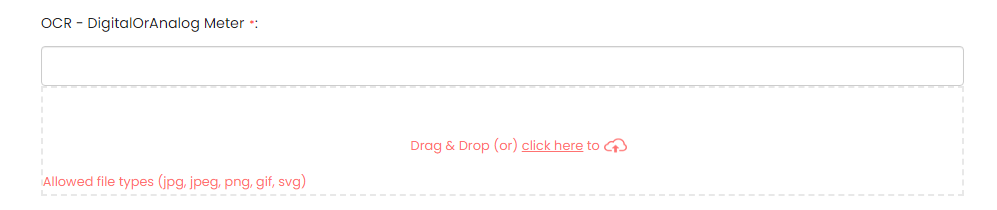
The OCR - DigitalOrAnalog Meter data type enables the extraction of numerical
data shown on digital or analog meters using OCR technology. This feature
proves valuable in situations where manual meter reading is time-consuming
or prone to errors. When accessing this field through the Web App, simply
drag and drop or upload an image of the digital or analog meter. The meter
reading will be automatically populated in the field.
 On the Mobile App, tap the scanner icon to scan the digital or analog meter
reading, and the field will be automatically filled with the meter
reading.
 |
| OCR - Number Plate |
The OCR - Number Plate data type enables you to recognize and extract
alphanumeric characters from vehicle number plates. This data type allows
for automated reading and interpretation of number plates, which can be
useful in various applications such as traffic monitoring, toll collection,
parking management, and law enforcement. When accessing this field through
the Web App, simply drag and drop or upload an image of the number plate.
The value will be automatically populated in the field.
 On the Mobile App, tap the scanner icon to scan the number plate, and the
field will be automatically filled with the value.
 |
| Timespan |
The Timespan data type helps you to calculate the time between two time
fields. For this, you need two-time fields in the form and enter the formula
in the grey box provided below the Computed/Default field. The below image
shows how a Timespan field works while submitting the form.
 As shown in the above image, the value in the Timespan field gets calculated automatically based on the Start Time and End Time fields. |
| Repeatable Section |
The Repeatable Section data type allows you to arrange few form fields in the
form as a section and thereby allows the users to duplicate a row of fields
and enter the desired number of entries based on restrictions set in min and
max no of entries. The below image shows how a Repeatable Section field
appears on the form when you access it from the Web App.
 You need to click on the plus icon to make more entries. The below image
shows how it works.
 |
| Fields Group |
The Fields Group data type allows you to arrange some fields in the form as a
group, and thereby provide the users a visual grouping of fields. The below
image shows how a Fields Group field appears on the form when you access it
from the Web App.
 |
| Audio (Read Only) |
The Audio (Read Only) data type allows you to upload an audio file that you
want the users to play while submitting a form. The users can play/download
the audio file that you upload in this field. The below image shows how an
Audio (Read Only) field appears on the form when you access it from the Web
App.
 |
| Document (Read Only) |
The Document (Read Only) data type allows you to upload a document that you
want the users to download while submitting a form. The users can download
the document that you upload in this field. The below image shows how a
Document (Read Only) field appears on the form when you access it from the
Web App.
 |
| Image (Read Only) |
The Image (Read Only) data type allows you to upload an image that you want
the users to view/download while submitting a form. The users can
view/download the image that you upload in this field. The below image shows
how an Image (Read Only) field appears on the form when you access it from
the Web App.
 |
| URL (Read Only) |
The URL (Read Only) data type allows you to display and access web addresses
or URLs when submitting a form. It enables the users to view URLs as
clickable links, enabling them to click on the link and navigate to the
corresponding webpage or resource. This is useful when you want users to
refer to other web pages while filling out a form. When users move their
cursor over the link icon, they can see the URL. The below image shows how a
URL (Read Only) field appears on the form when you access it from both the
Web and Mobile apps.
 |
| Video (Read Only) |
The Video (Read Only) data type allows you to upload a video that you want
the users to play/download while submitting a form. The users can
play/download the video that you upload in this field. The below image shows
how a Video (Read Only) field appears on the form when you access it from
the Web App.
 |
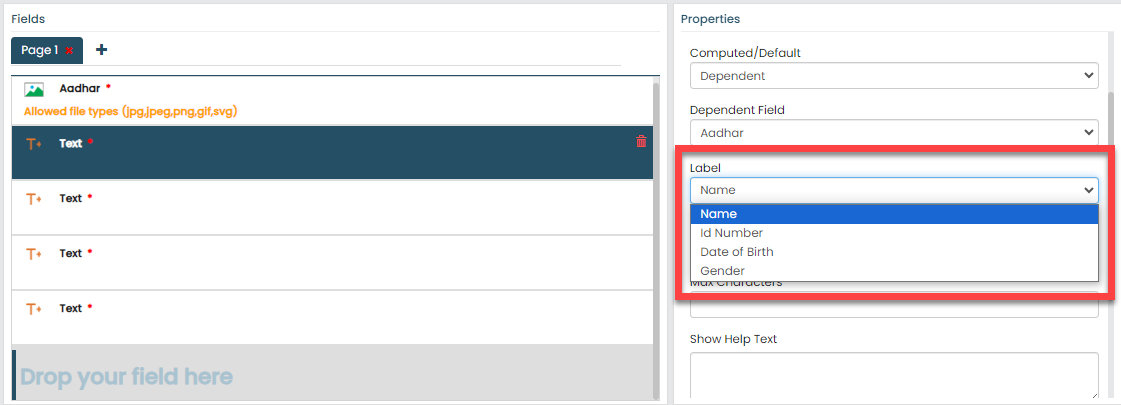
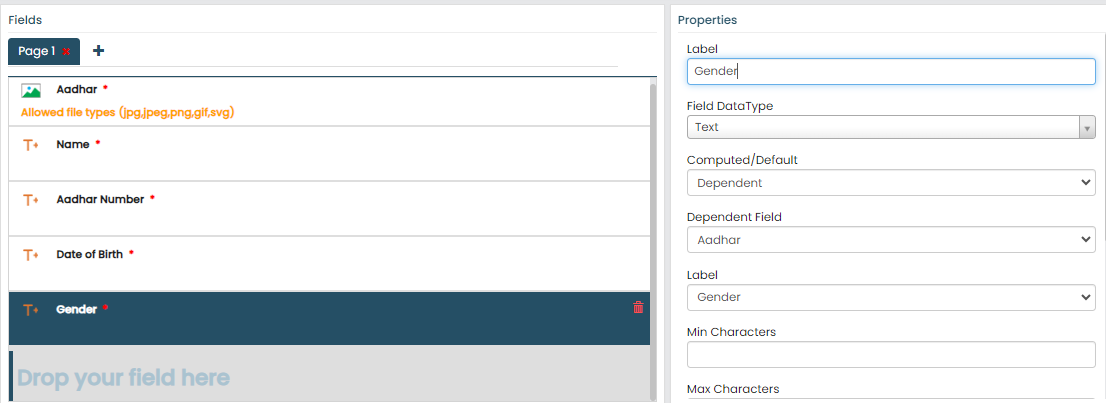
| Aadhar |
The Aadhar data type is an image field designed to capture or upload the
Aadhar card of an individual. When accessing this field through the Web App,
you can upload the Aadhaar card image by either dragging and dropping it or
using the upload feature. The image below illustrates how the Aadhaar field
appears on the form when accessed from the Web App.
 Note: The accepted file formats include jpg, jpeg, png, gif, and svg.
The maximum file size permitted is 100KB. To configure an Aadhar card field, follow the steps below:
|
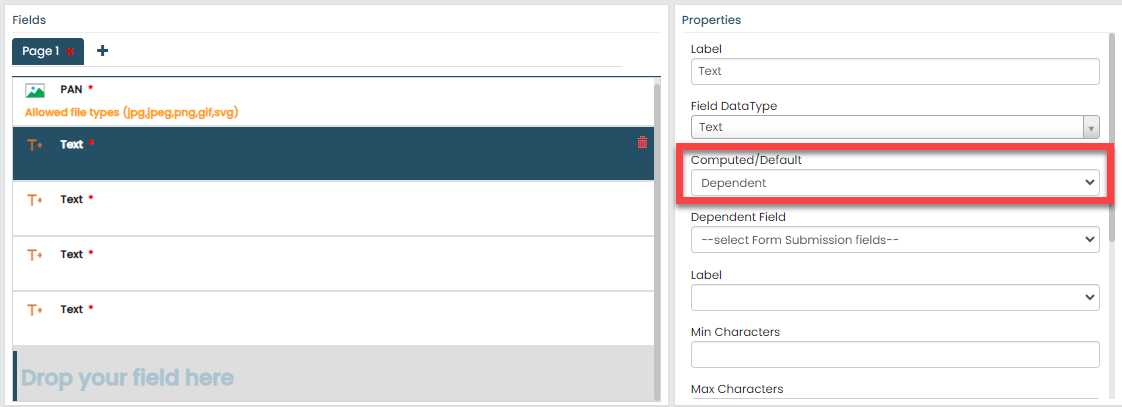
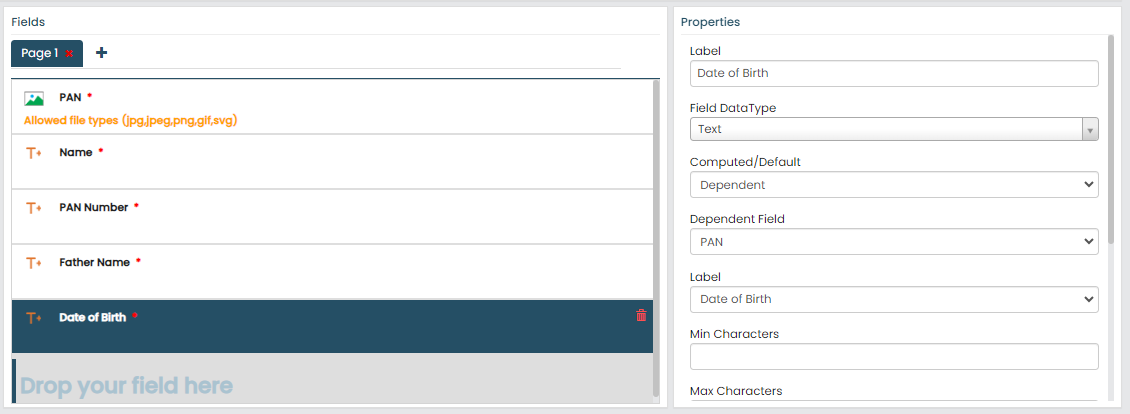
| Pan |
The PAN data type is an image field designed to capture or upload PAN card of an individual. When accessing this field through the Web App, you can upload the PAN card
image by either dragging and dropping it or using the upload feature. The
image below illustrates how the PAN field appears on the form when accessed
from the Web App.
 Note: The accepted file formats include jpg, jpeg, png,
gif, and svg. The maximum file size permitted is 100KB. To configure an PAN card field, follow the steps below:
|
| Voter ID |
The Voter Id data type is an image field designed to capture or upload Voter card of an individual. When accessing this field through the Web App, you can upload the Voter card
image by either dragging and dropping it or using the upload feature. The
image below illustrates how the Voter field appears on the form when
accessed from the Web App.
 Note: The accepted file formats include
jpg, jpeg, png, gif, and svg. The maximum file size permitted is
100KB. To configure an Voter Id field, follow the steps below:
|
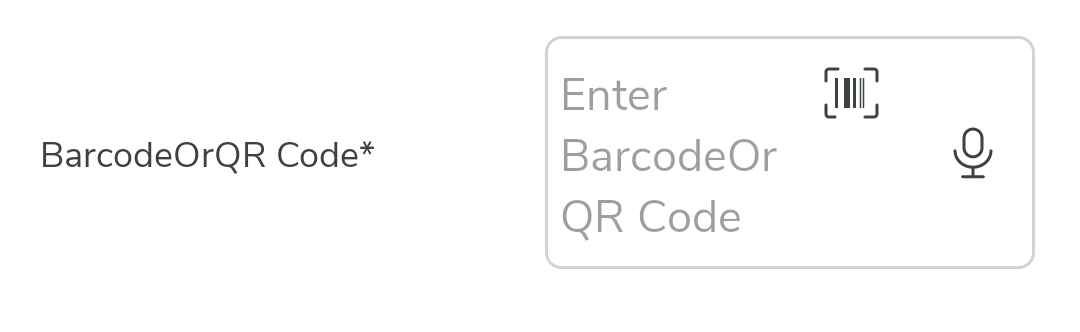
| BarcodeOrQR Code |
The BarcodeOrQR Code field allows you to scan barcodes or QR codes when
submitting the form through the mobile app. The below image shows how a
BarcodeOrQR Code field appears on the form when you access it from the
Mobile App. You need to tap the barcode icon given on the field.
 |