

Other Settings
| Property | Description |
|---|---|
| Select Font for Field Label and Field Value |
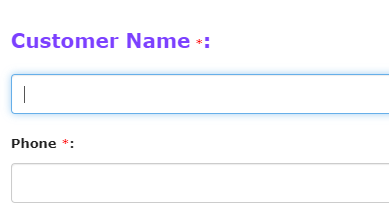
This property allows you to select customized fonts and colors for Label and
Value as per your requirement. You can use different fonts and colors for
the field labels and the field values. The below image shows how it works
when you access a form through the Web App.
 Check out the Create New Font page to create a new font as per your requirement. |
| Restrict Data From Mobile |
This property helps you to restrict the data flow to the server. The value entered in the field will not be sent to the server when you submit the form in the mobile app. |
| Enable Number Input Spinner |
Note: This property is applicable only to the Currency and Number data
types.
This property helps you to add an up and down arrow to the field thus allows
the users to increase and decrease the value in the input box. The below
image shows how it looks when you access a form through the Web App.
 |
| Show Decimal Upto |
Note: This property is applicable only to the Currency and Number data
types.
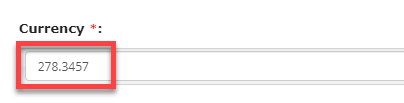
This property helps you to define the maximum number of digits that the users
can enter in this field after the decimal point. If you choose decimal up to
4, then see below how it works when you enter an input in the field.
 |
| Select Currency Format |
Note: This property is applicable only to the Currency data type.
This property allows you to select a currency format to separate groups of thousands with a comma. India uses a comma, and some other countries use a period or thin space. |
| Wireless Technology Type |
Note: This property is applicable only to the Number data type and
functional only when you access a form through the mobile app.
This property lets the users connect with Bluetooth-enabled external devices
to receive the data. The value on the external devices will be automatically
populated on this field via Bluetooth. As shown in the below image, the
weighing machine icon appears, and the value in the weighing machine will be
automatically populated when you tap the icon. For this, you must be
connected to a weighing machine via Bluetooth.
 |
| Generate GUID |
Note: This property is applicable only to the Text and Barcode/QR code
data types.
This property helps you to generate a unique number that can be used as an
identifier in the field after the form submission. This GUID is useful when
you want to uniquely identify some data so that it can be exchanged with
external applications. The below image shows how a GUID gets
generated.
 |
| Enlarge Textbox |
Note: This property is applicable only to the Text and Barcode/QR code
data types.
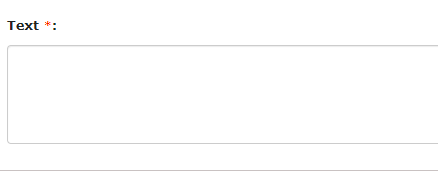
This property helps you to define the number of lines that the users can
enter text. The text box will be enlarged based on the selected number of
lines. If you set the value to 5, the below image shows how it looks when
you access a form through the Web App.
 |
| Auto Capitalize the Letters |
Note: This property is applicable only to the Text and Barcode/QR code
data types and functional only when you access a form through the mobile
app.
The entered text will be automatically capitalized.
 |
| Time Step Value |
Note: This property is applicable only to the Time data type.
The users can be able to select the minutes as per the intervals you defined
here. For example, if you set the Time Step Value as 30, then the user will
see like 08:30, 09:00, etc. The below image shows how it works when you
access it through the Web App.
 |
| Media Deletion |
Note: This property is applicable to all the Media data types.
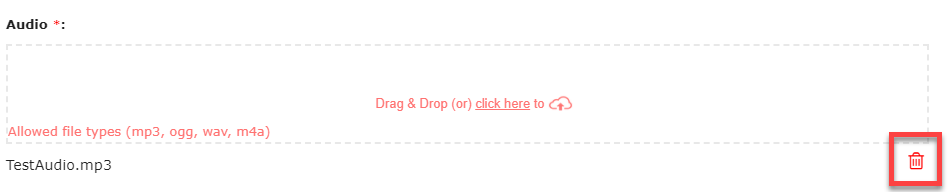
This property allows the users to delete the selected file when submitting
the form through Web App. When you enable this, the users can be able to see
the delete icon. The below image shows how it works:
 |
| Kindly Specify Maximum Media File Size |
Note: This property is applicable only to the Document and Image data
types.
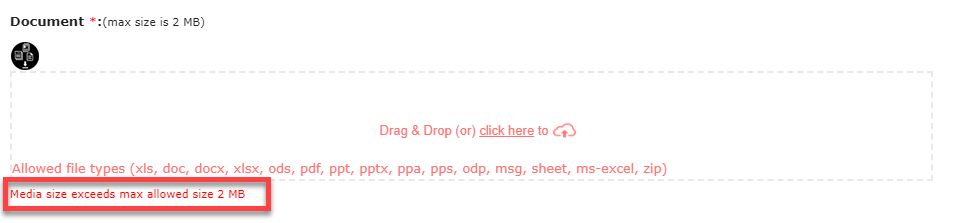
This property allows you to define the maximum file size (in KBs/MBs) that
users can upload. The users can be unable to submit the form if the uploaded
file size is more than the defined size. You will get an error as shown in
the below image when the file size exceeds the defined size.
 |
| Kindly Specify Maximum Number of Files |
Note: This property is applicable only to the Multi Image data
type.
This property allows you to define the maximum number of files that the users can upload. |
| Define Terms and Conditions |
Note: This property is applicable only to the Signature data type.
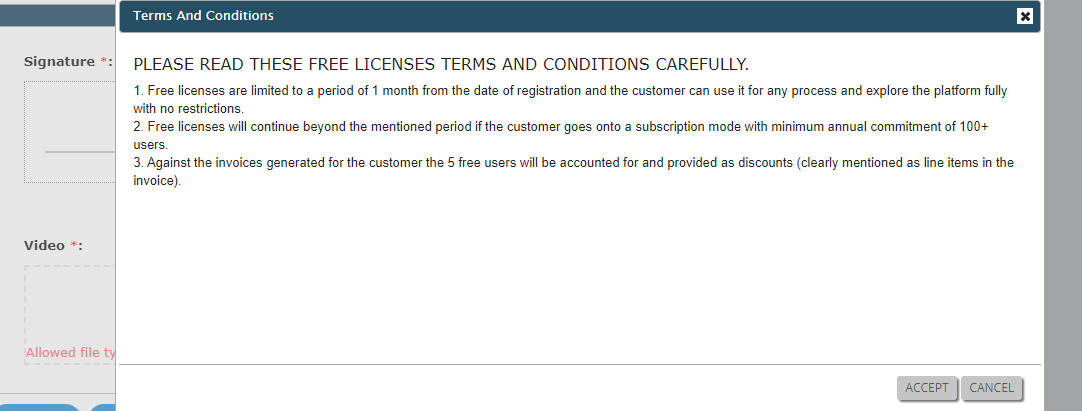
This property allows you to enter terms and conditions to which users must
agree to do the signature. When a user accessing this field, a pop-up will
appear with the terms and conditions entered here. The user must accept them
to do the signature. The below image shows how it works when you access it
from the Web App.
 |
| Enable Picker and Dropdown |
Note: This property is applicable only to the Customer and Pick List data
types and functional when you access a form through the Web App.
The field will be displayed as a dropdown along with a picker on the right
side. The users can either select a customer from the picker or search for
the required one and select it from the dropdown. This setting works only on
the Web App and the below image shows how it looks:
 |
| Enable Radio Box |
Note: This property is applicable only to the YesOrNo and Dropdown data
types.
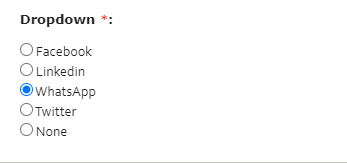
This property allows you to display the options as radio buttons along with
the None option. By default, these values will appear as list items. The
below image shows how it works when you access it from the Web App.
 |
| Default Value |
Note: This property is applicable only to the YesOrNo and Dropdown data
types.
This property allows you to select a default value that needs to be displayed
while submitting the form. The users can change the option if needed.
 |
| Mark as read only |
Note: This property is applicable only to the YesOrNo data type.
The user cannot be able to change the value. This option will be helpful if
you have defined a default value.
 |
| Select Currency |
Note: This property is applicable only to the Number To Word data type
and functional for Currency data type only.
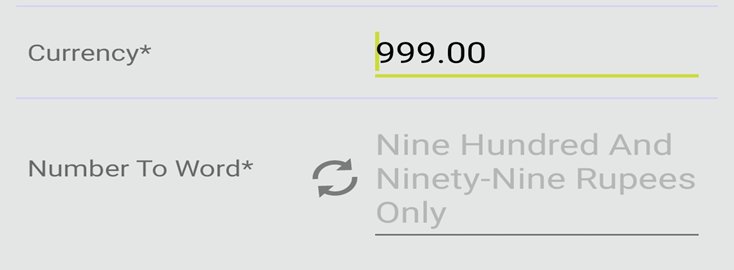
This property allows you to display the words in the selected currency
format. For example, if you select currency as Rupees, the value 100 will be
converted as "One Hundred Rupees Only".
 |