

Data Types - Dynamic List
| Field | Description |
|---|---|
| Dropdown |
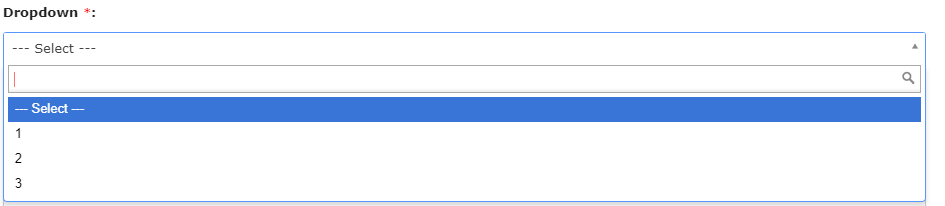
The Dropdown data type allows you to select a value that is displayed in a
dropdown menu. You need to define values in the Add Values field that is
given in the Properties section. Additionally, you can show the values as
radio buttons and set the default value. The below image shows how a
Dropdown field appears on the form when you access it from the Web
App:
 The below image shows how a Dropdown field appears on the form when you
access it from the Mobile App:
 |
| Multi Pick List |
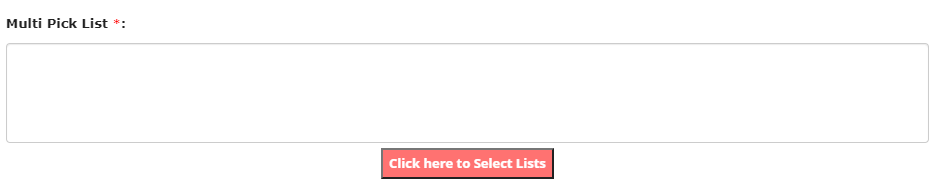
The Multi Pick List data type allows you to select one or more items from the
configured list master that are displayed in a dropdown. To create a list
master, go to . The below image shows how a Multi Pick List field appears on
the form when you access it from the Web App:
 The below image shows how a Multi Pick List field appears on the form when
you access it from the Mobile App:
 |
| Multi Select Dropdown |
The Multi Select Dropdown data type allows you to select one or more values
that are displayed in a dropdown menu. You need to define values in the Add
Values field that is given in the Properties section. The below image shows
how a Multi Select Dropdown field appears on the form when you access it
from the Web App:
 The below image shows how a Multi Select Dropdown field appears on the form
when you access it from the Mobile App:
 |
| Pick List |
The Pick List data type allows you to select an item from the configured list
master that is displayed in a dropdown. To create a list master, go to . The below image shows how a Pick List field appears on the
form when you access it from the Web App:
 The below image shows how a Pick List field appears on the form when you
access it from the Mobile App:
 |