

Configure Uniqueness To Work Fields
To configure uniqueness to work fields, follow the steps below.
-
Go to .
The Processes page appears.
-
Click either Activity Process or Checklist
Process as per your requirement.

The Activity Process or Checklist Process page appears.
-
Click the required process card.

The work processes in the Activity Process are shown in the above screenshot. If you click on the Checklist Process, the work processes in it will appear. -
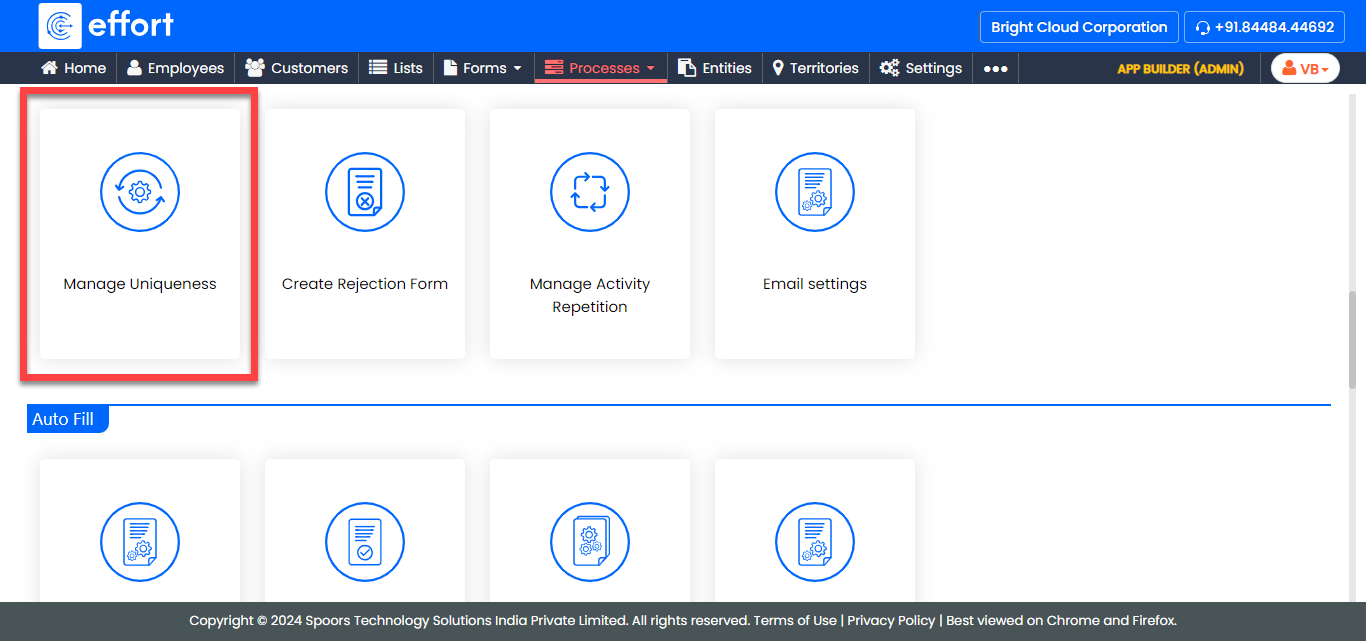
Click the Manage Uniqueness card under the
Permissions and Settings section.
- Optional:
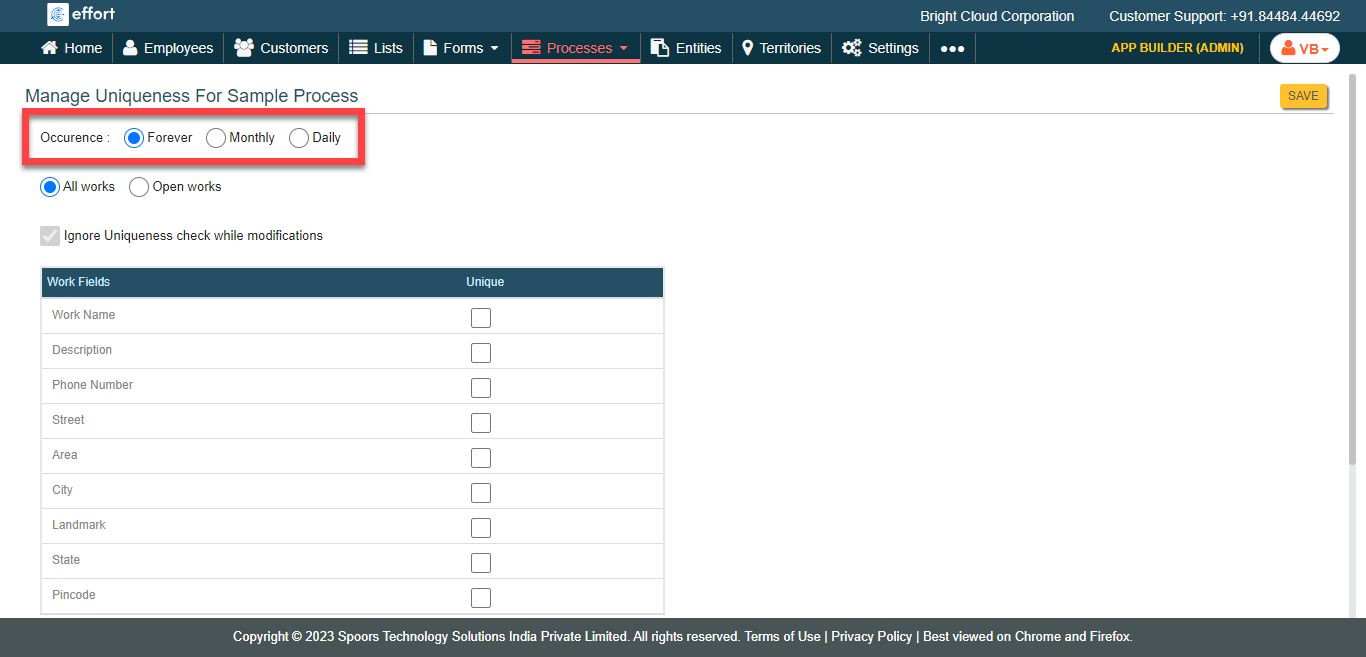
Change the Occurrence option as per your
requirement.
-
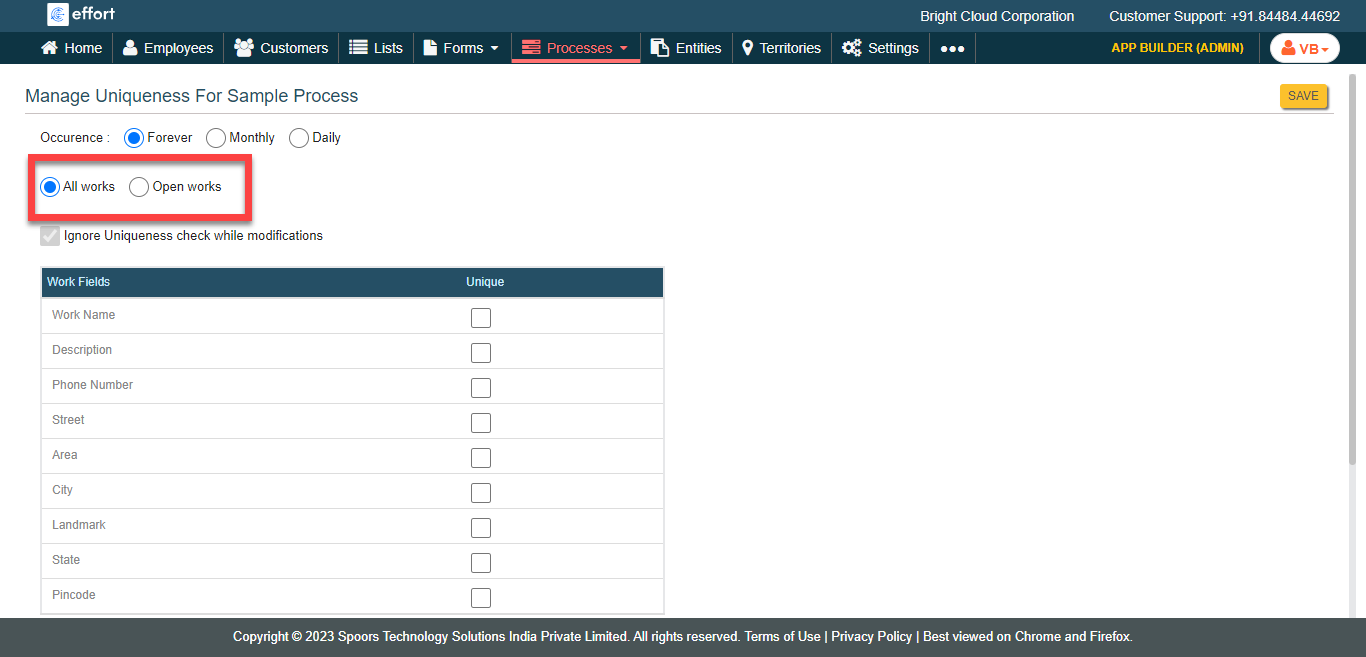
Click on the below options as per your requirement.
- All Works: Allows you to avoid works being created with the same values in a work field. If the user tries to create work with the already submitted values in the configured fields, the work will not be created.
- Open Works: Allows you to avoid works being created with the same values in a work field for an already existing work that is not completed. If the user tries to create work with the already submitted values in the configured fields, the work will not be created until the completion of the existing work.
-
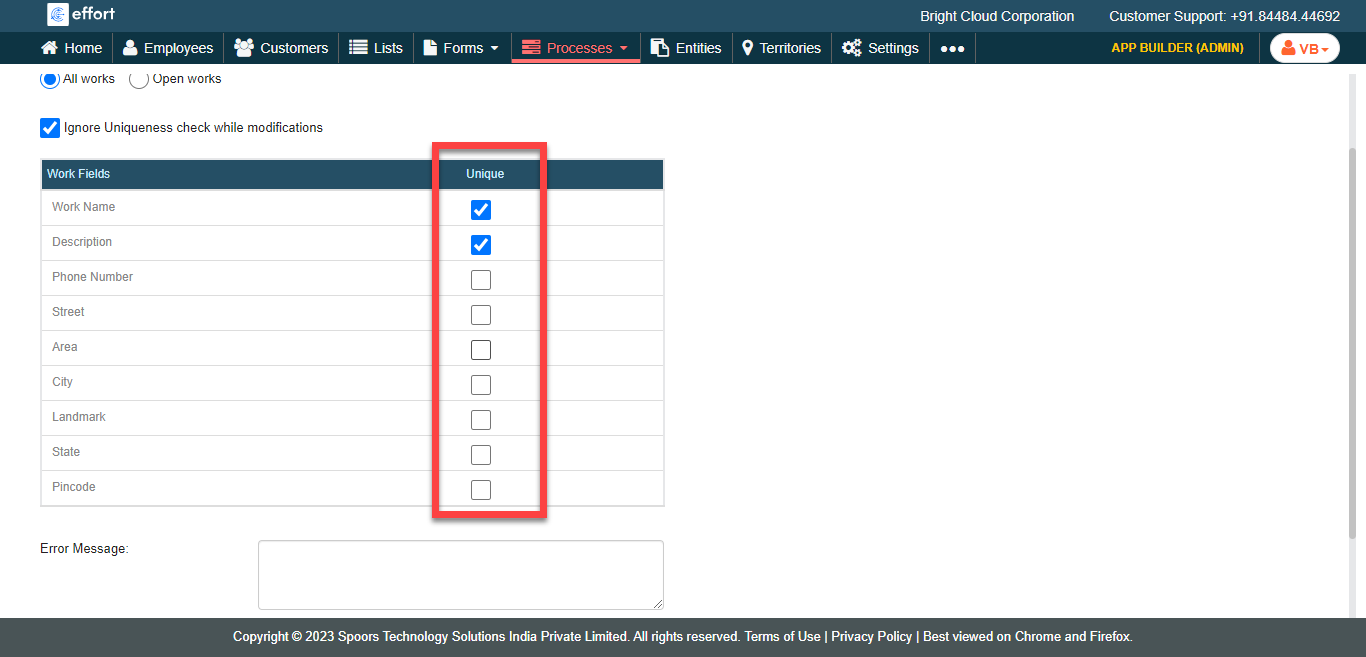
Click the checkboxes for the appropriate fields under the
Unique column.
- Optional:
Click Ignore Uniqueness check while modifications
checkbox.
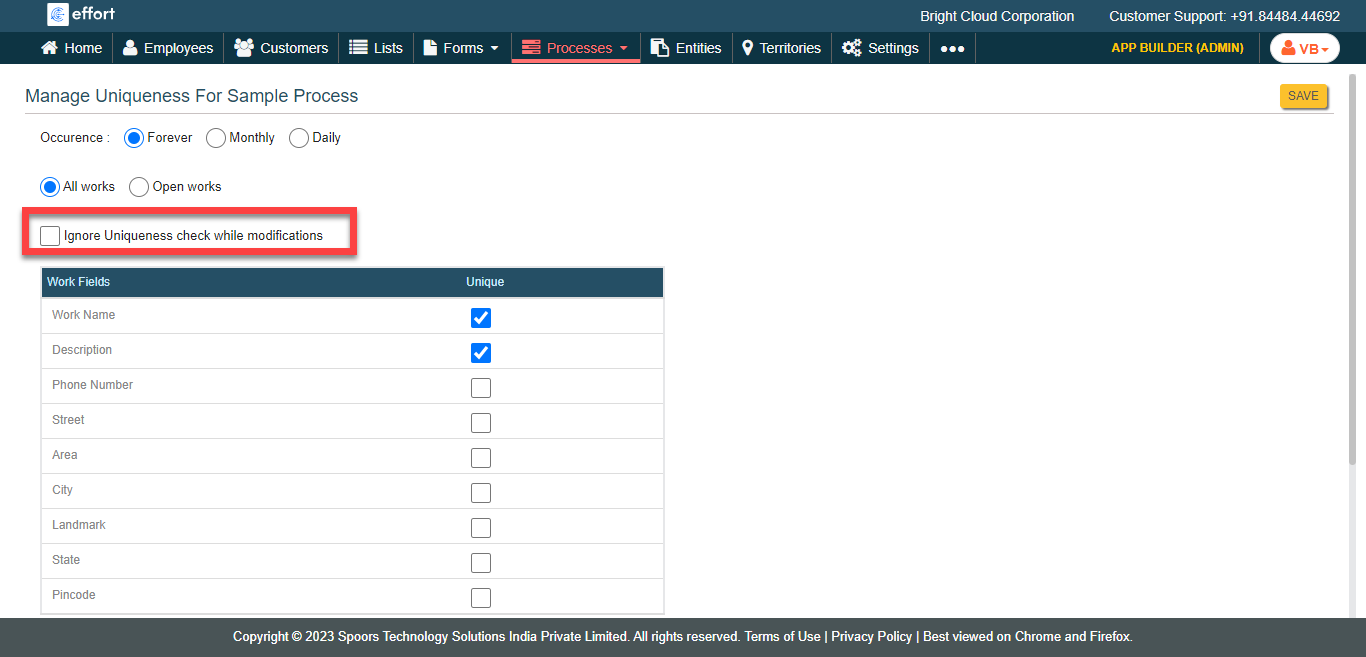
Allows you to modify the existing work details. -
Configure the Error Message and Success
Message.

- Click Save.