

Design a Lead Status Configuration
Prerequisites
You can design the lead status dashboard based on the work fields only. Make sure that the below three conditions are defined for the work process to which you want to calculate the lead status.
- Make sure that the work is configured with the below work fields for the
configuration of Active Leads.
- Pick List field that is configured with the lead category list (with items such as Hot, Warm, and Cold) and make it mandatory to create work.
- Number or Currency field to calculate the active revenue.
- Make sure that the work is configured with the below work fields for the
configuration of Closed Leads.
- Pick List field that is configured with the Lead Status list (with items such as Won and Lost) and make it optional while creating work.
- Number or Currency field to calculate the closed revenue.
- Make sure that the Activity Form that will be filled by the user is created with the Lead Status list (with items such as Won and Lost). Configure auto copy from activity form lead status field to work lead status field. Refer to the Configure Auto Fill for the steps required to configure the auto copy.
Steps
-
Go to .
The Process page appears.
-
Click the Lead Status Configuration card given under the
Work Process Extensions section.
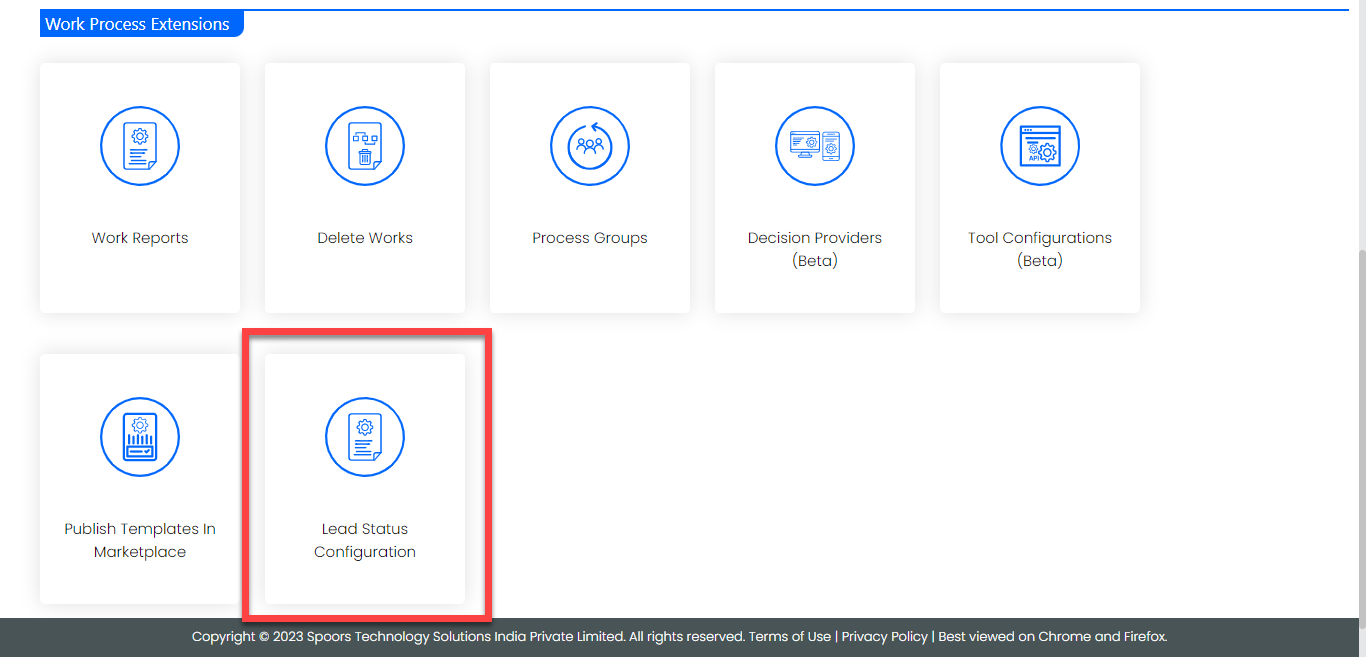
The Manage Lead Status page appears.
-
Click the Design a New Configuration button given at the
top right corner.

The Lead Status Configuration page appears.
-
Configure the fields given under the Active Leads
Configuration section.

Refer to the Related information provided below this topic to know more about the configuration fields. -
Configure the fields given under the Closed Leads
Configuration section.
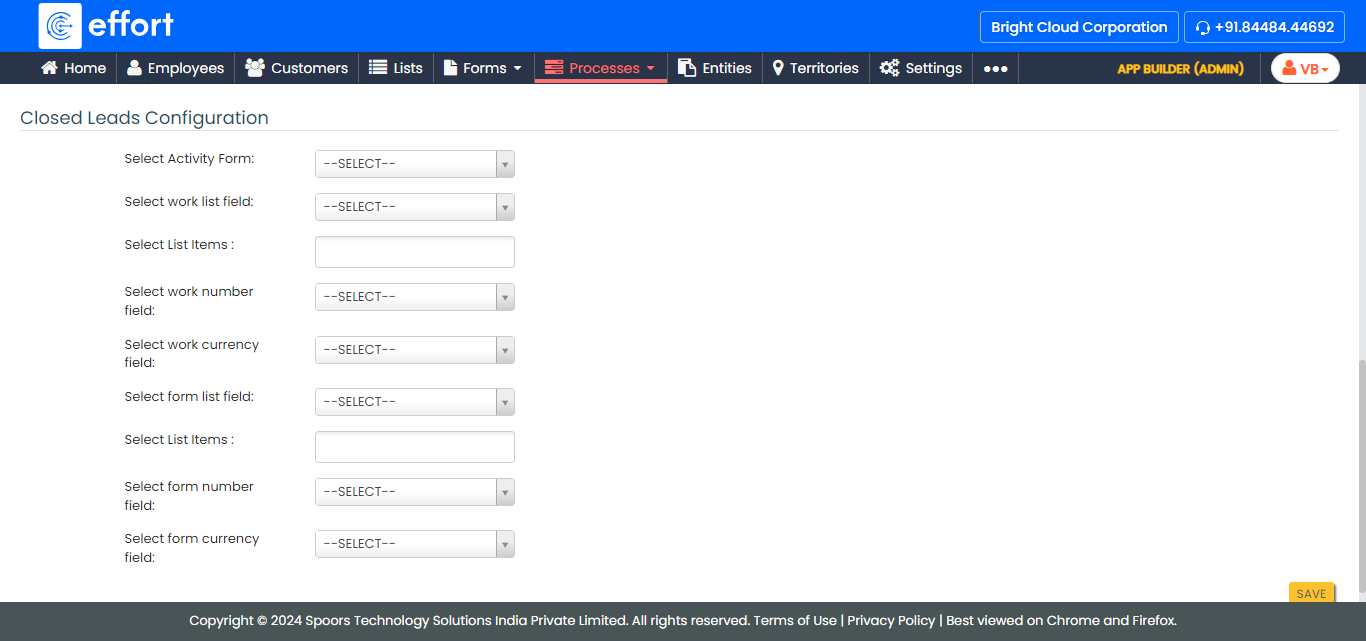
Refer to the Related information provided below this topic to know more about the configuration fields. - Click Save.