

Create an Activity Process
-
Go to .
The Processes page appears.
-
Click the Create Process button.

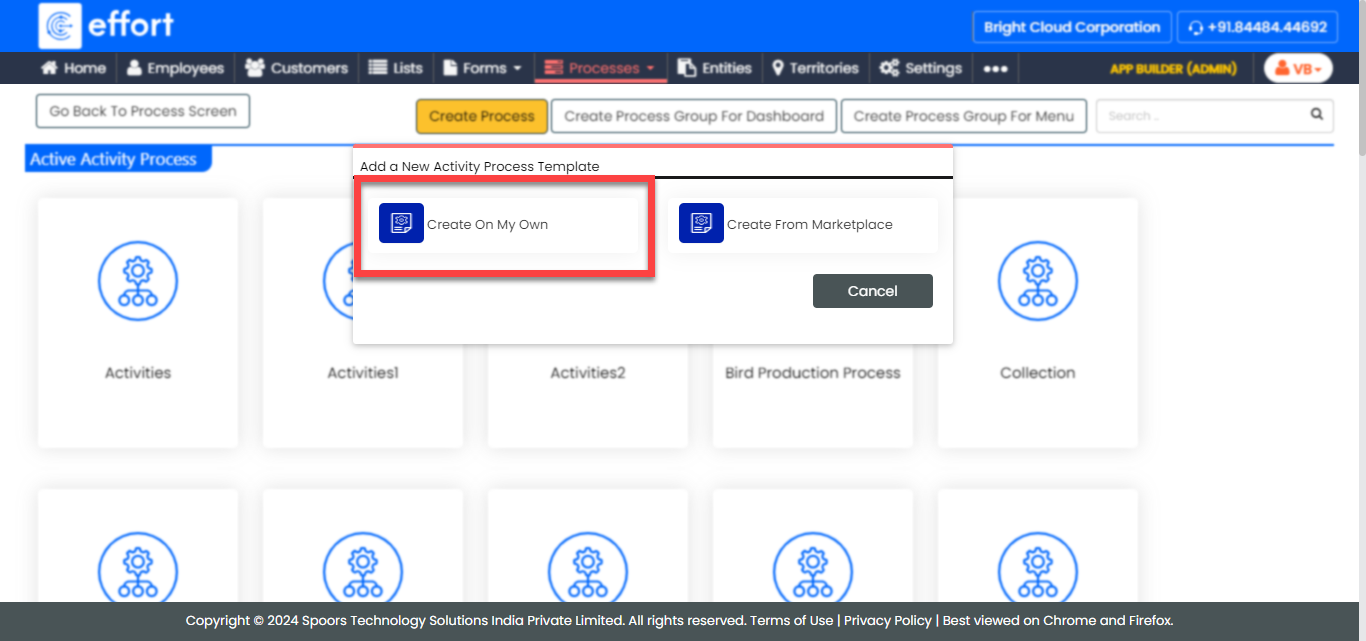
The Add a New Activity Process Template pop-up appears.
-
Click the Create On My Own link.
- Enter the necessary inputs in the below configuration screens to create the work process and click the Next button to move to the next configuration screen.
-
Start - Configuration: Define work process name and
description.
-
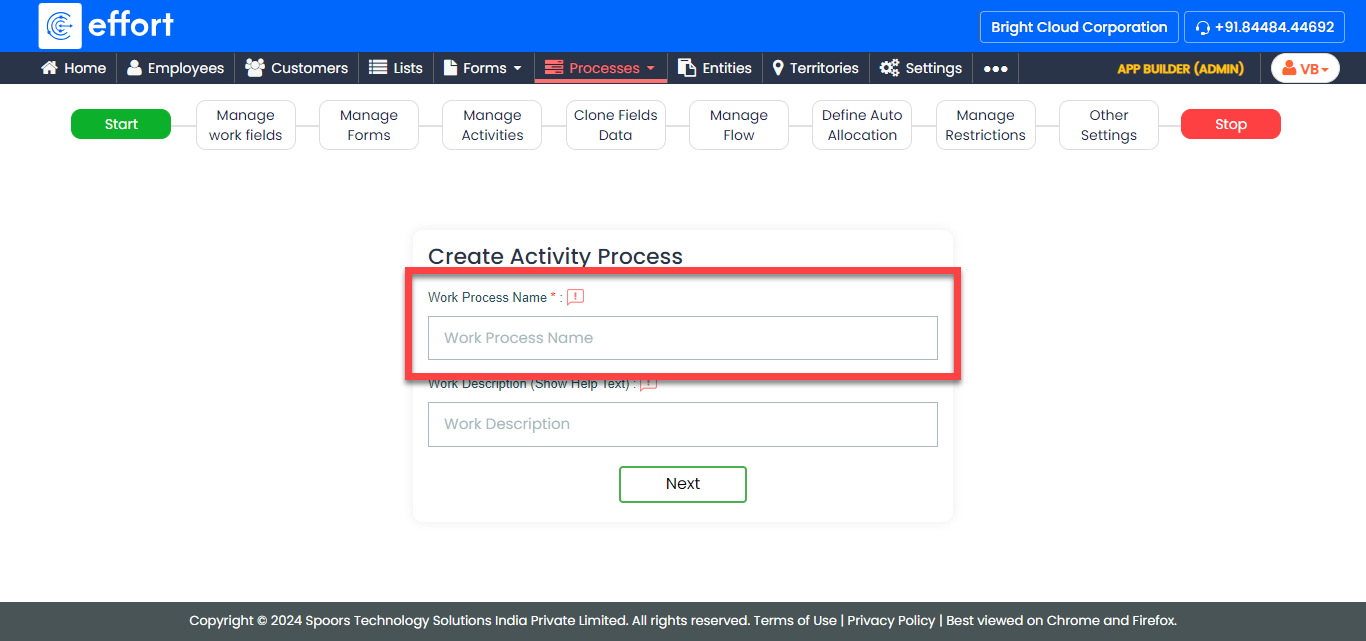
Enter a name for the work process in the Work Process
Name field.
-
If needed, enter the process description in the Work
Description field.
-
Enter a name for the work process in the Work Process
Name field.
-
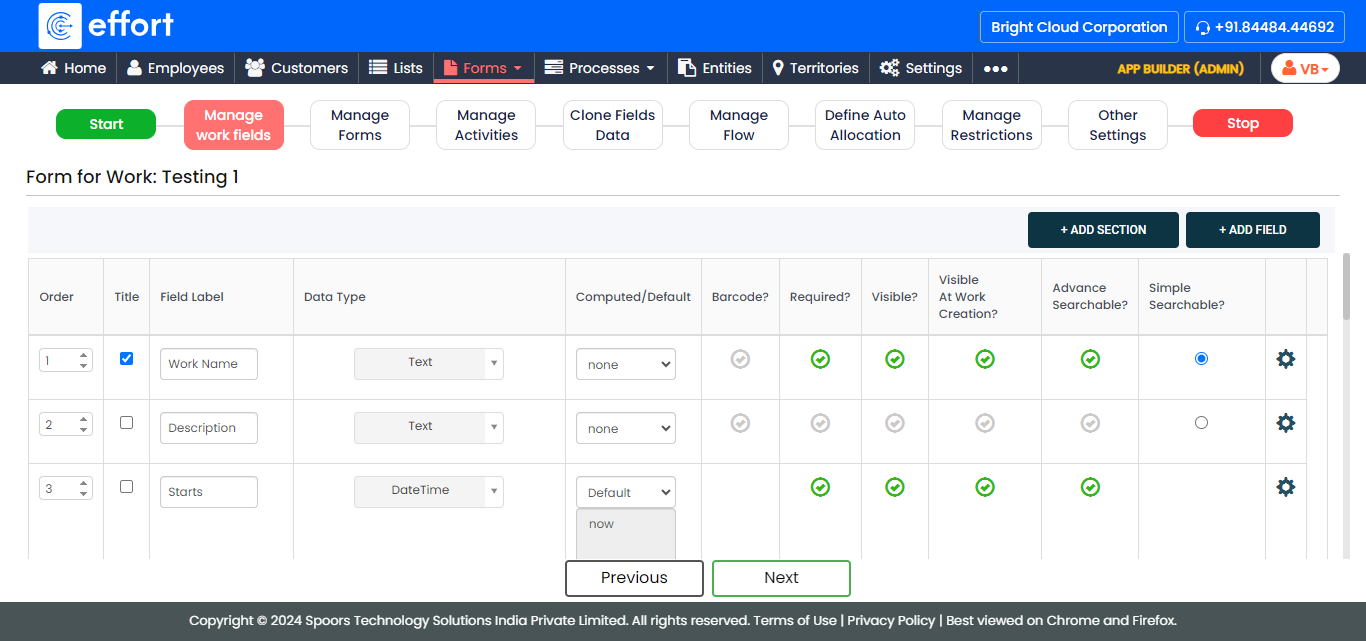
Manage Work Fields - Configuration: Define the work
fields configuration like order, label, mandatoriness, visibility, etc. The
configured fields can be used to create work in the web app.
-
Configure the work fields depending on your requirement.

Refer to the below topics to know more about the work fields, configuration columns, and advanced settings.
-
Configure the work fields depending on your requirement.
-
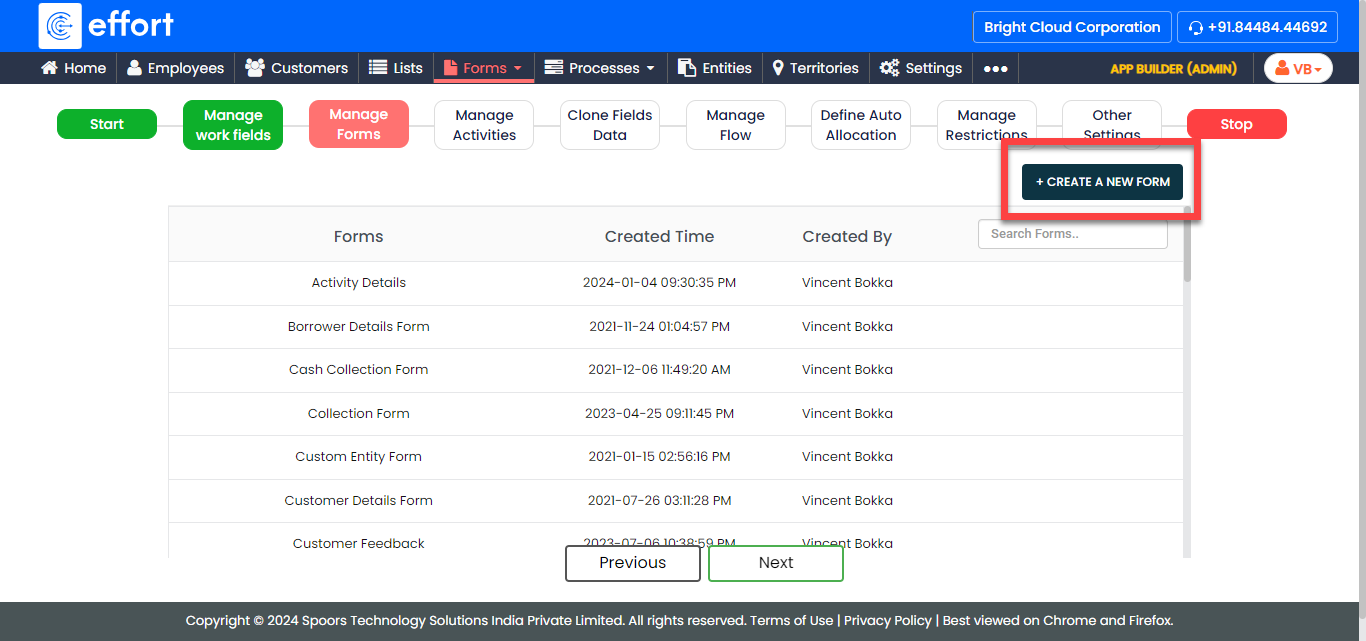
Manage Forms - Configuration: This screen allows you to
create a new form and provide visibility of available forms.
-
Click the Create A New Form button to create a
form new form.
Refer to the Create a Form for the steps required to create a form.
-
Click the Create A New Form button to create a
form new form.
-
Manage Activities - Configuration
-
Click the Add Activity button and enter the
details to add an activity for the work process.

Click on Add Activity again to add more activities. Refer to the Activities: Fields and Description topic to know more about the configuration columns. - Optional:
Click the Add Sub Task Process button to
configure a sub work process that should be performed along with the
parent work process.

Click the Add Sub Task Process again to configure more subtask processes. Supply inputs to the below configuration fields to configure a subtask process.- Sub Task Title: Enter the name for the subtask. It lets the users know what they have to do in this subtask.
- Sub Task Description: Enter the description for the subtask. It helps you provide some additional information or instructions to assist the user in performing this subtask.
- Work Process Template: Configure a work process that you want to perform as a subtask along with the parent work.
- Optional:
Click the Add Attachments button and configure a
form template that should be submitted along with the parent work
process under the Attachments dropdown.

Click on Add Attachments again to add more forms.
-
Click the Add Activity button and enter the
details to add an activity for the work process.
-
Clone Fields Data - Configuration
-
Click the Auto Form Fill icon
 given
under the Clone Non-Section Fields column against
the required work activity to configure auto copy from work section
fields to activity form fields.
given
under the Clone Non-Section Fields column against
the required work activity to configure auto copy from work section
fields to activity form fields.
-
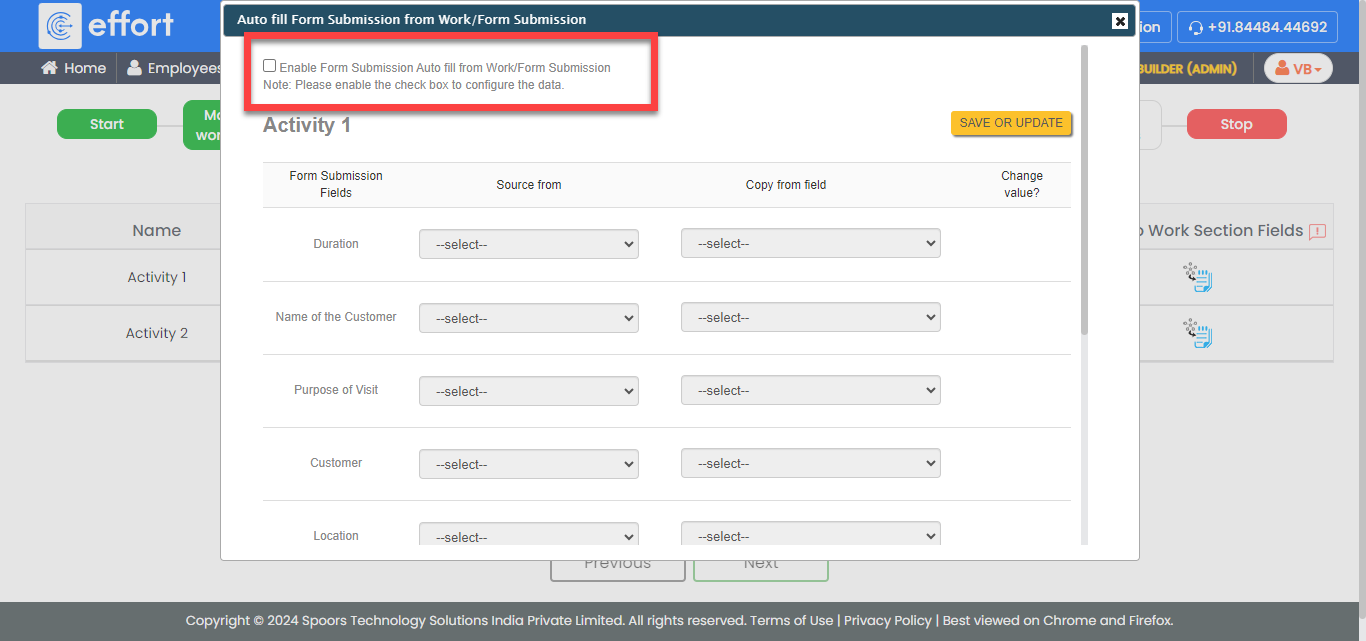
Click the Enable Form Submission Auto fill from Work/Form
Submission checkbox to define the autofill
configuration.
-
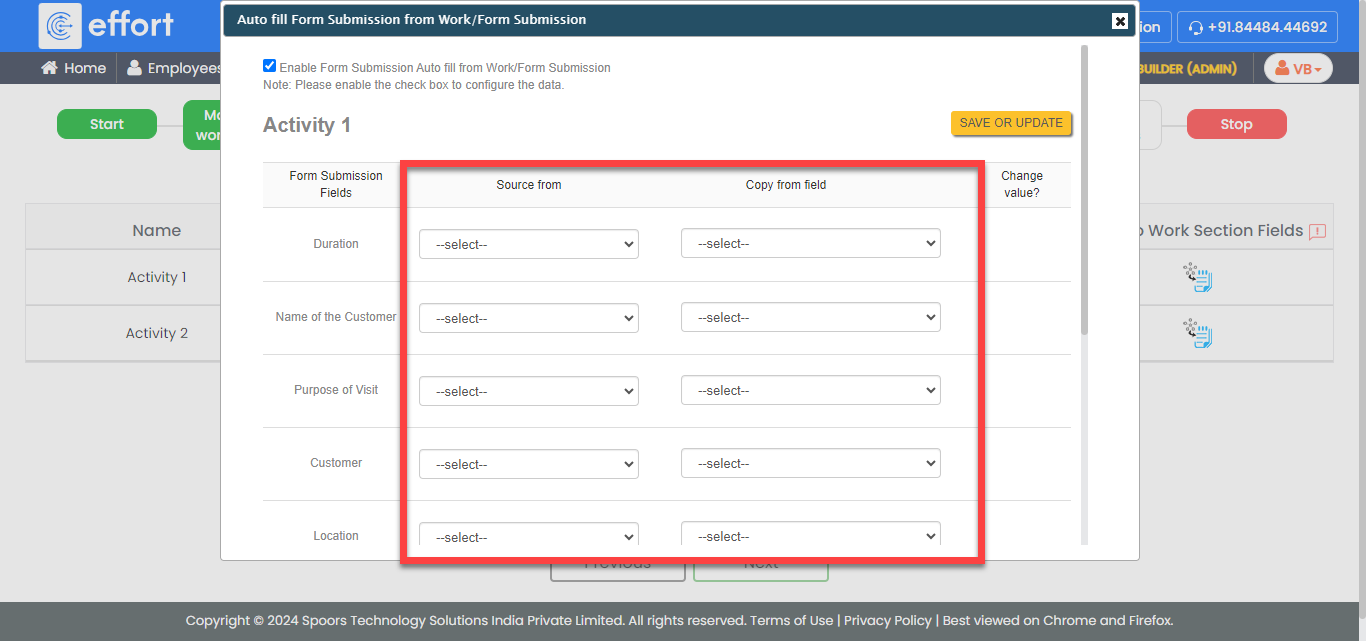
Configure the work fields for the respective form fields.
-
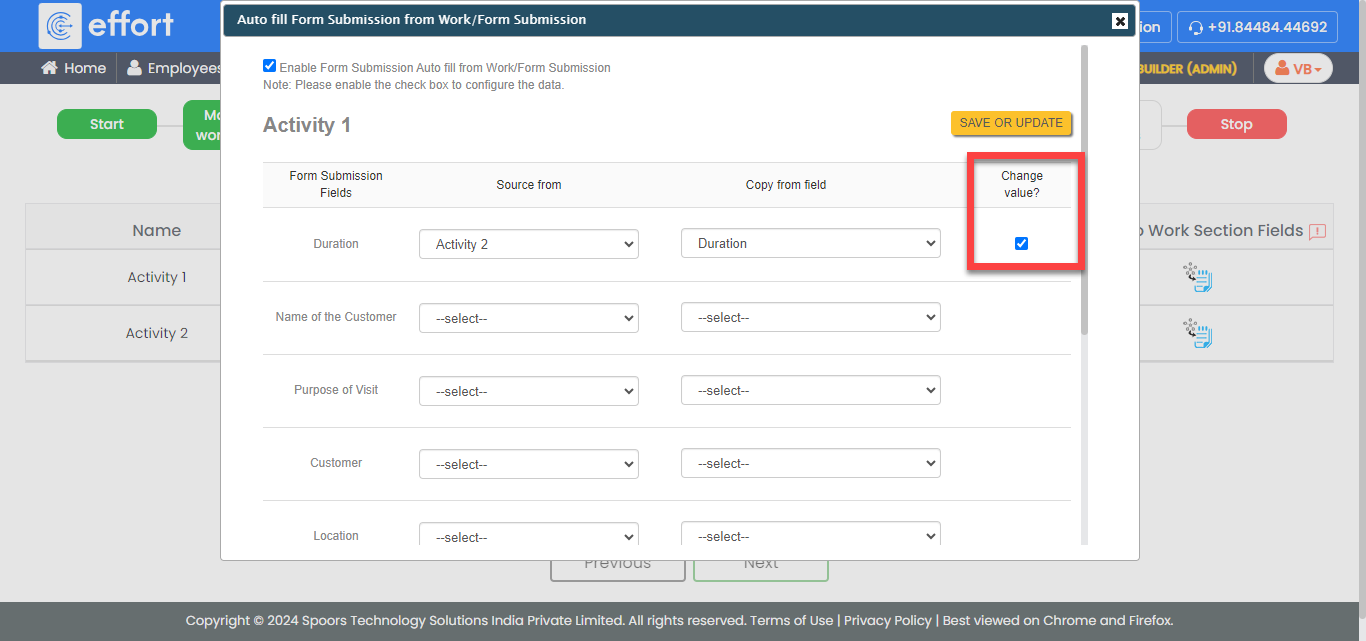
Disable the checkbox under the Change value to
restrict the user to change the value auto copied from work
fields.
- Click Save Or Update.
-
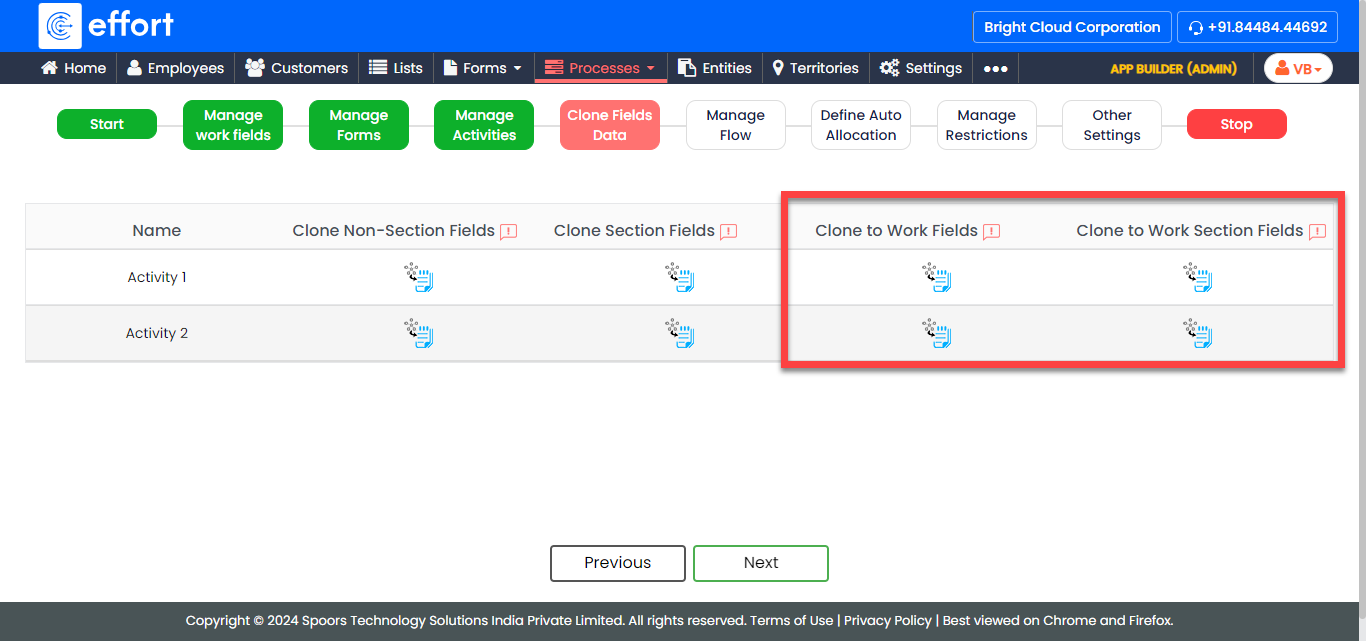
Similarly, define the configuration for Clone Section
Fields and Clone to Work
Fields.
-
Click the Auto Form Fill icon
-
Manage Flow - Configuration: Define the workflow like
start activity, end activity, next activities, etc.
-
Click the checkbox given under the Start
Activity column against a work activity to make it a
start activity.
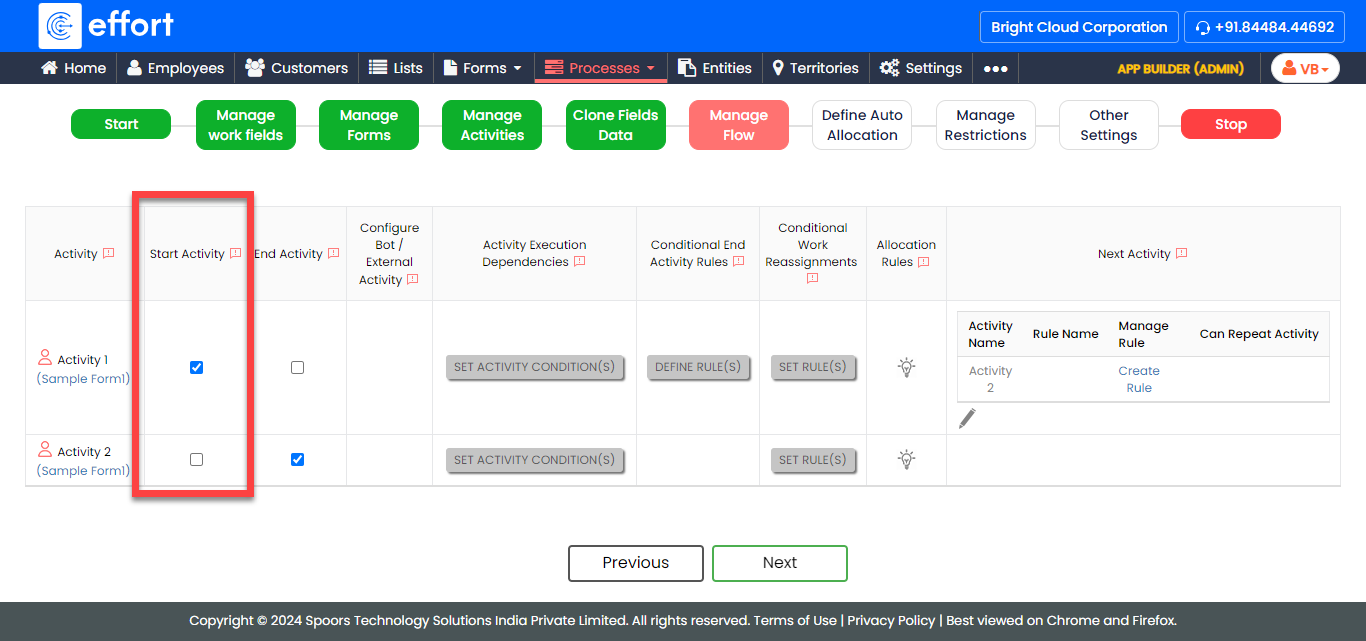
-
Click the checkbox given under the End Activity
column against a work activity to make it an end activity.
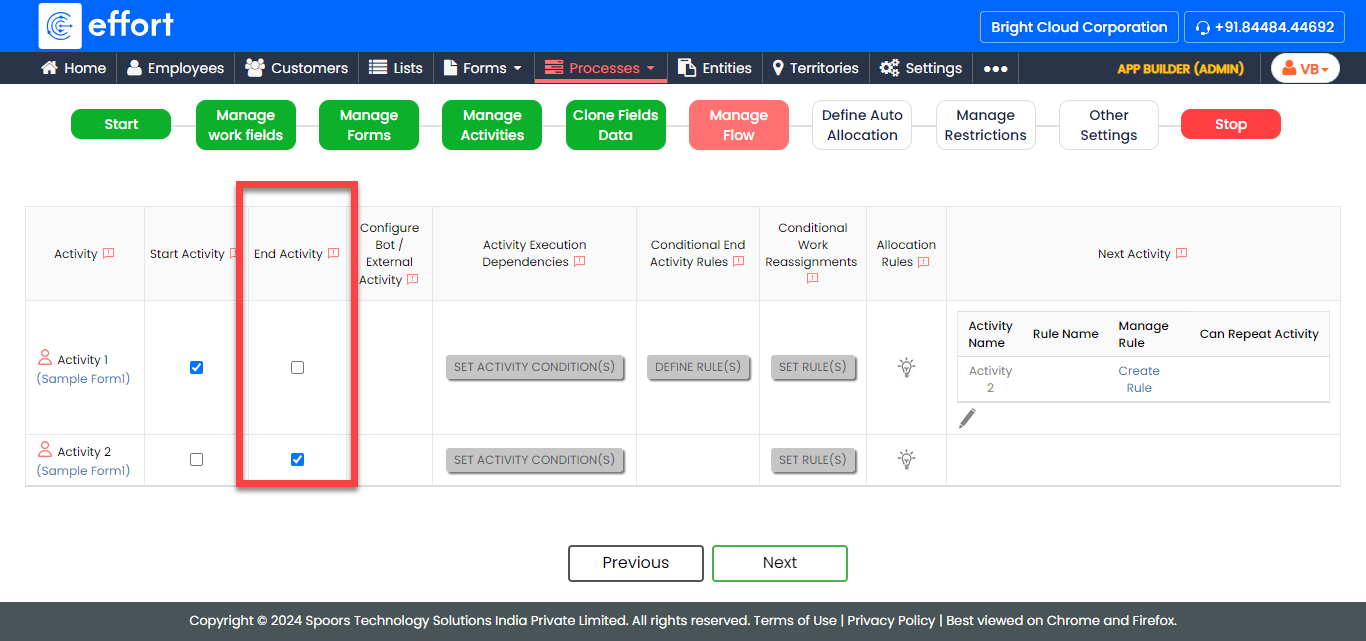
-
Click the checkbox given under the Start
Activity column against a work activity to make it a
start activity.
-
Configure Auto Allocation in the Define Auto
Allocation screen.
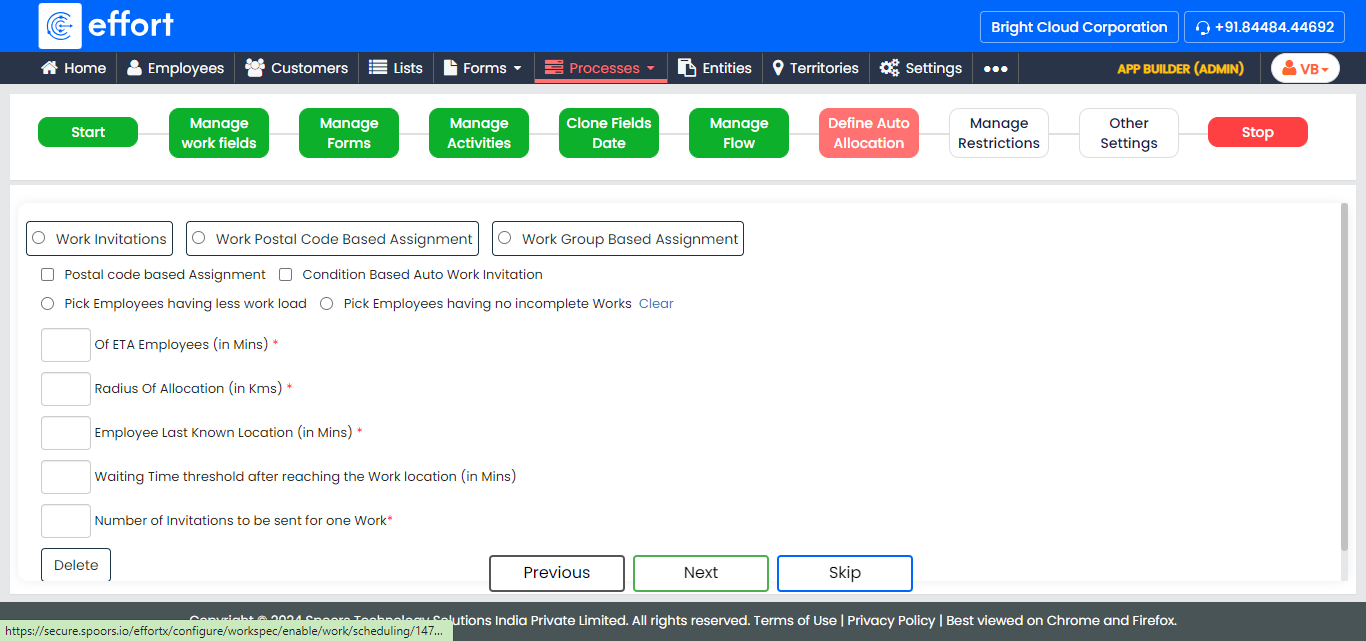
Refer to the Auto Allocate and Scheduling topic to know more about auto allocation.Click the Skip button if not needed. -
In the Manage Restrictions screen, enable the settings
depending on your requirement.

Refer to the Work Settings: Fields and Description topic to know more about the settings. -
Define other settings depending on your requirement.

Refer to the Work Settings: Fields and Description topic to know more about the settings. - Click Complete to finish the work process creation.