

Configure External Activity
The work process must have Email and Phone Number fields to configure an external activity. Explore the Edit Process Fields to define these fields.
Make sure that the customer is created with an email and mobile number if the external activity needs to be performed by the customer whom you select while adding a work. Explore the Edit a Customer to update the email and phone number for the existing customer.
-
Go to .
The Activity Process page appears.
-
Click on a <Work Process> card that you created with External
Activities.

The <Work Process> Activities page appears.
-
Click the Manage Flow card under the Work
Process Essentials section.

The Manage Work flow for <Work Process> page appears.
-
Click the gear
 icon
under the Configure Bot / External Activity column.
icon
under the Configure Bot / External Activity column.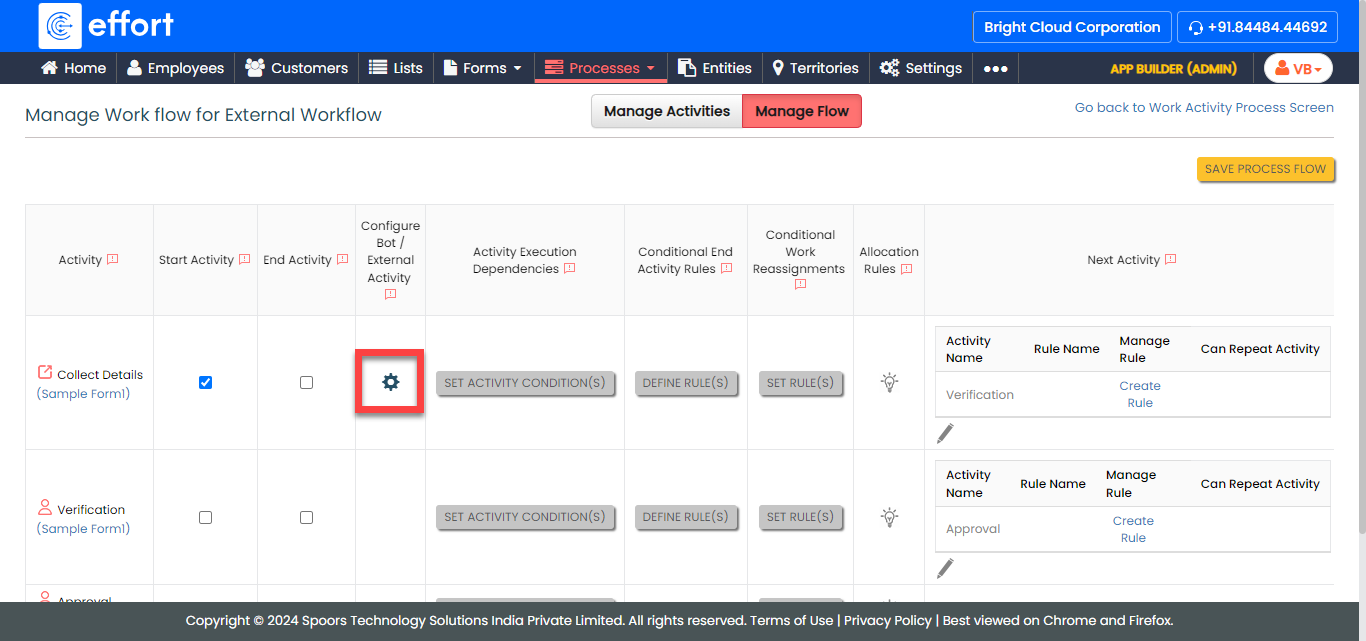
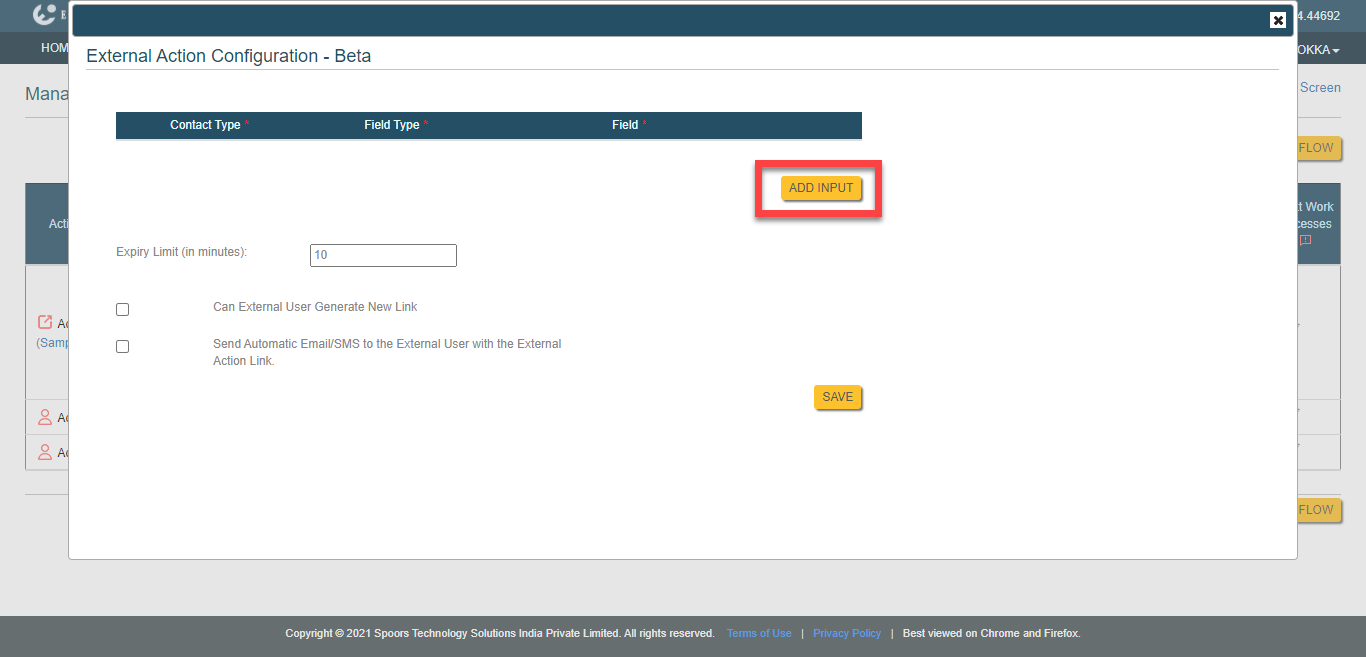
The External Action Configuration pop-up appears. -
Click the Add Input button.
-
Configure the following.

- Contact Type: Allows you to send work activity link through email or SMS.
- Field Type: Allows you to select field type such as work fields or customer fields.
- Field: Allows you to select phone number or email field based on the contact type.
- Expiry Limit (in minutes): Allows you to set the link validity. The work activity link will be valid for the configured duration.
- Optional:
Enable the following checkboxes if needed.
- Can External User Generate New Link
- Send Automatic Email/SMS to the External User with the External Activity Link
- Click Save.
- Click Save Process Flow once the workflow configuration is done.