

Create Hierarchy Based Approval Process
-
Go to .
The Create Approval Processes page appears.
-
Specify a Title for the approval process.

- Optional:
Enable the checkboxes depending on your requirement.
- Can edit submitted data when it comes for approval: The approver gets permission to edit the submitted data in the form while approving.
- Can reject after approval: The approver gets permission to reject the form submission even if it is approved.
- Can edit submitted data by submitter: The submitter gets permission to edit the data that is already submitted for approval.
- Can reintiate flow when submitter modifies after approval: The approval flow will be reinitiated when the submitter modifies the already approved form submission.

-
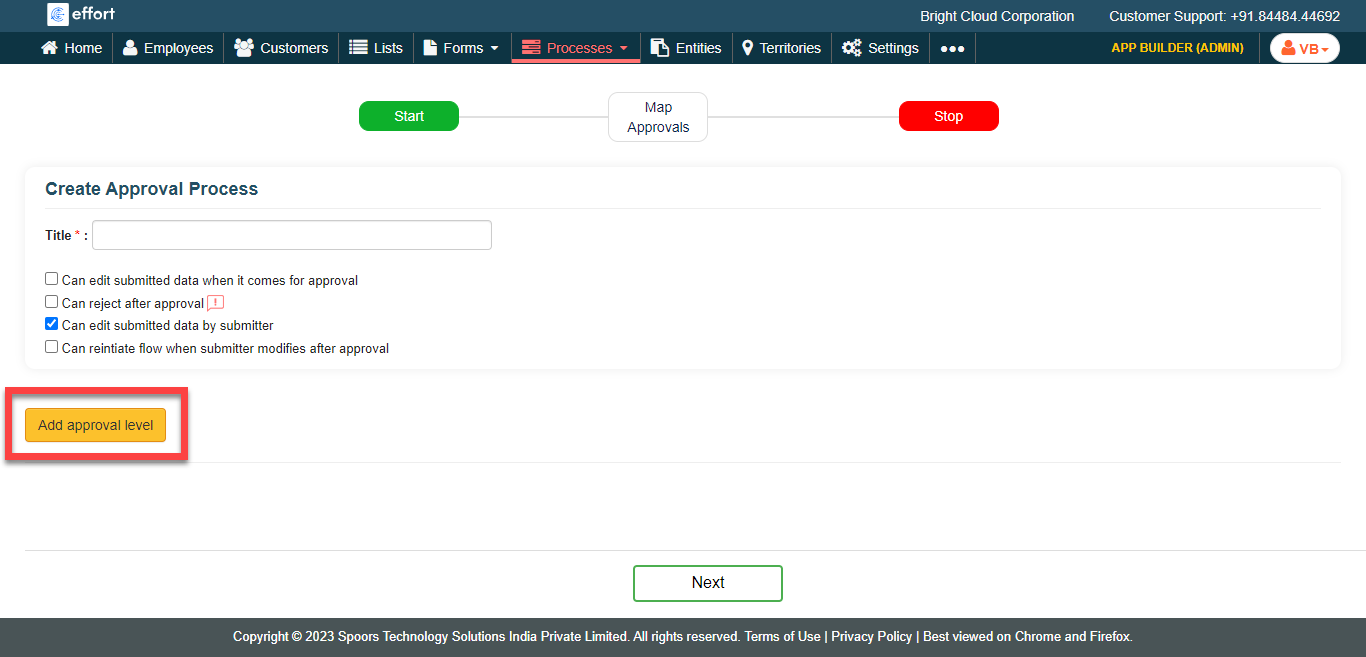
Click the Add Approval Level button and do the
following.
-
Specify a name for the approval level in the Approval Level
Name textbox.

-
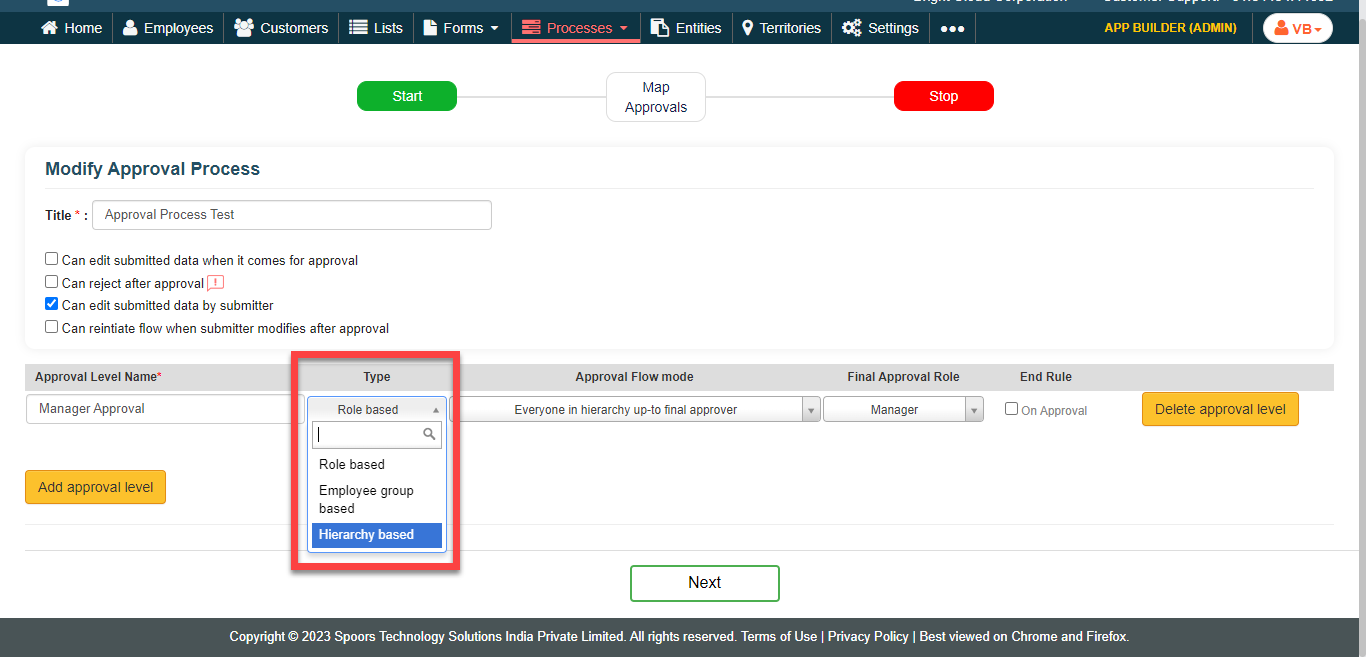
Select Hierarchy based option from the dropdown
given under the Type column.
-
Select Approval Flow Mode.
- Only immediate manager: Select this option if you want only the immediate manager to approve the form submission.
- Everyone in hierarchy up-to top level: Select this option if you want everyone in the hierarchy to approve the form submission.
- Only immediate manager Custom Level: Select this option if you want the immediate manager and after immediate managers up to the defined level to approve the form submission. You have to configure the custom level below this dropdown when you select this option.

- Optional:
Click On Approval checkbox under the
End Rule column.

-
Specify a name for the approval level in the Approval Level
Name textbox.
- Optional: Click Add Approval Level button again if you want to add more approval levels.
-
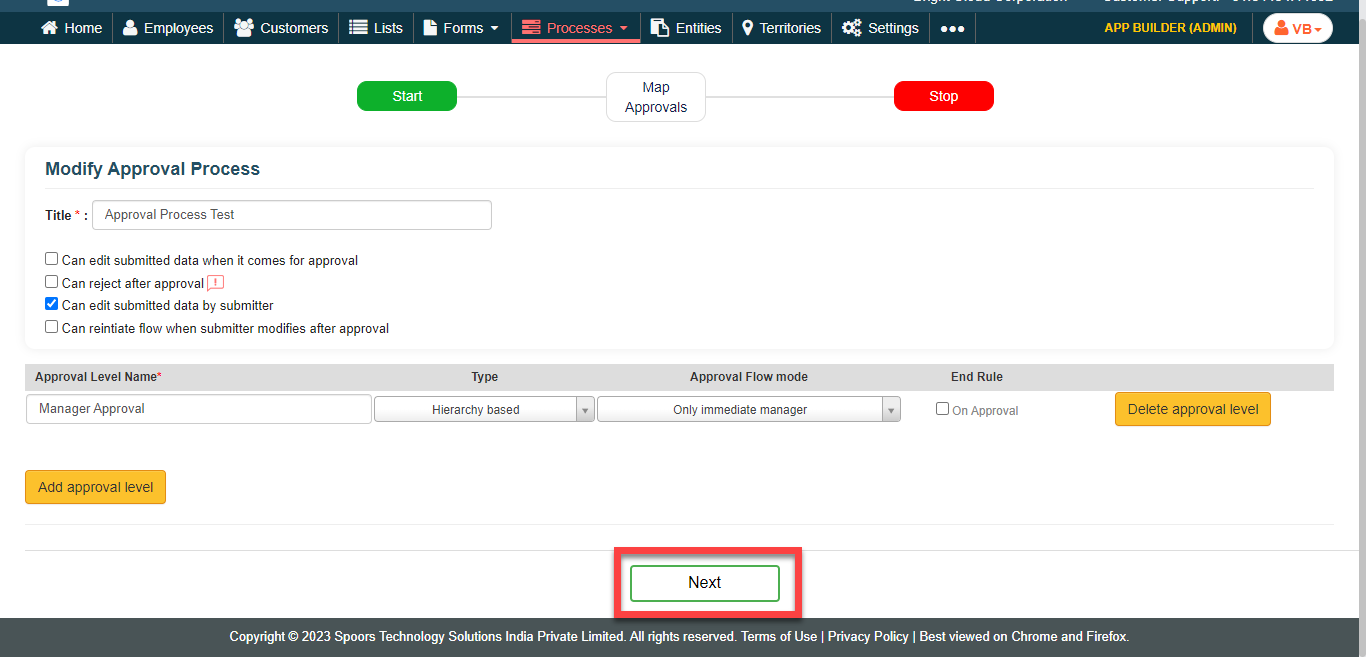
Click the Next button to configure approval
mapping.
-
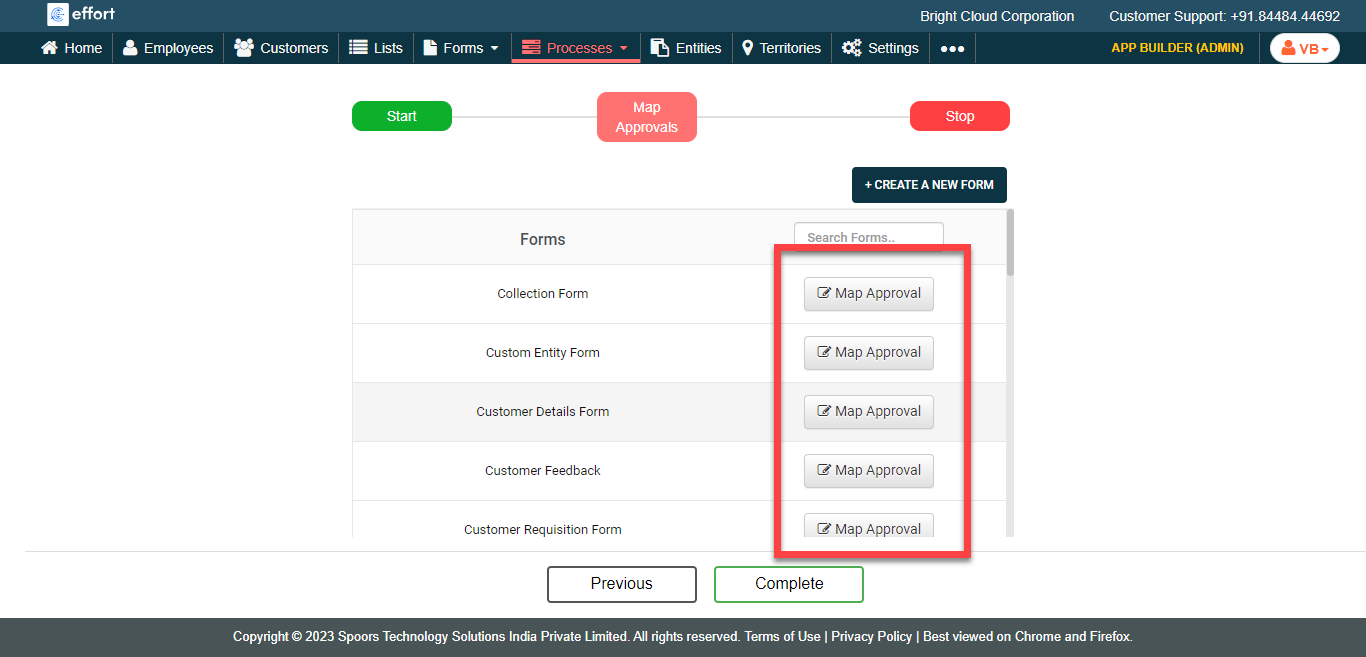
In the Map Approvals section, map the newly created
approval process to the existing form templates.
-
Click the Map Approval button against the
required form template.
-
In the Assign Approval Process pop-up window,
configure the approval process as per your requirement.
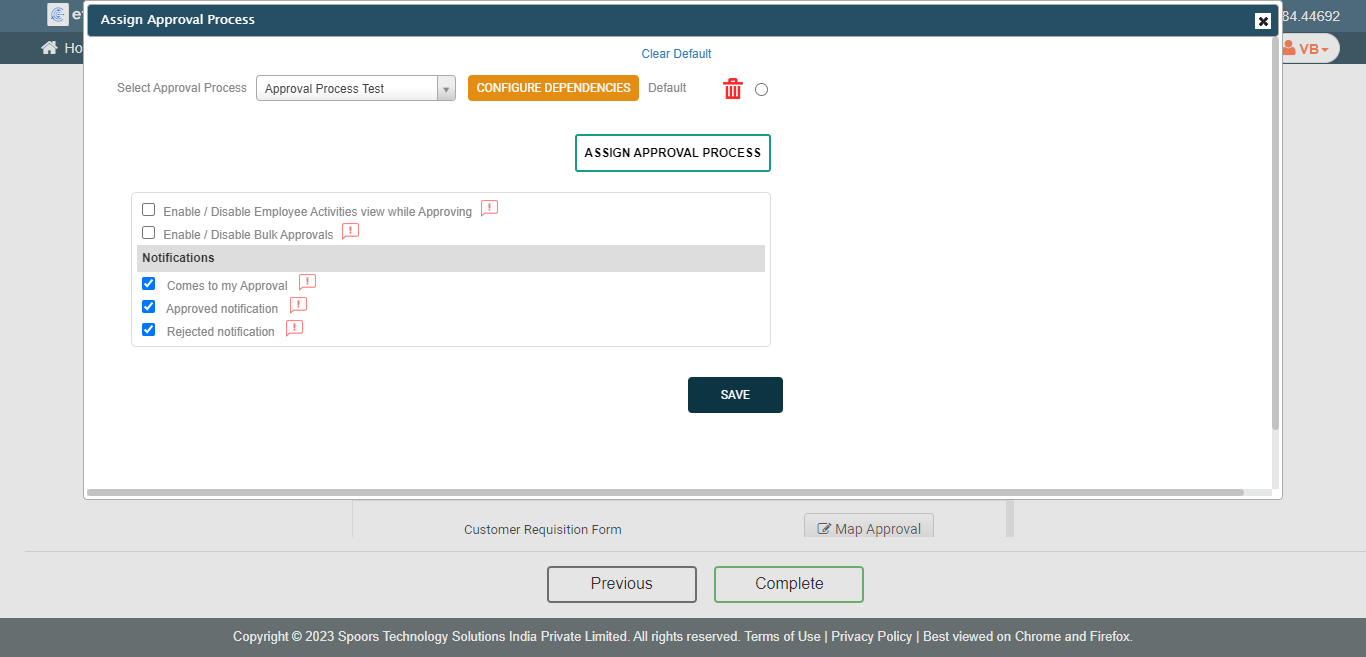
- Click Save.
-
Click the Map Approval button against the
required form template.
- Click Complete.