

Modify Customer Based On Form Submission
Make sure the form has been configured with an Approval Process. The functionality will not work if the approval process was not configured. Check out the Assign Approval Flow page to assign an approval flow.
Also, make sure that a Customer data type must be used in the form. The selected customer data will be modified once the form gets approved.
-
Go to .
The Forms page appears.
-
Click on the Form based on which you want to modify a
customer.

-
Under the Requisition And Approval section, click the
Customer Master Management Flow card.

The Customer Master Management Flow page appears.
-
Click the Modify option.

- Optional:
If required, change the approval type from the Modify
Customer dropdown.

-
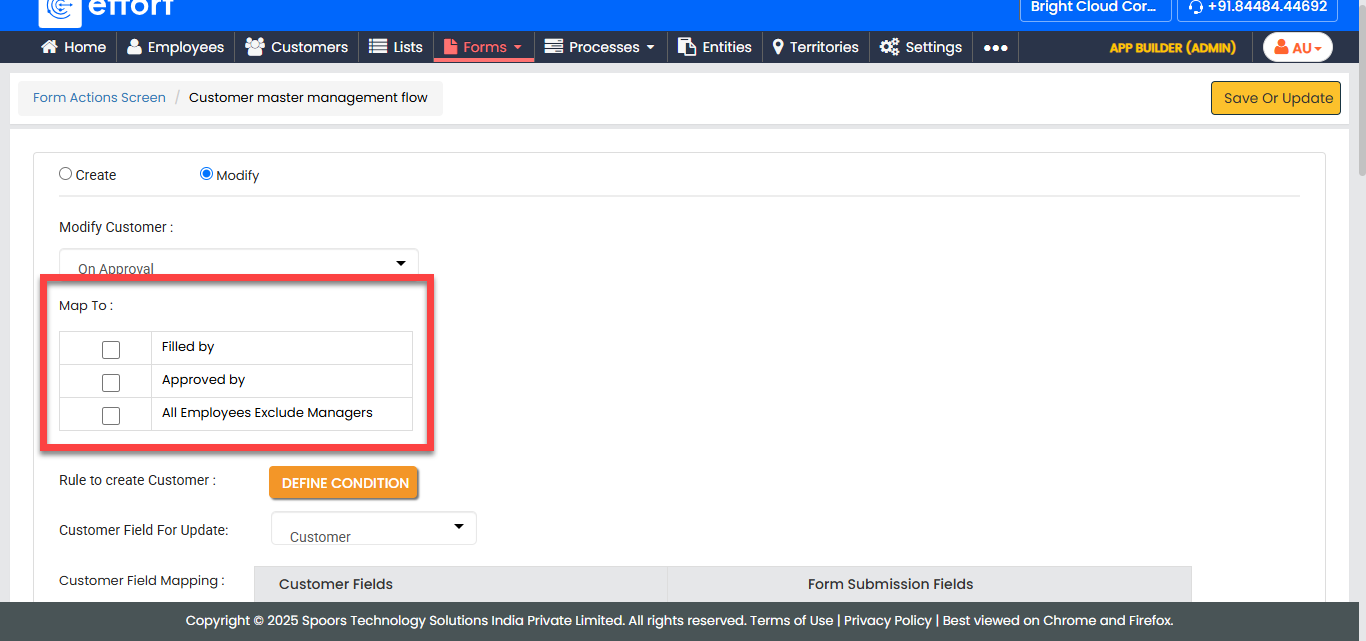
Select customer mapping options in the Map To
section.
- Filled by: The created customer will be mapped to the employee who filled the form.
- Approved By: The created customer will be mapped to the employee who approves the form.
- All Employees Exclude Managers: The created customer will be mapped to all employees except those marked as managers.
- Optional:
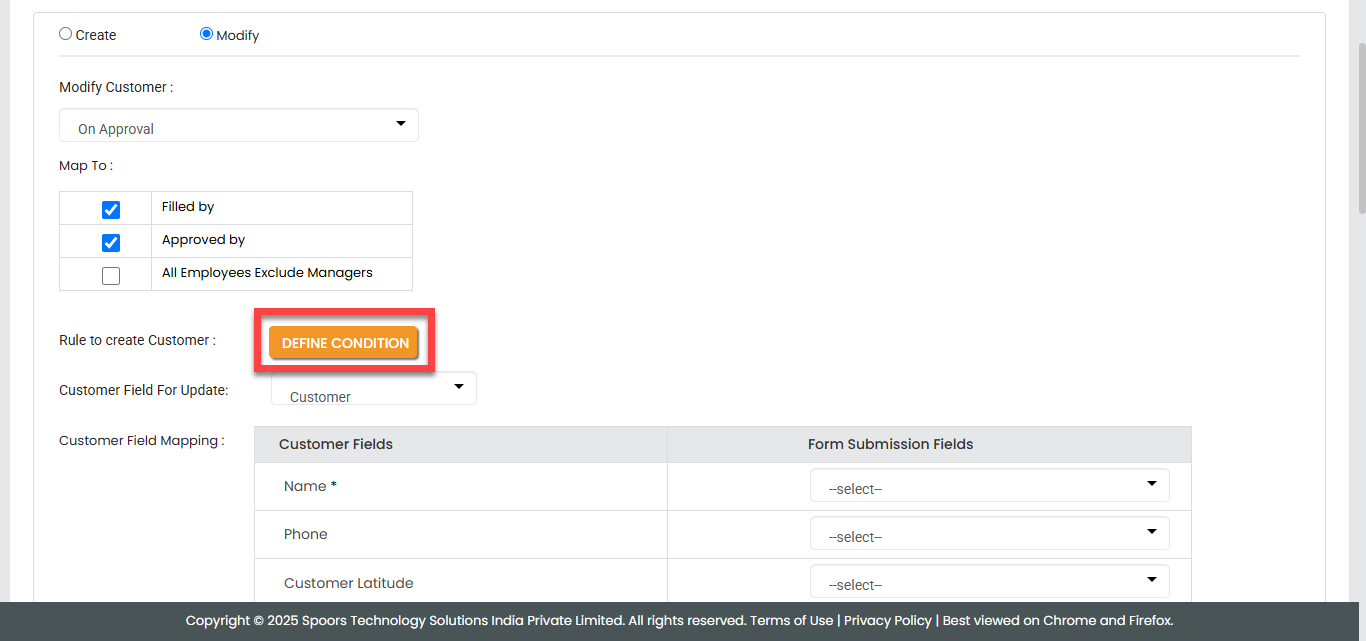
Click the Define Condition button to configure
conditions for modifying a existing customer.
-
Select a customer field in the Customer Field For Update
dropdown to modify the customer.

The selected customer data will be updated. -
Under the Customer Fields Mapping section, configure
form submission fields for the respective customer fields.

As shown in the above screenshot, the input entered in the Customer field while submitting this form will become the Customer Name. Accordingly, the customer will be modified with the inputs entered in the configured form fields. - Click Save or Update.