

Generate a Brief Employee Accomplishments Report
To generate a brief employee accomplishments report, follow the steps below.
-
Go to .
The Reports page appears.
- Scroll down to the Employee Activity And Performance Reports section.
-
Click the Employee Accomplishments Report link or
icon.

The Employee Accomplishments Report page appears.
-
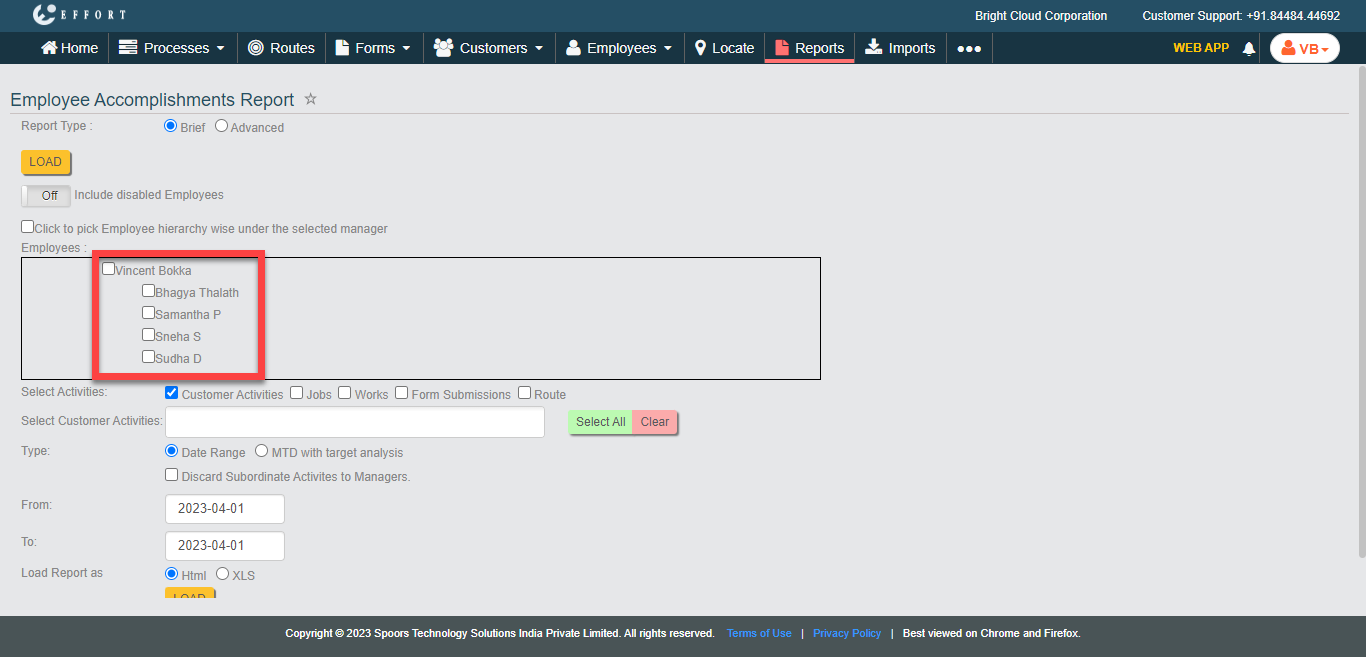
Select employees from the employees list.
-
Select Activities for which you want to see the accomplishments of selected
employees.

-
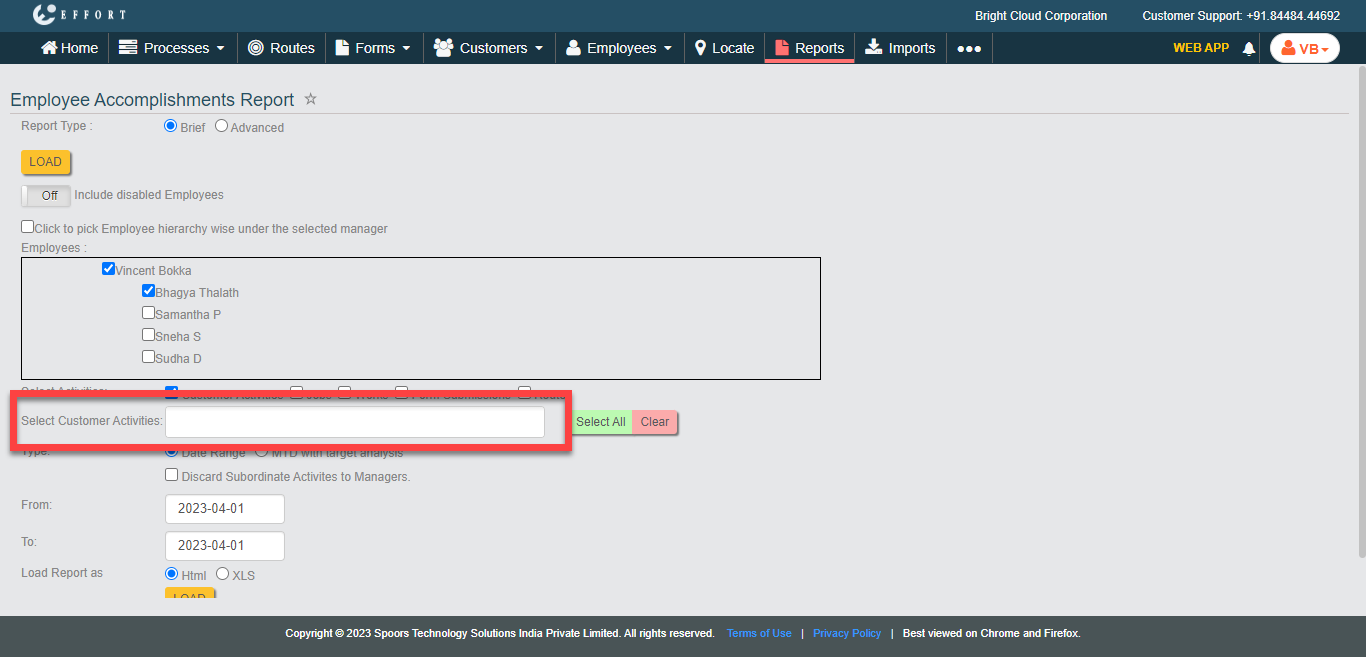
Select Customer Activities/Works/Form Submittions/Route as per the previous
selection.
- Optional:
Change Type, if required.
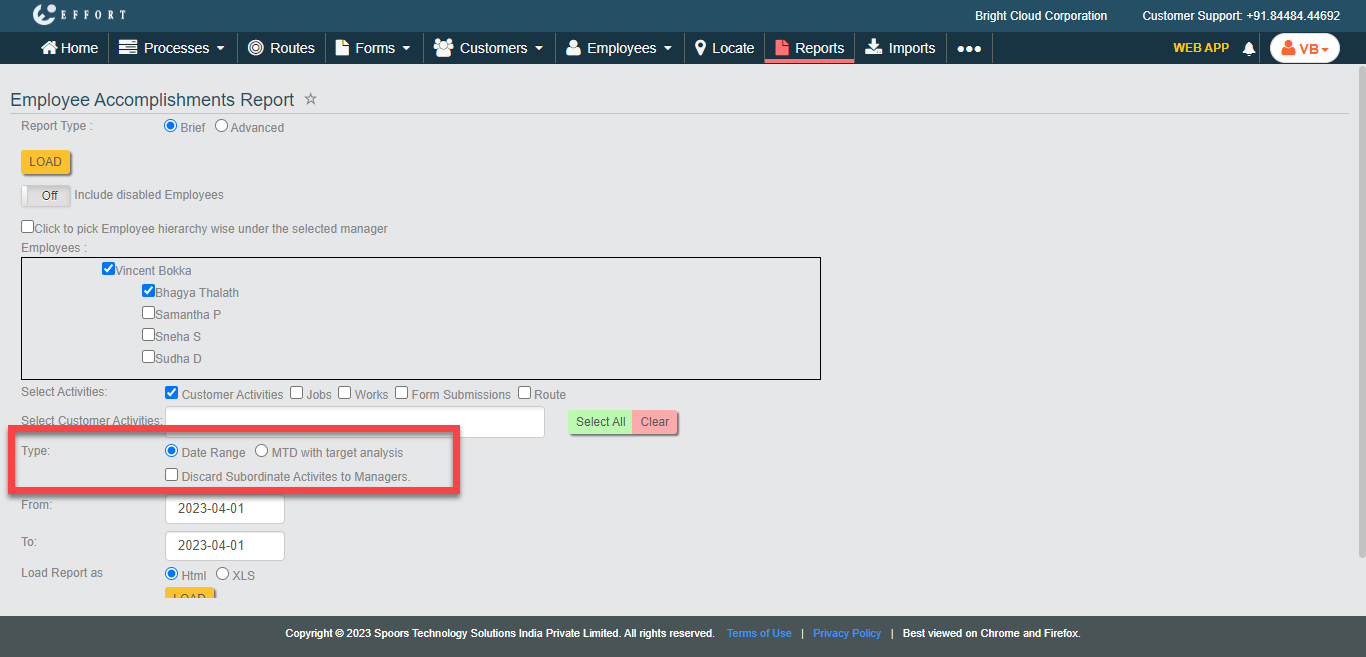
Type defaults to Date Range. - Optional:
Select Month & Year, if you select
Type as MTD with target
analysis.

- Optional:
Change From and To dates, if you
select Type as Date Range.

Both From and To default to today. - Optional:
Select the Discard Subordinate Activities to Managers
checkbox.

If you do not enable this checkbox, the activities done by employees are added to the managers in the report. - Optional:
In Load report as, select HTML or
XLS.
Load report as defaults to HTML.
-
Click Load.
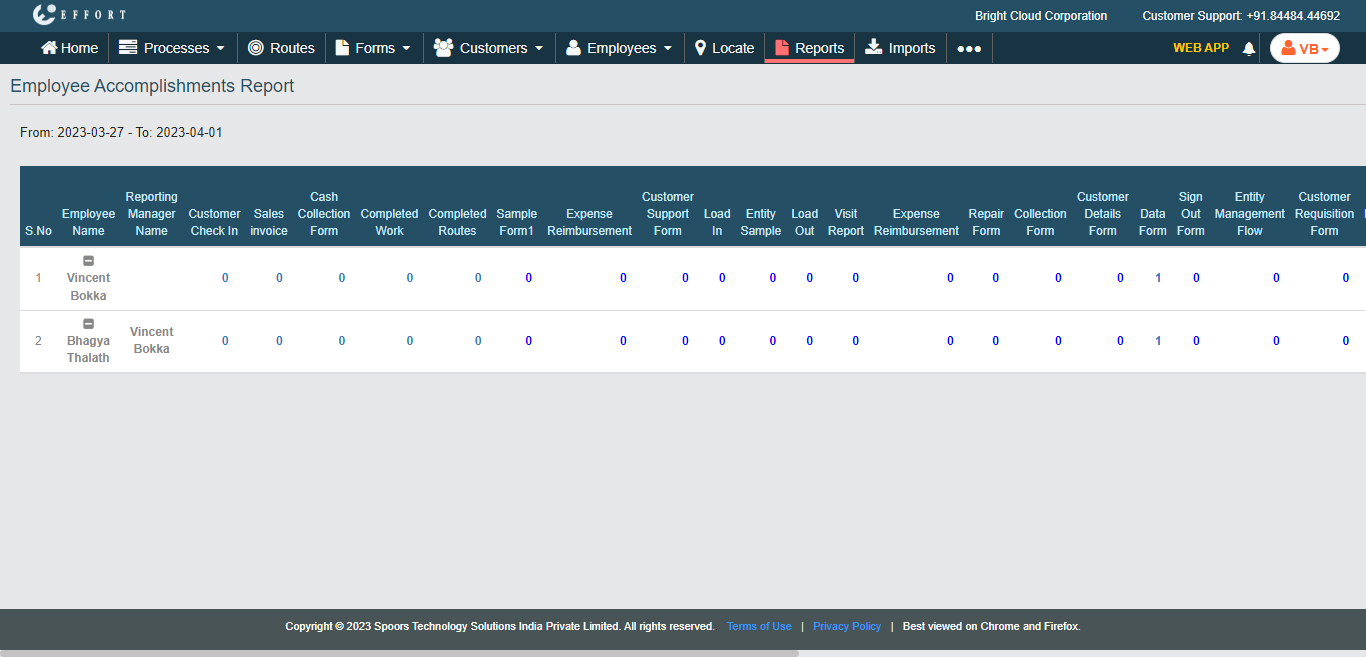
The Employee Activity Wise Summary Report is displayed depends on the report format.
- Optional:
If you opted for HTML, click the number under activities columns to view the
activity details.
