

Manage Holidays and Special Working Days
To define holidays and special working days, follow the steps below.
- Go to .
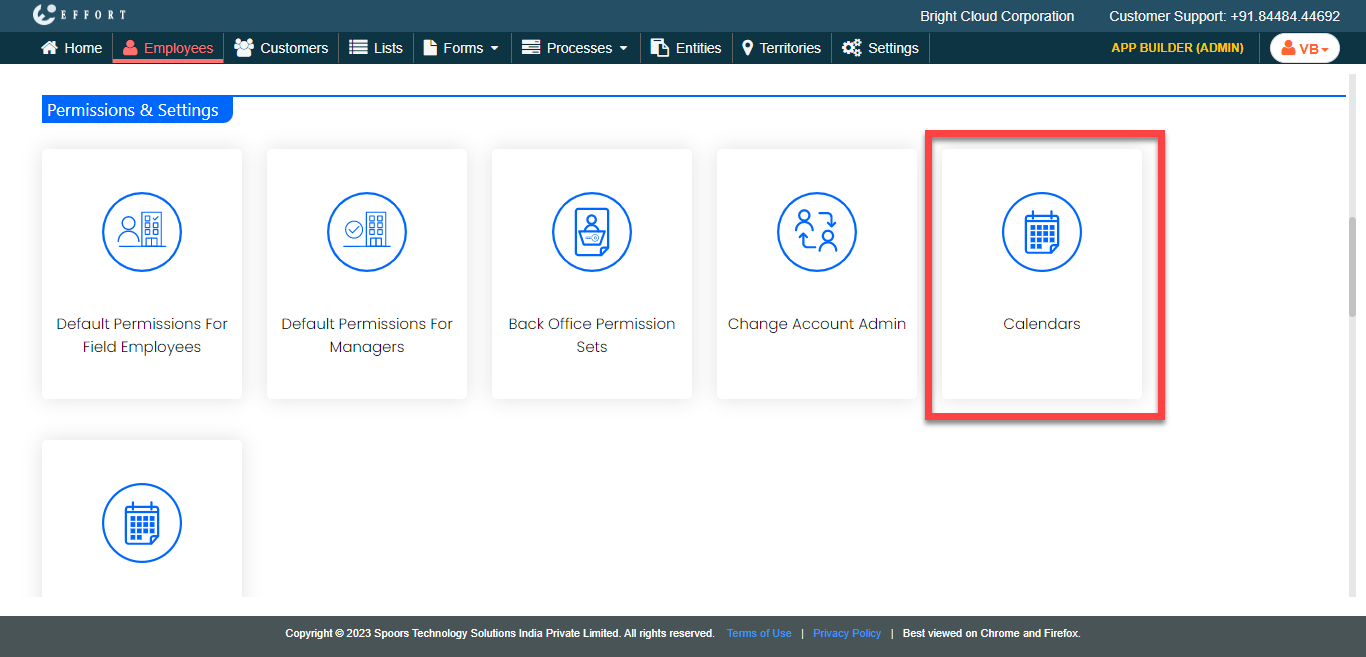
- Scroll down to the Permissions & Settings section.
-
Click the Calendars card.
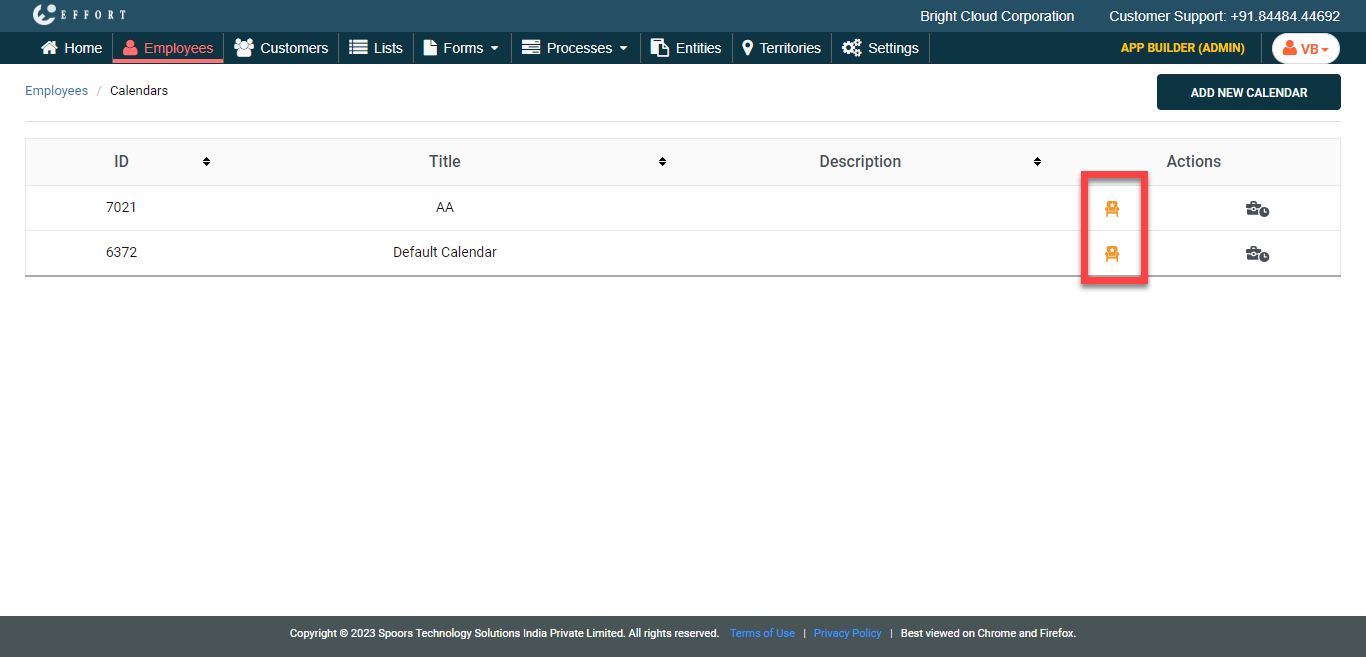
The Calendars page appears.
-
Under the Actions column, click the chair icon to edit
holidays and special working days.
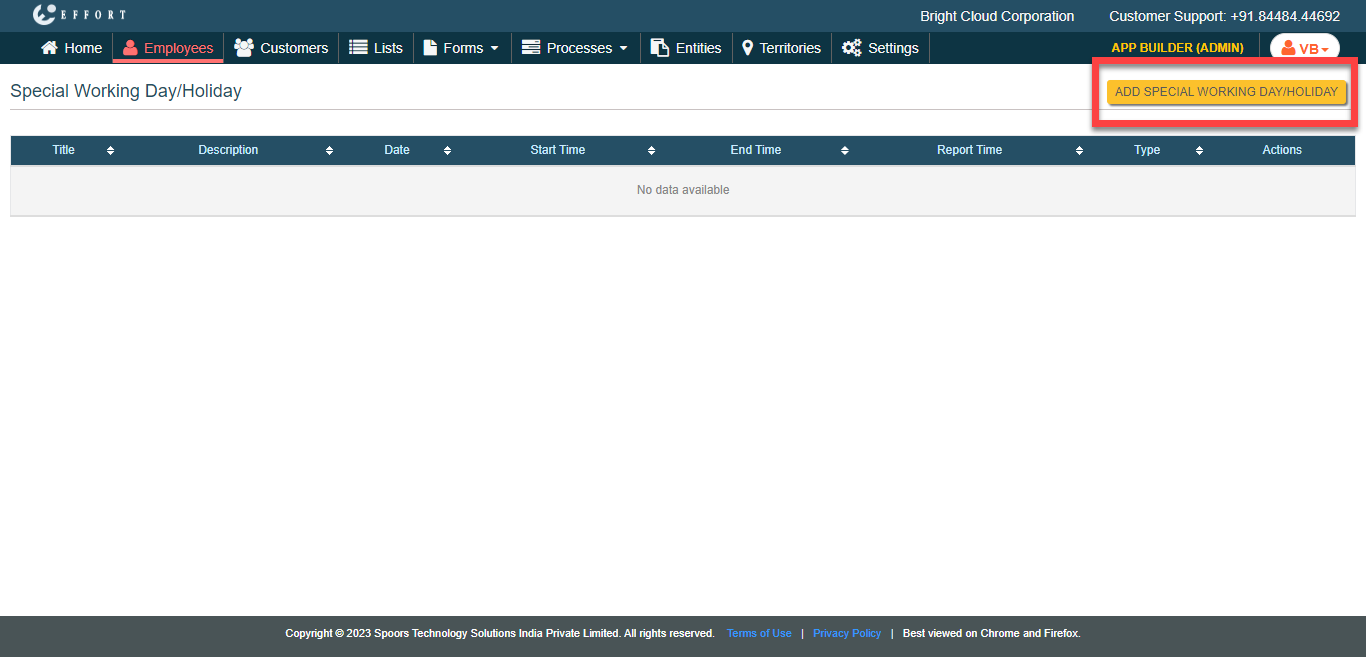
The Special Working Day/Holiday page appears.
-
Click the Add Special Working Day/Holiday button.
The Create Special Working Days/Holidays page appears.
-
Enter details in the below fields.
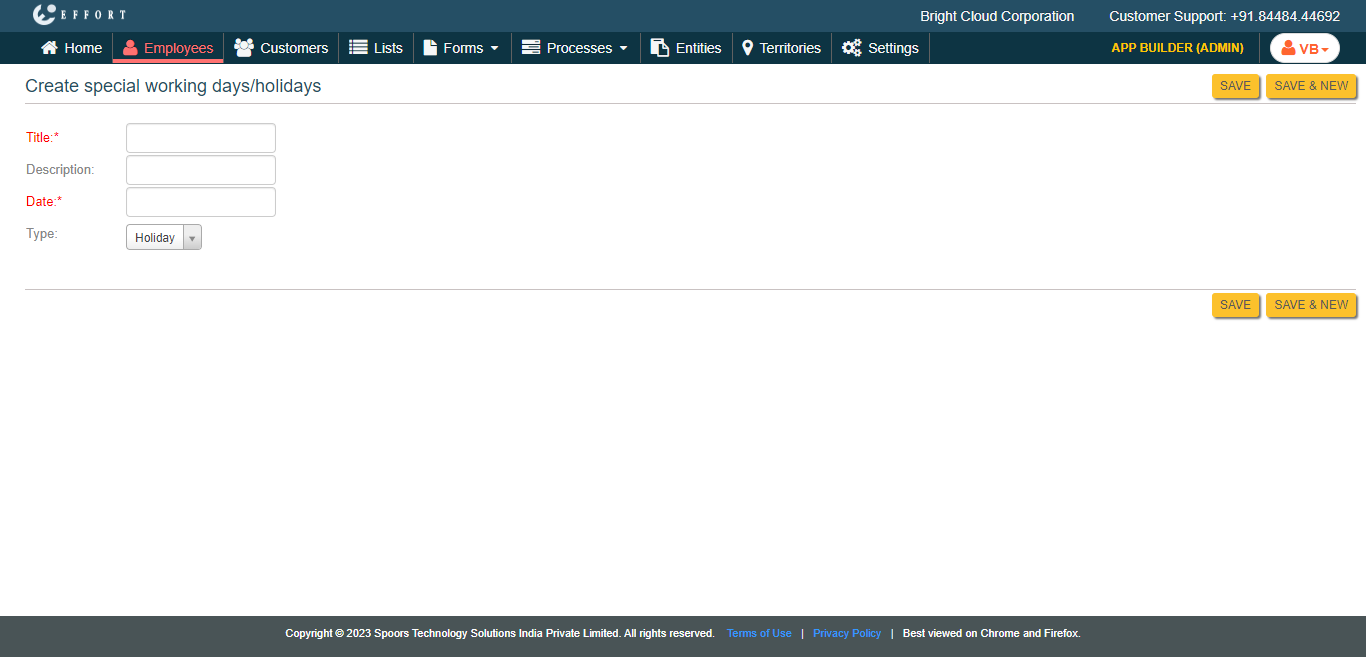
- Title: Enter a name for the holiday or calendar.
- Description: If required, provide additional details about the working day or holiday.
- Date: Select a date.
- Type: Select whether the selected is a holiday or working day from the dropdown.
-
Click Save.
In the web app, the manager must select the calendar while onboarding the employee to ensure that they receive the notifications on their mobile app.