

Schedule Dynamic Work Reports
Pre-Requisites
Before you begin, ensure you have already designed a work report template to schedule a dynamic work report. To design a work report, refer to the Generate a Work Status Report topic.
To schedule a dynamic work report, follow the steps below.
-
Go to .
The Reports page appears.
-
Click the Schedule My Reports button located on top of
the page beside the search bar.
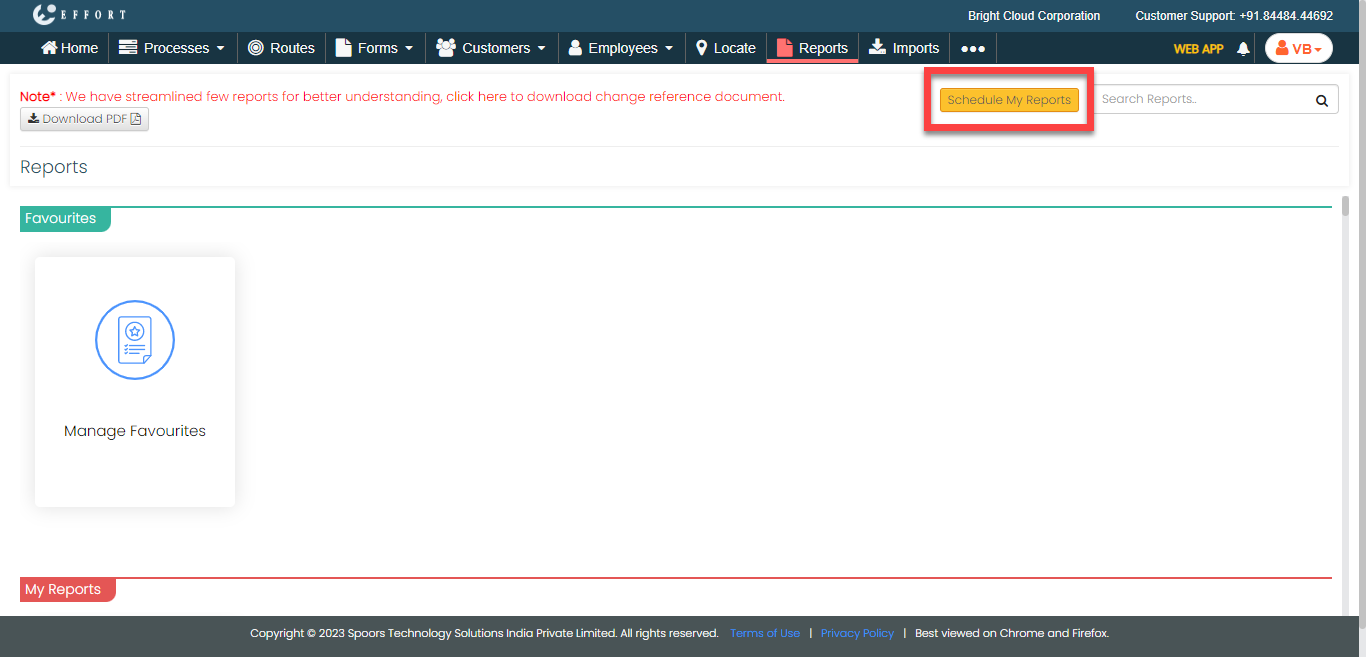
The Schedule Reports page appears.
-
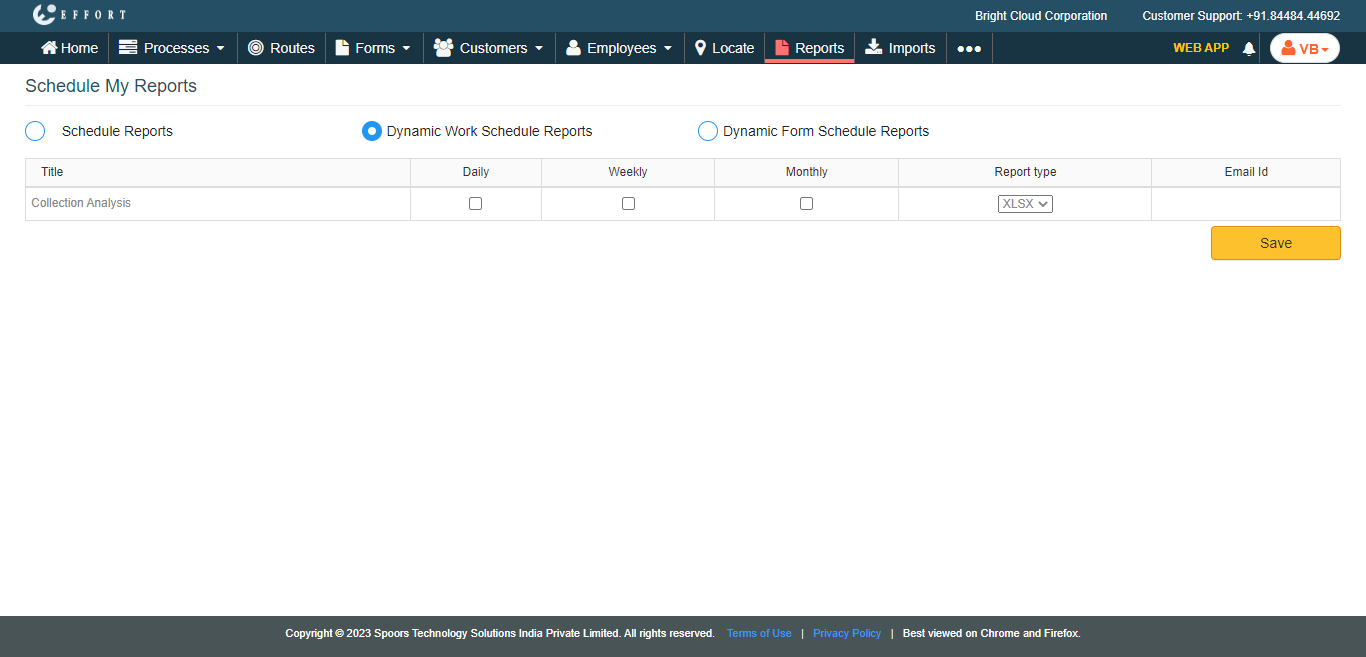
Click the Dynamic Work Schedule Reports option.

-
Select the checkboxes for the required reports which you want to schedule on a
daily/weekly/monthly basis.
-
Under the Email Id column, click the email
 icon.
icon.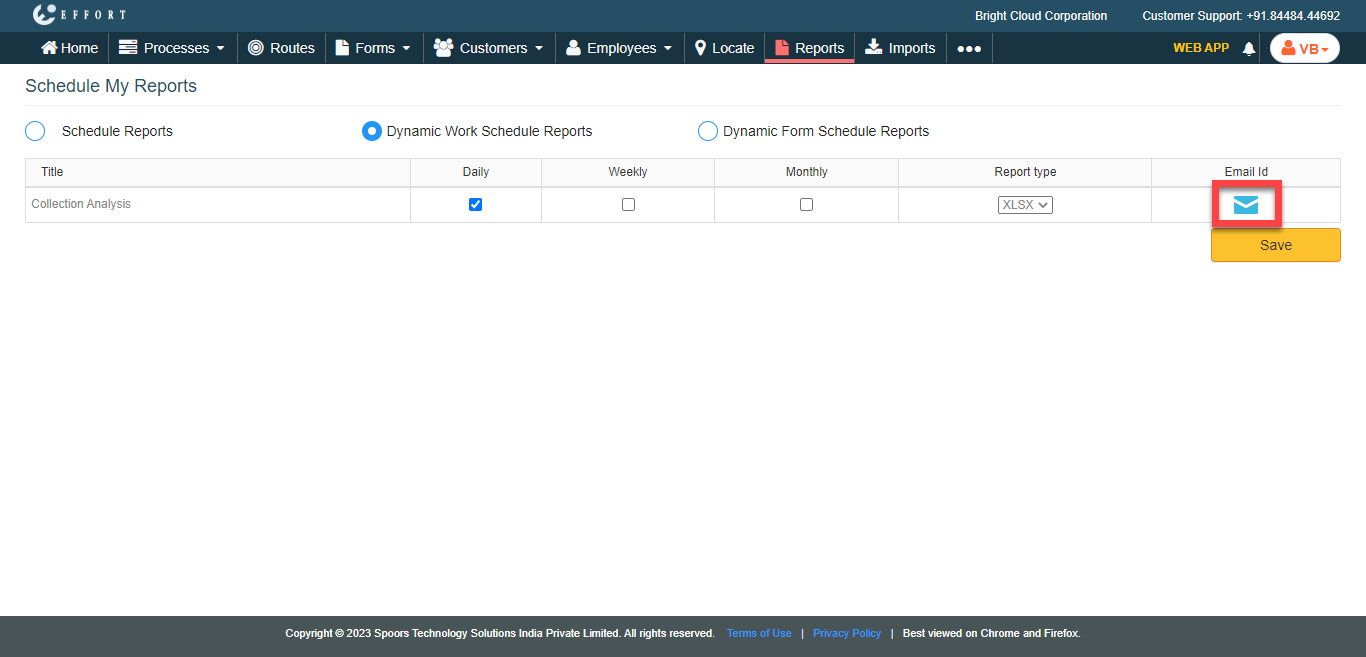
You will receive the selected reports over Email in the selected format. -
In the Email Id textbox, enter the email ids to which
you want to send the report.
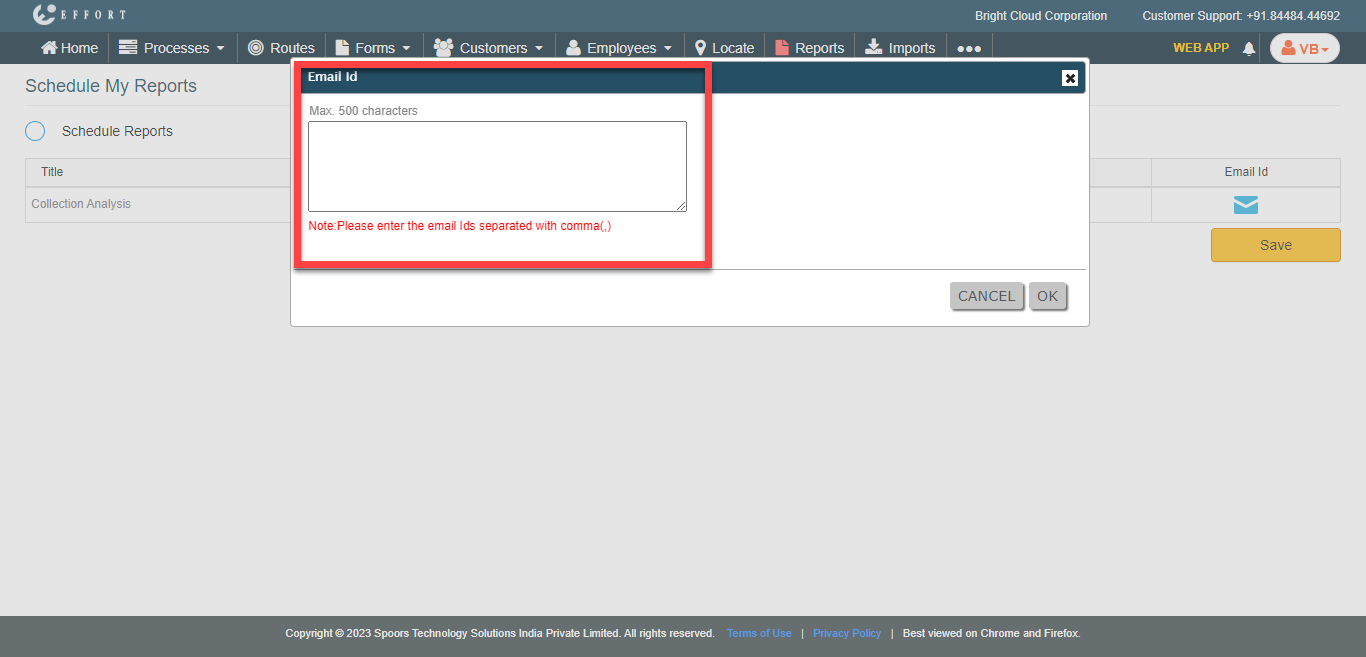
- Click OK.
- Click Save.