

Generate Detailed Attendance Report For Multiple Days
To generate a detailed attendance report for multiple days, follow the steps below.
-
Go to .
The Reports page appears.
- Scroll down to the Attendance section.
-
Click the Attendance Report for Multiple Days link or
icon.

The Attendance Report for Multiple Days page appears.
-
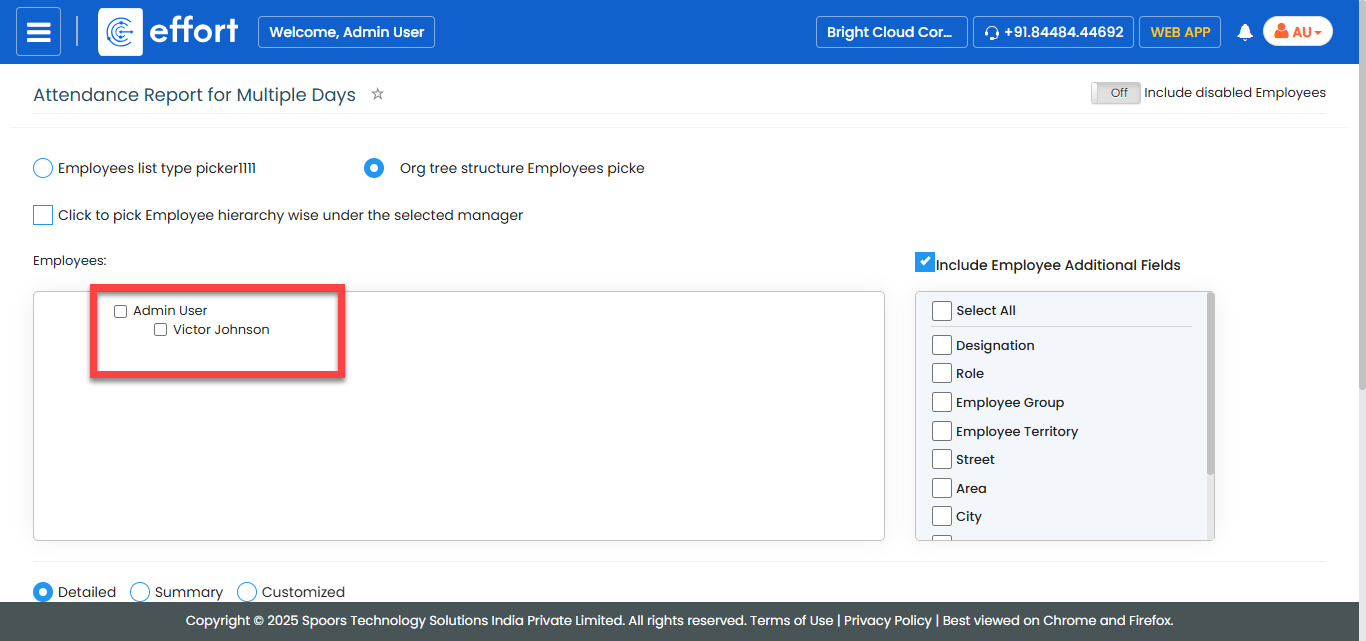
Select the employees from the employees list.
- Optional:
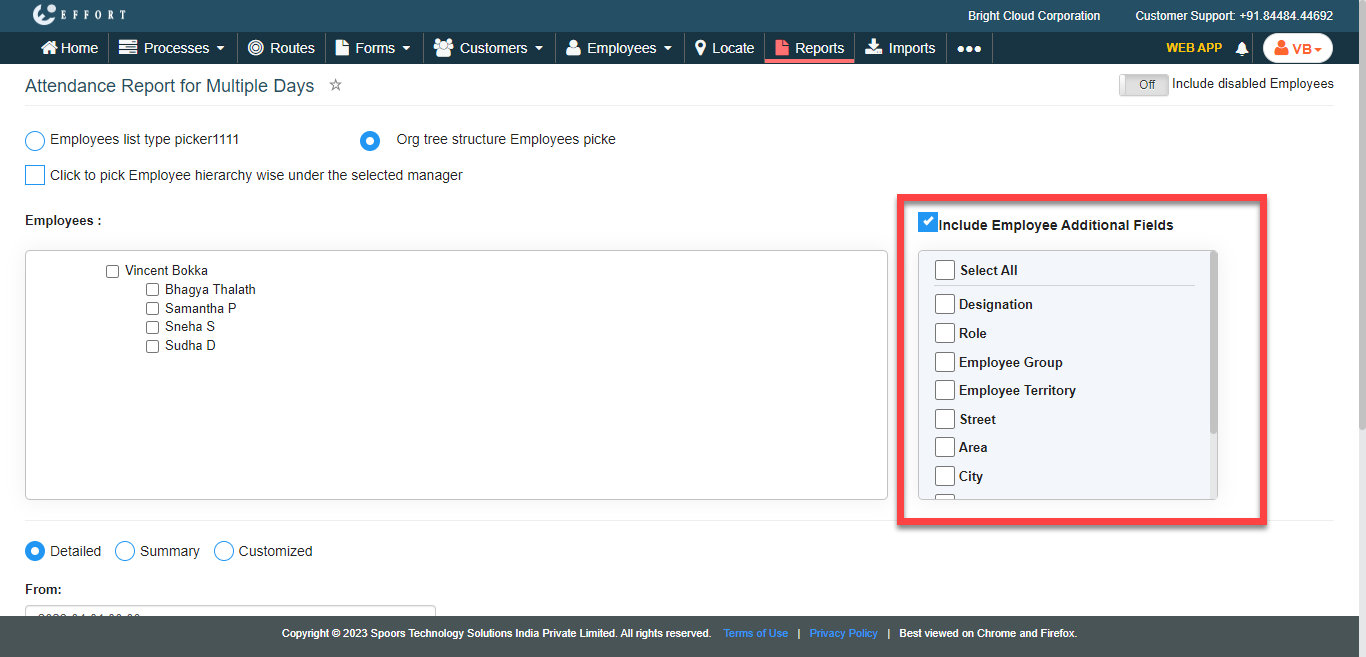
Click Include Employee Additional Fields checkbox and
select the required fileds to include the selected field's data in the output
report.
- Optional:
Change the From and To dates as
per your requirements.
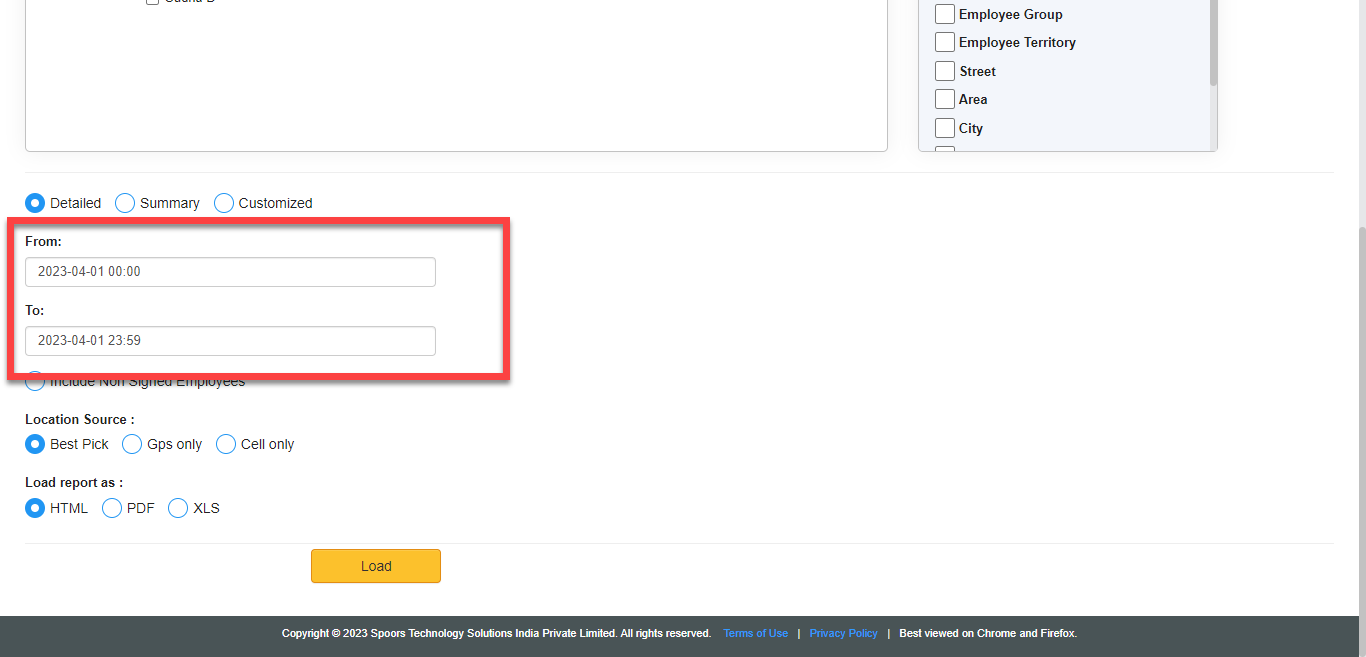
Both From and To default to today. - Optional:
Click Include Non Signed Employees checkbox to get the
details of non signed employees within the given time frame.

-
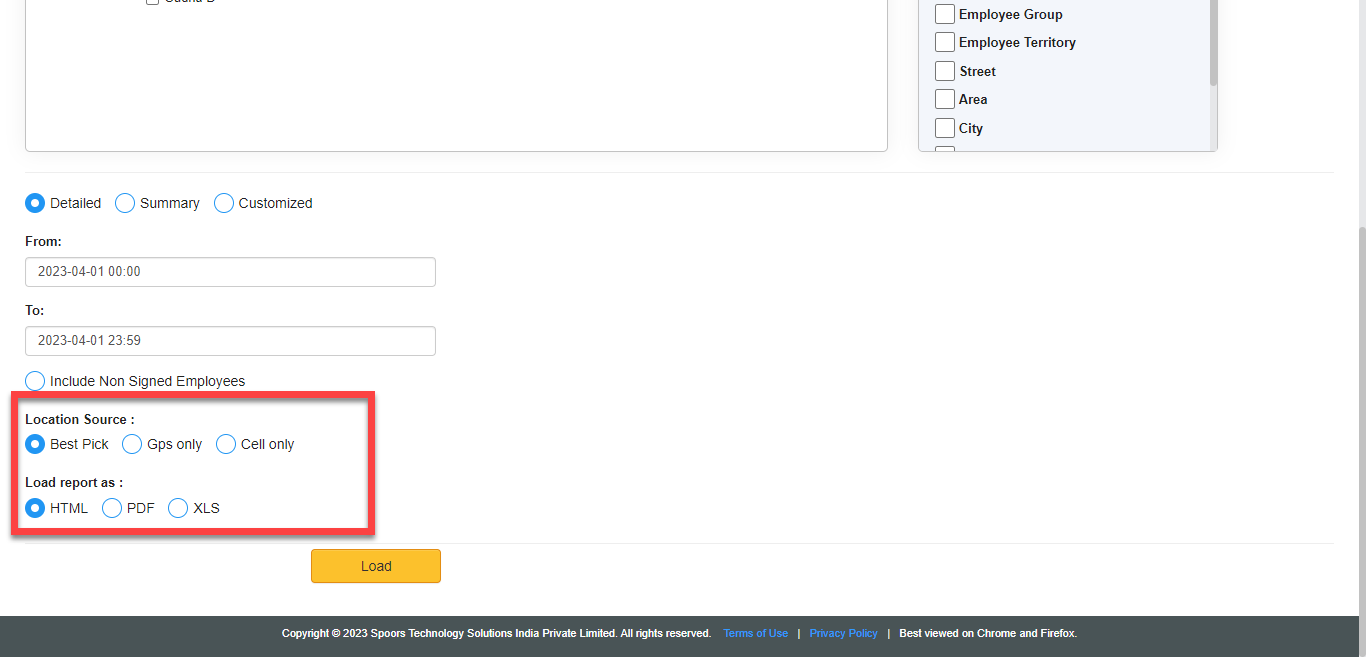
Choose Location Source and output report format as per
your requirement.
-
Click Load.
The Detailed Attendance Report For Multiple Days is displayed depends on the report format.
