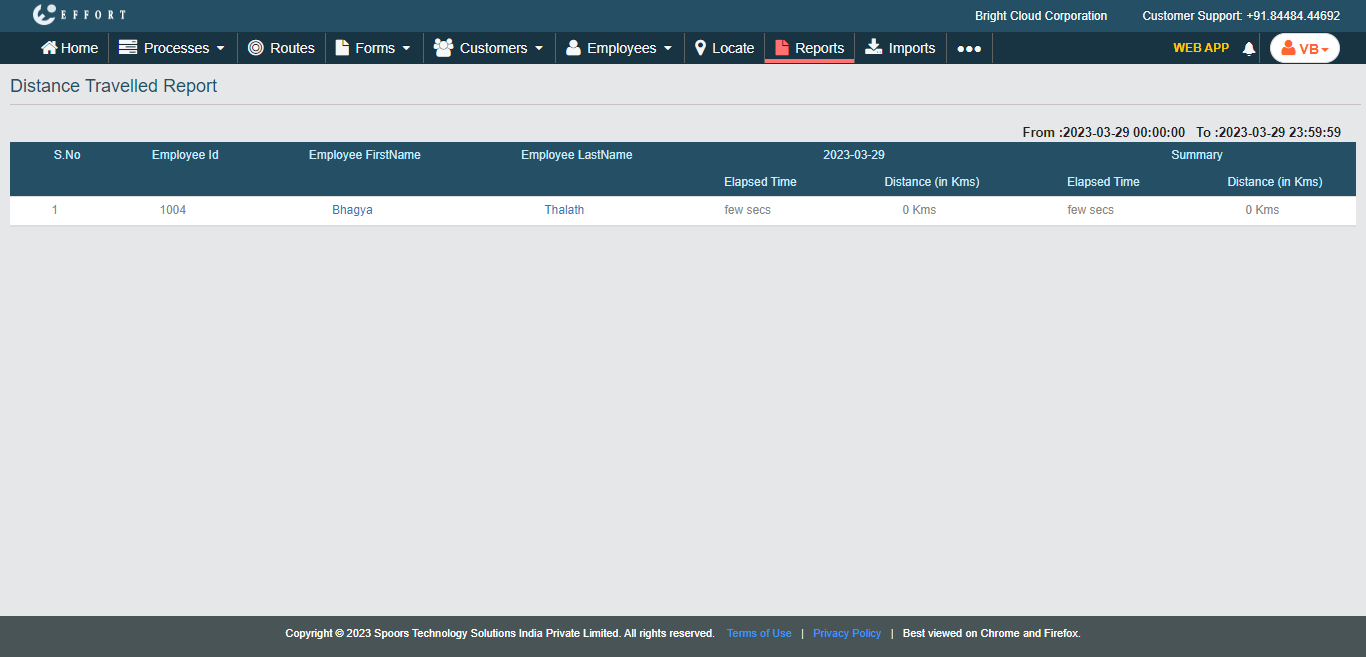
Generate a Distance Traveled Report
To generate a distance traveled report, follow the steps below.
-
Go to .
The Reports page appears.
- Scroll down to the Location Reports section.
-
Click the Distance Traveled Report link or icon.

The Distance Traveled Report page appears.
-
Select the employees from the employees list.

- Optional:
Change From and To dates as per
your requirement.

Both From and To default to today. -
Select Location source.
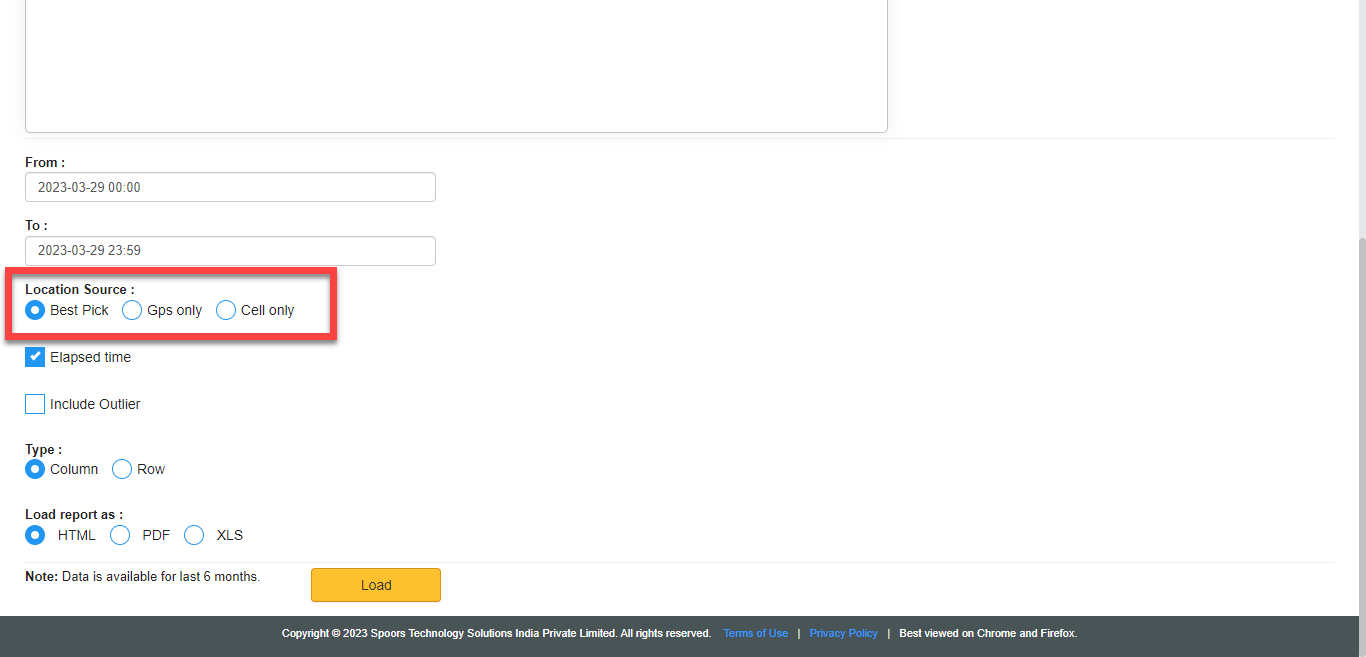
-
Select Type.
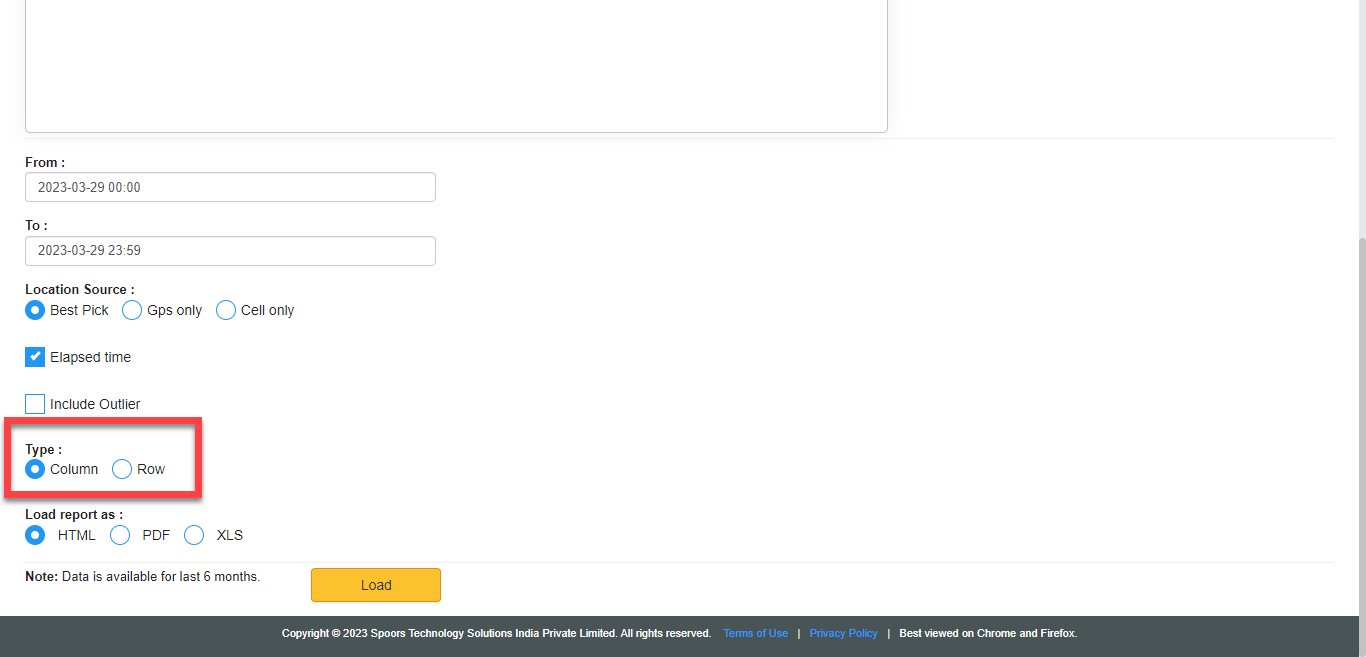
The output of the report is displayed based on the type.- Column: This feature displays day wise report.
- Row: This feature displays employee wise report.
- Optional:
Select HTML or PDF or
XLS for Load report as.
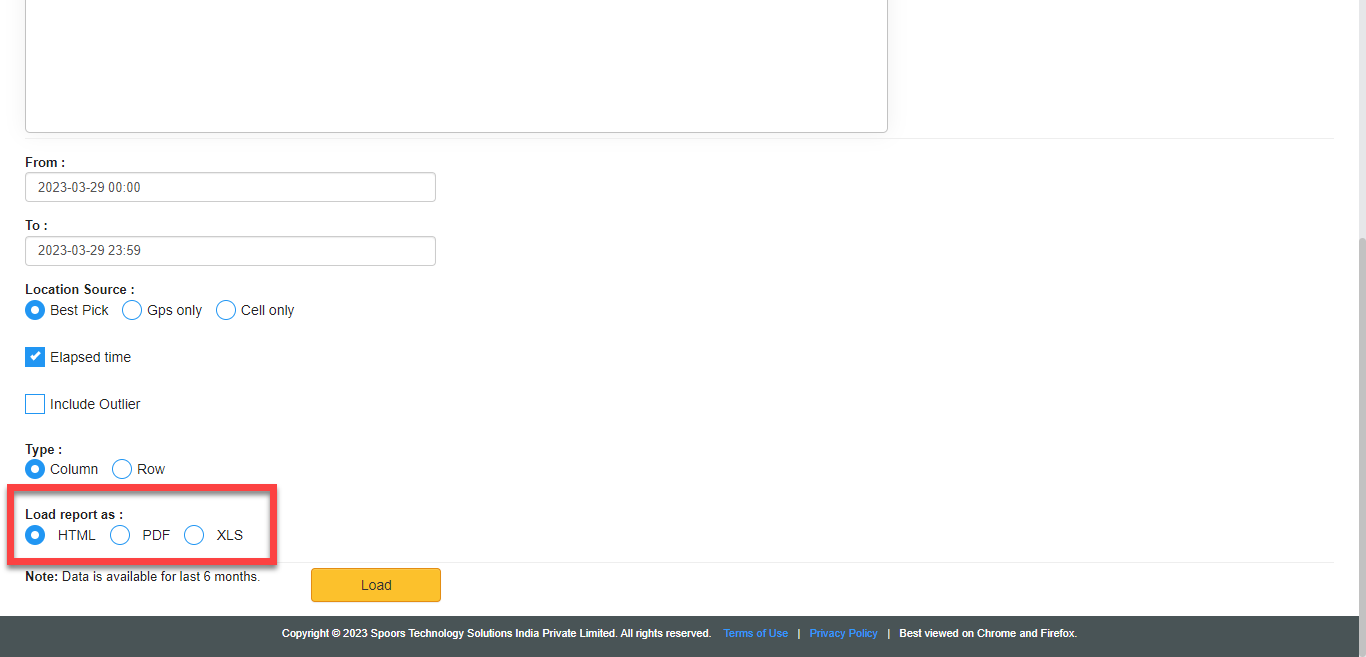
Load report as defaults to HTML. -
Click Load.
The Day Wise Distance Traveled Report is displayed depends on the report format and type.
If you opted for Column type, the output shows the day wise report.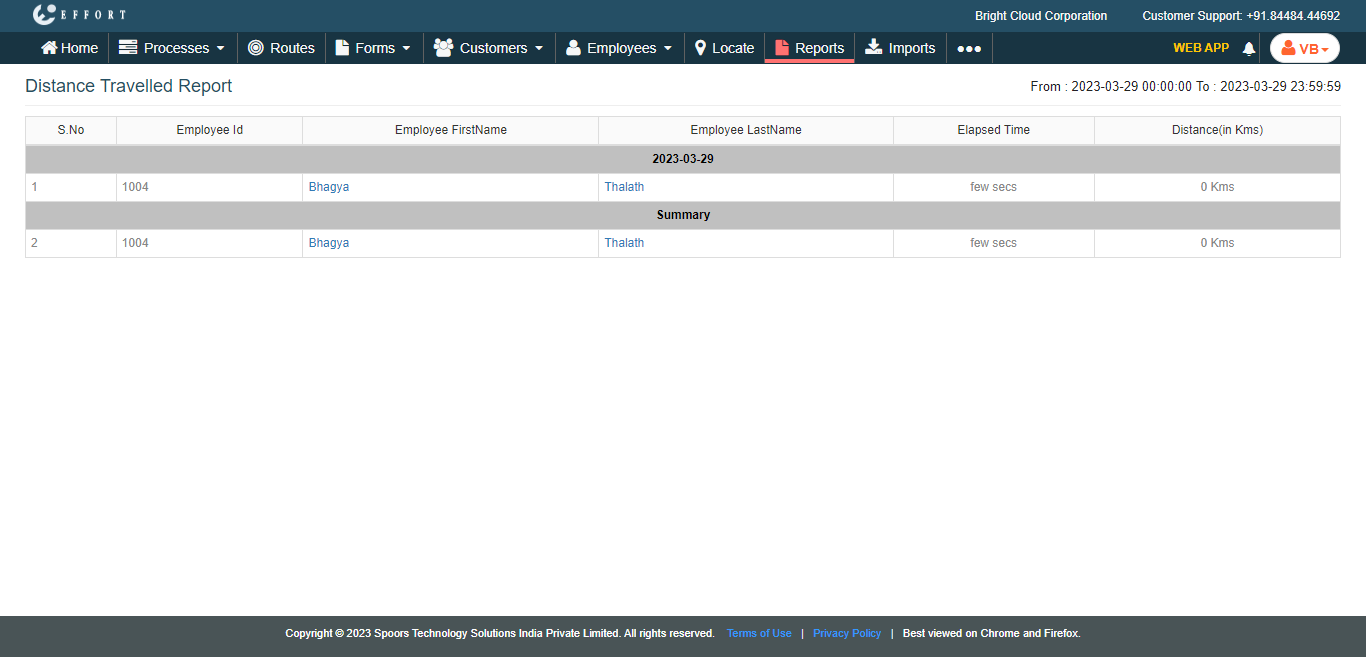 If you opted for Row type, the output shows the employee wise report.