

Map Customers
To map customers to an employee, follow the steps below.
-
Go to .
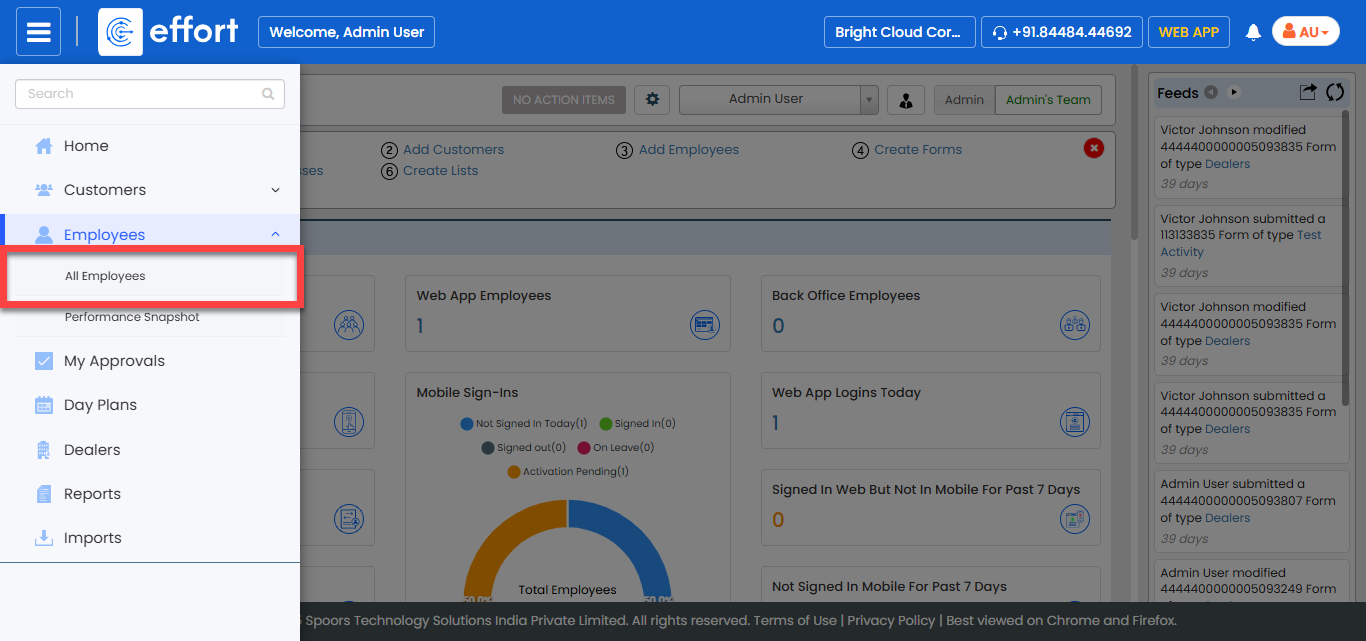
The All Employee page appears.
-
Click the Hide Metrics button to view all the
employees.

-
Click the Filters button and apply the filter options to
find the employee you want to map customers.

-
Under the Employee Name column, click the employee
name.

-
Click the Options dropdown.

-
Click the Customer Mapping option.

-
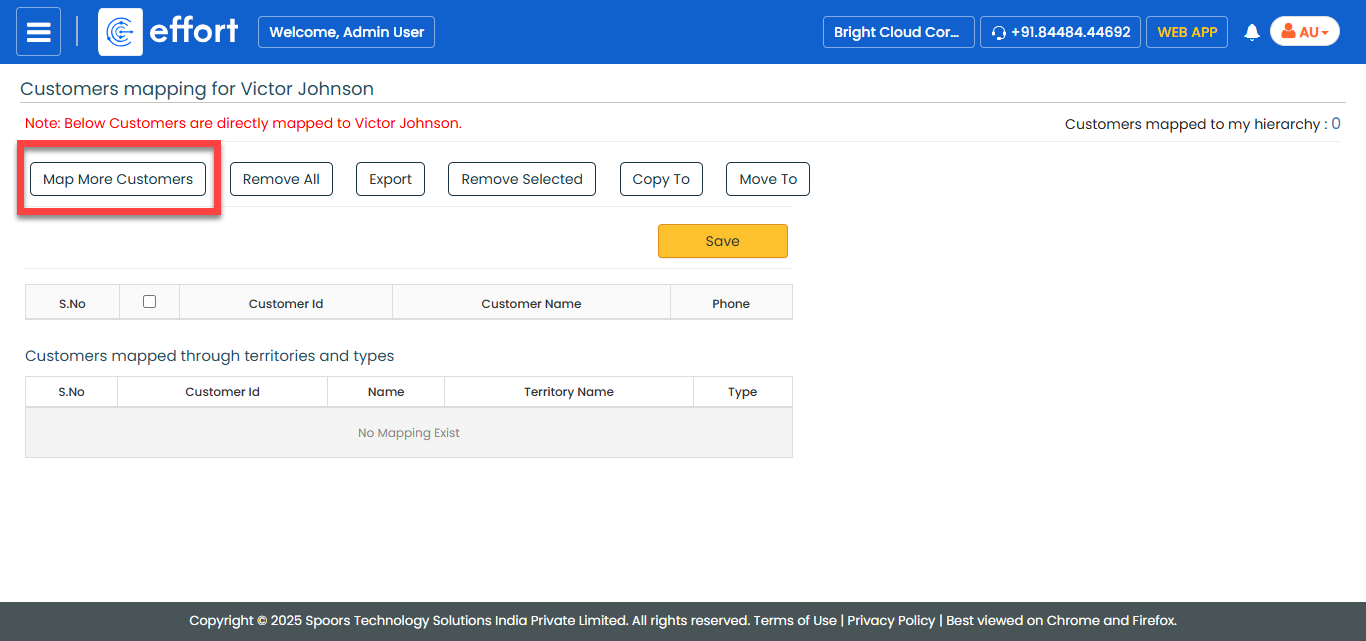
Click the Map More Customers button to select
customers.
-
In the pop-up window, select the customers you want to add them to the
employees screen, then click OK.

-
Select the customers you want to map to the employee.
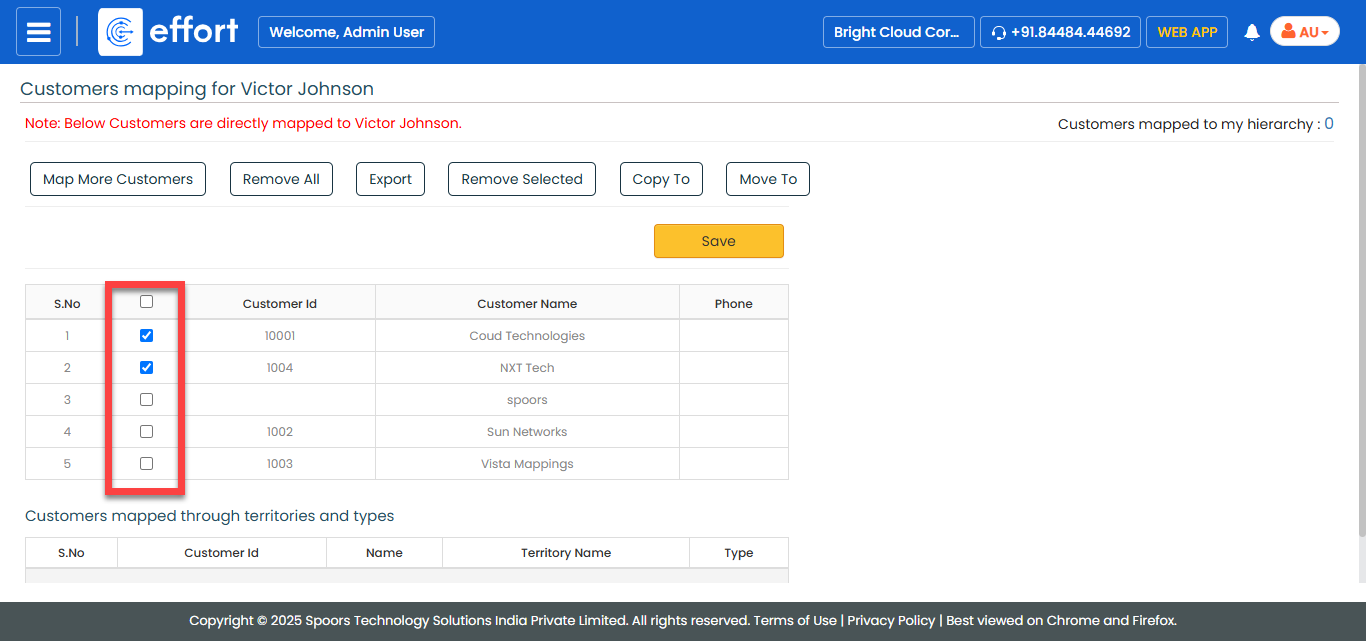
- Click Save.