

Schedule Leave Notifications
To schedule a leave notifications, follow the steps below:
-
Go to .

Note: If the Notifications module is missing from the navigation menu, it may not be enabled for the web app. Contact your administrator for assistance. -
In the Notifications page, click the + Add
Notification button located on the top right corner.

-
Change the Rule Type to
Event.

-
Enter a title for the notification in the Name
textbox.

-
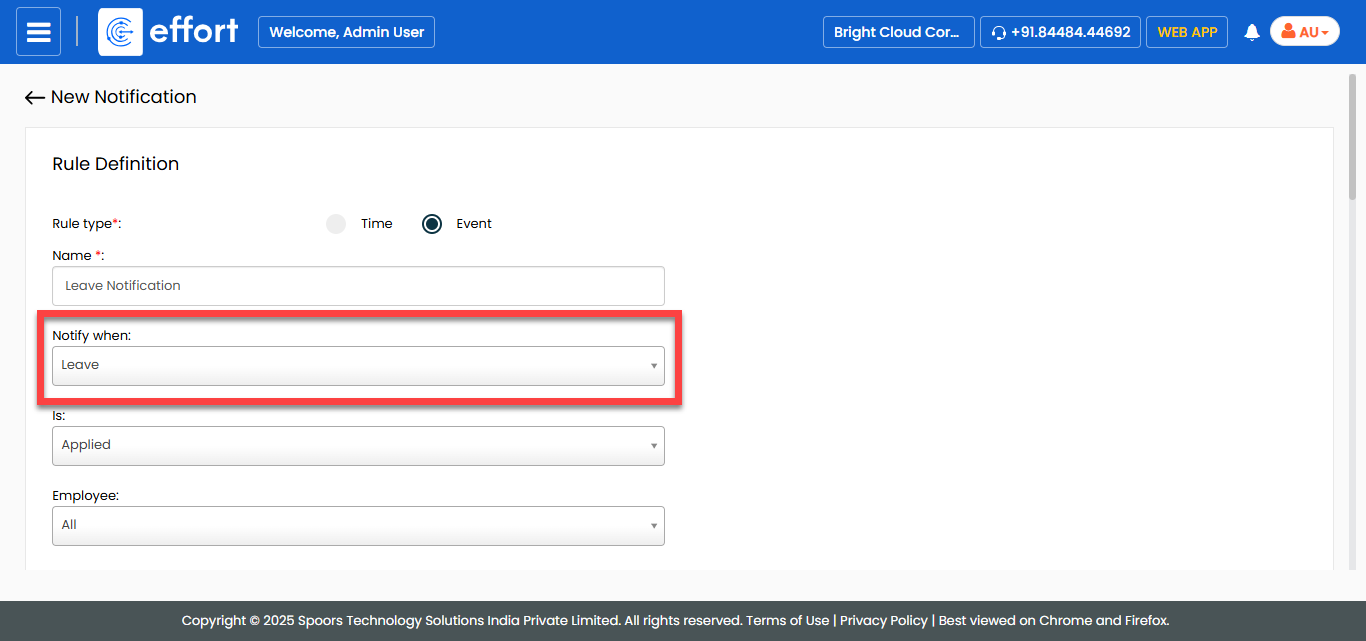
From the Notify When dropdown, select the
Leave option.
-
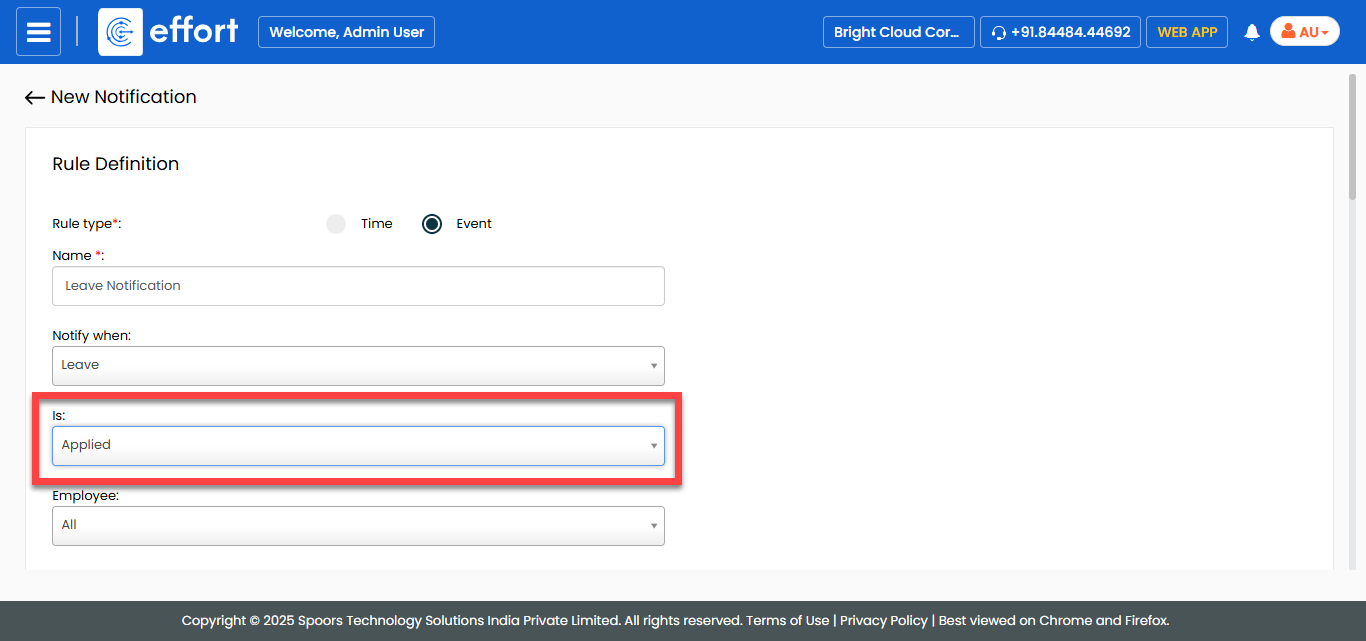
From the Is dropdown, select an event to send
notifications.
- Optional:
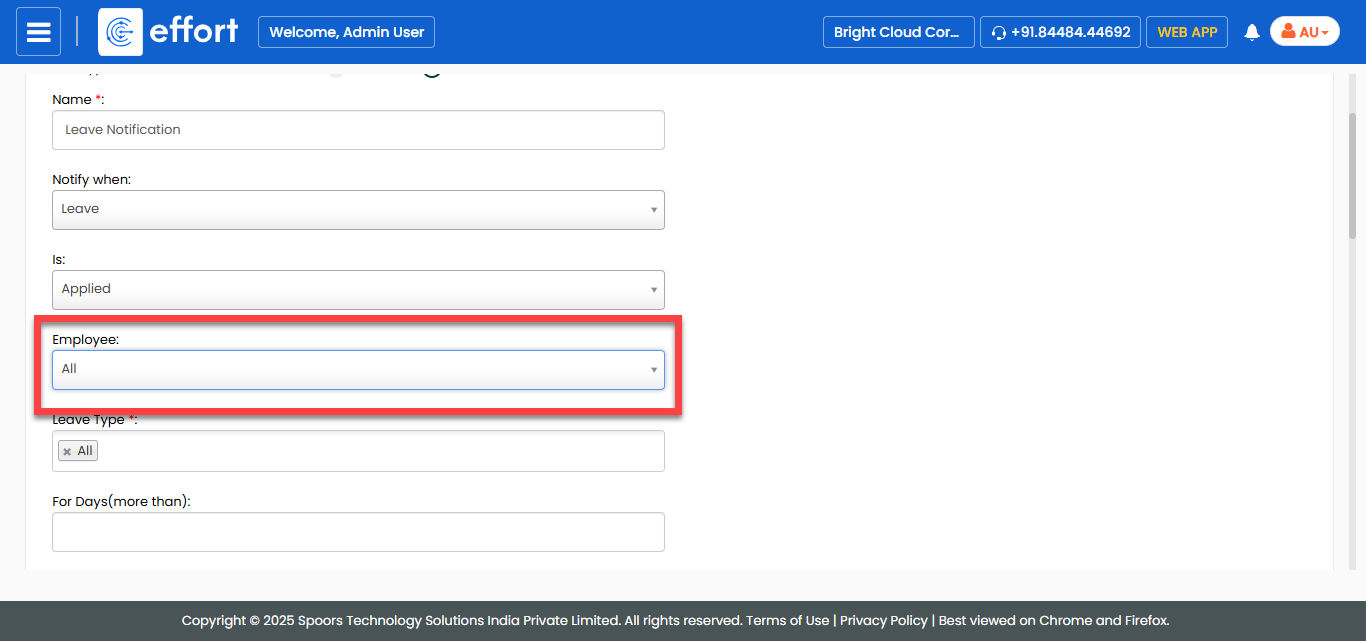
From the Employee dropdown, select an employee if you
want to schedule notification for a specific employee. By default, it is set to
All.
- Optional:
If you want to schedule a notification for particular leave types, then select
them from the Leave Type dropdown. By default, it is set
to All.
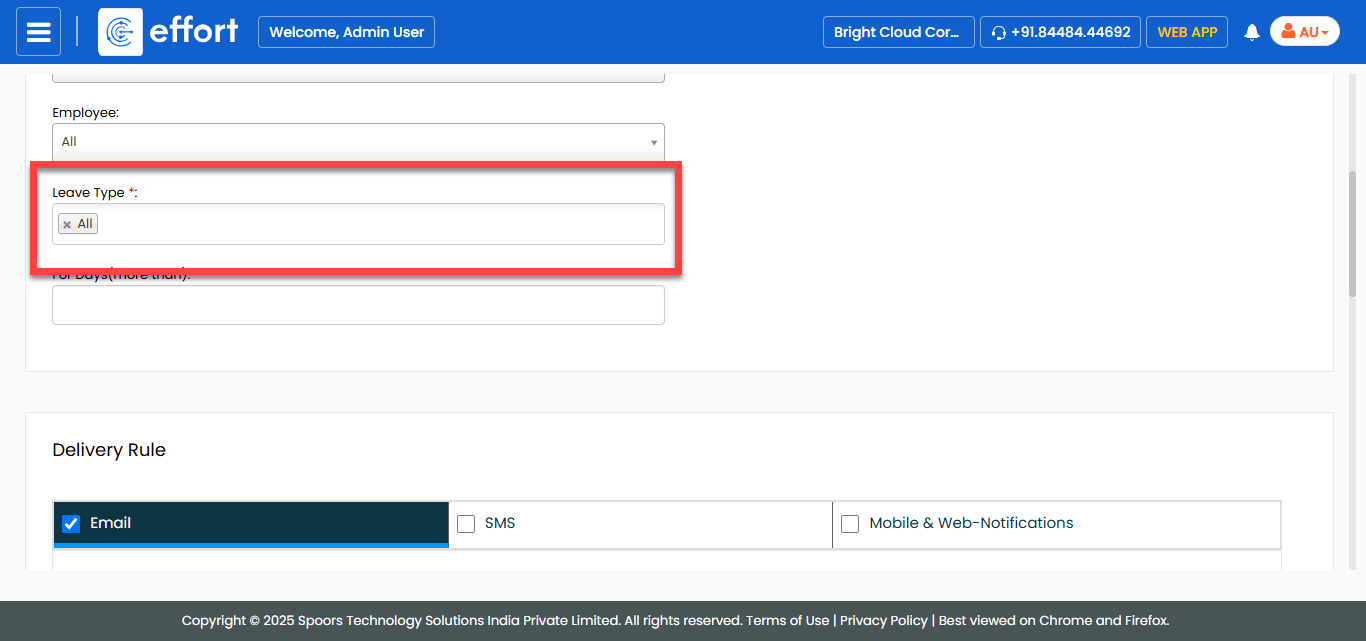
If you want to schedule notifications for all leave types, you can ignore this step. - Optional:
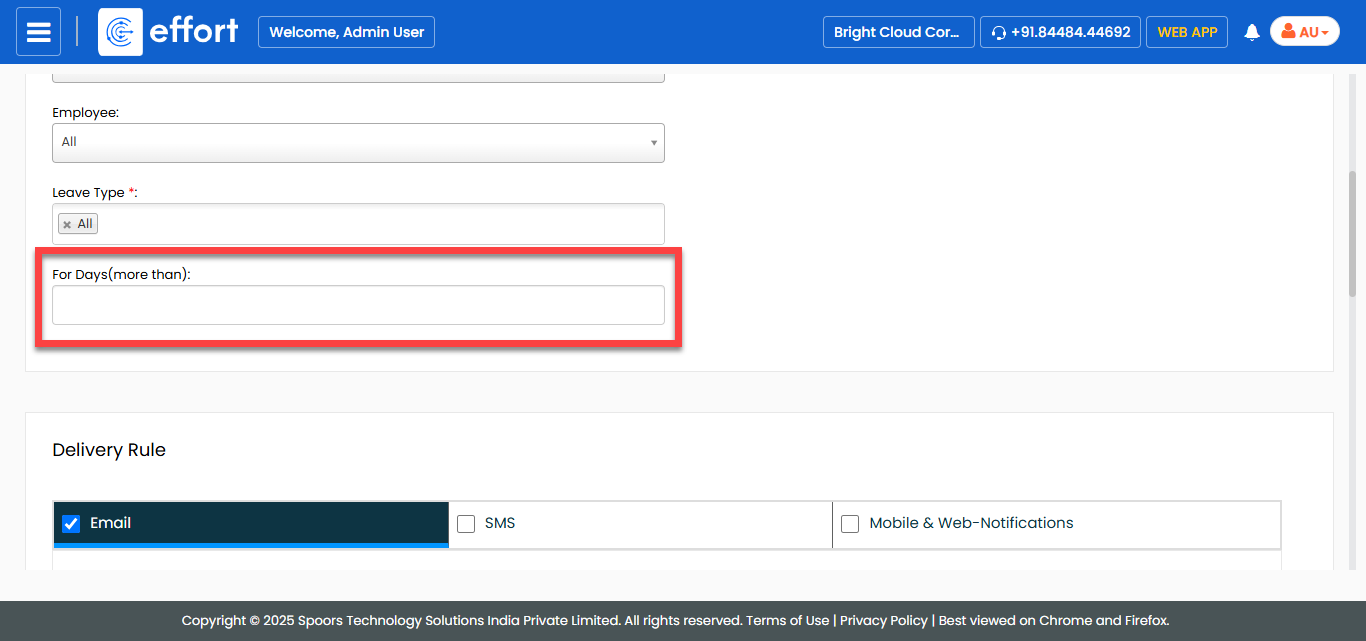
Enter the number of days in the For Days(more than)
field to send notifications based on leave duration.
-
In the Delivery Rule section, do the following:
-
Select the notification delivery options as per your requirement.
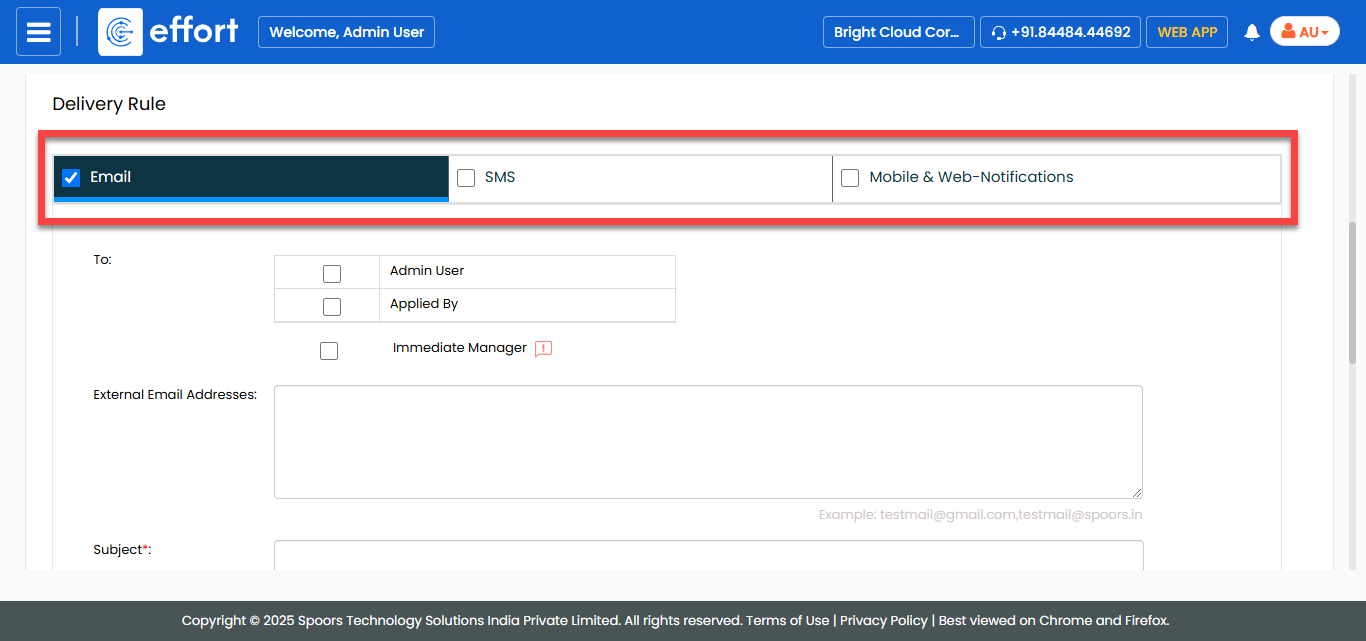
- Email: Allows you to send notification via Email.
- SMS: Allows you to send notification via SMS.
- Sync & Web-Notifications: Allows you to send web notifications.
-
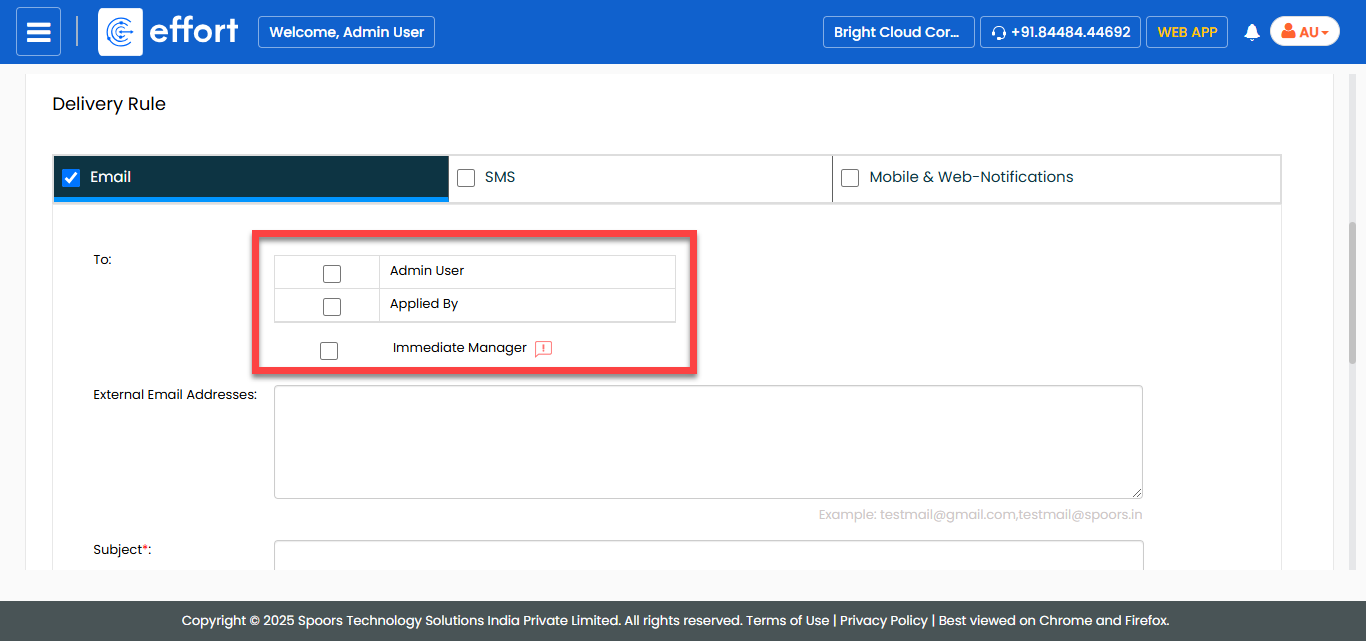
For the To field, select the employees to whom
you want to trigger the notification.
-
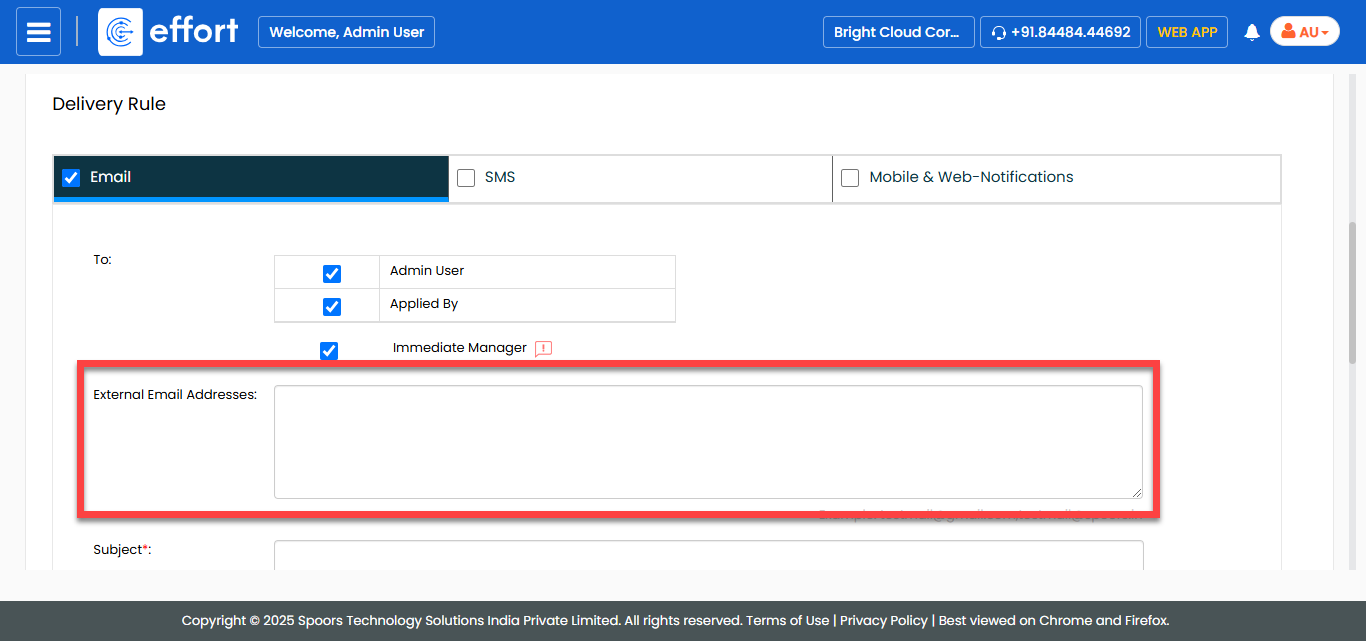
In the External Email Addresses field, enter the
email addresses to which you want to trigger email.
-
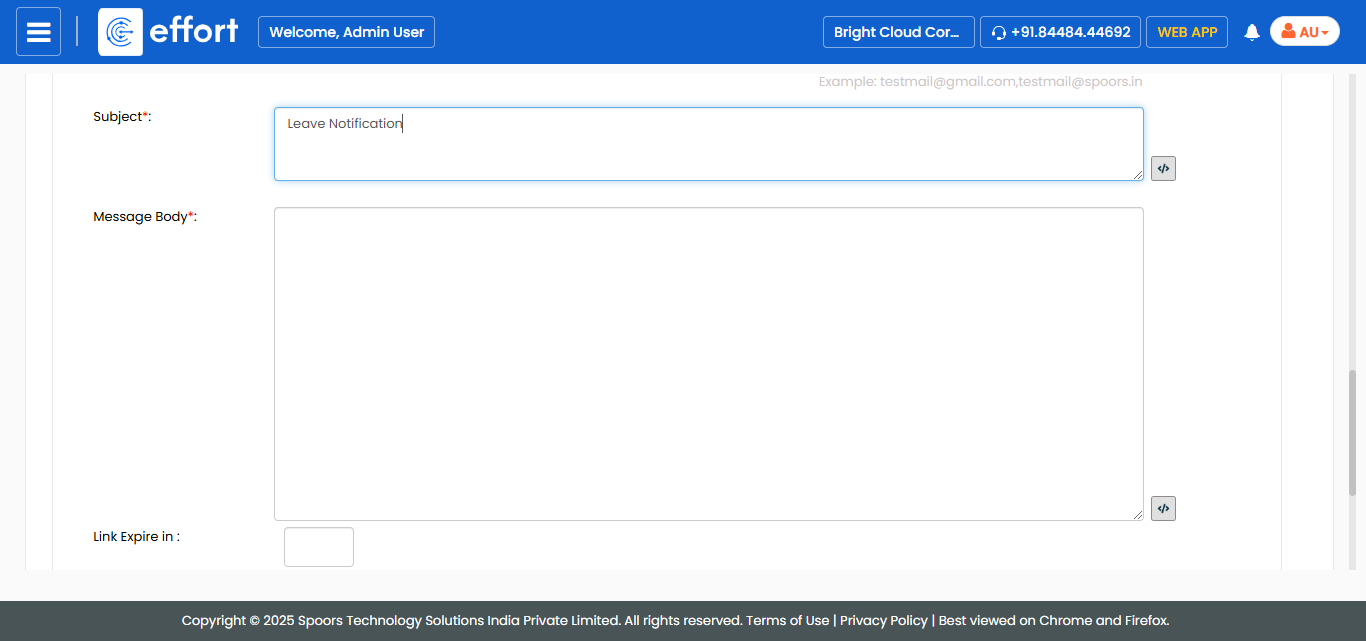
In the Subject field, enter the subject line for
the notification.

Click the pick fields icon to add fields such as employee name,
applied by, and from and to dates in the subject line.
to add fields such as employee name,
applied by, and from and to dates in the subject line. -
In the Message Body field, enter the
notification content.
-
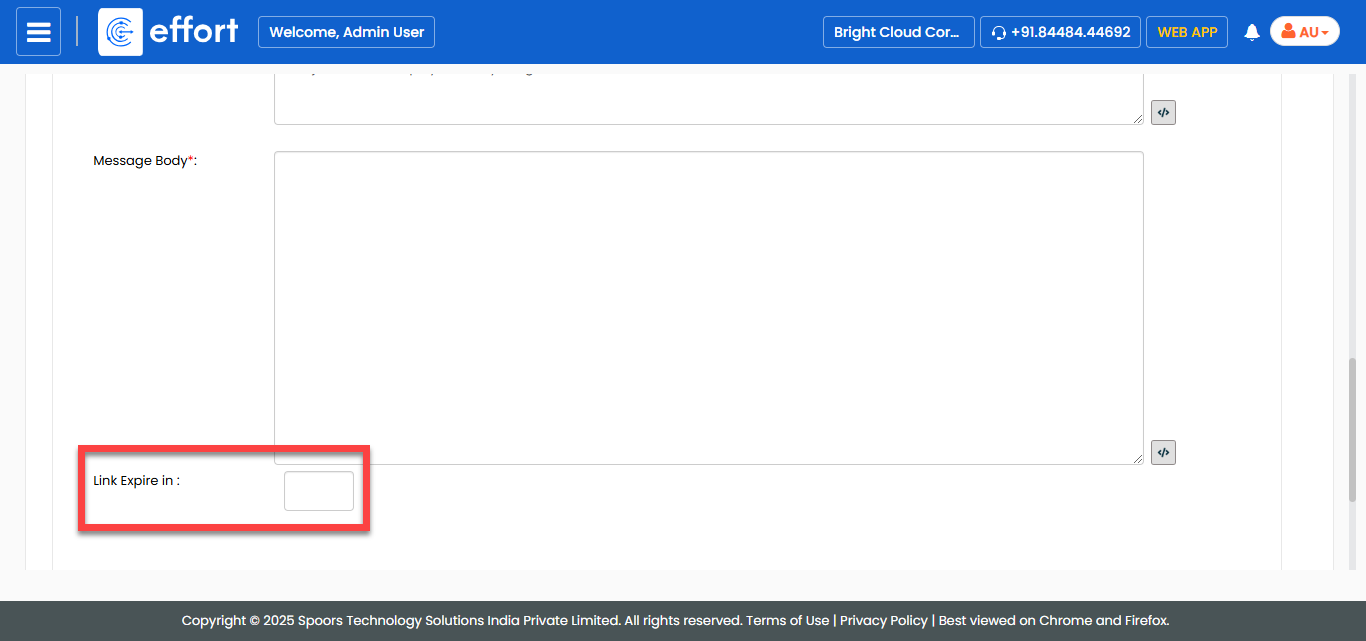
In the Link Expire in field, set the duration
for the link expire if the message body contains any links.
-
Select the notification delivery options as per your requirement.
- Click Save.