

Enable Automatic Employees Block/Disable Based on Employee Groups
To enable automatic employees block/disable based on groups, follow the steps below.
-
Go to .
The Employees page appears.
- Scroll down to the Utilities section.
-
Click the Automate Block/Disable Employees Based on
Groups card.

-
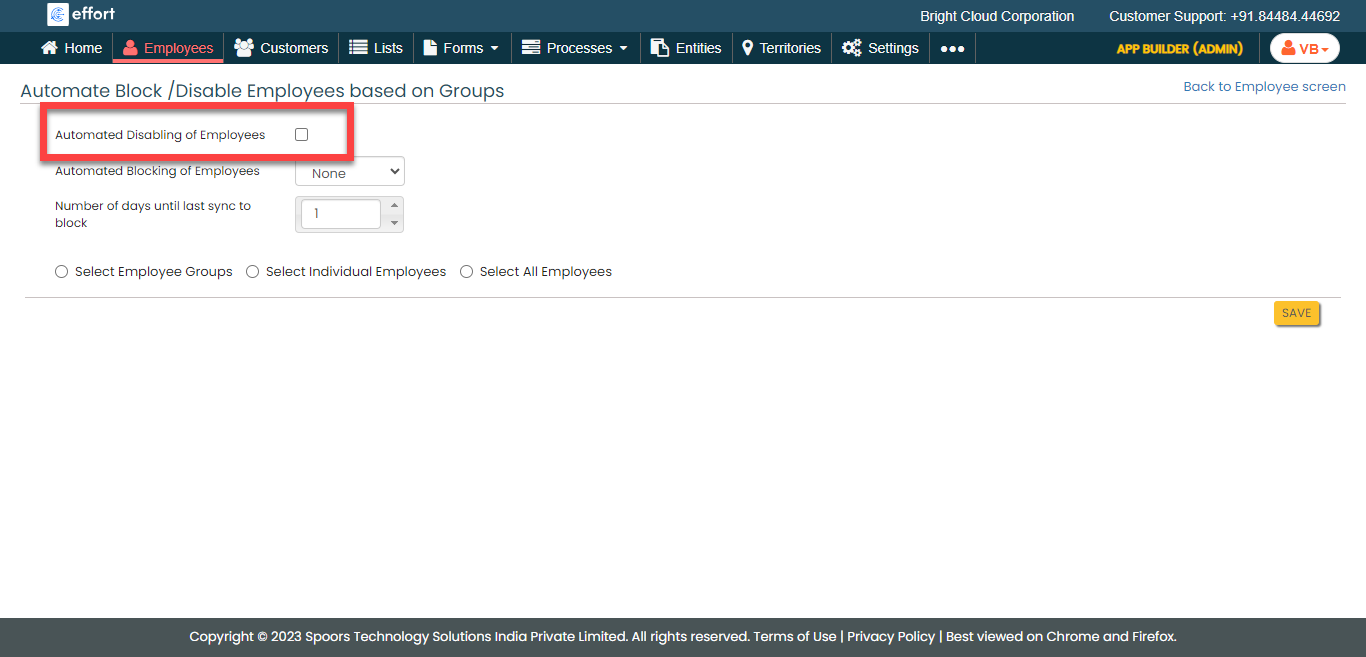
Enable the Automated Disabling of Employees
checkbox.
-
From the Automated Blocking of Employees dropdown,
select the users you want to block/disable.

- None: When this option is selected, no user will be blocked/disabled.
- Web Users: When this option is selected, The users who are login through web app will be blocked/disabled.
- Mobile Users: When this option is selected, The users who are login through mobile app will be blocked/disabled.
- Both: When this option is selected, The users who are login through both web and mobile apps will be blocked/disabled.
-
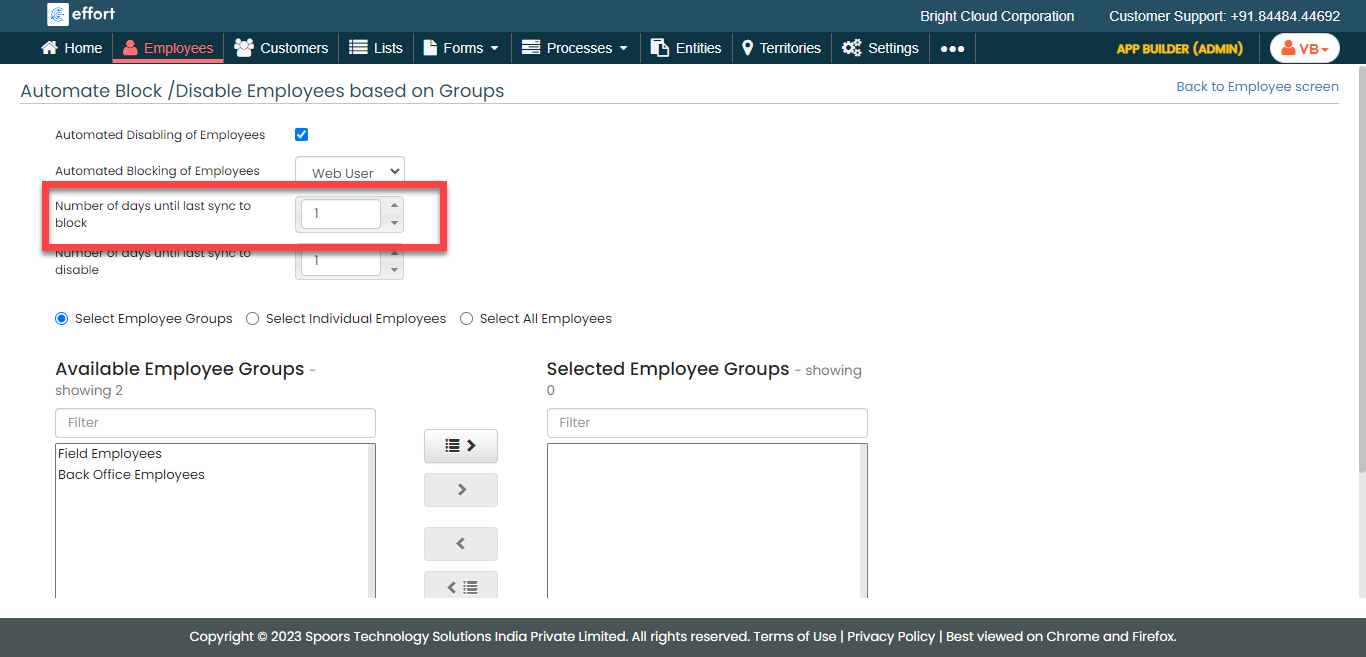
Define Number of days until last sync to block.
-
Define Number of days until last sync to disable.

-
Enable Select Employee Groups.

-
Under the Available Employee Groups section, click the
employee groups you want to block/disable and click the arrows to move them to
the Selected Employee Groups section.

- Click Save.