

Employee Master Management Flow
The Employee Master Management Flow allows you to map employee form submission fields to the respective employee fields.
By default, the field mapping configuration is already set. However, if you have added new fields, updated existing fields, or deleted fields in the registration form, you must update the mapping here to ensure data is correctly captured and stored.
To update the employee master management flow configuration, follow the steps below:
-
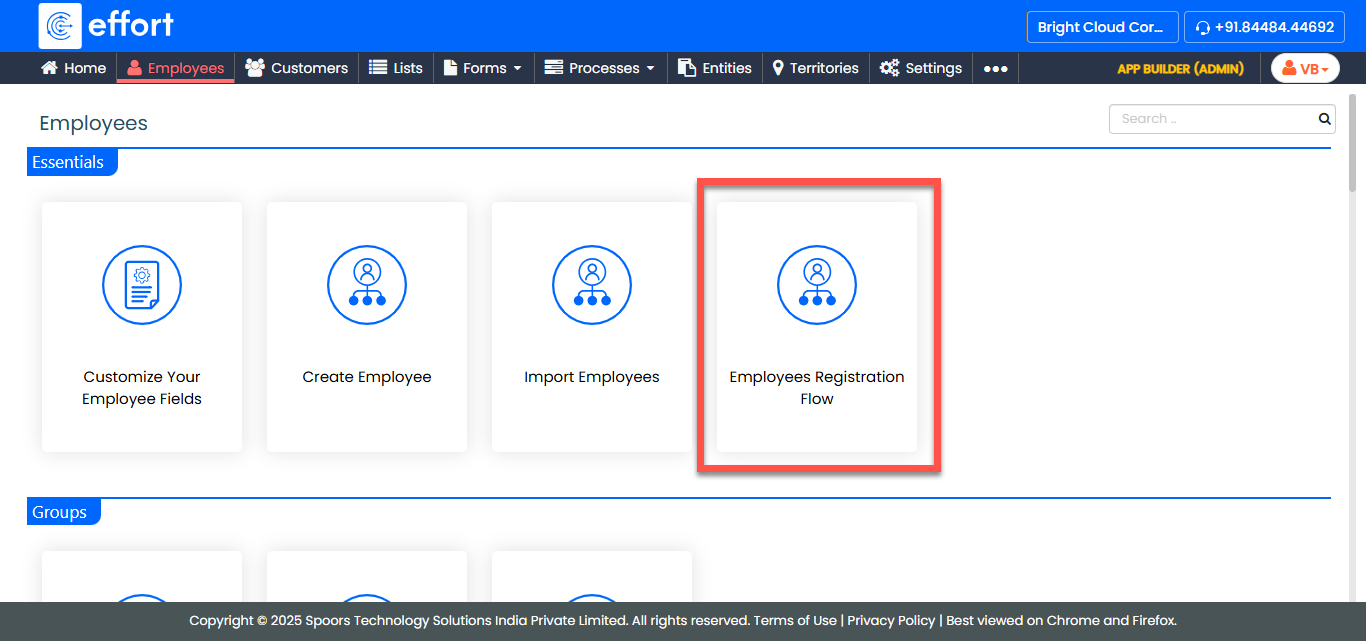
Go to .
-
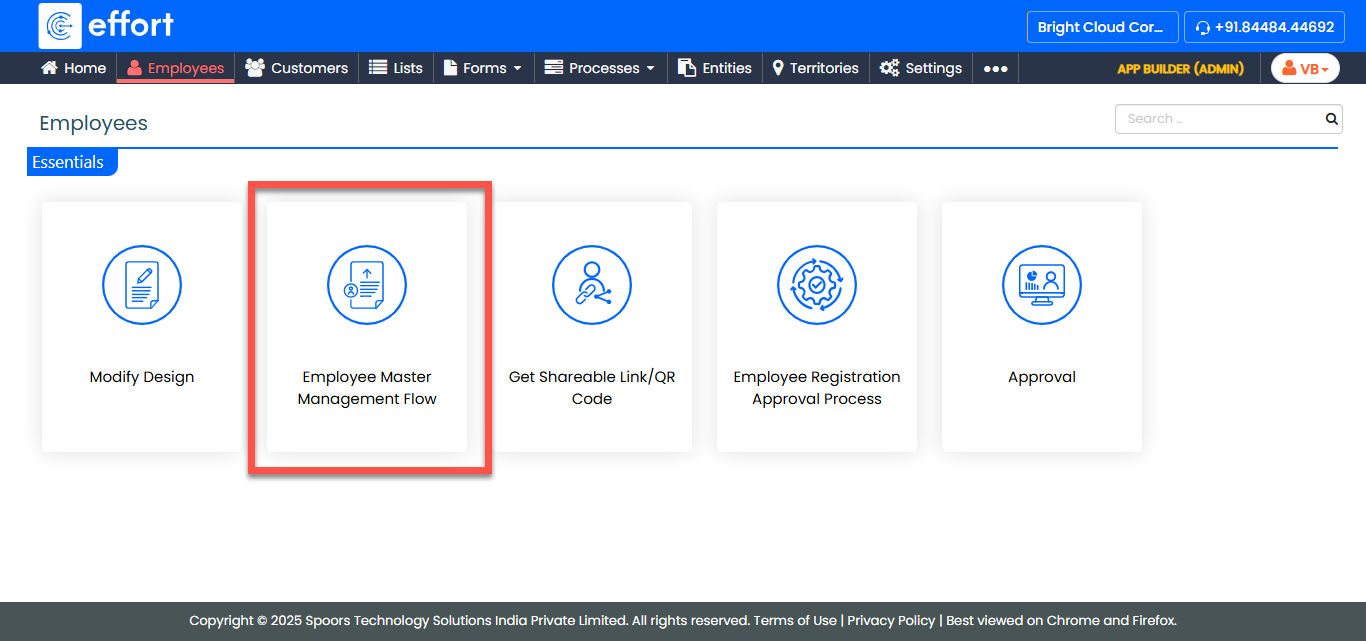
In the Employees page, click Employee Master Management
Flow.
-
From the Create Employee dropdown, select one of the following
options:
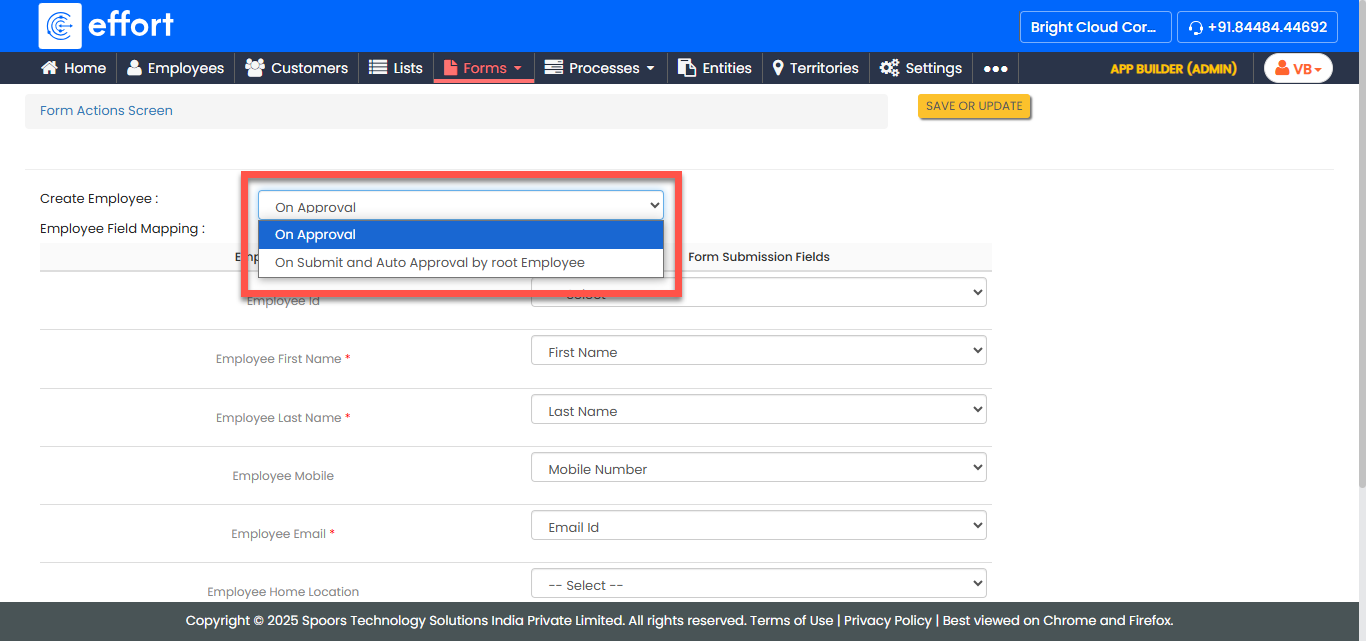
- On Approval (Default): Select this option if you want the employee record to be created only after the form submission is reviewed and approved.
- On Submit and Auto Approval by Root Employee: Select this option if you want the employee record to be created immediately after submission, with the root employee automatically approving the request.
-
In the Employee Field Mapping section, map the form fields to the
corresponding employee fields.

- Click Save or Update to apply your changes