

Get Shareable Link/QR Code
The Get Shareable Link/QR Code feature provides a link, QR code, or a unique code that can be shared with others to initiate the employee creation process.
You can share the generated link or QR code publicly, enabling anyone to access the employee registration form. Once an employee's record is submitted, it will require approval, after which the employee record is created in the system.
To get shareable link, code, or QR code, follow the steps below:
-
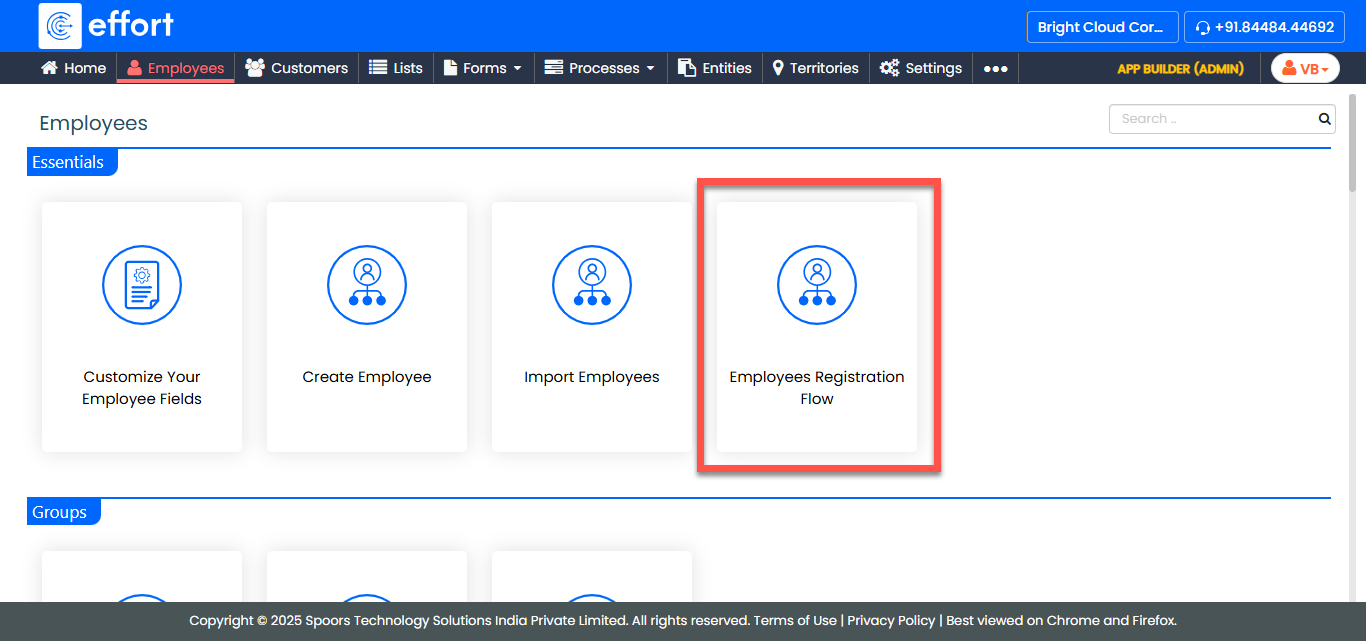
Go to .
-
In the Employees page, click Get Shareable Link/QR Code.

-
Choose one of the following options:

Option Description Link
Copy the link that can be shared with anyone. Anyone who accesses the link can submit the employee creation form. Once the submission is approved, the employee record is created.
Code
Copy the generated code and visit geteffort.com. When the code is provided on the site, the employee registration form will open. QR Code
Download the QR code. Scanning the QR code will open the employee registration form, allowing the user to fill out and submit the employee details.
-
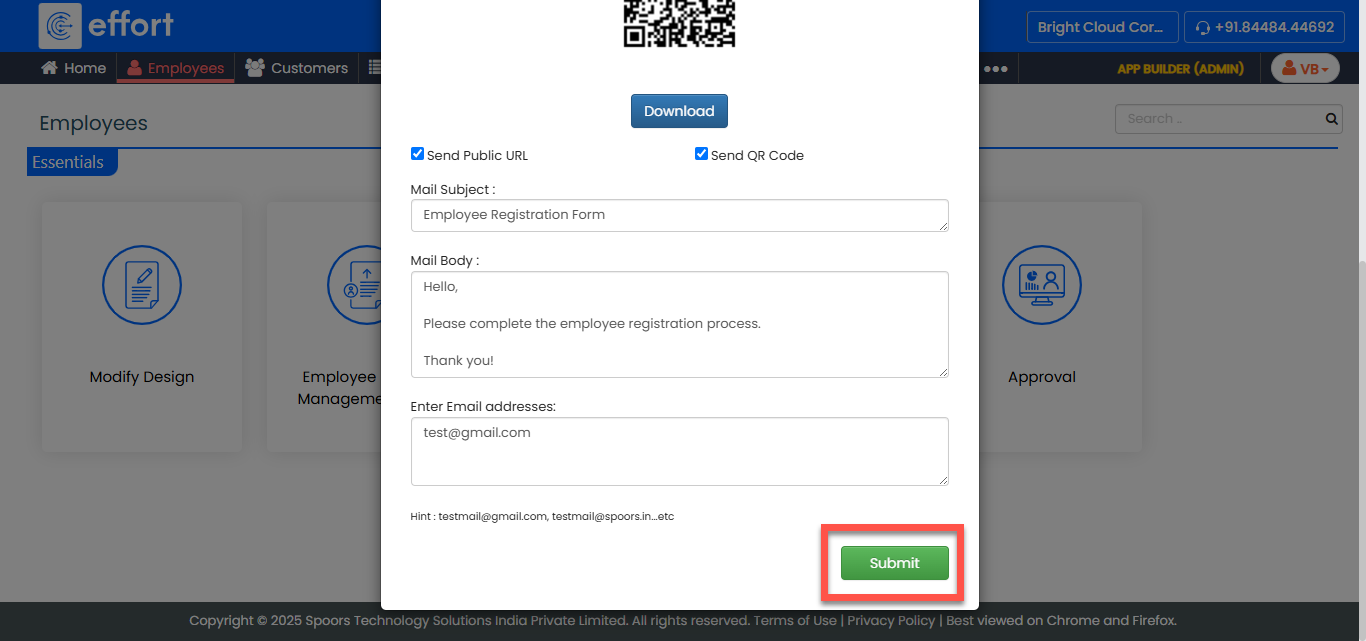
You can also send the generated link or QR code to the public through email. To
do this:
-
Select Send Public URL and/or Send QR
Code as per your requirements.

-
Enter the following details to send via email:

- Mail Subject: Enter the subject for your email.
- Mail Body: Enter the body content of the email.
- Enter Email Addresses: Add the email addresses to which the link or QR code will be sent.
-
Click Submit to send the email with the
shareable link or QR code.
-
Select Send Public URL and/or Send QR
Code as per your requirements.